

Quick Answer
“Out of Memory” error occurs when the browser uses up all the available memory due to too many open tabs or a website requiring a large amount of memory to load a new tab. To fix this, you can close unwanted tabs on your browser, clear the browser cache, disable unused extensions, remove the browser’s temporary files, and turn on memory saver to reduce browser memory usage; if these steps don’t fix the issue, try advance troubleshooting techniques below.
“Out of Memory error” is the most common issue on most browsers. This error occurs when the Browser uses up all the available memory and runs out of it. This error can occur primarily due to opening multiple tabs at once and installing multiple unwanted extensions, and sometimes buggy browser versions and temporary glitches in the web pages you are trying to visit.

You can quickly fix this issue yourself using simple trouble troubleshooting techniques. In this Guide, you will learn about 10 ways to fix the problem quickly. If you are ready, let’s dive in.
Table of Contents
How to Fix Out of Memory Issue on the Browser
S.No | Quick Fix | How to Fix |
|---|---|---|
1 | Close unwanted tabs | Manually close tabs or enable memory saver |
2 | Clear browser cache | Go to settings > clear browsing data |
3 | Turn on memory saver | Enable memory saver in browser settings |
4 | Disable unused extensions | Go to extensions > disable unused ones |
5 | Remove temporary files | Delete temp files from system storage |
6 | Reset browser settings | Reset settings from browser menu |
7 | Restart browser | Close & reopen browser or use restart command |
8 | Restart PC | Shut down & turn PC back on |
9 | Increase virtual memory | Adjust virtual memory settings |
10 | Uninstall & reinstall browser | Uninstall browser & reinstall fresh |
Try these Quick Fixes First:
Before going to advanced troubleshooting techniques, try these quick troubleshooting techniques that work for most users first.
Close Unwanted Tabs

When you open a new tab, Your Browser automatically allocates some memory and resources to open and load the content in the tab. When a task requires more memory than the Browser has available, It throws a memory error. Also, opening lots of tabs can lead to more memory usage, resulting in the same. To fix this, close unwanted browser tabs.
If you often face this error and have too many tabs open, You can install the Onetab extension, which converts all open tabs into a list, thus freeing a significant memory. I have been using this extension for the past six months, and this is a lifesaver, especially for my 8GB M1 Macbook Air.
Clear Browser Cache

The cache is most commonly used in web browsers to save frequently used data and helps websites load faster. Almost all web browsers use a cache to give a faster browsing experience. But over time, the cache can fill up and lead to unexpected errors on the Browser.
More Cache files can consume more memory and lead to browser run-out issues. To fix this, you can clear the cache on your Browser. Remember, clearing the cache might temporarily slow down website loading times and log you out of sites.
How to clear the cache on the browsers
Google Chrome:

- Open Google Chrome.
- Click on the menu and go to More Tools> Clear browsing data.
Microsoft Edge:

- Open Microsoft Edge.
- Go to Settings > Privacy > Clear browsing data and type edge: //settings/clear browser data in your address bar to access this function.
- Clear your browsing history, cookies, and cached images and files.
Mozilla Firefox:

- Open Mozilla Firefox.
- Click on the menu button and select Settings.
- Select the Privacy & Security panel.
- In the Cookies and Site Data section, click Clear Data.
- Click on the clear data to clear.
Turn On Memory Saver

Many popular browsers have rolled out memory-saver features to fix the out-of-memory issue. Different browsers use different methods to save memory. For example, the Google Chrome browser automatically closes the inactive tab if it has not been opened for a while, and the Microsoft Edge browser puts the inactive tabs in sleep mode after the user sets a specific time and reloads when the user revisits the tab.
Memory saver is available on all popular browsers but with different names. Here is how to enable Memory Saver features on most common web browsers.
Google Chrome
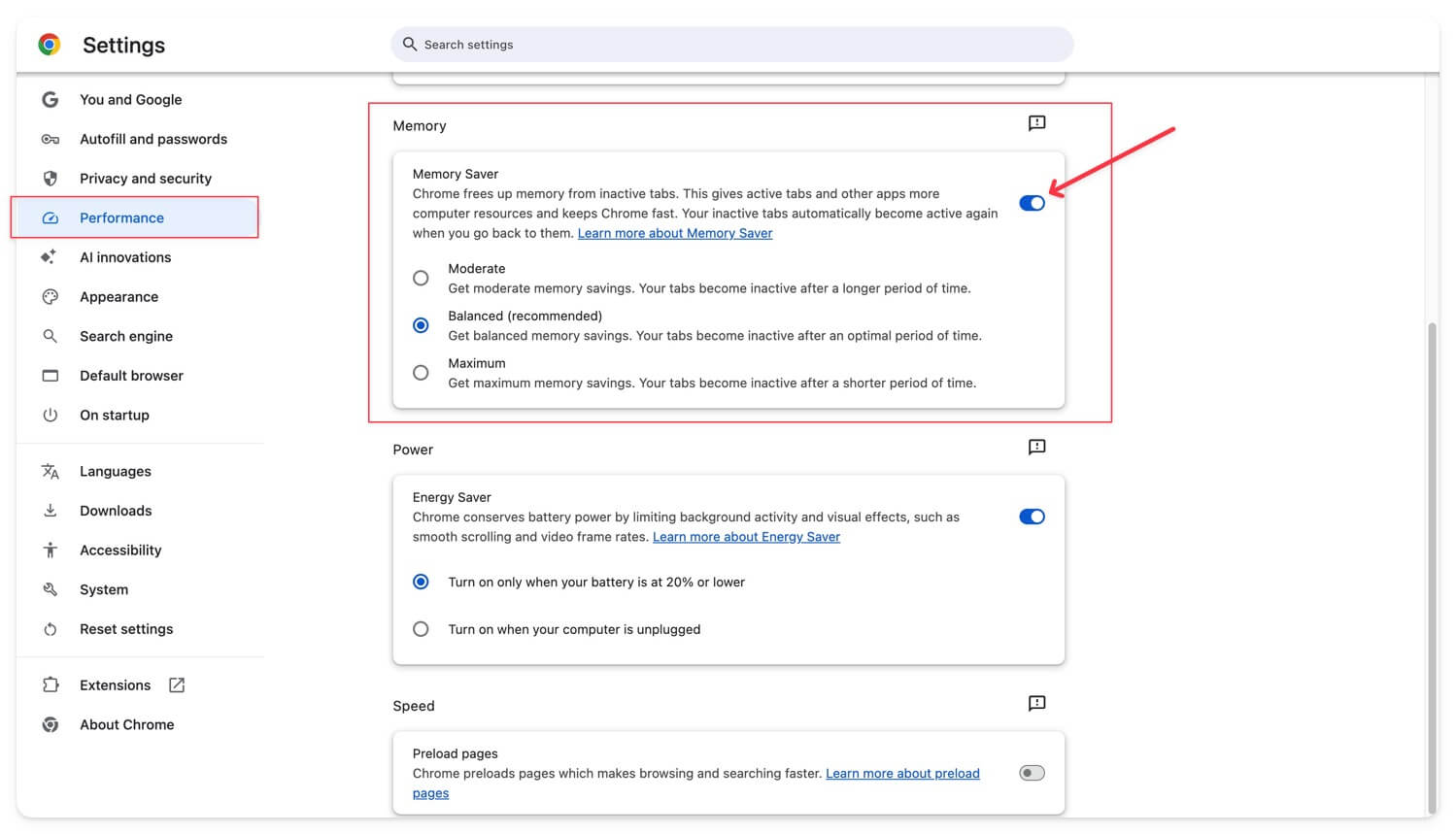
- Open Google Chrome settings and click on the Performance tab.
- By default, the memory feature will be turned on. If it’s not, Turn it on. If you don’t want Google Chrome to close specific sites, Click the Add button and select the current sites. To manually add a site, go to the Add Sites tab and enter the site URL.
Microsoft Edge

- Open Edge, click the three dots in the top right corner and select Settings.
- Click on System on the left sidebar.
- Turn on the switch for Save Resources With Sleeping Tabs.
- You can also decide how long a tab should be inactive before it sleeps. You can choose a time between 5 minutes to 12 hours.
- If there are websites you don’t want to sleep, click Add, type the website address, and click Add again.
Remove Temporary Files
Browsers also store temporary files in the device operating system to provide a faster browsing experience. Temporary files are different from the cache. Cache stores copies of web pages to load them faster the next time you visit.
On the other hand, Temporary files can be any data saved by programs to help them run. These include cache files, temporary data, logs, and more. In some cases, Temporary files can cause problems like browser-related problems. To fix this, you can remove them.
On Windows

- Open Settings on your computer.
- Click on System, then Storage, and then Temporary Files.
- You will see a list of temporary files. Check the boxes for the ones you want to delete.
- Click on Remove Files.
- A pop-up will ask for confirmation; click Continue to delete the temporary files.
On macOS

- Go to your desktop (main screen).
- Open the Finder window and press ‘shift-command-G.’
- Enter~/Library/Caches into the search bar and press enter
- Here, you will see the list of temporary files stored on your Mac. Select and delete them.
Disable Extensions

While the extension adds more web browser features, it can also increase memory usage. Some extensions run in the background, even when you’re not using them, which can also use up memory and lead to memory usage problems. Also, Some extensions might be poorly coded and use more memory than they should. To fix this, you can remove or disable them when not in use. Here is how to turn off extensions on most popular web browsers.
Open Google Chrome:
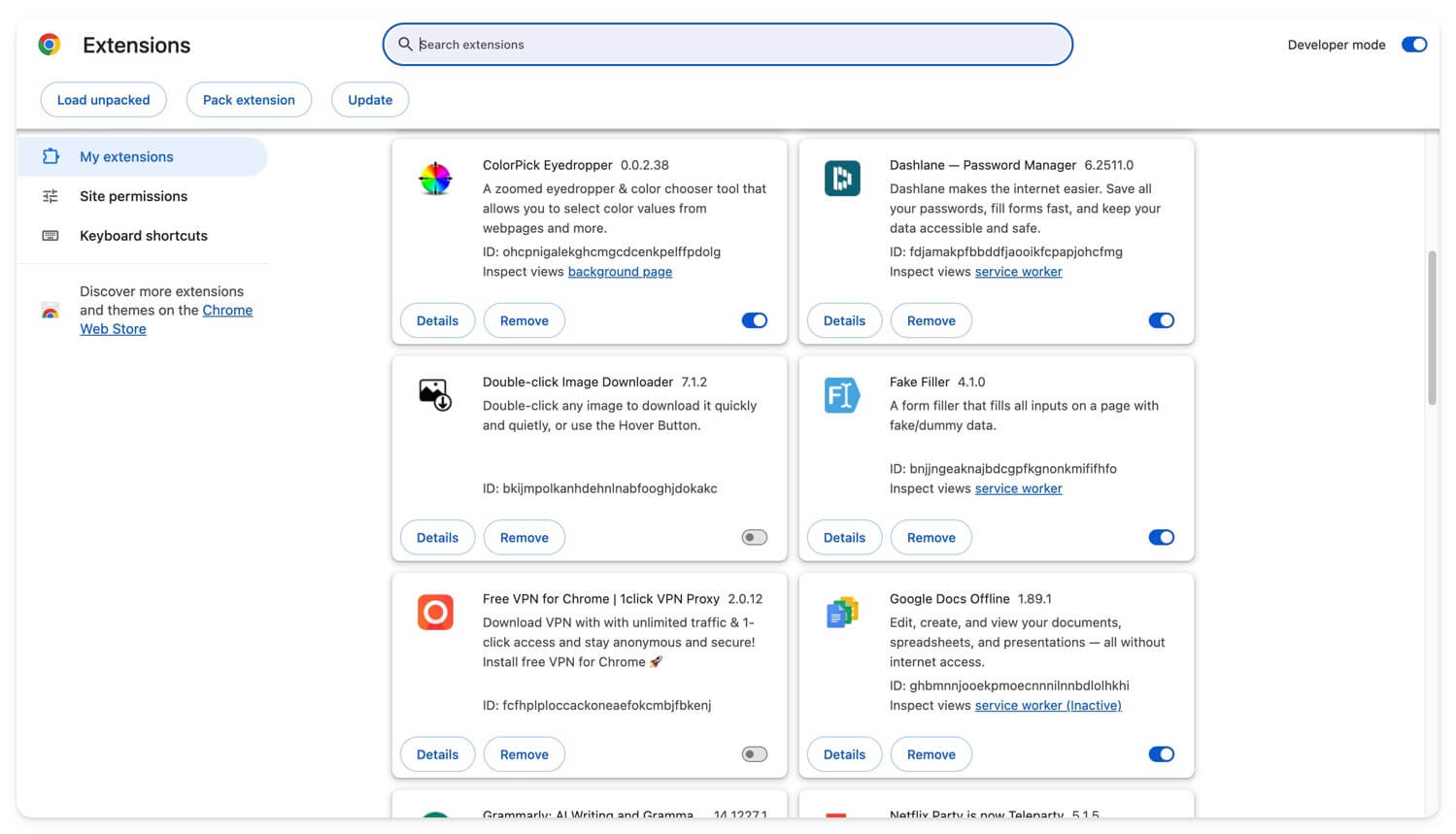
- Open Google Chrome on your device
- Click on the menu and go to Extensions.
- You’ll see a list of all your installed extensions. Find the extension you want to disable and Toggle the switch off (from blue to grey) next to the extension you want to disable.
- You can also click on the extension icon on the top clip, click on the three-dot menu, and remove the extension you don’t need.
Microsoft Edge

- Open Microsoft Edge.
- Click on the three horizontal dots (the Settings and More or More icons) at the window’s top-right corner. Select Extensions from the drop-down menu.
- You will see a list of all the installed extensions. Find the extension you want to disable. Toggle the switch beside the extension to turn it off.
Mozilla Firefox

- Open Mozilla Firefox.
- Click on the three horizontal lines at the top-right corner of the window.
- Select Add-ons from the menu, or press Ctrl + Shift + A on your keyboard.
- This will open the Add-ons Manager tab. In the Add-ons Manager, click on Extensions from the left sidebar.
- You’ll see a list of installed extensions. Find the extension you want to disable.
- Click on the toggle switch beside the extension to turn it off.
Reset Browser Settings

Settings you might have accidentally changed can lead to issues with your browser. It’s hard to know which settings are affecting the memory usage. You can reset the browser settings to see if the issue is resolved.
Google Chrome:

- Open Google Chrome.
- Click on the three horizontal lines in the upper-right corner of the browser window and Select Settings.
- Click on the Reset settings button located in the left sidebar.
- A dialog box will appear telling you what will be reset; click Reset.
Mozilla Firefox:

- Open Mozilla Firefox on your device, click the three lines at the top-right and then click Help.
- Click More troubleshooting information, Click on Refresh Firefox, and Confirm you want to reset.
- Click Finish. To reset.
Microsoft Edge:
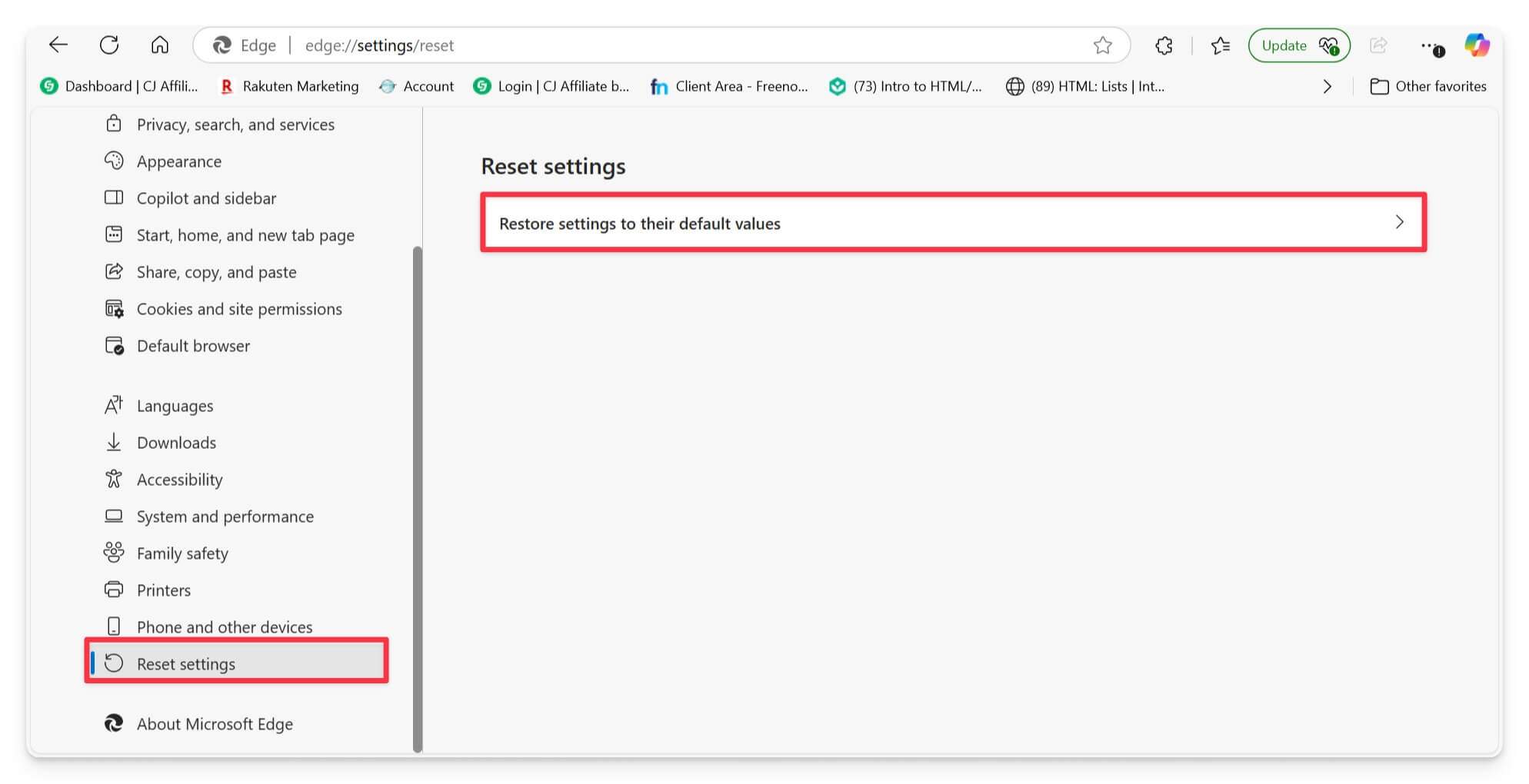
- Open Microsoft Edge.
- Click on the three dots at the top right of the browser window, then choose Settings.
- Select Reset Settings from the Settings menu.
- On the Reset settings menu, select Restore settings to their default values.
- A Reset settings dialog box will appear; choose Reset to complete.
Restart Your Browser

Restart your Browser clears out the memory it was using. This includes any data from websites you were visiting, active tabs, and more. Restarting the browser also shuts down many running processors, freeing up your browser’s memory.
Make sure that you don’t have active downloads when you are restarting a browser. Your downloads might get discarded, although some browsers can continue downloads after a restart. You can restart Google Chrome by typing the Chrome://restart command in the address bar, edge://restart on Microsoft Edge, about restart required if you use Mozilla Firefox, opera: //Restart on Opera browser.
Restart Your PC
If restarting your Browser doesn’t work, try restarting your PC. Sometimes, issues might be beyond just the Browser and may involve other parts of the computer’s System, so restarting the computer can be a more effective solution. Restarting the computer helps clear any temporary glitches or issues in the system memory and can often fix various problems, including those with the Browser. You can restart your device to fix these temporary issues.
Advanced Trouble Shooting Techniques
If those quick troubleshooting methods don’t help, you can try these advanced troubleshooting methods to fix memory errors on your browsers.
Increase the Virtual Memory Allocation

Virtual memory is a great option to extend the memory without installing any physical memory on your device. It creates memory space by using a portion of the hard disk as extra memory.
How to modify Virtual Memory on Windows

- Go to the Start Menu and click on Settings.
- Click on System, then About; under Related settings, click on System info.
- On the left pane, click on Advanced system settings.
- Now, under the Advanced tab, look for the Performance section and click the Settings button.
- Go to the Advanced tab, find the Virtual Memory section, and click the Change button.
- Now uncheck the Automatically manage paging file size for all the drives option. Select the C drive and click on the custom size.
- Now, set the initial size and maximum size in MB. According to the support documents by ESRI, virtual memory should be set between 1.5 to 3 times the amount of RAM on your computer.
- Calculate the RAM, set the minimum and maximum values, and click OK to save changes.
- Now restart your PC to set virtual memory.
Disable Hardware Acceleration
To offer faster browsing performance, many browsers, including Chrome and Firefox, have started offering hardware acceleration support, which uses available GPU resources for performing tasks. While this can increase browser performance and reduce the load on the CPU, sometimes it can lead to memory leaks and increased RAM usage, resulting in memory issues on your browser. If you use hardware acceleration on your browser, disable it and see if the issue is resolved.
How to disable hardware access in Google Chrome:

- Open Google Chrome Settings
- Go to the System tab in the settings and turn on the feature that says: Use graphics acceleration when available.
How to turn off GPU acceleration on Microsft Edge Browser

- Open Microsft Edge browser
- Go to the system and performance tab and then turn off the option to Use graphics acceleration when available.
Uninstall and Re-install the Browser
If none of the steps worked for you, uninstall and reinstall the browser. When you uninstall, it removes the Browser and all files associated with the Browser from your device. A fresh installation gives the Browser a fresh restart without the previous problems. Ensure you also remove the files associated with the Browser when installing. Most operating systems allow you to remove the files associated with the Browser and the uninstallation. You can select the option.
Enjoy a Faster Browser Without Interruptions
Memory Problems are most common in web browsers. You can follow the troubleshooting techniques to fix any memory issues on your Browser. Many browsers also started rolling out several features to control memory usage. You can enable them to prevent similar issues in the future. Also, make sure that you update the browsers frequently. Finally, consider using these alternative browsers that are light and consume less memory. Popular options include Opera GX, K-Melon, qutubrowser, Lunaspace, and more. You can comment below if you still have any other questions and cannot solve the issue. We are happy to be helpful.
FAQs on Fixing Out of Memory Error on Browsers
1. Does using a browser’s memory saver feature slow down performance for some websites?
Yes, Memory save features on most browsers limit the performance and automatically offload inactive tabs from memory, resulting in slower loading time and some time reloading the ensure web page.
2. How do I know which browser extensions use too much memory?
You can visit Chrome://extensions for extensions on Google Chrome. Click extension details and look for the memory footprint; for the browser, you can go to edge://system, go to memory usage, and expand. Finally, for Firefox, you can go to about performance, which will display all extensions and memory usage of the browser.
3. Why does my browser use high memory even with few tabs open?
If you are getting a high memory usage error even with limited tabs, this can be due to browser issues or specific web pages causing the issue. Check if the issue is related to a specific website. If yes, reload the site and clear the cache of the site. Also, check background processes on your computer to see if other applications are causing the issue. Remove unsafe extensions and check if the problem is resolved.
4. Can enabling too many experimental browser features cause memory issues?
Sometimes, enabling too many experimental browser features can cause memory issues since they are not optimized for the stable version. Too many features running in the background can lead to memory usage issues. You can disable all those features and switch to the stable version for better memory management.
5. Can I upgrade my RAM to solve this issue?
Yes, you can upgrade your RAM for more memory. However, before you buy more RAM, you might want to try the tips I mentioned earlier to see if they solve the problem. Adding more RAM could be a good solution if you still have issues after that.

