

Nowadays, calendar apps can do much more than just display appointments. They help us plan our days, remind us of important dates, organize our lives and much more. We can use them to set up meetings, add events, invite people, remember birthdays and even plan our daily tasks. If you own an iPad and are looking for the best calendar apps for your iPad, we’ve got something for you. In this guide, you’ll learn about the 11 best calendar apps for iPad. The list includes basic to advanced calendar apps that are suitable for all types of users.

Table of Contents
Best Calendar Apps for iPad
1. Apple Calendar: Best-inbuilt offering from Apple
2. Google Calendar: Best for people who use multiple operating systems
3. Pencil planner and Calendar Pro: The best app if you own an Apple Pencil and want to write and plan your days manually
4. Microsoft Outlook: The best option if you’re looking for a professional calendar app for your iPad to manage and create appointments, organize meetings, view group schedules, and more.
5. Structured: Best Daily planner app
6. Tiny Calendar: Planner & Tasks: Best for people who want to use multiple calendars
7. Fantastical Calendar: Best option for people looking for an advanced calendar app that offers powerful features like natural language text parsing, tasks, time zone support and more.
8. Vantage Calendar: The best option for those looking for a more visual calendar app to schedule tasks and events. The app offers visual cues like colors, stickers, book covers and stacks to make your schedules more engaging and easier to understand.
9. Calendars: Planner & Organiser: The best option for people who want to manage their schedules on multiple devices. The app provides an easy way to collect all your schedules, calendars, routines and tasks in one place and supports multiple calendars.
10. SimpleCal: Simple calendar app to view important dates and add events. No fancy features.
11. Notion Calendar: Best Calendar app for Notion workspace Users
Apple Calendar
Apple Calendar is our top choice because it offers robust features and integrates seamlessly into the Apple ecosystem. Plus, it’s pre-installed on your Apple devices, including the iPad. Apple Calendar offers a simple and easy to use interface, with the ability to set up multiple calendars and view them separately, you can add events, it supports color coding to easily distinguish between different events, reminders and notifications, share and collaborate with others, and much more. You can also access the calendar from other Apple devices and syncs the data in real time.

Starting with the core functionality, Apple Calendar provides an easy way to view days, weeks and months and includes information about holidays and other important dates. The app provides a detailed view of the day, week, month and year. You can simply tap on any day or date in the calendar to get a detailed view of the day, listing all the activities and events of that day. You can also create separate calendars for work, home and more. Each calendar can be color-coded so you can quickly differentiate between work, family and personal events.
The app allows you to manage all your event information in one place. You can also import events from different accounts such as iCloud or Google. For example, it can display events from your Google or Outlook calendar. You can also invite people to the event via email, add notifications, set the event as a recurring event, add attachments and events and much more. The information added or updated in the Apple Calendar app on the iPad is synchronized with other Apple devices.
You can also use the app to set notifications and reminders for an event. In addition, if you add the location of the event, such as the name of the restaurant, Apple Calendar will automatically fill in the address for you and show you the map and weather in real time, which can be very useful when planning and scheduling events.
The calendar is also pre-installed on Apple devices and can be used free of charge. If you have accidentally deleted it or it is not available on your device, you can download the app for free from the App Store. It is ad-free and you can use the same account on all your Apple devices.
Google Calendar

Google Calendar is the best option if you use different operating systems such as an Android phone and an iPad. The app integrates easily with other Google services such as Google Tasks, Google Meet and others. In addition, you can also connect Google Calendar with Apple Calendar and synchronize events and other information with the Apple Calendar app.
Google Calendar offers a simple and easy-to-use interface. The app is optimized for the iPad and uses the full screen to quickly switch between monthly, weekly and daily views. You can create an event manually or if you use Gmail, all events such as flights, hotels, concerts, restaurants and more are automatically added to your calendar.
The app also allows you to create, manage and view your tasks along with the calendar events. Google has also added smart suggestions using AI to the Google Calendar with smart suggestions for event titles, locations and people to help you save time when creating an event.
Google Calendar also supports multiple accounts. If you have an existing Google account, the app will automatically pull the events and other calendar information from your account. You can also add shared and collaborative events, invite people to the event and much more. The changes you have made in Google Calendar iPad are automatically synchronized with all devices that have the Google Calendar app installed with the same account.
Pencil planner and Calendar Pro

Pencil Planner and Calendar Pro is the best app if you own an Apple Pencil and want to write and plan your days manually. The app offers a combination of digital and paper-based planning, allowing you to type or handwrite your schedule and plan your events. You can use your Apple Pencil directly to write events in the Calendar app.
The app is perfectly compatible with the iPad and allows you to sort the calendar by day, week, month or year. You can tap on any week or month in the Calendar app to get all the information about the day and scheduled events.
The biggest highlight of the app is the event planning: you can create events both in text form and handwritten. You can use the Pencil app, select the month or day and start writing the event manually. The app allows you to write anywhere on the screen while the app is open. You can also mark the days in a month and add an exclusive event to the days, e.g. select the days in a month and mark them as a vacation.
In addition to the notes, you can also use the app to create tasks and add reminders to the tasks. You can also customize the look of the planner, the drawing settings and much more. The calendar app automatically imports important events from your Apple calendar or other calendar apps. The app also connects to other calendar apps and imports events, plans and more. It also synchronizes data in real time.
Overall, Pencil Planner and the Calendar app is the best option if you own an Apple Pencil and want to plan handwritten events. The app is simple and fun to use. The app also offers a premium version that unlocks the year view in the calendar and other features.
Download Pencil Planner and Calendar
Microsoft Outlook

Microsoft Outlook is the best choice if you are looking for a professional calendar app for your iPad to manage and create appointments, organize meetings, view group schedules and much more. The Outlook calendar function is offered together with Outlook emails. If you use Microsoft services for your work, Outlook Calendar is the best option to install on your iPad.
Starting with calendar events, you can select any time slot in the Outlook calendar and start creating an event. Similar to Google Calendar, Outlook also automatically imports the events from the email and adds them to your Outlook calendar. You can set and use different email reminders.
If you have access to a SharePoint site, you can see its events in your Outlook calendar and make changes even when you are offline. You can also send your calendar to another person as an internet calendar and control how much information is shared. Speaking of collaboration features: Outlook offers several collaboration features to organize meetings with other people, view group schedules, email calendars to others, manage another user’s calendar, and more.
Overall. Microsoft Outlook is the best choice if you are looking for a professional calendar app for your iPad. The calendar is included in the Microsft Outlook app, which is primarily an email client that also offers calendar, contact and task management features. You can easily manage your emails and use the calendar app to schedule appointments and meetings.
Structured

Structured is a daily task planner app designed for people who are looking for a visual way to create their daily tasks. With The app, you can easily plan your day and add tasks and events in one place. Based on the calendar days, you can easily select and plan your day.
Starting with the day planner, you can select the wake-up and bedtime after installing the app. Based on your times, the app automatically schedules your wake-up and bedtime every day. You can add tasks in between. You can set the time, color and frequency of the tasks, e.g. once, daily, weekly or monthly (this is only possible in the premium version of the app). You can also set the remainder for each task.
When you have completed the task, you can simply tap on the task to mark it as completed. You can add an unlimited number of tasks. In addition to these features, the app also supports widgets for the lock screen and home screen, which can be very helpful to plan your day without having to open the app. The widgets are available for both iPad and iPhone.
The structured app is also available for the iPhone and everything you do in the structured app for the iPad is automatically synchronized and updated with the iPhone, which is very handy. You can download and use The app for free. You can subscribe to a premium plan to enjoy additional benefits such as scheduling recurring events, importing calendar events from other calendar apps such as Apple and Google calendars, premium icons, advanced notifications and more.
In the latest version, the app introduces a new feature for professional users: the Structured Assistant. This feature uses AI to help you plan your day with natural language. You can simply tell the assistant what you have planned for the day and it will generate a list of tasks for you. I find this can be very helpful. For example, you can ask the app to plan a day so that you wake up at 8am, take thirty minutes to freshen up, and catch the flight at 11am, which I will catch in an hour, and then I have to attend an event and send an important email to my team leader and finally sleep at 10:ooam.
Overall, Structured is the best app if you are looking for a day planner based on calendar days. The apps allow you to add events and tasks in one place and manage them efficiently.
Tiny Calendar: Planner & Tasks
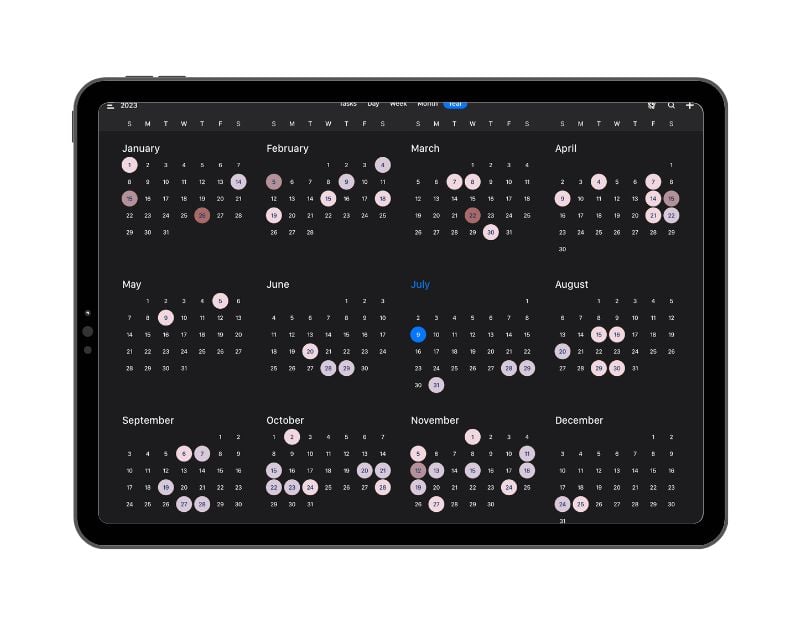
In The app, you can choose between the local (Apple Calendar) and Google Calendar. If you select the Google calendar, you must sign in with your Google account. Once you have successfully logged in, the app automatically imports the events into the app. If you select the Apple calendar, the app imports all important events and information from the Apple Calendar.
The app offers various options for viewing the calendar, including days, weeks, months and years. If you tap on them, you will get more details about the day, week or month. You can easily switch between the different layouts by swiping. The app also supports forecasts, mini months, 4-day views, weekly plans and agendas.
You can easily add an event by clicking on the plus icon at the top. You can add the title, reminder, recurrence of the event (recurring events), a description and more. There are also advanced reminders that allow you to be reminded of all events via push notification or email. The app also works offline. You can edit, delete or change events when you are not connected to the internet. The app automatically saves everything in the cache and synchronizes again when you have a connection. You can also add tasks, but this is only possible in the premium version of the app.
The app is available for both the iPhone and the Apple Watch and automatically synchronizes the data between the devices. The app is free and there is also a paid subscription that allows you to unlock additional benefits, such as no ads, important Google tasks, multiple Google accounts and multiple reminders, custom rules for recurring events and more.
Download Tiny Calendar: Planner & Tasks
Fantastical Calendar
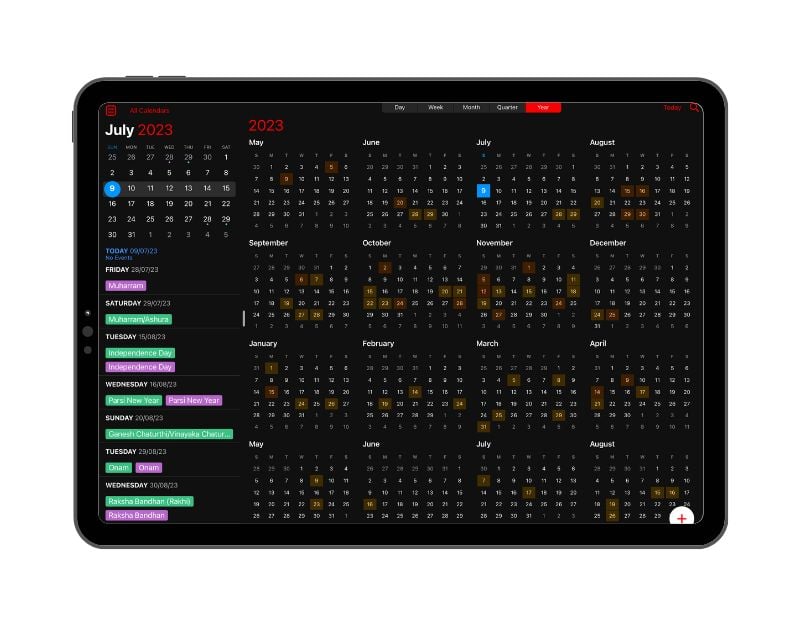
Fantastical Calendar is the best option for anyone looking for an advanced calendar app that offers powerful features like natural language text parsing, tasks, time zone support and more.
Starting with the core feature, the app lets you select the calendar of your choice, including iCloud, Google, Office 365, Yahoo and more. The Calendar app automatically synchronizes with the Calendar app and imports information and important dates. You can view the calendar in different layouts such as day, week, month, year and more.
You can easily create an event with a simple text prompt, such as “dinner at 9pm”, and the app will automatically turn your text into an actual event using natural language. You can also add the event or task manually by selecting the advanced options. The app also allows you to add and manage tasks from your to-do list and Google Tasks.
The app offers a simple and easy to use interface to create tasks and add events. The app is free and can also be used with a premium subscription. The app offers a 14-day free trial for Flexibits Premium, which includes Fantastical on all platforms: Mac, iPhone, Apple Watch and iPad.
Premium features of the app include an extended 10-day weather forecast, the ability to add Zoom, Google Meet, Webex and Microsoft Teams calls, event and task templates and priority email support. The app can be linked to many popular calendar services such as iCloud, Google, Exchange, Office 365, Todoist and Yahoo. It is available in multiple languages, including English, French, German, Italian, Japanese and Spanish.
Related Read: The 7 Best Calendar Apps for iPhone
Vantage Calendar

Vantage Calendar is the best option for anyone looking for a more visual calendar app to schedule tasks and events. The app offers visual cues such as colors, stickers, book covers and stacks to make your schedules more appealing and easier to understand. Vantage Calendar is a paid app that you can use for free for 7 days. After that, you will need to upgrade to the premium version to use the app.
Starting with the user interface, the app offers simple and visual ways to plan and schedule your tasks. The app has a stack that allows you to add tasks with more visual elements to easily manage and differentiate the tasks. You can add multiple events and tasks in a day. The tasks and events are arranged in a stack. The higher the stack, the more things you have planned. You can tap on each task to learn more about its content, including the time of the event and recurring events.
You can synchronize and add multiple calendars, including Apple Calendar, Google and others. You can also invite other people to the event using the built-in collaboration features. The app is also available for iPhone and Apple Watch. It supports data synchronization, where the app information is automatically updated on all your devices.
Calendars: Planner & Organiser

The “Calendars: Planner & Organiser” app by Readdle is the best option for people who want to manage their schedules across multiple devices. Whether you are working, studying and have a busy schedule or want to keep track of personal appointments, this app is the best choice for you. The app offers an easy way to collect all your schedules, calendars, routines and tasks in one place. You can add multiple calendars from Google, iCloud or Outlook as well as other internet calendars to keep track of important events and notable dates.
The app offers a simple and easy-to-use interface. It contains different calendar layouts, including tasks, days, weeks, months and years. Depending on which Calendar you have selected, the app automatically imports important events and information and synchronizes them with the calendar. You can also add the events manually and customize them with various options. If you subscribe to the premium version, you can also use the app to add individual tasks and more.
The app is free and you can upgrade to the premium version to unlock additional benefits, such as the ability to create tasks, add multiple accounts and calendars, and natural language input support that allows you to create custom events with simple text inputs. add reminders to the tasks and events, create rooms and invite teams, and add internet calendars that include sporting events, movie showings and more.
Download Calendars: Planner & Organiser” app by Readdle
SimpleCal
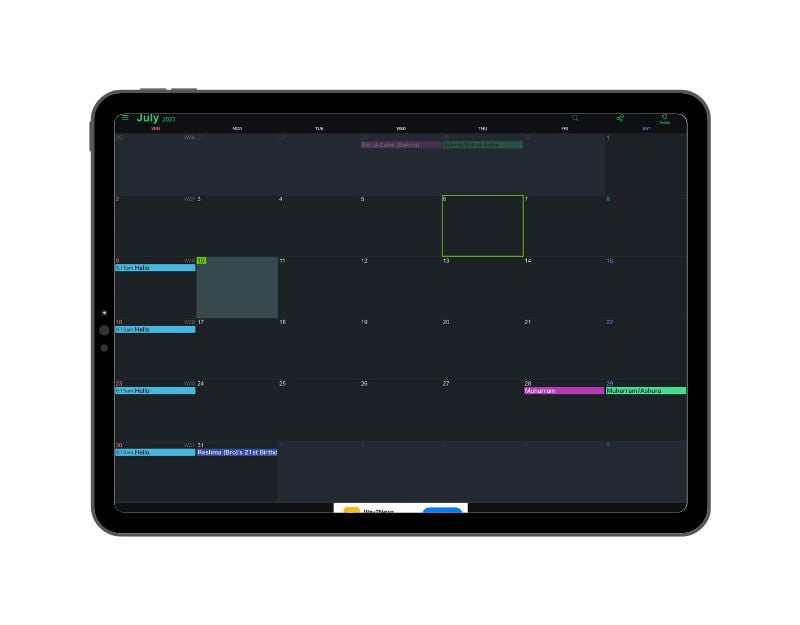
Let’s finish off the list with a simple calendar app from Yehi Kawase. If you’re looking for a calendar app that shows you appointments in addition to adding simple events without fancy features, the SimpleCal app is the best app for you. The app mainly focuses on important dates in your calendar and events.
Even the user interface allows you to display the calendar in different layouts. It uses the widget layout in which it displays your recent and upcoming events to quickly complete upcoming tasks. You can choose the calendar you want. You can choose between the Apple or Google Calendar. When you select the calendar, it automatically imports the events and other important information.
You can also add the event manually. You can simply add the event by tapping on any day of the week. You can add the title, location, time, recurring evenings and more. There’s no option to invite people, which is good if you’re looking for a simple Calendar app.
Other features of the app include reminders for important events, customization of the app interface with custom colors, and more. Overall, Simple Cal is the best option for anyone looking for a simple Calendar to see important dates and events. The app is free and comes with ads. You can upgrade to the premium version to get rid of them.
Download Simple Calendar – SimpleCal
Notion Calendar App

Notion announced its new dedicated calendar app for iOS (at the time of writing, the Notion Calendar app is available for Mac, iOS and Windows). It is designed to help users organize dates, tasks and projects effectively. It is also available for iPhone and may be the best calendar app for Notion Workspace users. The app is not optimized for the iPad version. The app is only the best option if you are a Notion user. You can download and use the Notion app on the iPad, but it is currently tailored to the screen size of the iPhone.
The Notion calendar integrates seamlessly with other Notion tools. This means you can link database entries, tasks and notes directly to calendar data. Users can customize their calendar view. You can choose between a monthly, weekly or daily view. You can also add color codes and tags for better organization. The calendar has a drag-and-drop functionality. You can rearrange tasks and events by simply dragging and dropping the events or tasks. You can simply click and drag them to a different date or time.
The best thing about Notion Calendar is its template support. It offers a range of templates for different use cases, such as project planning or content calendars. This can be a great time saver without having to create the app from scratch. You can share your calendar with team members or your family, so it’s also great for collaborative work or planning. The calendar can be easily integrated into the Notion tools. It also has a built-in link to other appointments, so you don’t need a separate scheduling app.
The Notion Calendar app is available in 12 languages, including English, Japanese, Korean, French, German, Spanish, Portuguese, Danish, Dutch, Finnish, Norwegian and Swedish. The Calendar can also be integrated with other apps such as Google Calendar, Google Meet, Zoom and Arc. You can also add custom links and more. You can also connect multiple calendars and easily synchronize work and personal calendars.
Notion Calendar is free to use. There’s also the Plus plan, which costs $8 per user per month and offers unlimited blocks for teams, unlimited file uploads and more. The Business plan, which costs $15 per user per month, includes everything in the Plus plan, plus enterprise-friendly features like SAML SSO, private team spaces and bulk PDF export, and more. There is also an optional add-on available for $10 per member per month.
Related Read: How to Sync Notion with Google Calendar
Side by Side Comparison of Best Calendar Apps for iPad
Feature/ App | Apple Calendar | Google Calendar | Pencil Planner & Calendar Pro | Microsoft Outlook | Structured | Tiny Calendar | Fantastical Calendar | Vantage Calendar | Calendars by Readdle | SimpleCal | Notion Calendar |
|---|---|---|---|---|---|---|---|---|---|---|---|
Event Creation & Management | Yes | Yes | Yes | Yes | Yes | Yes | Yes | Yes | Yes | Yes | Yes |
Multiple Calendar Views (Day, Week, Month, etc.) | Yes | Yes | Yes | Yes | Limited | Yes | Yes | Yes | Yes | Limited | Yes |
Sync Across Devices | Yes | Yes | Yes | Yes | Yes | Yes | Yes | Yes | Yes | Yes | Yes |
Integration with Other Apps | Yes | Yes | Yes | Yes | Limited | Yes | Yes | Yes | Yes | Limited | Yes |
Customizable Reminders & Notifications | Yes | Yes | Yes | Yes | Yes | Yes | Yes | Yes | Yes | Yes | Yes |
Collaboration Features | Yes | Yes | Limited | Yes | Limited | Yes | Yes | Limited | Yes | Limited | Yes |
Natural Language Input | No | Yes | No | Yes | Yes | No | Yes | No | Yes | No | No |
Task Management | Limited | Limited | Yes | Yes | Yes | Limited | Yes | Limited | Yes | Limited | Yes |
Unique Features (e.g., Apple Pencil Support, AI Assistance) | Apple Ecosystem Integration | AI Suggestions, Smart Integration | Apple Pencil Support | Professional Outlook Integration | Structured Assistant (AI) | Offline Access | Natural Language Text Parsing | Visual Calendar Design | Multiple Calendars Management | Simple, No-Frills Design | Integration with Notion Workspace |
Cost (Free or Paid) | Free | Free | Paid | Free | Free, Paid Upgrade | Free, Paid Upgrade | Free, Paid Upgrade | Paid | Free, Paid Upgrade | Free, Paid Upgrade | Free, Paid Plans |
How to Choose the best Calendar app for your iPad
- Setting up events: Events are the biggest item on the calendar these days. Make sure the calendar you choose has the function to set up new events, appointments or reminders. You should be able to name the event, set a date and time, specify a location and invite participants. You should also be able to easily edit these details if required. If you don’t want events, you can opt for calendar apps that simply show dates and months.
- Notifications & Reminders: Some Calendar apps allow you to customize how and when you receive these notifications, such as through pop-up notifications, emails or even text messages. Notifications and reminders help you stay on track and make sure you don’t forget about the upcoming event.
- Synchronization: Make sure that the calendar app supports the synchronization function. For example, if you update an appointment on your iPad, the changes should automatically appear on your other devices or online accounts.
- Shared Calendars & Collaboration: The sharing and collaboration features allow you to share your calendar or specific events with others. Shared calendars can be useful for families, teams or groups. With collaboration features, other people can suggest changes to events, comment on event details or even add their own events to the shared calendar.
- Layouts: Calendar apps often provide several ways to view your events. You might prefer a daily view that shows detailed information about your day, a weekly view that helps you plan, or a monthly view that provides an overview of the month. Some apps also offer list views or agenda views.
- Offline Access: Make sure the calendar also works offline. Even when you don’t have Internet access, you should still be able to view and edit your calendar without an Internet connection.
- Task Management: Some calendar apps include task management features that let you create, manage, and track tasks. You might be able to set due dates for tasks, create subtasks, or assign tasks to others. This is especially useful if you use a calendar app for work.
- Cost: Most calendar apps are free to use. Some apps offer additional features under a paywall. Choose the app that is right for your needs and budget.
FAQs on best Calendar apps for the iPad
1. Can I use multiple calendar apps on my iPad?
Yes, you can use multiple calendar apps on your iPad. Each app is separate and you can use them all. But remember to sync and connect the calendar apps and connect them to the same account. For example, if you add an appointment in one app, it may not appear in the other apps. Unless they are all linked to the same account, e.g. Google or Apple. While you can use many calendar apps, it can mean extra work to make sure all your appointments are included in all apps. Using multiple Calendar apps also has its drawbacks: it can be confusing. You might forget which app you entered an event in, or you might miss an event because it’s not in all your calendars. Make sure you know the disadvantages before you use it.
2. How can I sync my calendar app with other devices?
Different Calendar apps offer different ways to synchronize the data. Most of them update the data automatically when you use the same account. However, some apps require a synchronization option to synchronize your data with other devices:
- Open the settings on your Calendar app.
- Find the section for accounts or synchronization (the name might vary depending on your Calendar app).
- If you don’t have an account, Add the account that you use for your calendar app. This could be your Google, Apple, or Microsoft account, for example.
- And finally, Make sure the sync option for calendars is turned on.
3. Can I share my calendar with others using these apps?
Yes, most of the Calendar apps listed in this post offer a collaboration feature that allows you to invite others and share the calendar app with them.
4. What are some good cloud-based calendar apps?
Google Calendar, Microsoft Outlook and Apple Calendar are all cloud-based calendar apps. They allow you to access your calendar from any device and any changes you make are automatically synchronized across all your devices.
5. Is it possible to color-code events in an iPad calendar?
Yes, many iPad calendar apps, including Apple Calendar and Google Calendar, allow you to color-code events. This can be useful for categorizing different types of events or distinguishing between different people’s schedules.

