

Google is all around you. It’s on your phone as an operating system, as a browser, as an email client, as a cloud backup app, and so on. Since Google is everywhere in our lives, it’s easy to add our hotel and flight booking details to Google Calendar. While planning a trip is a big hassle, booking flights and hotel tickets and keeping track of them is another pain we all have to go through. Well, Google is here to save your day.

Gmail automatically adds events from the emails you receive from the booking sites to your Google Calendar. However, you must have enabled Smart Features and Personalization in your Gmail settings. If this is not the case, then don’t worry. There’s a very simple process to add your hotel and flight booking details to Google Calendar, which we’ll discuss in this guide. So, let’s get started.
Table of Contents
How to automatically add booking details on Google Calendar
There are a couple of ways that can help you get the hotel and flight booking details in your Google Calendar so that you don’t miss out on your bookings. Let us first go through the method where Google will do the needful and automatically add your booking details to the Google Calendar. But for that to happen, you need to turn on a few settings, which we have shown below.
On desktop
- Open the Gmail website in your favorite web browser.
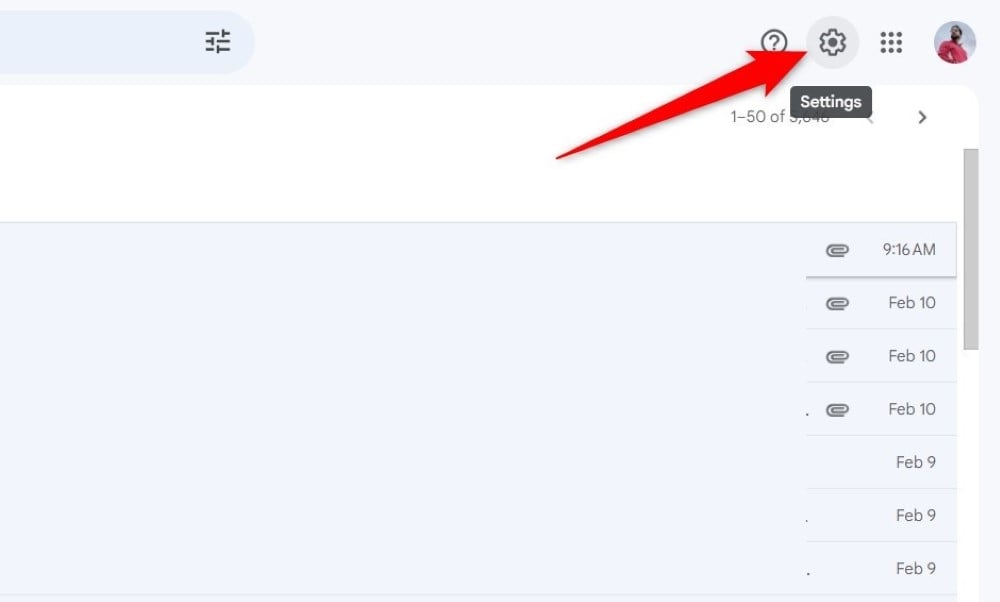
- Click on the cogwheel icon on the top-right corner of the page.
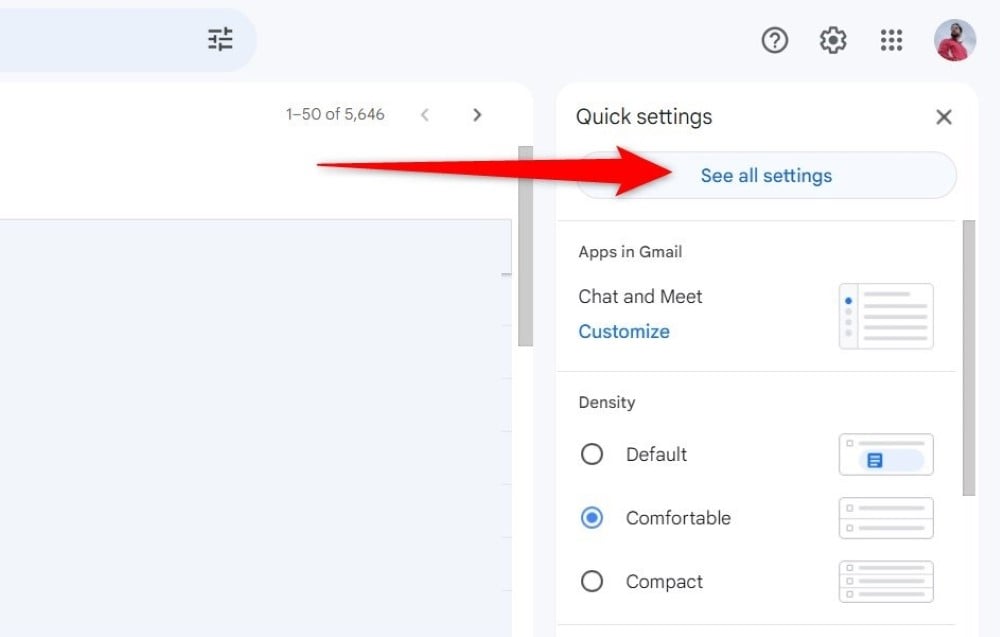
- Select the See All Settings button.
- Under the General tab, scroll down and check the boxes next to Smart Features and Personalization and Smart Features and Personalization In Other Google Products.

- Scroll down all the way to the bottom and click on Save Changes.
- Open Google Calendar on your browser.
- Click on the cogwheel icon in the top-right corner and select Settings from the drop-down menu.

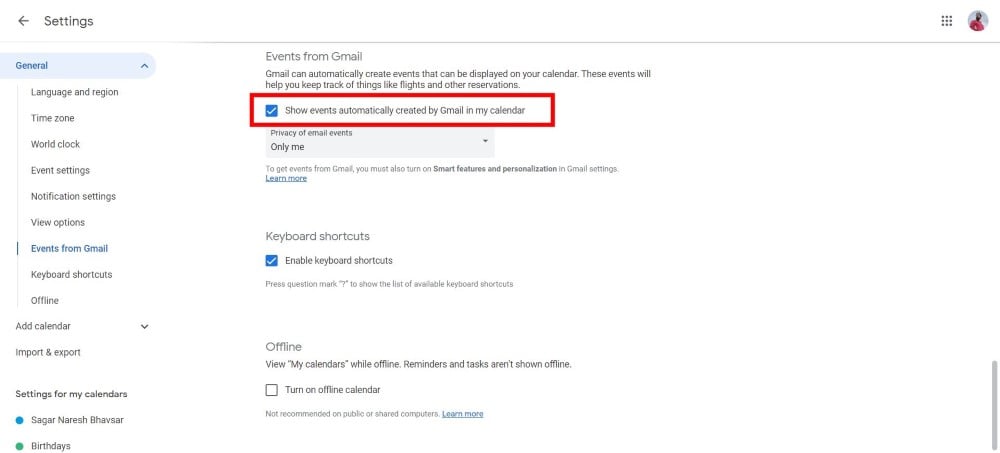
- Under the General tab, click on the Events From Gmail option on the left pane.

- Check the box next to Show Events Automatically Created By Gmail In My Calendar.
Related Read: Best Flight Price Predictor Tools and Apps
On smartphone
- Open the Gmail app on your phone.
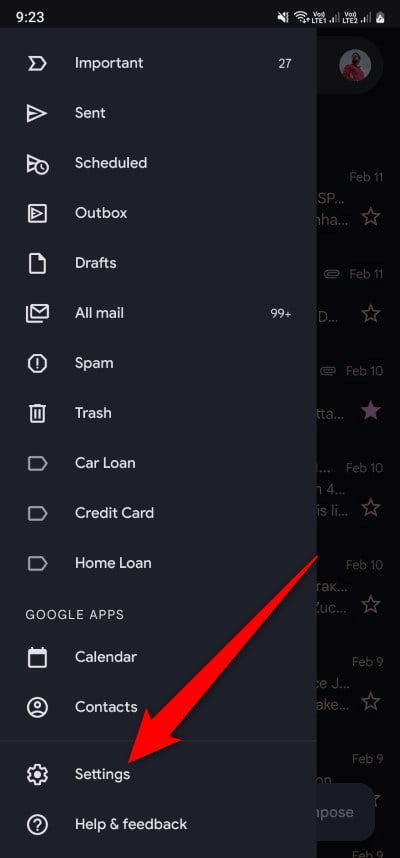
- Tap on the three horizontal line icon at the top-left.
- Scroll down to the bottom and tap on Settings.
- Select the email account on which you would like to enable the setting.
- Scroll down and check the boxes next to Smart Features and Personalization and Smart Features and Personalization In Other Google Products.

- Open the Google Calendar app on your phone.
- Tap the three horizontal line icon at the top left.

- Scroll down and tap on Settings.

- Select Events from Gmail.
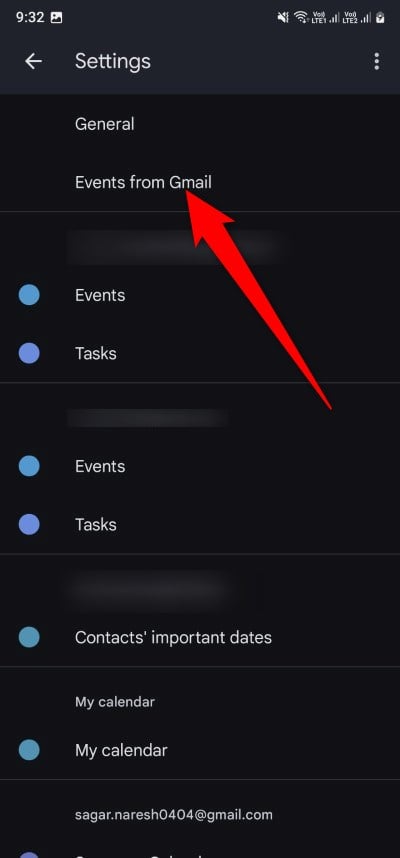
- Toggle on Show Events from Gmail option.

That’s it! Now, whenever you receive a confirmation email either from your flight booking company or hotel reservation company, Google will automatically extract details such as date, time, location, and other info and add them to Google Calendar. If you wish to visit the original confirmation email, then you can tap on the event date, and tap on the View Confirmation link at the bottom of the event card. You can also edit the event card, which we will discuss in the latter part of this guide.
How to manually add flight and hotel booking details on Google Calendar
This method is helpful when you receive the confirmation email regarding your hotel and flight booking from a different email account. If that’s the case, then you can manually add and create an event card to get notified about your travel plans.
On desktop
- Open Google Calendar on any web browser on your desktop.
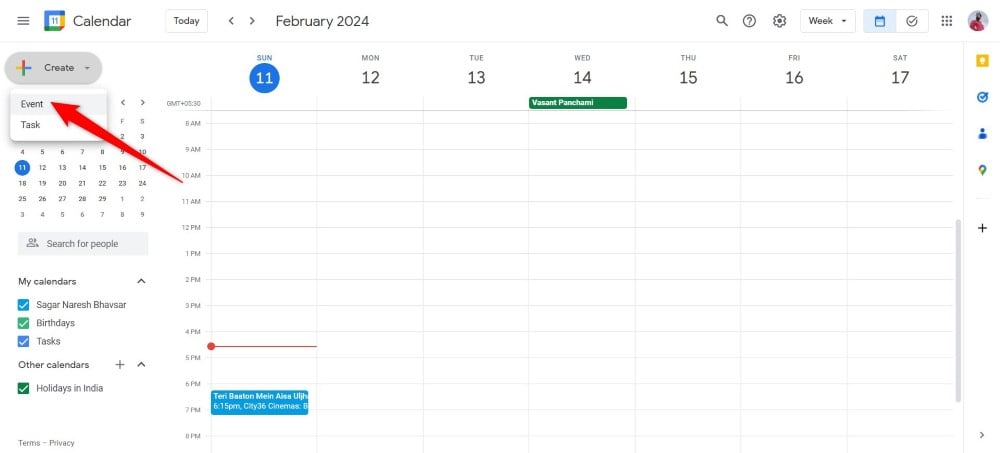
- Click the Create button at the top left corner of Google Calendar.
- Select the Event option from the drop-down.
- Fill in all the details such as the title, time, date, number of people, location, etc., of the event.

- Once you have filled in all the details, click on the Save button.
On smartphone
- Open the Google Calendar app.
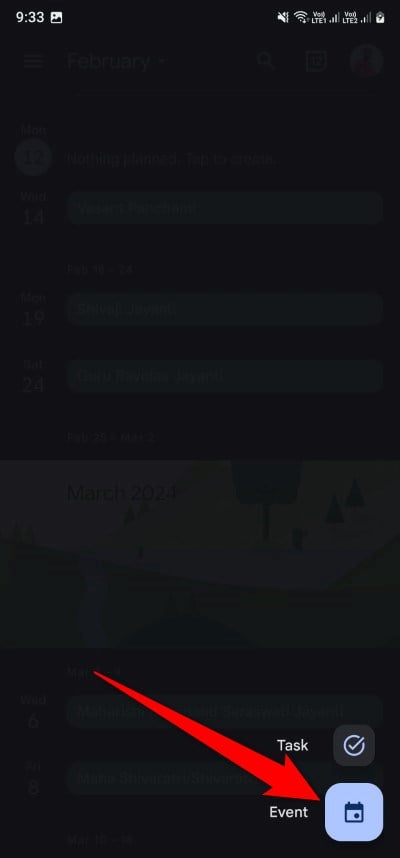
- Select the date on which you would like to create an event and tap on the + or plus icon at the bottom right.

- Choose Event.
- Enter all the details such as title, time, date, number of people, location, etc., of the event.

- Hit the Save button once you are done feeding all the details.
In the Location field, we would advise you to enter the address of your hotel or the destination of your flight to know where you have to go. In the Description field, you can add more details, such as room number, flight seat number, etc. — any information you feel you can forget. If you want to share the booking details with your friends to keep them in check as well, then you can share the event on Google Calendar.
No more searching through the pile for your bookings
Google has made a lot of things easier for us, especially remembering forgettable things. By adding the booking details on Google Calendar, you don’t need to go through countless emails that you receive just to get to something very important. All of your details will be available and accessible through Google Calendar.
FAQs about getting booking details on Google Calendar
1. I have received confirmation in a different email. How can I add that to my Google Calendar?
The second method to add booking details manually on Google Calendar will let you get the booking information that you have received on a different email account.
2. Emails and events created on Google Calendar aren’t showing up?
There can be several reasons why Google Calendar isn’t notifying you or not showing emails or events created on Google Calendar. To fix this, you could try clearing the Google Calendar app cache, updating the app, restarting the app, and ensuring that the event is created on the correct date.
3. I want to add some images to my Google Calendar event. Can I do that?
Yes. Google Calendar lets you add media to your Google Calendar event. This could be anything, from your hotel booking receipt to your flight booking tickets. You can add it to keep all those minute details handy and accessible by just tapping the event.

