

Enjoying a movie with your friends and loved ones, even if they are thousands of miles away is not a distant dream anymore. Discord allows you to watch a movie or play your favorite games with your friends while chatting and discussing the same in real-time. You can create and host a watch party with all of your favorite people in a single feature-rich application that is available on all platforms.

In this article, we will guide you on how to create a watch party with your friends on Discord to watch a movie together. Let’s get started.
How to Set Up a Watch Party on Discord
Hosting a watch party on Discord is a straightforward process that allows users to enjoy synchronized viewing experiences with friends. To initiate a watch party, follow these steps:
- First, set up a server on Discord if you don’t have one already.
- Next, Invite your friends to join your server to participate in the watch party.
- Now, decide whether the party will take place in a text or voice channel.
- You have to choose a streaming service that supports Discord integration. Popular options include YouTube, Netflix, and Hulu, or you can share your browser screen from a supported browser.
- Now it’s time to share your screen or the video stream within the selected channel. This allows others to see what you’re watching.
- Adjust the server permissions to ensure everyone has access to view or participate in the watch party.
- Encourage participants to use text or voice channels for discussion during the watch party.
- Sit back and enjoy the viewing experience with friends, discussing the content in real-time.
Related Read: How to Watch Netflix with Friends
How to Share Your Screen on Discord to Watch Movies With Friends
To share your screen from a streaming application or browser, you must add the application or the browser as a game on Discord. This will ensure you can watch all the content you want on your Discord server. Follow the steps below to add the app or browser as a game in Discord to share your screen.
- Open the Discord app and click on the gear icon in the bottom-left corner next to your Discord username to open the User Settings menu.

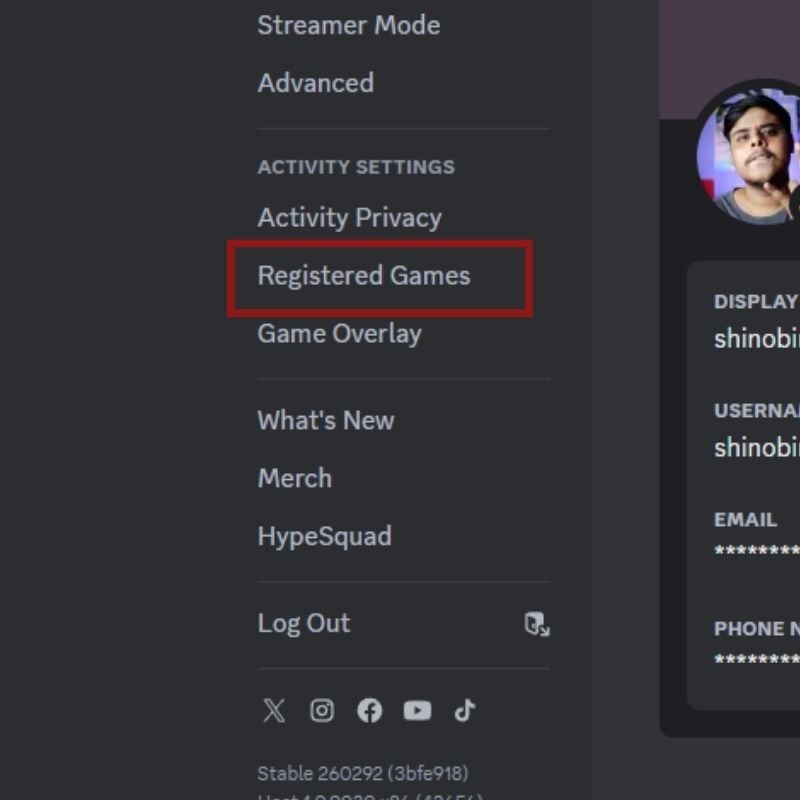
- Scroll down till you find Registered Games under Activity settings and open it.
- Now open the browser or app that you want to add.
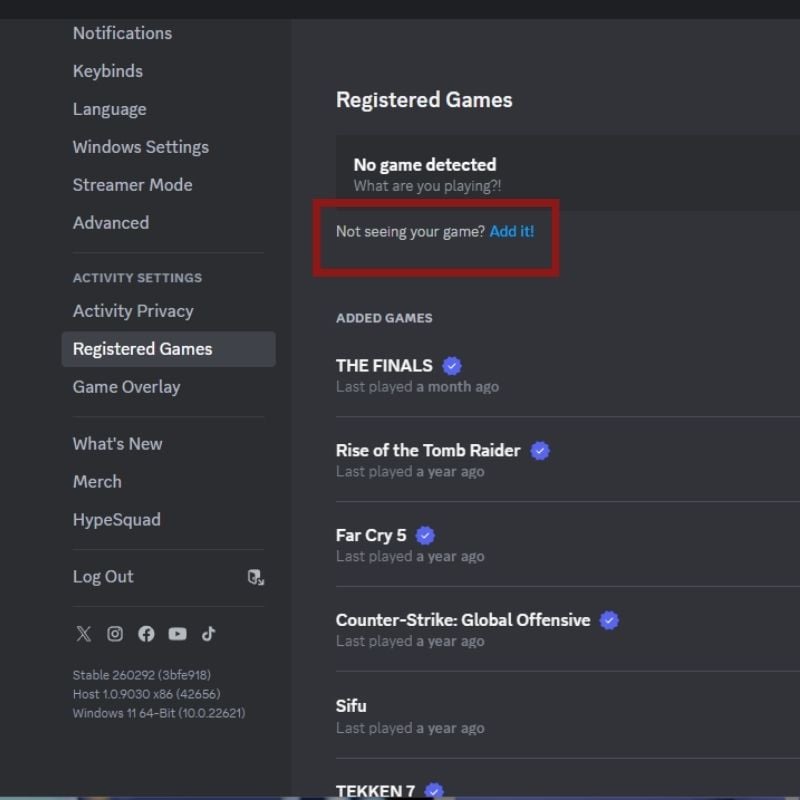
- In the Registered Games settings, click the Add It button found beside the Not seeing your game? option.
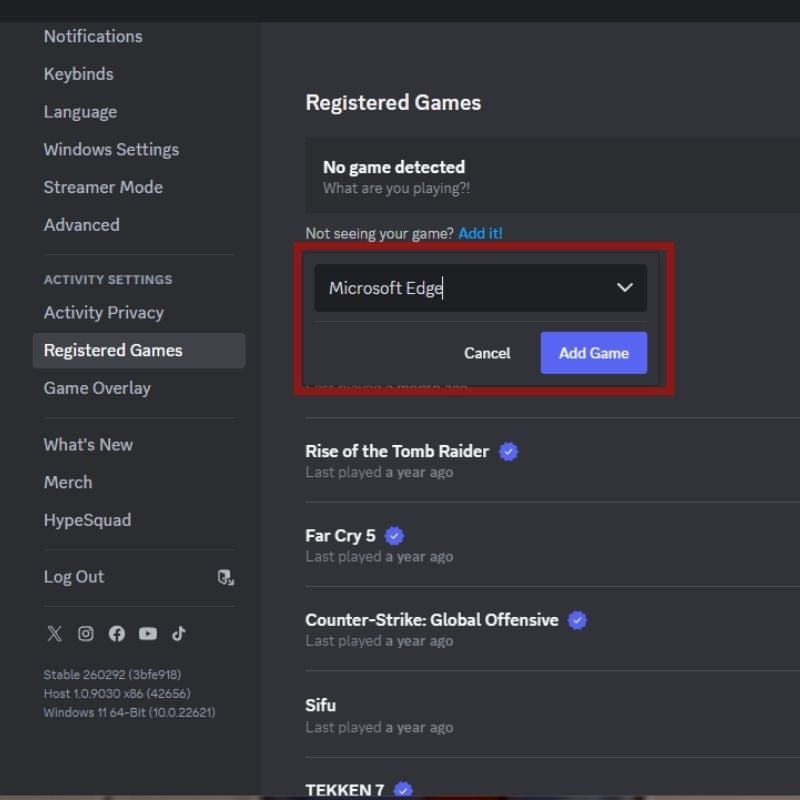
- Click on the drop-down and select the browser or app from the list that you want to add. Then press the Add Game button.
- It should show the app in green with the now-playing text. This means your app or browser is being shared now.
- Now go to your browser settings and turn off the hardware acceleration option if it is on. This is usually found in the system settings of the browser.

- Open your Discord server, and it should show the browser or app that you just added.
- Click the share icon beside it and select a voice or text channel for conversations. You will also see the default video settings for the screen share, which is 720p at 30fps if you do not have a Discord Nitro subscription.
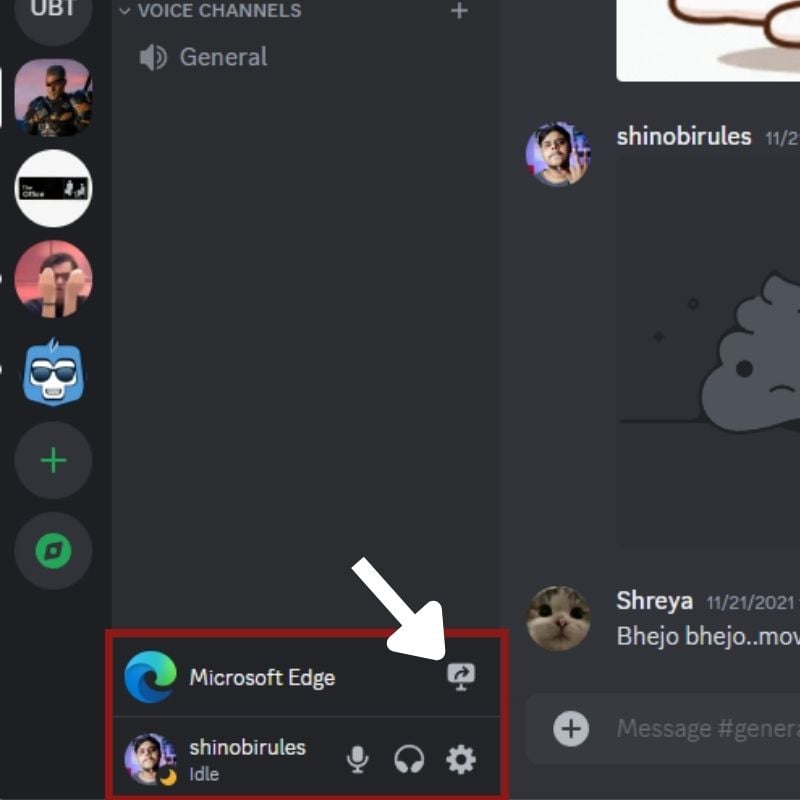
- Just click the Go Live button, and your screen should start sharing. Now, play any movie or show on the streaming platform and enjoy it with your friends.

Related Read: Top 4 Sources to Find Discord Servers to Join
Host a Watch Party on Discord With Ease
We hope you’re now equipped with the knowledge and tools to create unforgettable virtual movie nights with this guide on hosting a watch party on Discord. The unique features and the multitude of bots available on Discord make it easier than ever to bring your friends together. Set up your server, invite your friends, and let the digital curtains rise on your Discord watch party.
Let us know which movies you want to watch with your friends on Discord.

