

YouTube Premium subscribers may often face the error that says “Sorry, this video can’t be taken offline” or “Device Limit Exceeded” when trying to download content on the YouTube and YouTube Music applications. This error occurs when you have reached the maximum number of devices allowed with your YouTube Premium subscription to download content.

The limit is TEN devices for a single account and when you reach this limit, YouTube will show the above error messages to you whenever trying to download content offline. In this article, we will share a detailed guide on how to solve this issue on your YouTube account. Let us get started.
What Is the “Device Limit Exceeded” Error on YouTube?
If you are a YouTube Premium or YouTube Music Premium member, you can use the offline features of your membership on up to 10 devices at a time. If you try to download a video on a new device once you have reached this limit, the oldest of the 10 devices will be de-authorized. You can do this up to four times in one year.
After you have made your fourth swap, you will see the message ‘”Sorry, this video can’t be taken offline” whenever you are trying to download content offline on YouTube or YouTube Music. This message means that you have hit the maximum number of devices that you can use at a time to download offline content. You can’t download videos on any new devices until the limit is reset. You can continue to use YouTube Premium to download videos on any of the first 10 registered devices.
How to Fix the “Device Limit Exceeded” Error on YouTube
The only way to fix the “Device Limit Exceeded” error on YouTube Premium is to contact YouTube support to reset your device count. By doing this, your last 10 devices with downloads will get cleared from your account and you will be able to download stuff again on 10 new devices. But keep in mind that you can only do the reset once a year through YouTube Support. So, if you are someone like us and use your account to download content on multiple devices, then make sure to keep a count.
Here are the steps to contact YouTube Support to fix the error on your account:
- Open the Google App on your phone or Google on your browser.

- Click on your profile picture on the top right corner, this will take you to your Google account.

- Next press the Google Account or Manage Google Account option.
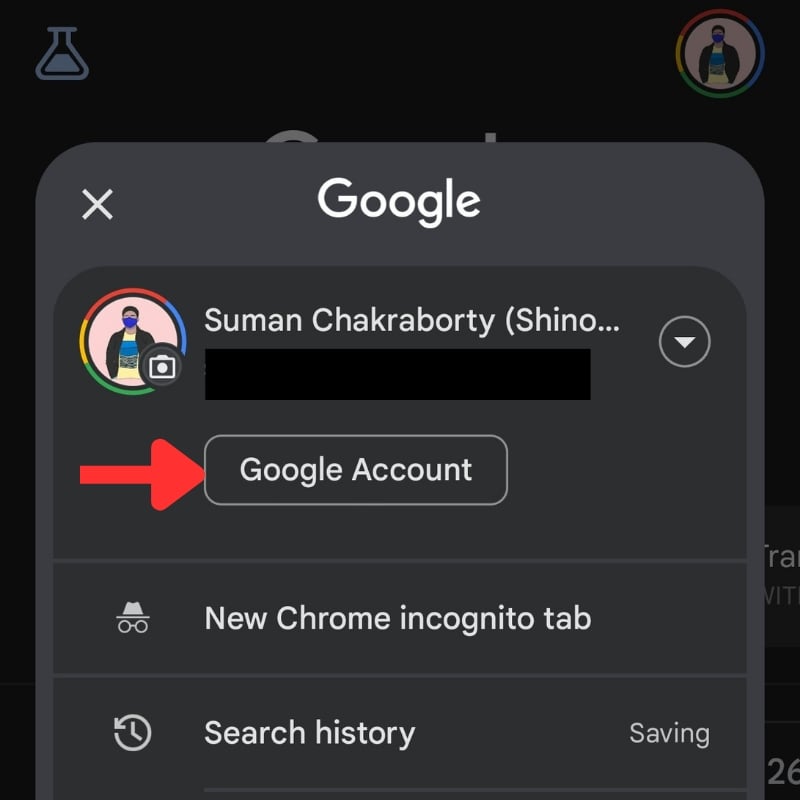
- Once you are on the account page, scroll down till you find the “See Help Options” menu.

- Inside the help menu, scroll down to find the “Contact Us” option.

- On the next screen, you have to mention the issue and select the options accordingly.

- On the final screen, you will get the option of contacting support through either call, chat, or email.

Once you get connected to a support agent, tell them about your issue and they will help you in resolving it.
Fix “Device Limit Exceeded” Error on YouTube Premium

This error can occur at any time during your subscription period. We have faced this issue a couple of times since we had to shuffle between different devices but fortunately, YouTube support has been very helpful in resolving our issues. The only downside is that they can only reset your device number once a year, so if you face this issue multiple times a year, then you might have to stop using the download option on newer devices.
Have you faced this issue with your YouTube Premium subscription? Leave your queries and suggestions in the comments below.

