

Quick Answer
Use the Task Manager for quick RAM checks and the Resource Monitor for a detailed analysis to find out which applications are using the most memory. Adjust application priorities in Task Manager, use third-party tools like Process Lasso for advanced RAM management or enable browser-specific features to manage memory usage efficiently.
Limiting RAM in Windows can help improve the overall stability and performance of your system. Windows includes built-in tools to analyze and monitor RAM usage. In addition, many third-party tools offer advanced features to limit the RAM usage of certain applications. In this guide, you will learn how to identify applications that use a lot of RAM and how to restrict RAM usage for specific applications.

Table of Contents
Understanding RAM Usage in Windows
Windows uses dynamic RAM allocation to allocate memory. Processes with the highest priority receive more RAM and system resources. Video editing software and games usually require a lot of RAM. In some cases, however, a desired application may consume more than necessary due to poor optimization or memory leaks.
How to Monitor RAM Usage on Windows
Monitoring RAM usage can help you find out which app or process is consuming the most of your computer’s resources. There are several ways to monitor RAM usage in Windows, but the most effective is to use the Task Manager and Resource Monitor.
- Task Manager: Provides a simple overview of how much RAM is being used by each application and process.
- Resource Monitor: Provides more detailed statistics on the RAM usage of applications and is suitable for advanced users.
Monitoring Memory Usage Using Task Manager
The Task Manager is ideal for quick RAM monitoring on Windows. It allows you to see the processes currently running on your computer and how much RAM each process is using.
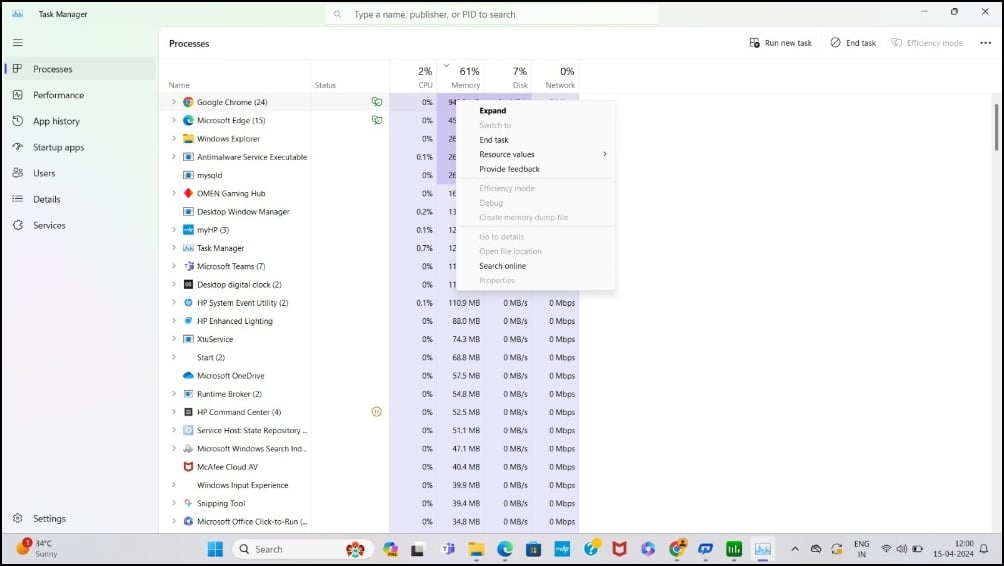
Steps:
- Press Ctrl+Shift+Esc on your keyboard to open the Task Manager.
- Go to the “Processes” tab
- Scroll through the list of applications and background processes. You can see how much memory each application is using under the “Memory” column. Find the application that uses more RAM.
Using the Resource Monitor
Resource Monitor provides detailed information about memory usage under Windows. It breaks down RAM usage into different categories and provides a detailed analysis of how much RAM a particular process is using. With Resource Monitor on Windows, you get an even more detailed and in-depth analysis.

Steps:
- Type Resource Monitor in the Windows search bar and press enter to open it.
- Click on the “Memory” tab at the top of the Resource Monitor window.
- Here, you’ll see a list of all running processes under the “Processes with Memory Activity” section.
- You can see how much memory (RAM) each application is using in the “Commit (KB)” and “Working Set (KB)” columns.
Methods to Limit RAM Usage for a Program on Windows
| Method | Description |
| Set Application Priority using Task Manager | Quick and easy way to limit system resources for processes using priorities |
| Set RAM Limit Using Third-Party Applications | More control over how much RAM each application can use, along with additional features for advanced RAM management |
| Limit RAM for Specific Browsers | Directly limits the amount of RAM that browsers can use, preventing them from consuming excessive system resources. |
Setting Application Priority via Task Manager

With the Task Manager, you can set priorities and limit RAM usage for a specific process. You can set five different priority levels for the application. Depending on the priority level, each process is assigned RAM and CPU.
Priority levels and what they mean:
- Realtime: Highest priority, the process receives the maximum amount of CPU resources.
- High: Gives the process high priority over most other processes, but less than real-time.
- Above Normal: Gives the process more priority than usual but keeps it below high-priority tasks.
- Normal: The default priority level for most processes.
- Below Normal: Gives the process less priority than normal tasks.
- Low: Lowest priority, where the process gets the least CPU resources.
Steps:
- Open Task Manager by pressing Ctrl+Shift+Esc on your keyboard.
- Click on the Details tab.
- Find the application for which you want to change the priority.
- Right-click on the application’s name, click on “Set priority“, and Select the desired priority level.

Using Third-Party Tools
Third-party tools offer advanced RAM management features beyond basic configurations. These tools allow you to set RAM limits for specific applications and dynamically adjust them in real time. These are the two popular RAM management tools for Windows.
- Process Lasso: Offers advanced control over CPU and RAM allocation, including real-time adjustments for each application.
- Minimem: A simple tool that primarily Focuses on reducing memory usage of selected applications by periodically clearing unused memory.
1. Process Lasso

Key Features
- Offers a broad range of system optimization tools beyond memory management.
- Set CPU priorities and RAM limits for specific applications.
- Offers Advanced control over CPU and memory management.
- Real-time adjustments.
Process Lasso is a RAM management tool for Windows that allows you to set CPU priorities and RAM limits for specific applications. It gives you advanced control over which processes can consume more CPU resources and prevents others from using the same CPU series.
Process Lasso can also dynamically adjust RAM and CPU allocation in real time. The free version is limited, but it’s enough if you want to control RAM usage for specific applications and allocate more RAM to prioritized applications.
2. Minimem
Key Features
- Easy to set up and manage without needing to adjust a wide range of system settings.
- Set limits to specific processes.
- Dynamically adjust memory allocated to each process based on its current needs.
- Set RAM limit priorities for different processes.
Minimem is a free third-party solution for setting RAM limits for certain Windows applications. Like other tools, you can use Minimem to select specific applications and limit their RAM. Minimem also regularly empties the memory that is not used by the specified applications to adjust RAM usage.
By default, the interval for these adjustments is set to 30 seconds, but you can increase or decrease this interval time as needed. You can also select specific applications to apply these regular RAM optimizations to in order to limit RAM usage.
Utilizing Memory Limit Features on Browsers
If you open multiple tabs and extensions, a browser can use up a lot of RAM and slow down your computer. Google Chrome, for example, is notorious for its memory-hogging features. Many browsers have introduced memory limits that allow you to limit the memory for certain tabs. There are also advanced features in some browsers that allow you to limit RAM completely. If you are having memory issues with your browser, you can use these browser features to limit RAM usage.
1. Enabling the Memory Saver Feature on Google Chrome

Google Chrome’s Memory Saver feature frees up the RAM of tabs that have been inactive for a while. Running multiple tabs is one of the main reasons why browsers consume a lot of memory. With this function, Google Chrome automatically releases the memory of inactive tabs and thus reduces the overall memory consumption of the browser.

To enable the Memory Saver feature in Google Chrome, follow these steps:
- Open Google Chrome and click on the three-dot menu in the top-right corner.
- Select “Settings” from the menu.
- Click on the “Performance” tab.
- Click to enable the “Memory Saver” feature.
2. Microsoft Edge’s Handy Memory Limit Feature
Similarly, Microsoft Edge has also rolled out Sleeping tabs, similar to the Memory Saver feature on Google Chrome that helps limit memory usage. Like Google Chrome, Microsoft Edge includes a Sleeping Tabs feature that frees up RAM from unused tabs. Microsoft is also working on setting a direct RAM limit feature to limit the RAM used by the Edge browser. The feature is currently in testing.

Steps:
- Open the Microsoft Edge browser and click on the three dots menu and ‘Settings‘ from the menu.
- Use the search bar and type ‘Sleeping Tabs.‘
- Turn on the toggle next to ‘Save resources with sleeping tabs‘.
- You can also adjust how long Edge waits before putting a tab to sleep. Use the dropdown menu under the ‘Put inactive tabs to sleep after the specified amount of time‘ option and set the time limit to 15 minutes to 12 hours, depending on your preference.
3. Opera GX With Advanced Memory Limit Feature

While the memory limit features in Google Chrome and Microsoft Edge are handy, they don’t offer a comprehensive way to limit RAM usage. However, browsers like Opera GX offer advanced RAM limiting features that allow you to control not only RAM, but also CPU and network bandwidth. This allows for more granular management of your computer’s resources, making Opera GX a good option for anyone who needs more granular control over their system’s performance.
4. Other Helpful Ways to RAM Limits on PC
- Adjust Visual Effects: You can optimize performance by adjusting the visual effects in Windows. Go to System Properties > Advanced System Settings > Performance Settings and then choose “Adjust for best performance” to minimize graphical effects.
- OEM Software: Some OEMs include memory remapping features, which let you set memory limits for specific apps and OSs.
![How To Fix High RAM/Memory Usage on Windows 10 [Complete Guide]](https://techpp.com/wp-content/cache/warp-performance/osKnDbHibig-hqdefault.jpg)
Common Errors When Setting Up RAM Limits
Setting RAM limits for applications can help to manage resources. However, several common issues can occur when limiting RAM for certain applications. Here are the most common problems and how you can avoid them.
- App Crashes: Setting the RAM limit can cause the app to crash when it reaches its memory limit and cannot get more RAM from the system. This error occurs with memory-intensive applications such as video editing software. To fix this, you can increase the RAM limit that you have set for the respective application.
- Performance Degradation: The application may run slower than usual due to limited RAM. Increase the RAM limit to improve performance.
- Error Messages: Another common issue is that you might see a memory error message like ‘Out of Memory’ or ‘Application Error’. If you get these errors after the RAM limit, disable the RAM limit to increase the RAM limit to fix these errors.
FAQs about Reducing RAM Limit on Windows
What are the implications of disabling startup programs on system performance?
Disabling startup programs can improve our system performance. Startup programs automatically start when you turn on your computer and use system resources. These include essential system utilities and software like antivirus. However, some unnecessary third-party applications launch automatically, consuming unwanted RAM and affecting the system's performance. You can turn off those apps by autostarting from the settings. Click on Settings > Apps > Startup. Here, you can disable the apps from starting up automatically when your computer boots.
Can installing more RAM be a more effective solution than limiting RAM usage?
Installing more RAM is a more effective method than limiting RAM usage. Limiting RAM usage can have disadvantages like slower performance and system instability, which might lead to application errors. Increasing the RAM limit can have benefits like enhanced performance, improved multitasking, faster data processing, and more. However, most modern laptops come with system-on-chip designs where the RAM is integrated directly into the chip and is not expandable.
What are memory leaks in Windows, and how does it affect performance?
Windows memory leaks occur when a specific application fails to release the used memory back to the operating system. This issue can lead to more memory consumption than needed and might result in performance degradation. However, restarting the application can quickly fix this issue.

