

What to Expect
Learn how to make your Discord messages pop using bold, italics, underline, strikethrough, code blocks, headers, spoilers, and even color-coded text. Whether on mobile or PC, this guide covers all the tricks to help your text stand out in busy chats.
With over 90 million people logging into Discord every single day, it is arguably the most popular way for gamers and online communities to communicate, and once you get the hang of Discord text formatting, there is a lot more you can do than just type and hit enter. With hundreds of chatting apps available, Discord’s cult is unbreakable, to say the least, largely because of its ease of use and respect for user privacy.

Like many other apps and services, Discord supports a wide range of text formatting options using Markdown, a simple plain text styling system originally created by John Gruber in 2004 that lets you customize your messages to stand out in busy servers and chats. Of course, there is more than just bold and italics, and this article covers every form of Discord text formatting from the inside out.
While the article caters to both mobile and PC users, it is worth noting that Discord text formatting on mobile works slightly differently from the desktop version. Keyboard shortcuts, for instance, are not available in the Discord mobile app, and some advanced formatting styles may not render the same way on Android and iOS. That said, let’s get going!
For a quick reference, here is the full list of Discord text formatting styles along with their markdown syntax and keyboard shortcuts where available.
| Text Formatting Style | Method |
| Bold | **Your text** or Ctrl + B (Windows) and Cmd + B (Mac) |
| Italics | *Your text*, _Your text_, or Ctrl + I (Windows) and Cmd + I (Mac) |
| Strikethrough | ~~Your text~~ |
| Underline | __Your text__, or Ctrl + U (Windows) and Cmd + U (Mac) |
| Bold italics | ***Your text*** |
| Underline italics | __*Your text*__ |
| Underline bold | __**Your text**__ |
| Bold underline italics | __***Your text***__ |
| Big header | #Your text |
| Medium header | ##Your text |
| Small header | ###Your text |
| Subtext | -#Your text |
| Masked links | [Your text](link) |
| Code blocks | `Your text` or “`Your text“` for multiple lines |
| Lists | – Your text (1) – Your text (2) |
| Block quotes | > Your text or >>> Your text for multiple lines |
| Spoilers | ||Your text|| |
Think of the table above as your go-to Discord text formatting cheat sheet. Bookmark it for quick reference whenever you forget a syntax.
Table of Contents
Bold Text on Discord
To begin with the basics, let’s first see how you can use bold text on Discord. The bold text format is excellent for emphasizing a particular text in a message. It increases the thickness of the font, giving it the highlight required to draw someone’s attention. There are three ways of doing it on Discord –
- Using the keyboard shortcut Ctrl + B on Windows or Cmd + B on Mac.
- Clicking the B icon that appears in the panel above the selected text.
- Placing two asterisks (**) before and after the text. It should look like this: **Your text**

How to bold text in Discord mobile
On mobile, the easiest way to bold text is to select the word or sentence and tap the B option from the formatting panel that appears above the keyboard. Keyboard shortcuts are not available on the Discord mobile app.
Italicize Text on Discord
Similar to bold text formatting, italicizing a text emphasizes a piece of text. It tilts the text slightly and is frequently used to set apart foreign terms, authors’ names, titles, scientific terms, etc. Italics is as easy to use as bold and can be done in four ways –
- Using the keyboard shortcut Ctrl + I on Windows or Cmd + I on Mac.
- Clicking the I icon that appears in the panel above the selected text.
- Placing an asterisk (*) before and after the text. It should look like this: *Your text*
- Placing an underscore (_) before and after the text. It should look like this: _Your text_

Strikethrough Text on Discord
While the actual purpose of a strikethrough text is to signify that it’s no longer relevant, users mainly use it to sound funny or deny something. It’s a good way of dismissing some message as its purpose stands clear. To do so on Discord –
- Clicking the 𝖲̶ icon that appears in the panel above the selected text.
- Placing two tildes (~~) before and after the text. It should look like this: ~~Your text~~

If your Discord strikethrough is not working, double-check that you are using two tildes on each side with no extra spaces between the tildes and your text.
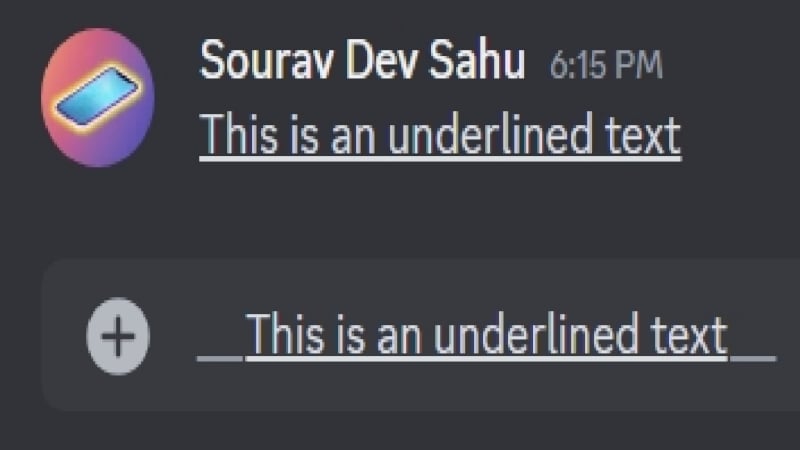
Underline Text on Discord
Underlining text is a superb way of segmenting messages. It’s also used to serve as a heading or sub-heading so the reader gets to know the context or sequence of the message. It can also be used when you are listing out something. Here is how you can do so on Discord –
- Using the keyboard shortcut Ctrl + U on Windows or Cmd + U on Mac.
- Placing two underscores (__) before and after the text. It should look like this: __Your text__
Combination of Text Formatting on Discord
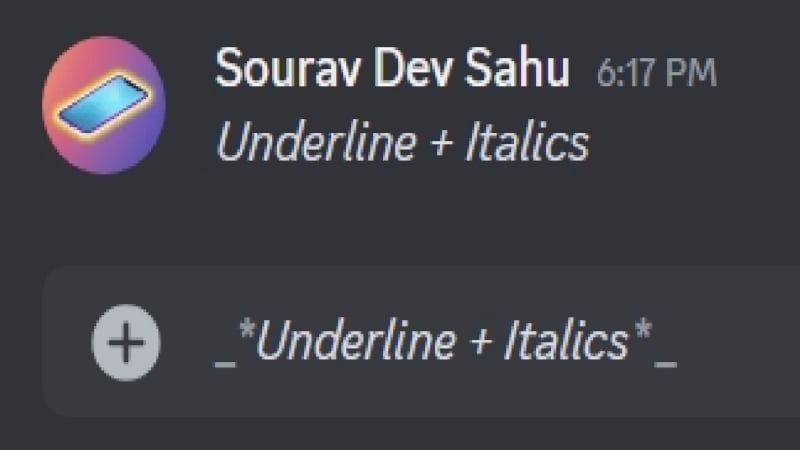
Now that you know the basic Discord markdown syntax for bold, italics, underline, and strikethrough, you would be surprised to know that you can also use these formatting styles in tandem to make your text stand out even more. Here’s a list of all the combinations possible –
- ***Your text*** for Bold Italics.

- __*Your text*__ for Underline Italics.
- __**Your text**__ for Underline Bold.

- __***Your text***__ for Underline Bold Italics.

Additionally, you can also select multiple text formatting styles in the panel that appears above a selected message and play around with the style of text formatting you prefer.
On a side note, if you ever want to send a message with asterisks, underscores, or tildes as literal characters without triggering any formatting, you can escape markdown in Discord by placing a backslash (\) before the character. So if you type \your text\, it will appear as **your text** instead of bolding it. This is handy when you are sharing code snippets or just want to be precise with your punctuation.
Headers on Discord
The sole purpose of using headers is to split a long text into separate sections. You can essentially consider its headings; thankfully, it’s available in different sizes to vary the importance of each message segment. If you still don’t get it, headers are also present before each section in this article, so that’s how you know about starting a new section and its importance in the article. To do so on Discord –
- Placing a single hashtag (#) before a sentence converts it into a big-sized header.
- Placing double hashtags (##) before a sentence converts it into a medium-sized header.
- Placing triple hashtags (###) before a sentence converts it into a small-sized header.

After placing the required number of hashtags, don’t forget to begin your sentence after a space.
Subtext on Discord
If you’re wondering how people get to add those tiny pieces of text after a long message to imply something or explain the context, it’s done using the subtext style of text formatting. It can be easily overlooked, but it is still perfectly fine to give a quick little disclaimer or explanation. There’s only one way of doing so: by placing both a hyphen and a hashtag before beginning the sentence. Here’s what your message should look like –
-# Your text
Since the subtext isn’t carried to the following line automatically, you will have to place -# before the start of every new line. Also, don’t forget to give a space before starting your sentence!

Masked Links on Discord
Let’s be honest: links are an ugly mess of characters spanning across the length of the entire Discord text box. Thankfully, a way to make it look better is by masking the links, otherwise known as hyperlinks. To use masked links on Discord, write the text inside square brackets [] immediately, followed by the link inside parenthesis (). Here’s what your text should look like –
[TechPP](https://techpp.com)

Code Blocks on Discord
As the name states, code blocks are used to group statements together or snippets and treat them as a single entity. They also support syntax highlighting for various programming languages, which makes them incredibly useful if you are sharing code with your server. However, it’s hardly used for its actual purpose, as it serves as a great way of highlighting a text or group of texts. Here’s how you can do so on Discord –
- Clicking the <> icon that appears in the panel above the selected text.
- Placing a back quote (`) before and after the text. It should look like this: `Your text`

- Placing three back quotes (“`) before and after the text to group multiple of them into a code block. It should look like this: “`Your text“`

Syntax Highlighting in Discord Code Blocks
One of the lesser-known features of Discord’s code block formatting is that it supports syntax highlighting for specific programming languages. To use it, add the language name right after the opening three backticks, like so:
```python

your code here

**```**
Here are some of the most commonly used languages that Discord supports for syntax highlighting:
- python for Python code (yellow and green highlights)
- js or javascript for JavaScript
- json for JSON data
- bash or shell for terminal commands
- css for stylesheets
- html for HTML markup
- diff for showing additions and removals (great for comparing changes)
- yaml for config files (also renders light blue colored text)
This is particularly useful for developers sharing code snippets in programming or tech servers. It makes your code a lot easier to read and adds a professional touch to your messages.
Lists on Discord
Lists need no introduction; they’re used to write down multiple entities in a systematic way. They’re not only easy to read and interpret but also make the message a lot more organized. While Discord only supports bullet lists natively, you can create a Discord ordered list or numbered list by manually placing numbers followed by a period (1., 2., 3.) before each line. It is a simple workaround that gets the job done without any special syntax.

To use bullet lists in Discord, place a hyphen (-) before each entity you want to convert into a list and send the message. The message will be transformed into a bulleted list. You can also create sublists by giving two spaces before a hyphen (-), which will convert it into a sublist of its previous list component. It can be visualized using the image below.

Ordered (Numbered) Lists on Discord
As mentioned, Discord does not have a built-in ordered list format, but you can easily simulate one by typing numbers at the start of each line. Here is what it looks like:
- First item
- Second item
- Third item
Just type the number, add a period, leave a space, and write your text. It will not be auto-formatted like bullet lists, but it reads just as clearly and works on both mobile and PC.
Block Quotes on Discord
The function of block quotes is simple: to highlight something. It’s usually used to quote something in the middle of a long text, but it can also be used to visually distinguish a text, or multiple of them, in order to grab the reader’s attention. To do so on Discord –
- Clicking the ” icon that appears in the panel above the selected text.
- Placing a forward arrow (>) before the text. It should look like this: >Your text

- Placing three forward arrows (>>>) before text to group multiple of them into a code block. It should look like this: >>>Your text

To group multiple texts into a quote block, you can press Shift + Enter instead of directly pressing the enter key to go to the following line. The quote block text formatting will stay active as long as you go to the next line instead of sending the message.
Spoilers on Discord
Spoilers are pretty straightforward – they are used to prevent the reader from viewing something directly in order to prevent the user from getting spoiled by the information. It acts like a warning to view something at your own risk. Discord supports spoilers for both messages and media, but to use it for messages, follow the methods below –
- Clicking the eye icon that appears in the panel above the selected text.
- Placing two vertical bars (||) before and after the text. It should look like this: ||Your text||
- Using the Discord command /spoiler and typing the message in the box that appears.

Spoiler tags are a great way to hide content from those who are not ready for it yet. If you also want to hide messages from specific people in your server altogether, you should check out how the Discord Ignore feature works and how it is different from blocking someone.
Spoiler Tags for Images and Videos
The spoiler feature works for more than just text. If you want to send an image or video without it showing up directly in chat, you can mark it as a spoiler too. On desktop, simply check the “Mark as Spoiler” option when uploading media before sending it. On mobile, tap and hold the media file after attaching it and look for the spoiler toggle. The recipient will see a blurred preview and will need to click or tap it to reveal the content.
Colored Text in Discord
If you have been wondering how to make colored text in Discord, you are not alone since it is one of the most asked-about formatting tricks. Discord’s default text color is plain white, so the only way to change it is through a workaround using code block syntax. Sure, they are enough, but not as much as changing the text color. Indeed, Discord supports text colors, which is the ultimate way of making your text stand out among the crowd. Although not officially available, there’s a workaround.
Discord uses a syntax highlighting library to render code blocks, and certain language keywords trigger specific color themes as a side effect. This is the workaround that makes colored text possible in Discord, even though it was never officially designed as a color tool. However, not all colors are supported, but there are enough to make your text stand out. The general style of writing to activate colors stands as follows –
“`code
Your text
“`
Which Colors Are Supported in Discord
For imparting colors, replace “code” with the following words –
- fix for blue
- YAML for light blue
- ARM for orange
- ELM for purple
- diff with a plus sign (+) at the beginning of your text for red highlighted text color
- diff with a minus sign (-) at the beginning of your text for green highlighted text color
- md with a hashtag (#) at the beginning of your text for dark blue
- asciidoc with a full stop (.) at the beginning of your text for purple
- md with a forward arrow (>) and a space at the beginning of your text for green
- ml with each first letter of your words in a sentence being capitalized for red
- prolog with each first letter of your words in a sentence being capitalized for green
- bf for grey

The rest of the colors in the list above follow the same triple-backtick code block structure. Since these rely on Discord’s syntax highlighting engine, they may look slightly different on older versions of the app or on some devices.
Become a Discord Pro With These Text Formatting Styles
Discord text formatting is easier than it looks once you know the right syntax for each style. From basic bold and italics to code blocks with syntax highlighting and color-coded text, there is plenty you can do to make your messages more expressive and organized. The best part is that most of it works on both mobile and PC with little to no extra effort. If you are looking to make the most of Discord beyond just text, check out our guide on the best Discord bots to add to your server.
FAQs about Discord Text Formatting
How do I add color to text in Discord?
Discord does not have a native color picker for text, but you can get colored text by using code blocks with specific syntax highlighting keywords. Wrap your text in triple backticks and start with a language keyword like fix for blue, diff with a plus sign for red, or yaml for light blue. The full list of supported color methods is covered in the Colored Text section above.
What markdown does Discord use?
Discord uses a simplified version of Markdown, a lightweight plain text formatting syntax. It supports the most commonly used Markdown commands like bold, italics, underline, strikethrough, block quotes, and code blocks. However, it does not support the full Markdown spec, so things like tables or embedded images through Markdown syntax will not work in Discord chat.
Can you format text in Discord on mobile?
Yes, you can format text on the Discord mobile app, though the experience is slightly different from desktop. Keyboard shortcuts are not available on mobile, but you can select any text and use the formatting panel that pops up above the keyboard to apply bold, italics, underline, strikethrough, and more. Alternatively, you can manually type the markdown syntax directly in the chat box, and it will render the same way.
How do I use a code block in Discord?
To use a code block in Discord, wrap your text with a single backtick (`) on each side for an inline code block. For a multi-line code block, use three backticks (```) at the start and end. You can also add a language name right after the opening three backticks to enable syntax highlighting, which color-codes your code based on the language you specify.

