

Quick Answer
While screenshots serve the purpose, third-party apps for Android and iPhone do it in the best possible way, mentioning every necessary detail. Some of the most popular apps include SMS Backup & Restore, Tansee Android Message Transfer, Tansee iDevice Message Transfer, Decipher TextMessage and others.
Text messages are an evergreen way to communicate with each other. Although social media apps such as Instagram and other modern messaging services such as WhatsApp and Telegram have eaten up a considerable portion of traditional text messaging, the latter still has immense importance. iMessage, which has an unrivaled monopoly in the US, and Google Messages are examples of irreplaceable means of messaging.

Once in a while, you may need to print out text messages exchanged between parties to keep as a memory or, in the worst-case scenario, to present as evidence in court. We know the gravity of the situation escalates quickly, but if you’ve ever tried to print text messages from your iPhone or Android device, you know it’s not going to be a pleasant rest of the day. Don’t worry, in this article you’ll learn how to print text messages for court from an Android or iPhone device. Let’s go!
Table of Contents
Legal Requirements for Printing Text Messages
A court of law is no joke, especially when it comes to evidence and proof. Of course, if you want to submit text messages as evidence, you should meet certain requirements for them to be suitable as proof of your word.
- Every message should be accompanied by its respective date timestamp.
- The sender or receiver of the message should be clearly mentioned alongside the message.
- No message should be half-hidden or left behind to be produced in court.
- Under no circumstances should a message be altered or edited prior to submission as evidence.
Print Text Messages: Screenshots
Yes, screenshots are admissible as evidence. This method is by far the easiest way to present a conversation as evidence, but also the least preferred. Taking screenshots of long conversations can be difficult and tedious and is often unpresentable in front of an attorney. Nevertheless, printing out screenshots for short conversations is very useful.
Although mobile devices are the main means of communication, you can also access your messages on a PC. Macs, for example, support iMessage by default, while you can access Google Messages on the web by visiting here. Google Messages takes a few seconds to set up, but it’s much easier to capture and print text messages from a PC.
Taking screenshots is pretty easy and can be done on any device. Here is how you can take screenshots on a Windows PC, Mac, iPhone, iPad, Chromebook, Chrome browser, iPad, and Android devices, including Samsung Galaxy, OnePlus, Google Pixel, and more. Now that you have captured the required screenshots, let’s get them printed.
Mac
To get your screenshots printed using a Mac, follow the procedure below.
- Open Finder and locate the screenshot. If you aren’t aware of where your screenshots are getting saved, consider changing where screenshots get saved on your Mac.
- Double-click and open the screenshot.
- Enter the keyboard shortcut – command + P.
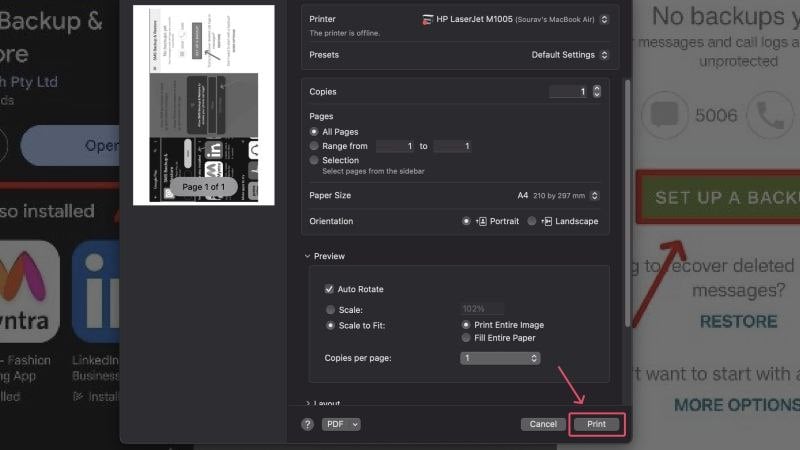
- A print preview page will open, where you can alter the settings according to your requirements. After ensuring your printer is ready, click on Print.
Windows
For a Windows device, the procedure remains more or less the same and can be carried out in the following way.
- Open File Explorer and locate the screenshot. Screenshots are usually stored in the Pictures folder.
- Double-click and open the screenshot.
- Select the printer icon from the toolbar present at the top.
- Alter the necessary settings and click on Print after selecting the required printing service.

Android
Many people don’t prefer to print from their phones, so you may not have a wireless printing service set up on your phone yet. Printing apps make this job easy, so if you have a printer connected to your Android device, here’s how you can print your screenshots.
- Open your device’s Gallery and locate the screenshot. Android automatically creates a separate screenshots folder, so you can directly explore the same instead of searching around.
- Long-press the required screenshot and select Share.
- From the list of choices, select Print.
- Change the printing properties as per your requirement, select the appropriate printer, and tap Print.

iPhone
Printing with an iPhone, or AirPrint as Apple calls it, can be used to submit screenshots as evidence. To do this,
- Open the Photos app on your iPhone and locate the screenshot you wish to get printed.
- Click on the share icon present at the bottom toolbar.
- Scroll down and tap on Print.
- Select the required printer, change the properties if needed, and tap Print.

Print Text Messages From Android Using Third-Party Apps
Screenshots serve their purpose, but they don’t always contain the necessary information, such as the timestamp next to each message, sender/recipient details, and more. That’s why there are third-party apps for printing text messages that honestly do a much better job and are much more professional. These apps make sure that all the relevant details are included and present them in a very presentable way. Again, you should consult a legal advisor before going down this route.
SMS Backup & Restore
SMS Backup & Restore is a fantastic app for this purpose. It has tens of thousands of positive ratings and millions of downloads, with an overall rating of 3.9 stars. Here’s how you can use this app to print text messages with an Android device.
- Install SMS Backup & Restore from the Google Play Store.
- Open the app and Allow all permissions needed by the app.
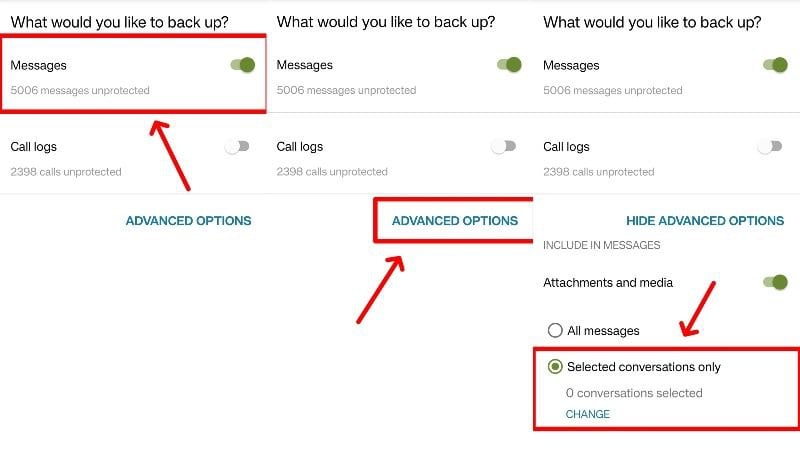
- Click on Set Up A Backup.

- Ensure the toggle beside Message is checked.
- Click on Advanced Options. Now, if you wish to proceed with specific conversations only (which you probably do), tap on Selected Conversations only.
- To select the required conversations, click on Change.
- From this page, you can filter and search for the required conversation. You can also choose to select or deselect the remaining conversation if needed. Return and click on Next after you have chosen the necessary conversation.
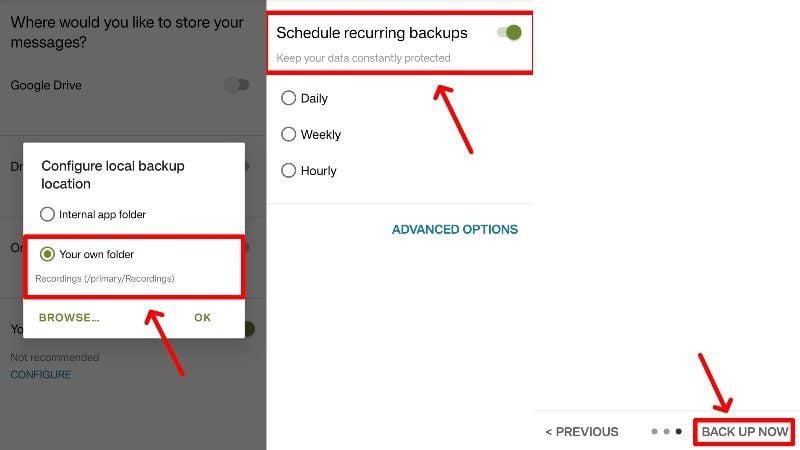
- Since this app backs up your message before allowing you to print, you must select the location where the messages will be backed up. You can choose to upload them to the cloud through Google Drive, Dropbox, or OneDrive. In our case, we are opting to store the backup locally on our device. Click on it and select an appropriate folder to store the backup. Tap Next.
- If needed, select your preferred recurring backup period; otherwise, uncheck the toggle beside Schedule recurring backups and proceed by tapping Back Up Now.
- To view your backed-up conversations, select the hamburger menu icon (☰) in the top-left corner and enter View backups.
- Select the required backup and click on the kebab menu icon (⁝) beside it and the next page. Click on Print Conversation.
- On the printing service page, select the required printer and click Print. If you don’t have a printer set up, save the file as a PDF instead. Later, you can share the PDF with a PC using Nearby Share and print from there instead.

Alternatively, you can transfer the backed-up .xml file from your Android device to any PC and access it via this web app. The site allows you to print the text messages directly, so you don’t have to save them as a PDF and share them multiple times.
In our experience, SMS Backup & Restore works without any complications. The app quickly converts text messages into printable form and clearly organizes all messages with sender information, date, and timestamp. There are ads, but they are not intrusive and can be easily overlooked. Overall, SMS Backup & Restore is a highly recommended app for printing text messages with an Android device.
SMS Backup, Print & Restore
SMS Backup, Print & Restore is an alternative to SMS Backup & Restore and is worth checking out. To proceed,
- Download SMS Backup, Print & Restore from the Google Play Store. Open the app and provide the required permissions.
- The app’s home page lists all the messages on your device. Search for the required conversation and select it.
- Now, you must select the messages to be printed by enabling the checkboxes beside each message. To select all messages, click on the icon shown below from the bottom-left corner and tap Select All.
- Tap on Backup and select the required backup format. We recommend opting for PDF Document or TXT File, which are best compatible for printing purposes. Click on Next.
- Select a folder on your device where you wish to store the backup and let the app do its job. The backed-up files can be viewed using your phone’s file manager and shared accordingly.
SMS Backup, Print & Restore presents text messages better than SMS Backup & Restore. However, there are a few limitations that you should be aware of. First of all, the app has a subscription model, which means that some functions, including a few crucial ones, are locked behind a paywall. The free version can only print a maximum of five messages, which is only suitable for conversions out of the blue. There is also no option for cloud backups. Nevertheless, the app works as intended.
Tansee Android Message Transfer
Tansee Android Message Transfer is another app that requires both a PC and an Android device. Tansee is available for both Mac and Windows, but we’ll explain the process for Mac below. However, if you have a Windows PC, the procedure is more or less the same.
- Visit this website to install Tansee Android Message Transfer for Mac. After it’s installed, double-click the .pkg file and follow the instructions to install the app on your Mac. To get the software for Windows instead, visit here.
- Open the app and select the option that states No Android Device in the left pane.
- Scan the QR code that’s shown using your Android device. It should lead you to a browser page and automatically start downloading the APK file of Tansee Android Message Transfer on your device.
- Click on the downloaded .apk file and select Install. Open the app after this step.
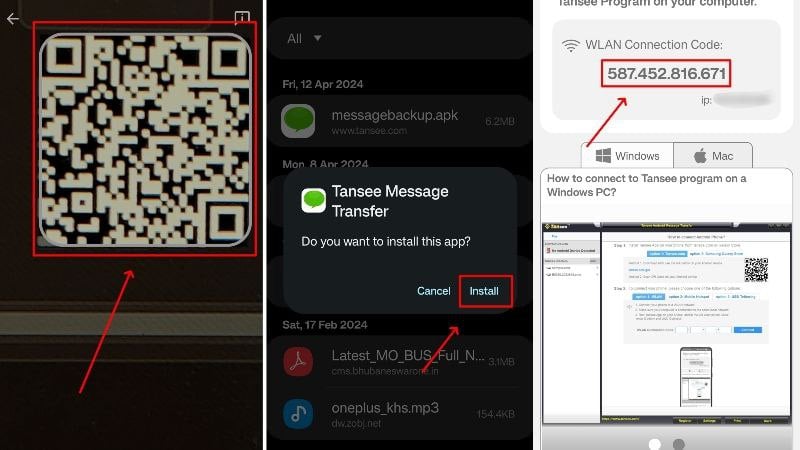
- The app requires Wi-Fi to connect to your Mac, so ensure you are connected to a stable Wi-Fi network. You will be greeted by a WLAN Connection Code, which needs to be entered on your Mac. Note that your Mac and phone should be on the same Wi-Fi network so they can connect with each other.

- On your Android device, click on Read SMS, MMS & RCS messages and give the app the required permissions to function correctly. This also includes setting Tansee Message Transfer as your default messaging app.

- Now, you can search for the conversations you wish to print and select them. You can also print all conversations if you like. After selecting the conversations, tap on Send Messages To Computer.
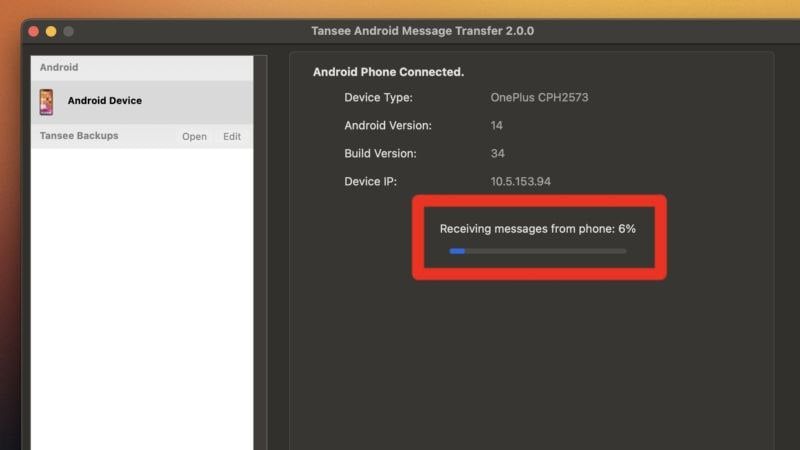
- After the transfer, you will be prompted to set the previously selected messaging app as the default one on your PC.
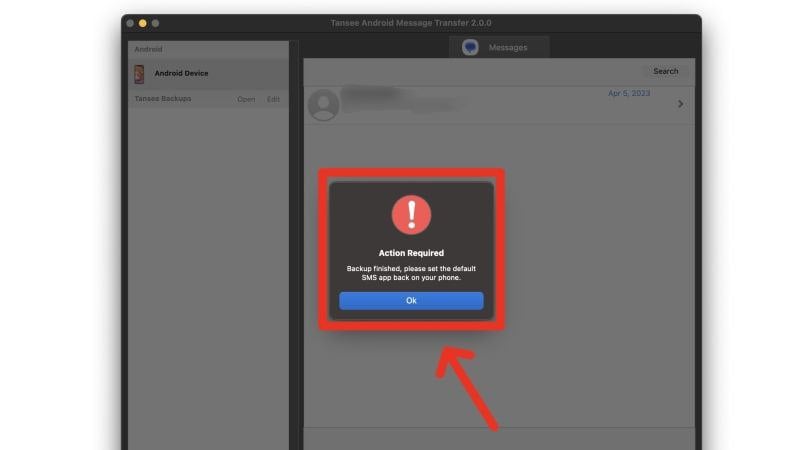
- You will be able to view the transferred conversation on your Mac, which you can then print or save.

Like many other apps, you have to pay for Tansee Android Message Transfer to unlock additional functions. The free version only shows the ten most recent messages exchanged between the parties; the rest can be unlocked with the premium subscription. We also had a few disconnections, but overall, the app performed admirably.
Print Text Messages From iPhone Using Third-Party Apps
You can also use third-party apps to print text messages from an iPhone. Don’t worry, most of the apps mentioned below support the process from both a Windows PC and a Mac, so you don’t have to worry about compatibility. Plus, you’ll end up with a printable document, which is much better than a screenshot. As always, don’t forget to discuss the methods of presenting evidence in court with your lawyer or legal advisor.
Tansee iDevice Message Transfer
Kudos to the developers at Tansee for making this ingenious tool available to Android and iPhone users on any PC platform — whether Windows or Mac. In this case, we’re opting for the Mac. What’s more, Mac users don’t have to install iTunes, which is part of the process for Windows users.
- Visit this link and download Tansee iDevice Message Transfer for Mac. You can also download it for Windows by visiting here. Since iPhones cannot directly interact with a Windows PC, you would additionally need iTunes on your PC, which can be downloaded from the Microsoft Store.

- Launch the app on your Mac and click on the option that says Open Settings > Privacy & Security > Full Disk Access.

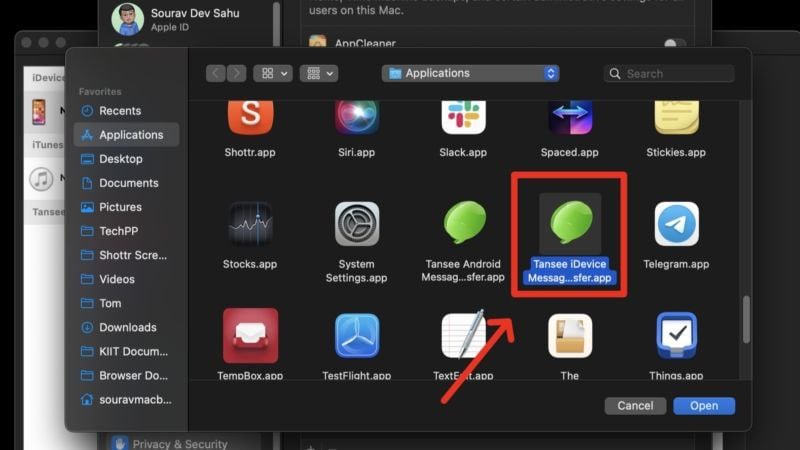
- Click on the plus (+) icon and select Tansee iDevice Message Transfer from the list of applications. This will grant the application full disk access. You will need to Quit & Reopen the app for the settings to apply.
- Connect your iPhone to your Mac using the appropriate cable (lightning or USB Type-C). As a part of the safety procedure, you must unlock your iPhone.
- The app should immediately detect and start backing up all the messages, which may take some time. If you are doing this on a Windows PC and the app isn’t detecting the messages, we recommend backing up your iPhone using iTunes and retrying the procedure from scratch.

- Enter the SMS section from the top pane and select the conversation you want to print.
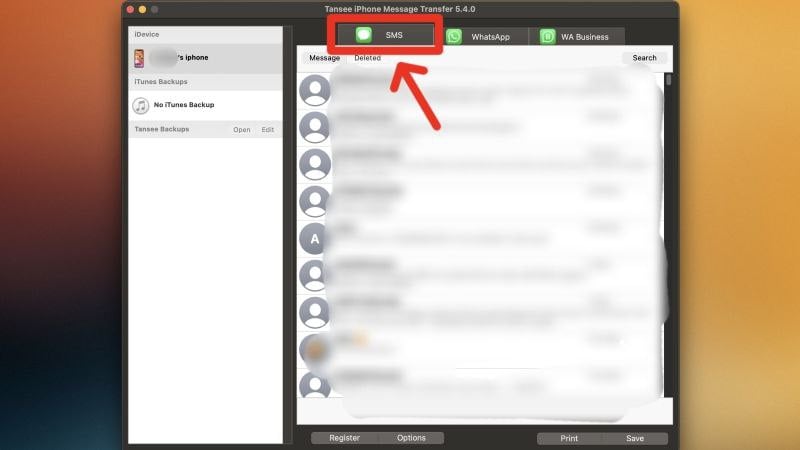
- Select the Print option from the bottom panel. Proceed by selecting the correct printer and adjusting the print settings accordingly. If you would instead like to save the text messages locally on your PC, click on Save. This will let you save the conversation as a PDF, HTML, image, or text file.
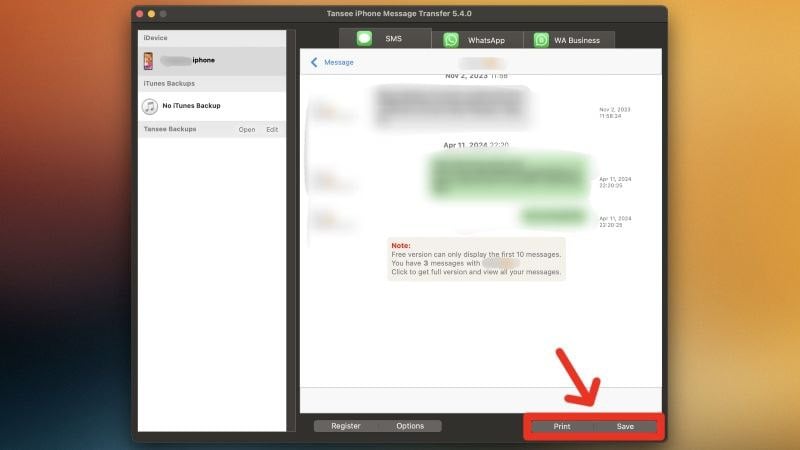
Just as with Android, Tansee iDevice Message Transfer works reliably in this case. Since it’s not necessary to back up your entire iPhone, it’s much faster in comparison. Once the backup has been created, printing text messages is a breeze. The output file contains all the necessary details, including the timestamp, dates, and sender/recipient details.
Decipher TextMessage
Decipher TextMessage is another such tool that is available for both Windows and Mac. Here, you can find out how to get started with it. Below, we explain the process for Mac, but for Windows users, it’s similar, with the added step of backing up your iPhone with iTunes.
- Visit Decipher Tools’ website and download the free version of Decipher TextMessage. Then, install the app on your Mac.

- Open the app and click on Open Settings for Me to grant full disk access, which is needed to access iPhone backups. Then click the plus (+) icon and select the app’s icon from the app selection page.
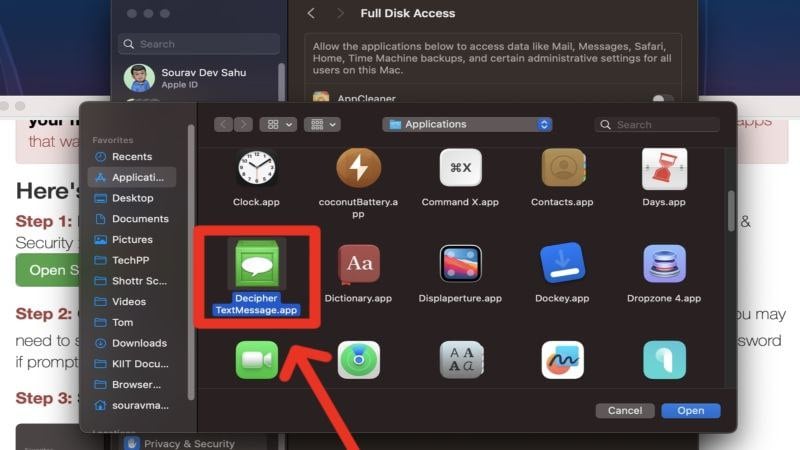
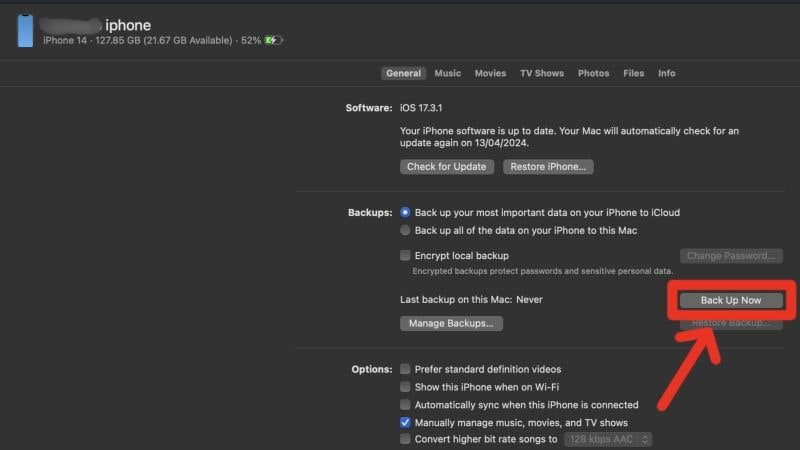
- Before proceeding, ensure your iPhone is backed up. You can do this using Finder for Macs running macOS Catalina and above or iTunes for other Macs. For Windows, ensure your iPhone is backed up using iTunes. This guide should help you with that.
- Otherwise, you can let Decipher TextMessage take care of the backup for you. Simply select Add Device after connecting your iPhone to your Mac using a Lightning or USB Type-C cable and click on Make Backup. This process requires some patience.
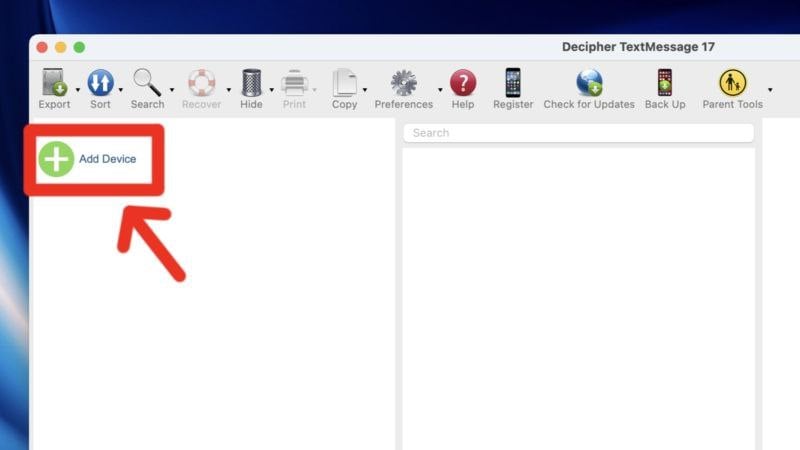
- After this, your iPhone should appear on the left pane. Click on it.

- From the list of conversations, select the required one. Click on the Export button in the top-left corner and hover the cursor over Export Current Conversation.

- Select the required export format, be it PDF, HTML, or CSV. We recommend selecting PDF for easy printing later on.

After the somewhat tiring initial process of backing up your iPhone, the road ahead is a smooth one. Sure, the free version has limited access, but the app works perfectly otherwise. Message exporting is fast, and provided you back up your iPhone regularly; you can have an updated list of conversations to print in an instant.
TouchCopy
TouchCopy is another alternative for printing text messages from an iPhone. The following describes how to use it with a Mac. TouchCopy is also available for Windows.
- Download the installation file for TouchCopy from its website. Install the .dmg file on your Mac.
- Connect your iPhone to your Mac using a Lightning or USB Type-C cable. Then, enter the SMS & iMessage section from the left pane, and TouchCopy will automatically start backing up the connected iPhone.

- After the backup is completed, you can access your text messages within the app.
- Select the required conversation and click on Print from the top panel. You can also choose to save the conversation as a PDF, HTML, or TXT file.

Image credits: Wide Angle Software
TouchCopy is a no-nonsense application for this purpose and works as intended. The interface is pretty intuitive, too. Although full access is restricted, the free version of TouchCopy is good enough for most users.
iMazing
iMazing is an all-in-one portal for your iPhone needs, whether it’s for transferring data between your PC or Mac, managing backups, or printing text messages. Like TouchCopy and Decipher TextMessage, iMazing is paid software, so you can’t use all the features in the free version. Below is a walkthrough of iMazing on a Mac.
- Visit here and download iMazing for Mac. Go through the installation process and load the application on your Mac.
- Open the app and proceed by clicking Continue Trial from the top-right corner.

- Connect the iPhone to your Mac using an appropriate cable and wait for the app to detect it. Once it detects, select Messages from the left pane.
- Now comes the waiting time. If you wish to create a full device backup, select Full Backup. This is necessary for the app’s other functionalities, such as file and music transfers. If you are only going to use it to print text messages, we recommend going for Data Access Only, which will take significantly less time and storage space.

- Once the backup is completed, you can view all your messages. Select the Print option from the bottom pane and proceed by selecting your printer and print properties. Furthermore, you can also save your messages as a PDF, TXT, or an Excel (CSV) file.

Print Text Messages For Court Effortlessly
No matter your device, you can print text messages and prove your point in court. All you need is your device, a Windows or Mac PC, and one of the brilliant apps mentioned on this list. Apps like SMS Backup & Restore are godsends for Android users, while Dechiper TextMessage and Tansee iDevice Message Transfer are for iPhone users. Printing text messages from an iPhone or Android doesn’t get much easier than that!
FAQs about Printing Text Messages for Court
Are screenshots presentable in court as pieces of evidence?
The short answer is yes; screenshots are a permissible form of evidence. In printed form, screenshots are admissible in court, but we still recommend consulting your jurisdiction for this.
Why do I need to back up my iPhone to access text messages on my PC?
Apps require backing up your iPhone first to read and access text messages on a PC. But many apps have the option to backup only the necessary stuff, which implies you wouldn't have to spend too much time waiting for the backup to finish. Plus, the backup wouldn't eat much of your storage space, either.
Why can’t I select my printer on my mobile?
It could be because your printer doesn't support wireless printing. Your printer must be connected to the same Wi-Fi network to print something from your iPhone or Android device. Visit your manufacturer's website to check if your printer supports wireless printing. Apple calls this AirPrint, and you can check if your printer supports AirPrint from this Apple Support guide.
My printer doesn’t support wireless printing. How can I print text messages from my phone?
In that case, the best option is to save your text messages as a PDF file on your mobile device and transfer them to your computer. There are countless file-sharing applications available for Android, Windows, iPhone, and macOS, so you can easily share your file and print it using a PC or Mac instead.

