

Deleting wallpapers on the iPhone is confusing. iOS doesn’t offer a direct delete option for wallpapers, making it hard for anyone trying to delete their wallpapers.

In this guide, you will learn how to delete iPhone wallpapers. Whether you want to replace the existing wallpaper with your photo or change the wallpaper to a default option, this guide will help you.
Table of Contents
How to Delete Wallpapers on iPhone
You can delete wallpaper from the lock screen on your iPhone. This method works on any iPhone running the latest iOS version. To delete:
- Step 1: Go to your iPhone lock screen and long press anywhere on the screen. Allow the device to unlock with your FaceID.

- Step 2: Now, Select the Wallpaper you want to delete.

- Step 3: Select the Wallpaper and Swipe up

- Step 4: Click on the Delete icon.
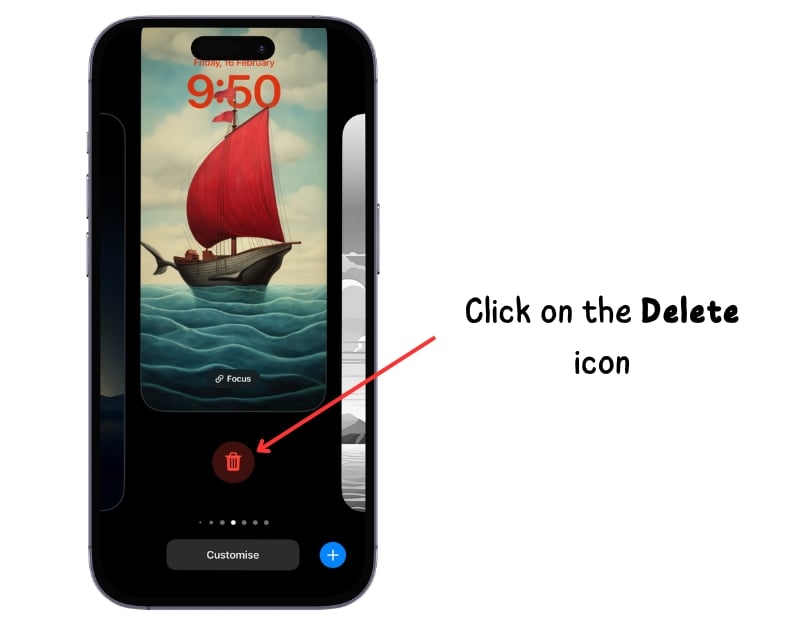
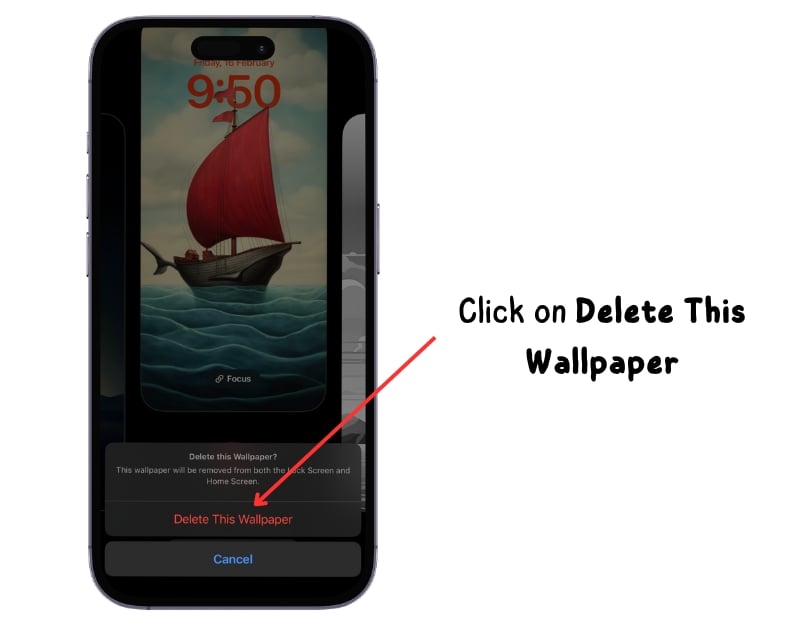
- Step 5: Confirm the action by tapping Delete This Wallpaper.
Deleting iPhone Wallpapers Made Easy
For some reason, Apple does not allow you to delete wallpapers directly from the wallpaper settings. You can use the abovementioned method to delete the wallpaper on your iPhone’s lock screen. With this method, you can delete multiple wallpapers and delete the default wallpaper as well. Note, however, that you cannot restore the deleted wallpaper. Any customizations you have made to the wallpaper will be deleted. I hope this simple guide is helpful.
FAQs about Deleting iPhone Wallpapers
1. Can I delete a default wallpaper?
Yes, you can delete the default Wallpaper on your iPhone. This method only works when the default wallpaper is not your current wallpaper. To delete, follow the abovementioned steps, select the default wallpaper, swipe up, and click the Delete icon to delete.
2. Can I delete multiple wallpapers at once?
No, you cannot delete multiple wallpapers at once. You can repeat the same process to delete any wallpaper you want.
3. How can I set a new wallpaper after deleting the old one?
After deleting the old wallpaper, your iPhone applies available wallpapers as your current wallpaper. If you want to set up a new wallpaper, Go to Settings>Select Wallpaper>Click on +Add New Wallpaper> and Select the Wallpaper you want to set.
4. Can I set my iPhone wallpaper to automatically change daily?
Yes, you can set the iPhone wallpaper to change automatically daily. You can use the Photo shuffle feature or the shortcuts to automatically change wallpaper daily. Photo shuffle features only work for the lock screen. If you want to change both the home and lock screen, you can use the shortcut feature. To use Photo Shuffle, Open Settings on your iPhone> Go to Wallpaper> Click on the +Add New Wallpaper> Select Photo Shuffle> Select the photo categories or create a wallpaper album in the photos app> Select the frequency and click on the use features photos.
5. How do I change the home screen wallpaper on my iPhone to a plain color?
To change your home screen wallpaper to plain color, open Settings on your iPhone> go to the Wallpaper tab> click on the +Add new Wallpaper> scroll to the right from the list of options available on the top and select Color. Now, choose the color you want to apply and click Choose Wallpaper Pair. If you want to change the current home wallpaper to color, choose the wallpaper pair, click on Customise on the home screen wallpaper, choose the color, and click Done.

