

The Apple Watch is a great tool for health and fitness tracking and allows users to check notifications, make calls, and get important reminders. You can customize the watch background and bands to suit your style and preferences. You can change the watch face or use a picture as the wallpaper for your Apple Watch. In this guide, you will learn different methods to change the background of your Apple Watch.

Table of Contents
How to Change the Background on Your Apple Watch
You can set up a new watch face or add an existing photo as a background on your Apple Watch. The watch face and using the photo as a background are two different elements of the Apple Watch. The watch face is the main display that shows the time and other elements such as activity, clock, and more. Each element of the Apple Watch face can be customized with new colors, fonts, and more.

However, if you use photos as background images, images are displayed behind the elements. This is similar to the wallpaper on your phone. The Photo as Watch wallpaper setting offers fewer customization options than Watch Face.
You can change the wallpaper from your Apple Watch or use the Watch app on your iPhone.
How to Change Apple Watch Face Using the Watch
You can change the current watch or add existing watch faces from your Apple Watch. To do this:
- Step 1: Wake your Apple Watch. If you set the passcode, unlock your Apple Watch. Long press on the Home screen or Watch Face.

- Step 2: Now swipe left or right to shuffle between watch faces.

- Step 3: To add a new Watch Face, swipe right and click the plus icon.

- Step 4: Scroll down and select the Watch Face you want to add.

- Step 5: Click on Add on the top.

- Step 6: Your new Watch face will be added.
How to Add a Photo as a Background on Apple Watch
You can add images as your Apple Watch background. You can choose existing images or add new images as the Apple Watch background.
- Step 1: Long press the on the Apple Watch Face
- Step 2: Swipe left and click on the Add new
- Step 3: Scroll down and go to the Photos section
- Step 4: Click on the ADD button and edit the wallpaper.

How to Change the Apple Watch Background Using Your iPhone
Compared to the Apple Watch, setting up a background with your iPhone offers more customization options. You can find and add new Apple Watch faces, pictures as backgrounds, and more. How to set the new Watch Face on the Apple Watch:
- Step 1: On your iPhone, Open the Watch app. Ensure your Apple Watch is paired with the Watch app on your iPhone.

- Step 2: Tap on the Face Galley and select the Watch Face you want to add to the Apple Watch

- Step 3: Tap on the Apple Watch Face

- Step 4: Click on the Add.

- Step 5: The Apple Watch face will be automatically added to your Apple Watch
How to Add Photo as a Background on Apple Watch From iPhone
You can select images from a photo album or set dynamic photos as the background for your Apple Watch. To add a photo album, you need to add photos to your favorites to create a new album. To do this:
- Step 1: Open the Photos app on your iPhone
- Step 2: Select the Photos you want to add as Apple Watch backgrounds and add them to your favorites. To add, select the Photo and click on the Fav icon button.

- Step 3: Suppose you want to add images to the album. Select the image, click on the three-dot menu, and select Add to Album to add your pictures to the album.
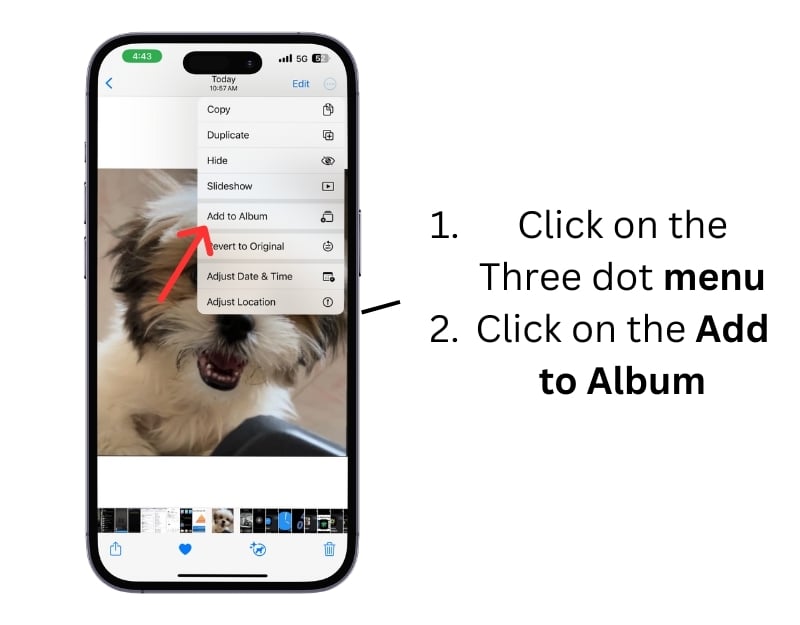
Set Images as Apple Watch Background from iPhone
- Step 1: Open the Apple Watch app on your iPhone
- Step 2: Go to the Face Gallery
- Step 3: Scroll down and go to the Photos section. Tap on the Photo Watch Face
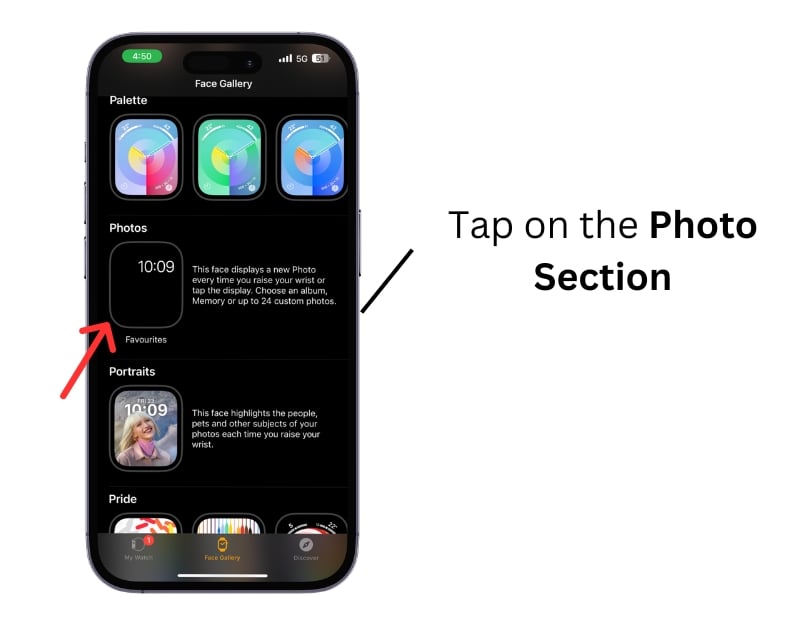
- Step 4: Now select the images to display as the Apple Watch Backgrounds. You can select the Photo Album, manually add the photos to create Watch Faces, or dynamically choose pictures from your Recent memories. You can refer to the image for more details about each feature.
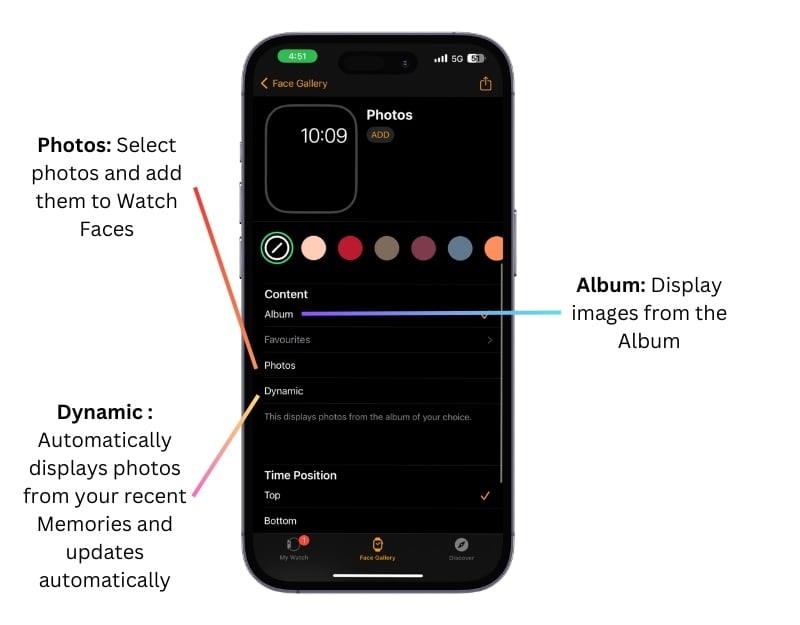
- Step 5: Click ADD to apply a new background after selecting the images.
Personalizing Your Apple Watch for a Unique Look
If you customize the Apple Watch background, your watch will become even more personal and unique. Whether you want to customize the watch background to match your mood or daily style or to coordinate with your outfit or accessories, you can easily change the background of your Apple Watch with a simple step-by-step process.
FAQs about Apple Watch Wallpapers
1. Can I set a dynamic photo album as my Apple Watch background?
You can set a dynamic photo album as the background for your Apple Watch. After adding photos to your favorites or an album, you can select them as the background in the Watch app. You can display images from a specific album, your favorites, or dynamically from your recent memories.
2. What image dimensions can be used as Apple Watch backgrounds?
The Apple Watch automatically crops the photos to make them look their best. However, if you are using third-party images or are having problems, you can find the recommended dimensions for the Apple Watch here. For the 38mm and 40mm models, the recommended background images are approximately 272×340 pixels. The dimensions for the 42mm and 44mm models are 312×390 pixels.
3. Can I use my iPhone to set up a background on my Apple Watch?
Yes, you can use your iPhone to set a background for your Apple Watch. Setting up a background with your iPhone offers more customization options. To do this, open the Watch app on your iPhone, tap ‘Face Gallery”, select the watch face you want, and then tap ‘Add’ You can also set photos as a background by adding them to your favorites or an album in the Photos app and then selecting them under the Photos section in the Watch app.
4. How can I revert to the original wallpaper if I don’t like the new one?
You can return to the original wallpaper at any time if you don’t like the new one. To do this, long press on the watch face on your Apple Watch, scroll to the left, and select the previous watch face. If you have deleted it, you can use your iPhone, select the Watch, and add it.
5. Can I have different lock and home screen wallpapers?
No, you cannot have different wallpapers on the lock screen and the home screen of the Apple Watch.

