

Changing fonts can help you to personalize your device and make it look unique. Some fonts make text easier to read and improve the overall reading experience. You can resize the font size, add new fonts from external websites or apps on your iPhone, and use them on your specific apps.

Apple doesn’t allow you to change the system font on the iPhone, but if you are using the iPhone running on iOS 16.1.2 or lower, you can install the WDBFontoverwrite app to change the system-wide font on the iPhone.
In this guide, you will learn four different methods to change the font on your iPhone. Keep trying to discover the best method to change the font on your iPhone.
Table of Contents
How to Change Font on iPhone
Change the Font Size on the iPhone
Changing the font size on an iPhone is straightforward. You can adjust the font size from the settings. You can increase the font size to read text more easily or decrease it to view more content.
The new font size will applied system-wide, including in apps installed on your iPhone. Starting with iOS 15, you can also change fonts for individual apps.
How to change the font size on an iPhone
- Step 1: Open Settings on your iPhone

- Step 2: Go to Display & Brightness.
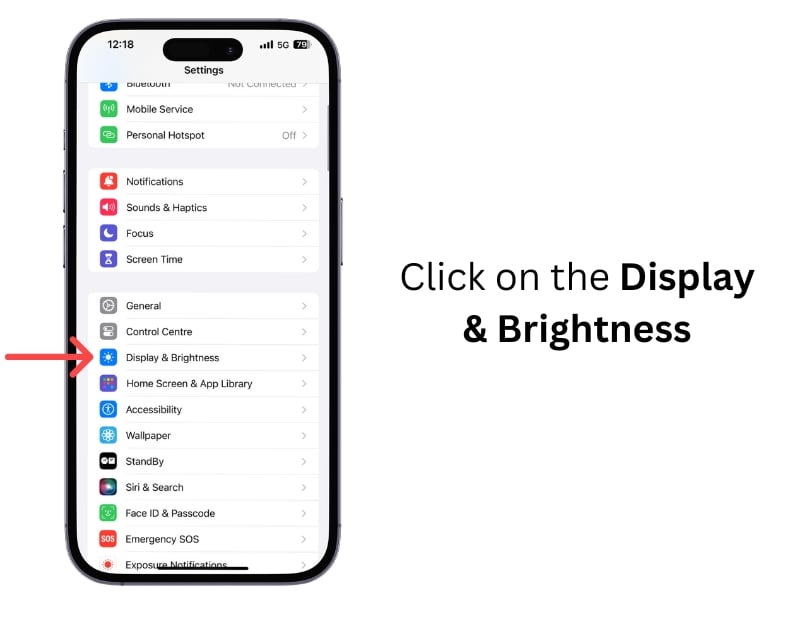
- Step 3: Click on the Text Size.

- Step 4: Scroll the sidebar to adjust the font. Left to decrease the font size and right to increase the font size.

How to Load New Fonts to iPhone
You can add new fonts to the iPhone.By default, it supports fonts like Avenir Light, American Typewriter, Charter Black, and more. You can see the complete list here.
You can add the missing fonts to the iPhone from external apps or websites and use them in specific apps. After research, we found Adobe Creative Cloud, Fonts, and Ifont: find, the three best font apps for iPhone.
Adobe Creative Cloud offers a collection of applications and services from Adobe. It also comes with support for Adobe Fonts. You can install and add these fonts to the iPhone. The process is slightly different compared to the other two apps. You can follow this helpful guide to add Adobe fonts to your iPhone. Adding fonts using other apps is straightforward. You can find different fonts on the home screen. Click on the install and fonts will be added to your iPhone automatically.
How to add new fonts to the iPhone
Install any third-party font app on your iPhone. In this case, we are using the free version of the Fonts app by OCO Inc.
- Step 1: Download the font app on your iPhone.
- Step 2: Open the app and select the font you want

- Step 3: Click on the Install and confirm Install to add font to your iPhone. This process is similar to any font app you are using.

- Step 4: To ensure font added to the iPhone, Open Settings on iPhone
- Step 5: Click on the General

- Step 6: Scroll down and click on the Fonts.

- Step 7: Ensure successfully font is added to your iPhone

- Step 8: Open any app with external font support.
- Step 9: Here, I am using the Apple pages. Select the text, click Customize and Font, and select the font you want to add.

- Step 10: Use the Font

How to Change Fonts Using a Third-Party Keyboard
Not all apps allow you to change the font style on iPhone. In this case, you can use the font keyboard to change the font of the text.
Plenty of third-party font keyboard apps allow you to change the font while inputting the text. You can switch between different fonts dynamically, use multiple fonts, and more.
- Step 1: Download the Font keyboard app on your iPhone

- Step 2: Open the app; most keyboard apps offer on-screen instructions to change the current keyboard and set it as a default keyboard
- Step 3: Open any app and select the Font.

- Step 4: Use the keyboard, select the font you want to use and start typing. You can see the changed text while you are typing. If you are not seeing it, The app might probably not support it.

Change the System-Wide Font on Your iPhone (iOS 16.1.2 and Lower)
You cannot change the system-wide font on iPhone. But there is a workaround you can use. The developer, Zhuowei Zhang, made a tool that lets you change the system-wide font by exploiting a security loophole present in past versions of iOS 16. The loophole was later fixed in the version 16.2
If you want to use this method, your iPhone should run on iOS 16.1.2 or lower. We tried to install and run the app on the iPhone, running on iOS 17. We can install the app but it didn’t work.
You need to sideload the WDBfontoverwrite app and install it on your iPhone to change the font. We have a detailed guide on sideloading iPhone apps using the ALTStore. You can view the complete step-by-step visual guide. Here is how to side-load and install the fonts app on your iPhone to save time.
How to install the WDBFontoverwrite app on iPhone
- Step 1: Go to the Altstore website and click Get Altstore.
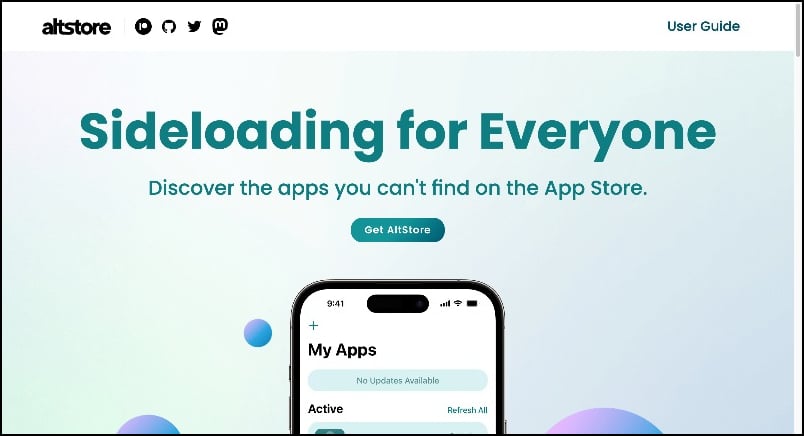
- Step 2: Download the AltServer for Mac or Windows. In this case, we are downloading it for Mac.

- Step 3: Now extract the downloaded file and install the Altstore on your Mac.

- Step 4: Open your iPhone and go to Settings>Privacy & Security. Scroll down, click on the Developer mode, and turn it on. Your iPhone will restart. After restarting again confirm to turn on the developer mode and enter the passcode.
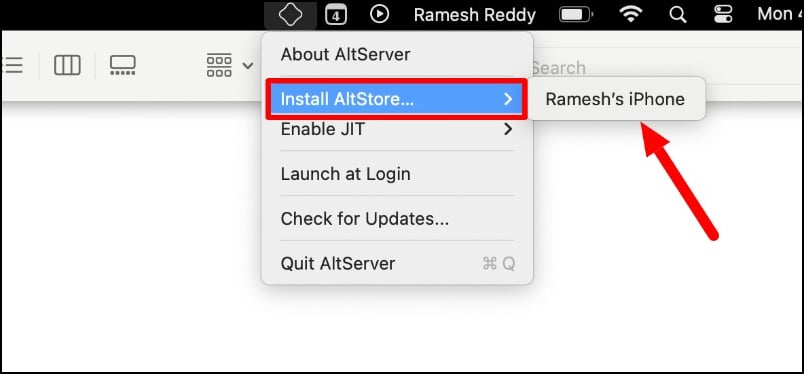
- Step 5: Now connect your iPhone to your Mac. Click on the AltServer icon on the top, click on the install alts store, and select the iPhone you want to install. On your iPhone, click on the trust. After a few seconds, the Altstore will start installing on your iPhone.
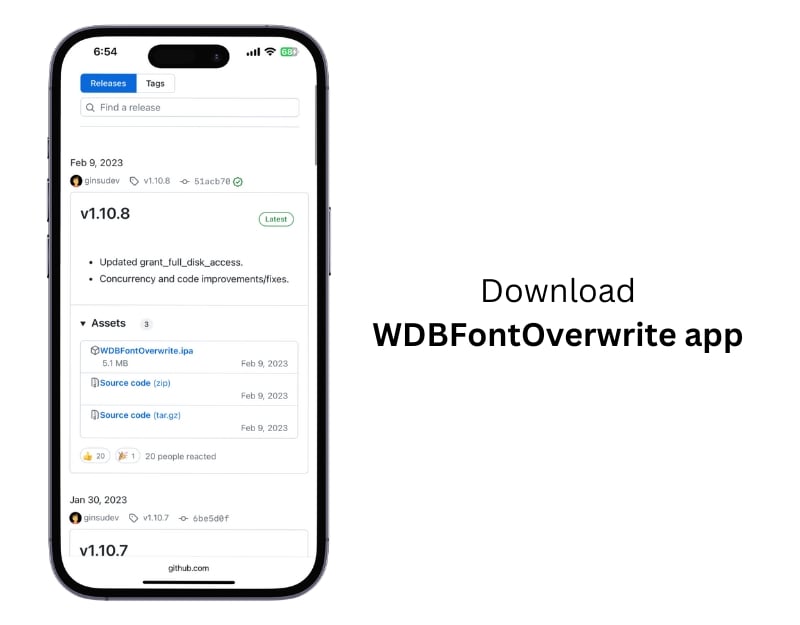
- Step 6: Go to this page and download the WDBfontoverwrite app on your iPhone.
- Step 7: Ensure that the AltServer is running on your Mac and that your Mac and iPhone are connected to the same Wifi network.
- Step 8: Click on the open with and select the AltStore. If you have any issues, you can Install iTunes on your Mac and enable the Wifi sync option.

- Step 9: After installing the app, Open the app and select the font you want to apply.

- Step 10: The font will be applied. Remember, your iPhone should run on iOS 16 or lower to use this feature.
Different Font Styles on Your iPhone
Like any other customization feature, changing the font on an iPhone is not easy. There are limitations. You cannot change the system-wide font using the default settings. You can only resize the font size or add and use the new font in supported apps. As always, we can rely on third-party methods to customize the iPhone. I hope this guide helps you resize, load, and change the system-wide font on your iPhone.
FAQs on How to change font on iPhone
1. Can you change the system font on an iPhone?
No, you cannot change the system font using the default settings on your iPhone. However, there is a workaround that only works for the iPhone running iOS 16 or lower.
To change the font, install the AltStore app on your iPhone. You can side-load the app from the steps detailed above. We also have a step-by-step guide on installing an Altstore on an iPhone.
You can view it from here. After installing the Altstore, download the WRDFont app and install it using the Altstore on your iPhone. Open the app and apply the font you like; the font will be applied system-wide. It doesn’t work on iPhones running on iOS 17. We tested it, and it doesn’t work for us.
2. What are the steps to change fonts for specific apps on iPhone?
It varies depending on the app; not all iPhone apps support different font styles. You can only change font style for specific apps on iPhone. The known apps that support different font styles are Apple Pages, Microsoft Word, editor, and more.
3. Are there any limitations to changing fonts on iPhone?
Yes, You cannot change the system font style. And only a few apps support font styles.
4. What are the best apps for changing fonts on iPhone?
Plenty of apps allow you to change the font style on your iPhone. Here are a few best picks.
- Smart Fonts-keyboard: Best Font keyword with support for thousands of custom fonts, icons, and emojis. You can use custom fonts in messaging apps, text editors, and more.
- Fonts Air- keyboard: This simple app offers seamless integration with social media accounts, WhatsApp, and the iMessage app, and it constantly updates its font styles.
- Cool Fonts: Offers a wide range of cool fonts that can be used across all iPhone apps.
- Fonts for You: Offers more than 100 font styles with ad free experience.
5. How can I use custom fonts in messaging apps like WhatsApp or iMessage on my iPhone?
You can use the font keyboard apps to use the custom fonts on these apps. Open any messaging app and start typing. Select the installed font keyboard and change the font. You can try different font styles, switch between fonts, and more.

