

You’ve probably noticed that Chrome suggests input on its own, whether you’re filling out a form, entering login credentials and other information, or even in the address bar when searching for something. These are Chrome’s autofill suggestions, whose only job is to prompt suggestions that fit into the relevant field.

Of course, Google Chrome can only do this if it remembers the data you have entered on other websites. Google Chrome’s autofill suggestions certainly help you save a lot of time and are a real boon, but they often feel unnecessary, redundant and sometimes even wrong. In this article, you’ll learn how to delete Chrome’s autofill suggestions, both for PC and mobile. Read on to find out more.
Table of Contents
What Are Chrome Autofill Suggestions, and How Do They Work?
Chrome Autofill suggestions is a feature in Google Chrome that saves you time by automatically filling in information you’ve already saved. This information can include addresses, passwords, login credentials and other common data such as name, phone number and e-mail ID. It is mainly used to fill in forms, order details, shipping addresses and more.
In case you’re wondering, no, Chrome doesn’t magically know that much about you. When you enter your data for the first time, Chrome asks you to save it as automatic data for future use. After you give Chrome permission to do so, the data is saved and used in the appropriate places. This data is fully manageable and you can delete it if you wish.
Also, the autofill suggestions in the address bar work when you search for something you’ve searched for before. Chrome knows this automatically and prompts you to search for the same item again. This data can be managed under Browsing data and deleted if necessary.
Delete Chrome Autofill Suggestions on PC
To delete Chrome autofill suggestions on your PC, here is what you need to follow:
- Open the Chrome browser.
- Click on the kebab menu icon (⋮) beside your profile icon in the top-right corner.
- Enter Settings.

- Select Autofill and passwords from the left pane. Alternatively, you can visit chrome://settings/autofill by pasting it in Chrome’s address bar. You’ll be greeted by three sections here, all serving different purposes. Let’s examine them one by one.

Google Password Manager
As the name suggests, the Google Password Manager is responsible for storing your password credentials. Whenever you enter your login details while logging in to your existing account or creating a new account, Chrome offers to remember the password so that you can log in easily. This is where passwords are stored and managed.

You can view your saved passwords and even run a check for potential threats or breaches. You can set a few more things under Settings. These include enabling or disabling the prompt to save passwords, exporting and importing passwords and using your lock screen password as an additional verification method.

You can delete your saved passwords by heading to Passwords, selecting the site you wish to delete passwords for, and then clicking Delete. Furthermore, you can disable Chrome from asking to save passwords for all sites by heading to Settings. Individual sites can also be blacklisted for the same by selecting Never in the dialogue box that prompts you to save the password for you while you are signing in.

Payment Methods
Tired of filling in your card details every time you shop online? Then the payment methods function is just the thing for you. Chrome can save your card details so you don’t have to enter them manually every time. Don’t worry, your card’s CVV data isn’t saved, so there’s no risk of misuse. Plus, you’ll still need an OTP to confirm your transaction.
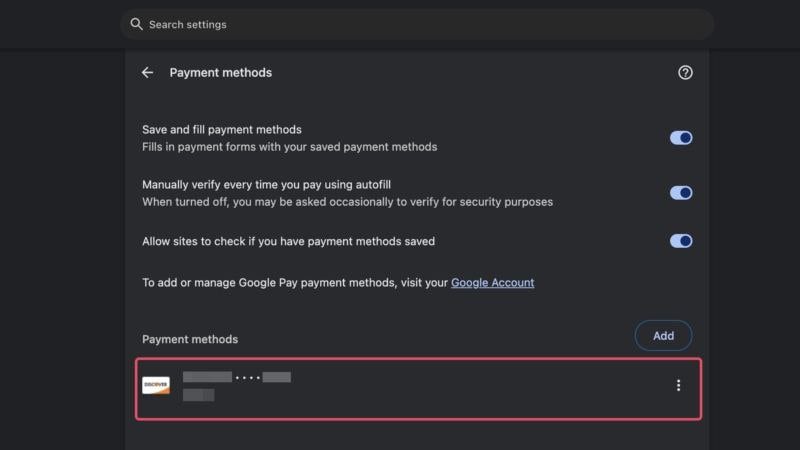
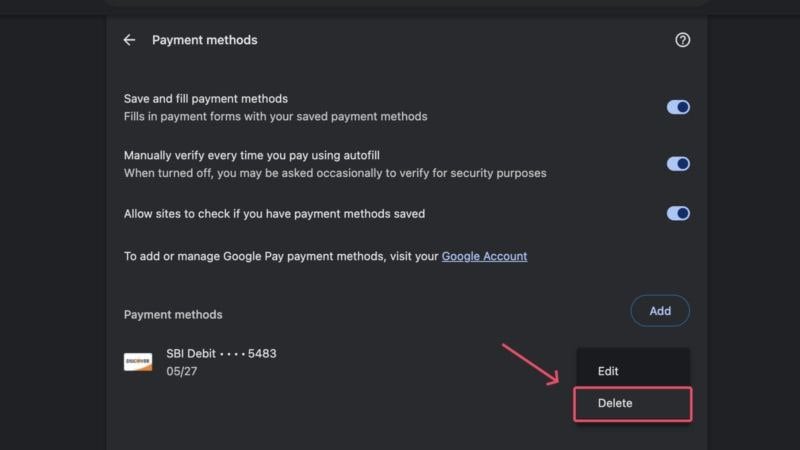
This settings page contains various page-related settings relating to payments. If you want to log out completely, uncheck the box next to Save and Fill payment methods. Otherwise, you can also delete or edit your saved payment methods individually on the same page. Your saved cards and accounts are displayed under Payment methods.
Addresses and more
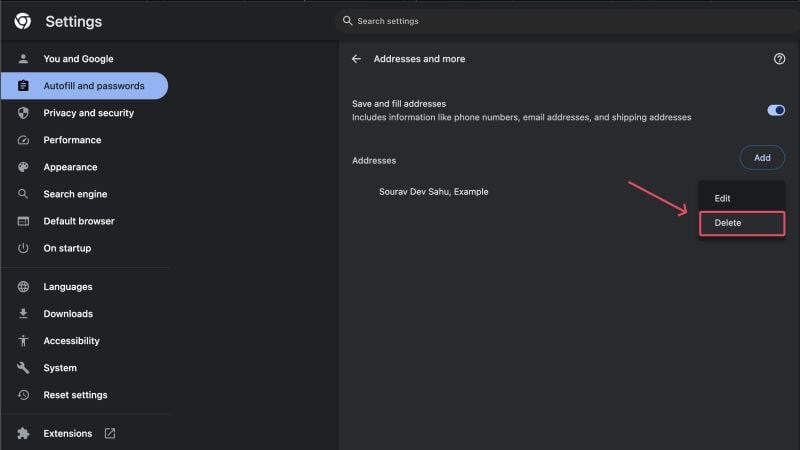
This section is pretty self-explanatory. Google Chrome can save your addresses and other information so you don’t have to fill it in over and over again. Again, if you want to delete your saved address for any reason, you can do so by clicking the kebab menu icon (⋮) next to a saved address and then clicking Delete. You can also add or edit an address that has already been saved.
Another way to tackle this is to delete your browsing data. However, you can’t delete specific autofill data using this method. However, it’s a quick way to delete the autofill data that has accumulated over the last hour or week of browsing. With a single click, you can delete all saved passwords, addresses and payment methods. Here’s how you can do it.
- Open the Chrome browser on your PC.
- Visit Chrome’s Privacy and security settings and select Clear browsing data. Alternatively, you can visit the page directly by pasting chrome://settings/clearBrowserData in the address bar and pressing enter.

- Switch to the Advanced tab from the top pane.
- Choose the time range for which you wish to delete autofill data. It can range from past hour to all time.

- Scroll down and make sure Autofill form data and Password and passkeys are enabled.
- Click on Clear data and have your autofill data deleted.

Delete Chrome Autofill Suggestions on Mobile
Of course, Chrome also offers similar functions in its mobile version, so you can also delete the autofill data via your smartphone. To do this, follow the steps below.
- Open the Chrome browser on your mobile.
- Click on the kebab menu icon (⋮) beside your profile icon in the top-right corner and enter Settings.
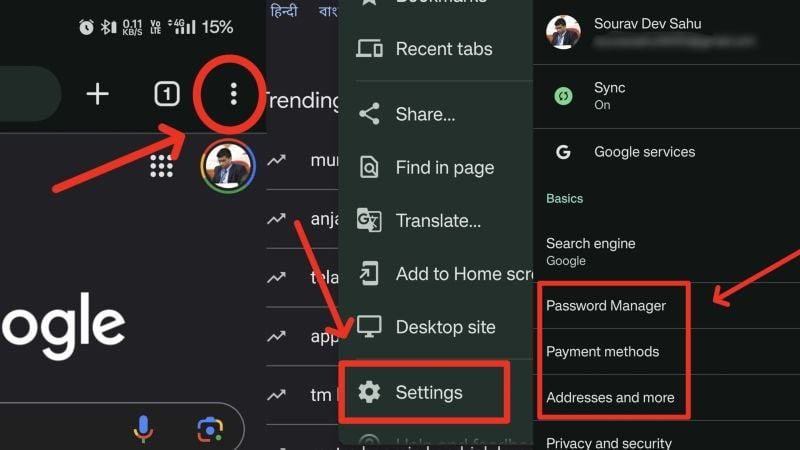
Here you’ll find settings to delete your autofill data, which includes saved passwords, addresses and payment information. Let’s go through them one by one.
Password Manager
This setting lets you edit and delete your saved passwords. Furthermore, you can run a password checkup to ensure your passwords aren’t compromised at any level. Clicking the settings icon will let you toggle a few more things, including the option to sign in automatically, password alerts, and more. You can explore this page to tweak more settings to fit your needs.
To delete a saved password, on the home page of Password Manager, click on the site you wish to proceed with and press Delete. You must first authenticate your action using your device’s existing biometric authentication.

Payment Methods
The Payment Methods page lets you manage your saved payment methods. The front page showcases your saved methods, including your credit/debit cards. In addition to that, you can keep track of the supported payment apps present on your device that are eligible for paying online. To delete a saved payment method, simply click on it and press the trashcan icon situated in the top-right corner.

Addresses and more
This settings page is uncomplicated at its core. All it includes is the toggle to let Chrome save and fill address entries, as well as a list of your saved addresses. To delete a saved address, click on it and press the trashcan icon situated in the top-right corner. If you wish to edit the address, you can do so using the same pathway.

Clearing browsing data on a smartphone also allows you to delete autofill data. Unfortunately, like on PC, this option wouldn’t let you cherry-pick the data you wish to delete, so it’s more of a one-click solution to delete all Chrome autofill suggestions. Regardless, here is the procedure for the same:
- Open the Chrome browser on your mobile.
- Click on the kebab menu icon (⋮) beside your profile icon in the top-right corner and enter Settings.
- Enter Privacy and security.
- Select Clear browsing data.
- Switch to the Advanced tab from the top pane and select the time range of the autofill data to be cleared.
- Make sure you have enabled the Saved passwords and Auto-fill form data options before clicking Clear data.

Take Control in Your Hands
This summarizes how you can delete saved autofill data from Google Chrome and take control of your data into your own hands. No matter the reason, deleting autofill suggestions in Chrome is just a few steps away and can be done effortlessly on both PC and mobile. You can also choose what you want to delete, be it your saved passwords, addresses or even payment methods.
FAQs about Chrome AutoFill Suggestions
1. What does Google Chrome store in the form of autofill data?
Chrome primarily stores three significant things in the form of autofill data: addresses and payment methods, which include your card details, and passwords, which can be used to sign in later. These are targeted towards making your experience much more seamless and time-saving.
2. Can I edit my saved addresses and payment methods?
Indeed, you can edit an already-existing payment method or address entry or delete it altogether. The option to edit an autofill suggestion is usually found beside it, alongside the option to delete the selected suggestion.
3. How can I add my details back and re-enroll for Chrome-autofill suggestions?
The settings page for saved addresses and payment methods has a handy little Add New button, which can be used to add and save new data. Speaking of Chrome’s password manager, you cannot add your passwords here — you have to do it from the site’s sign-in page when Chrome offers to save the party for you.

