

Quick Answer
To fix high memory usage in Microsoft Edge on Windows, try closing unnecessary tabs, clearing cookies and cache, and restarting your PC. Enable Efficiency Mode, use Sleeping Tabs, and tweak graphics acceleration settings. Disable Startup Boost and background processes, remove unnecessary extensions, and enable Performance Detector to optimize memory usage.
Though Google Chrome commands the web browser domain, Microsoft Edge comes installed by default on Windows 11. It is a Chromium-based browser that performs well when we are used to it. Most people switch from Google Chrome to other browsers because of its high system resource usage.

Microsoft Edge does not use as many resources as Google Chrome. Good performance bundled with less resource usage makes it a good choice for a web browser. However, some users find Microsoft Edge using high memory on the PC, making it hard for other programs to function. Let’s see how we can fix it and improve the PC’s performance, as well as Microsoft Edge, without using too much memory.
Table of Contents
8 Ways to Fix Microsoft Edge High Memory Usage on Windows
When you find Microsoft Edge using high memory or CPU resources on your PC, close all the unnecessary tabs and see if it changes anything. Then, close the browser and restart your PC to begin with. After the restart, open Edge to see if the resource usage has come down in the Task Manager. If not, follow the below methods.
Clear Cookies and Cache
Sometimes, the cached data and cookies related to the website may cause the browser to consume more resources while it is running. It may be caused by corrupt data, too. You need to clear all the cookies and cached data to fix it. Remember that you’ll lose everything in your browsing history.
To clear cookies and cached data on Microsoft Edge,
Click on the three-dot icon on the corner of the toolbar and select History. Alternatively, you can use the Ctrl+H shortcut on your keyboard to open the history window. Then, click on the Bin icon.

It opens the Settings page with a Delete browsing data overlay. Set the Time range to All time. Check the boxes beside Cookies and other site data, as well as Cached images and files. You may choose to delete browsing and download history as clearing everything gives a fresh start. Click Clear now and wait for a few seconds to clear the data.

After clearing cookies and cache, open the Task Manager on your PC from the taskbar. Find Microsoft Edge and right-click on it. Click End task to end all the processes related to the Edge browser.
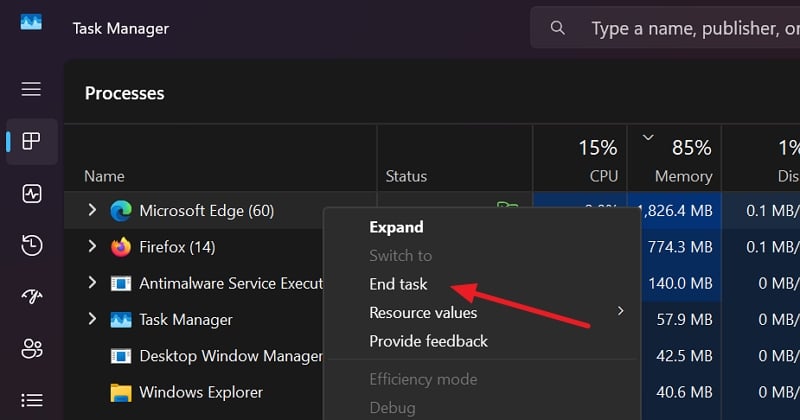
Now, restart your PC, open Microsoft Edge, and start browsing. See if it helps.
Check if a Particular Website Is Causing It
The website we visit puts stress on the browser if there are more elements to load and function. It happens with websites that provide software as a service (SaaS). Visit websites that you regularly visit and see how they impact resource usage in the Task Manager.
If you are seeing a website making the Edge use more system resources, try visiting the same website on other web browsers and see how it is affecting it. If the website is using a similar range of resources even on other browsers, there is nothing you can do about it except for upgrading your PC to get more memory for other programs to function properly. You can find which website is using huge system resources in the Task Manager by expanding the Microsoft Edge.

When the other browsers are performing normally without using too much of system resources, you may need to switch to that browser to use the website. Also, check if the extensions you have installed on the browsers are the same, as they impact the performance of many websites.
Enable Efficiency Mode and Sleeping Tabs
Windows 11 has one of the best features, Efficiency Mode. When you enable this mode for supported programs, the program does not use much system power and resources without breaking its functionality and performance.
If Microsoft Edge on your PC is using too much memory, you can put it to efficiency mode and fix it. To enable efficiency mode on Microsoft Edge, click on the three-dot icon on the toolbar and select Settings. Click on System and Performance. Then, toggle the button beside the Efficiency mode under Optimize Performance. The toggle should turn blue, indicating it is enabled.
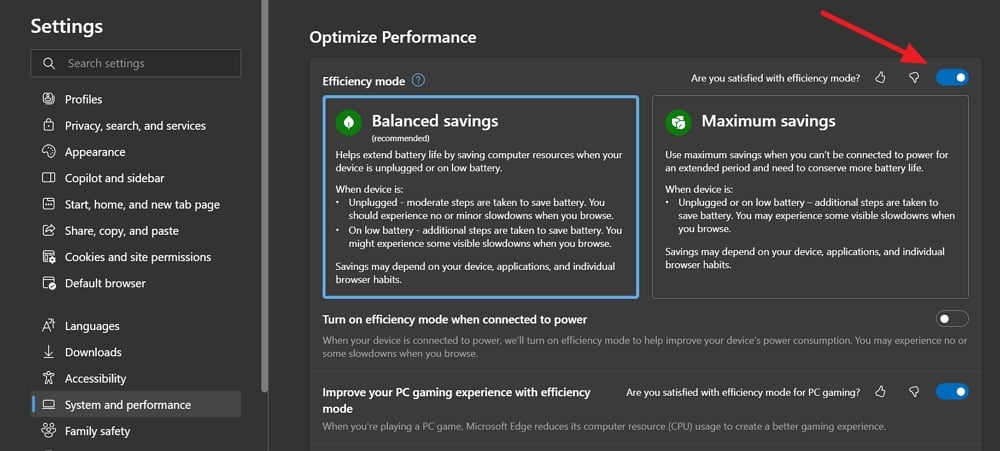
Then, toggle the button beside Turn on efficiency mode when connected to power just under Efficiency mode to enable it. It should improve the performance considerably.
To enable sleeping tabs, scroll down and toggle buttons beside Save resources with sleeping tabs and Fade sleeping tabs.

It will put inactive tabs to sleep and stop them from using system resources. Only the active tabs use system resources, which puts less stress on your system.
Tweak Graphics Acceleration
The graphics acceleration feature on Edge browser uses GPU when there is a need and lets other programs on your PC use CPU and perform well. Sometimes, it may cause high memory usage issues. If it is enabled on your Edge browser, disable it and see if it helps. If it is disabled, enable it and see how it affects the performance.
To tweak graphics acceleration on the Edge browser,
Open Settings and select the System and performance tab. Then, toggle the button beside Use graphics acceleration when available to enable or disable it.

Restart the browser to let the changes affect it and see how it helps.
Disable Startup Boost and Background Processes
When you log on to your Windows PC, Microsoft Edge and its processes automatically start running in the background, even if you do not open the browser. It can affect the performance of your PC if it is using high memory. To fix it, you need to disable the Startup boost and processes running in the background.
To disable Startup boost on Microsoft Edge, open Settings and go to System and performance. Under System settings, toggle the buttons beside Startup boost and Continue running background extensions and apps when Microsoft Edge is closed.
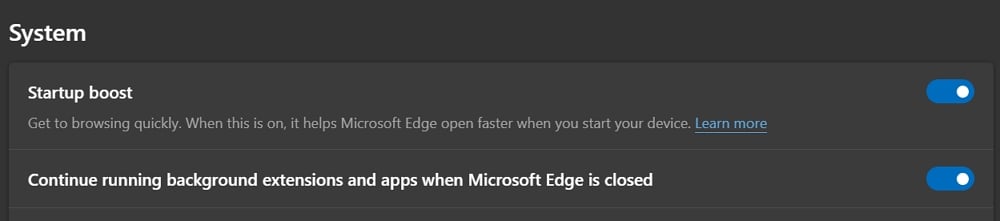
It makes Edge end its processes when you close the browser.
Enable Performance Detector
When a tab or process is using an abnormal amount of resources or its behavior is abnormal, the Performance Detector feature on Edge can recommend actions you need to take to fix the issues. Enabling it may let you know about erratic usage and reduce memory usage with the tips it gives.
To enable the Performance detector on the Edge browser, open Settings and go to System and performance. Under Manage your performance, toggle the button beside Performance detector to enable it.

Microsoft is adding more features to Performance Detector, like limiting RAM usage, etc., to give more customization to the users. It is still in the beta stage and may arrive in normal versions in the future.
Remove Extensions
If you have installed many extensions on Microsoft Edge to add more capabilities, it’s time you stick to the necessary extensions and remove others. The more extensions, the more the browser needs system resources to function properly.
To remove the extensions from Microsoft Edge, click on the Extensions icon on the toolbar. It will show all the installed extensions. Click on the three-dot icon beside the extensions you want to remove and select Remove from Microsoft Edge.

Repeat the process until you remove all the unnecessary extensions from the Edge browser to improve the performance and fix high memory usage.
Switch to Another Browser
You can easily uninstall the Edge browser and switch to other browsers like Mozilla Firefox, Brave browser, etc. It is possible to switch without uninstalling the Edge browser, but it may not yield the desired effect on the system resources.
Does Edge use a lot of RAM?
Edge does not use a lot of RAM by default. If you open more tabs and install a lot of extensions, the usage can spike. The browser should use less than 500MB of memory with 2-3 active tabs for a normal user. It may change for gamers.
How to check Edge memory usage?
Open the Task Manager on your PC from the taskbar. Click on the Processes tab to see the list of programs and processes running on your PC. Find Microsoft Edge among them and see the CPU, Memory, Disk, and Network usage beside it.
Stop Microsoft Edge From Using So Much Memory
Microsoft Edge has all the features and settings that you can use to limit or reduce the usage of too much memory on your PC. You need to enable them and focus on sticking to minimal mode in terms of everything, from the number of active tabs to installed extensions. Microsoft Edge updates itself automatically, and you only need to use the features wisely to make it perform better without stressing your PC.

