

Quick Answer
Unsubscribe to emails, delete old emails, remove large files, or move them to secondary email, delete unnecessary photos and videos, and manage large files on Google Drive to free up space on Google Drive. With a secondary email, you can manage the storage better by moving large files to it.
Every Google account includes 15GB of free storage. Over time, this space fills up quickly from incoming and outgoing emails with attachments, files uploaded to Google Drive, and photos automatically synced from your phone. Eventually, you face a tough choice: pay for additional storage or delete files you might want to keep.

If you do not want to lose important files and still want to free up space on Google Drive or your Google account, this guide is for you. We explain different ways you can use to keep your Google account with needed space without losing access to any of your important files.
Table of Contents
How to Free Up Google Storage
Before diving into the tips, it’s worth noting that cleaning up your Google storage is more convenient on a computer. The larger screen provides extra space to work with, making the process much easier than trying to manage everything on your phone.
Sl. No | Method | Steps | Effectiveness |
|---|---|---|---|
1 | Clear Gmail Inbox | Unsubscribe from unwanted email lists and delete old emails from those senders. | Moderate |
2 | Delete Large Attachments | Use Gmail's filter to find and delete emails with large attachments. | High |
3 | Clear Spam and Trash | Empty both Spam and Trash folders in Gmail. | Moderate |
4 | Delete Unnecessary Drive Files | Manually review and delete old or redundant Google Drive files. | High |
5 | Move Large Files to Secondary Drive | Identify large files, download, upload to another Drive account, and share. | High |
6 | Delete Old Drive Backups | Go to Google Drive > Storage > Backups, then delete outdated backups. | Moderate |
7 | Clean Google Photos | Delete blurry, duplicate, or unnecessary photos and empty the Trash. | High |
8 | Transfer Old Media to Secondary Account | Move old photos and videos to a secondary account for safe storage. | High |
9 | Delete Unused Google Docs | Identify and delete old documents in Google Docs, Sheets, Slides, and Forms. | Moderate |
10 | Bonus Tip: Use .edu Email | If eligible, use a .edu email account for unlimited storage. | Very High |
Clear Your Gmail Inbox
We see hundreds of unwanted emails pile up every week on our Gmail. Those emails from services we no longer use or promotional emails that we do not need. Unsubscribing to those unnecessary email lists and then deleting them is the best way to go forward.
First, we need to find emails that are constantly filling up the inbox. Open the Gmail account on a web browser on your PC and observe the first page. You will see a lot of emails that you do not require. Ignore banks, insurance, work, friends, and other such important emails. After ignoring the important emails, you can still see many emails on the first page itself. Identify emails from services that you do not remember subscribing to, that you no longer use, promotional emails, pitches, etc.
Open an email that you do not need; if it is from a service or company, it will come with an unsubscribe button. Besides the email address at the top, you will find an Unsubscribe button. Click it to proceed unsubscribing from that email list.

Now, copy the email address of the just inscribed email address and paste it into the Gmail search box. You will see all the emails received from that email address. Click on the Select all check box and then click the Trash icon to delete them.
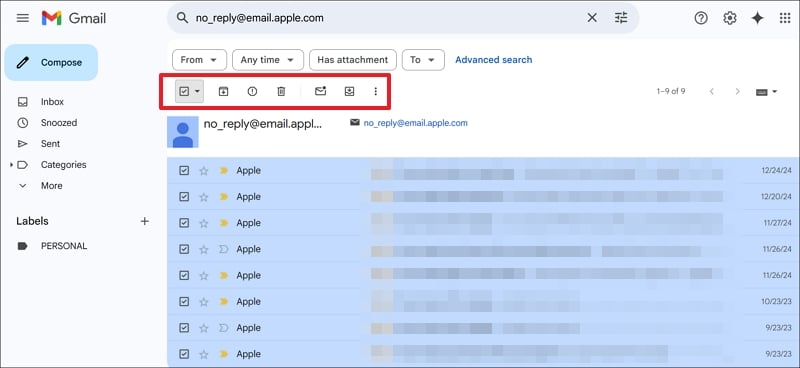
Repeat the process until you unsubscribe from all the unnecessary email lists and delete the emails. It will free up some space and not fill up again with redundant emails.
Delete Emails With Large Attachments That You No Longer Need
We receive a lot of emails with attachments like PDFs, images, etc. Find those emails that have larger attachments and manually delete those you no longer need. It will free up some space instantly.
Click the Filter icon on the search bar. In the filtering options, check the button beside Has attachment. Set the Size to 10MB or something you find large enough to remove and click search.
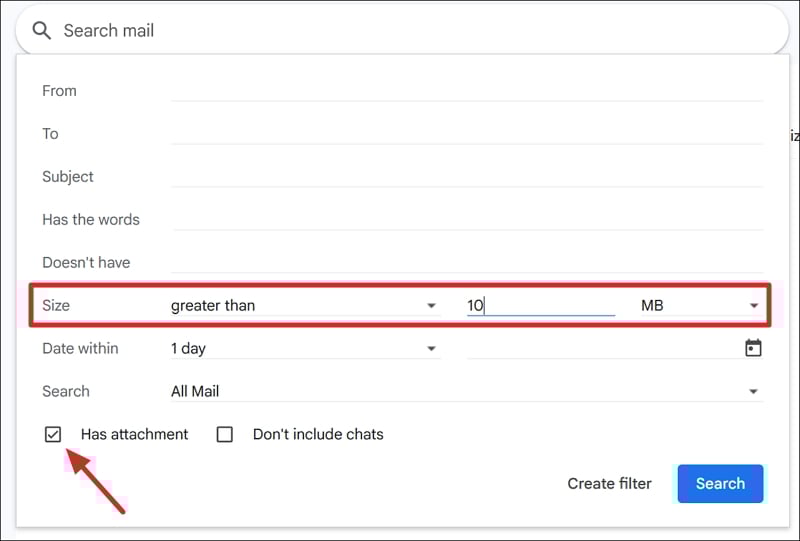
The emails with attachments larger than the size you specified will appear. Go through them and delete the unnecessary emails.
Clear Spam and Trash Folders
Many promotional emails go into the Spam folder automatically due to the security certifications of the IP addresses. Click the Spam folder on the sidebar and delete all the spam emails. Then, go to the Trash folder, where you can find all the emails you have deleted until now. Click Empty Trash now to remove all of them at once.
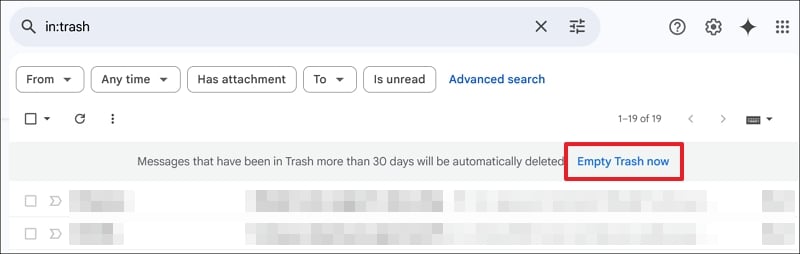
After clearing the Trash, you will see a noticeable change in your Google space.
Delete Unnecessary Files on Google Drive
A file, once necessary, might not be the same today. Our Google Drive contains many files that we no longer need. Open Google Drive and find files that you do not need. You need to go through all the files manually and decide if they are useful or not.
When you find any, right-click on them and select Move to Trash or press the Delete button on your keyboard. Then, click the Trash on the sidebar and empty it to remove them permanently.
Inspect, Delete, and Move Large Files on Google Drive
Google Drive contains large files that are either unnecessary or most important to us. Most of them could be the backup files we uploaded to store them and access them whenever we want. Click the Storage on the sidebar on Google Drive. You will all the files on your drive with their sizes beside them in ascending order.
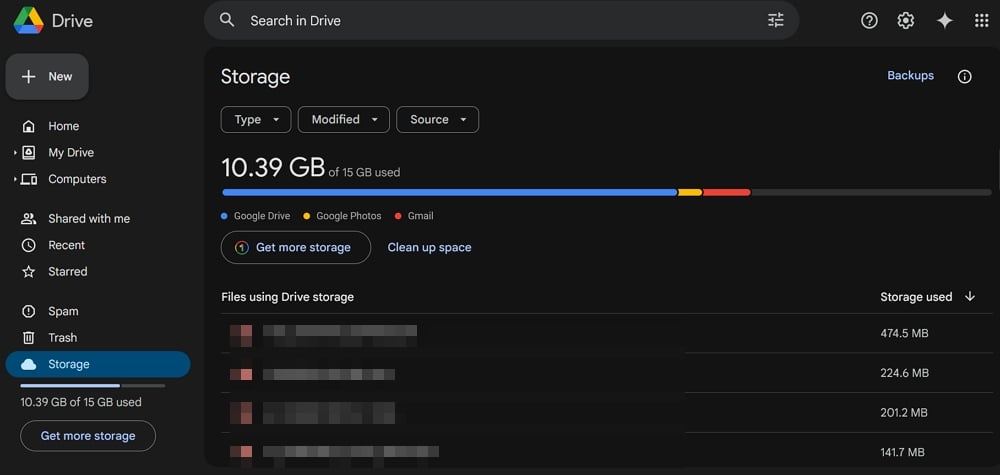
Now, go through all the large files and see if you need them. If you do not need them, delete them permanently. If you need them and want to save them on your drive as a backup, you should download those files and upload them to your secondary email’s Google Drive. Then, share the files with your primary email so you can access them whenever you want using the Shared with me option. This way, you do not need to delete backed-up memories or compromise on the Drive space.
Delete Old Backups on Google Drive
Google Drive stores backups from WhatsApp if we enable it and some other services. It happens on a daily or weekly basis, whichever we have chosen while setting it up. There might be old backup files still lingering on your drive, occupying some space. Go to Storage on Google Drive and select Backups.
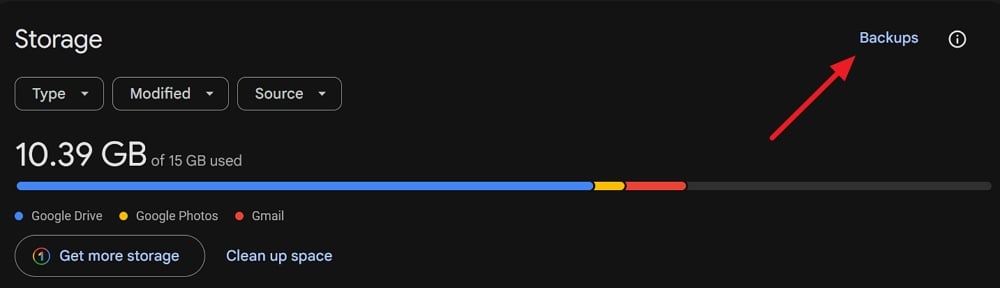 You will find all the backups related to the various services you have enabled. Keep the latest ones and delete the old backup files to free some space on your drive.
Delete Unnecessary Images and Videos
The photos we take on our devices can be synced to the Google Photos app. If you have enabled this, every image and video you capture on your device is synced and uploaded to your Google account via the Photos app. It consumes a lot of storage space. To make some free space, you have to manually go through all the photos and videos and delete those you find to be a waste of space due to blurs, temporary images, etc., on Google Photos. Click the Trash folder on the Google Photos to see all the deleted photos. Click Empty trash to delete them permanently.

Move Old Photos and Videos to Secondary Drive
When you go through the Google Photos app, you find a lot of photos and videos from the past. You may need them to store memories. To save space on the primary Google account, you can download them and upload them to the secondary email, where they can stored for as long as you need. To access them easily with the primary email, you can share them via Google Drive.
After moving them successfully to the secondary drive, delete them on the Google Photos of the primary drive.
Delete Unnecessary Google Docs
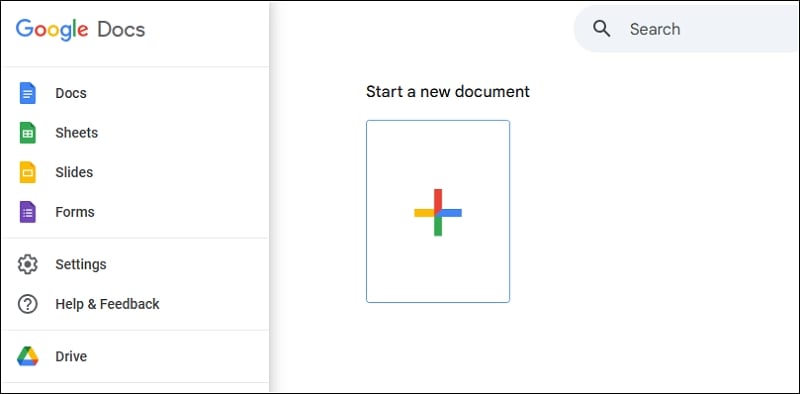
Whenever we create documents on Google Docs, Sheets, Slides, or Forms, they are automatically saved on Google Drive. You can find those documents easily on Google Docs. Open Google Docs on a web browser and sign in with the Gmail account. You will see Google Docs by default. Find the unnecessary files and delete them.
Repeat the same with Sheets, Slides, and Forms. Now, go to Google Drive and empty the trash to delete them permanently.
Bonus Trick: Log In with a “.edu” E-mail Address

If you’re not able to clear up a lot of storage despite using these tricks, and you want to store large files, you can log in to Google Drive using an e-mail address that has a “.edu” domain, and you will get unlimited Google Drive storage. Of course, you need to be a student to have such an e-mail address, and if your school/college has allotted you one, make use of it to the fullest by storing as many files as you want on Google Drive.
Clean Up Google Drive to Save Storage

We can manage well with the free 15GB storage offered with a Google account. All we need is a primary and secondary account to move and manage files. Once in a while, we have to manually check what is consuming space and get rid of such files if they are not needed.
FAQs on How to Free Up Space on Google Drive Without Deleting Important Files
1. Why is my Google Drive storage almost full?
The emails that pile up in Gmail, the unnecessary large files on Google Drive, duplicate files, duplicate photos, and large videos on Google Photos all come together to make Google storage full. You have to manually go through all of them, delete what you don’t need, and free up some space.
2. Does deleting files from Google Drive free up space?
Yes, deleting unnecessary large files does free up space on Google Drive as they consume a lot of storage. You can find the files sorted by their size in the Storage section of Google Drive.
3. Why is Google storage still full after deleting?
When you delete files on Google Drive or any other Google Drive-connected services, they are automatically moved into the Trash folder. You have to go through trash folders on Gmail, the Photos app, and Google Drive to empty them and free up space.

