

Quick Answer
If you have a newer device with Android 14 or above, you can directly check the battery health by searching for it in the settings app of your phone. If you have an older device, then dialing codes might just work for you. And if you are someone looking to get the exact battery stats with cycle count, then using third party apps like Ampere, Electron, and aBattery is your best bet.
Battery health and battery life of a smartphone are two of the most important factors that determine the longevity of a smartphone. It’s always a good idea to keep a close eye on the battery health of your phone. Many OEMs with Android 14 have started displaying battery health on new phones, but this is not the case for most old Android devices.

Brands like Xiaomi, Realme, Moto and even Poco have not included such a useful feature in their old phones that have been updated to Android 14. If you still have your good old and reliable Android phone and want to take a close look at your phone’s battery level, you’ve come to the right place. In this blog, we’ll show you how to check the battery health and battery cycle count of your Android phone.
Let’s start with the easiest way to check the battery health of your Android smartphone.
Table of Contents
Check Battery Health from the Settings App
If you have a new device that is either going to receive an update to Android 14 or has already received the update, then it is very likely that your phone will show the status and health of the battery. In most cases, searching for battery health should work on most new Samsung, Pixel, Oneplus and Moto devices. We have used a OnePlus 12R for demonstration purposes.
- Open the Settings app and click on the search bar at the top.
- Search for health or battery health.
- Click on the following result.
- Your phone should show its battery health as its maximum capacity.
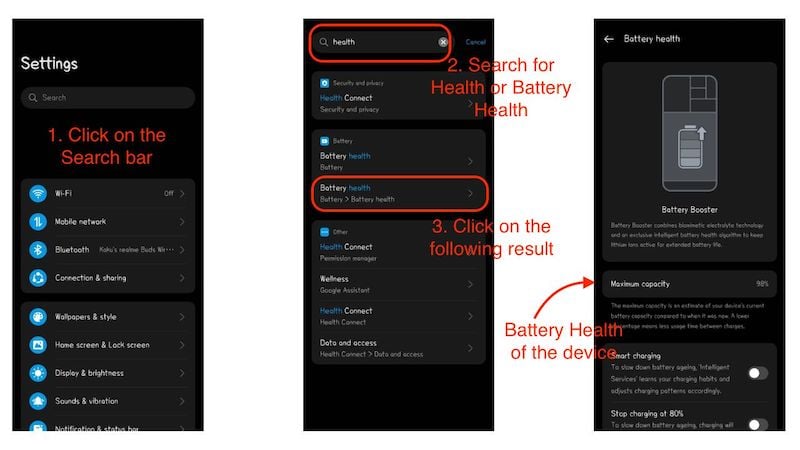
Maximum Capacity means that your device indicates the current estimated capacity of the phone battery. If this number is lower than 100%, it means that the battery of your device is weakened by that many percentage points. In our case, the maximum capacity is 98%. This means that the battery is degraded by 2%. It is also not necessary for the battery health to always be displayed in percentage points. Sometimes manufacturers also indicate the battery condition as good or bad.
This is by far the easiest way to display the current battery status of an Android phone. However, this only works for devices running Android 14 or higher. If your device does not receive an update for Android 14, you should next use an app or dial codes to check the status of your phone’s battery.
Check the battery health using Dial code
All Android devices use dial codes. They are an integral part of the operating system and manufacturers use them to diagnose the smartphone. In some cases, these dial codes can help you determine the condition of your battery. This may not always work, but it’s definitely worth a try. Here you can find out how to check the status of your phone’s battery using dialing codes.
- Open the dialer app on your Android device and dial this particular code: *#*#4636#*#*.
- You will see a screen with testing written on top of it. It is called the testing menu, or hidden Android testing menu.
- Here, you need to find the battery information page.
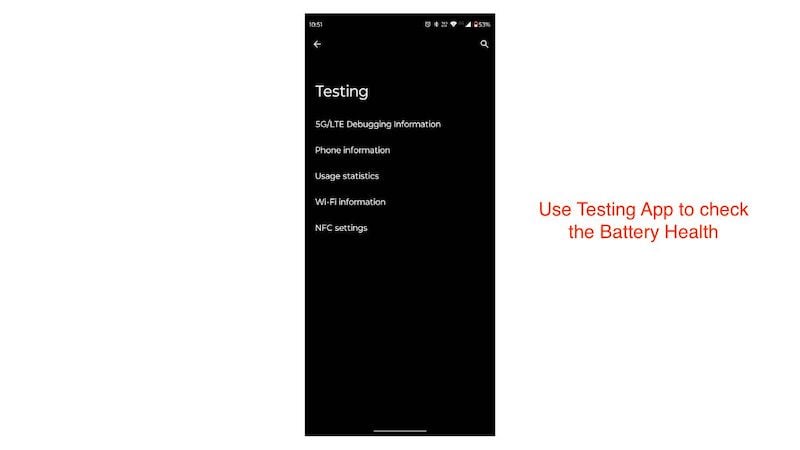
On most new devices, the battery information page is not visible, but if you have an old device, for example from the early days of Android or even a device running Android 9 or 10, there is a small chance that you can find it. This is also a very easy way to check the battery health of your smartphone. If you can’t access this page, it’s better to use a third-party app.
Use a third-party app to check the battery statistics.
If you don’t feel like finding out exactly what the battery condition of your Android phone is, there are two very useful Android apps that can show you the correct battery condition of your Android phone. They are free and available in the Play Store.
1. Ampere
It is a very nicely designed and easy to use application that works like a first party app and not like a third party app. It uses the data provided by the Android system and the phone’s hardware. It shows very good estimated results and can even help you find the right combination of charger and cable for your smartphone.

- It shows the current status of the battery (charging or discharging).
- Battery health is good or bad.
- Maximum capacity for which the battery is designed.
- Model of the smartphone and the Android version.
- It gives the reading in milliamperes at what rate the phone is charging, while also showing the minimum and maximum values.
- Same case with discharging as well.
- It also has a pro version, which removes ads.
2. Electron
It is a very lightweight application specially designed for users who want to take good care of their smartphone battery right from the start. It has a well-designed user interface with multiple pages that display various information about the battery health of your Android phone. It is a must if you want to use your smartphone for longer.
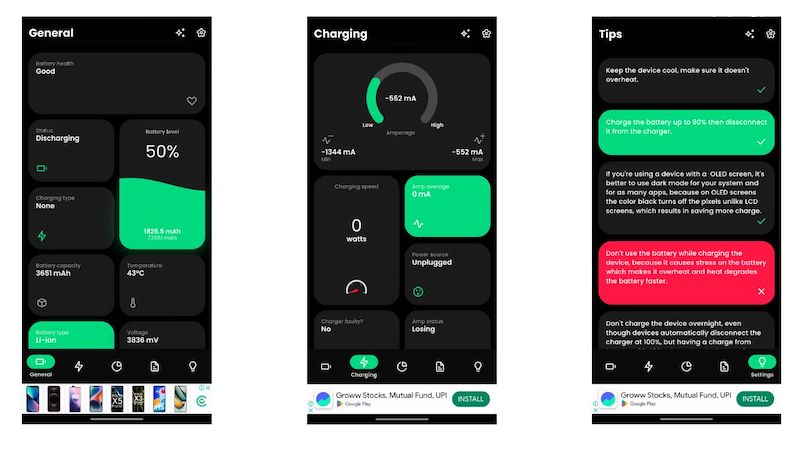
This application is a must-have if you are worried about the battery health of your smartphone. Some features that Electorn offers are:
- The app is divided into several pages that provide different information about the state of your battery.
- The general page shows the charging and discharging status of your smartphone’s battery. It also contains the maximum battery capacity.
- The charging page shows the charging speeds and the wattage at which the phone is being charged. It can also tell you whether your charger is defective or not.
- The usage page shows the current usage of apps. It shows how the apps consume the battery.
- On the function page, you can set alarms for 2 things. Low battery and fully charged battery.
- On the Tips page you will find some important tips for saving the battery of your Android phone. These tips are divided into colors for better understanding.
You need to grant some permissions for this app to work 100%. We think it’s worth it and you should give it a try.
Both apps are ideal for users who want to keep an eye on the condition of their battery. Both are very accurate and easy to use. Electron also provides detailed information about battery stats, while Ampere takes a simple approach and only shows the most important things. If you’re not sure which program to use, we recommend you try them both and then use the one you like best.
However, if you are looking for accurate information about the battery health of your Android phone, the next app is probably the best of the three. It shows the exact battery health of the phone in percent as well as the number of charging cycles. It’s a little complicated to set up at first, but keep at it so you can install the app easily
Using Shizuku and a battery to check the Battery Conditions
Shizuku is an Android app that is an absolute godsend for power Android users. Remember when everyone used to root their Android device to add extra features and use different custom roms? Today, while rooting is all but extinct, OEMs have established a tradition where rooting your device is just as difficult as physically tampering with the internals. Shizuku, on the other hand, takes this approach of modding and customization and makes it much easier to use.
With Shizuku, you don’t have to root your device to gain access to system-level APIs. You can simply install Shizuku, enable things like developer options and wireless debugging, and pair Shizuku with your phone. All of this is done using ADB commands that Shizuku uses internally to gain access to system-level APIs.
Shizuku is safe to use, although there is a bit of a learning curve to fully understand its features. There are several apps that use Shizuku to access system-level APIs. One such app is Battery. It uses Shizuku and gets access to system-level APIs. aBattery is a fairly straightforward app that works reliably with phones running Android 11 and above.
Configuring Shizuku and aBattery
Let’s look at how we can use Shizuku and aBattery to display the battery health and the number of battery cycle count.
First, install Shizuku and aBattery from the Google Play Store. Now follow all the steps to configure both the apps:
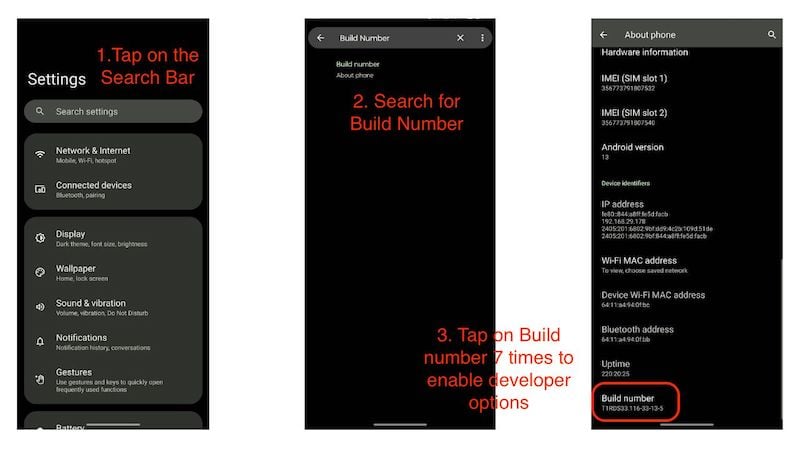
- Open the Settings app on your Android phone.
- Click on the search bar and search for the build number.
- Quickly click on the build number seven times.
- You will get a notification that you are a developer.
- Now go back to the main settings page and search for developer options.
- Open the following result to open the Developer Options page:.
- Scroll down and enable USB debugging and wireless debugging.

Now, it’s time to open the Shizuku app.
- Open the Shizuku app, and you will see it on top (Shizuku is not running).
- We need to start Shizuku so that we can give access to aBattery.
- Here, click on the pairing button.
- Now, tap on the Developer Options. (This will open the Developer Options settings page.)
- Scroll down and tap on the left side of wireless debugging to open it.
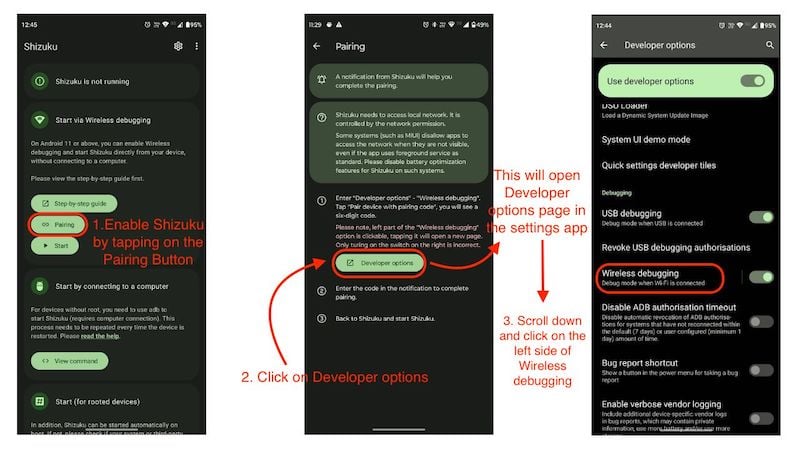
- Select the second option, which says “Pair device with pairing mode.”.
- This will give you a pairing code that you need to enter into Shizuku’s pairing service.
- Swipe down the notification panel and click on Enter pairing mode.
- Enter the pairing code, and voila! You will be able to start Shizuku successfully now.

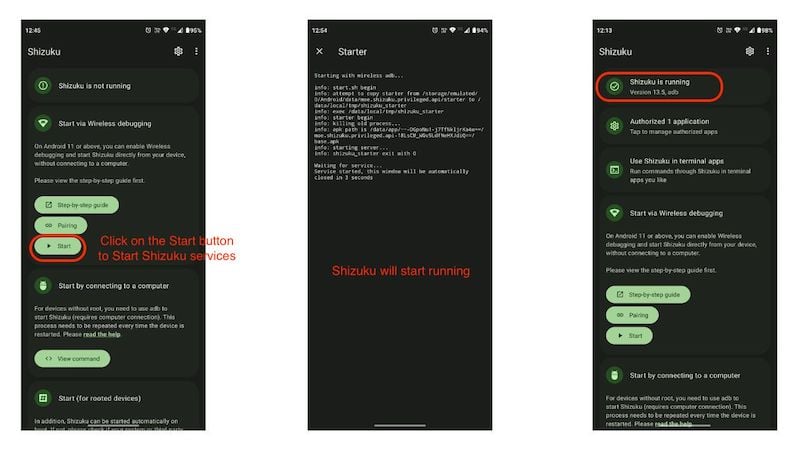
Open Shizuku once more to start the service.
- Click on the start button, and Shizuku will start the ADB service.
- Once the app is configured properly, you will be able to see on top “Shizuku is running”.
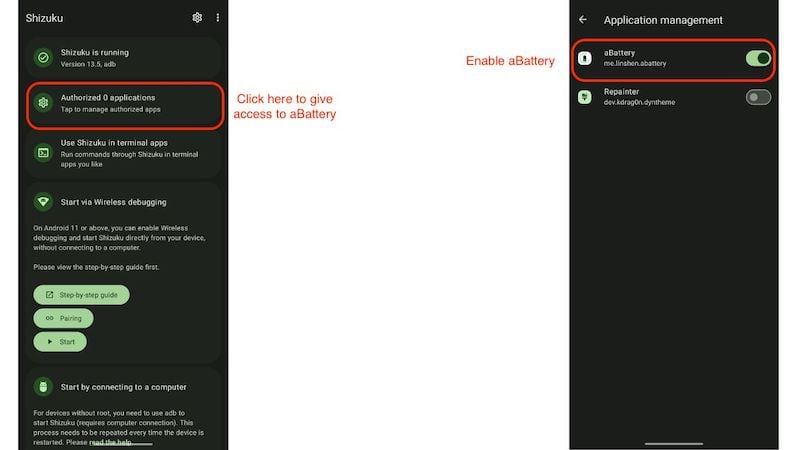
- Now, click on the second option, which says “Authorized 0 applications.”.
- Here, enable aBattery by clicking on the toggle switch.
It’s time to open aBattery
- When you open aBattery, you can see the maximum capacity of your battery and the number of cycle count.
- aBattery uses the OEM’s HAL properties to read the battery information correctly.
- If any OEM has not implemented HAL correctly, then the results may be inaccurate.
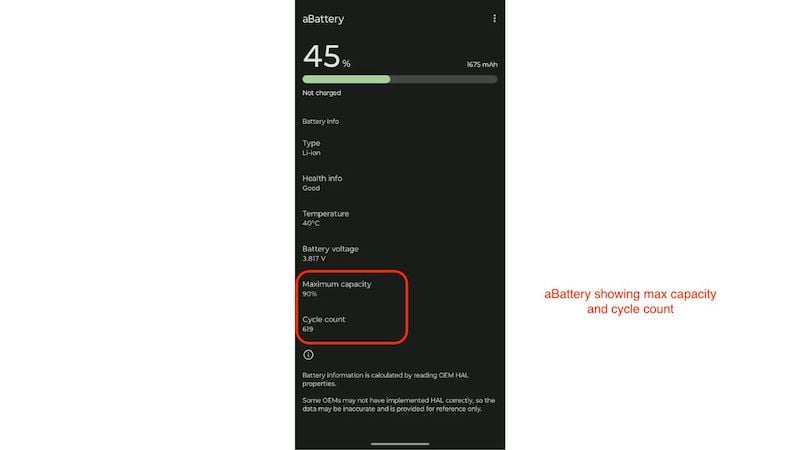
In most cases, if OEMs do not implement HAL correctly, aBattery will not work at all. Also, the number of charge cycle count depends on how many times you plugged your device in to charge and how many times you unplugged the charger to stop charging. It does not matter if your phone has reached a certain charge level.
These are 3 methods to check the battery life of your Android phone. These methods are also useful if you are planning to buy a used or refurbished Android device. While you can use these methods to check the battery health of your Android phone, there are also certain steps you should take to maintain the battery capacity over a longer period of time.
Tips for saving battery health of your smartphone
Although the above article is best suited for Android users, we believe these tips are useful for all smartphone users. These are some basic tips that most smartphone users neglect when using their smartphones on a daily basis.
- Charge your device in a ventilated room: A rise in temperature is one of the main sticking points of modern smartphone batteries. These batteries can age well over time, but they don’t age well if it’s constantly hot around the smartphone. We believe that you should use your smartphone (especially in summer) in a room where there is some airflow or good ventilation.
- High temperatures are bad for battery health: If you are recording a video with your phone, constantly taking photos with the camera app or even playing games, you should remove the back cover so that your phone can dissipate the heat well.
- Use Optimize charging mode: Like iOS, most Android OEMs also offer a special charging mode to save your phone’s battery in the long run. The optimized charging mode not only prevents the battery from draining faster. In most cases, it slows down the charging speed of the phone just enough so that the charging process doesn’t seem really slow and the phone doesn’t get hot. This is an absolute godsend for preserving battery life in the long run.
- Don’t constantly charge your device. By constantly charging your device, we mean that you shouldn’t leave it plugged into the charger all the time. Let the battery discharge to a certain percentage and then plug the phone back in. We recommend 20%, which is a good level. Use the phone and only connect it when it has reached 20%. It is also not worth charging the phone to 100% again and again, because these batteries are designed for a certain number of charging cycles, and if you always charge your phone to 1005, you will reduce the number of charging cycles.
Also See: How to Maximize Smartphone Battery Health
These are some tips that you can implement in your everyday life to save your device’s battery in the long term. I hope this article helps you to take good care of your Android phone’s battery health. You can use all three methods to check the battery health of your Android phone. These methods are ideal for anyone who wants to use their phone for a long time. However, we also recommend not thinking too much about your Android phone’s battery. Modern smartphones are very intelligent, and the Android operating system itself uses several methods to conserve your Android phone’s battery. If your phone does run out of battery, it’s easier and cheaper to replace the battery on most Android phones, unlike iOS. So don’t think too much about battery life and keep using your phone.
FAQs about Android Battery Health
Can I check battery health on Samsung devices?
Yes, you can check the battery health on your Samsung device. Simply open the Samsung Members app, open the "Diagnostics" tab, go to the "Phone Diagnostics" section and then scroll down to Battery Status. Your phone will show the current status of the battery. This app shows the battery status as good or bad.
How can I check my phone’s battery life?
Battery life usually depends on the condition of the physical battery. While there are several variables that affect the battery life of a smartphone, such as the optimization of your phone or the quality of battery management, a solid way to find out how your phone's battery performance is doing is to check the battery health of your smartphone. You can follow the first step in the article above to check the battery health of your Android phone. If you have an older device, you can also follow the other two steps.
How do I know if a phone battery is bad?
One sign of a bad phone battery is that your phone doesn't last as long as it used to. A battery is made of chemicals, and chemicals also age; we call this chemical aging. Also keep in mind that old smartphones with new and updated software sometimes can't keep up with all the tasks and therefore your phone needs more processing power to keep up! This leads to poor battery life.
How can I keep my battery 100% healthy?
The short answer is that there is no way to keep your smartphone battery 100% healthy. Unless you stop using your phone and keep it in a lab environment. We believe in keeping a phone's battery usable for longer. If you follow the tips above, your phone's battery will work perfectly for a long time to come.
How long does 75% battery health last?
Well, 75% battery power may not be enough for a long time, and you need to charge your device at least twice a day. The most important thing is that the battery must be replaced when it falls below a certain percentage, in this case 75%. Otherwise, uncontrolled shutdowns may occur.
Is fast charging bad for battery health?
Well, most new phones, especially from manufacturers like Xiaomi, OnePlus, Moto, Oppo and Iqoo, have super-fast charging technologies, and their batteries last just as long as any other smartphone. We can't say how fast charging can affect your phone. It could be bad if the phone gets extremely hot, or it could be good if your device charges quickly. Just plug it in for 10 minutes before you go outside and you'll get a full day's worth of juice. In our opinion, we need to make sure that the phone doesn't overheat. Heat could affect your phone's battery more than fast charging.
What is the code for checking the battery health of my phone?
The code you can use to check the battery health of your phone is *#*#4636#*#*. You can use this code to check the battery health of your phone. However, it does not always work. On most new devices, the battery information page may not be visible, but if you have an old device, e.g. from the early days of Android or even a device running Android 9 or 10, there is a small chance that you can find it.
What’s bad battery health like?
There is no clear cut definition of bad battery health. If your phone doesn't last all day and you have to charge it several times, we call that poor battery life. If you face the same issues and the device randomly turns off and condenses, it could be a case of poor battery life.
Is there an app to check the battery health of my phone?
Yes, there are several apps that allow you to check the battery health of your phone, but not all of them are able to determine the exact battery health in percent. There is one app that can do both: show both the exact battery health and the number of battery cycle count of your device. The app is called aBattery; it's free and you can configure it with the help of Shizuku by following the article above.
Can I use a 67-watt, 44-watt, 100-watt, 50-watt, or 33-watt phone charger with my phone that charges at 15 watts?
Yes, you can use any charger with your cell phone. However, the charger with a higher wattage will only charge the device quickly if the device itself supports fast charging. The device will only charge at 15 watts if that is the maximum wattage the device supports. More importantly, you need to take a close look at which charging technology the device supports in order to charge it quickly.
Is slow charging beneficial for the battery?
Slow charging can be good for the health of the battery as your device will charge more slowly and therefore likely generate less heat. So slow charging can be beneficial in the long run. But battery technology has improved a lot and manufacturers can control the charging speed of the phone with software and special hardware. In our opinion, it is theoretically a good idea to charge the battery more slowly, but with today's technology it is no longer worth it.

