

Samsung’s One UI packs many multitasking features. If you’ve got a Galaxy phone, especially one with a large screen, like one of the Plus or Ultra models, knowing how to multitask will help you get the most out of its screen estate and get things done efficiently.

Let’s dive in and check out how to multitask on a Samsung Galaxy phone.
Table of Contents
How to Multitask on Samsung Galaxy Phones
Sl No | Method | Description |
|---|---|---|
1 | Put Apps in Split Screen View | Allows running two apps simultaneously by splitting the screen horizontally into two halves. |
2 | Open an App in Pop-Up View | Open an app in a tiny window that can be minimized or moved around the screen. |
3 | Transform Apps into Floating Bubbles | Create a floating bubble for an app to quickly access it over other apps. |
4 | Use the Edge Panel for Quick Actions | Access favorite apps, contacts, tools, and perform multitasking actions quickly from the Edge panel. |
Put Apps in Split Screen View
Putting two apps in the Split Screen View is the simplest and most obvious way of multitasking on a Galaxy device. The Split Screen View allows you to split the screen horizontally into two halves to run two apps simultaneously.
For example, you can use Samsung’s split-screen feature to take notes (in your favorite note-taking app) while watching a video on YouTube. Or collaborate on a document in Google Docs while attending a team call on Google Meet. You can also find it useful when you want to drag and drop files from, say, your favorite file manager onto WhatsApp.
One UI allows you to put apps in Split Screen View from the Recents menu as well as the Edge panel. Here’s how it works.
Puts Apps in Split Screen View Using the Recents Menu
- Make sure one of the apps you want to put in the split-screen mode is already open on your device.
- Bring up the Recents menu by swiping up the navigation bar or tapping the multitasking button on your phone.
- Tap the icon of the app you want to put in split-screen mode and select Open in Split Screen View from the menu.
- Finally, select the second app you want to put in Split Screen View, and you’ll have both open on your screen.

Puts Apps in Split Screen View Using the Edge Panel
If you already have one of the two apps you want to use in Split Screen View open on your screen, using the Edge panel is the easiest way to put it alongside another app in split-screen mode. Here’s how:
- Make sure the first app you want to use is open on your screen.
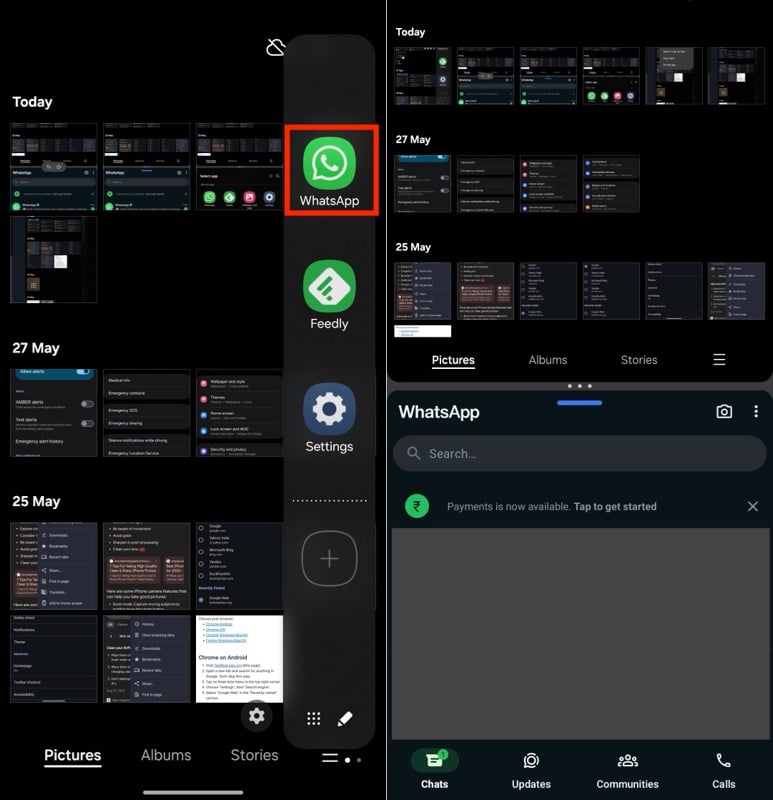
- Swipe left on the Edge panel handle to slide out the Edge panel on your device, and you should see all your open apps.
- Tap and hold on to the app until you feel haptic. Then, drag the app to the top half or bottom half of the screen to open it in Split Screen View with the first app.
- If you don’t see the app you want to open in the Edge panel, tap the menu button (with the candy box icon) to view all your apps and select it from there.
Change the App Order in Split Screen View
The order in which you select the two apps to open in Split Screen View determines which app goes to the top half and which one sits in the bottom half of the screen. However, you can change their appearance, based on your preference, whenever you want.
Simply tap the three-dot menu between the two apps in Split Screen View and hit the arrow keys to change the position of the apps.

Adjust the Split Screen Area
When you put two apps in split-screen mode, they occupy half a screen area each by default. However, when you using certain apps, you may want to adjust this screen area. To do this, tap the three-dot menu between the two apps and drag it up or down as needed.
Create an App Pair for Your Most Used Apps in Split Screen View
If there’s a pair of apps that you use in Split Screen View frequently, you can mark it as a favorite and add it to your Home Screen or Edge panel to open it quickly the next time you need it.
To do this, with the two apps open in Split Screen View, tap the three-dot menu in the middle and select the star icon. Now, depending on your preference, select Home Screen or Apps Edge panel to put the Split-Screen app group there.

Exit Split Screen View
When you’re done using apps in split-screen mode, tap the Back button or perform the Back gesture twice to exit the Split Screen View. Doing this will leave you with the first app open on your screen.
Related Read: How to Split Screen on iPad and Use Two Apps in Split View
Open an App in a Pop-Up View
Split screen multitasking is great when you want to use two apps on your screen simultaneously, but it may not be ideal for every use case. For example, if you can’t afford to split the screen area, as that would make it difficult to see their content, you wouldn’t want to open apps in Split Screen View. Similarly, the split-screen multitasking feature isn’t helpful when you want to multitask with three apps at once.
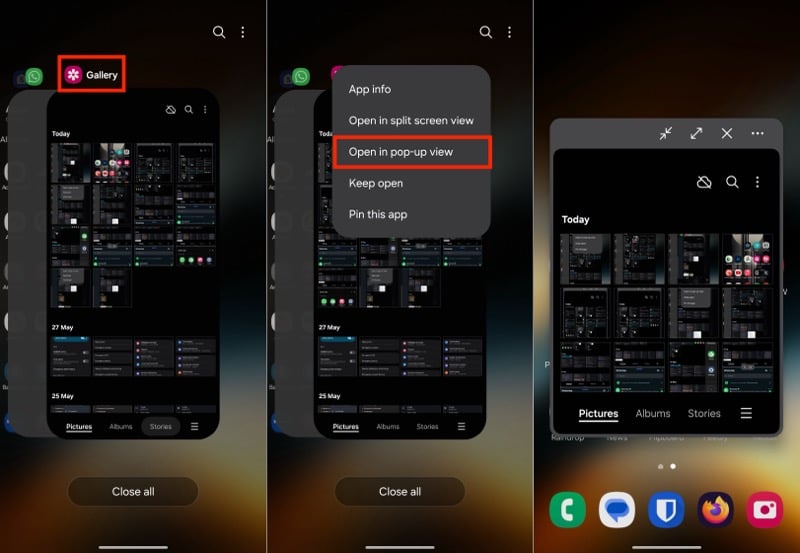
This is where the Pop-Up View comes in. As the name implies, this multitasking feature lets you open apps in a tiny pop-up view. You can then minimize it or move around the screen as required. Plus, you can also open an app in Pop-Up View while having two apps open in Split Screen View.
There are two ways to open an app in Pop-Up View. You can either do so from the Recents menu or the Edge panel. Let’s see how.
Open an App in Pop-Up View Using the Recents Menu
- Make sure the app you want to open in Pop-Up View is already open on your Galaxy phone.
- Bring up the Recents menu.
- Find the app, tap on its icon, and select Open in Pop-Up View from the menu, and you’ll see it in a tiny window on your screen.
Open an App in Pop-Up View Using the Edge Panel
- Access the Edge panel on your phone.
- Tap and hold the app (you want to open in Pop-Up View) and drop it in the center of the screen where it says Drop it here for Pop-Up View.
- If you can’t find the app on the Edge panel’s main screen, tap the menu button and select an app from the library.

Move the Pop-Up View and More
After you’ve opened an app in Pop-Up View on your Samsung phone, you can place it anywhere on your screen to suit you. To do this, tap and hold the bar at the top of the Pop-Up View window and drag it to where you want to place it on the screen.
Besides moving the window, you can also close it or minimize it. If required, you can also switch to a full-screen view. Similarly, you can also open the app with another app in Split Screen View, change the window’s transparency, or hide its top bar. All of this can be done using buttons on the top bar of the Pop-Up View window. Use the horizontal ellipsis button (with three dots) to reveal all the buttons.
Exit Pop-Up View
There are two ways to close an app open-in Pop-Up View on your Galaxy device. You can either do this by tapping the X icon located in the top bar of the pop-up window or, if you’ve minimized it (and turned it into a floating bubble—as you’ll see below), by holding and dragging the bubble onto the text that reads Remove at the bottom of the screen.
Related Read: How to Split Screen on Android
Transform Apps Into Floating Bubbles
Transforming apps into floating bubbles isn’t a separate multitasking feature but a part of the Pop-Up View feature we saw above. However, you can benefit from it in many ways.
For example, you can open the Calculator app in a floating bubble on top of an app pair of, say, a note-taking app and the Google Sheets app, open in Split Screen View on your device. Another idea is to create a floating bubble of the WhatsApp app to continue chatting with someone while working on other apps.
To transform an app into a floating bubble, you first need to open it in Pop-Up View. You can learn how to do this in the previous point. After this, tap the icon with two arrow keys pointing at each other, and you’ll see a floating bubble in the app.
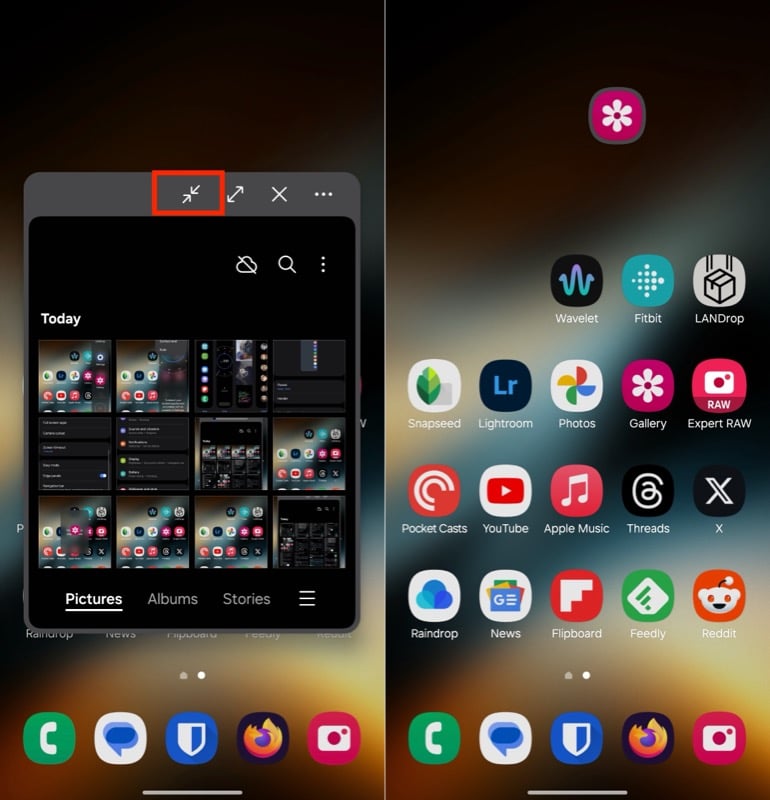
Now, you can put this bubble anywhere on the screen by simply tapping and dragging it around. When you want to use the app, tap the bubble, and it’ll open it in Pop-Up View.
You can open multiple floating bubbles on your screen at once. When you do so, you’ll see all of them under one single bubble. Tap on it to reveal all the apps. Drag the bubble onto the Remove text at the bottom of the screen to close it.

Use the Edge Panel for Quick Actions
The Edge panel is perhaps the most useful multitasking feature on Galaxy phones. Accessible from the right edge of the screen (unless you’ve changed the setting), it gives you quick access to your favorite apps, contacts, and tools, among other things, without closing the app you’re currently using. You’ve also seen how you can use the Edge panel to open apps in Split Screen and Pop-Up View.
However, to get the most out of the Edge panel, it’s important to customize it. To do this, go to Settings > Display > Edge Panels. Here, tap on Panels and select the panels you want in your Edge panel. A few I personally use include Apps, Clipboard, Smart Select, and Tools. The Tools panel, in particular, is quite useful, with tools like Compass, Surface Level, Ruler, and Torch, which you can select based on your requirements.
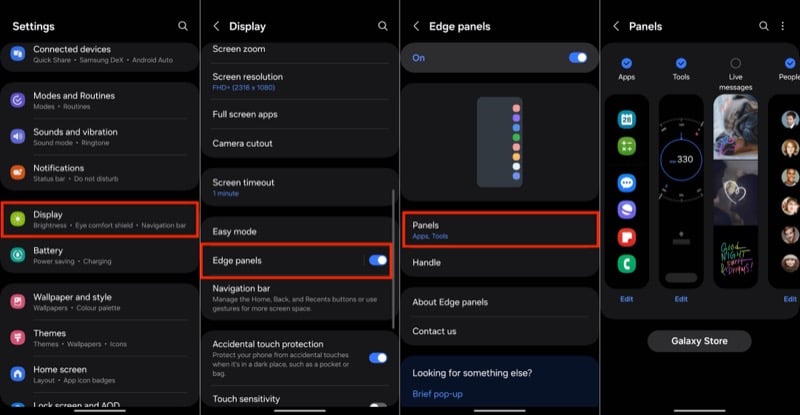
Mind you, your options aren’t just limited to the built-in panels. Samsung’s Galaxy Store has plenty of useful panels you can download and add to your device. Some of these include Edge QuickNotes, Edge Volume, GIPHY Edge, RSS Panel for Edge, and many more.
Besides, you can also put app combinations—you frequently use in the split-screen mode—on your Edge panel for quick access, as we discussed earlier in the guide.
Also See: How to Check Your Notification History on Samsung Phones
Samsung Multitasking Features are for Everyone
Leveraging One UI’s multitasking features can unlock a better browsing experience on your Galaxy phone and help you be more productive at various tasks in your everyday life. Sure, such features make the most sense on tablets, and you may find the idea of using them on a phone overkill. However, once you experience them yourself, you’ll begin to realize how much easier they make it to perform certain operations even on your phone despite its small screen size.

