

Quick Answer
You can use two apps on your Android phone simultaneously with the split screen mode to boost your productivity. For Android smartphones that support this feature, simply go to the recent apps menu and select the split screen icon at the top of the app you want to use in split screen. Additionally, you can use third-party apps, as discussed in the article, to run split screen on Android devices that don’t have this feature built-in.
Are you wondering how to split screen on Android? Sometimes, we find it necessary to multitask across several apps on our Android devices, whether to streamline tasks or boost productivity, instead of constantly toggling between recent tabs.

I often find myself in this situation while watching YouTube videos for exams and jotting in my note-taking app. Of course, YouTube has picture-in-picture mode (some Android devices offer it natively for all apps). However, split-screen is more efficient. It lets you have two apps equally proportioned on your screen, with control over which appears above and below.
Fortunately, the split-screen feature is natively available on most Android smartphones, unlike iPhones. Therefore, in this article, I’ll explore how you can use split-screen on your Android device, even for models that don’t inherently support it. Stay tuned!
Table of Contents
How do you use split screen on Android?
Here are the proven methods to split screen on Android:
Method 1: Use Android Native Split Screen Feature
With Android phones that have the split screen feature out of the box, usually the latest Android phones, you can easily increase your productivity by using two apps simultaneously for one task. Below are the general steps to use the split screen feature on your phone.
1. Open the recent apps menu on your iPhone. You can do this on your Android phone by swiping up from the bottom-left corner or tapping the navigation button at the bottom-left corner.
2. At the top of the app you want to use in split screen mode, you’ll see the split screen icon; tap it. On some Android phones, you may need to tap the three-dot icon at the top of the app to select split screen.

3. Next, select the app you want to place on the bottom half of the split screen, and you can start using both apps simultaneously.
Also See: How to split screen on Windows 10 with Snap Assist
Method 2: Third-Party Split Screen Apps

I came across two third-party apps that enable split-screen functionality on your Android phone, which is handy if you can’t find a similar feature natively on your Android phone.
Both apps effectively allow you to use split-screen mode on your Android device. However, the Dual Window Split Screen app stands out with more features. The Split Screen app by AnyStudio is straightforward: you choose the two apps you want to use in split-screen, and that’s it.
On the other hand, the Dual Window Split Screen app offers additional features. It lets you set up shortcuts, such as long-pressing the back button to activate split-screen mode. Plus, it allows you to create dual app shortcuts.
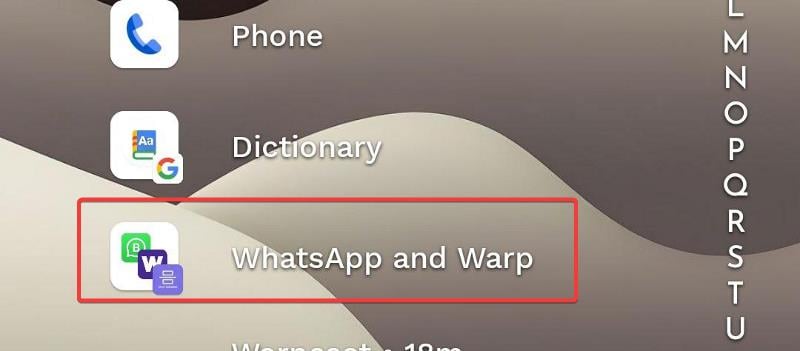
So, if you frequently use Reddit and YouTube simultaneously, you can create a shortcut that opens both apps in split-screen mode with just one tap.
Also See: How to Split Screen on iPad and Use Two Apps in Split View
What You Should Know About Split Screen on Android
Split Screen mode on Android enables you to simultaneously view and utilize two apps on your smartphone, optimizing your screen’s capabilities for multitasking.
While there are numerous benefits associated with using the split-screen feature, such as increased productivity and streamlined multitasking, it’s important to consider the following limitations:
- the feature may not be available on your Android phone if the device does not support it.
- certain apps may not be compatible with split-screen mode even on compatible phones.
- screen size can be limiting, as split-screen functionality is most effective on Android devices with ample screen space.
Also See: 4 Ways to Multitask on Samsung Galaxy Phones Like a Pro
Final Thoughts
Android offers the split screen feature to increase productivity by allowing users to work with multiple apps at the same time, especially on devices with larger screens. I’ve explained how you can use this feature on your phone, regardless of whether it officially supports split screen or not. If you have any questions about this feature, feel free to ask us in the comments below.
FAQs – Split Screen On Android
Why is split screen not working with some apps on Android?
You might notice that some apps won't let you split the screen on your Android phone. This is because they're not built to support split-screen. While you can tweak your phone settings through the developer option to enable split-screen for those apps, I wouldn't recommend messing with those settings unless you're a phone geek.
Does Samsung still have split screen?
Samsung phones support split-screen functionality. If you're rocking one of their latest flagships, like the Samsung Galaxy S series, you'll enjoy the feature more – thanks to its spacious screen.
Can You Split Screen on iPhone?
iPhones don't support split-screen, but they offer picture-in-picture mode for multiple apps on one screen. Some users opt to jailbreak their iPhones for split-screen functionality, but it's not advised.

