

Quick Answer
Unblocking someone on Gmail is simple. On a PC, go to Gmail’s Filter and Blocked Addresses settings to see a list of blocked emails, where you can unblock one or more addresses. In the Gmail app, search for an old email from the blocked sender, and you’ll find the option to unblock them. This also works on a PC. If you want to unblock all blocked addresses at once, you can do this through your Google account settings.
We can imagine you panicking after having blocked someone on accident. It happens to the best of us, but on the bright side, unblocking someone on Gmail is no more than child’s play. Fret not; this guide outlines how to unblock someone on Gmail, both for PC and mobile. Let’s begin!

Sl. No. | Method | Platform | Key Features |
|---|---|---|---|
1 | Method 1: Search & Unblock | PC / Mobile | Works for both PC and mobile through Gmail’s search function. |
2 | Method 2: Filter & Blocked Addresses | PC | Allows multiple unblocks at once. |
3 | Unblock via Gmail App | Mobile | Mobile alternative to PC method using search functionality. |
4 | Unblock All Gmail Accounts at Once | PC / Mobile | Unblocks all blocked email addresses at once. |
5 | Unblock via Third-party Email Client | PC / Mobile (varies) | Dependent on the third-party email client’s features. |
Table of Contents
Unblock Someone on Gmail (PC)
There are two handy ways to unblock someone on Gmail on a PC.
Method 1: Search and Unblock
This method involves a clever tactic that you can use to unblock someone on Gmail. Here is how you do it –
- Open your Gmail dashboard from here.
- In the search bar at the top, type any email sent by the blocked email address. Remember, you need not enter the exact email, as Gmail can automatically scan and recognize phrases, attachments, and numbers within an email. Keep an eye out for search suggestions if you cannot search for an email from the blocked email address.
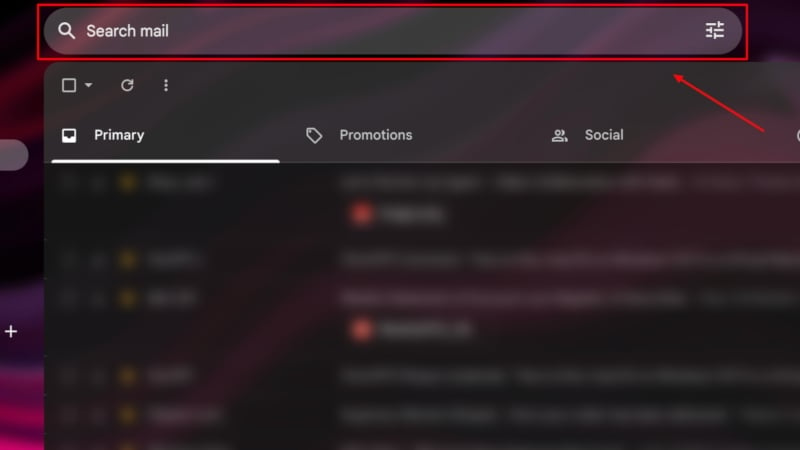
- Once you find an email sent by the blocked email address, open it.
- Select Unblock sender in the dialog box below the sender’s email address. This will instantly unblock the sender.

Method 2: Filter and Blocked Addresses
Besides the above workaround, Gmail has a dedicated option to unblock an email address. This method also allows multiple blocked senders to be unlocked at once, which you might appreciate. To do so –
- Open your Gmail dashboard from here.
- Select the gear icon at the top-right corner beside your profile icon to access Gmail settings.
- Click on the option that says See all settings.

- Enter the Filter and Blocked Addresses section from the top pane.
- You will be presented with all the email addresses that you have blocked. Click on the unblock option beside them to allow them to send emails again.
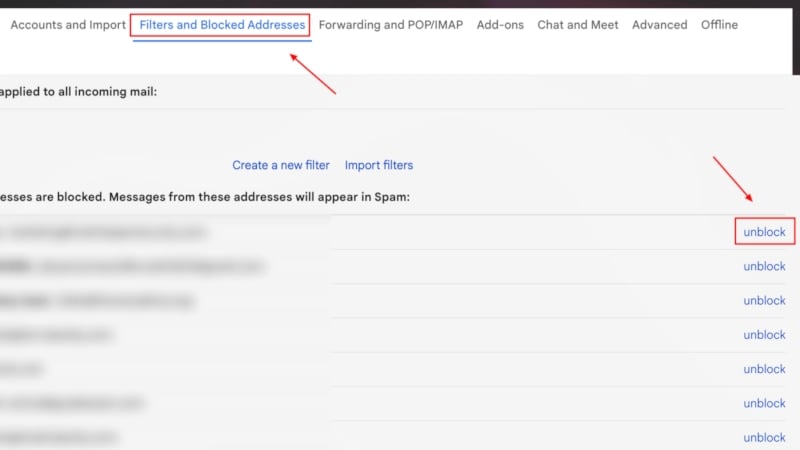
- If you wish to unblock multiple email addresses, select the checkboxes of the required email addresses and click on the Unblock selected addresses option at the bottom of the page.

Unblock Someone on Gmail (Mobile)
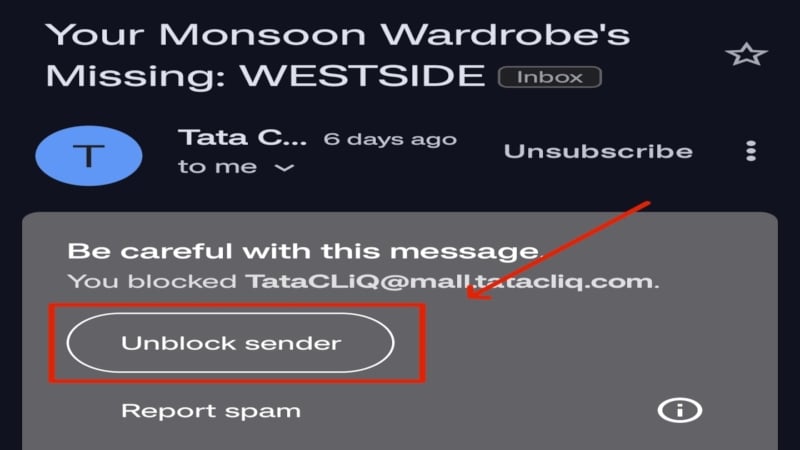
Dismally, the Gmail app doesn’t feature a dedicated option to unblock an email address. Fortunately, the desktop version’s search method works wonders. Here is how it works –
- Open the Gmail app on your phone.
- Type any email sent from the blocked email address you wish to unblock. As always, you can enter any phrase, number, or attachment in the email. Open any email you find from the search results.
- Select Unblock sender from the dialog box below the sender’s address.
Unblock All Blocked Gmail Accounts at Once
If you are willing to unblock every email address you have blocked before, this method might be the best one for the purpose. To do so –
- Visit your Google account page from here.
- Enter the Security section from the left pane.
- You should see a message saying, “Your account is protected.” Click on See details below it. Otherwise, you can directly visit here.
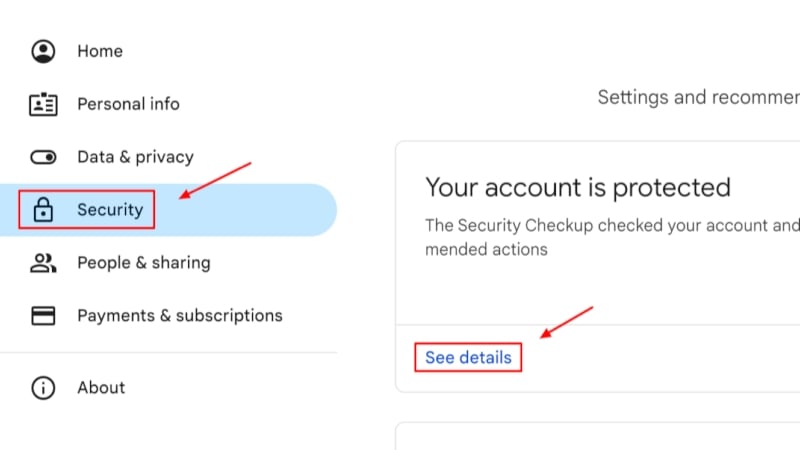
- Scroll down and select the arrow beside Gmail settings.
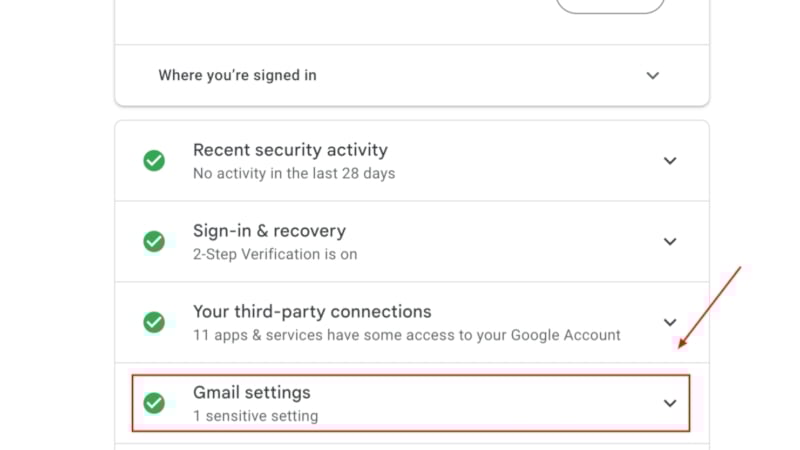
- In the dropdown menu, click Unblock all to unblock all blocked email addresses in your Google account.

If you use an Android phone, this setting can also be found within the Google section on your device’s settings page.
Additionally, if you use a third-party email client to manage your mailbox, see if it allows unblocking an email address directly.
Unblock Someone on Gmail Effortlessly
This concludes our guide on how to unblock someone on Gmail. We prefer using a PC to unblock email addresses on Gmail simply because it unlocks contacts in multiple ways compared to the Gmail app. If you have numerous Gmail addresses that you wish to unblock, you can directly do so from your Google account’s security section. For others, Gmail’s built-in settings serve the purpose equally well. Not to forget the handy trick that allows you to unblock a sender directly from an old email of theirs.
While you are here, you can also check our guides on fixing Gmail storage issues, how to delete emails from one sender, and how to backup your Gmail account.

