

If you’re having trouble reaching someone via iMessage on your iPhone or any Apple device, it can lead to confusion about the cause. You might think that the person is trying to block you. However, the direct question “Did you block me?” can be uncomfortable and affect your relationship with the person.

If your messages go unanswered or undelivered, it could be for a number of reasons. The person may be busy or unable to reply immediately. In these situations, you should take a moment to check instead of speaking to the person immediately. If you detect signs that you may be blocked, it is important to handle the conversation with care.
While Apple hasn’t introduced an official way for you to tell if someone blocked you in iMessage, we are here for you anyway. We’ve found several methods that work to find out if someone has blocked you in iMessage.
Table of Contents
How to Know If Someone Blocked You on iMessage — 10 Working Ways
We tried different methods to find out if someone blocked us in iMessage, and finally, we found ten effective methods. But here is the thing. There is no definite method to confirm whether someone has blocked you in iMessage conclusively. Even if you get clear signs, there’s no guarantee of a block. So it’s important to keep this in mind before you make a decision. Now, let’s explore methods to uncover the truth.
Check the Bubble Color in iMessage
If you want to find out if someone has blocked you in iMessage, the easiest way to check is to see if the message bubble changes color from blue to green when you send an iMessage.
However, this method isn’t foolproof, as there can be various other reasons for the iMessage bubbles changing color on the iPhone. So, instead of jumping to the conclusion that you’ve been blocked based on the color change alone, it’s important to consider other possible explanations for this change. Before you do anything, it’s advisable to look for alternative reasons and keep this in mind.
1. Sending SMS instead of iMessage: If the color of the message bubble changes from blue to green, this may indicate that the recipient is receiving an SMS instead of an iMessage.
2. Lack of Internet Access: The change to a green text bubble could mean that the person you’re chatting with currently has no Internet access. In such cases, iMessage cannot be delivered and will be switched to SMS.
3. Switch to Android Device: A change from blue to green could indicate that the recipient has switched to an Android phone. iMessage is specific to Apple devices, and if the person switches to a non-Apple device, the messages will be converted to SMS.
Look at iMessage Delivery Status
Did you know that the messages you send can reveal whether you’ve been blocked by someone? To find out, you can simply check the delivery status. Find this information under the message bubble. This delivery status can be divided into three different categories that indicate how likely you are to be blocked. Let’s take a look at these tags to understand the likelihood of being blocked.
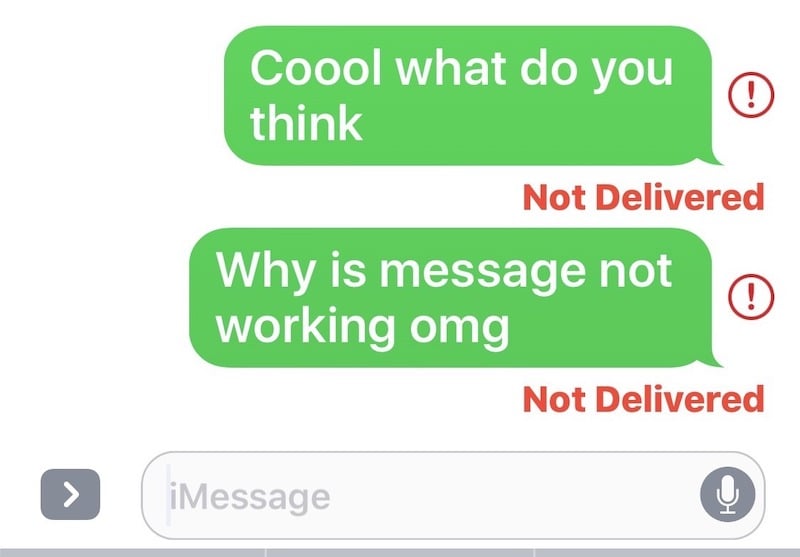
1. If you notice the “Not Delivered” warning below the message you sent, this indicates that the problem may be related to the internet or network connection on your end, which reduces the likelihood of the message being blocked.
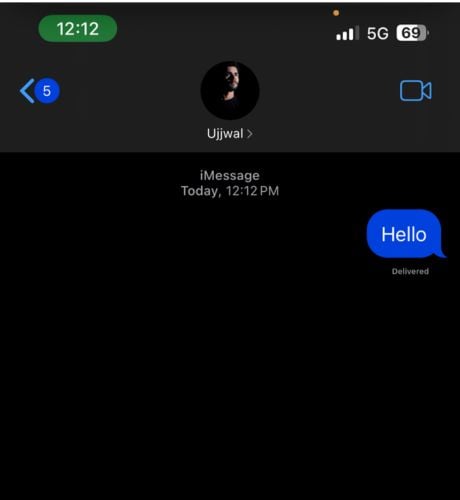
2. If you find the status “Delivered” under the message you sent but do not receive a reply within a few hours, this means that your message has been sent, but the person may not be active or, for some reason, has not yet seen your message and is not replying. However, there may also be a specific reason why you do not receive a reply, e.g., if you were not blocked at the time the message was sent, but it is possible that the recipient blocked you after receiving the message. In this case, your message will be displayed as delivered, but you have actually been blocked.
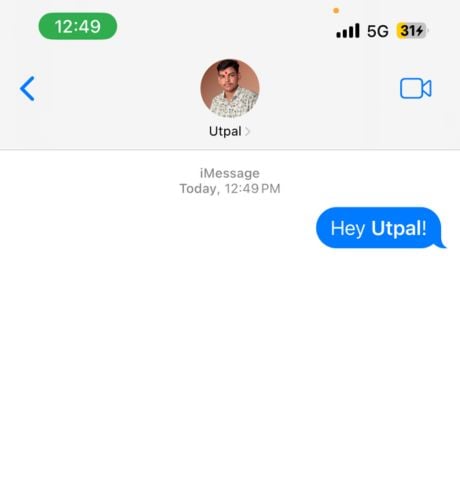
3. If there is nothing below the message, regardless of whether the message was successfully delivered or not, there is a high probability that you have been blocked by the person.
Check For Read Receipts in iMessage
If you suspect that someone has blocked you, patiently watch the read receipts in iMessage after you’ve sent a message. You will find the read receipts below the text bubble. They indicate whether the recipient has opened the chat and read your message or not. If the person has actually read the message, this confirms that you are not blocked. However, there are two scenarios in which the read receipt may not be visible:

1. If the recipient is using an Android smartphone, they can be recognized by the green speech bubble.
2. iPhone users have the option to disable the read receipt feature. If the person you have sent a message to has deactivated this function, you will not be able to find out whether they have read your message.
Try to Make a Phone Call
If it’s been a while since you sent the message and you still haven’t received a reply or confirmation of delivery status, the next step in such a case is to make a phone call to find out whether you have been blocked or not.
If your phone number is blocked on their iPhone, your call won’t reach them. You may hear a recording stating that the number is no longer in service, busy or unavailable, a short ring followed by an immediate voicemail, or an automated message stating that the call cannot be completed.
If they block you directly on their iPhone, they may see a ‘blocked’ or ‘private number’ notification on their iPhone whenever you call them.
If your relationship with the person is uneasy, it may be considered harassment or stalking if you keep calling even though they have blocked you.
Hide Your Caller ID While Connecting a Phone Call
If you’re having trouble reaching someone via iMessage and they’re not responding to your calls, you should look into hiding your caller ID on phone calls. This can make the incoming call look like it’s coming from an unknown source, which may encourage the person to pick up. If the call goes unanswered, it could be an indication that it has been blocked. Here are two methods to hide your caller ID on your iPhone:
1. Hide Caller ID Using a Code:
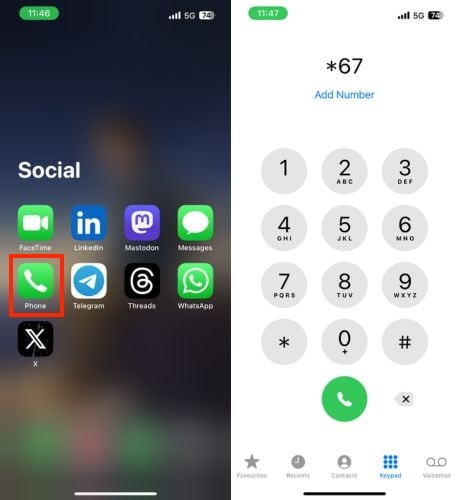
Put a code in front of your phone number to hide your caller ID. In many countries, such as the United States, the code *67 can be used. If you are in a European country, Australia, South Africa, or Canada, dial the area code #31#. In the case of South Africa, the area code is *23#.
- Open the Phone app on your iPhone.
- Tap on the keypad icon at the bottom bar.
- Enter the code secure in your country previous to the phone number.
- Lastly, connect the call.
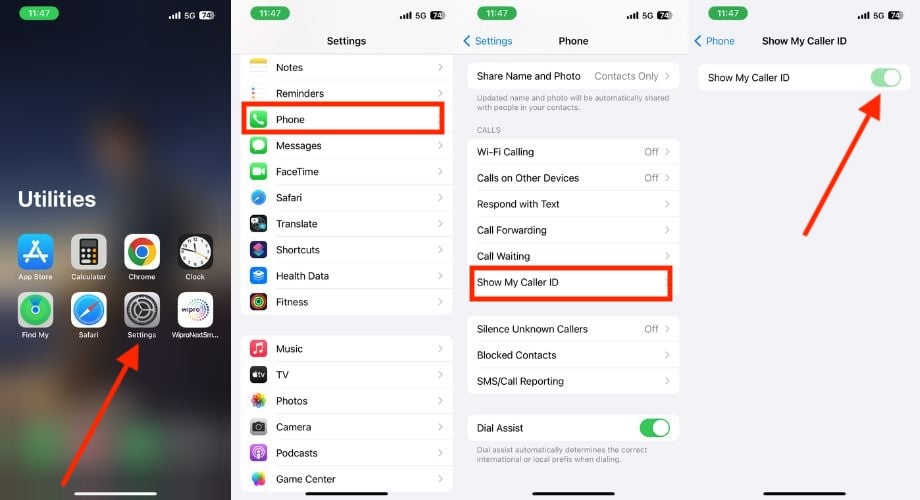
2. Hide Caller ID via iPhone Settings.
You can also hide your caller ID via the iPhone setting. Follow the below steps to do so.
- Launch Settings on your iPhone.
- Scroll down and tap on the Phone
- Click on Show My Caller ID under the CALLS category.
- Turn off the toggle right to Show My Caller ID.
FaceTime
If you use an iPhone, the only way to prevent someone from contacting you is to block them from iMessage, calls, and FaceTime.
Suppose you’re trying to reach the person via iMessage or even by phone and haven’t yet found out whether you’re blocked or not. In such a case, you can try a FaceTime call.
If someone has blocked you via iMessage, you won’t be able to connect with them via FaceTime either. However, if you try to connect with that person via FaceTime and succeed, you’re in luck, my friend – you’re not blocked.
Before Assuming Blocking: Be Patient
Have you tried all of the above methods and still feel that this person may be blocking you? — Then maybe it’s you. But I recommend waiting a few hours or a day. There are several legitimate reasons for not getting a response, such as a person is busy, their iPhone battery is dead, “Do Not Disturb mode” is on, they are busy with urgent tasks, or there are network issues. Given these possibilities, it’s best to be patient and let some time pass.
If the matter at hand is not urgent and there is no immediate need to contact the person, waiting for a few hours or even a full day may offer a resolution. With any luck, the situation will return to normal.
Verify Other Social Platforms If You are Blocked There Too
If someone intentionally blocks you in iMessage, it’s so obvious that they can extend the block to other social media platforms like WhatsApp, Instagram, Facebook, and more. Therefore, checking all the social media apps you usually interact with the person on is advisable. I have given steps for three popular social media apps that you can check to find out if you are blocked or not.
Facebook Messenger
Signs that make it clear whether you’re blocked in Facebook Messenger or not:
- If you can’t find the person using the search bar, even with their exact username, this could be an indication that you’ve been blocked.
- Sent messages are shown as Sent but never Delivered or Seen.
- Access to their profile picture, posts, and online status is restricted.
- Check the posts of mutual friends for recent interactions with the person.
Indicators you can use to determine whether or not you have been blocked on WhatsApp Messenger:
- The person’s profile picture disappears (and is replaced by a generic gray placeholder).
- The Last Seen or Online status is no longer visible.
- Your messages will only show one check mark (Sent), will never become two (Delivered), and will turn blue (Read).
- Calls are either not connected or go straight to voicemail.
Indicators that help you determine whether you have been blocked on Instagram or not:
- Similar to Facebook, you can’t find the person’s profile in the search bar.
- If you try to access their profile, you’ll see a “Unable to load” error message or a blank page.
- You can’t see their posts or stories, even if their account is public.
- If you try to like or comment on their posts, you’ll receive an error message.
Attempt to Call From a Different Number
If you think someone has blocked you in iMessage, you can check by trying to call them from a different number. Proceed with caution by using an unidentified number and be considerate and careful to respect the person’s privacy unless it is absolutely necessary to reach them. This way, you can better gauge whether your calls are successful and get more information about the likelihood of them being blocked.
Maybe It’s You, Not Them
It’s also important to consider the possibility that the problem is on your side and not the person you’re trying to reach. There is a possibility that nothing has gone wrong on their end, and the problem is related to your device or the iMessage app.
It’s possible that the iMessage app on your iPhone isn’t working properly or that some settings need to be adjusted, although this is less likely. To solve this problem, you’ll need to read a dedicated article on iMessage not working on your iPhone.
By keeping an eye on system status updates and community feedback, you can find out if the problem is related to the general iMessage service and not a specific user blocking you.
Conclusion
Finding out if someone has blocked you in iMessage can be a bit of a challenge, as Apple has not introduced an official method for this. However, the ten methods above can help you understand this.
If you realize that someone has blocked you, you should approach them respectfully. A sincere conversation can help clear up misunderstandings and improve your relationship.
FAQs about iMessage Blocks
1. Can the color of the message bubble change if the person I’m chatting with switches to a different phone carrier?
No, the color change of the speech bubbles depends primarily on the type of message (iMessage or SMS) and not on the provider.
2. Are there third-party apps or services that claim to provide definitive information on whether someone has blocked me on iMessage?
There are third-party apps that claim to provide such information, but Apple doesn’t officially support such services. It’s advisable to be careful when using third-party apps that provide such information.
3. If someone blocks me, will our past messages still be visible in the conversation history?
Yes, the past messages should be visible in the conversation history unless they have been deleted by one of the parties.
4. Can disruptions in iMessage service affect my ability to send messages even if I’m not blocked?
Yes, iMessage service interruptions can occur regardless of individual users. It’s advisable to check the status of the iMessage system and consider whether the issues with Apple’s servers are broader if multiple users are reporting problems.
5. If someone blocks me on iMessage, can they still receive notifications for messages from me in a group chat?
Blocking in iMessage usually applies to direct interactions, but the dynamics of group chats can vary. Notifications for group messages can still be received.

