

The Now Playing feature on Google Pixel devices is a remarkable example of how technology can be seamlessly integrated into our daily lives. This innovative feature constantly listens for music in the background and detects what songs are playing near you without an internet connection. This information is displayed on your phone’s lock screen, providing real-time information about the track, artist, and album. This not only satisfies our curiosity but also enhances our music discovery experience.

Until now, the Now Playing feature was only reserved for Pixel series smartphones, but recently it has been ported to other Android smartphones by developer Keiron Quinn. This feature only works on smartphones running Android 12 and above. The feature can be used with an application called Ambient Music Mod and works with the help of the Shizuku app. In this article, we will give you a step-by-step guide on how to enable the Now Playing feature on any Android smartphone. Let’s get started.
Table of Contents
Enable the “Now Playing” Feature on Your Android Smartphone
The Ambient Music Mod application uses the Shizuku application to access the CAPTURE_AUDIO_HOTWORD API, which is responsible for recognizing and recording the music data being played. This feature works offline and does not upload anything to the Internet, just like the Google Pixel devices. The Ambient Music Mod looks the same and has almost the same music database as the Google Pixel smartphones.

Ambient Music Mod application can detect the music and save it in Now Playing history to find it later. You can favorite the tracks in this list or share them. This app is completely open source, so if you have any privacy or security concerns, you can investigate. This app uses all the features of the original, so it works seamlessly, but it certainly affects your phone’s battery life since it runs in the background and searches for songs every minute.
Related Read: Super Quick Way to Identify Songs on Android Using Shazam
How to Install “Now Playing” on Any Android Smartphone
Before you can use Ambient Music Mod on your Android smartphone, you need to install a few things. These include the Shizuku application and the Ambient Music Mod application. Once all the required apps are downloaded, you can proceed with installing and setting up the “Now Playing” feature on your Android smartphone.
- Download Shizuku from the Google Play Store and install it.
- Download Ambient Music Mod from GitHub and install it.
- Once you have downloaded the apps, enable the developer options on your smartphone. To do this, go to the Settings app and then About Phone. Click on the build number seven times and enter your pin.
- Go back to the main page in Settings and find Developer Options. Then go to developer options in settings and enable USB debugging and wireless debugging. Allow wireless debugging on your network.

- Now open Shizuku and scroll down. Select Pairing under Start via Wireless Debugging. Click on Developer Options.
- You should now be back in Developer Options. Scroll down to Wireless Debugging and select it. In Wireless Debugging, select Pair device with pairing code. Memorize this code, then go to your notifications and enter it into the pairing service, find a notification from Shizuku and hit Send.
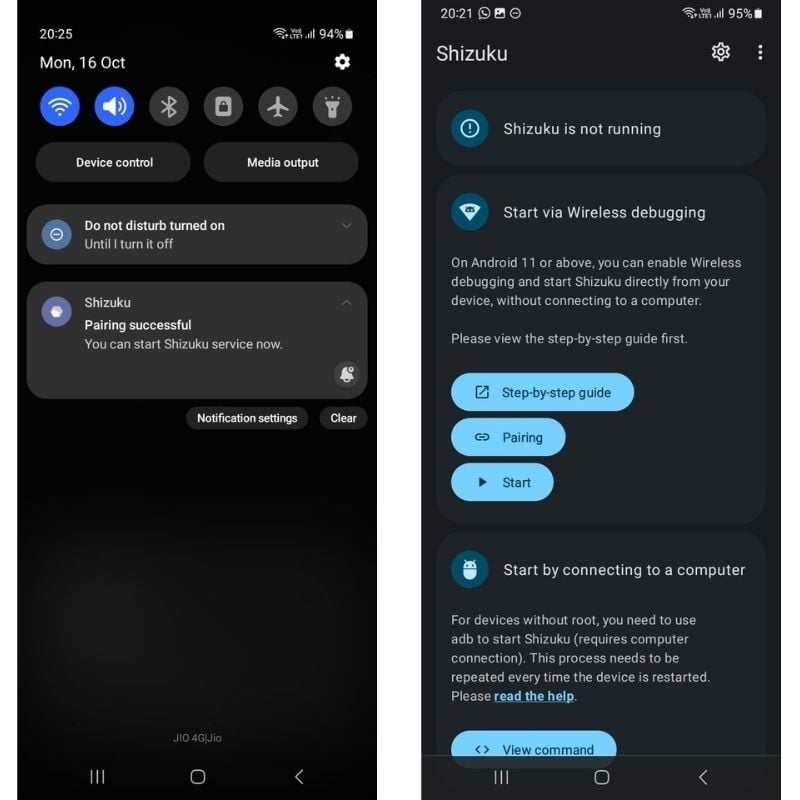
- If everything works, you should see a ” pairing successful” message. If it does, go back to the Shizuku app, go back to the main page and select Start. If no successful pairing is displayed, repeat steps five and six.
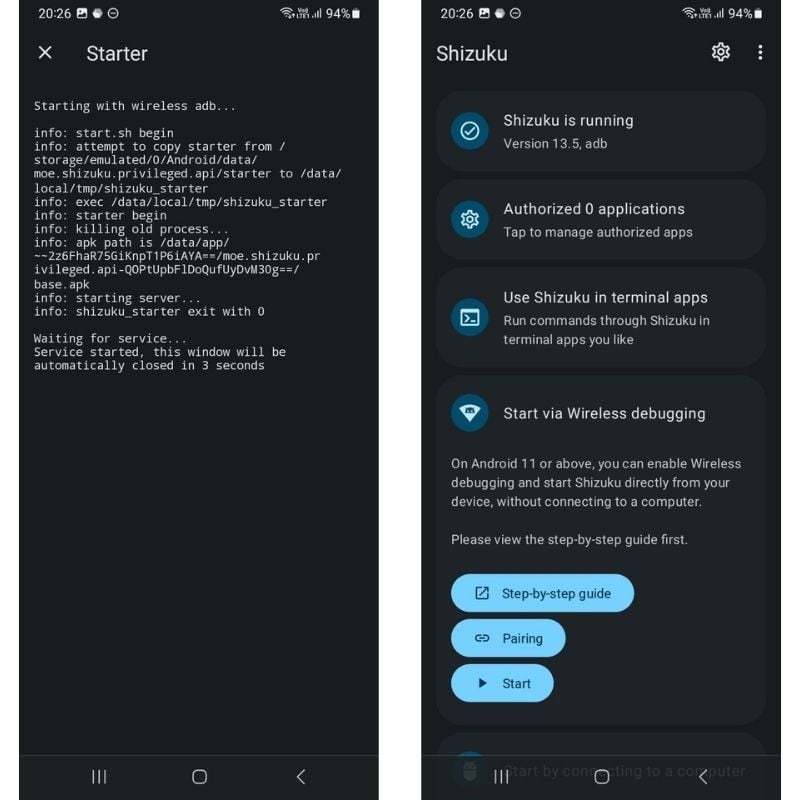
- Next, open the Ambient Music Mod app. Click Get Started and allow Ambient Music Mod to access Shizuku.
- Go through the setup for Ambient Music Mod. Select the data options that work best for you, along with a country or region that’s best for you.

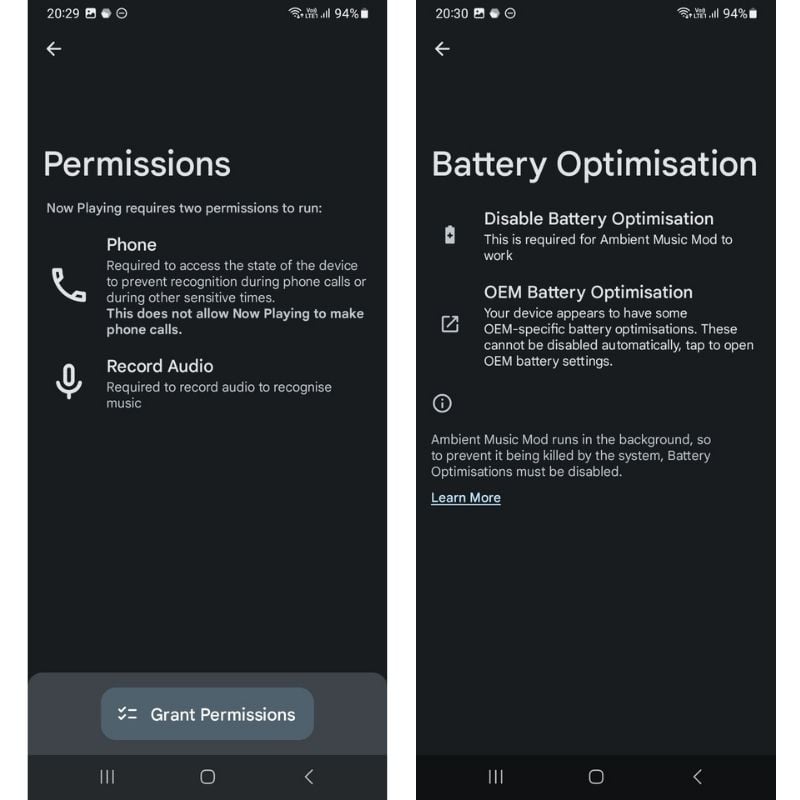
- In the Now Playing section of setup, wait for the Now Playing app to download, then install it when prompted. Grant Ambient Music Mod the phone and microphone permissions and disable battery optimizations when prompted as well.
- Now, in the Ambient Music Mod app, go to settings then Advanced. Enable Use Alternative Encoding, otherwise Now Play might not work.

- Now go back to the main app page, select the lock screen and enable it. You’ll need to enable accessibility settings so that the current song is displayed on your lock screen, just like on the Pixel. Once that’s enabled, go back to Ambient Music Mod and change the location on your lock screen to wherever you want it.

- Ambient Music Mod should be all set up now, and you should be able to see songs popping up on your lock screen.
Related Read: How to Find a Song by Humming: Hum to Search on Google
How To Get the Pixel Exclusive “Now Playing” Feature on Any Android Smartphone
The Pixel-exclusive features are among the most interesting software achievements Google has accomplished with its Pixel smartphone lineup. While no other brand has managed to implement similar features on their smartphones, the Android developer community has always found workarounds to bring these features to all Android smartphones.

The “Now Playing” feature is one of the most helpful Pixel-exclusive features. With the help of the Ambient Music Mod application and Shizuku, you can get this feature on your Android smartphone. If you know of any other helpful tips, let us know in the comments.
FAQs About How To Enable “Now Playing” on Any Android Smartphone
1. What is Now Playing?
“Now Playing” is a feature that uses machine learning to identify songs playing in the background and displays the name of the song and artist on your phone’s lock screen.
2. Is Now Playing available on all Android smartphones?
No, “Now Playing” is not an official Google feature and is only available on select devices. However, there are ways to enable it on other Android smartphones using third-party apps like “Ambient Music Mod” and “Shizuku.”
3. How do I enable Now Playing on my Android smartphone?
To enable “Now Playing” on your Android smartphone, you can follow the steps outlined in this guide. Please note that this is not an official Google feature and may not work on all devices.
4. What are some alternatives to Now Playing?
If “Now Playing” is not available on your device or you’re looking for alternatives, you can try apps like “Shazam,” “SoundHound,” and “Musixmatch.” These apps use similar technology to identify songs playing in the background.

