

Suppose you are browsing the Internet and want to make sure that no one finds what you were looking for, not even your device, which keeps a record of your browsing history. In such situations, incognito mode can prove extremely useful to protect your privacy.

Safari and other browsers (Chrome, Microsoft Edge, Brave, etc…) ensure that your browsing history is not recorded and no cookies from private mode are saved. In this article, we’ll show you how to use incognito mode on iPhone, iPad, and Mac in Safari, Chrome, Microsoft Edge, and Brave Browser.
Table of Contents
What is Incognito Mode?
You can use many other settings to protect your data when browsing Safari on iPhones, iPads, or other Mac devices. However, the Safari browser offers a private browsing mode if you want to browse confidentially. In this mode, you can search for anything in complete privacy.
Incognito mode is also known as private browsing mode. Almost all web browsers offer an incognito mode that allows you to browse the internet without the browser saving your data, e.g., the websites you visit.
Incognito mode prevents the browser from saving your browsing history, search history, cookies, and so on. It ensures a private and secure browsing experience, especially if you are using a shared PC or smartphone.
Why do You Need to Use Incognito Mode?
You may be wondering what the incognito mode is good for if it doesn’t guarantee complete online anonymity. The main reason for using incognito mode is to prevent your browsing activity from being saved on your local device.
This proves to be useful:
1. Shopping For Gifts or Surprises: Prevent others using your device from seeing what you buy. This is very useful if you’re planning a surprise party and are looking for a special gift.
2. Researching Sensitive Topics: Avoid related searches or websites appearing in your history.
3. Using a Public or Shared Device: Using a shared or public device helps maintain privacy as it ensures that your searches and visits aren’t visible to the next user.
4. Logging Into Multiple Accounts Simultaneously: You can access multiple accounts on the same website without having to log out and log back in.
5. Sometimes you get separated from your friends while traveling. Unfortunately, it’s your bad luck that your phone doesn’t work either, and it’s quite normal that you don’t remember your friends’ phone numbers. Even though we usually stay in touch via social media, we may only be able to contact them via a foreign device with internet access.
There are privacy concerns if you log into your social media accounts such as Instagram, Facebook, or X (formerly Twitter) on another device. However, you can mitigate this by using incognito mode to join your friends’ groups without leaving your data on their devices.
How to go Incognito?
You can go incognito on iPhone, iPad, and Mac with a few simple steps. It doesn’t matter which browser you use. We have described the steps for three common browsers, except for Safari. Nevertheless, we provide detailed instructions for Safari, as this is the standard browser app for Apple devices. Follow the steps for other browsers.
How to Go Incognito in Safari on iPhone
Going incognito in Safari on iPhone is a simple and straightforward method that you can achieve with these simple steps:
- Launch the Safari browser on your iPhone.
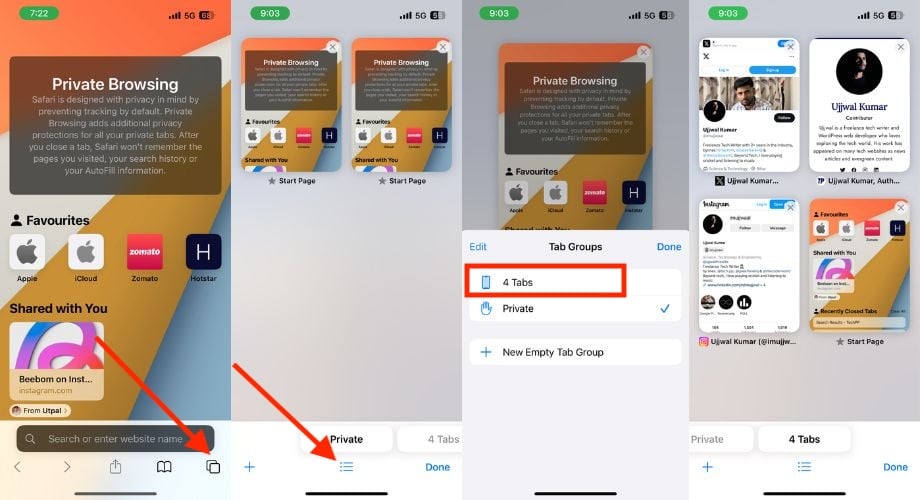
- Tap the Tabs box button in the bottom right corner to see the Start Page Tabs list. Alternatively, you can tap the search box and swipe all the way up to access the Start Page Tabs list.

- Hit or tap and hold the three lines in the bottom middle of the screen.
- Choose Private when the menu pops up. Alternatively, you can slide right the (Numbers) Tabs towards Private and tap on it to access Private browsing mode.
- You can now open any website and initiate private browsing in Safari on your iPhone.


How to Exit Incognito Mode in Safari on iPhone
Not everyone chooses to surf in incognito mode all the time. It’s usually reserved for certain situations, such as when you’re making secret plans or searching for sensitive keywords that require private browsing. So follow the steps below to exit incognito mode in Safari on your iPhone and switch back to normal browsing mode.
- Tap on the Tabs icon in Safari.
- Tap and hold the three lines in the bottom middle.
- Hit Start Page when a small menu pops up.
- Select the tab in which you want to return to normal browsing.

Chrome Guide:
The default browser app on the iPhone is Safari, and many people use the Safari browser to search the internet, but most people still prefer Chrome. If you follow the steps below, you can browse incognito in Chrome on your iPhone and use anything you want privately.
- Open Chrome.
- Tap the three dots in the bottom right corner.
- Choose the New incognito tab.
Microsoft Edge:
Follow the steps below to go incognito in Microsoft Edge on the iPhone:
- Launch Microsoft Edge.
- Tap on the square field with the number of open tabs.
- Select the InPrivate option on the top. Alternatively, you can right-swipe to go to incognito.
- To open an incognito tab, click on the plus symbol in the bottom center of the screen.
Brave Browser:
Follow the steps below to go incognito in Brave Browser on the iPhone:
- Open Brave Browser on your iPhone.
- Touch the box indicating the count of open tabs.
- Hit Private.
- Tap the Plus icon in the bottom middle of the screen.
How to Go Incognito in Safari on iPad
Switching to incognito mode in Safari on the iPad follows similar steps as on the iPhone, as both devices run the iOS operating system. Follow the steps below to switch to incognito mode on the iPad.
- Launch the Safari app on your iPad.
- Tap and hold the tabs box in the top right corner.
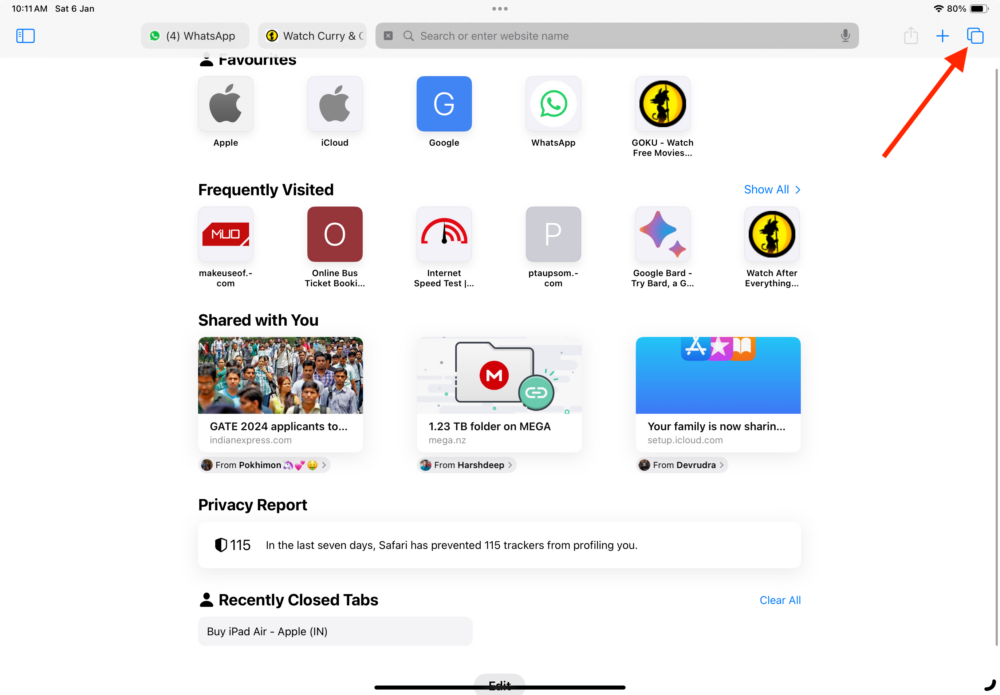
- Choose Private when the menu prompts.

How to Exit Incognito Mode in Safari on iPad
Follow the steps below to exit incognito mode in Safari on the iPad.
- Press the Tabs button.
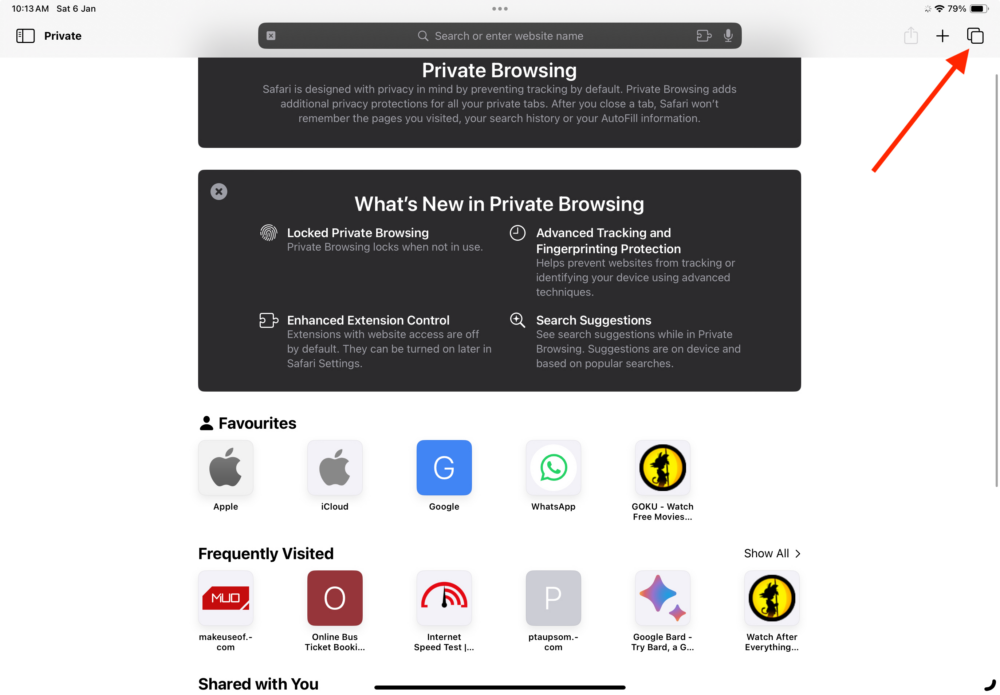
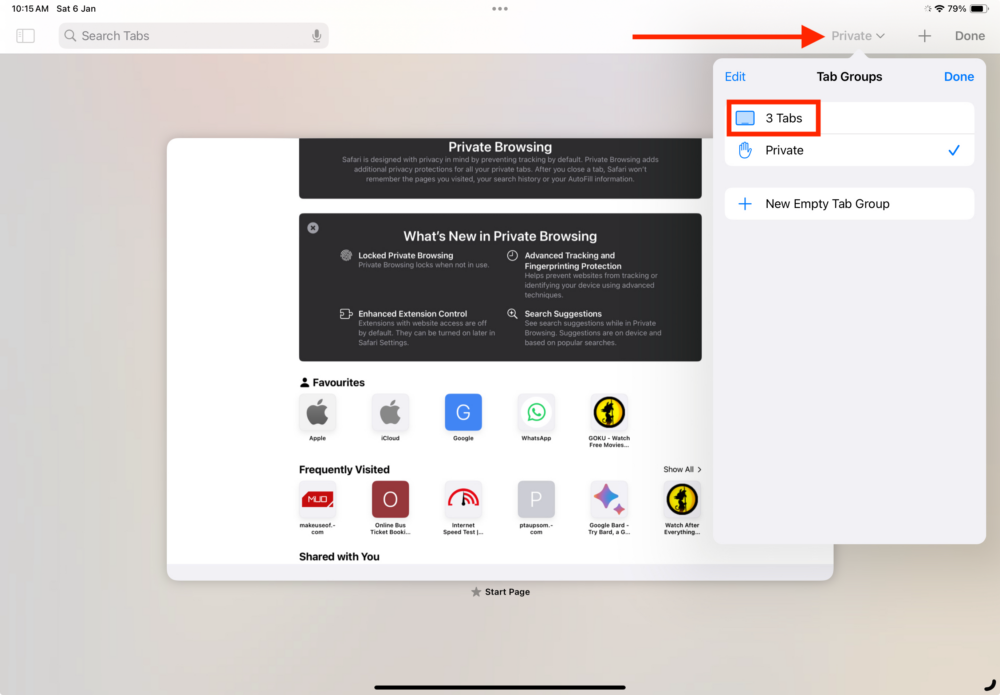
- Select Private to display the Tabs Groups list.
- Tap on [X] Tabs at the top of the Tabs Groups list. (X – numbers of tabs open)
Chrome Guide:
To go incognito in Chrome on the iPad, start Chrome, click on the three dots in the top right corner and select the new incognito tab.
Microsoft Edge:
To switch to incognito mode in Microsoft Edge on your iPad, open the browser, tap the three dots in the top right-hand corner of the screen, select the InPrivate option at the top, and then tap the plus symbol in the top right-hand corner of the screen. Alternatively, you can swipe to the right in the tabs area to quickly access the InPrivate area. To open a new incognito tab, simply tap on the plus symbol in the top right-hand corner.
Brave Browser:
To go incognito in Brave Browser on your iPad, follow these steps:
1. Launch Brave Browser on your iPad.
2. Tap the tab count box.
3. Select Private.
4. Tap the Plus icon at the bottom center of the screen.
How to Go Incognito in Safari on Mac
Similar to the iPhone and iPad, accessing incognito mode in Safari on the Mac is relatively simple. Another advantage you can take advantage of on the Mac is that you can access incognito mode with a single keystroke using keyboard shortcuts. To do this, follow the steps below.
- Launch Safari on your Mac.

- Click on File in the menu bar at the top.
- Select New Private Window from the options, and by doing so you will get a fresh tab for private browsing.

How to Exit Incognito Mode in Safari on Mac
To exit incognito mode in Safari on Mac, click File in the menu bar, select New Window when the options appear, and close the private window that has opened in the background. Alternatively, you can also press Command (⌘) + N to open a normal Safari browsing tab in an instant.
Chrome Guide:
To go Incognito in Chrome on Mac, launch the Chrome browser > click on File in the menu bar > Select New Incognito Window from the options. Alternatively, press the shortcut key combination Command (⌘) + Shift + N to go incognito in Chrome.
Microsoft Edge:
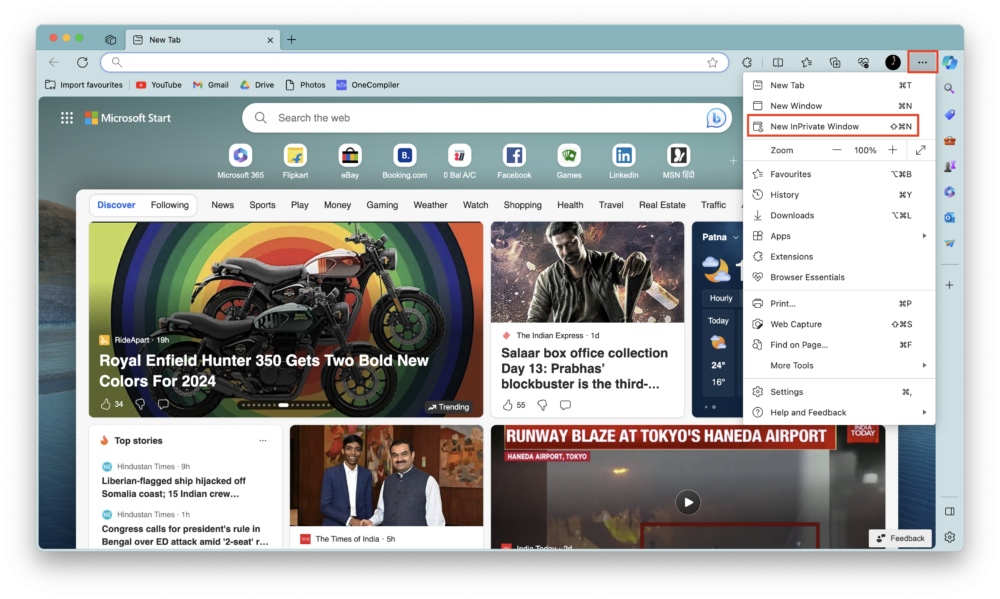
Follow the steps below to open Microsoft Edge in incognito mode.
- Launch Microsoft Edge on your Mac.
- Tap the three dots next to your profile in the top right corner.
- Choose New InPrivate Window.
Brave Browser:
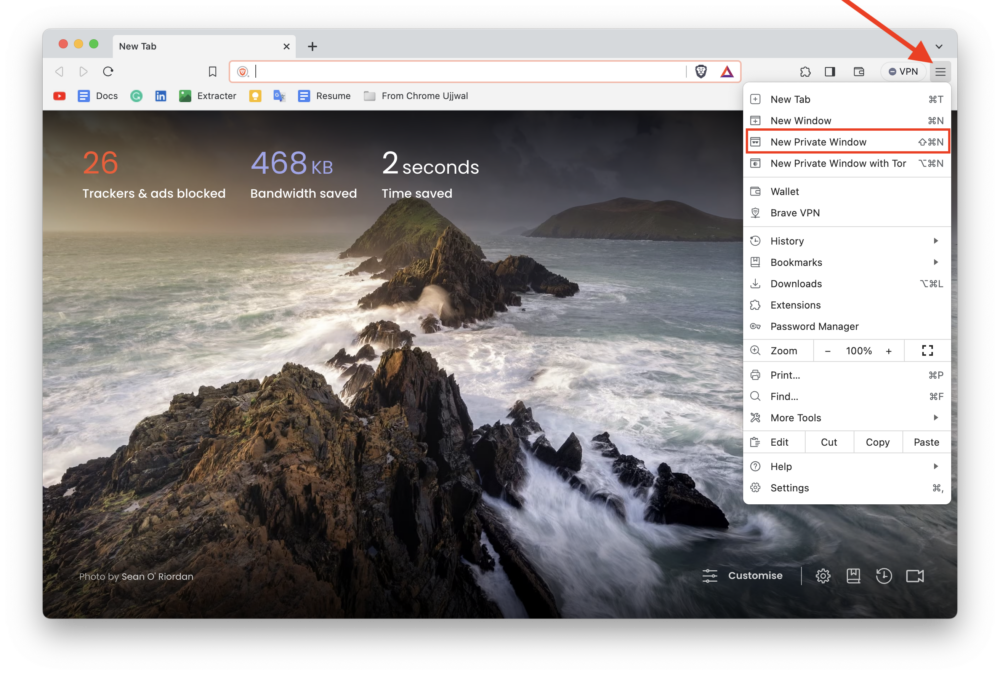
To switch to private browsing mode in Brave on the Mac, follow the steps below.
- Launch Brave, and tap the three lines in the top right corner of the screen.
- Choose New Private Window.
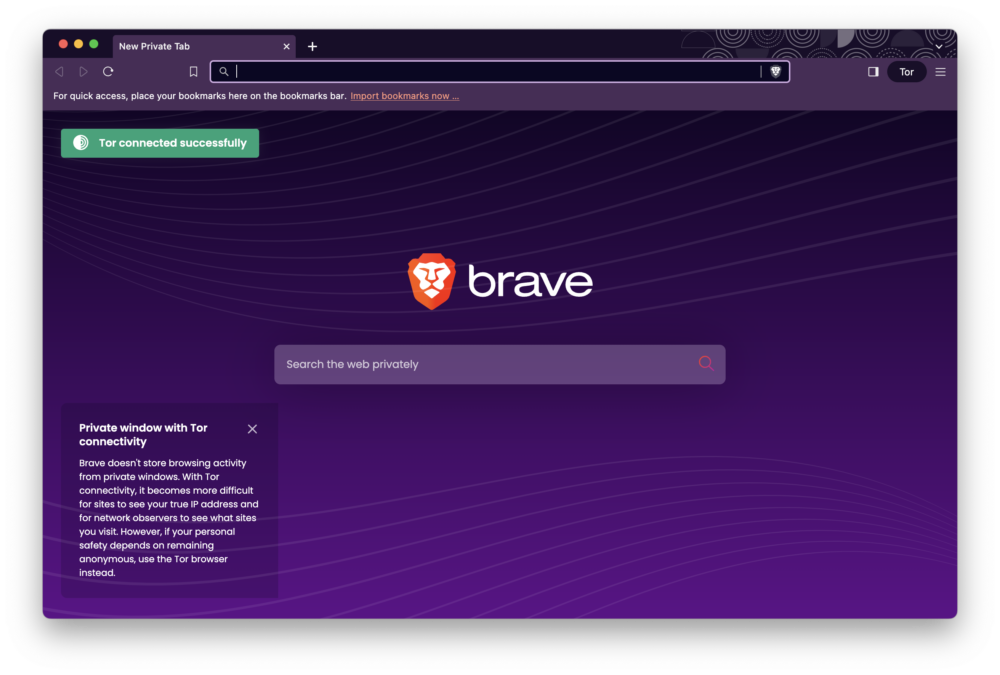
In addition to your normal tabs, session tabs, and private tabs, you now have the option to use private tabs that connect to the Tor network. Tor is a robust anonymity network that uses onion-routing technology. If you want to learn more about Tor’s technology, you can browse online resources or visit the official Private Tabs with Tor FAQ. Essentially, Tor protects your privacy and anonymizes all internet traffic, even from your Internet Service Provider (ISP).
It’s easy to open these new private tabs with Tor. One method is to go to File > New Private Window with Tor. Alternatively, you can click on the hamburger menu on the right side of the screen and select New Private Window with Tor. If you prefer keyboard shortcuts, simply press Option (⌥) + Command or Cmd (⌘) + N to quickly open a new private window with Tor.
How to Make Incognito a Default Browsing Mode in Safari on Mac
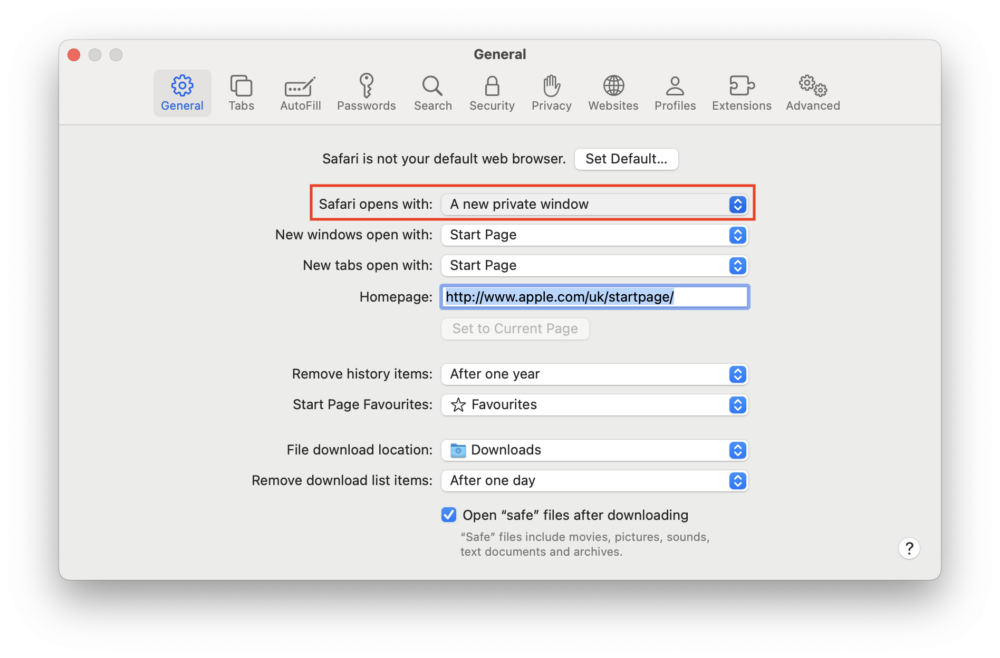
If your privacy is important to you and you prefer your Safari browser to always open in incognito mode, whether at startup or when clicking on links someone sends you, you can set your Safari browser as the default browser on your Mac. This will delete your browsing history forever. To do this, follow the steps below.
- Launch the Safari browser on your Mac.
- Tap Safari to the right of the Apple logo in the menu bar.
- Choose Settings… from the options. Alternatively, you can press Cmd (⌘) + , to open Setting in no time.

- Under the General tab, choose A new private window option from the dropdown menu right to Safari options with:
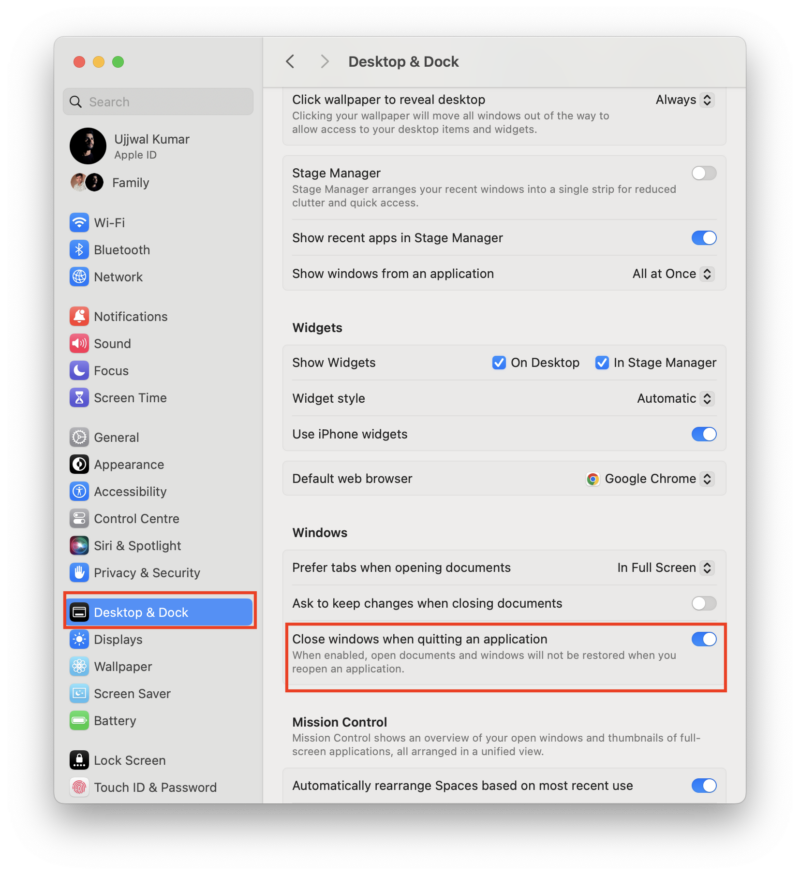
- If you can’t find the option mentioned in Step 4, start by launching System Settings.
- locate and select the Desktop & Dockb in the left side panel.
- Scroll down in the right-side panel and find Close Windows when quitting an application option under the Windows section.
- Turn on the toggle right to Close Windows when quitting an application.
What Incognito Mode Doesn’t Do?
Incognito mode does not protect your browsing activities from websites, your Internet Service Provider (ISP), or your employer, as they will still be able to track your actions even when you are in this mode. In addition, the function does not prevent downloads or bookmarks from being saved, as files or bookmarks created in incognito mode are still saved on your device.
It is important to note that incognito mode does not guarantee absolute anonymity. Therefore, It is important to exercise caution and take additional measures to protect your privacy on the internet fully.
Incognito mode is a useful tool for improving privacy, but it is not a perfect solution. It’s important to be aware of its limitations and also take other privacy measures, such as using a VPN or a privacy-friendly browser, to protect your online activity more fully.
Disappear Online While Browsing on iPhone, iPad, and Mac
You have already learned how to go incognito in the Safari, Chrome, Microsoft Edge, and Brave browsers on the iPhone as well as on your iPad and Mac. Whether you’re planning a surprise, researching sensitive topics, using a shared device, or logging into multiple accounts at once, incognito mode proves to be a valuable tool to prevent your browsing activity from being saved on the local device.
Incognito mode allows you to browse anonymously and secretly, but it doesn’t offer a complete privacy app or protection against viruses or spyware.
FAQs about Going Incognito on iPhone, Mac, iPad
1. Can I make Incognito a default mode on iOS?
Unfortunately, there is no direct way to make Incognito the default mode on the iPhone or iPad.
2. Does Incognito Mode in Safari hide my search history?
Incognito mode in Safari hides your search history from other users on your device. However, your Internet Service Provider (ISP) can still see your search queries.
3. Is Safari’s Incognito Mode safe?
Incognito mode can improve your privacy, but it doesn’t make you completely offline. Your ISP and the websites you access can still monitor your online activity.

