

In Summary
- Chrome flags are experimental browser features that are not part of the standard Chrome browser.
- Using Chrome flags, you can add new features, enhance performance, improve user experience and security and disable or enable specific functions not part of the standard version.
- You can go to chrome://flags on your Chrome browser, search for the flags mentioned here, and enable them on your Chromebook. These features are experimental. If you encounter errors or bugs while using them, you can disable them.
Chrome flags are experimental features that are not available in the standard version. You can use Chrome Flags to add or remove specific browser functions and features that can enhance your experience in many ways. Some successful Chrome Flags can make it into the standard version, while others are removed entirely from Chrome.

In this guide, you will learn about the 35 best Chrome flags for power users and a simple guide on enabling and disabling Chrome flags if you are unfamiliar. Before that, please note that Chrome flags are experimental features that can sometimes be unstable or even break your browser. If you notice any changes, you can disable the extension and return to normal.
Table of Contents
35 Best Chrome Flags for Power Users
Boost Performance and Speed

Thanks to the lightweight ChromeOS, Chromebooks are already faster. With the performance flags, you can further boost performance for everyday tasks like browsing the web, playing media, downloading files and more.
Most performance features are under the hood, and you cannot control how they work. However, once enabled, these flags can make a real difference by improving the performance and more.
GPU Rasterization: Speed Up Webpage Loading by Using Your GPU
The GPU rasterization flag can help you load up webpages faster. Since modern websites are interactive and resource-heavy, using them on multiple tabs simultaneously can stress the CPU, which might slow your browsing experience.
With GPU rasterization, Chrome uses GPU power to run the webpage. However, you might not see a big performance difference if your device has an older GPU or a very basic GPU. You can enable the Chrome flag and restart the browser to make it work.
Add to your ChromeOS: chrome: //flags/#enable-gpu-rasterization
Zero-Copy Rasterizer: Increase Performance With Better Memory Handling
The Zero-Copy Rasterizer flag improves memory handling, thus improving the overall website loading speeds and battery life. You can enable both GPU rasterization and Zero-Copy Rasterizer for faster graphics rendering and better memory usage.
Add to your ChromeOS: chrome://flags/#enable-zero-copy
Override Software Rendering List: Enable GPU Acceleration on Non-Supported Devices
Override Software Rendering List enables GPU acceleration on non-supported devices. If your device has a less powerful GPU, Chrome disables certain graphical features on your browser. However, if you enable this flag, Chrome uses GPU acceleration, even on less powerful devices, which can result in improved performance. However, since the GPU was disabled by default due to some limitations, you may encounter glitches or crashes, increasing power consumption since it is not optimized for use.
Add to your ChromeOS: chrome://flags/#ignore-gpu-blocklist
Parallel Downloading: Download Files Faster With Multiple Connections
The parallel downloading flag increases the download speed for your downloads on the Chrome browser. Instead of downloading files from start to finish in sequence, parallel downloading splits files into smaller parts and then downloads each part simultaneously using multiple connections. This technique can help download multiple downloads simultaneously while maintaining the same download speed, significantly reducing the time it takes to download large files.
I have been using this flag for a while, and it works great, especially when downloading large files. The extension is available on all Chrome versions, regardless of the hardware. You can enable the flag and start downloading. However, not all servers support parallel downloading.
Add to your ChromeOS: chrome://flags/#enable-parallel-downloading
Experimental QUIC Protocol: Load Webpages Quicker
The QUIC protocol is new and more efficient than traditional protocols like TCP for transferring data over the internet. Compared to TCP, which most websites use now, QUIC takes less time to establish a connection, which can connect to the webpages more quickly.
When you enable QUIC in Chrome, the browser uses the new protocol for transferring data on compatible devices. This can result in faster loading, better streaming, improved gaming performance, and better internet connectivity on unstable and slow networks.
However, the biggest downside is that not all websites support the latest QUIC protocol, which can cause connection issues and slow website loading problems for sites that do not use the latest QUIC protocol.
Add to your ChromeOS: chrome://flags/#enable-quic
Hardware-accelerated Video Decode: Enhance Video Playback Using GPU Power
Hardware-accelerated video decode improves the experience of watching videos on the Chrome browser without buffering. When you enable the extension, it allows the Chrome browser to use the GPU power to render videos, which is generally better than using the CPU. It also reduces the stress on the CPU, which can be used for other tasks while multitasking.
Add to your ChromeOS: chrome://flags/#disable-accelerated-video-decode
Low Latency Canvas Rendering: Improve Responsiveness for Interactive Web Content
The low latency canvas rendering flag reduces the latency between your interaction with the webpage and the changes on the screen. The flag enhances the responsiveness of the HTML5 elements used by modern web browsers, especially for interactive sites like drawing, education websites, gaming, and more. However, you won’t see much difference for static content like text.
Add to your ChromeOS: chrome://flags/#enable-low-latency-rendering
Back Forward Cache: Instantly Load Recently Visited Pages
When you enable the Back Forward Cache in Chrome, your browser stores the entire state of the webpage and helps it load instantly when you revisit the site. Unlike traditional cache, which generally stores images, stylesheets, scripts, and other resources, the Back Forward Cache saves the entire state of the webpage. It reduces the loading time if you often move from websites back and forth. However, it also has downsides since storing multiple website states can take up significant memory.
Add to your ChromeOS: chrome://flags/#back-forward-cache
Make Browsing Experience Better
Google Chrome browser is already loaded with plenty of helpful features. With the addition of these Chrome flags, you can make it even better. Most browser enhancement Chrome flags are very handy even for everyday use, not just for specific scenarios. Unlike power enhancement flags, you have total control over these flags once enabled.

Toolbar Pinning: Customize Which Tools Appear on Your Toolbar
Chrome’s toolbar is handy for accessing quick tools from any page. With the Toolbar Pinning Chrome flag, you can manually choose which tools appear on the toolbar and pin them based on your preference. You can hide default tools, such as bookmarks, extension icons, and more if you no longer need them.
After enabling the extension, click the customize icon at the bottom and select the new toolbar. From here, you can disable or enable titles and drag and drop them to rearrange based on your preference.
Add to your ChromeOS: chrome://flags/#toolbar-pinning
Search Engine Choice: Choose Your Preferred Search Engine During Setup
Chrome uses Google as the default search engine. If you want to change, you can enable the Engine Choice flag. When you enable this flag, Chrome adds an extra step, asking you to choose your preferred search engine during your initial setup process. This makes it easy to choose your preferred search engine instead of navigating to change your preference later in the settings.
Add to your ChromeOS: chrome://flags/#enable-search-engine-choice
Desktop PWA Sub Apps: Create Shortcuts for PWA’s
Desktop PWA Sub Apps flag allows you to create and install sub-apps for installed progressive web apps (PWAs) websites. For instance, if you have created a PWA for larger applications, you can use this flag to create individual shortcuts for different features within the larger application.
For example, if you have installed Microsoft Office as a PWA, you can create sub-apps for different tools such as Word, Excel, and more. These sub-apps also have the same experience as the PWA and open in a separate window when you launch them. They can be accessed from the taskbar with a simple right click.
Add to your ChromeOS: chrome://flags/#enable-desktop-pwas-sub-apps
Smooth Scrolling: Make Scrolling Through Webpages Smoother
Smooth scrolling is one extension everyone should enable for a better browsing experience. It makes scrolling through webpages and social media feeds smoother and reduces eye strain by reducing the jittery effect of scrolling webpages.
Add to your ChromeOS: chrome://flags/#smooth-scrolling
Scrollable Tabstrip: Easily Navigate Multiple Open Tabs by Scrolling
If you are like me, who works with multiple tabs open, Scrollable Tab Strip can come in handy. If you have more tabs open in Chrome, the tab size shrinks to fit into the screen. While this can make them easier to reach, it is often difficult to tab because of its size. This is where the Scrollable Tab Strip can come in handy.
It creates a tab strip where you can scroll through the tabs from left to right and right to left instead of shrinking them into small sizes. This makes it easier to work with multiple tabs but also requires scrolling through various tabs often to reach the tab you are looking for.
Add to your ChromeOS: chrome://flags/#scrollable-tabstrip
Tab Groups Save: Save Groups of Tabs and Open Them Later
Tab Groups allows you to save tabs, group them, and restore them whenever possible. This is similar to the Group Tabs extension, one of my favorites that automatically group tabs for you. However, with this flag, you have to add the tabs to the groups manually, and they are saved forever and synced with other devices. You can restore them in a new browser extension. You can customize the group name and color and delete them whenever possible.
Add to your ChromeOS: chrome://flags/#tab-groups-save-ui-update
Force Dark Mode for Web Contents: Enable Dark Mode on Any Website
Dark mode is easier on the eyes. Most websites these days offer dark mode, and plenty of extensions force dark mode on websites even if the websites don’t support it natively. Similarly, you can force dark mode on any webpage using the “Force Dark Mode for Web Contents” extension. However, there is no option to customize it since it is a Chrome flag, and some websites might have an inconsistent appearance.
Add to your ChromeOS: chrome://flags/#enable-force-dark
Tab Hover Card Images: Preview Tab Contents When You Hover Over Them
While the scrollable tabs can help you easily find the tab you are looking for, if you don’t want scrollable features and want to fit all tabs on the same screen, you can try Tab Visualize Card. With the flag, you can preview the content by hovering. This helps you easily differentiate the tabs if multiple tabs are open simultaneously.
Add to your ChromeOS: chrome://flags/#tab-hover-card-images
Touch UI Layout for ChromeOS: Optimize the Browser Interface for Touchscreens
We all agree that desktop OS, including ChromeOS, are not well optimized for touch screens, and using browsers on these devices is inconvenient. With the help of the Touch UI Layout Chrome flag, you can enhance the Chrome browser interface for touch screens.
When you enable this extension, the interactive elements on buttons, menus, and icons become larger, making them easier to access. However, one big downside is that the layout might break if the icons become larger.
Add to your ChromeOS: chrome://flags/#top-chrome-touch-ui
Picture-in-picture for any video playback: Watch Videos in a Mini Window While Browsing
Picture-in-Picture is another popular and handy feature most of us use daily. Similar to dark mode, Picture-in-Picture mode can be enabled through an extension. If you don’t want to install third-party extensions and want Picture-in-Picture for any video playing on any website, you can enable this flag on the Chrome browser.
Add to your ChromeOS: chrome://flags/#enable-picture-in-picture
Live Captions: Generate Real-Time Captions for Any Video or Audio
Live captions are very useful. It can generate real-time captions for videos and audio content you watch or listen to on Google Chrome. It automatically detects the language and generates live captions instantly. To enable live captions on Chrome, enable the flag and then head over to Chrome/settings and the accessibility settings and disable live captions.
Add to your ChromeOS: chrome://flags/#enable-accessibility-live-caption
Extensions on Chrome: // URLs: Allow Extensions To Work on Chrome’s Internal Pages
You can enable the Extension of Chrome URLs if you want an extension to run on Chrome internal pages. Generally, Chrome internal pages (those starting with chrome: //) are protected and blocked from being modified by third-party tools like extensions for security.
However, using this Chrome flag, you can run any extension on Chrome internal pages if you are testing your extension or a third-party extension that needs to run on these pages. Ensure to enable this only for trusted extensions since there is a potential security risk since extensions can access sensitive information and modify the settings.
Add to your ChromeOS: chrome://flags/#extensions-on-chrome-urls
Media Remoting Without Videos in Fullscreen Mode: Cast Videos Without Full-Screen Mode
Media Remoting without Videos in Fullscreen Mode lets you cast a video to your TV or other cast devices without playing the video in Full-screen mode. Normally, if you want to cast a video to a casting device (for example, a TV), the video should be played in full screen on the source device to start remote playback.
With this extension, you can start casting without switching the video to full screen using global media controls. However, some users have reported that casting might have issues, such as automatically stopping without any reason, and not all websites currently support this feature.
Add to your ChromeOS: chrome://flags/#media-remoting-without-fullscreen
Improve ChromeOS Experience
ChromeOS is still evolving, and it gets plenty of useful features with every update. Also, you can add plenty of useful features with the Chrome flags available exclusively for ChromeOS devices.

Files Trash for Drive: Add a Trash Folder for Google Drive Files
Files Trash in Google Chrome adds a separate trash folder to the Google Drive files on ChromeOS. When you delete a file in the Google Drive folder, instead of permanently deleting it, it will now be moved to the trash folder, where you can restore the files or delete them from the trash to remove them from the drive and your Chromebook permanently. This is super handy, especially for Drive files.
Add to your ChromeOS: chrome://flags/#files-trash-drive
Notification Image Drag: Drag Images From Notifications to Other Apps
Notification image drag flag makes it easy to drag and drop images on other applications. For instance, if you take a screenshot or receive any notification containing an image, you can drag and drop it directly to other applications without opening them on your device. This can be handy and reduce the time required to copy and save the image for your applications. Any applications that take image input support this feature. The most commonly used applications are WhatsApp, Google Docs, and others.
Add to your ChromeOS: chrome://flags/#enable-notification-image-drag
Keyboard Backlight Control: Adjust the Keyboard Backlight in Settings
Adjusting the keyboard backlight can be a hassle, especially since keyboard backlight adjustments are mostly adjusted using only specific keyboard shortcuts. This is also the case with ChromeOS, where adjusting the keyboard backlight with the shortcut can be a hassle if you’re not a frequent shortcut user.
With the help of keyboard backlight control in the settings, you can add keyboard backlight control settings directly to the ChromeOS settings. It is available inside the keyboard settings, where you can adjust the backlight intensity and turn it off without using shortcuts.
Add to your ChromeOS: chrome://flags/#enable-keyboard-backlight-settings
Web App Universal Install: Convert Any Website as a Web App
Web App Universal Install allows you to convert any website into a progressive web app (PWA). When you convert the website into PWA, it behaves as a standalone app and opens in a separate window. However, not all websites support PWA, and typically, only an install button is shown on the URL tab if the website supports the PWA format.
But with the Web App Universal Install, you can install any website as a PWA, even if it doesn’t support it. However, there might be some glitches, as it is not optimized for the web. The experience might have limitations, but if you frequently visit certain sites, you can use this flag and install separate PWAs.
Add to your ChromeOS: chrome://flags/#enable-web-app-universal-install
Global Media Controls Control Cast Start/Stop: Manage Cast Sessions From Media Controls
Global Media Controls Cast flag lets you control media playback for all your cast sessions directly from the global media controls. When you enable this flag, a new media control icon appears in the address bar. You can use it to control audio playback across different tabs and devices without navigating to the cast dialogue every time. This makes it easier to start, stop, and manage cast settings directly from the global media controls and reduces the need to open multiple menus.
Add to your ChromeOS: chrome://flags/#global-media-controls-cast-start-stop
Mouse Keys: Control the Mouse Cursor Using the Keyboard
There are some instances in which I wished I could control the mouse with the keyboard instead of using the mouse. With a Mouse Keys Chrome flag, you can control the mouse cursor using your keyboard on your Chromebook. You can use it to move the mouse cursor up, down, left, or right and perform clicks and other mouse functions using the keyboard. This cannot entirely replace your mouse, but it can be useful for easy access and can serve as a backup solution if your mouse is out of battery or you hate using your touchpad.
Add to your ChromeOS: chrome://flags/#enable-accessibility-mousekeys
Virtual Keyboard: Access the On-Screen Keyboard Even With a Physical One Connected
If you have a Chromebook with a touchscreen, the virtual keyboard Chrome extension allows you to use the on-screen virtual keyboard even if a physical keyboard is connected to your device. Generally, ChromeOS automatically hides the virtual keyboard when a physical keyboard is connected.
However, with this Flag, you can manually access the virtual keyboard anytime. This can be useful for keyboard flexibility and also increases the tablet-like experience. The virtual keyboard also has features that the physical keyboard lacks, which can be beneficial for switching between both keyboards anytime you want without any limitations.
Add to your ChromeOS: chrome://flags/#enable-virtual-keyboard
Enable Fast Touchpad Click: Reduce Delay After Touchpad Clicks
If you don’t want a slight delay in your mouse movement after clicking or interacting with any elements on ChromeOS, enabling Touch Fast Tap can help you. Generally, after a touchpad click, there will be a short delay before the mouse cursor starts moving. This is barely noticeable for a single click; however, it is more evident during frequent clicks.
Add to your ChromeOS: chrome://flags/#enable-fast-touchpad-click
AI Writing Tools: Get Built-In AI Tools for Writing
With the latest Gemini Nano flags, you can get basic AI Writing tools like rephrasing, writing, and prompts tools on your Chromebook. You can easily summarize, rewrite, and add new text without third-party apps. As of now, it currently only works in Gmail. You can double-tap the screen or access the quick menu to use it.
Add to your ChromeOS: chrome://flags/#gemini-nano
Ads Overscroll to Navigate Setting: Disable Swipe Gestures on Trackpad
Swipe to navigate gesture on the touchpad is handy to navigate backward and forward in the Chrome browser quickly. However, sometimes it can also be very frustrating when it accidentally triggers if you are working on a website like Canva and suddenly navigating to a different page while you are working. With the added “Overscroll Navigation” settings, you can turn off these swipe-based navigation settings on your Chromebook swipe-based gestures.
Add to your ChromeOS: chrome://flags/#enable-accessibility-overscroll-setting
Accessibility Disable Trackpad: Turn Off the Touchpad Entirely if Needed
The built-in trackpad is always active, even if you use external devices. If you wish to disable your touchpad on your Chromebook completely, you can use the accessibility Disable Trackpad flag. When you enable this flag, you can completely disable the trackpad on your Chromebook in the accessibility settings. This can be useful to avoid accidental touches and lets you rest your hands on the keyboard without worrying about accidentally touching the touchpad.
Add to your ChromeOS: chrome://flags/#enable-accessibility-disable-trackpad
Limit Shelf Items to Active Desk: Show taskbar apps only for the current virtual desktop
Limit shelf items to the active desk is another handy extension that helps declutter your taskbar and makes you focus only on the apps currently associated with the current desktop. Generally, all opened apps appear on the taskbar on ChromeOS, no matter which desk you are using. With this flag, you can only see the apps opened on the particular desktop, reducing the clutter.
Add to your ChromeOS: chrome://flags/#limit-shelf-items-to-active-desk
Make Your Browsing More Private and Secure
While there are not many security flags for Chrome, I have found two security extensions that can be very useful for power users’ everyday use. You can use these flags to secure your passwords and stay safe while using public WiFi.
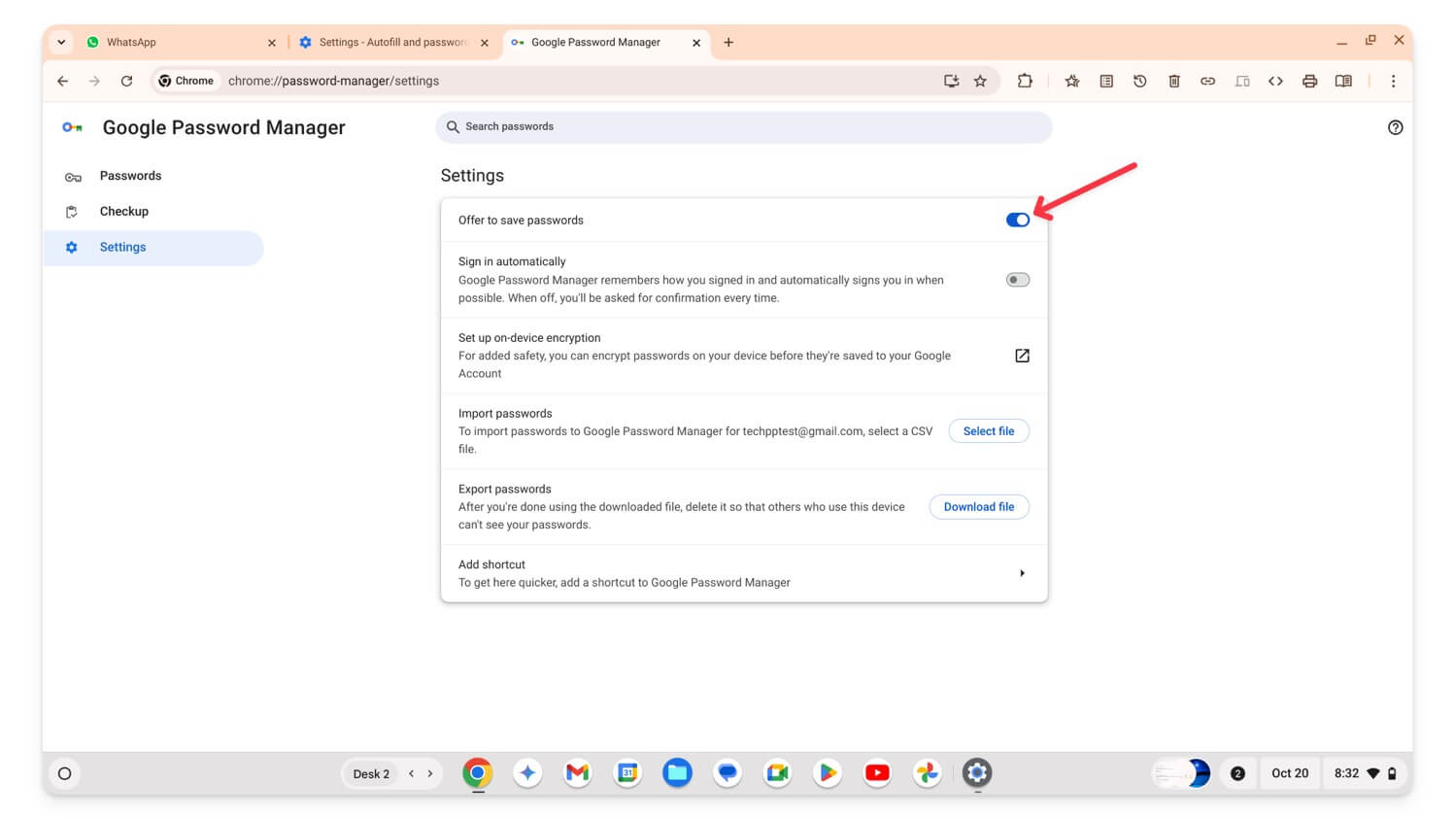
Password Manual Fallback: Manually Trigger Password Autofill When Needed
Google Chrome Autofill Passwords is a handy feature that automatically enters passwords or generates a new strong password and saves it without needing to remember it. However, sometimes it misses the field or doesn’t work as intended. In this case, you can manually invoke the autofill password to fill it for you or suggest a new password if required.
Ensure that the settings enable the autofill feature to access this feature. To use it, select the password field, right-click it, and then a context menu appears. Select Password from the context menu.
Add to your ChromeOS: chrome://flags/#password-manual-fallback-available
MAC Address Randomization: Protect Your Device on Public Wi-Fi
MAC address randomization protects your devices when you are connecting to public Wi-Fi. MAC address is used to identify the device on the local network. This makes it easy for hackers or third-party people to find your device on the same network.
With the help of the random MAC address flag, ChromeOS generates a random MAC address for each network, making it difficult for hackers to find your device. Please note that this feature only works for unmanaged networks, which have the biggest privacy concerns.
Add to your ChromeOS: chrome://flags/#wifi-connect-mac-address-randomization
How to enable the Chrome flag on your Chromebook
To enable or disable Google Chrome Flags
- Open your Google Chrome browser and go to this URL: chrome://flags/
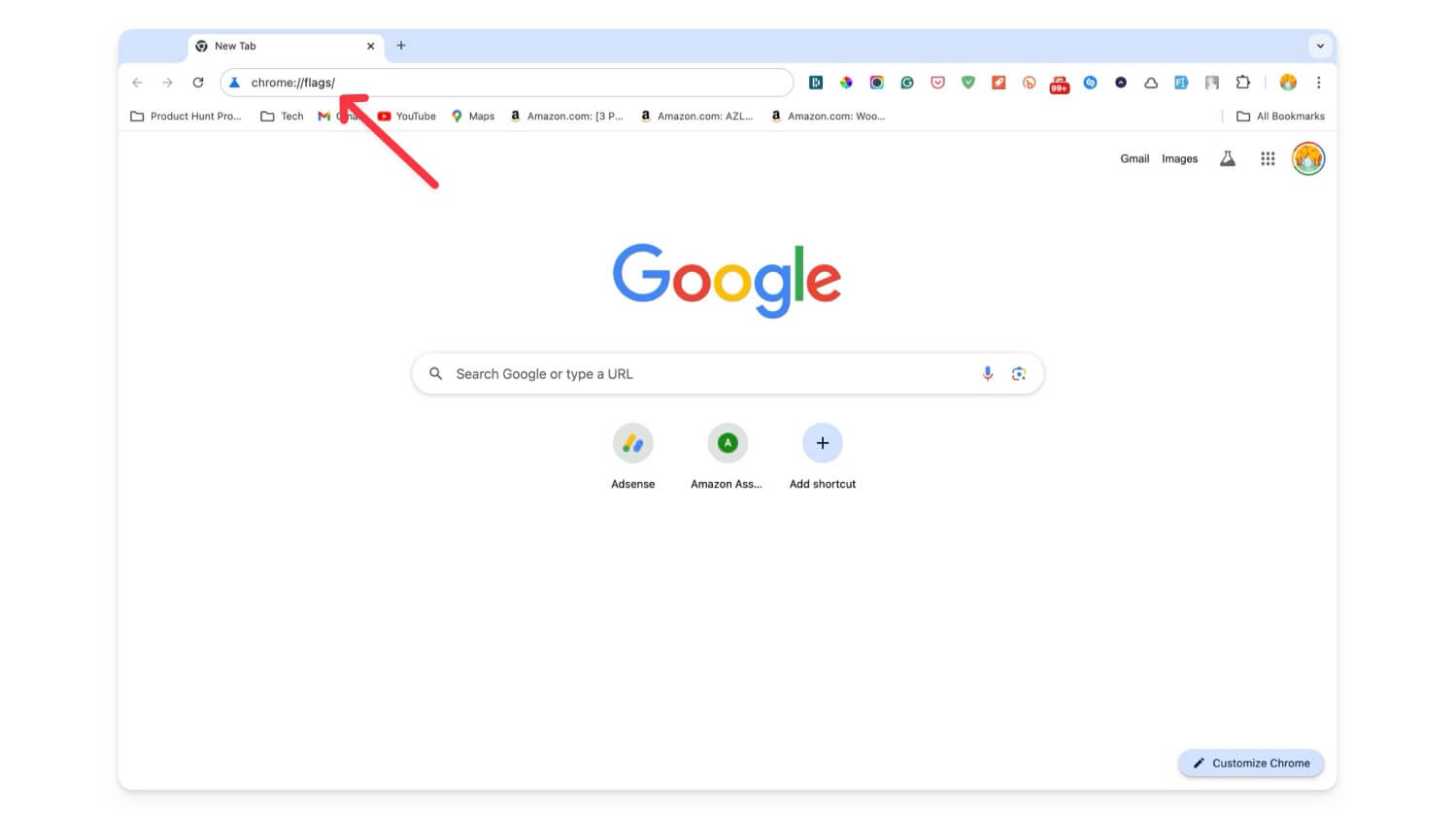
- Use the search bar and find the flag you are looking for.

- To enable, select the Default button and then select Enabled, To disable select Disabled.

If you like testing new features in Chrome and like to expedient with different settings, plenty of features are waiting for you to enable. Chrome Flags and extensions can take your Google Chrome experience to the next level. I hope you find this list; please comment below if you have any suggestions.
FAQs on Best Google Chrome Flags for Chromebook
What should I do if enabling a flag makes my Chromebook unstable?
If you can access the flag page, disable the extension, or if your Chromebook freezes completely, you can follow our detailed guide on how to fix it. To save time, refer to the Chromebook, restart the browser, and soft reset the Chromebook; if those don't work, factory reset your Chromebook.
How do I determine if a flag is being deprecated or becoming a standard feature in a future Chrome update?
Chrome doesn't notify if the flag is being deprecated or become a standard feature; however, sometimes Google Chrome might notify about the new feature. You can also manually check the roadmap for any updates.

