

Quick Answer
To transfer files from Android to Windows PC, use a USB cable for fast, direct transfers or Bluetooth for small files, though it’s slower. Cloud storage (e.g., Google Drive, OneDrive) lets you upload files on Android and download them on your PC. Messaging apps like Telegram and WhatsApp work well, too; upload files to yourself and retrieve them on the desktop. For wireless options, Quick Share or AirDroid allows you to transfer files over WiFi quickly, making file sharing between devices easy and versatile.
Sharing files between different devices we own has never been this easy. We can use multiple ways to share or transfer files without losing quality or anything. We do not have to compromise even on the speeds while transferring. It is common for us to transfer files between our PC and Android phones, which we use on a daily basis for work or personal purposes.

Table of Contents
How to Transfer Files From Android to Windows PC
In this guide, we show different methods that we can use to transfer files from your Android device to a Windows PC and vice versa. Each method varies in speed, convenience, and setup requirements, allowing you to choose the best based on your needs.
Sl No. | Method | Description | Pros | Cons |
|---|---|---|---|---|
1 | USB Cable | Connect with a USB, enable file transfer mode, and access Android storage on PC. | Fast, no internet needed | Requires a cable, risk of disconnection |
2 | Bluetooth | Enable Bluetooth on both devices, pair, and transfer files. | Wireless, no app needed | Very slow, best for small files |
3 | Cloud Storage | Upload to cloud (e.g., Google Drive), download on PC. | Accessible anywhere, good for large files | Requires internet, slower for large files |
4 | Telegram | Send files to "Saved Messages" on Telegram, then download on PC. | 2-4GB file limit, good speeds | Requires app, internet |
5 | WhatsApp | Send files to "Message Yourself" on WhatsApp and download on WhatsApp Web. | Convenient, up to 2GB per file | Consumes Google Drive space for backups |
6 | Quick Share | Enable Quick Share, select files, and transfer wirelessly on the same network. | Fast, wireless | Needs WiFi, setup required |
7 | AirDroid | Install AirDroid on both devices, connect and share files wirelessly. | Wireless, no size limit on paid version | 30MB free limit, potential security warnings |
8 | FTP Server App | Run FTP server on Android, access via File Explorer on PC using URL. | No app needed on PC, wireless | Same network required, setup required |
9 | Intel Unison | Install Intel Unison on both devices, connect and transfer over WiFi. | Reliable speeds on WiFi | Limited compatibility, setup required |
10 | SD Card | Copy files to SD card, then use card reader on PC. | Simple, no app needed | Requires SD card reader, slower for large files |
11 | File-sharing Websites | Upload files to sites like WeTransfer, copy link, and download on PC. | Easy, no app needed | Internet bandwidth needed, limits on free versions |
12 | Phone Link App | Syncs photos, messages, and more between devices on Windows 11. | Syncs multiple file types | Limited to Windows 11 |
USB Cable
One of the popular and simple ways to transfer files from an Android to a Windows PC is through a USB cable. Your charger cable works fine when making the transfer. The transfer speeds depend on the size of the files, storage of the devices, and the cable. If your phone uses UFS storage, the transfers will be faster than eMMC storage. SSD drives on your Windows PC will support faster transfers than regular SATA drives.
The downside of using a USB cable to transfer the files is your Android device needs to be unlocked while connecting it to your PC. When you are transferring large files, you need to be careful, and even the slightest movement in the cable or your Android device might result in disconnection, and transfers might stop.
To transfer files from Android to Windows PC using a USB cable:

- Unlock your Android device and connect it to your Windows PC using a cable.
- You will see a notification on your Android device upon connecting the devices. Tap on it.
- Select Transferring files/Android Auto or File transfer/Android Auto or something similar based on your device.
- You will see a drive named after your Android device on your Windows PC. Open it.
- You can now transfer files between both devices. Just remember that you need to be careful with the cable and Android device so as not to disturb the connection and transfers.
Bluetooth
Bluetooth is another way to transfer files from an Android device to your PC. This has been one of the most used methods in the past. The transfer speeds via Bluetooth are extremely slow, like a dial-up internet connection. You need to be aware of that before choosing this method. It would work fine if you want to share smaller documents or files when you do not have access to a USB cable. But relying on Bluetooth to transfer larger files or videos, you might end up spending hours transferring the files.
To transfer files via Bluetooth from an Android device to a Windows PC,
- Drag the Quick Access menu on your Android device and turn on Bluetooth by tapping the Bluetooth icon.
- A pop-up will appear at the bottom of your phone screen showing Paired Devices and Available Devices. Click on the Windows PC name if you have already connected.
- If you have not connected your Android device to that particular Windows PC, click on the System tray icons on your PC. Click on the arrow on the Bluetooth icon.
- You will see the list of paired devices as Your devices and available devices as New devices. Your Android device will be listed as a new device. Click on it to start pairing.
- Your phone will notify you with a pop-up asking you to choose between Pair or Cancel with the Windows PC. Select Pair to connect the device.
- A PIN will appear on your PC to confirm the connection. Accept it if it matches with the PIN on an Android device. Once it is done, your devices are connected.
- Using the share button, you can now find and share files or documents via Bluetooth.
Cloud Storages
We all have email accounts that come with free drive space that differs from each provider. Transferring files from an Android device to a Windows PC can be easy with these drives if we don’t care about bandwidth. All we have to do is upload the files we want to transfer to the drive and download them on a Windows PC.
Using Google Drive would be more convenient as it comes pre-installed on Android devices and comes with a free space of 15GB per Gmail account. The time it takes to transfer differs based on your internet connection speed. Also, uploading larger files to Google Drive happens at a leisurely pace, even if you have the fastest connection. There won’t be any issue with the downloads regarding speed.
You can even use other cloud storage like OneDrive, Dropbox, Mega, etc., to transfer the files. You just need to upload them to the Android device and download them to the Windows PC.
Telegram
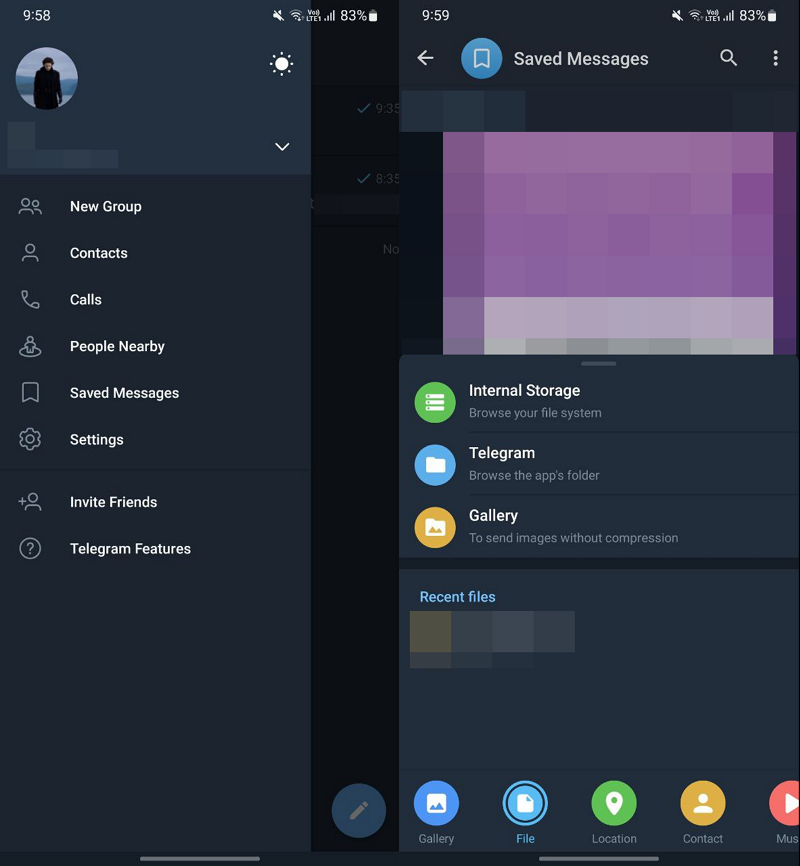
Telegram is one of the best platforms, and it is lenient on the size of the files you upload. In the free tier, you can upload a file up to 2GB, and with the premium subscription, you can upload a file up to 4 GB. For the same reason, Telegram has become a favorite choice for file sharing, such as movies, series, etc. Even the download speeds on Telegram are good in the free tier. If you subscribe to Telegram Premium, the speeds increase further. Additionally, you can use Telegram to store important files and access them whenever you want in a few clicks, just like you store important files on Google Drive or some other cloud storage.
To use Telegram to transfer files from Android to Windows PC and vice versa,
- Open the Telegram app on your Android mobile
- Click on the hamburger menu
- Select Saved Messages
- Upload files in the Saved Messages chat by tapping on the Attachment icon at the bottom.
- Download Telegram on your Windows PC and log in with your number or email. Then, download the files you want to transfer.
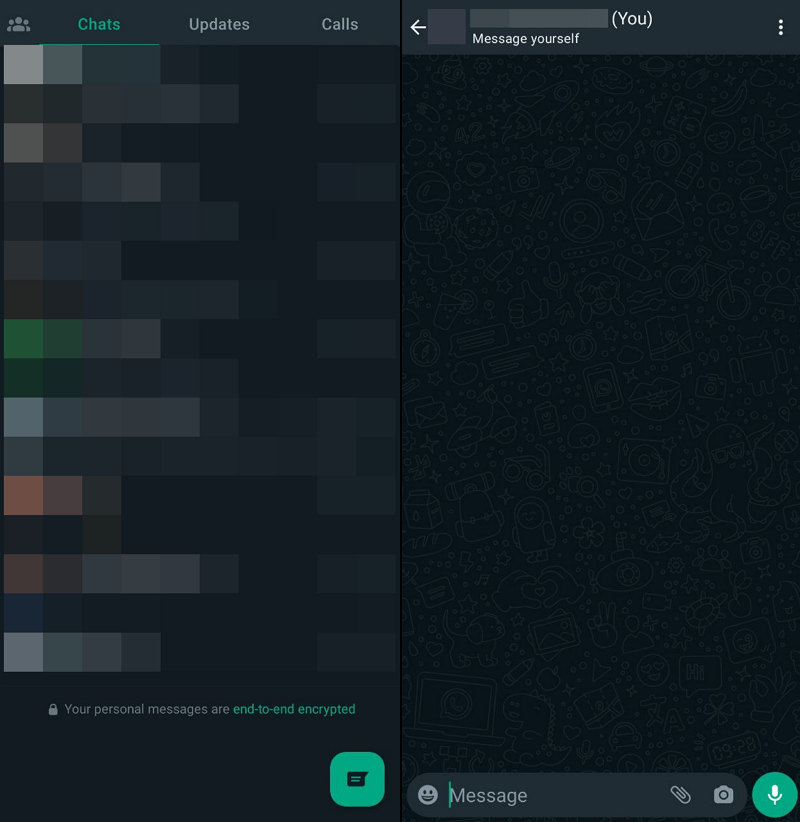
Like Telegram, WhatsApp is another good option to transfer files from Android mobile to Windows PC and vice versa. Unlike Telegram, the files you upload on WhatsApp are backed up onto your Google Drive. It will take up a considerable amount of your free Google Drive space. You can upload files up to 2 GB on WhatsApp and download them on your Windows PC. You can save those files on WhatsApp as long as you can if you do not care about Google Drive space.
To transfer files from Android mobile to Windows PC using WhatsApp:
- Open WhatsApp on your mobile and click on the New Messages icon at the bottom
- Select your mobile number (Message yourself) at the top of your contacts list
- Upload the files you want to share or transfer
- Download the files on your Windows PC using WhatsApp Web or WhatsApp for Desktop.
Alternatively, you can even send the files to your family or a trusted friend’s chatbox and download them on your Windows PC.
Quick Share

Quick Share, previously known as Nearby Share, is one of the best options if you regularly transfer files from Android to Windows PC and vice versa. Quick Share is an in-built feature on Android that you can use to send and receive photos, documents, etc., from nearby Android devices and Windows PCs. To use Quick Share on Android, you need to turn on Bluetooth and Location as well as the Quick Share feature.
You must download Quick Share for Windows from the Android website and install it on your PC. After the successful installation, open the Quick Share app on your PC, click on the drop-down menu under your Device name, and select Receive from everyone. Drag down the notification bar on your Android mobile and turn on Quick Share by tapping on the icon. Then, go to the file you want to transfer to a Windows PC, tap on the share button, and select Quick Share from the sharing options. You will see available devices to share using the Quick Share feature. Tap on your Windows PC Device name. It will trigger your mobile device on the Quick Share app on your Windows PC. Click on Accept to receive the file.
AirDroid
AirDroid is another great option to transfer files from Android to PC and vice versa. To transfer files, you need to install the AirDroid app on both your Windows PC and Android mobile. If you do not want to install AirDroid on your Windows PC, you can use the AirDroid on the Web. Install the AirDroid app from the Google Play Store. It will ask you to give permission to “All file access.” Accept and enable the All file access to AirDroid.
Create an account on the AirDroid app using your Google, Facebook, or Twitter account and sign in with it. Open the AirDroid app on your PC or the Web.
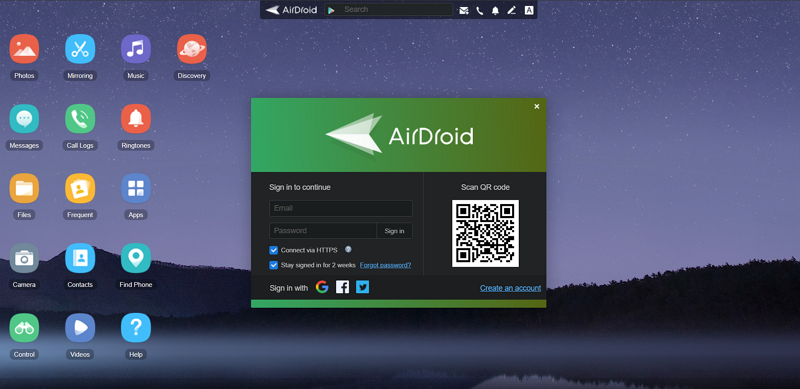
Open the AirDroid app on your mobile and scan the QR code on your PC. After the scan, it will prompt you to Sign in. Tap on Sign it. It will sign in with your account on the AirDroid web. Click on Tools and select Files. Browse the files you want to share and select it. Tap on the Share button at the bottom of the screen and select AirDrop.

It will ask you to enable Location. Enable it. Under My devices, you will see My computer. Tap on it to send it to your computer.
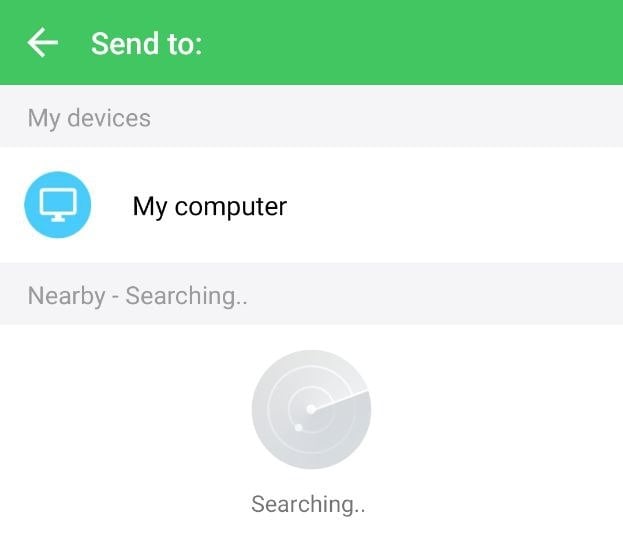
Your file is now shared with your Windows PC. However, in the free plans, there are limits to sharing files. You cannot share a file more than 30MB at a time. In a month, you can only transfer files up to 200 MB. If both of your devices are connected to the same network, you can send files without any limit.
To send files without any limit, you need to install the AirDroid client for Windows and install it on your PC. You need to note that Windows Defender might flag it as a potentially unwanted app. Install it at your own discretion. After the installation, open the AirDroid app and click on Fast Transfer. You need to open the AirDroid app on your mobile device, too.

It will show the devices on the network. Click on your device name to connect.
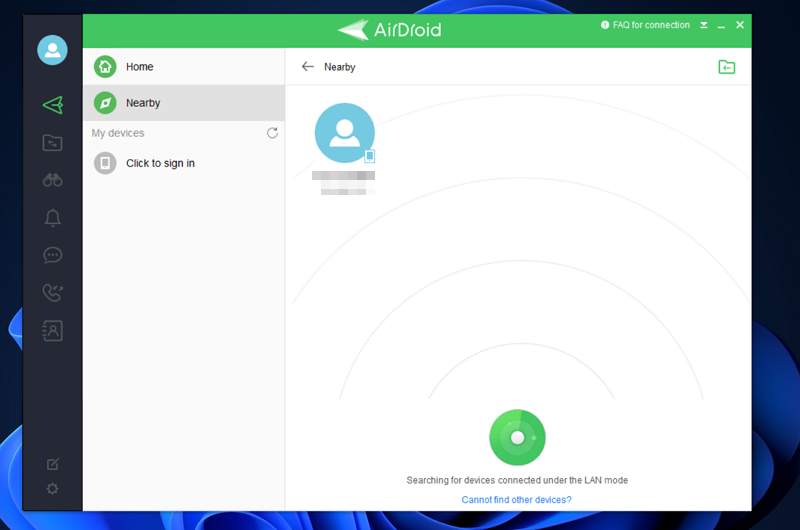
After connecting devices, sign in with your AirDroid account. Both the devices will sync and you can send files fast without any limits on speed and file sizes.
FTP Server app
There are many FTP server apps available on the Google Play store. To use an FTP server, both devices must be connected to the same network. Search for an FTP server app on the Play Store and install an app of your choice. After the installation, tap on Start and give All file access permission. You will see the Server URL and other details after starting the FTP server.

Open File Explorer on your Windows PC, enter the Server URL in the address bar, and press Enter. It will show all the files on your mobile device in File Explorer using the FTP server.

Copy and paste the files from the FTP server to your PC to transfer them. After successfully transferring the files, you can tap on Stop to stop the FTP server.
Intel Unison
Intel Unison is another simple way to transfer files from Android to Windows PC. Install the Intel Unison app on both Windows and Android devices. Give all the necessary permissions and connect both devices with the QR code scanning. Once the connection is done, click on the Send icon at the bottom of the screen and select Files. Browse and select the files you want to transfer to your PC.
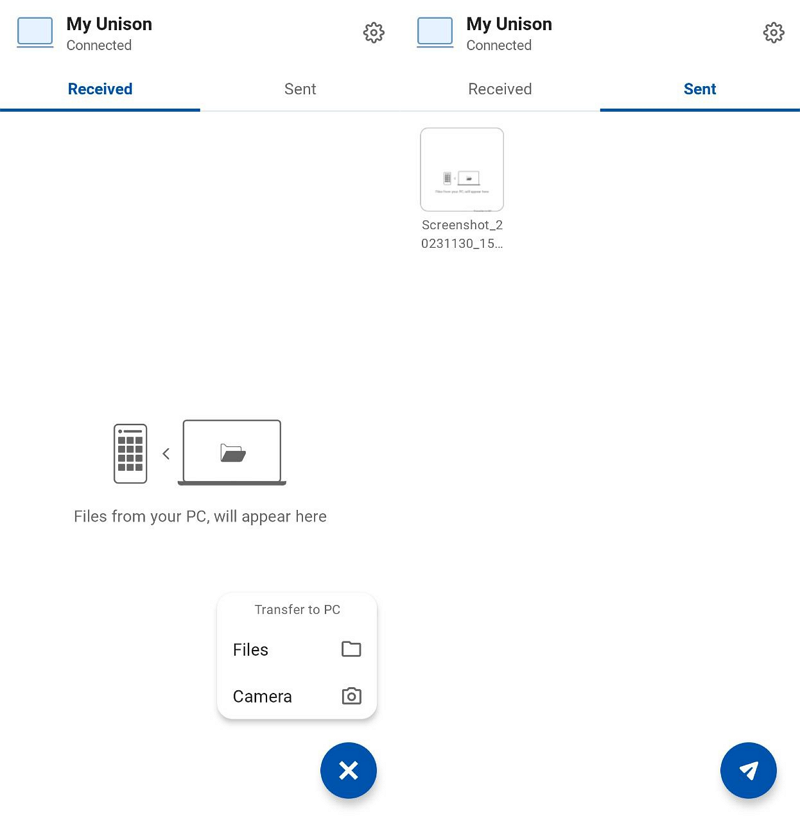
The files will be transferred to your PC using the WiFi network you are connected to. We also have an in-depth guide on how to install and use Intel Unison app, which you can check.
SD Card
SD card is a simple way to transfer or copy files from Android to Windows PC. You just have to copy files from your device to an SD card and connect the SD card to your PC using an SD card reader. It just acts as an external drive from which you can copy and paste the files. If there are bigger files involved, it will take a lot of time to transfer files. Also, you need to have an SD reader to be able to transfer the files. Without it, you cannot do anything.
File-sharing websites
There are many file-sharing websites available on the internet that enable us to share or transfer files from Android to Windows PC and vice versa. Some of them are Mediafire, Jumpshare, WeTransfer, TransferNow, etc. You just have to upload your files on one of those sites and copy the link. Open the link in a browser of your choice on a Windows PC and download the files. It will consume a lot of bandwidth to upload and download the files if larger files are involved.
Phone Link App

Phone Link app comes pre-installed on Windows 11. If you need a platform to transfer files from your Android device to a Windows PC and vice versa, the Phone Link app can help you. The Phone Link app syncs your Windows PC and Android phone, including contacts, calls, messages, apps, and photos.
To use the Phone Link app to transfer images from Android to Windows PC,
- Open the Phone Link app on your Windows 11 PC.
- Select Android on the opening screen.
- You will see a link to download the Phone Link app on your Android device.
- Enter the link on your Android phone’s web browser and install the app.
- Sign in on the Phone Link app on Android with the Microsoft account you’ve used on the Windows PC to use the Phone Link app.
- After signing in, click on I have the Link to Windows app installed on my phone and select Pair with QR code.
- Scan the QR code and pair the devices. Then, give the device permissions and wait for the data to sync.
- Then, click on the Photos tab and save the images you want from Android to your Windows PC.
- After successfully pairing your Android device to your Windows PC via Phone Link, browse the file on your Android phone that you want to share with your Windows PC. Tap and hold the file to select it. Then, click on the Share button.
- Among the sharing options, you will see your Windows PC (your Windows 11 PC name is displayed). Tap on it to send the file. Unless you have changed the destination folder in the Phone Link settings, the files will be saved in the location set by default in the Phone Link app on Windows PC.
- To find the destination folder, click on the Gear icon at the top-right of the Phone Link app on Windows PC and select the Features tab. Under Additional settings, find Transferred files will save to option. You will find the path to the folder along with options to open or change the folder.
Share files from Android to Windows effortlessly
Sharing files from Android to Windows is an effortless task as there are many good options available. The simplest way to share files is through cloud drives, messaging apps, USB cables, or Bluetooth connection. You can also use third-party apps like AirDroid, Intel Unison, or an FTP server app to share files instantly. Choose something based on your convenience and share files.
FAQs on How to Transfer Files From Android to Windows PC
What is the fastest way to transfer files from Android to PC?
The fastest way to transfer files from Android to PC is to use a USB cable. The charging cable of your phone is enough to transfer the files. The speed of transferring the files depends on the size of the files and your PC.
How do I transfer files from Android to PC via network?
There are many apps like Intel Unison and AirDroid available to transfer files from Android to PC via network. To do that, you need to install the apps on both devices and connect them. After connecting both devices, you can transfer the files without any interruption.

