

Every day, tons of files are downloaded from the Internet, from applications, images, videos, and audio files to plain text files. If you get an error message in Chrome when you try to download files, this guide is for you. In this post, you will learn how to fix Google Chrome download issues.

Whether the download can’t start or the download automatically pauses, we’ll help you solve the problem with 10 proven methods. So let’s get started without delay.
Table of Contents
How to Fix Google Chrome Not Downloading Files on Android
Before going through the tutorial, make sure you are using the latest version of the Google Chrome browser on your Android smartphone. You can install the latest update by going to the Play Store > app and > Google Chrome update. Updating Google Chrome to the latest version can also fix the download issue if the previous version of Google Chrome is causing the problem.
Change the Download Location on Google Chrome
By default, Google Chrome saves all files in your phone’s default browser. However, if Google Chrome is unable to access the folder, it may be difficult to download files using Google Chrome. To fix this, you can simply change the download location in Google Chrome.
Step 1: Open Google Chrome on your smartphone and click the three-dot menu.
Step 2: Now select Downloads (4th option) from the list of options


Step 3: On the download page, tap the gear icon at the top of the settings and select the location for downloads. You can also enable the location prompt every time you want to download a file with Google Chrome.


Allow Storage Permissions to Google Chrome
With the latest Android versions, apps need permission to access various sensors on your smartphone, such as the camera, location, and storage. If you have accidentally denied permission to the memory, Google Chrome will not be able to access the memory and complete downloads. To fix this, you can simply enable the storage permissions on Android.
Step 1: Open your smartphone and locate Google Chrome. Long press on the app and tap the info (i button).
Step 2: Look for the “Permissions” tab and tap on it.
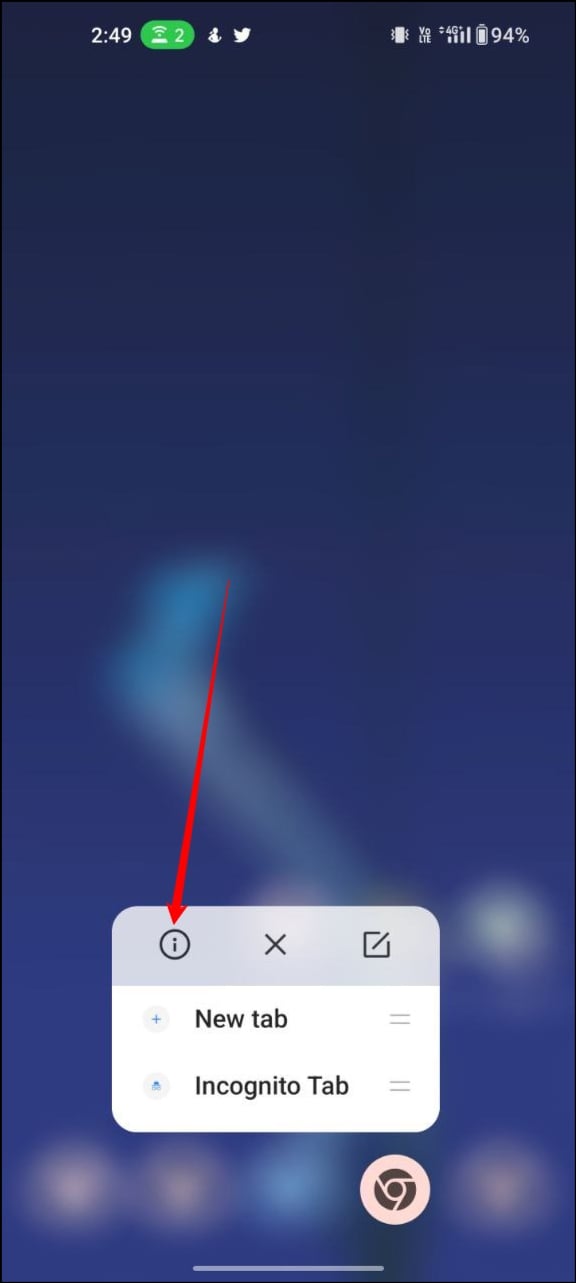

Step 3: Now you will see the list of permissions that the Google Chrome browser has access to. You can select the storage permission and click “Allow” if it is disabled.
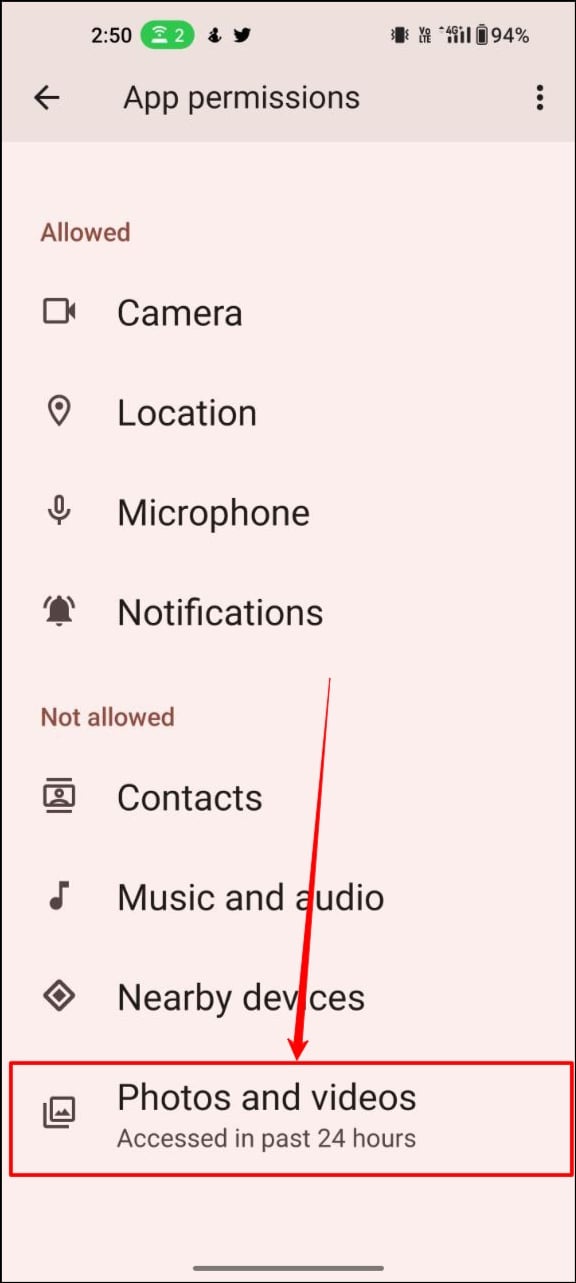
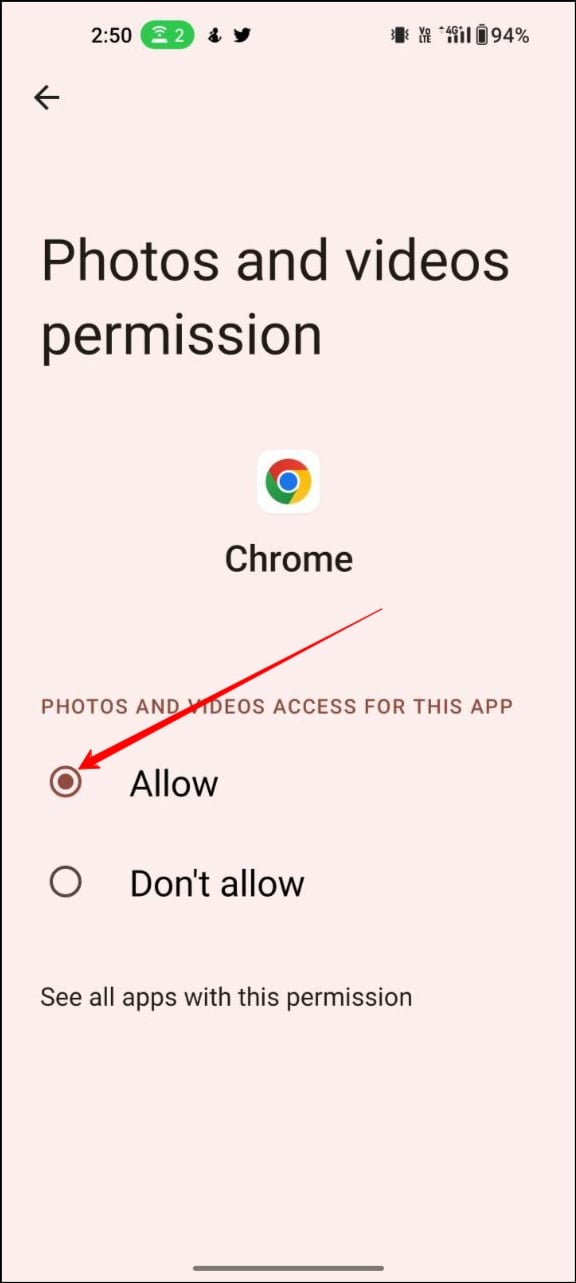
Step 4: Now, continue your downloads in Google Chrome. This should fix the problem. If not, you can use the other methods in this guide.
Allow Google Chrome to Use Data in the Background
With the latest version of Android, you can easily disable network access when the app is running in the background or completely closed. To fix this, you can remove the background data restriction for Chrome.

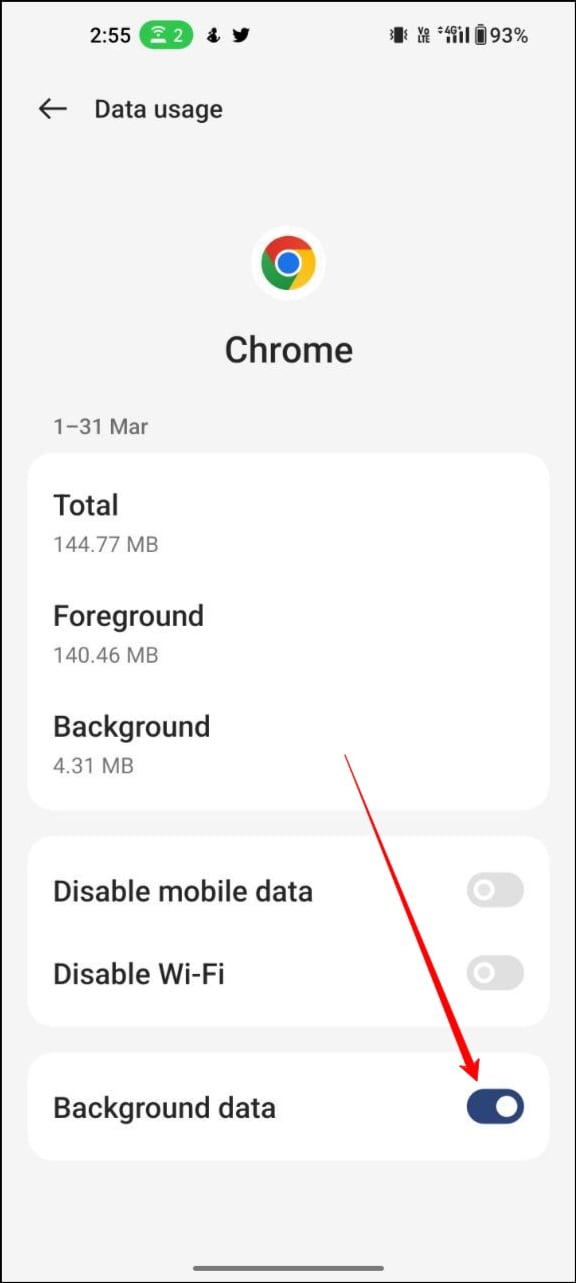
Step 1: Open your smartphone, find Google Chrome, long-press on the app, and tap the info icon
Step 2: Now go to background data and turn on background data at the bottom.
Step 3: This should allow background data for Google Chrome when the app is downloading files in the background.
Free Up Storage Space on Your Android
If there isn’t enough storage to download files, Google Chrome automatically terminates the downloads or doesn’t even start downloading. To fix this issue, you can simply free up space on your device.
There are several ways to free up space. Here are some tips:
- Uninstall unused apps: Go through your apps and uninstall any that you no longer use or need. This will free up storage space on your device.
- Clear cache and data: Go to your device’s settings, then to “Storage” or “Storage & USB,” and look for the option to clear cache and data. This will remove unnecessary files that are taking up storage space.
- Move apps to the SD card: If your device has an SD card slot, you can move some apps to the card to free up space on your device’s internal storage. Go to your device’s settings, then to “Apps & Notifications,” and select the app you want to move. There you should see the “Move to SD card” option.
- Delete old photos and videos: Go through your camera roll and delete any photos and videos that you no longer need. You can also back up your photos and videos to the cloud or your computer to free up even more storage space.
- Remove downloads: If you’ve downloaded files like music, documents, or videos, go to the Downloads” folder on your device and delete any files you no longer need.
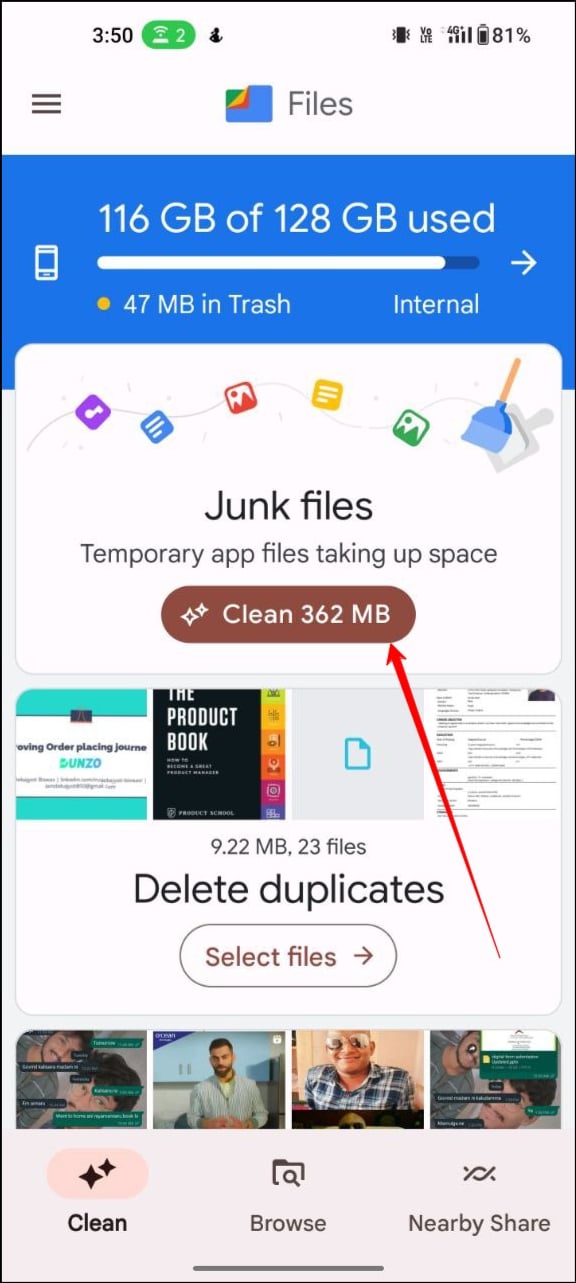
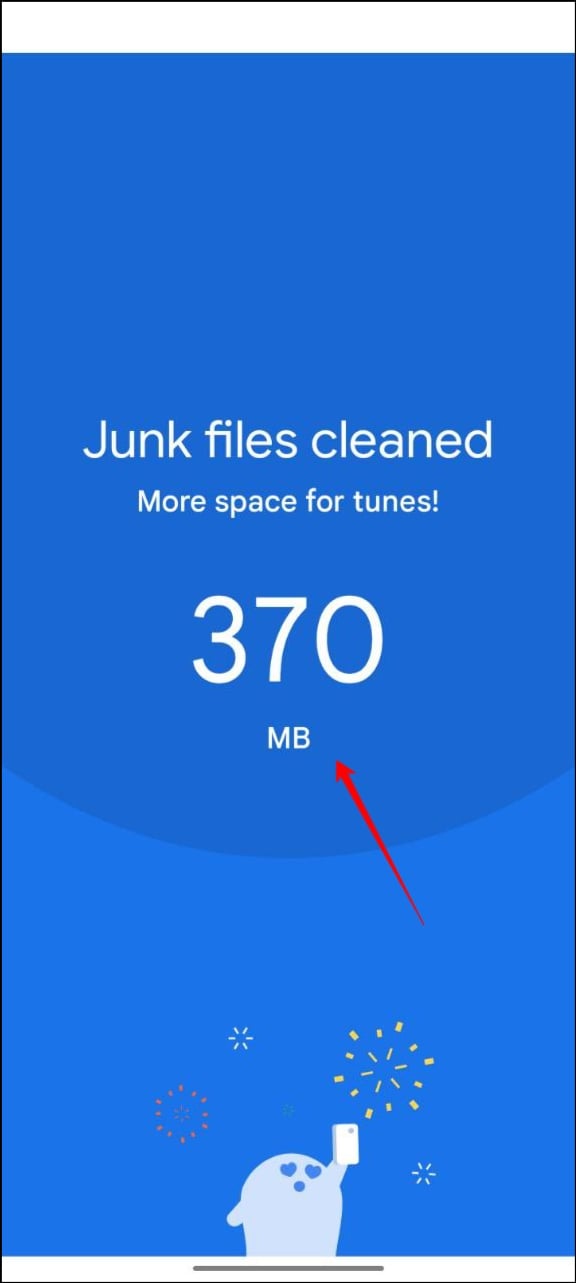
- Download the Google Files app: To easily manage the storage space on your device, download the Google Files app and click Delete Junk Files. You can also delete duplicate files, large files, old screenshots, blurry files, and more.

Disable Battery Optimization
Battery optimization is designed to stop background tasks performed by apps, including apps. When battery restriction is enabled for Google Chrome, the app may stop downloading files.
To fix this, you can simply disable battery restriction for Google Chrome.


- Open the Settings app on your smartphone/li>
- Find the “Battery” section and tap on it
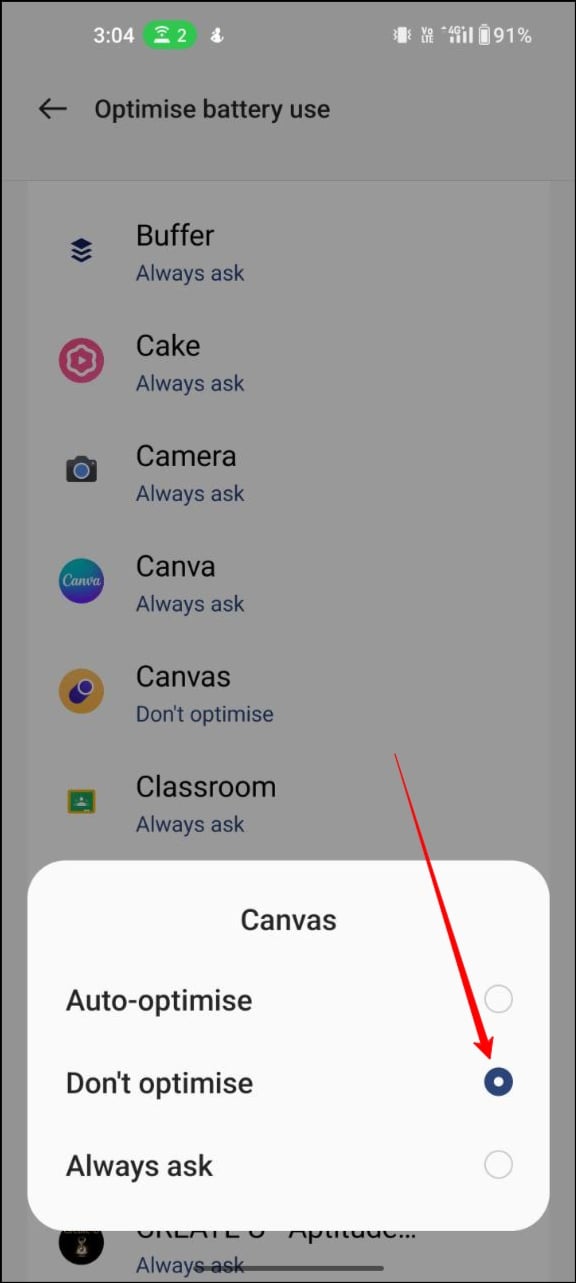
- Once you are there, look for Battery Optimization depending on your device. In my case, Battery Optimization is located under More Settings.
- Now you will see a list of apps and the battery usage of each app. Find Google Chrome and tap on Do not optimize.
Change the DNS Server on Your Google Chrome
The Domain Name System, or DNS, is a naming system that assigns IP addresses to domain names. By default, Google Chrome connects to the DNS server provided by your Internet service provider. If your ISP has problems, Google Chrome may have trouble downloading files. To fix this, you can simply change the DNS server in Google Chrome.
Step 1: Open Google Chrome on your smartphone and click the three-dot menu in the top right corner
Step 2: From the list of options, select Settings to access the main settings of Google Chrome

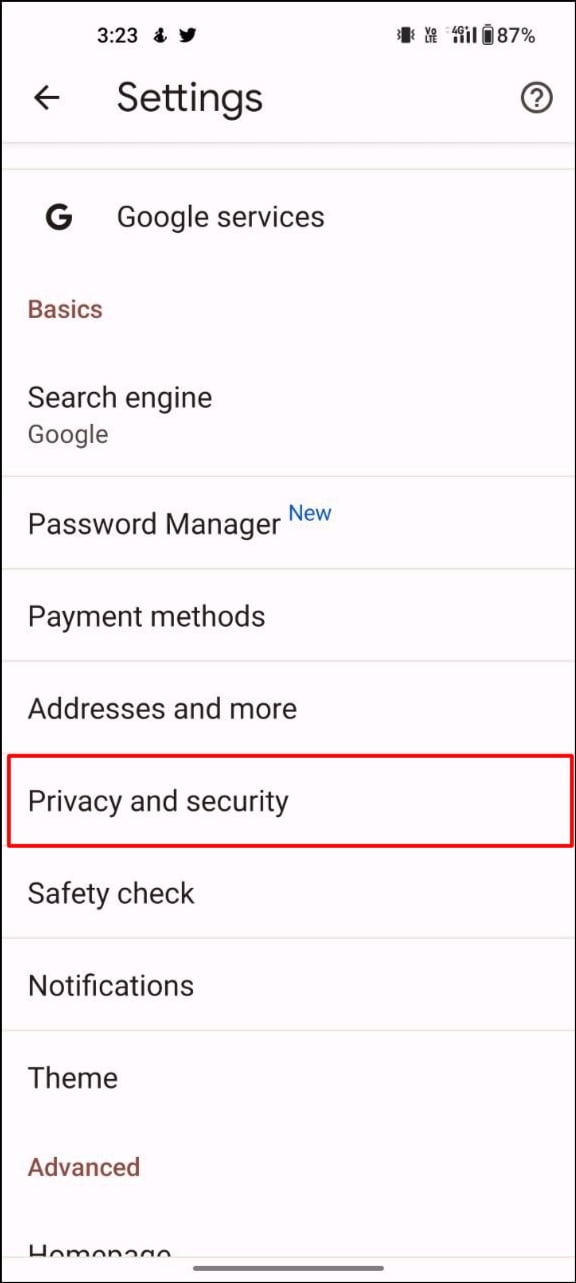
Step 3: Go to Privacy and Security and select Use secure DNS
Step 4: Select the Choose another provider option and use the drop-down menu to switch to another DNS.


Force Stop Google Chrome
Forced stopping of apps on your smartphone is the background execution of the app and its processes. It clears most of the problems that are currently occurring in the app. Remember that you should not force stop when you are downloading something, especially large files. This will interrupt the ongoing downloads, and all the data will be lost. If you are having trouble starting the download, you can simply stop Google Chrome by following the steps below.

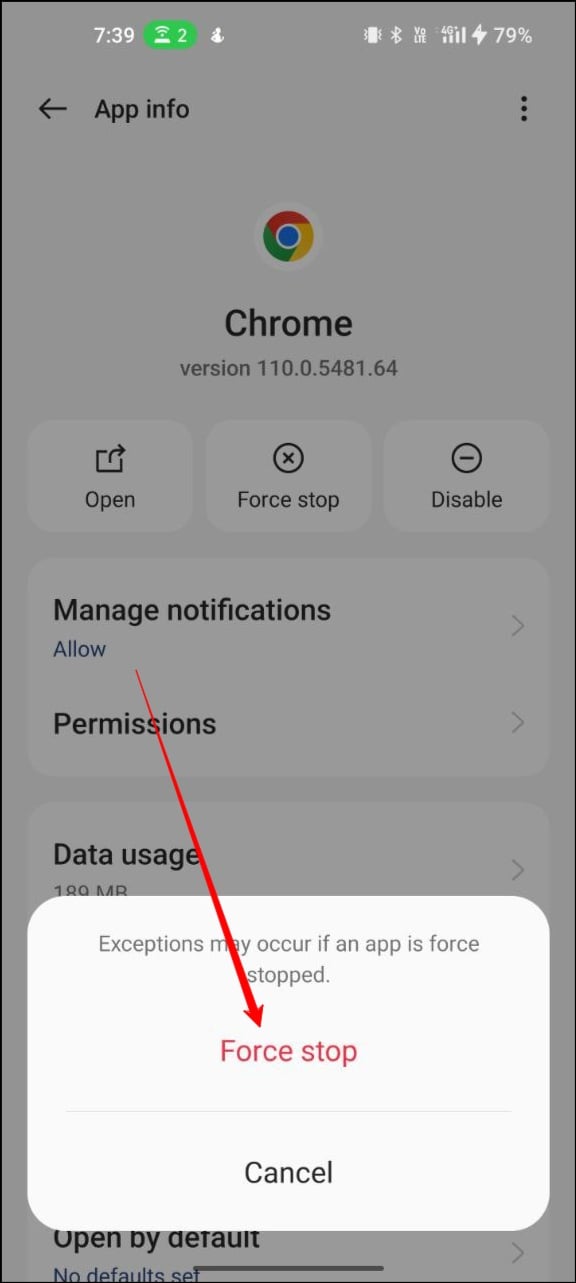
- Open your smartphone, find Google Chrome, and long-press on it.
- Now tap I in the list of options
- Look for more stops in the app information section and click OK to confirm the forced stop.
Clear Cache for Google Chrome and Download Manager
The cache is a temporary file stored by applications to improve performance. Sometimes the cache can be the reason for problems. To fix this, you can simply clear the Google Chrome cache and also Download Manager’s cache.
To clear the Google Chrome cache


Step 1: Open your smartphone, search Google Chrome, long-press the app, and tap the info
Step 2: In the app info, find the memory and tap on it
Step 3: Search for “Clear cache” and tap on it. This will clear the cache of Google Chrome.
To Clear Download Manager Cache
Download Manager is designed to manage long-running downloads, resume downloads that have been interrupted due to network problems or other issues, and provide download progress notifications. It allows users to schedule downloads at specific times, set priority levels for downloads, and pause and resume downloads as needed. If there are issues with the download manager on your smartphone, it may interrupt downloads in the Google Chrome browser. Follow the steps below to clear the Download Manager cache.


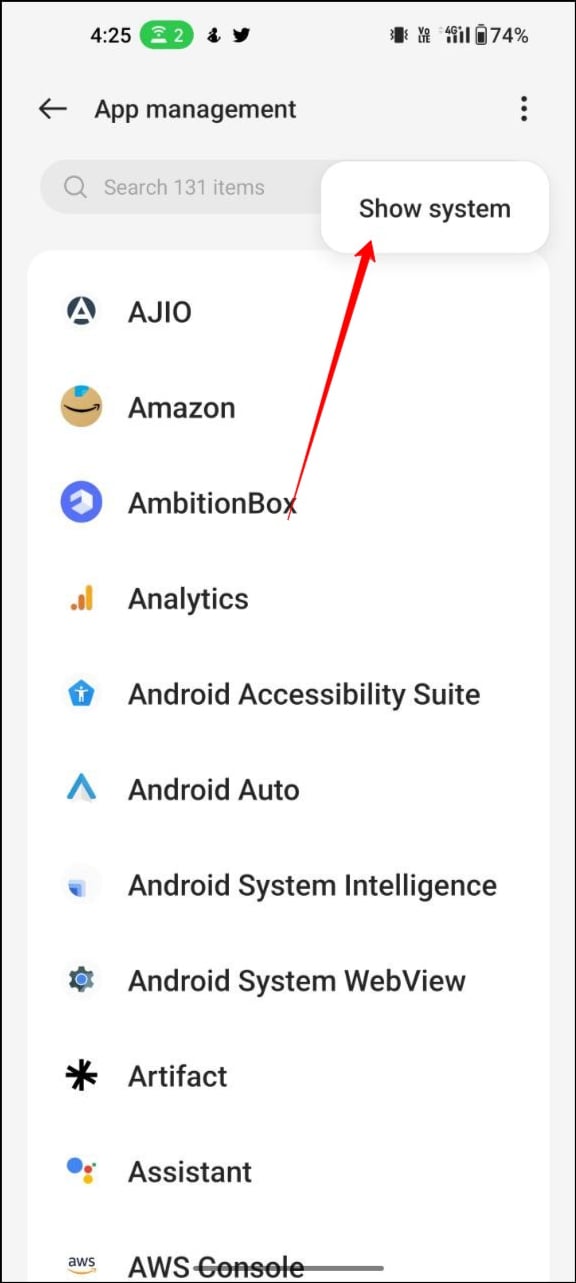
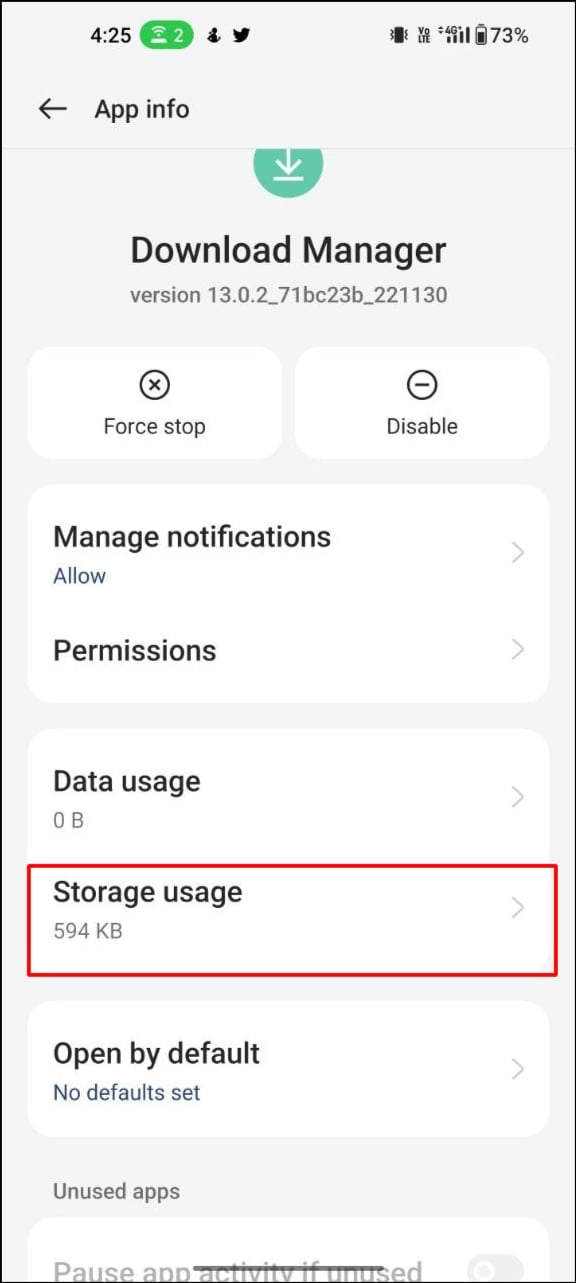
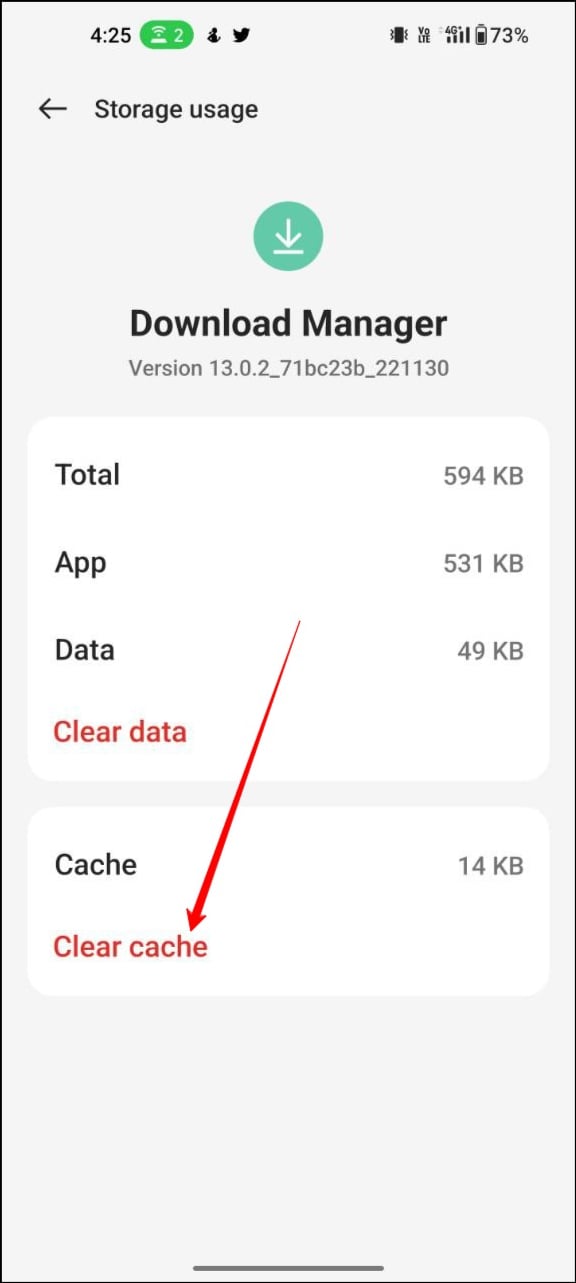
Step 1: Open the Settings app on your smartphone and go to the Apps page (varies depending on device version and company)
Step 2: Tap the filter and sort icon and enable the option to show system apps
Step 3: In the list of apps, locate the download manager. Go to the memory and clear the cache option.
Disable VPN
If you are using VPN, disable the VPN and see if the problem is fixed. VPN forwards files to multiple servers before forwarding them to your device. To fix this issue, temporarily disable your VPN connection and try downloading files again.
To disable VPN on an Android device, follow the steps below:
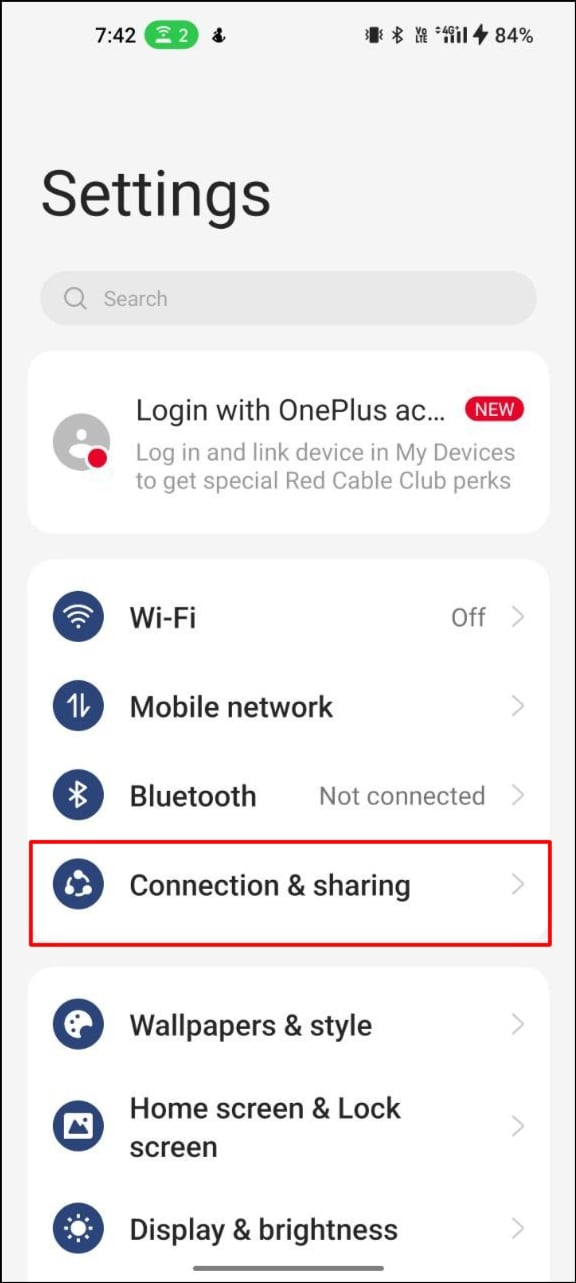

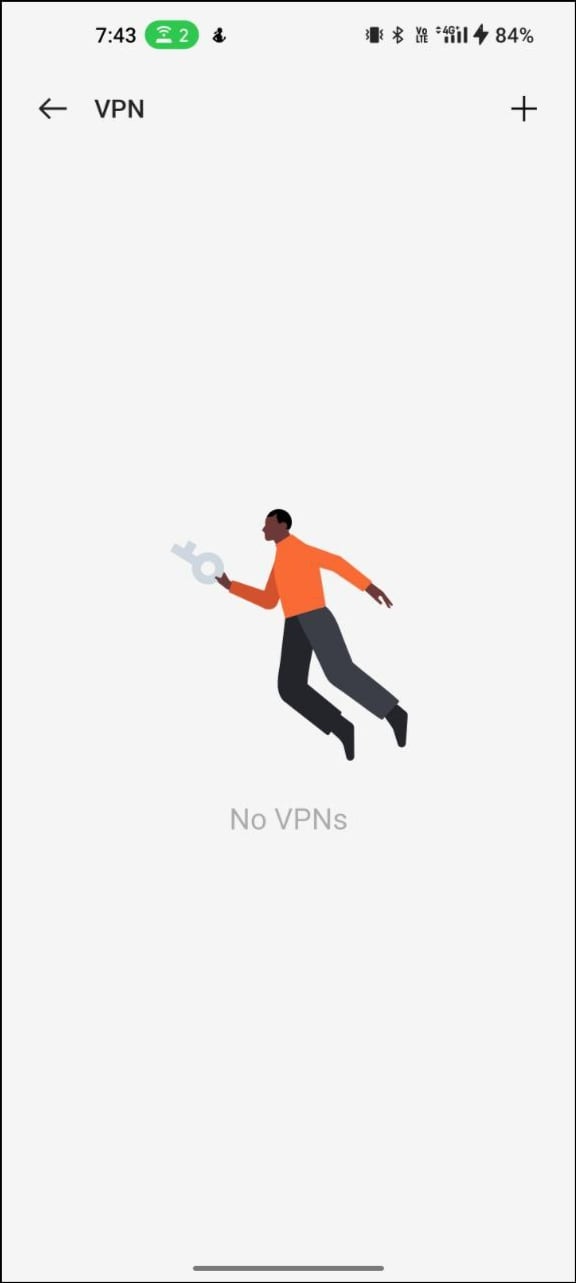
- Open the Settings app on your smartphone.
- Scroll down and tap on “Network & Internet.”
- Tap “VPN” to view the list of VPN connections configured on your device.
- Tap the VPN connection you want to disable.
- Tap the “Disconnect” button to disable the VPN connection.
- If you use third-party VPN apps, you can open the app and disable the VPN.
Restart Your Android Smartphone

If none of the steps worked, try restarting your smartphone. This should fix problems and some glitches with the download manager. Different smartphones require different reboot procedures.
- Press and hold the power button on your Android smartphone until the power options menu appears.
- Tap on the “Restart” or “Reboot” option.
- If the “Restart” option is not available, tap “Power off” to turn off your phone.
- Once your phone is off, press and hold the power button again until the phone reboots.
Reset Your Smartphone


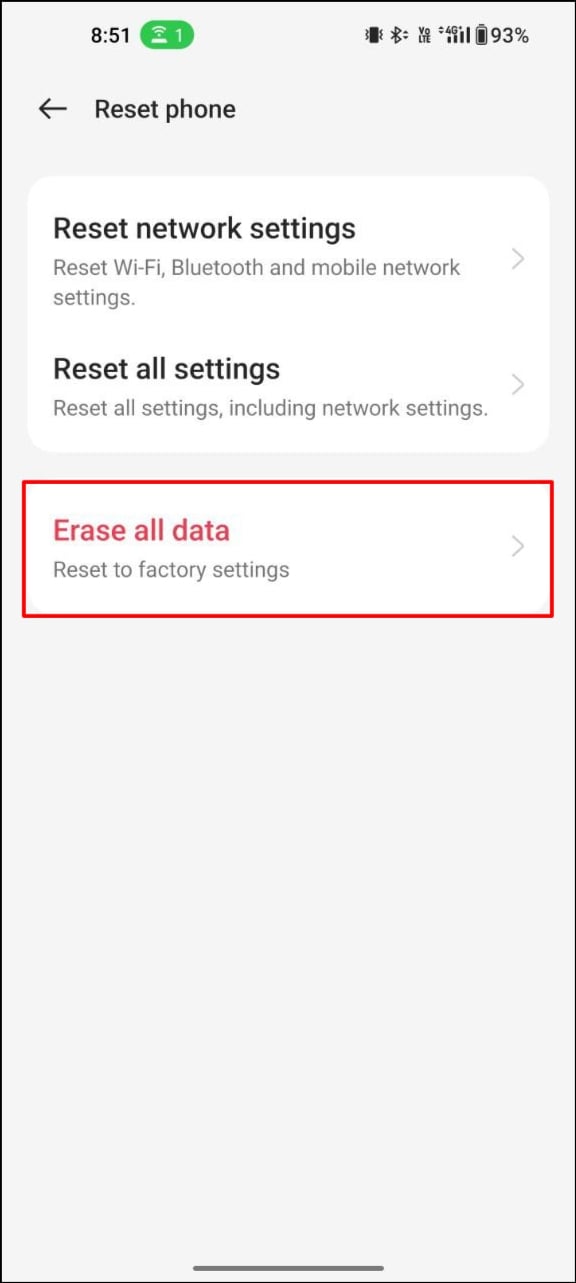
If the above troubleshooting techniques do not work, you should reset your Android smartphone as a last resort. This is the last step. You should try to fix the issue of Google Chrome not downloading on your smartphone. Make sure you back up all your important data before you reset the device. Different smartphones require different reset procedures. Below we have listed the steps to reset for the most popular brands.
After the reset, download the Google Chrome browser on your smartphone and check if the download works. In most cases, it should work fine.
Here’s how to fix the problem with downloading Google Chrome on your smartphone. Occasionally, Google Chrome may experience downloading issues. Fortunately, you can easily fix any download error by following the 10 simple methods we have listed above. Let us know in the comments below which methods helped you fix the problem.
FAQs on How to Fix Google Chrome Downloads
1. How to fix failed network errors when downloading?
Failed network download errors can be caused by internet problems on your smartphone.
- Check your internet connection: make sure you are connected to a stable internet connection. You can try resetting your modem or router and restarting your computer or device.
- Check your download settings: Sometimes, your download settings may be configured to limit the amount of data you can download. Check your download settings to make sure there are no restrictions that limit your download.
- Clear cache and cookies: clearing your browser’s cache and cookies can help resolve download issues. Go to your browser settings and clear cache and cookies.
- Try to download at a different time: It is possible that the server you are downloading the file from is busy. Try to download the file at another time when the server is less busy.
2. How to resume failed download in chrome android?
We have a detailed guide on how to resume failed downloads in Google Chrome. On mobile, there is no way to resume the download. If the download is paused, you can click the Resume button under Downloads. If it fails, you will need to restart the download. Follow the steps below to resume downloads in Google Chrome.
- Open Chrome and tap the three dots in the top right corner of the screen.
- Select “Downloads” from the dropdown menu.
- Look for the failed download in the list and tap on it.
- If you see the “Download Failed” error message, tap the “Retry” button.
- If the download does not automatically resume, tap the three dots in the upper-right corner of the screen and select “Resume”.
- Chrome will attempt to resume the download from where it left off. If the download does not resume, you may need to restart the download from the beginning.
3. How do I find failed Downloads on Chrome Android?
You can easily find all your downloads on Google Chrome Android’s dedicated download page. Here you can see a list of active, failed, canceled or completed downloads. To access the download page, open Google Chrome >and click the three-dot menu in the upper-right corner of the home screen>. Now click on the downloads.

