

Quick Answer
To set up Eye Tracking on iOS 18, go to Settings > Accessibility > Eye Tracking. Enable Eye Tracking and complete the quick calibration by focusing on dots on the screen. Once active, you can control your iPhone with eye movements and enable Dwell Control for additional actions, like opening the Control Center.
At the WWDC 2024 event, Apple introduced iOS 18, which is packed with new features for iPhone users. The feature brought in some features that had already been available for Android users for years but also introduced a slew of new accessibility features. The Vehicle Motion Cues feature on iOS 18 is one such accessibility feature that has gained appreciation from users, especially those who suffer from motion sickness. You can read our dedicated guide and learn how you can enable Vehicle Motion Cues on iOS 18 and use it to mitigate motion sickness.

Another good feature that Apple introduced with iOS 18 is Eye Tracking. Using the Eye Tracking iOS 18 feature, you will be able to control your iPhone just by using your eyes. The best part about this feature is that it doesn’t require any additional hardware and works using the Face ID camera. In this guide, we will explain what is Eye Tracking iOS 18, its features, and how you can use it. Let’s jump right into it.
What is the Eye Tracking iOS 18 feature?
The eye tracking feature comes with the iOS 18 update for iPhones. The feature makes use of the Face ID camera to help users control their iPhones using their eyes. This accessibility feature is designed for users with physical disabilities. Notably, the Eye Tracking feature calibrates within seconds and makes use of on-device machine learning to set up and let the user control the feature securely within the device. No data is shared with Apple.
Apple explains, “Eye Tracking works across iPadOS and iOS apps and doesn’t require additional hardware or accessories. With Eye Tracking, users can navigate through the elements of an app and use Dwell Control to activate each element, accessing additional functions such as physical buttons, swipes, and other gestures solely with their eyes.”
How to use Eye Tracking on iPhone running iOS 18?
Before you can use the Eye Tracking feature on iOS 18, you need to make sure a few things. Ensure that your phone is on a stable surface just about half a meter away, remove any dirt from the Face ID camera, and also make sure there is enough light in the room. However, first and foremost, you need to have iOS 18 installed on your iPhone.
Once you have installed iOS 18 on your iPhone, you can enable and use the Eye Tracking feature on your iPhone. For that, follow the steps mentioned in the next section. Notably, the feature is also available on iPadOS 18 as well.
Enable Eye Tracking
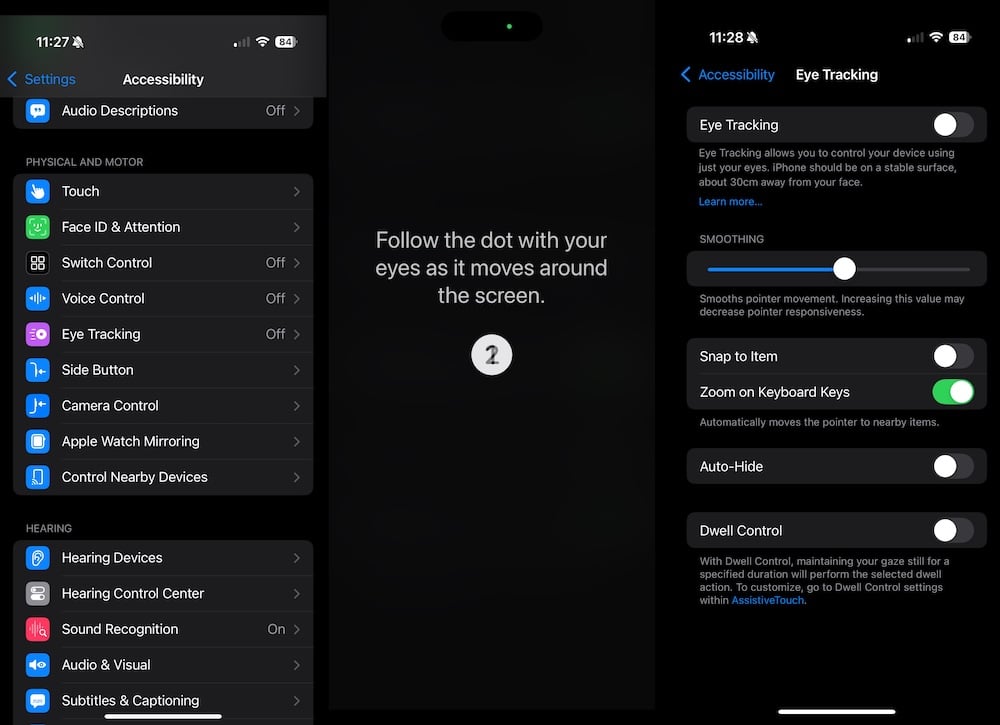
- Head over to Settings.
- Navigate to Accessibility.
- Under Physical and Motor, select Eye Tracking.
- Turn on the Eye Tracking toggle.
- The calibration process will start. During the process, you need to focus on the series of dots that appear on your iPhone’s screen. Looking at each dot will calibrate your eyes with your phone.

The process gets completed within seconds, and soon, you will be able to control your phone with your eyes. Do note that there is a bit of a learning curve involved when using the Eye Tracking feature on your iPhone. Besides, you shouldn’t expect the feature to work like Apple Vision Pro.
Besides, once the Eye Tracking feature is enabled, you can turn on the Dwell feature. Apple explains that “With Dwell Control, maintaining your gaze still for a specified duration will perform the selected dwell action. To customize, go to Dwell Control settings within AssistiveTouch.” Using Dwell Control, you can control various things such as opening the Control Center, activating Siri, accessing the Notification Centre, scrolling up/down, changing volume, taking screenshots, locking your device, etc.
iPhone’s Eye Tracking also lets you tweak a few settings to make the feature work as per your liking. There is a Smoothing slider that you can use to increase or decrease the responsiveness of the pointer. There is a toggle button called Snap to Item, which lets you highlight the UI elements next to your pointer. There is also an option to auto-hide the pointer when not in use.

