

Quick Answer
Generative Emoji or Genmoji on iPhone, part of Apple’s new AI suite, allows users to create unique, AI-generated emojis tailored to any prompt. Available on iOS 18.2 for the iPhone 15 Pro and newer, it enables users to design emojis by describing a scene or person in detail. To create a Genmoji, go to the Messages app, tap the emoji button, then the glowing icon, and type a prompt like “T-rex wearing a tutu.” Your iPhone will generate the Genmoji instantly.
Apple has been talking about Apple Intelligence features since WWDC 2024. Even the recently launched iPhone 16 series doesn’t feature any of the Apple Intelligence features out of the box. While the general public should get a taste of all the AI suite of features, interested people can install the iOS 18.2 beta update, currently rolling out to developers, to enjoy several new Apple Intelligence features, including Genmoji. You must have heard the name by now, but finally, you can try it out, too.

Genmoji is Apple’s word for Generative + Emoji and is meant to take the emoji game to the next level. While there is a sizable library of emojis to choose from, there are multiple instances where you can’t find the exact emoji to express yourself. This is where Genmoji is expected to come into the play. In this guide, we will explain what exactly Apple’s Genmoji is and how you can create a Genmoji for yourself on your iPhone. Let’s jump right into it.
Table of Contents
What is Genmoji?
Apple Intelligence is Apple’s suite of AI features. Notably, it isn’t available for all iPhones, and you need to have an iPhone 15 Pro and above to enjoy the AI features. Fortunately for you, we have a guide that explains how you can get Apple Intelligence-like features on older iPhones. While older iPhones can’t have Genmoji or any of the Apple Intelligence features, if you own the latest iPhone 16 series phone or an iPhone 15 Pro or Pro Max device, then you just install the iOS 18.2 beta update, and you are all set.
Genmoji on iPhone lets you generate emojis for any occasion using AI. You can easily create Genmoji on an iPhone by using any AI prompt that suits your needs. You can provide any description, and you will see a new Genmoji appear with more options to choose from. Genmojis can be shared anywhere with friends or family members as a sticker or as a reaction emoji.
There are some that you need to remember before using Genmoji, though, which are listed below:
- It requires iOS 18.2 installed on an Apple Intelligence-supported device.
- You can send Genmoji to non-Apple Intelligence iPhones, and they will be able to view them. They are only restricted from creating them.
- Non-Apple Intelligence iPhones or older iPhone models can save the Genmoji on their devices, which are sent to them by their friends, and use them with no issues.
- Genmojis are usable on popular apps such as WhatsApp, Instagram, Snapchat, Facebook, and so on.

How to create a Genmoji on an iPhone?
Follow the steps below to know the exact process of creating a Genmoji on your iOS 18.2-supported iPhone.
- Assuming that you have installed iOS 18.2 beta update on your iPhone, open the Messages app.
- Tap on a chat.
- Tap on the Emoji button on the keyboard, and then tap the glowing emoji icon on the top-right corner of the keyboard.
- A Genmoji intro screen will pop up, which will detail what Genmoji is all about. You will be asked if you want early access to Image Creation features, where you need to tap on the Request Early Access blue button. If you don’t get this, then skip to the next step.
- After reading, tap on Continue.
- In the text field, you need to type your description or prompt for the AI to generate a Genmoji. For example, you can type “T-rex wearing a tutu on a surfboard” and hit the Insert button. Your iPhone will use AI to create the exact Genmoji.

You can play around with your prompt and create a Genmoji of your choice. After your iPhone generates a Genmoji, you can swipe through multiple creations and download the one that fits your bill. But that’s not all; Genmoji also lets you create an emoji of a person. More on that in the next section.
How do you create a Genmoji for a person?
You can also turn your friends or family members into an emoji. To do that, follow the steps below:
- Open the Messages app.
- Tap on a chat.
- Tap on the Emoji button on the keyboard and then tap the glowing emoji icon on the top-right corner of the keyboard.
- A Genmoji intro screen will pop up, which will detail what Genmoji is all about. You will be asked if you want early access to Image Creation features, where you need to tap on the Request Early Access blue button. If you don’t get this, then skip to the next step.
- After reading, tap on Continue.
- In the text field, type the contact name of the person whose emoji you want to create. In case the contact isn’t showing up, you can type in “Person” or “People” in the prompt box and choose the contact from the list of people.
- Tap on the person, and you will see Genmoji create multiple emojis for that person.
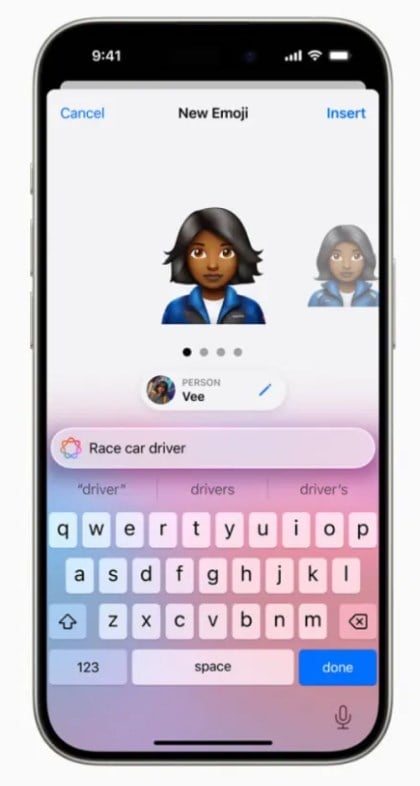
- Swipe left through the suggestions offered and select the one that suits your friend.
- After that, type in the prompt to create a Genmoji for that person.
- Once done, tap Add.
FAQs about Genmoji on iPhone
Can an unsupported iPhone receive Genmoji?
Yes. You will be able to view and even save the sent Genmoji on an unsupported iPhone. The received Genmoji can also be shared with others via an unsupported iPhone. The only catch is that older iPhones cannot create a new Genmoji.
Which apps support Genmoji?
Notably, any app that supports rich text can handle Genmojis. So, all of your popular social media apps will support Genmoji.

