

Quick Answer
To translate messages on Discord, you can use translation bots like TranslatorBot for simple, command-based translations without modifying settings. Alternatively, the BetterDiscord plugin allows advanced features for translating incoming and outgoing messages. Note that BetterDiscord is a third-party tool and carries some risks, including potential account bans.
Discord is one of the best ways to communicate with friends and family if you host group video sessions quite often. The gaming community makes use of Discord to interact with their followers. Notably, Discord not only lets you interact via text messages, but you can also place a voice or video call. Communication can also take place in virtual communities called “servers.” However, there is a huge possibility that the community member in your server speaks a different language. In such cases, a translation tool will come in handy.

Unfortunately, even though millions of people use Discord worldwide, the communication platform doesn’t offer an in-built translation tool. However, bots that help users perform multiple tasks, such as AI image generation, adding music, adding games, banning members, etc., basically everything an assistant would do for you. Translation can also be handled by bots, but there is an efficient tool that will help you with translation on Discord. Let’s jump right into it.
Table of Contents
What is the BetterDiscord plugin?
Who doesn’t like the option to apply a bit of customization to their favorite app? BetterDiscord is an app that lets you do exactly that. However, you should keep in mind that BetterDiscord is a third-party tool and isn’t endorsed by Discord. This means that using it involves multiple risks, such as an account ban. So, we would advise you to proceed with caution.
Using this tool, you can install plugins on Discord that will help you expand the features of the communication platform. You can also use the Live Editor to learn about the real-time changes made to the Discord app. Do note that BetterDiscord isn’t compatible with the mobile version of Discord.
How can I translate messages on Discord using BetterDiscord?
Below are the steps you need to follow to get the translation up and running on Discord. Once you are through the setup steps, you will be able to send or receive translated texts in a breeze. Here’s what you need to do to translate messages on Discord.
1. Install and setup BetterDiscord on Discord
- Visit the BetterDiscord website, and download the installer on your PC.

- Launch the installer and follow the onscreen steps to install the program.
- Restart the Discord app, if already launched, to activate BetterDiscord.
- Head over to the Translator plugin page and download the plugin file.

- Launch Discord, and navigate to User Settings > BetterDiscord > Plugins.
- Select the Open Plugins Folder option to open the location on your computer.
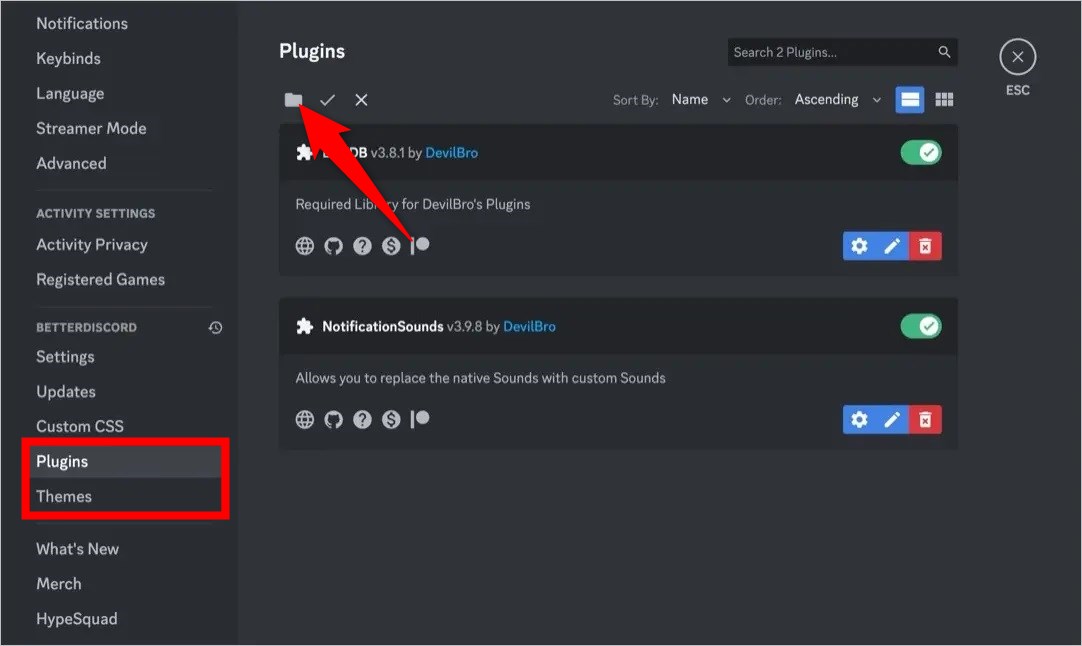
- Drag and drop the downloaded Translator plugin.
- Head back to the Plugins section in Discord and toggle on the Translator plugin.
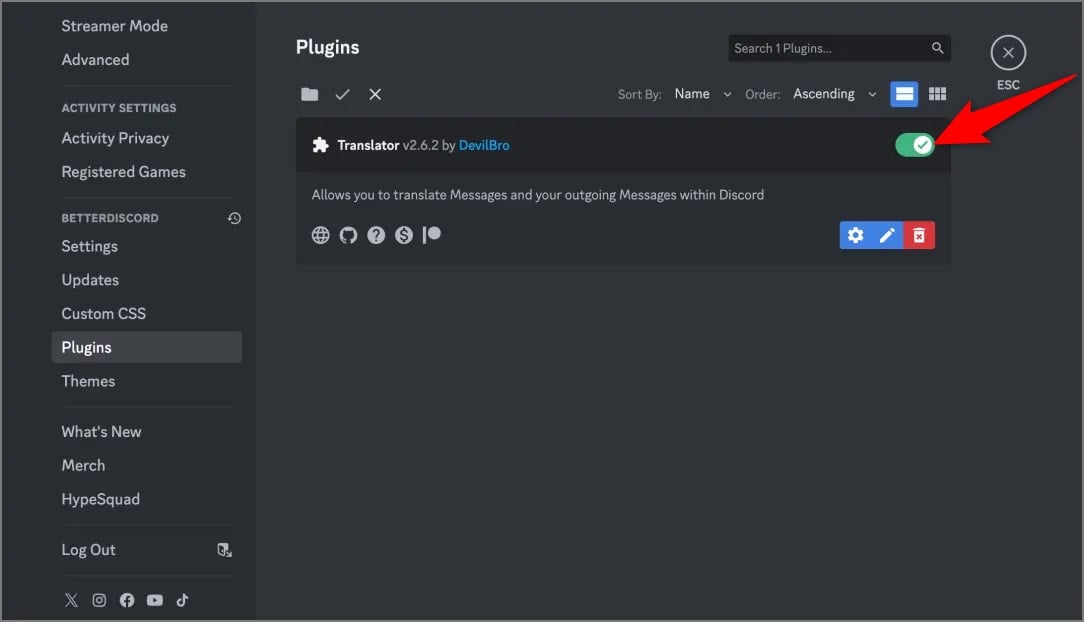
- Select Settings next to the plugin to configure it. Here, you can choose the translation service, e.g., Google Translate, and the default language.
2. How to use the BetterDiscord translation plugin
The below steps are for translating incoming messages.
- Right-click on the message that you received on Discord, which is in a different language.
- Select Translate Messages from the context menu to translate the message.
- If you wish to change the default language, then you can click on the Translate icon in the text box and select the language.

The below steps are for translating outgoing messages.
- Type in your message in the text box.
- Click the Translate icon in the text box.

- Enable the Translate your messages before sending toggle
- Choose the language you want the message to be translated to under the Output language in your sent messages.
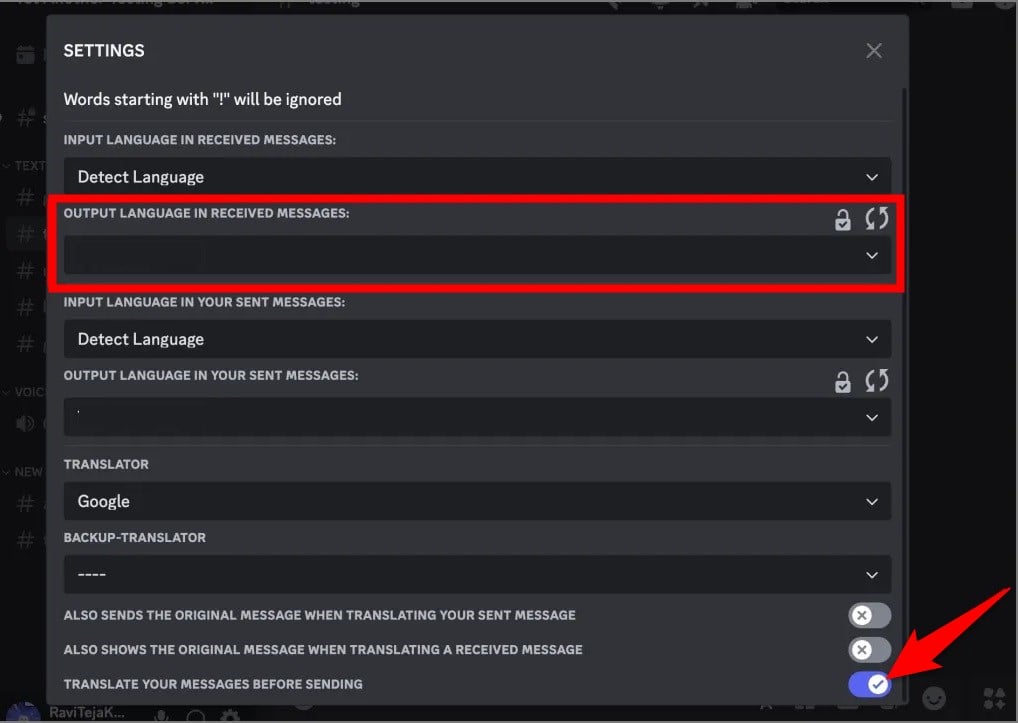
- Close the menu and send the message.
Troubleshooting common problems
It goes without saying that BetterDiscord isn’t perfect. You will come across issues with the translation plugin. Here are some common fixes:
- If the plugin is not working, check if you have first enabled it or not. You may also want to check if the plugin has the latest version installed or not. Sometimes, outdated plugins can misbehave and cause issues.
- If you are coming across translation errors, then do note that the plugin depends on services such as Google Translate, which may not always be stable. Ensure that you have double-checked a translation if it is very important.
- Other plugins and bots can interfere with the smooth performance of the plugin, which could give rise to issues with the translation plugin. To fix this problem, try disabling other plugins.
Alternative translation methods on Discord
BetterDiscord is not the only way you can have translation for incoming and outgoing messages. If you think that using a third-party service can be harmful to your Discord account, you can always try the below-listed alternative options:
- Translation Bots: There are so many translation bots available on Discord, such as Translator and TranslatorBot, that get the job done quite easily. The best part is that you don’t have to modify any Discord settings, and they offer command-based translations.
- Third-party tools: Google Translate, Microsoft Translator, and various other websites offer translation directly on your mobile and computer. If you are on mobile specifically, then you can rely on these websites since BetterDiscord doesn’t support Android and iOS apps.
Discord Translation Made Easy
The BetterDiscord plugin lets you easily and quickly translate messages on Discord, both incoming and outgoing. There is support for a wide variety of languages since the plugin uses Google Translate, and we all know how versatile the translation service is. However, the plugin only works on Discord for Windows, Mac, and Linux and not on Android or iOS apps. You can now host a watch party on Discord and communicate with different language-speaking members using the above translation steps.

