

Quick Answer
To fix the Photos app slowing down your Windows 11 PC, try these steps: disable it from startup via Settings or Task Manager, tweak in-app settings to turn off background performance, reset or repair the app, or uninstall it using PowerShell. Alternatively, consider using lighter photo viewers like IrfanView or FastStone Image Viewer.
The Photos app is the default photo viewing app on Windows PC. Many users do not use a different application to view photos, even though better alternatives offer more features. The reasons could be that the app comes pre-installed and has all the basic features one needs for photo viewing. However, recently, the “Photos app slowing down PC” or “Photos app is too slow” issue has plagued Windows PC users, and they are looking for an answer on how to fix this problem.
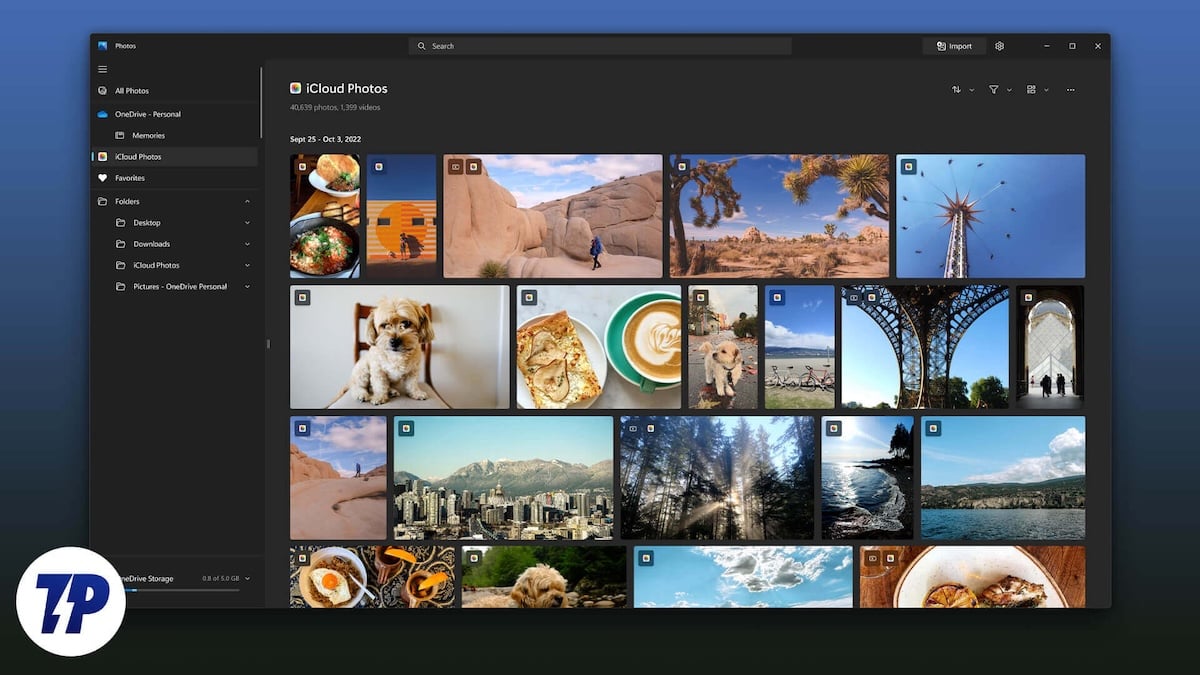
Recently, it was discovered that Microsoft Photos has been a main culprit in slowing down PCs for two main reasons. First, Microsoft migrated the Photos app from UWP (Universal Windows Platform) to Windows App SDK in June, and second, Microsoft has been adding new AI features to the Photos app, making the app sluggish. In this guide, we will give you multiple solutions that will help you resolve the problem. Let’s get right into it.
Table of Contents
Are all Windows users affected by the Photos app issue?
According to our research, not all but a certain section of Windows users are being affected by this Photos app issue. Notably, Windows 11 users running version 2024.11050.3002.0 (24H2) are affected, as are some Windows 10 users, since the new Photos app is also integrated into Windows 10 OS, as per this blog.
How to resolve the issue of the Photos app slowing down my Windows 11 PC?
There are multiple ways that you can follow to fix the Photos app slowing down the Windows 11 PC problem. The Photos app cannot be uninstalled as it is an integral part of Windows OS. But you can apply the following solutions to resolve the problem:
Method | Description | Benefit |
|---|---|---|
1. Disable Photos App at Startup | Prevents the Photos app from automatically launching during startup. | Frees up system resources, improving overall PC speed. |
2. Adjust In-App Settings | Disables background performance settings within the Photos app. | Reduces unnecessary CPU and memory usage by the app. |
3. Reset or Repair Photos App | Restores the Photos app to its default or a previously stable version. | Fixes potential app glitches without affecting user data. |
4. Uninstall Recent Windows Update | Removes recent updates that may have introduced issues with the Photos app. | Resolves compatibility issues caused by specific updates. |
Prevent Photos app from launching at startup
Photos apps usually launch during startup, eating unnecessary resources and slowing down your PC. Not everyone wants apps such as the Photos app to boot right from the startup. In such instances, you can disable the Photos app from launching at startup.
(a) From the Settings menu
- Press the Win+I keys to launch the Settings app. Alternatively, you can right-click on the Windows logo in the taskbar and select Settings from the list of options that appear.
- Navigate to Apps > Startup.

- Locate the Photos app and toggle the button to off to avoid the app from launching at startup.
This won’t affect any functionality of the Photos app if you wish to use the app at a later stage. So, it is safe to disable the app from opening on startup.
(b) From the Task Manager
- Open the Task Manager by pressing Ctrl+Shift+Esc buttons. Also, you can open the Task Manager by right-clicking the Windows logo in the taskbar and selecting Task Manager.
- Click on Startup apps on the left navigation pane.

- Locate the Windows Photo app, select it, and click on the Disable button to stop the app from opening at startup.
(c) Tweak the Photos app settings
You can use the Photos app itself to prevent it from opening up at startup. Here’s what you need to do:
- Launch the Photos app.
- Click on the Settings icon at the top bar.
- Toggle Performance (Allow Microsoft Photos to run in the background at start-up to improve performance) to Off.

Uninstall the Photos app
(a) Using the Start menu
- Open the Start menu.
- Locate the Photos app.
- Right-click on it and select Uninstall.

(b) Use Windows PowerShell
- Open the Start menu by pressing the Win key.
- Type Windows PowerShell and open it as an admin.
- Execute the below command:
get-appxpackage *photos* | remove-appxpackage
After you have uninstalled the Photos app from your PC, you may be wondering then how you will be able to view photos and videos on your PC. Well, there are multiple other options that we will be discussing at the end of the article. But before that, it is important to understand and fix the Photos app slowing down the Windows 11 PC problem.
Reset or Repair the Photos app
Resetting or repairing the Photos app won’t affect your photos or data, but it could take the app back to a state when it was working normally.
- Press the Win+I keys to launch the Settings app. Alternatively, you can right-click on the Windows logo in the taskbar and select Settings from the list of options that appear.
- Select Apps from the left pane.
- Click on Installed apps from the right side.

- Search for the Photos app, click on the three-dot icon, and select Advanced settings.

- Scroll down and first select Repair, and if that doesn’t help, choose Reset.

Uninstall recently installed Windows update
If you have noticed that after installing a recent Windows update, you started experiencing the Photos app slowing down the Windows 11 PC issue, then you should roll back to the previous update and check if that makes any difference. Here’s how you can do it:
- Press the Win+I keys to launch the Settings app. Alternatively, you can right-click on the Windows logo in the taskbar and select Settings from the list of options that appear.
- Click on Windows Updates on the left pane.

- Select Update history, scroll down, and select Uninstall updates.

- Choose the latest update and hit the Uninstall button.

After pressing the Uninstall button, your PC will boot and roll back to the previous update. You can also apply the list of solutions mentioned in our dedicated guide to fix the Photos app issue. If this also doesn’t resolve your issue, then as a last resort, we would advise you to factory reset your PC, which you can do by following the steps in one of the solutions mentioned in this guide.
What are the alternatives to the Windows Photos app?
There are a lot of alternatives to the Windows Photos app that you can consider that won’t hog your PC’s resources but also offer better UI, a better experience, and a bunch of cool new features. You can opt for IrfanView or FastStone Image Viewer. However, if you want to know the inside and out of some more apps and want to decide on your own, you should check out our guide, which lists down some of the best Windows Photos app alternatives, along with their pros and cons.
FAQs about the Photos app slowing down Windows 11 PC
Why are my photos loading so slowly?
You should note that not all photos in your folder could be in the same format. If that is the case, then pictures in different formats can take different amounts of time to load, which is normal. However, you can apply a few of the fixes, such as Repair or Reset, to fix this issue, as mentioned above.
How do you make a Windows photo faster?
If you do not use OneDrive, then you should stop the Photos app from continuously syncing photos or files from the OneDrive folder. This will help the Photos app run faster and offer a better user experience.

