

Quick Answer
To take the AirPods Pro 2 Hearing Test, ensure your iPhone runs iOS 18.1 or later. Go to Settings > AirPods Pro 2 > Hearing Health > Take a Hearing Test. Follow on-screen prompts in a quiet space, answer age and noise exposure questions, and tap the screen when you hear tones. Results will be securely stored in the Health app for future reference.
On December 11, Apple started rolling out the iOS 18.2 stable update. It brings several Apple Intelligence features that the company has showcased well in advance. Users of iPhone 15 Pro and above can now use features such as Image Playground, Genmoji, Image Wand, ChatGPT integration with Siri, AI-powered writing tools, and much more. An important feature that has been bundled with iOS 18.2 is that it also brings the Hearing Test feature to AirPods Pro 2 in nine additional countries, including Cyprus, Czechia, France, Italy, Luxembourg, Romania, Spain, the United Arab Emirates, and the United Kingdom.
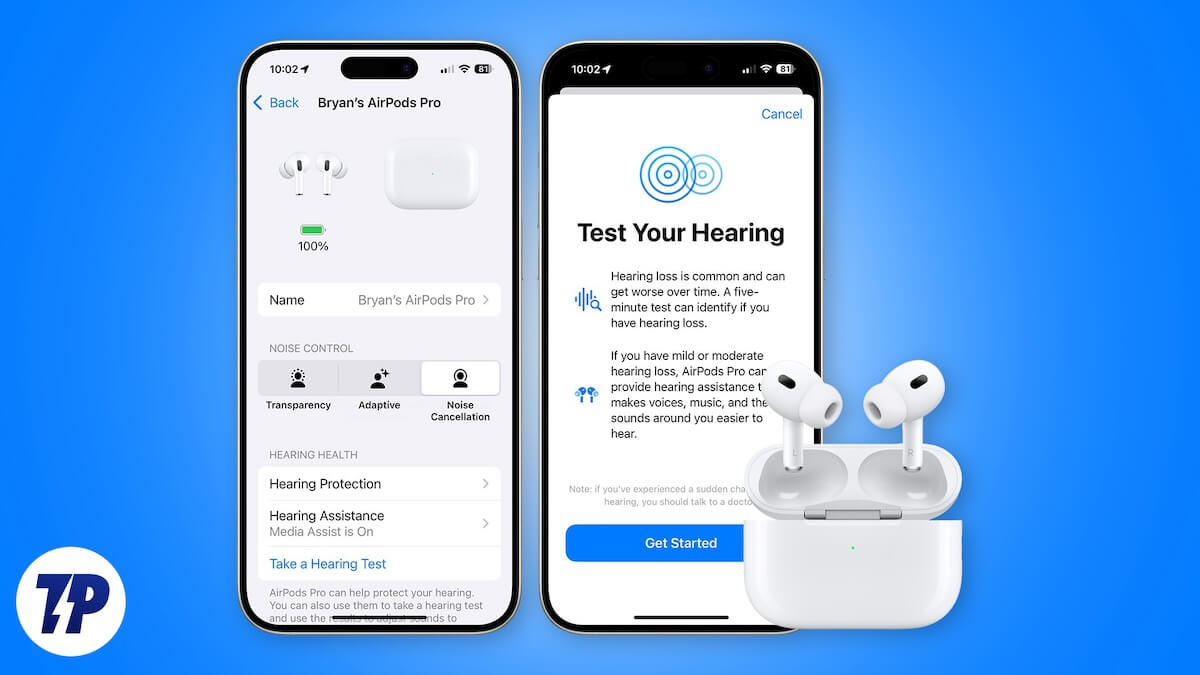
It allows users to utilize the AirPods Pro 2 Hearing Test feature via iPhones. The simple process is designed to help users monitor their hearing and catch potential issues early. In this guide, we will explain to you what the AirPods 2 Hearing Test feature is and how you can use it to monitor your hearing capabilities. With that said, let’s jump right into it.
Table of Contents
What is the AirPods Pro 2 Hearing Test feature?
Apple has a bunch of clinical-grade health features included in its products. The Hearing Aid and Hearing Test features are some of the features that are regulated and approved by concerned authorities. Since it requires the approval of the respective authorities, it may not be available in all countries and regions.
With the AirPods Pro 2 Hearing Test feature, users can screen their ears to understand if they have any hearing loss problems or not. On the other hand, the Hearing Aid feature, available in some regions, automatically adjusts the sound of your AirPods based on the results obtained from the test. Do note that the Hearing Test feature is supported only by AirPods Pro 2 with iPhones running iOS 18.1 and iPadOS 18.1 or above.
Here are the countries where the AirPods Pro 2 Hearing Test feature is available:
- A: Afghanistan, Åland Islands, American Samoa, Andorra, Antigua and Barbuda, Armenia, Aruba, Austria, Azerbaijan, Antilles
- B: Bahamas, Barbados, Belize, Bhutan, Bouvet Island, Brunei, Bulgaria
- C: Cabo Verde, Caribbean Netherlands, Central African Republic, Chile, Cook Islands, Cote d’Ivoire, Croatia, Curaçao, Cyprus, Czechia
- D: Denmark, Dominica, Dominican Republic
- E: Estonia
- F: Faroe Islands, Fiji, Finland, France
- G: Gabon, Gambia, Georgia, Germany, Greece, Greenland, Grenada, Guam, Guatemala, Guinea, Guinea-Bissau, Guyana
- H: Haiti, Hong Kong, Hungary
- I: Iceland, Iraq, Ireland, Italy
- J: Jamaica, Japan, Jordan
- K: Kiribati, Kuwait
- L: Latvia, Liechtenstein, Lithuania, Luxembourg
- M: Macao, Madagascar, Maldives, Mali, Malta, Marshall Islands, Mauritius, Micronesia, Monaco, Mongolia
- N: Nauru, Nepal, Netherlands, New Zealand, Niue, Northern Mariana Islands, Norway
- P: Palau, Papua New Guinea, Poland, Portugal, Puerto Rico
- Q: Qatar
- R: Romania
- S: Saint Lucia, Sint Maarten, Saint Vincent and Grenadines, Samoa, Seychelles, Singapore, Slovakia, Slovenia, Solomon Islands, Spain, Suriname, Svalbard and Jan Mayen, Sweden, Switzerland
- T: Tajikistan, Timor-Leste, Tokelau, Tonga, Trinidad and Tobago
- U: United Arab Emirates, United Kingdom, United States, US Minor Outlying Islands, US Virgin Islands, Uzbekistan
- V: Vanuatu, Vatican City
Pre-requisites
To take the hearing test in AirPods Pro 2,
- Ensure that your iPhone or iPad is running iOS 18.1 or iPadOS 18.1 or above.
- Check if your AirPods Pro 2 is up to date with the latest firmware or not.
- Get yourself in a quiet environment. Since the test will make you hear a comprehensive range of sounds, it is important that you take the test in a quiet place.
- You need at least 5 minutes of uninterrupted free time.
- Make sure your AirPods Pro 2 has a sufficient battery and at least 70% charge is available.
- Clean your AirPods Pro 2 before taking the test.
Take the AirPods Pro 2 Hearing Test
- Plug the AirPods Pro 2 in your ears. Make sure it is snuggly fit, and if not, then try using a different ear tip.
- Open Settings on your iPhone or iPad.
- Select your AirPods Pro 2 at the top of Settings.
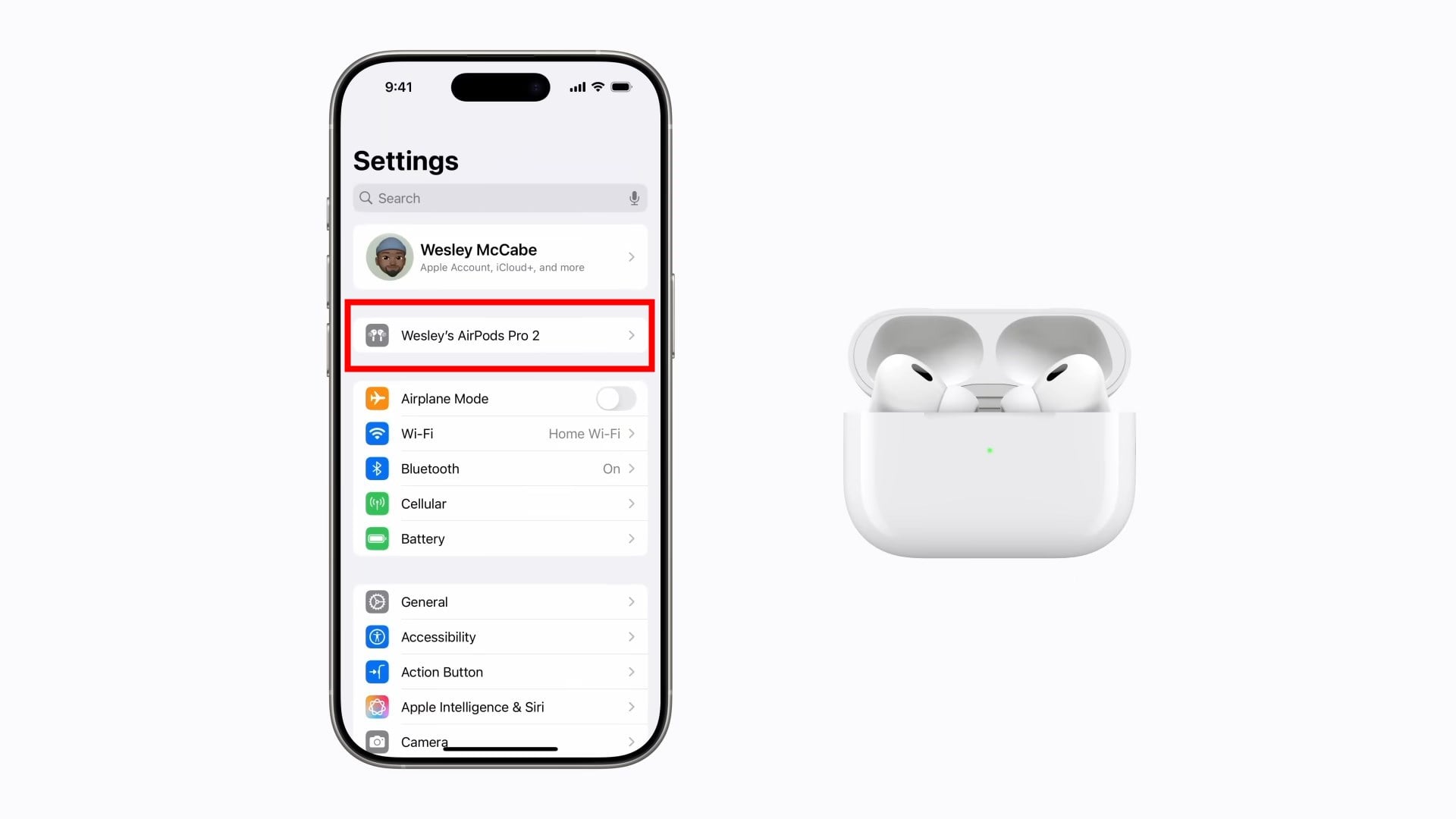
- Under the Hearing Health section, tap on Take a Hearing Test.

- If the app asks to run a check, then you need to place your AirPods back in the case, close the lid, and tap OK. Then, you need to tap on Take a Hearing Test when the check finishes.
- If prompted to sit in a quieter place, change the place, and make sure that no fans or ACs are turned on.
- Answer the questions about your age and recent loud noise exposure.
- Whenever you hear a tone during the test, then you need to tap the screen. If you miss a tone, then it is totally fine.

- Complete the test as instructed. The test will automatically switch sides.
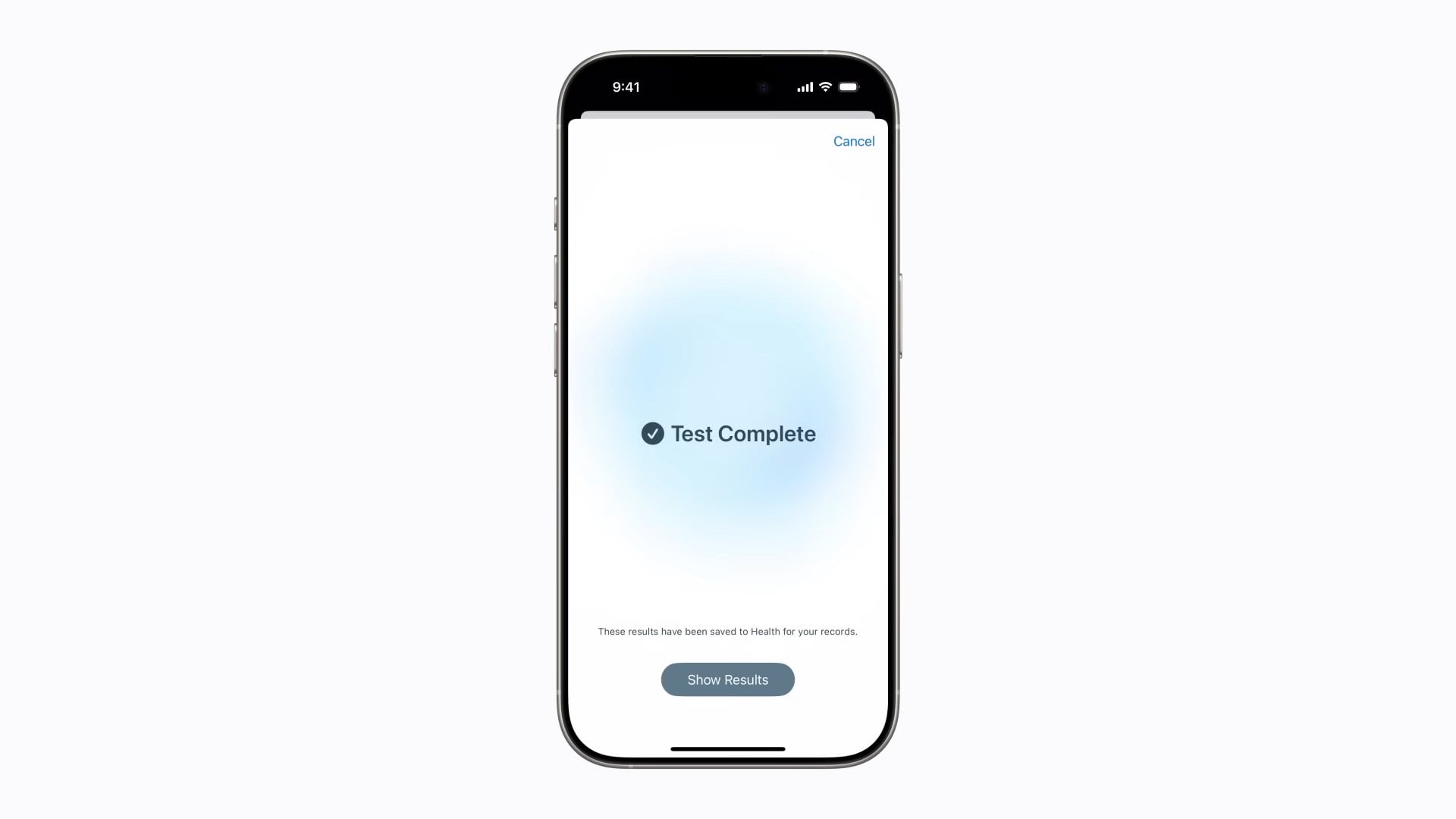
If you remove any of your earbuds during the test, the Hearing Test will pause and it will resume as soon as you put your AirPods back.
What does the result indicate?
Once the test is completed, you will see the results on your device, which will be securely stored in the Health app. The result will be shown in decibels of hearing level (dbHL). Here’s what your result means:

- Up to 25 dBHL: Little to no hearing loss.
- 26-40 dBHL: Mild hearing loss, where you can hear words spoken in a normal voice from three feet away.
- 41-60 dBHL: Moderate hearing loss, where you can hear words spoken in a raised voice from three feet away.
- 61-80 dBHL: Severe hearing loss, where you can hear some words when they’re shouted into your ear.
To access the results from the Health app, head over to Browse > Hearing > Hearing Test Results and check your history. You also get the option to export the results to PDF format, share the results via email, or save the audiogram.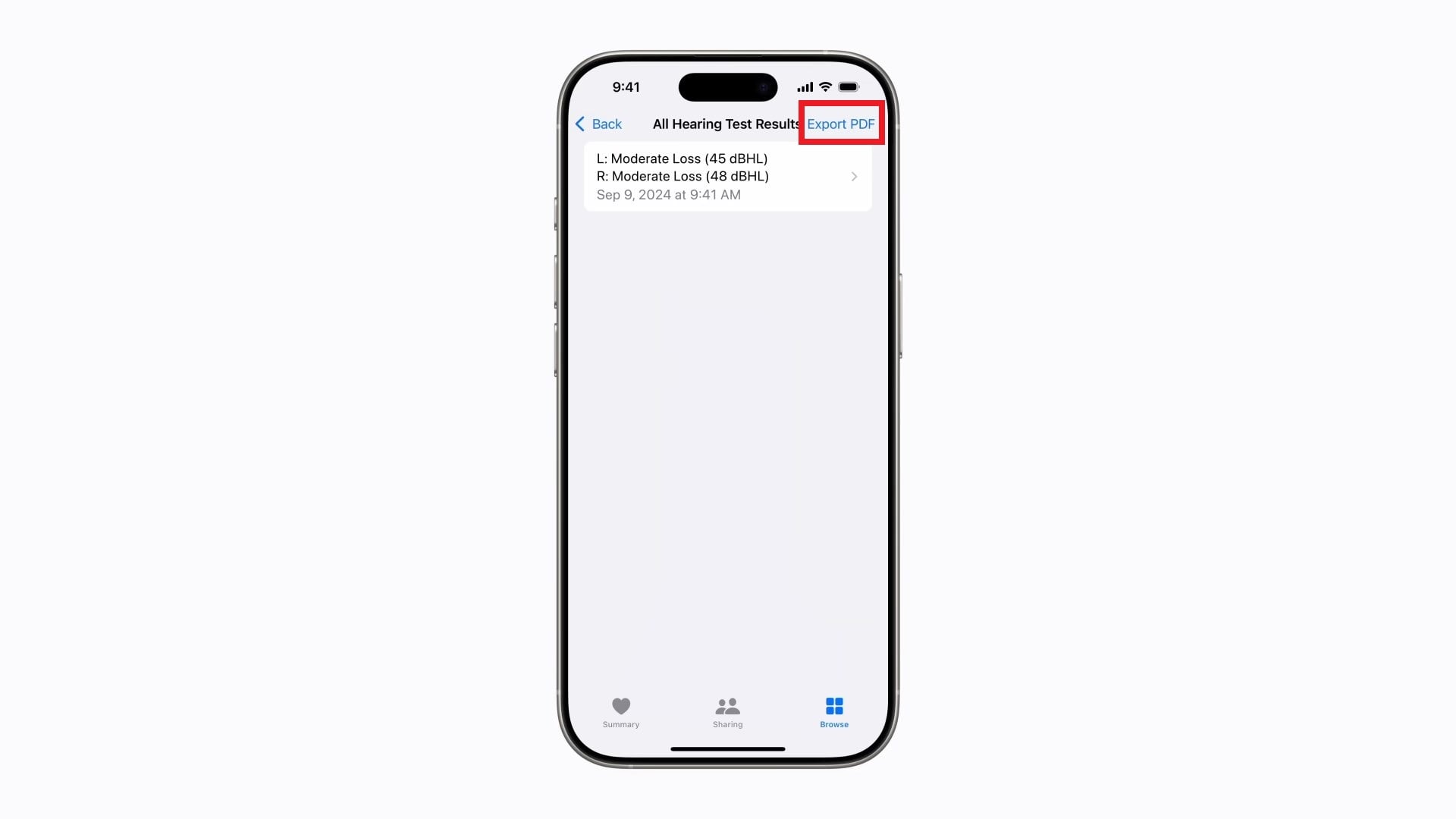
Also, based on your test results, you will unlock additional AirPods Pro 2 features and options, including Media Assist and Hearing Aid mode. Here’s how you can use it:
1. Media Assist
- Open Settings.
- Select your AirPods Pro 2.
- Scroll down and select Hearing Health.
- Select Media Assist and turn on the toggle.
- Choose Use Hearing Test Results to apply your recent test data. You can also choose Custom Setup to manually adjust settings.

Media Assist will automatically adjust the music, videos, and calls to enhance the sound based on your hearing issues.
2. Hearing Aid Mode
- Open Settings.
- Tap Accessibility.
- Choose Hearing Devices.
Who can benefit from this AirPods Pro 2 Hearing Test feature?
Hearing is a big part of how we communicate and experience the world. Many people experience hearing loss, but they aren’t aware of it. And since media consumption through earphones and speakers and exposure to loud noises has become common, the Hearing Test feature introduced by Apple is handy for everyone. But it could be specifically beneficial for:
- People who are continuously exposed to loud noises, such as miners, people working in factories, etc., can take a hearing test to check if they are suffering from hearing loss or not.
- Old people often suffer from hearing loss because of age, and they can take this test to check their hearing at home.
- Parents can use the tool to periodically check their children’s hearing.
- Anyone who is curious if continuous exposure and usage of earphones has caused any hearing loss can take the test using their iPhones and AirPods Pro 2.
Final thoughts
Being the Apple ecosystem has its pros and cons, but such health features keep you updated about your health. Apple is also rumored to be working on introducing a blood pressure monitoring feature with next year’s Apple Watch Ultra 3. This is a nice way to use technology to improve health and well-being. If you have motion sickness, then Apple has a solution that will help you to reduce it.

