

Quick Answer
To use Image Playground on Mac, update to macOS Sequoia 15.2, ensure your Mac has an M1 chip or later, and set the system and Siri language to English (US) or supported regions. Launch the app, follow the setup prompts, and wait for activation. Once ready, use prompts, Apple suggestions, or Photos to generate AI images. Save, edit, or share creations easily from the app.
AI image generation has become very popular these days, with many tools available to create realistic images. Big smartphone companies like Samsung and Google are adding advanced AI to generate images on their devices. Meanwhile, in the race to launch the best image-generation AI, Apple seemed to be lagging a bit behind, but after taking a long time, with the macOS Sequoia 15.2, Apple is ready to clutch the AI industry and make a big impact.
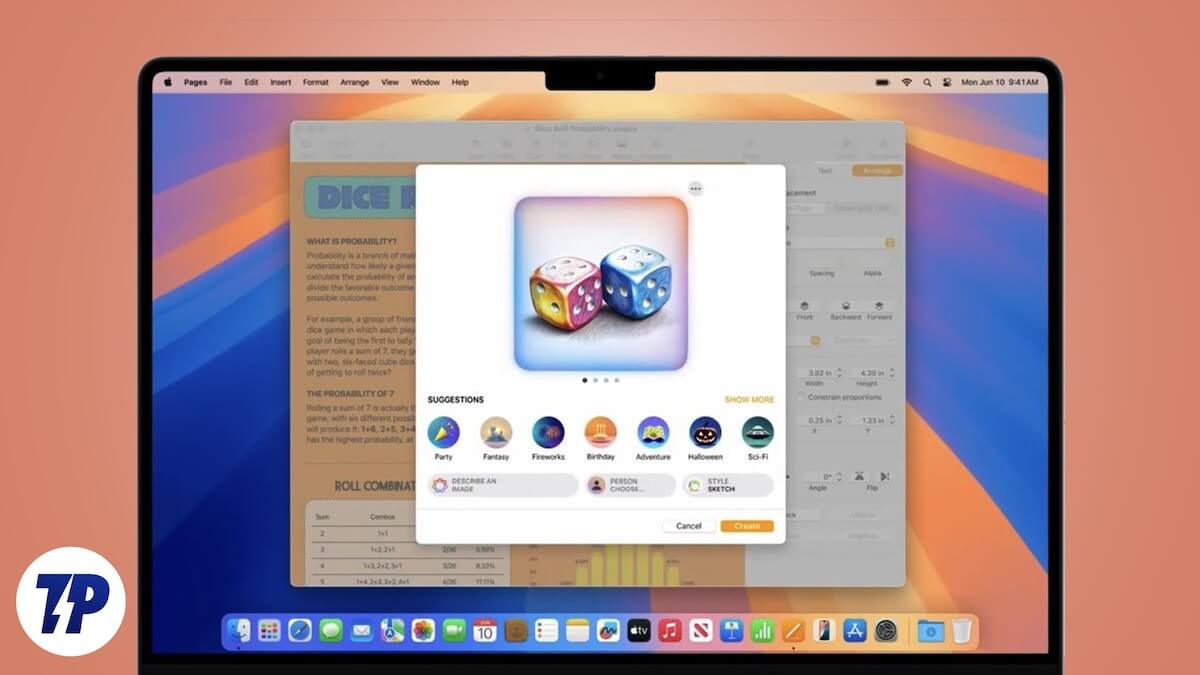
The new update brings many exciting AI features, including Image Playground. This tool helps you to generate images using different prompts, or you can even use photos from your device to generate AI images or avatars. I’ve used it myself, and it feels really fun and exciting!
If you want to try Image Playground on your Mac as well, don’t wait any longer. In this article, I’ll explain everything you need to know before using Image Playground, like what Image Playground is, its features, the requirements for using it, and how to set it up.
Table of Contents
What is Image Playground on Mac?
Image Playground is Apple’s very own generative AI tool that allows you to generate images using custom prompts or Apple’s curated suggestions. You can even use existing images to create unique AI-generated versions.
While there are already countless AI image generators on the internet, Apple has managed to stand out. Image Background offers a user-friendly interface that lets you add prompts to create specific backgrounds, costumes, or unique elements for a real person’s photo.
Also, The results are currently limited to cartoon-like images. Many generated images miss the mark and fail to align fully with the prompts, resulting in a mix of hits and setbacks. However, Apple has compensated for this by offering extensive modification options. For example, if you’re unhappy with any generated character’s hairstyle, you can add a hat based on Apple’s suggestions. Not satisfied with the eyes? Add glasses to refine the appearance.
Requirements to Use Image Playground on Mac
If you want to use the Image Playground app on your Mac, there are a few checklists to unlock Apple’s latest Image Playground.
- You must have a device with an M1 chip or later to use Image Playground and other Apple Intelligence features on your Mac.
- To use Image Playground on your Mac, ensure your device is updated to macOS Sequoia 15.2.
- After updating to macOS 15.2, you need to change your Language to either English (US) or localized English in Australia, Canada, Ireland, New Zealand, South Africa, or the United Kingdom. Apple also recommends setting your region to one of them. Here’s how you can change Language & Region on your Mac.
- Lastly, go to Apple Intelligence & Siri in System Settings and ensure that Siri Language is set to either of them.
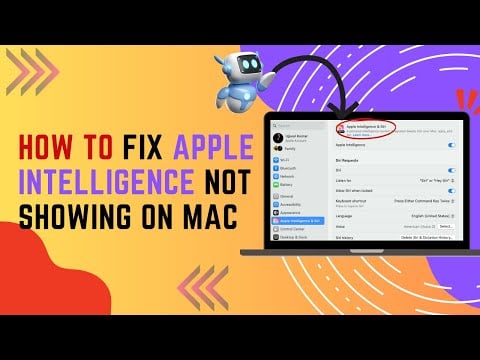
Note: Selecting either of them doesn’t mean you can pick one randomly. You can choose any one of them, but you must ensure that after selecting a language or region, the same language and region are applied everywhere. For example, you’ll need to set the same language and region for Mac as well as the same for Siri Language.
How to Setup Image Playground on Mac?
Setting up the Image Playground app on your Mac is quite straightforward. If you’ve updated to macOS Sequoia 15.2, the app will be automatically installed on your device.
- After that, open the app. If it’s visible on the Dock, click on it. Otherwise, open Launchpad and select the app to launch it.
- As soon as you launch Image Playground, you will be prompted with a notification — click on Set Up.

- As soon as you click Set Up, another notification will appear, stating that you will be notified when Image Playground is available — click Done.

- After this, you might need to wait for a while. Once Image Playground is available for your Mac, you’ll receive a notification.
- Open Image Playground again. When the app launches, some app information will pop up on your screen — click Continue to proceed.

How to Use Image Playground on Mac
I guess you’ve already set up the Image Playground app on your device, so go ahead and open it. Now, there are Four ways to create AI images using the app, and I have included all of them in different sections below.
The first one is you can create an image by simply typing in a prompt to generate a description-based image. You can use Apple suggestions for themes, costumes, and locations. Another option is to create an AI avatar of a person from your Photos app or use an existing photo to generate a new one.
What’s even more exciting is that Apple allows you to combine prompts, Apple’s suggestions, and a person all at once, giving you even more creative freedom.
I’ve also shared details on how to save and share your images, the types of images you can create, and customization options, so make sure to read carefully to understand everything.
Creating AI Images Using Prompts
Follow the below steps to create an AI image using prompts.
- Open the Image Playground app.
- At the bottom, you’ll see a box to Describe an image. Enter your prompt — anything you want to generate as an image.

- Tap the enter key, and the app will start generating an image based on your prompt.

- Once the image is created, tap on it, then use the arrow to browse through other generated images.

- If you are not satisfied with the generated images and want to make changes, you can either tap the existing prompt to make changes in it, or you can also add a new prompt to make it the way you want it.

- If the image isn’t turning out as desired despite adding multiple prompts, and you feel that removing one or two prompts might help generate the image you want, simply click the minus icon in the upper-left corner of the specific prompt you wish to remove.


Use Apple’s Suggestions to Create or Enhance Images
You can access the suggestions bar at the bottom of the app, where you’ll find various Apple categories such as Themes, Costumes, Accessories, and Places. Each category has subcategories to help you refine your image. For example, under Places, you’ll find options like Stage, Forest, City, Sky, and more.
To create an image using Apple’s suggestions, follow these steps:
- Tap on any of Apple’s suggestions. For example, if you select Sunset, the app will create a beautiful sunset image for you.

- If you’d like to add more suggestions, you can do so. For instance, you could add a “Dancing Cat” prompt. This will result in an image of a dancing cat placed against the sunset background, combining both the suggestion and your prompt.

- Alternatively, you can choose to create an image using only the suggestions without adding a prompt.


Create an AI Avatar of a Person or a Photo
If you want to create an AI avatar or an AI image of an existing photo, you can also do this with Image Playground. This feature is not only interesting but also has the potential to attract more users to Apple’s new AI tool. Here’s how you can do it:
Using a Saved Person
The app includes a Choose Person option at the bottom. By tapping on it, you can directly select a person’s photo if you’ve saved their picture with their name in the Photos app. This means you don’t have to scroll through your messy photo library to find your favorite image. You can just tap on Choose Person and select the image, and that’s it. Image Playground will start creating the AI Avatar.

Apple also allows you to add prompts and suggestions with your photo at the same time. For example, if you want your avatar to use a smartphone on the beach while wearing an astronaut suit, you can do that.

I guess whatever I have written sounds very interesting, right? If you agree, then you should follow the steps now and check what your avatar looks like when you use the same prompt.


Using an Existing Photo
Apart from that, there is a Gallery icon at the bottom right that has two options. The first is Choose Photo, where you can choose any photo from the library whether it’s of a person or an object.
- Tap the gallery icon in the bottom right corner of the application.

- Hit Choose Photo when the popup prompts.

- Now, select an image to generate an AI image with that.

Capturing a New Photo
The second option is Capture Image, where you can capture live images and create their instant AI avatars.
- Click on the Gallery icon.

- Now, tap on Take Photo.

- Capture a new image and submit it to generate.

How to Change Styles in Image Playground
The Image Playground app currently offers two different styles for creating AI-generated images: Animation and Illustration. The animation style provides a 3D appearance, while the illustration style offers a softer, 2D look that is perfect for a more artistic or minimalist feel. Apple has also hinted at a third style called Sketch, but its release is yet to be announced.

How to Save And Share Images Generated by Image Playground
Once your desired image is created and you want to save it to share on social media, via message, or elsewhere, click on the three dots in the upper-right corner of the image. This will open a small pop-up with various useful options like Copy, Share, and Save Image. Here’s how you can use each option:

Copy
- Choose Copy to copy the image.

- You can then paste the image wherever you want, such as in WhatsApp to send it to someone or on Twitter to post it as a tweet.

Share
- Click on Share to open a pop-up with several sharing options.
- You can send the image directly via iMessage on your Mac or share it with other Apple devices using AirDrop.

- Alternatively, select Add to Photos to directly save the image in the Photos app on your Mac, making it accessible for future use on any social platform.

Save Image
- Select Save Image or click Done in the upper right corner of the screen to save the photo to the Image Playground library.

- Later, you can access the image from the library and share it wherever you like.

How to Edit Images Created in Image Playground on Mac
If you’ve generated an AI image in Image Playground but need a slightly different version of it, such as adding a hat or goggles to your AI avatar before sharing it or using it in a conversation, here’s how you can do it.
- Open Image Playground.
- Now, Choose the AI-generated image you wanna edit.
- Right-click on the image and choose edit when the pop-up prompt.

- Here, you can make any edits you want. You can use suggestions provided by the app or edit an existing prompt by clicking on it, making the necessary changes, and then hitting Enter.

- Finally, tap Done. After that, a pop-up will appear on your screen. If you want to save the changes to the original image, simply click Save. Alternatively, if you want to keep the original image as it is and save the newly edited image as a duplicate, click Save as Duplicate.

- Once saved, you can share the image wherever you like!
How to Use Image Playground in the Messages App on Mac
With the Image Playground feature on your MacBook, you can create and share AI-generated images directly in your chats in the Messages app. You can also send images that have already been created from the library. This lets you showcase your creativity and add a unique touch to any conversation. Here’s how to do it:
- Open the Messages app on your Mac and either start a new conversation or open an existing one.
- In the chat, click the + icon at the bottom and select Image Playground from the list of options.

- The Image Playground Library interface will prompt on your screen. Either choose any image from the library or use the tools to create a relevant image as per the conversation required.

- Finally, click Done and hit enter to DM the Image.

How to Delete Generated Images From Image Playground Library on Mac
If you’ve generated a lot of images using Image Playground and have used them across social media, it’s natural that, over time, you might no longer need some of them. If you want to delete unused images from the Image Playground library to free up space or organize the library, here’s how you can do it:
- Launch the Image Playground app on your Mac.
- Now, choose the image you want to delete from the Image Playground library.
- After that, hit the delete icon in the upper right corner of the screen.

- Finally, click Delete when the confirmation pop-up prompts.

- Repeat this process until you have deleted all the images you want to remove.

Conclusion
Creating AI images with Image Playground is truly interesting. Whether you decide to use the app actively or just let it sit on your MacBook depends entirely on you. However, as an Apple user, I must say I’ve never come across a generative AI tool like this that not only creates images but does so with such impressive features. With Apple’s suggestions and the ability to use your own photos, even with adding multiple prompts, you can generate exceptionally realistic images.
Personally, I found this app extremely interesting and enjoyable to use. What makes it even better is the option to download these images and share them anywhere or even generate real-time images within a conversation in messages to make your chats more engaging and realistic.
Hopefully, after reading this article, you’ll set up and try the Image Playground app on your MacBook at least once. I’ve covered everything you need to know about it, and I hope you found this helpful!
FAQs on Using Image Playground on Mac
Can I use the Image Playground app on my iPhone?
Yes, if you have an iPhone 15 Pro or a newer model and have updated your iPhone to iOS 18.2 or later, you can also use the Image Playground application on your iPhone.
How many images will the Image playground generate in one turn?
Image Playground can generate up to four images at a time, and as soon as you go to the fourth image, it will start creating the fifth one, and when you go to the fifth slide, it will start creating the sixth one, and so on it will keep creating images until 12 images.
The Image Playground app not working on Mac, how to fix It?
Ensure your Mac is updated to macOS Sequoia 15.2. If Image Playground still doesn’t work, launch the app or restart your Mac.
Is there a waitlist for Image Playground?
Yes, there is a waitlist for Image Playground. After completing the setup on macOS Sequoia 15.2, you may need to wait for activation. While some users gain access within minutes, others might experience delays of up to one or two days.
How do I add Person to Image Playground?
To add a person to Image Playground, first name them in the Photos app. To do so, open the Photos app, locate the person, and assign a name to their profile under People.

