

Quick Answer
To use Portrait Studio on Samsung phones running OneUI 6.1.1 or higher, open the Camera app and select Portrait mode. Choose your desired style (e.g., Sketch, Watercolor) for creative portraits. For Sketch to Image, use the feature to convert your doodles into realistic images via the AI-based tools available in the Gallery or Photo Editor app.
Samsung recently concluded the second Unpacked event of the year on July 10 in Paris. Here, the Korean giant introduced the Galaxy Z Flip6 and the Galaxy Z Fold6 smartphones, along with a bunch of other Galaxy products, including the Galaxy Watch7, the Galaxy Watch Ultra, the Galaxy Buds3 series, and the Galaxy Ring. Apart from the hardware, Samsung also introduced all the new Galaxy AI features that the One UI 6.1.1 update based on Android 14 brings to the Galaxy foldables out of the box.

Two of the most talked about Galaxy AI features of the One UI 6.1.1 update were Portrait Studio and Sketch to Image. The features not only do what their name implies but there is a lot more to them. In this guide, we will be discussing how you can use Portrait Studio and the Sketch to Image feature on your One UI 6.1.1 running Galaxy Z Flip6 and Galaxy Z Fold6. Let’s jump right into it.
Table of Contents
What are Portrait Studio and Sketch to Image features?
One of the first things that you should note is that the Portrait Studio and the Sketch to Image features are exclusive to the Galaxy Z Flip6 and Galaxy Z Fold6 running One UI 6.1.1, according to Samsung. Let’s discuss the Portrait Studio and Sketch to Image features.
Portrait Studio
The Portrait Studio is a new Galaxy AI feature that Samsung introduced with One UI 6.1.1. Using the feature, users can create different styles of portraits, such as Sketch, Watercolor, 3D Cartoon, and Comic. It is a cloud-based AI feature that requires an active internet connection and a Samsung account.
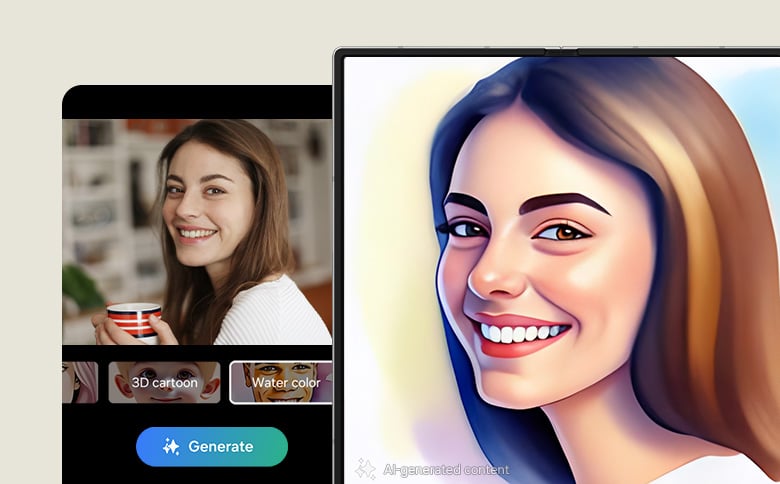
The images generated using Portrait Studio support JPG, HEIC (HEIF), BMP, and PNG files. Samsung also highlighted that the portrait photos generated using the AI feature are resized to up to 12MP in resolution and also contain a visible watermark. During the Galaxy Unpacked event, Samsung used Sydney Sweeney’s image to turn into a 3D avatar, and the results were quite accurate.
Sketch to Image
As per Samsung, the Sketch to Image feature lets you “create more sophisticated art pieces by generating image options.” The feature is quite simple but effective. All you need to do is draw anything, and the One UI 6.1.1 will use Samsung Galaxy AI powers to turn your image into an artwork, giving it a digital facelift.
The Sketch to Image feature works on any sketch saved on the Gallery or Notes screen. Better results are generated using the S-Pen, however, hand-drawn images also work well. Galaxy AI understands what you are trying to draw and gives you multiple styles to choose from and generate the result.

You can use the Sketch to Image feature to fill in the image. For example, you can use it to add a microphone to the hands of the cat, as shown in the image above.
How to use Portrait Studio and Sketch to Image?
Let us go through the steps to use the Portrait Studio and Sketch to Image feature on your Galaxy Z Flip6 and Galaxy Z Fold6 running One UI 6.1.1.
Portrait Studio
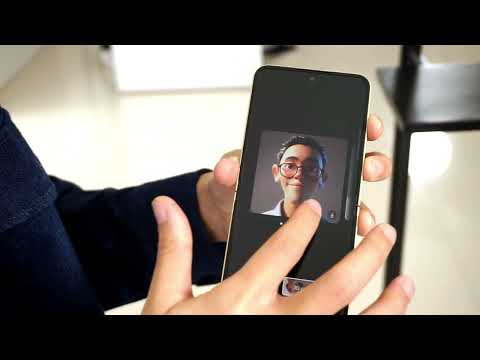
- Open the camera app.
- Take a selfie.
- Open Gallery. Alternatively, you can choose any selfie or image containing a face to apply the effect.
- Tap on the AI icon at the bottom bar.
- You will see a Portrait Studio button. Tap on it.
- You will see different portrait styles to choose from, Comic, 3D Cartoon, Watercolor, and Sketch.
- Tap on your favorite portrait style and choose Generate.
- Galaxy AI will work its magic and generate the result.
Here’s the complete video explaining the steps:
Sketch to image
- Open the Notes app.
- Draw anything that you like on the notes app.
- As soon as you start drawing, you will see two buttons pop up; 3D cartoon (tapping on which you can choose from different styles) and the Generate button.
- Once you are done with your drawing, select the style by tapping the 3D cartoon button.
- Then finally, hit Generate.
Here’s the video demoing the feature:
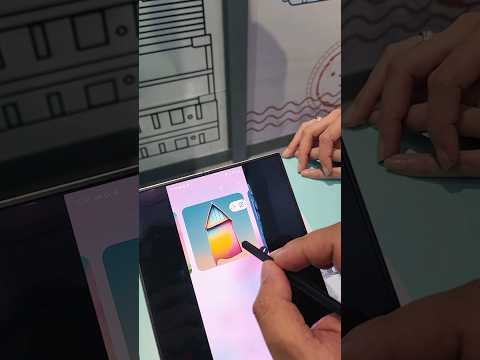
Sketch to Image also lets you add objects to your images. For example, you can draw a cap on top of your image, and Galaxy AI will convert your drawing into an image, which you can resize and overlay on top of your image.
Enjoy the powers of Galaxy AI
Samsung has introduced a host of new Galaxy AI features with the latest One UI 6.1.1 update. Live Translate is now working outside of Samsung’s first-party apps. Samsung has also introduced the new Composer feature, which can be used inside email and other social media apps to generate suggestive text based on simple keywords. Then there is the Note Assist, Interpreter, etc. Let us know in the comments below which one of the new Galaxy AI features you liked.

