

Quick Answer
To use Audio Eraser on the Galaxy S25: Open Gallery, select your video, and tap the AI button. Choose Auto for AI to detect/remove noise (wind, crowd, etc.) or manually adjust sliders for voices, music, or nature. Tap Hear original to compare before/after. Save edits when satisfied. Requires a Samsung account for AI features.
Samsung recently introduced its new flagship, the Galaxy S25 series, with a host of AI features. While the devices themselves don’t introduce much of a design upgrade compared to their predecessors, the internals are new. All the Galaxy S25 series phones — Galaxy S25, Galaxy S25+, and Galaxy S25 Ultra — boot One UI 7 based on Android 15 out of the box. With that, Samsung has also bundled multiple new AI features, including Cross App Action using Google Gemini, Now Brief and Now Bar, Circle to Search, Audio Eraser, Auto Trim, and much more.
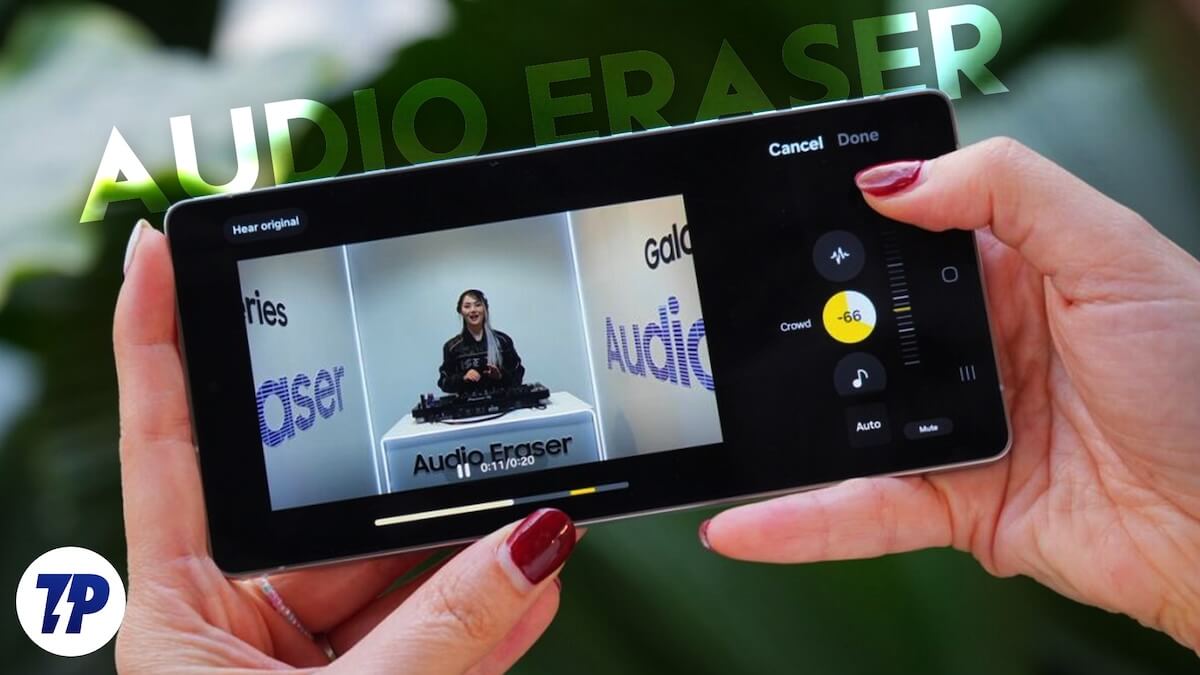
Audio Eraser is quite an interesting feature that lets you remove unwanted noise from your videos. There are times when you record a video explaining things or talking with your friends only to find that there is some background noise ruining your video. In this guide, we will explain to you how you can use Audio Eraser on the Samsung Galaxy S25 series phone. Let’s jump right into it.
What is the Audio Eraser feature on the Samsung Galaxy S25 series?
The Samsung Galaxy S25 series features an Audio Eraser that leverages AI to remove unwanted noise from videos. The feature is expected to land on older Galaxy models with the roll-out of the One UI 7 update. The feature is simple: it detects unwanted noise in your videos and removes it to give you clear audio or audio that is important to you.

You can use Audio Eraser to adjust or remove background noise in your videos, such as crowd noise, car alarms, wind, and more. Audio Eraser gives you clean audio in your videos. Do note that to use Audio Eraser or other AI features, you need to have a Samsung account logged in. Audio Eraser can detect six types of sounds—voices, music, wind, nature, crowd, and noise. Notably, output may vary depending on how deeply noise is integrated into the video.
How to use Audio Eraser on Samsung Galaxy S25?
- Open Gallery.

- Tap on the video from which you want to remove unwanted noise and play it.
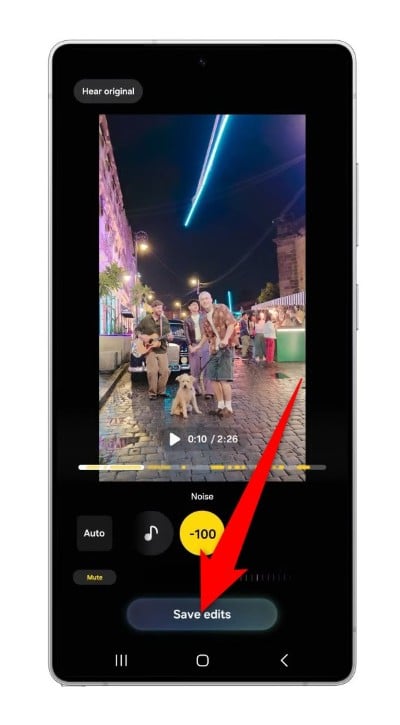
- Tap the AI button at the bottom menu of options. The video will start analyzing to detect unwanted sounds from the video.

- Hit the Auto button on the left to let the AI detect and remove unwanted noise.

- If you want to take the matter into your own hands, then you can manually remove the noises as well. You have to choose which type of unwanted sound you wish to remove from the button given in the middle and then dial down to remove the noise.

- To understand the changes, there is a Hear original button at the top left. Upon pressing it, it will play the original video. Tapping again on the Hear original button will play the video with background noise removed.

- Once you are happy with the changes, tap Save edits at the bottom.
Will my older Galaxy S-series phone get an Audio Eraser?
Samsung has a habit of pushing newly introduced features with One UI to older devices with updates. However, a feature that relies on hardware, which is currently present only in the Galaxy S25 series, may be difficult to roll down to older Galaxy models. While future Samsung Galaxy phones with upgraded hardware will feature Audio Eraser and other AI features introduced with the Galaxy S25 series phones, older phones may not get the feature, or at least not get it in its entirety.
By that, we mean that with the One UI 7 stable update for older Galaxy phones, they may receive a toned-down version of the Audio Eraser, which may not offer all the options. But that only time will tell.
Does Audio Eraser actually work or is it a gimmick?
Popular tech YouTuber M. Brandon Lee from the YouTube channel “This is Tech Today” shared a video giving us a glimpse at how the feature performs. And spoiler alert! The output is mind-blowing. Take a look for yourself:
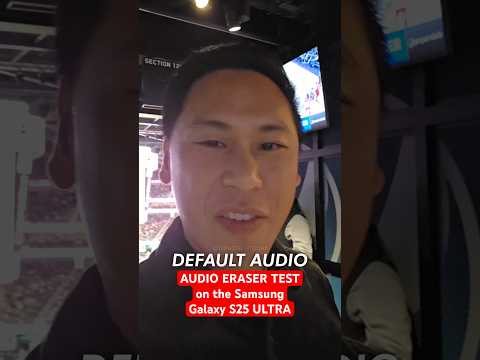
So, the Samsung Audio Eraser functionality works, and it will help you with videos in your gallery that have unwanted noise. If you are intrigued by the Galaxy S25 series, you may want to wait for the Galaxy S25 Edge, the slim model in the lineup that is slated to launch in the second half of this year. More details about the Galaxy S25 Edge are here.

