

In Summary
- Samsung introduced the Galaxy S25 series with many AI features like Circle to Search, Natural Language Search, AI Writing Assist, Call Transcription, and more.
- You can get these AI features on any device using free third-party alternative apps like Google Photos, Google Assistant, and third-party apps (e.g., Truecaller, Perplexity AI), Microsoft AI Keyboard, ChatGPT and more.
- In this guide, you will learn how to get these AI features on your device to streamline your daily tasks without upgrading your smartphone.
Samsung has finally announced its flagship smartphone for 2025, the Galaxy S25 Series. Along with the standard models, a new slim model will be debuting as S25 Edge later this year. There weren’t any significant hardware changes from the past, with little updates regarding the camera, processor, and the new round corners. However, similar to last year’s S24 series, Samsung has heavily relied on software, especially AI features, on the S25 as the unique selling point.
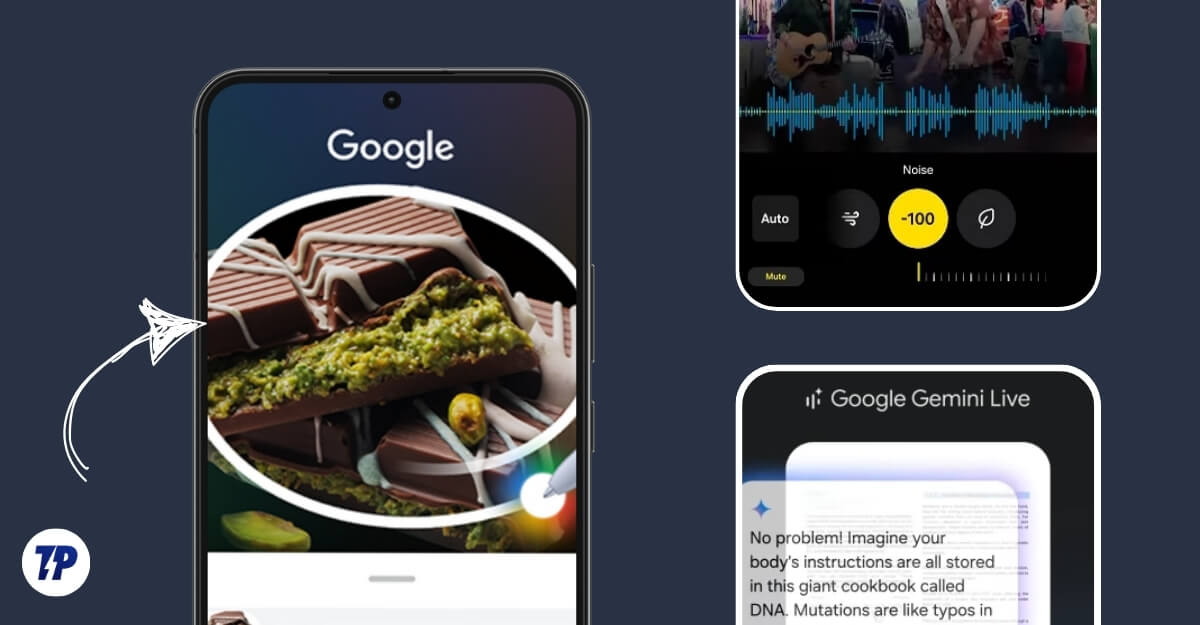
Samsung has announced plenty of useful AI features that come with the S25 series, and similar to last year’s Galaxy S24 features, you can get these features on any other device. If you don’t have a Samsung device and are not planning to upgrade to the S25 series but like their AI features and want those functionalities on your device, in this guide, you will learn how to get these AI features on other devices.
Table of Contents
How To Get Samsung S25 Galaxy AI Features on Other Devices
S.no | Feature | How to Get It on Other Devices |
|---|---|---|
1 | Circle to Search | Use Google Lens or Circle to Search app (Android). Use Visual Intelligence on iPhone. |
2 | Natural Language Search | Use Google Photos or Nothing OS Gallery (Android). Use iPhone’s default gallery or Google Photos. |
3 | Samsung Now Brief | Use Google Assistant + Google Home app to set up routines (Android/iPhone). |
4 | AI Writing Assist | Install Microsoft AI Keyboard or use ChatGPT (Android/iPhone). |
5 | Gemini Assistant | Use ChatGPT or Perplexity AI for real-time help (Android/iPhone). |
6 | AI Eraser (Photos) | Use Google Photos or third-party apps (Android/iPhone). |
7 | Audio Noise Eraser | Install noise-removal apps like Audio Noise Eraser (Android/iPhone). |
8 | Call Transcription | Use Truecaller Premium, Google Voice, or transcription apps (Android/iPhone). |
9 | Cross-App Integration | Install Gemini Live app and set it as the default assistant (Android/iPhone). |
10 | Humming Song Recognition | Use Shazam or Google Assistant to find songs by humming (Android/iPhone). |
Circle To Search: Quickly Search for Content on Your Screen by Drawing a Circle
Google’s Circle to search feature makes searching content on your screen easy without switching between apps.
This feature was first debuted by Google Pixel 8 Pro and Samsung Galaxy S24 features and later made it to all Samsung devices, including S23, S22, S21 series, and the budget A-series smartphones. Circle to Search has recently become available on Android smartphones, including Honor, Realme, OnePlus, and Xiaomi.
The Circle to Search feature on the S25 series comes with a simplified interface and now supports QR and barcode scanning, which allows you to scan barcodes and QR by simply working on cycling. The feature is currently limited to the Galaxy S25, S25S, and S25 Ultra; however, it is expected to roll out for older devices.
To use the Circle to search feature on your device, long-press your home screen button on any supported device. If the feature isn’t available on your device, you can install Google Lens and search for content within the screen; it works similarly to the Circle to search, which lets you search for content within the screen.
If you want similar functionality, you can install a third-party Circle to search app that quickly searches content (currently only supports visual content) by drawing a circle around it.
How to get the Circle to Search feature on your device

- You can use Google Lens or Circle to search the app (for only visual search) for similar functions and visual search.
- Install Circle to search the app on your Android smartphone.
- Follow the on-screen instructions to set the app and change the Circle to Search to the default app.
- To use circle search, long press on the power button and then circle any screen. It uses its visual search instead of Google; however, the results are correct.
For iPhone: You can get this functionality using this shortcut or use the Visual intelligence feature on supported devices
Natural Language Search: Search Using Conversational Language
Another useful addition to the Samsung Galaxy S25 series is the addition of natural language understanding search functionality.
It lets you search and find content using simple conversational language. For instance, To turn on night mode on most Android phones, you must search using the exact setting name. However, on the Galaxy S25 series, you can use a conversational tone to find what you want. For instance, instead of using an accurate setting name, such as Night mode, you can search for “my eyes are soring” based on your query, and Samsung will suggest the relevant night mode settings.
Natural language search is available system-wide for settings and in the gallery app on the S25 series. For those not using Galaxy S25, there are similar tools you can try.

Google Photos app supports natural language search to find the exact photo you want. If you are a Nothing phone user, you can use the updated gallery app introduced with Nothing OS 3.0 that supports natural language search functionality.
Download Google Photos: Android | iPhone
For iPhone: You can use the default iPhone gallery app, which natively supports natural language, or you can install the Google Photos app for iPhone.
Samsung Now Brief: Get a Personalized Daily Summary
Another valuable addition to the Samsung Galaxy S25 series is NotiBrief, which gives you a personalized daily summary to keep you updated about your day, such as weather updates, upcoming calendars, events, stock details, and suggestions based on your routines.
It also integrates with other Samsung devices, such as Samsung Watch and other smart devices, to offer you a personalized experience and create your routines. It even works with your email to send reminders about expiring coupons and upcoming travel tickets.
Samsung also added NowBar to the lock screen, offering quick access to sports scores, directions, and other live activities from different apps, similar to Dynamic Island on iPhones.
You can get this feature on other devices using Google Assistant on your Android. It offers a similar experience by offering a quick overview of your day and a personalized daily recap, including weather updates, News from preferred sources, automated tasks, and more.
However, since Google will replace Google Assistant with Gemini, you will have to switch to another app if you plan to use this in the long term.
I have tested the Google Assistant on the OnePlus 9 Pro and the 13 Pro Plus, and it worked great on these smartphones.
However, you must schedule your routines and permit Google Assistant to track your day. It uses various Google apps to track your day and give you an overview.
How to get the Now Brief feature on non-Samsung phones:

- Install a Google Assistant app and sign in with your account.
- Now, set it as your default assistant, following on-screen instructions.
- Install the Google Home app (Android | iOS) on your smartphone and sign in with the same Google account you used for Google Assistant.
- Go to the automation tab and create a new routine with a trigger sentence word or phrase for the Google Assistant to start your routine.
- That’s it. When you trigger your Google Assistant with the specific phases, it runs your task and creates a new one similar to the Samsung routines. It is free and works with the default Google Assistant on all Android devices.
- You can also customize it, delete routines, or add new routines.
AI Writing Assist: Rewrite, Summarize, and Change the Tone of Text
AI Writing tools are easily one of smartphones’ most useful AI features. Whether you want to rewrite a text message on WhatsApp or draft an email, AI writing tools can help you quickly fix the grammar and format them to your preferred tone. Plus, they are most important without any limitations.
Samsung has introduced AI writing features that let you summarize text, format, change the tone, rewrite, and more.
There are two ways you can get AI writing tools on other Android. You can install ChatGPT or any other AI writing tool, paste the text, rewrite it, and then paste it into the app or place you want to rewrite. However, suppose you don’t want to switch between apps. In that case, you can install Microsoft AI Keyboard, which comes with built-in AI writing tools (requires internet) that help you to rewrite, change tone, and generate text with the help of Microsoft Turing, which is inherently built into the keypad without switching to the app.
It is free to use, without any limitations, and works online. It works anywhere the keyboard is needed, including third-party social media apps, messaging apps, and apps like Slack or meetings where you use a keyboard to write the text.
How to get AI writing tools on your Android

- Install Microsft Swift AI keyboard on your smartphone.
- Set it as a default keyboard; click on the copout icon in the and acct terms and conditions
- now to rewrite words or change the tone of the sentence, enter the text (minimum three words), click on the co-pilot icon, and then select the version of the text you want to use. Click on the accept and replace the text you are looking for.
For iPhone: You can use Apple intelligence writing tools or install a Microsft Swift AI keyboard for iPhone.
Gemini Live: Get Real-Time, Context-Aware Help Based on What You’re Doing
Samsung adds advanced Gemini Live to the S25 series, which offers real-time assistance based on the task you perform on the screen.
Unlike the standard Gemini app, which primarily answers your questions, Gemini Live offers task and context-aware assistance, which understands your current activity on the screen and offers real-time assistance.
For example, if you are shopping, Gemini Live suggests similar products and the right size for you and applies a coupon. If you are attending a meeting, it can summarize discussion points live and also directly integrate with apps like Spotify, Samsung Health, and Google Maps and perform actions. Also, Gemini is always live and supports multi-modal input analysis with more advanced personalization; you can make it a simple personalized assistance.

You can use ChatGPT (Android | iPhone) or Perplexity AI (Android | iPhone) if you want a similar functionality. Both support multi-modal input for free in the free version and let you process text, voice, images, and live YouTube videos and get information from them. In addition, Perplexity AI lets you analyze the content on the screen and get real-time suggestions. You can also use Circle to search features to quickly find the content on your screen.
To get similar functionality as the S25 series, These AI assistants must integrate deeply with the operating system, which is impossible on other devices.
However, you can still access this functionality using third-party apps, but they are imperfect, have limitations, and are not as seamless as Google Live Gemini. However, this feature is anticipated to arrive on all Android devices.
AI Features in the Photos App: Remove Unwanted Objects From Images
In addition to writing tools, AI features in the Photos app are also helpful for most users. One such feature is the AI eraser, which lets you remove unwanted objects from your images.
You can install the Google Photos app to get this feature on your Android smartphone. It works flawlessly and helps you remove any element from the image without much distortion. Also, check the default gallery app of your iPhone and check for this feature in the section; since it is most popular, it might run on your device. It should help you quickly remove any object from your device locally without an Internet connection.
If you don’t want to install a third-party app, there are also plenty of websites we have tested, and I have listed them in a separate guide that focuses more on privacy, speed, and features. You can also use these websites to remove unwanted elements and high-quality backgrounds.
How to remove unwanted objects from an image

- Install the Google Photos app (Android | iPhone) on your smartphone.
- View the image you want to edit, click the edit icon, and then click the remove.
- You can also use third-party websites to remove unwanted elements from the image.
Audio Noise Eraser: Remove Background Noise From Audio or Video
The audio eraser on the Samsung Galaxy S25 series lets you remove unwanted noise in videos and audio using AI. There are plenty of apps and websites that offer similar functionality. If you want similar functionality, you can use a free background noise remover app, which helps you separate human voices from the background and additional distracting noises.
How to remove noise from the Audio
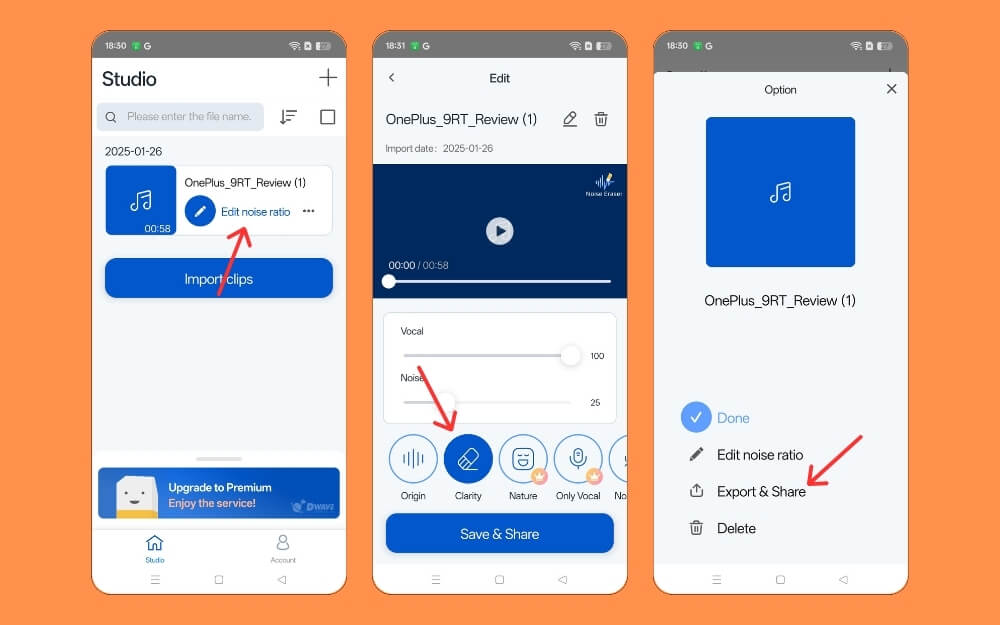
- Install Audio the Noise Eraser app (Android | iPhone )on your smartphone and sign in without an account.
- You can also install any free app to increase the limitations
- Upload the audio convert and convert and remove the noise.
Transcribe calls using AI: Convert Call Conversations Into Text
Another helpful AI feature is call transcription, which translates your call into text. Samsung further enhances it by offering a chat-type conversation feature to help you differentiate between conversations and find the exact conversations you require.
Call feature is also available on iPhone and all other Android features. However, if your device doesn’t support it and you want to get this feature, plenty of third-party apps offer call transcription; after review, I found Truecaller (Android | iPhone) the most reliable option. However, it requires Truecaller premium to use it.
To transcribe calls for free, you can use a built-in recorder to record calls and then use free audio transcriber tools to convert audio to text. After testing a few apps, I found Sound-type AI, which lets you convert audio to text and summarise it, highlighting the most critical points during this call without reviewing all the details.

If you are looking for free alternatives, there is Google Voice, which lets you record incoming calls for free. If you’re looking at transcribing recorded calls for a few calls and don’t want to pay the entire premium, you can go for AI and Live Transcription and Notification by Google. These apps don’t support this feature when you are taking a call. You can turn on speaker mode to record a call and transcribe your calls later. Later, you can use any other AI-generated app to select ChatGPT or Google Gemini to summarise your calls.
For iPhone: You can use the built-in call recorder function on iOS 18 or above to transcribe calls.
Cross-App Integration: Lets Gemini Interact With Multiple Apps
Samsung Galaxy S25 introduces new cross-app integration in the S25 series. With this feature, you can use a single prompt to interact with multiple apps based on your prompt. For example, you could ask Gemini to find the best local restaurants and then share the details with a colleague via SMS.
Gemini supports cross-app integration and is available on all features, including the Realme 14 Pro plus and OnePlus 13 budget. However, currently, it is only limited to a few Google apps. This feature is extended to third-party apps on Samsung, including support for Spotify, WhatsApp, and more.
You can install Gemini Live and set it as the default assistant to use this feature on older Android and other Android devices. Now, you can press your place and interact with Gemini. Then, you can give a detailed brief containing the app names of your tasks.
How to use cross-app integration in Gemini:
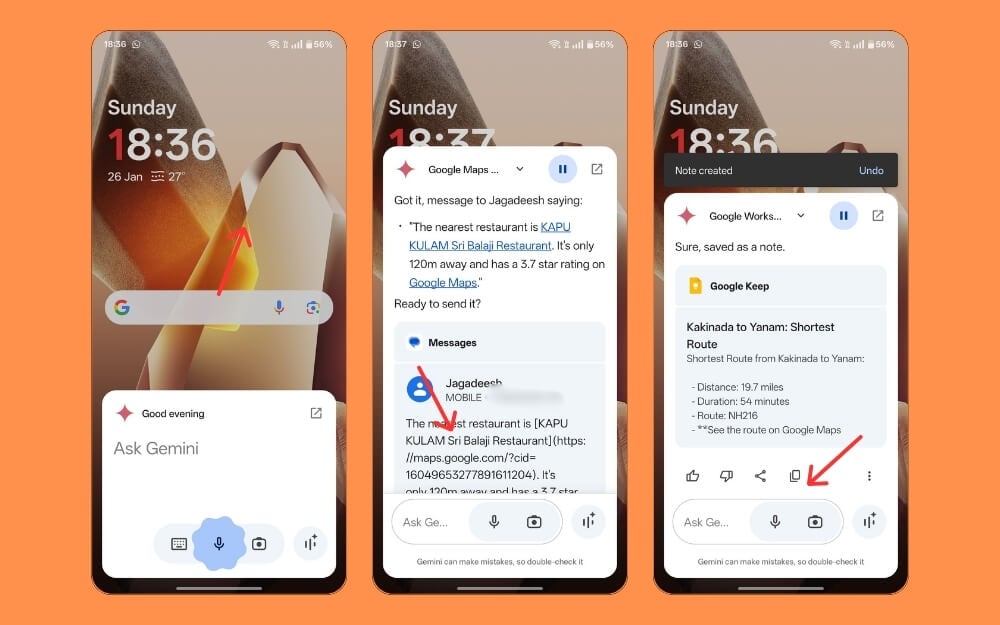
- Install your smartphone’s Gemini app (Android | iPhone) and set it as the default assistant. You can go to default assistant settings on your Android smartphone and set it as the default.
- Press the power button to activate the Gemini app and then ask Gemini the task clearly, mentioning the apps you want to use.
Humming Song Recognition: Identify Songs by Humming
Circle to search on Samsung devices, and you can also identify songs by humming. Finding the tune on your screen can be beneficial, including what music is playing on your Instagram or TikTok and where the YouTube Shorts are on any song intro.
This feature is exclusive to Samsung Galaxy S25 models. The Google Pixel is anticipated to support this and other flagship smartphones.
You can use a free third-party app like Shazam to get a similar feature on your device. You can record it on a mic and find the song you want. It was bought by Apple a few years back, and it works way better than any other recognizable app in the market. Also, plenty of other apps allow you to do the same. You can also use Google Assistant, which lets you find a song using the search feature. You can use a default Google app on your mobile to record your tune and find the song by humming.
How to find a tune by humming on your smartphone

- Install the Shazam app (Android | iPhone) on your smartphone
- Hu the song; then it will find and display it for you.
- You can also use the Google Assistant app to find songs by humming.
Replicating Samsung Galaxy S25 AI Features on Any Device
Those are the list of valuable AI additions to the Samsung Galaxy S25 series, most of which were previously available on the S24 series but have been updated with the latest feature additions. We have a detailed guide on how to use Galaxy S24 features on all devices, which you can refer to for additional AI features such as writing tools.
Remember, there might be limitations on the feature that might not work as precisely on other phones compared to the Galaxy S25. However, most of the apps have the most similar functionality due to the software limitations. If you have any issues while setting up, let us know in the comments; we are happy to help.

