

Quick Answer
Unlike Whatsapp or other popular social media sites, Instagram doesn’t offer a built-in message backup feature. However. You can request a copy of your data and download including messages. Go to Settings > Your Activity > Download Your Information and submit a request. Alternatively, you can take screenshots to manually backup for important chats.
Backing up your message can prevent you from losing them. Many instant messaging apps offer direct chat backup to securely store your message on the cloud and device. Instagram doesn’t offer any direct methods to back up chats. Instead, you must use alternative methods to back up your Instagram messages. After spending hours testing different backup methods, I finally found two reliable methods to back up your Instagram chats.
Table of Contents
Things to Note Before Backing Your Instagram Chats:
- Instagram doesn’t offer a built-in backup solution to backup or restore your messages.
- You can download a copy of your data, including messages, but you cannot restore them. You can view the backup messages in HTML or JSON format.
- If you delete a message or a conversation, it is permanently removed from Instagram servers and cannot be retrieved or backed up. Also, messages in Vanish mode won’t be included in your backup.
- You must manually download your data if you have new conversations after downloading your data.
How to Backup Instagram Chats
Method | Steps | Pros | Cons |
|---|---|---|---|
Download Data | Go to Settings > Your Activity > Download Your Info, select Messages, request, wait for email. | Full chat history saved. | You cannot restore backup messages |
Take Screenshots | Open chat, screenshot, save to device or cloud. | Quick & easy to save important conversations | Doesn't backup your entire communications |
Google Drive/iCloud? | Yes, you can manually upload your downloaded data | Extra backup solution | No auto-backup. |
Request and Download Your Instagram Data
You can use the data download feature to back up your messages on Instagram. The feature allows you to request and download your personal information on Instagram. You can download full account data or specific types of information such as messages, posts, reels, likes, comments, and more.
You need to request this data from Instagram’s settings, and Instagram sends you an email link to download the required data. This process is said to take up to 48 hours. However, in my testing, I got a download link a few minutes after requesting the data.
Out of the two methods shared in this post, this is the most reliable method for creating chat backups. However, you cannot restore this data to Instagram. Currently, Instagram doesn’t provide an option to restore any backup. You can only view the backup data externally on your device.
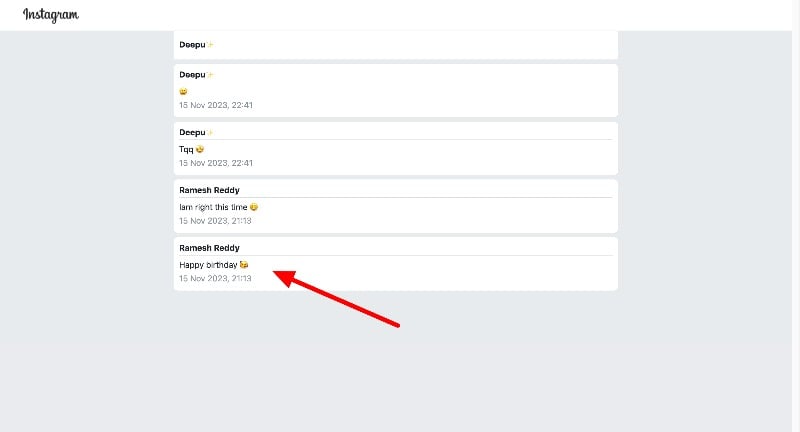
When exporting, you can select the data format you want to export. This includes HTML and JSON format. You can select any format based on your preference. I suggest you export the chats in HTML format because when you open the file on your computer (which you should). The browser will automatically render HTML and show you the messages. You can see the image below.
How to Download Messages on Instagram
- Open the Instagram app on your smartphone. Make sure you have the latest version of the app. You can update the app from the App Store and Google Play Stores.
- Click on the Profile icon in the screen’s bottom right corner and go to your profile.
- On the profile screen, click the Horizontal menu and select Your Activity.
- Scroll down and click on the Download your information.

- Click on the Download or Transfer information and select the information you want to download. You can download all your information and specific information like messages, comments, saved likes, and more.
- To download messages, click on Some of your information, select Messages, and click Next.
- You can download or transfer the data onto your device to Google Drive. Select any option and click on Next.

- Here, you can select the Data Range, Format, and Quality of the data. You can leave it as a default and change the settings according to your preferences. Finally, click on Create files.
- You will receive an email confirmation. Depending on the data size, you will receive a data download link after a few minutes (Sometimes it can take up to 48 hours). You can view the process on the Download Your Information page.

- Click on the Download button, enter your password, and click on Continue to download your data.
You Can Also Download Messages Using the Instagram Web
- Go to Instagram.com (Direct Link) and log in with your account
- Click on the More tab in the bottom left corner of the screen and select Your Activity

- Scroll down and click on the Download your information option
- You will be redirected to the account management centre.
- Click on Download your Information

- Click on the Request to download.

- You will receive an email confirmation. Click on the download link and download the file under Available Downloads.
Take Screenshots and Save Them to Your Device (To Save Specific Chats)

You can take screenshots of your chats and store them as Chat Backup. You can screenshot the Instagram chat the way you would typically make screenshots. But Remember, Instagram notifies the other user when you try to take a screenshot in the vanish mode. This is a part of the Instagram privacy tool where the other person will receive a notification when you try to take a screenshot of the chat in the vanish mode.
Moreover, You cannot back vanish messages on Instagram as they are designed to disappear after they have been seen or when the chat is closed. Due to this, there aren’t backup methods to back up those chats.
How to take screenshots of the Instagram chats
- Open the Instagram app on your smartphone, click on the Messenger icon at the top, and select the chat you want to take a screenshot of.
- Go to that chat and ensure the chat is in normal mode, and you take a screenshot.
- You can store these screenshots in your gallery, hide them or upload them to a separate photo-hiding app.
Are third-party Instagram backup tools safe to use?
These two methods are not complete solutions because both require you to manually request and download the data, take screenshots, and store them on your device. So, I started looking for third-party apps and websites that might offer backup to Instagram messages and solve the pain points I had with the current methods. Unfortunately, I couldn’t find any reliable solutions. No direct Instagram chat backup solution exists, even after testing with third-party Instagram clients and websites.
Backing your Instagram messages
Instagram automatically syncs your messages with your account. You don’t need to worry about losing them until and unless you manually delete them. Currently, the only reliable method to back up Instagram messages is to download and store your data locally or export it to the cloud. I hope you find this information helpful. If you have any suggestions, you can comment below, or if you know of any other reliable method to back up Instagram messages, let us know in the comments below.
FAQs on Backing up Instagram chats
Is it possible to restore backed-up Instagram messages?
No, you cannot restore the backed-up messages on Instagram. Instagram doesn’t allow you to upload the backups and files to create a backup.
How to restore deleted messages on Instagram?
You can not restore deleted messages on Instagram. Instagram does not keep backups or archives of deleted messages. So, there is no way to recover them once they are deleted. However, if you want to back up the message before them, you can download your messages using the request download feature on Instagram.
How can I ensure my Instagram messages are backed up regularly?
Instagram currently doesn’t offer any features to back up or message. You need to download your personal information manually to back up your messages. You can also take screenshots and create a chat backup.
Will backing up Instagram messages also save images and videos shared in the conversations?
The first method also saves images and videos shared in the conversations. However, they are stored in separate folders. To view, Download the archive file>Unzip the file> Open the folder>Go to your_activity_across_facebook folder>Click on the messages>Go to the inbox folder>and select the Chat you want to view files. Go to the Chat folder. The folder name will include a random number and the contact's name, which is attached at the end.

