

Quick Answer
To reset your Instagram feed, go to your profile, tap the menu, select Content Preferences, then Reset Suggested Content, and confirm. This clears Instagram’s recommendation algorithm, allowing you to rebuild your feed based on new interactions. Your past likes, comments, and follows remain unchanged, but your feed will reset to show fresh content.
Instagram, similar to all other social media platforms, works on algorithms, which are based on users’ activities. This means that the algorithm will display content that is similar to what a user has liked, commented on, saved, or interacted with in any other way. For example, if you like a baby’s post on Instagram, then there is a high chance that your feed will start displaying reels, photos, or videos related to babies. However, that might have been a one-off interaction, and now you want to move over babies and want to explore something else.

In this case, the best option is to reset your Instagram feed and start from scratch. But there’s something most guides won’t tell you — the algorithm also picks up on things you didn’t actively choose. If you hovered over a post for a few extra seconds, paused on a reel to read the caption, or let a video replay while you were distracted, Instagram quietly interpreted all of that as interest. It’s a bit sneaky, honestly. Once that snowball starts rolling, your Explore page, Reels tab, and home feed can go from perfectly curated to completely unrecognizable.
If that’s the situation you’re in, this guide will walk you through exactly how to reset your Instagram feed, clean up the Instagram recommendation algorithm, and rebuild your content preferences the right way. Let’s get into it.
Table of Contents
What Happens When You Reset the Instagram Feed?
When you choose the option to reset your Instagram feed, all the content suggestions that are showing up, be it on your home feed, Explore page, and Reels tab, will get erased. You are essentially wiping Instagram’s memory of your activity, and now you can teach it what you actually want to see by interacting with new content.

However, do note that when you reset your Instagram feed, even content that you had previously marked as “Not interested” gets reset and can now show up again. Instagram launched this feature especially for teens to allow them to have a positive environment and view age-appropriate content. Resetting clears your recommended content across Explore, Reels, and the home feed, and gives you a completely fresh start.
But this doesn’t mean your Instagram data will be removed. Instagram will keep your past comments, likes, interactions, and the accounts you follow or unfollow completely intact. Only the Instagram recommendation algorithm is reset.
How to Reset the Instagram Feed and Algorithm

- Open Instagram on your Android or iOS device.
- Tap on your profile picture at the bottom menu bar to head over to your profile page.
- Tap on the 3-line menu icon at the top-right, scroll down, and select the Content Preferences option.
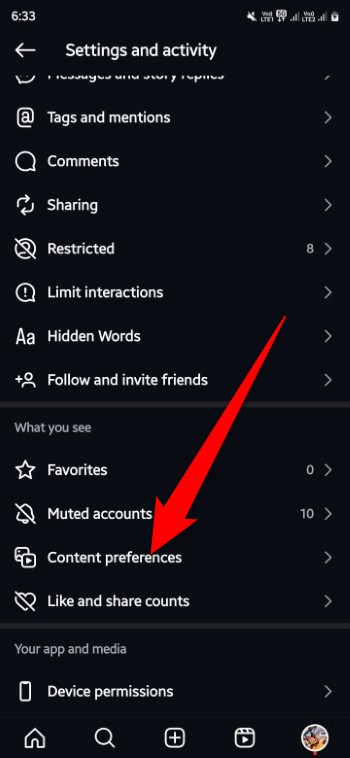
- Select the Reset Suggested Content option.
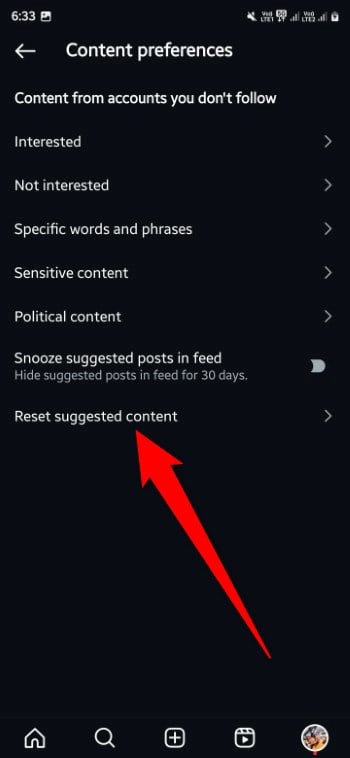
- Tap on Next.
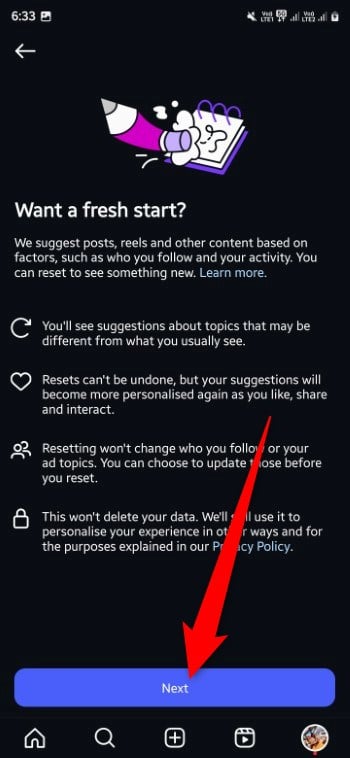
- On the next page, you will have the option to unfollow accounts that don’t match your vibe.
- Once done, tap on the Reset suggested content button at the bottom.
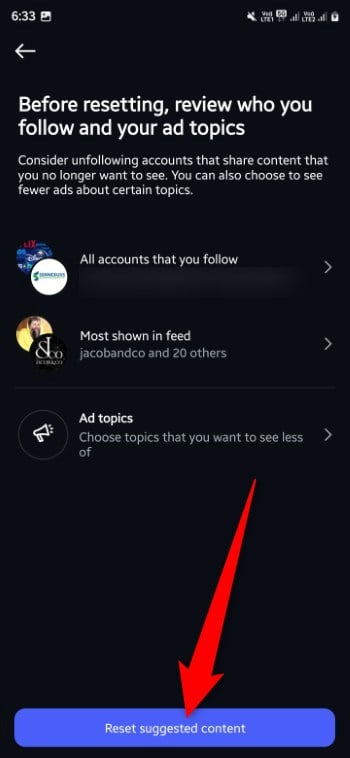
- Tap the Reset suggested content button in the pop-up that appears to confirm your action.
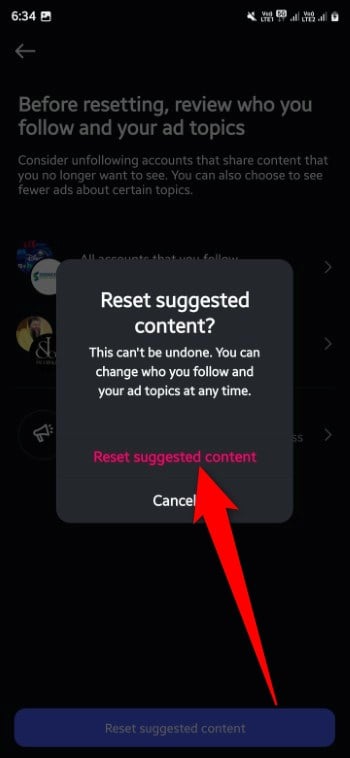
That’s it. After you reset the Instagram feed, Instagram will initially treat you as a brand-new user and show you a fairly random mix of content. This is what researchers call the “cold-start” phase — the algorithm doesn’t know what you like yet, so it throws a broad net. Adam Mosseri, Instagram’s head, described it this way when announcing the feature: “It’s going to make your Instagram much less interesting at first, because we’re going to treat you as if we know nothing about you and your interests.” So don’t panic if the first few days feel a bit all over the place. Keep engaging with content you enjoy and mark posts as “Not interested” if they aren’t what you’re looking for — the feed will correct itself quickly.
Instagram is also testing a “dislike” button that would let users actively push back on posts they don’t want to see. The feature is still under testing and may take a while to roll out to everyone, but when it does, it could make feed curation a lot more straightforward.
How to Reset the Instagram Reels Algorithm
Resetting the main feed is a great starting point, but if your Reels tab specifically has gone off the rails, there are a couple of extra steps worth taking.
The Reset Suggested Content option mentioned above does clear Reels recommendations as well. However, if you find that certain types of Reels keep creeping back into your feed, it means the algorithm is still picking up signals from your behavior — even passive ones like how long you linger on a video before scrolling.
Here’s what you can do to take back control of your Reels recommendations:
- Mark videos as “Not interested”: Long-press on any Reel you don’t want to see, then tap “Not interested.” Do this consistently for a few days — it trains the Instagram algorithm faster than anything else.
- Watch Reels you actually like all the way through: Completion rate is one of the strongest signals. If you watch a reel until the end and replay it, Instagram takes note and shows you more of that content.
- Avoid lingering on content you don’t want: This one sounds obvious, but even pausing briefly on a Reel to read a caption can signal interest to the algorithm. Scroll past quickly if it’s not for you.
- Clear your Instagram search history: Go to Settings > Security > Search History > Clear All. Your search activity also influences what shows up in Reels, so clearing it helps speed up the reset.
How to Reset the Instagram Explore Page
The Explore page and your Reels feed are separate recommendation surfaces, which means your Explore page can go sideways even if your main feed looks fine.
The Reset Suggested Content option does reset the Explore page as well, but if you want to accelerate how quickly it recalibrates to show you the right content, here are a few things to try:
- Clear your search history: This is the single most effective thing you can do for the Explore page. Go to your profile, tap the menu icon, scroll down to Your activity, tap Recent searches, and then Clear all. Your search history is one of the biggest influences on what Instagram shows on Explore.
- Use the “Not interested” option on Explore posts: Tap the three dots (···) on any post in Explore that you don’t want to see and select “Not interested.” Do this a few times in a row and it makes a noticeable difference within a couple of days.
- Be mindful of what you tap on Explore: Unlike your home feed, the Explore page is specifically designed to introduce you to new content. Clicking on something out of curiosity, even briefly, sends a stronger signal here than it would on your home feed. If you’re not sure about a post, leave it alone.
Signs Your Instagram Feed Needs a Reset
Not sure if a reset is even the right move for you? Here are some clear signs that your Instagram feed has gone off track and a reset might actually help:
- Your feed is stuck in a loop — you’re seeing the same type of content over and over, and it’s not something you intentionally sought out.
- One wrong interaction derailed everything — you liked a post, watched a reel, or even paused on something briefly, and now your entire feed has shifted in a direction you didn’t want.
- The “Not interested” button stopped working — this is more common than you’d think. Once the algorithm has associated you with a certain type of content, individual “Not interested” taps barely make a dent. A full reset is the more effective fix.
- Your Explore page feels like a different person’s account — if the content on Explore doesn’t reflect your interests at all, it’s a sign the recommendation algorithm has drifted far from where you want it.
- You’ve started avoiding the app — if scrolling through Instagram has started to feel more frustrating than enjoyable, that’s probably the most honest signal of all.
If you’re nodding along to any of these, a reset is worth it. Just keep in mind that the first few days after a reset will feel a bit random, that’s completely normal and it settles down pretty quickly.
Tips to Rebuild Your Instagram Feed After a Reset
Resetting the Instagram feed is only half the job. What you do in the days immediately after the reset determines how good your feed will actually get. Here’s how to rebuild it the right way:
- Be intentional with your first interactions: Right after a reset, every like, save, and comment carries extra weight because the algorithm is starting from zero. Make sure the content you engage with is content you genuinely want more of in your feed.
- Follow accounts in your areas of interest: If you’ve been meaning to clean up the accounts you follow, this is the perfect time to do it. Unfollow accounts that no longer match your vibe and follow a fresh set of creators whose content you actually enjoy.
- Use the “Favorite” feature: You can mark up to 50 accounts as favorites on Instagram. Posts from these accounts will always show up higher in your feed, which gives you a reliable anchor while the algorithm is still figuring out your preferences.
- Save posts you enjoy: Saves are one of the strongest positive signals you can send to the Instagram algorithm. If you come across a piece of content you genuinely like, save it. It tells Instagram you found it valuable, not just that you gave it a fleeting tap.
- Don’t interact with content you don’t want more of — even if it’s mildly entertaining. The algorithm doesn’t distinguish between “I liked this” and “I liked this enough to want 40 more just like it.” Be selective.
Final thoughts
When you reset the Instagram feed, it doesn’t affect or clear your personal communication, chats, or any of your account data. However, it is always good to keep a backup of your chats just in case. For that, you can refer to our guide that explains how you can back up Instagram chats. We also have a guide that covers who viewed your profile on Instagram.
Instagram also allows you to send or receive disappearing media on the platform. But we have different ways that will let you understand how to view and save disappearing media. You can also share live locations on Instagram DMs, just like WhatsApp, and set nicknames for friends.
One last thing. A reset works best when you pair it with a bit of discipline in the days after. The algorithm is always learning, and what it learns comes entirely from how you use the app. Give it the right signals, and your Instagram feed will be back to showing you content that actually matters to you in no time.
FAQs about Resetting Instagram Feed
Does resetting Instagram feed delete my followers or following list?
No, it doesn't. When you reset the Instagram feed, only the recommendation algorithm is cleared. Your followers, accounts you follow, likes, comments, saved posts, and messages all stay exactly as they are. Nothing in your account data is affected.
Does the “Not interested” button actually work?
It does, but it has limits. For individual posts, tapping "Not interested" helps nudge the algorithm in the right direction. However, if your feed has gotten heavily skewed in a certain direction, individual taps may not be enough. That's usually when a full reset makes more sense. It wipes the slate clean in a way that dozens of "Not interested" taps simply can't.
Can I reset my Instagram feed more than once?
Yes, you can. There is no restriction on how many times you can use the Reset Suggested Content option. If you feel your feed has gone off track again after a reset, you can simply go back to Content Preferences and reset it again.
Does resetting Instagram affect the Explore page and Reels too?
Yes. The Reset Suggested Content option clears recommended content across your home feed, Explore page, and Reels tab all at once. It's a platform-wide reset of the recommendation algorithm, not just your home feed.
Why does my Instagram feed look worse right after a reset?
This is the "cold-start" problem. When Instagram doesn't know anything about you, it falls back on what gets the most engagement broadly, and that isn't always the best quality content. This is completely normal and temporary. The more intentionally you interact with content you actually like in the days after a reset, the faster your feed will improve.

