

Quick Answer
My iPhone 14 Plus kept running out of storage, so instead of just deleting apps, I freed space by clearing hidden system data using the date trick, restoring a clean iCloud backup, removing Apple Intelligence, offloading app cache, and deleting unused voices, keyboards, and downloads. It saved me up to 8GB without losing any data.
I own an iPhone 14 Plus. It comes with 128GB of internal storage that fills up very quickly. Every time I see a low storage error on my iPhone, I navigate to Settings> Storage, analyze which apps and files are taking up a lot of space, and delete them. I have been following the exact routine for the past 2 years, and it works pretty well.
While this method temporarily frees up storage on my iPhone, under the hood, it’s just a reaction to the low storage error that deletes unwanted files and doesn’t really address the root cause of storage issues, especially when I don’t want to delete any app or file.
So, instead of following generic methods, I dug deeper and found an advanced, less talked-about method to reclaim space on my iPhone. Fortunately, these methods actually work and saved me a significant amount of space on my iPhone, even preventing future space hogging.
If you have been facing iPhone storage issues and are looking to free up space, you can try these advanced methods to clean unwanted files and offload cache. These methods include unwanted system cache, shrinking system data, removing Apple Intelligence if you don’t find it useful, and much more.
Table of Contents
Start with these methods first if your iPhone storage is full
It’s not like the regular methods don’t work; deleting unwanted files and clearing cache is the easiest way to free up space on your iPhone.
These methods are efficient for most people. However, even after trying these methods, if you are unable to save space and are experiencing storage issues on your iPhone. These advanced methods can come in handy, but before going to them, try these basic methods first.
- Review and delete large files: Open Settings on your iPhone, go to General, then tap iPhone Storage. Here you can get a complete overview of what takes up space on your iPhone. You can review each file and delete any unwanted ones.
- Offload app cache: Apps on your iPhone store temporary data to offer a faster experience; however, over time, this data can fill with unwanted files and sometimes even reach gigabytes of storage if you don’t clear them regularly. Clearing or offloading data can free up significant storage space. Keep note that offloading cache from any app doesn’t delete your data. However, sometimes it can log you out of the app, so look for an app that takes up a lot of space and offload it to free up space. To do this, go to Settings > General > iPhone Storage > Tap on any app > Tap on Offload.
- iCloud: Photos and videos usually take up a lot of storage; If your iCloud storage is free, you can move them to iCloud to save some space. To do this, go to Settings > Apps > Photos, then tap Select> Optimize iPhone Storage. Once you enable this option, the original versions of your photos and videos are stored on iCloud, while the optimised, more compressed versions are stored locally on your iPhone. You can still access the original files on the Photos app.
- Clear Safari cache: Safari stores your website data locally on your device, including cache, cookies, browser history, and even website databases. Often, clearing Safari data can help you save some storage on your iPhone. You can go to Settings>Apps> Safari> Clear History and Website Data.
- Remove downloads from streaming apps: Most streaming apps today offer smart downloads that automatically download content in the background. To save space, turn off smart downloads to prevent these apps from downloading files automatically. You can do this by going to the download settings on these apps and turning off Smart Downloads and removing offline downloads.
Those are simple, effective ways to save storage on your iPhone. However, if you don’t want to delete files and want to prevent storage clutter, follow the advanced methods to free up storage on your iPhone and prevent future storage from piling up.
Advanced Methods to Free Up iPhone Storage
Clear System Data
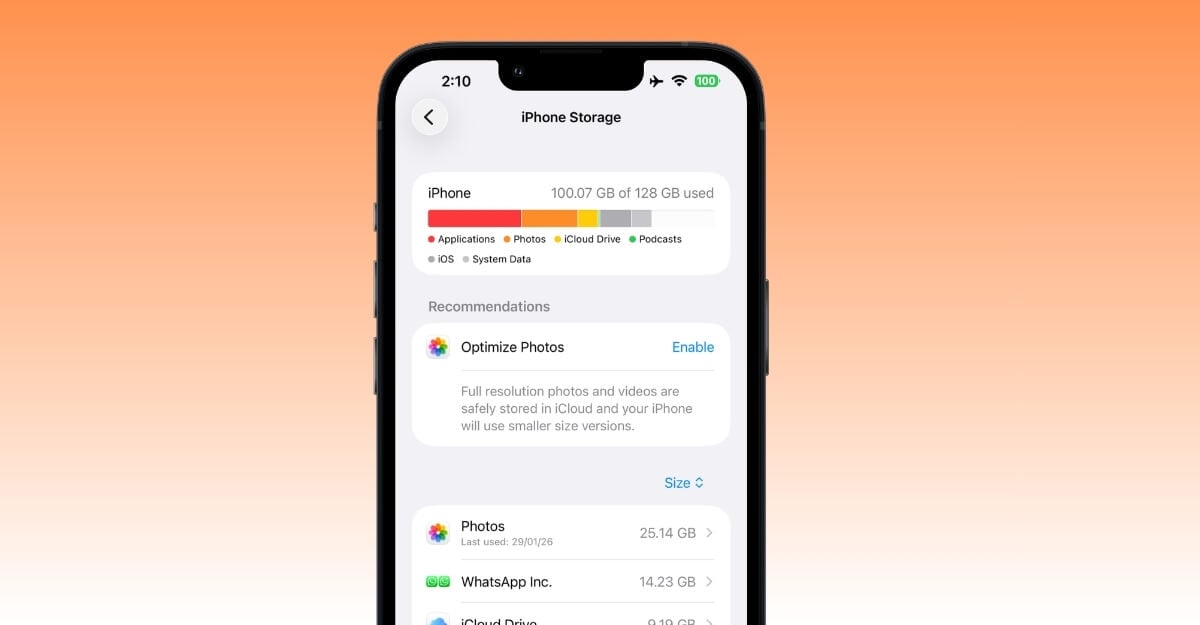
iOS temporarily stores system data, including cache, logs, and other temporary indexing data. Currently, Apple doesn’t allow users to clear system data; however, it automatically expires after a period of time. Fortunately, there is a workaround to delete system data. And it even works in the latest iOS 26.
The best part is that it is easy to follow and saves a significant amount of storage. All you need to do is turn off the automatic date and time on your iPhone and temporarily set the date to 3 months from now.
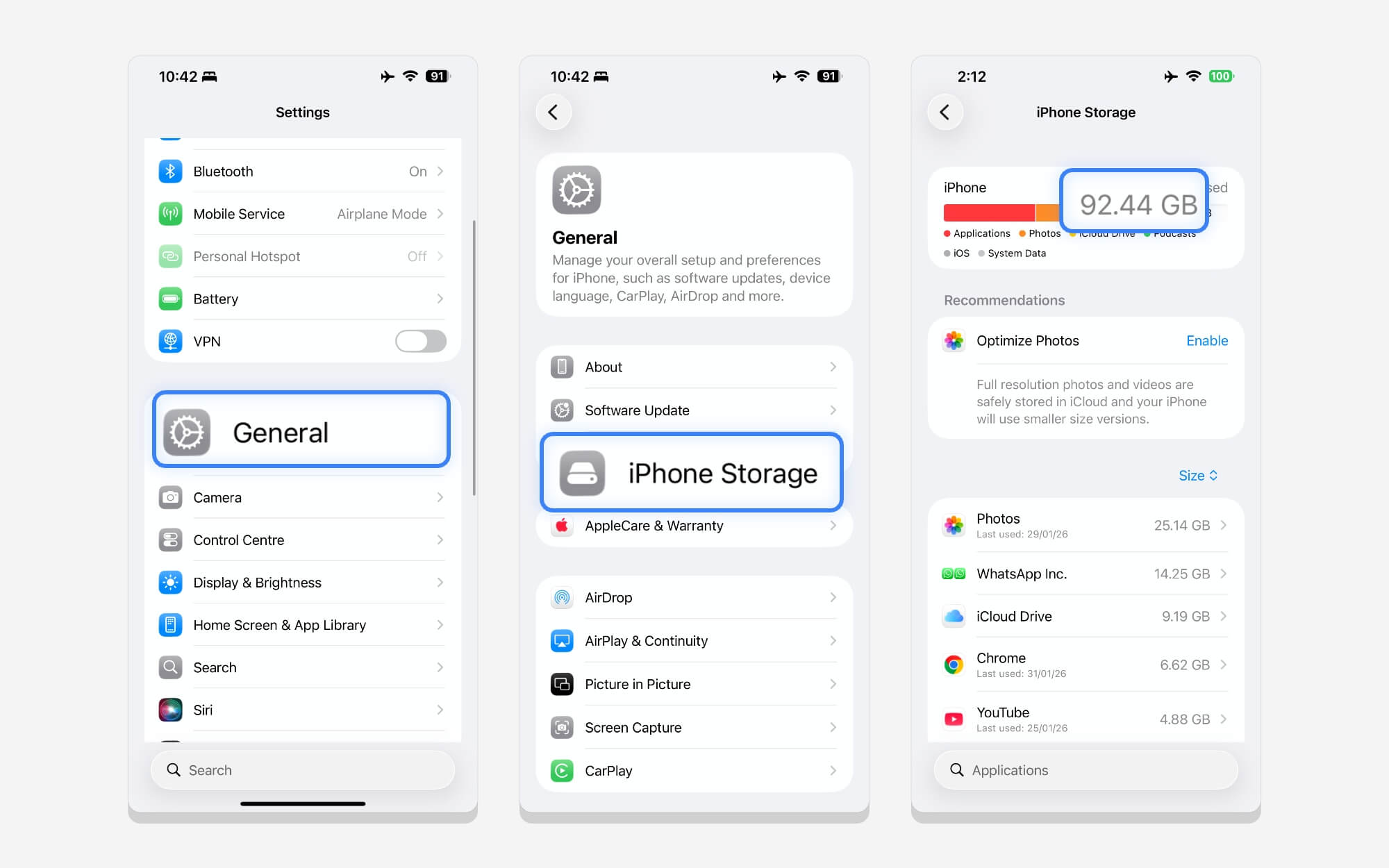
Once set, the system uses the future date as the reference, removes any temporary files, and, best of all, the process works surprisingly well. For me, it saved around 7-8GB of internal storage.
Here is how you can clear system data using this trick on your iPhone:
Step 1: Go to Settings on your iPhone, scroll down, and tap on General.
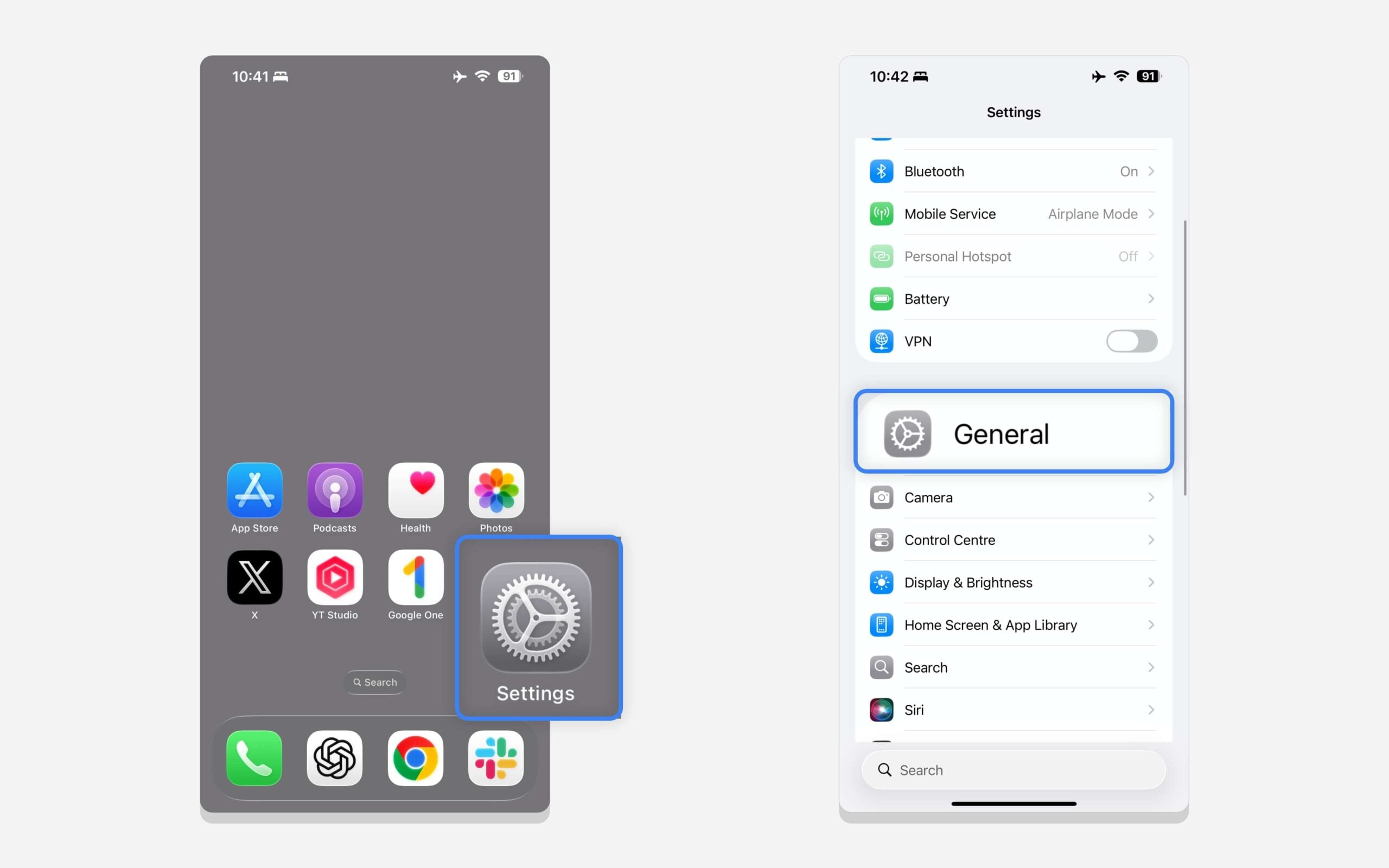
Step 2: Tap iPhone Storage to see your current storage usage.
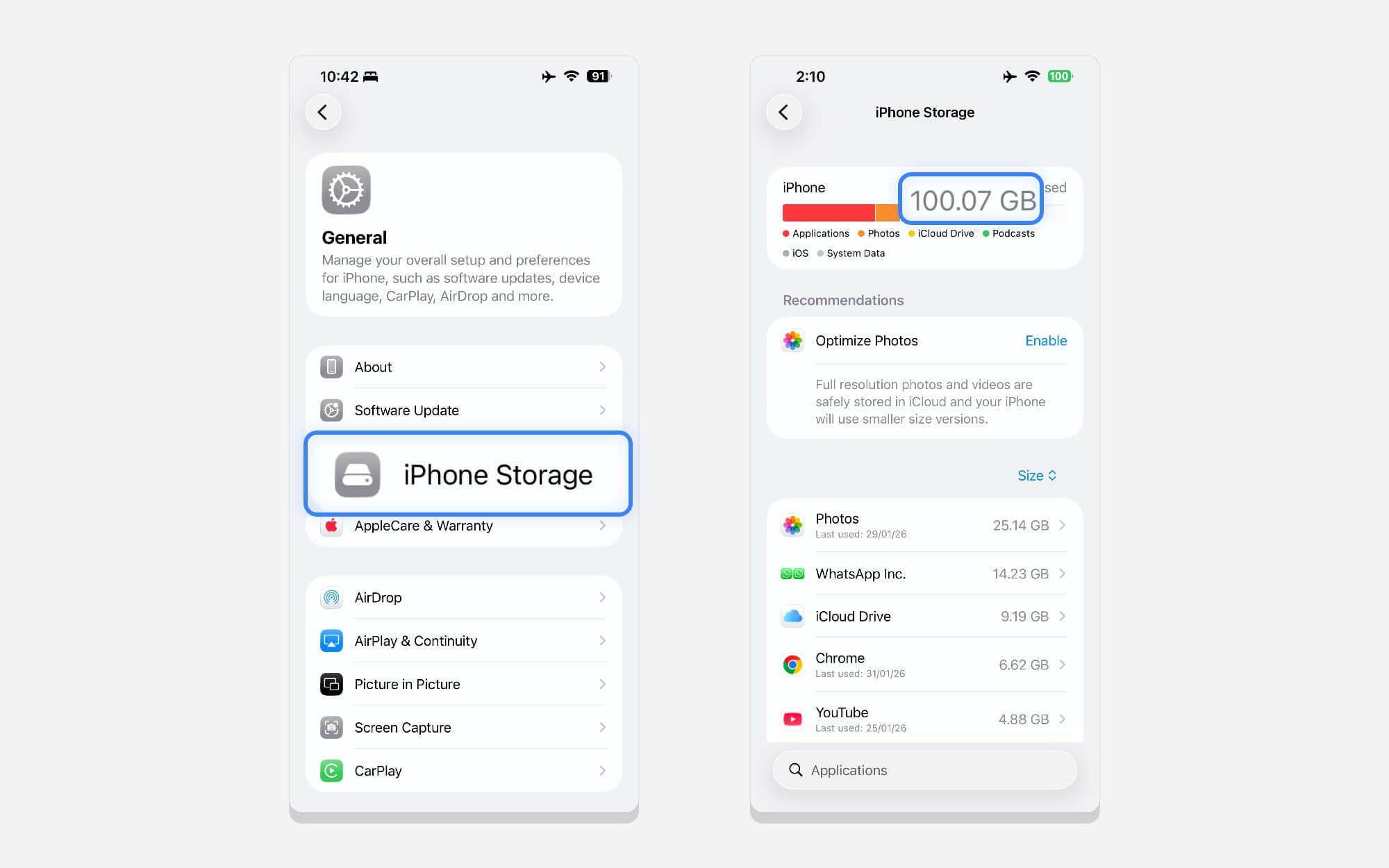
Step 3: Now, go back to General settings. Scroll down to Date and Time settings, then turn off automatic date and time and set the date three months from now. You don’t need to be accurate. You can set data after three months. Example: 3/01/2026 to 7/01/2026.
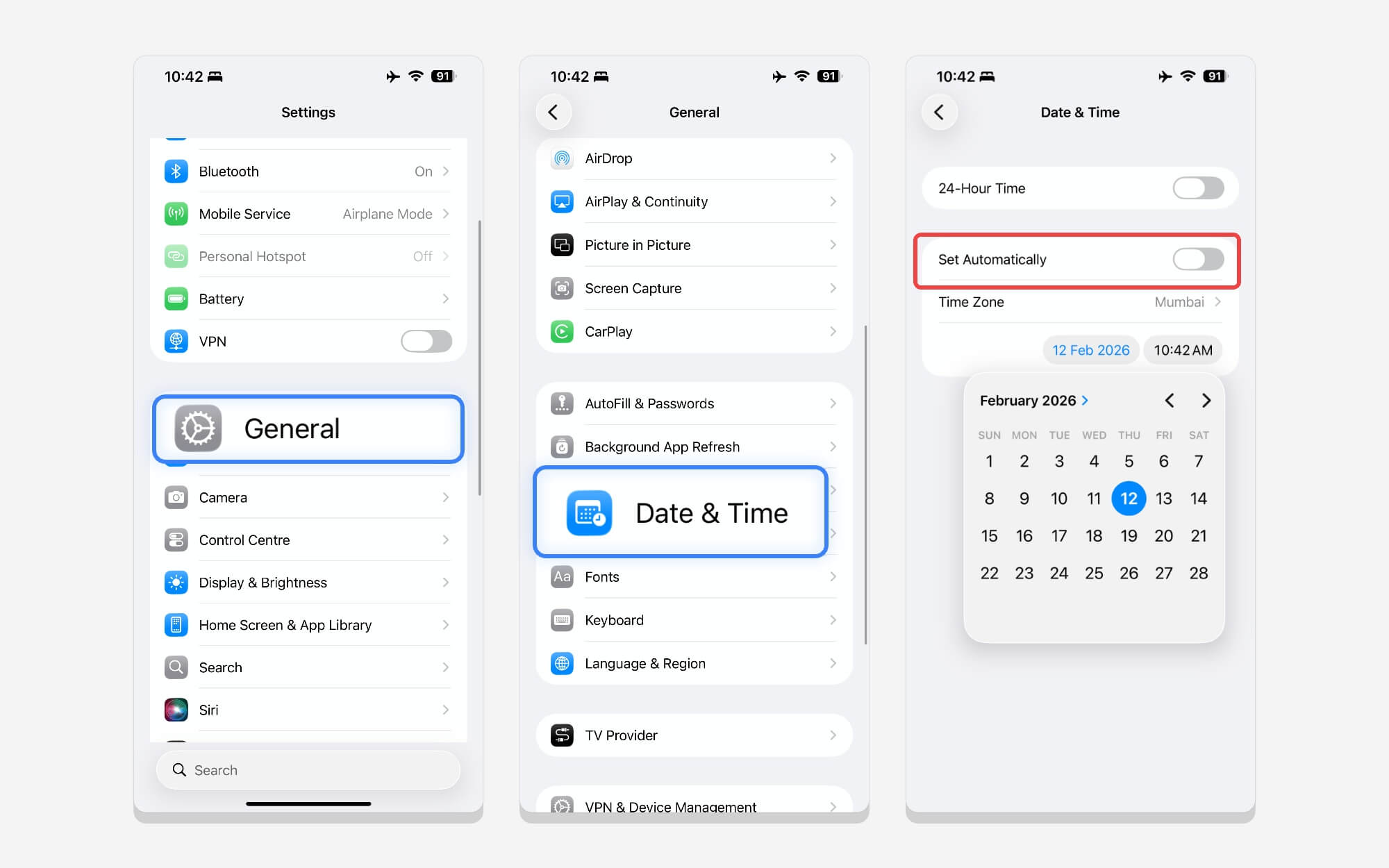
Step 4: Go back to the home screen, turn off your iPhone, and wait a few minutes.
Step 5: Go back to Settings, tap General, then iPhone Storage, and check whether storage has been reduced.
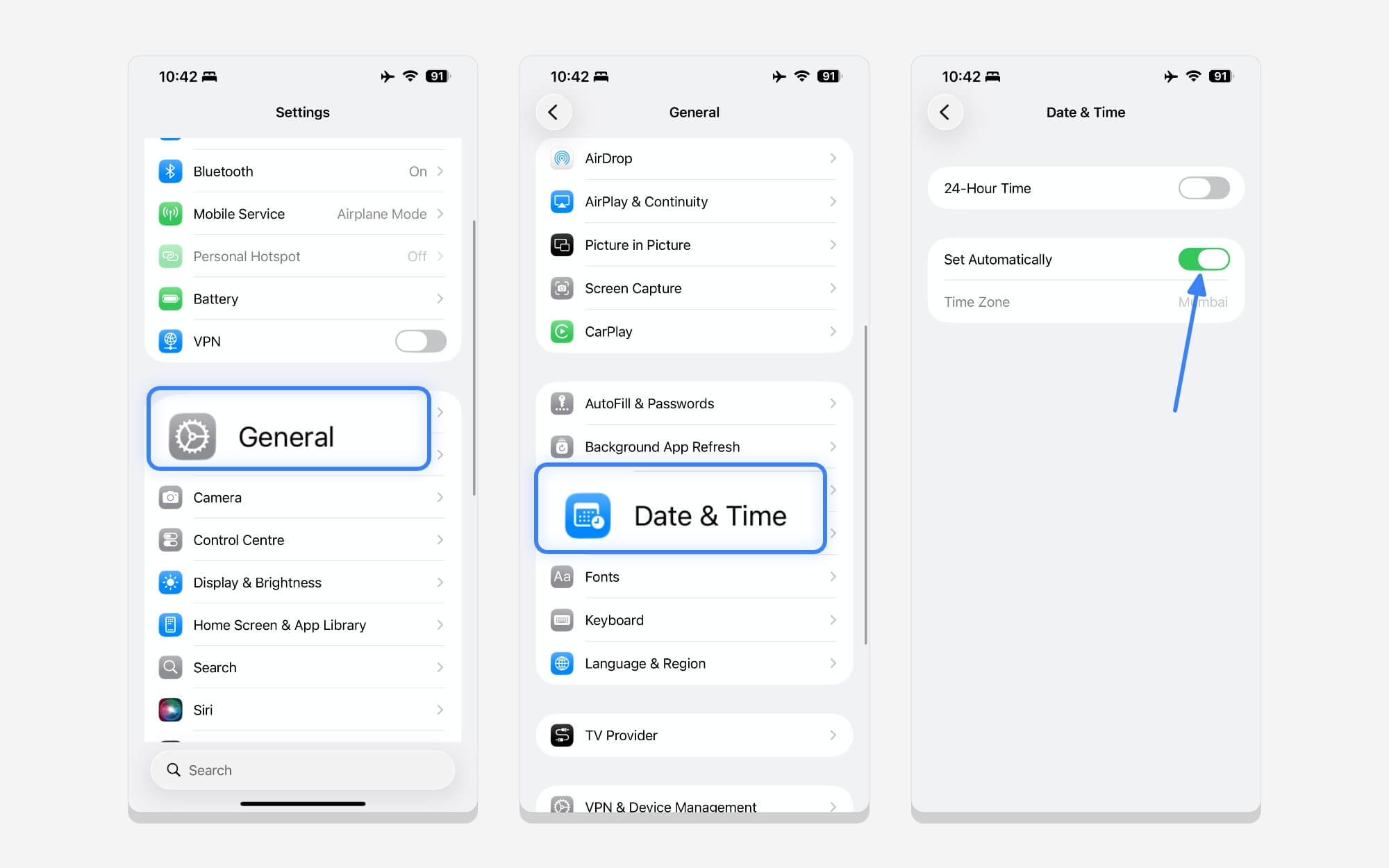
Step 6: Now, go back to general settings, scroll down, and enable Automatic Date and Time.
Restore Backup From iCloud
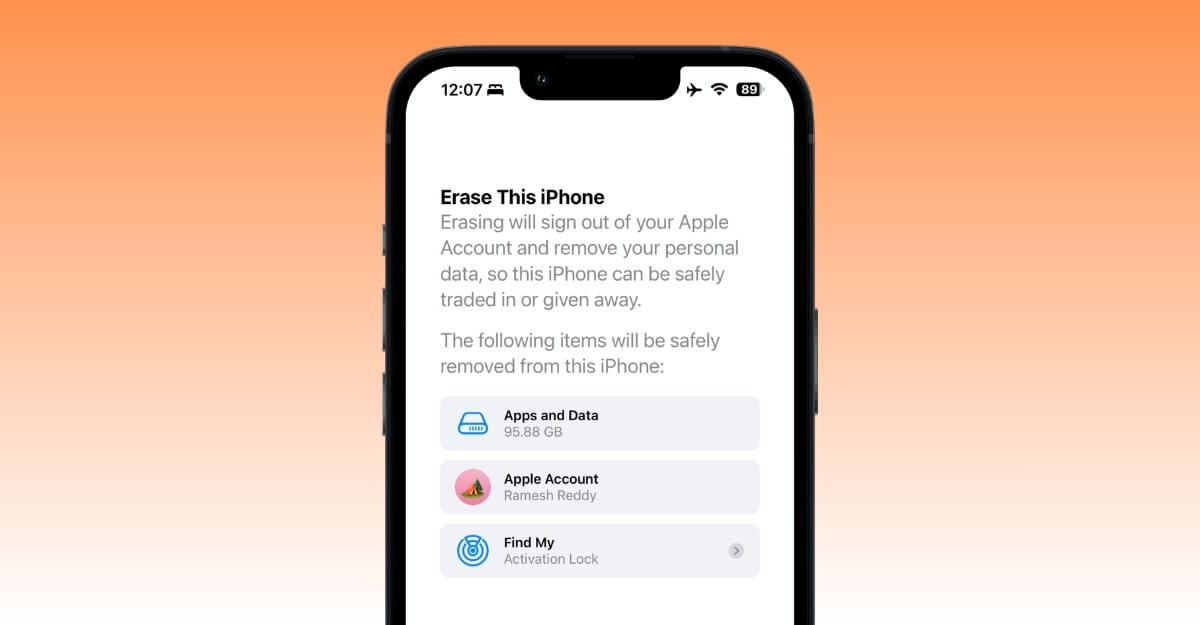
The above method works pretty well; it saved me 8GB of data. However, if system data still consumes a significant amount of storage, you can back up your iPhone to iCloud, reset your iPhone, and restore the backup from iCloud.
When you use iCloud as a backup solution, it only backs up necessary data. When you back up your iPhone to iCloud, only the necessary data is retrieved, and unwanted system data is removed.
How to back up your data to iCloud and reset your iPhone:
To back up your data to iCloud, ensure your iCloud has enough free space. Apple offers 5GB of free iCloud storage. However, if your backup data exceeds this limit, consider alternative methods to free up space or exclude photos and other data to optimize your iCloud backup to fit within the 5GB free tier.
You can manually download iCloud’s photos and videos using this method, store them, and back them up. Once your device is reset and restored from the iCloud backup. So this way, you can use free iCloud to back up your iPhone and keep your old files safe.
How to back up and reset your iPhone using iCloud:
Note: Make sure that you back up all your important data. Resetting your iPhone deletes everything on your device.
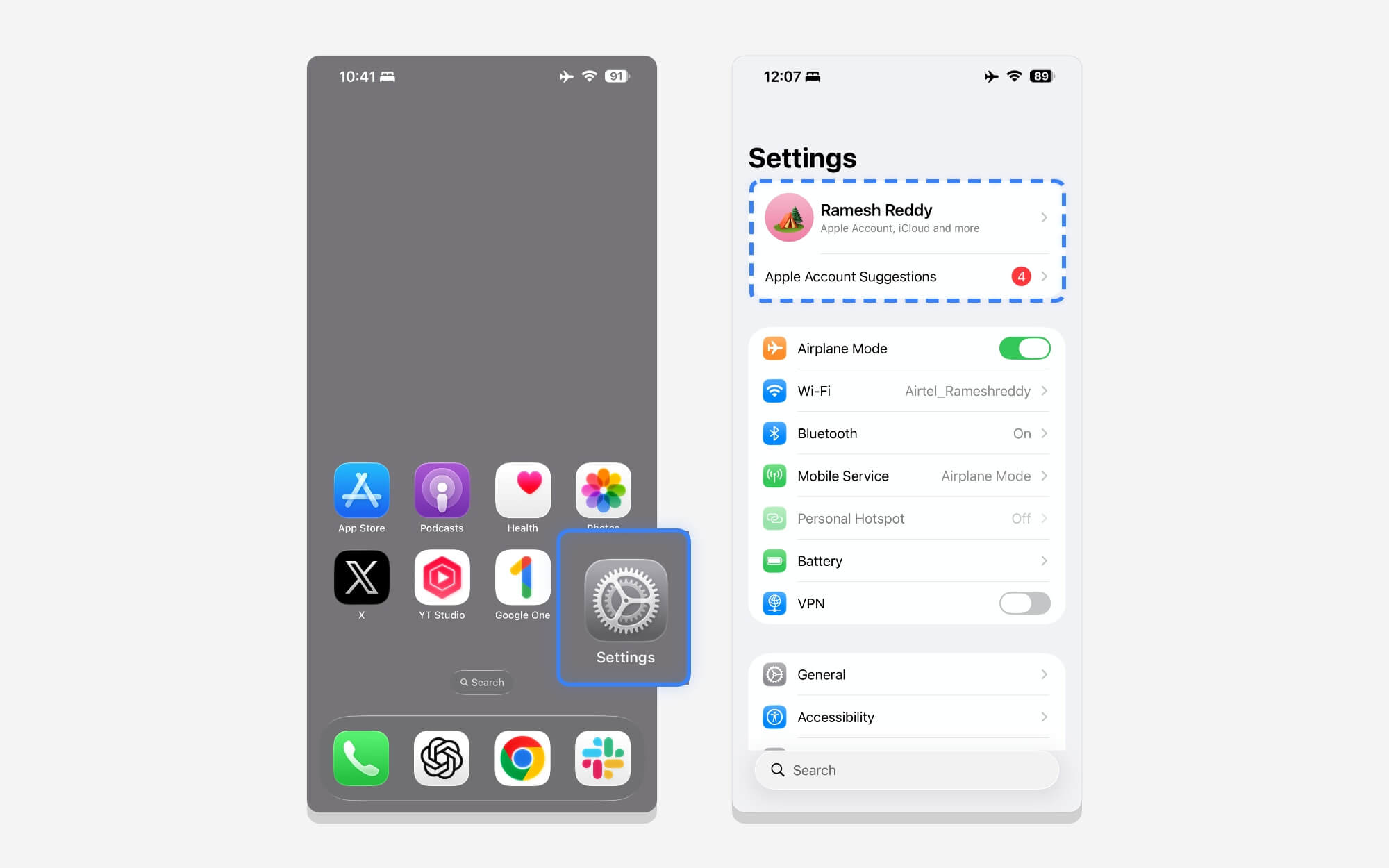
Step 1: To back up your iPhone to iCloud first, go to Settings, then tap your profile picture.
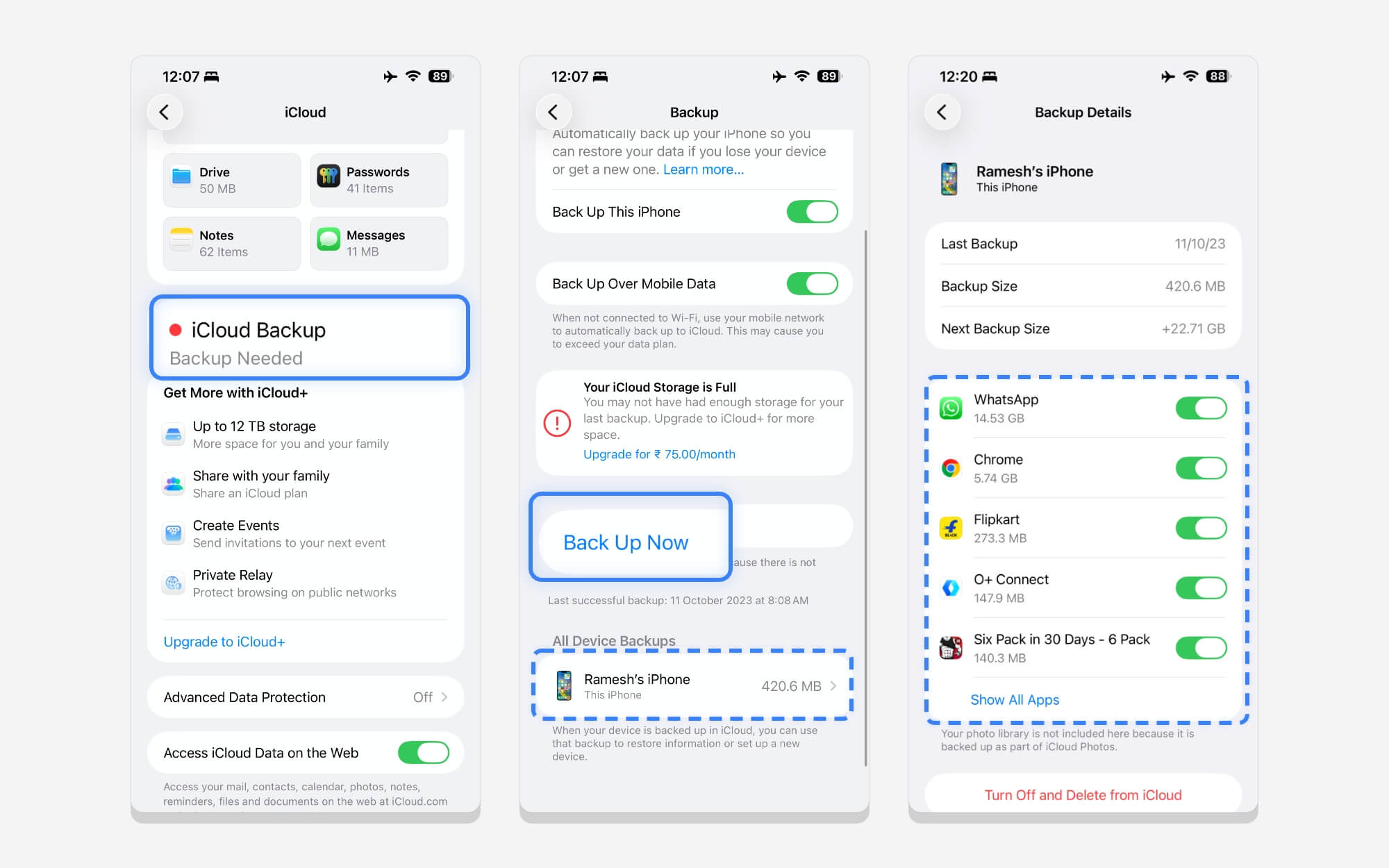
Step 2: Scroll down and tap iCloud, then tap iCloud Backup, then tap Back Up Now. If your iPhone is not backing up, you can fix it by following this guide.
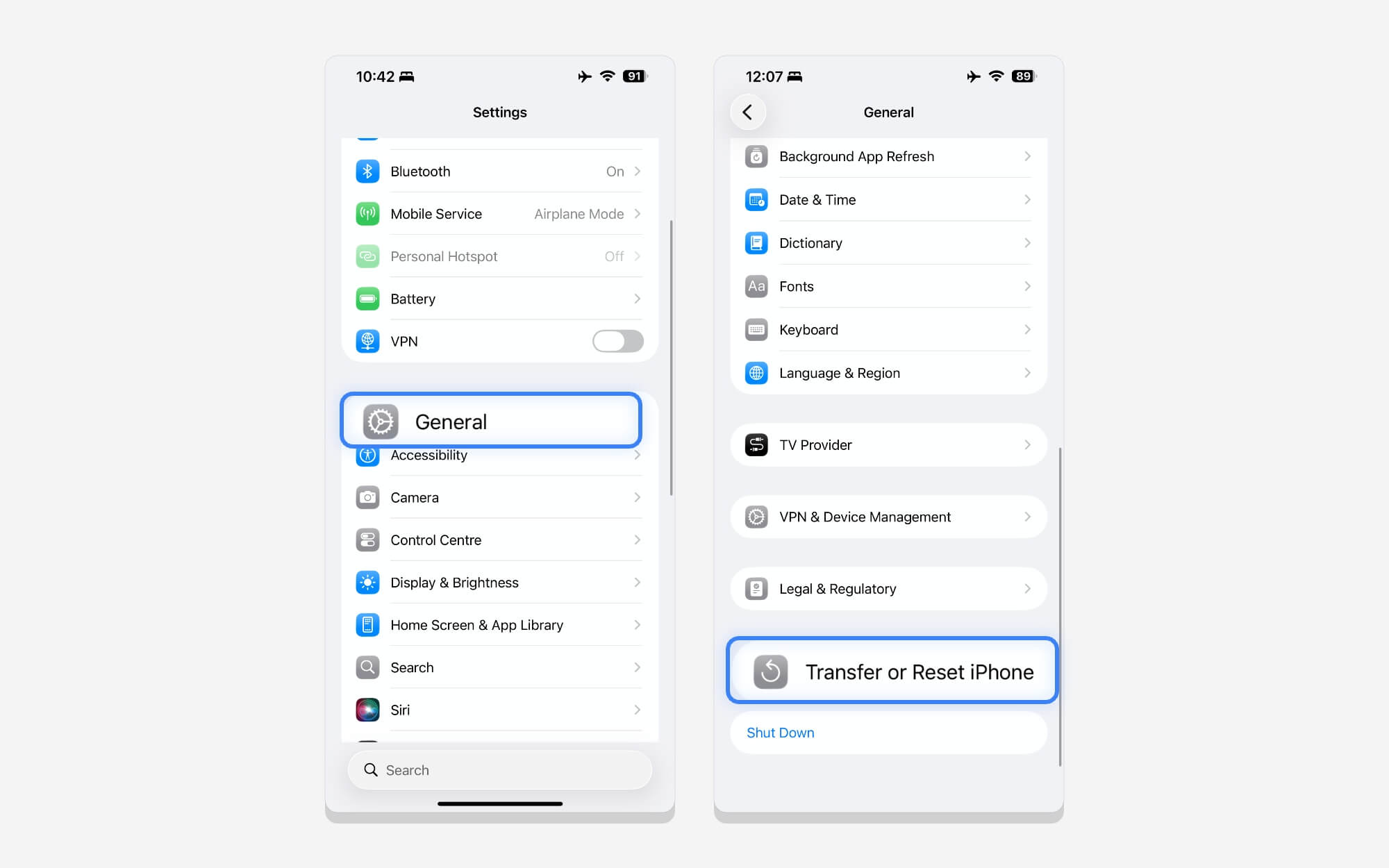
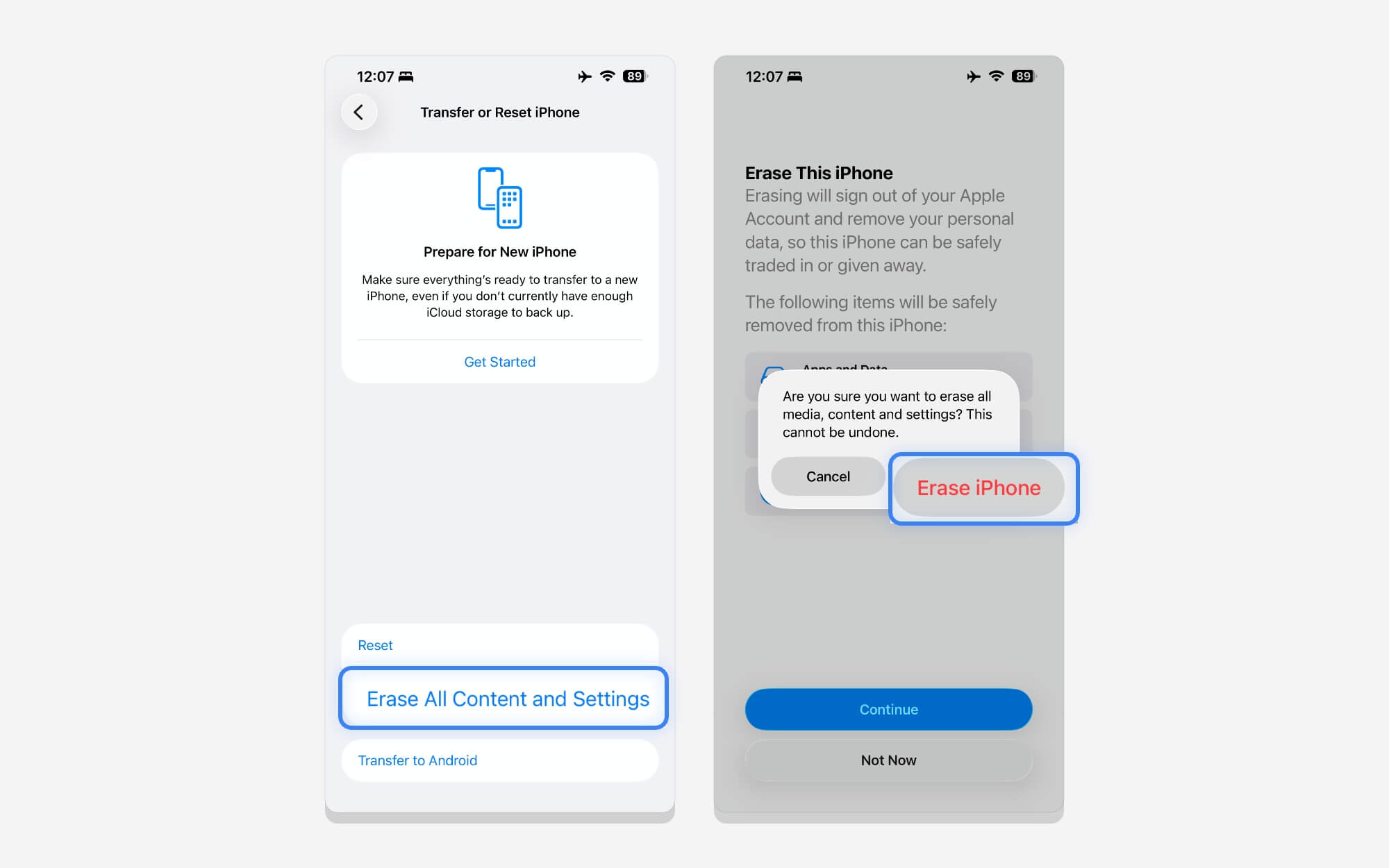
Step 3: If your device’s free storage exceeds 5GB while backing up, you can delete some data. Once the backup is finished. Go back to settings. Tap on the General. Scroll down and tap on the Transfer or Reset iPhone option.
Step 4: From here, tap Erase all Contents and Settings, then tap Continue, then tap Erase iPhone to complete the reset. =
Step 5: While setting up your iPhone, choose Restore from iCloud Backup, then select iCloud backup. You can simply sign in with your same iCloud account.
Step 6: Once the backup is completed, you can restore your important files to your iPhone. And you can go to Settings > General > iPhone Storage to check the latest available storage after a backup.
Remove Apple Intelligence
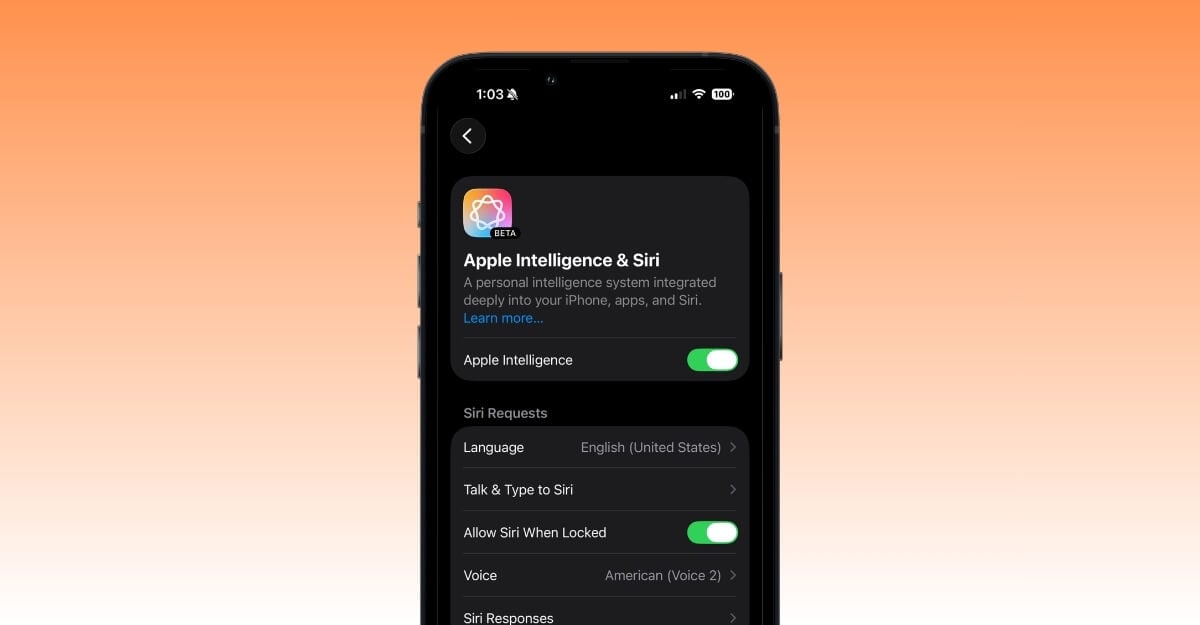
Apple made a big promise with Apple Intelligence; however, it has not lived up to the mark as Apple marketed. Rumours of the upcoming Siri are expected to arrive in the next month; still, for most people.
If you never use Apple Intelligence on your iPhone, you can completely remove it to free up about 5-6 GB.
How to disable Apple Intelligence on your iPhone to save some storage
Please note that Apple Intelligence is available on iPhone 15 Pro or later series. If you are using an iPhone 15 Pro or earlier series, skip to the next step.
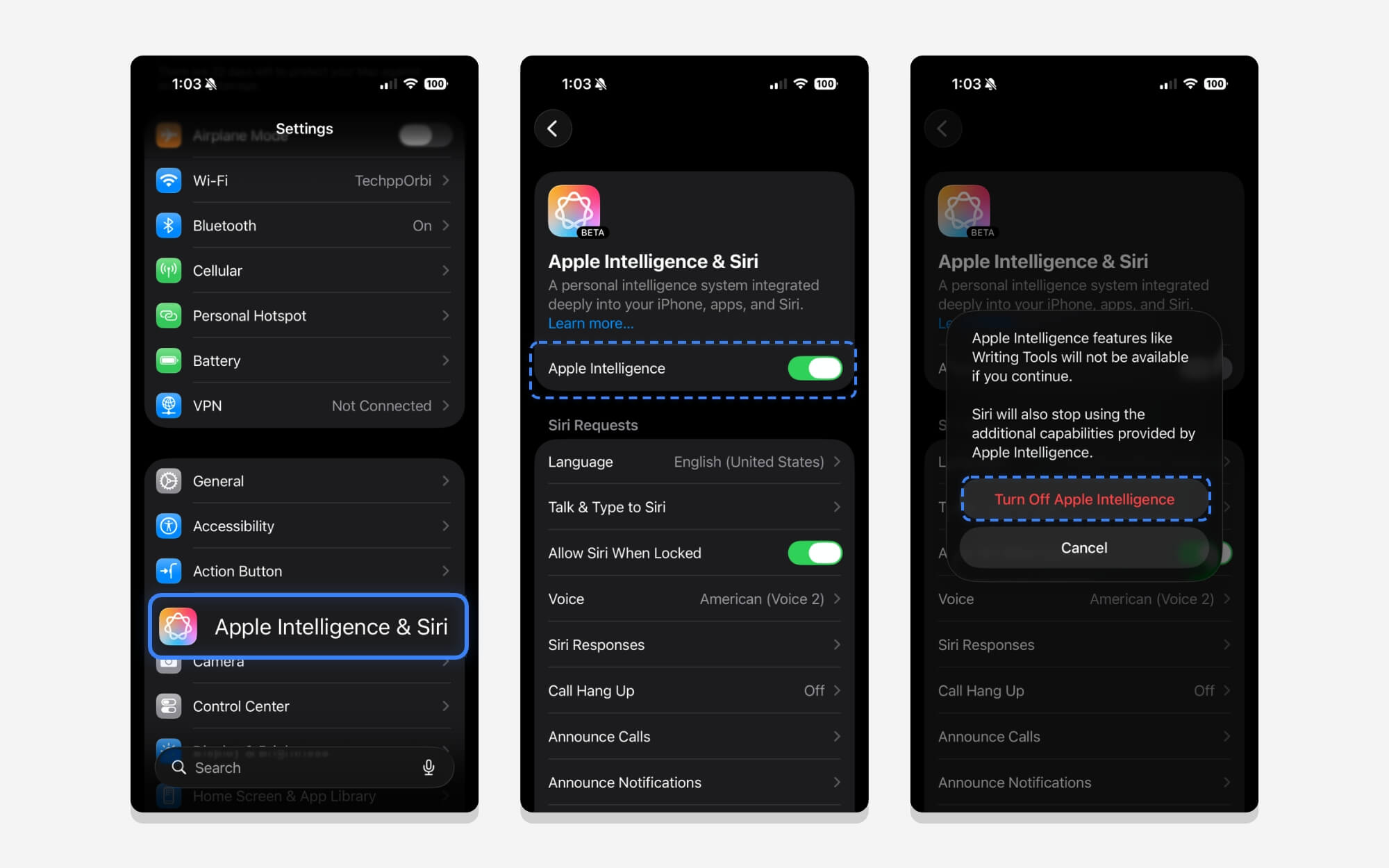
- Step 1: Go to Settings on your iPhone and tap on Apple Intelligence and Siri
- Step 2: Scroll down and tap on Apple Intelligence. That’s it. After some time, Apple removes the local models from your device, saving some extra space.
Remove Unwanted Packages on Your iPhone
To provide various services, such as the call-to-text feature, Siri, and the keyboard dictionary, Apple downloads several packages locally.
However, most of these packages can be uninstalled and removed if you are not using them. There are several packages, ranging from VoiceOver to keyboard dictionaries, as well as diagnostic and usage uploads, that you might not be using. Here is how to delete them to save space on your iPhone.
Remove and use VoiceOver on your iPhone
VoiceOver is a text-to-speech package that Apple stores locally on your device and is especially useful as an accessibility feature.
Apple offers plenty of voice-overs available. You can delete unwanted voices and free up space on your iPhone.
Step 1: Go to Settings on your iPhone. Scroll down and tap Accessibility, then tap VoiceOver
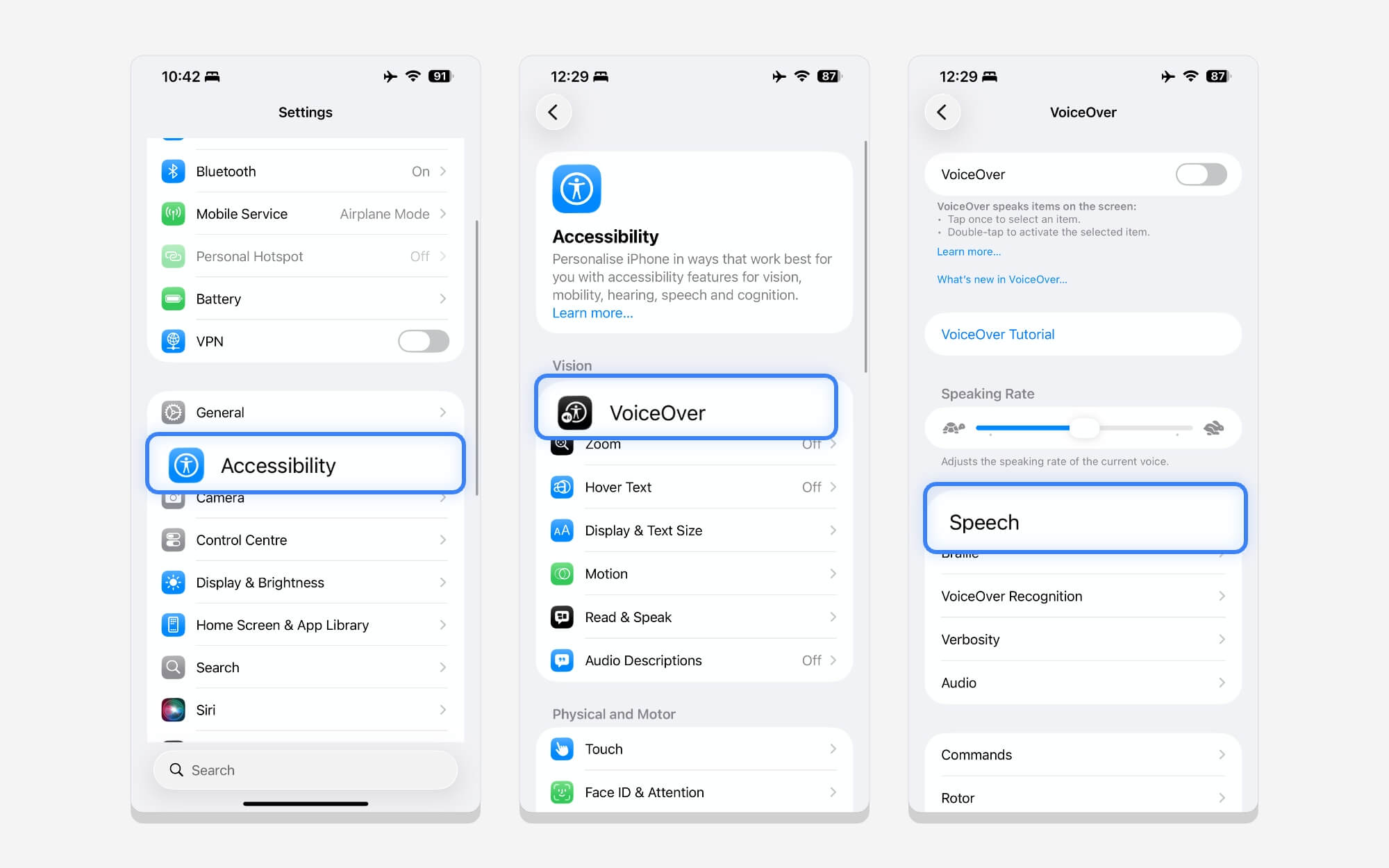
Step 2: Then tap Speech, then tap Primary Voice, then tap the voice again. Here you can see a list of available voices for download and save locally on your device.
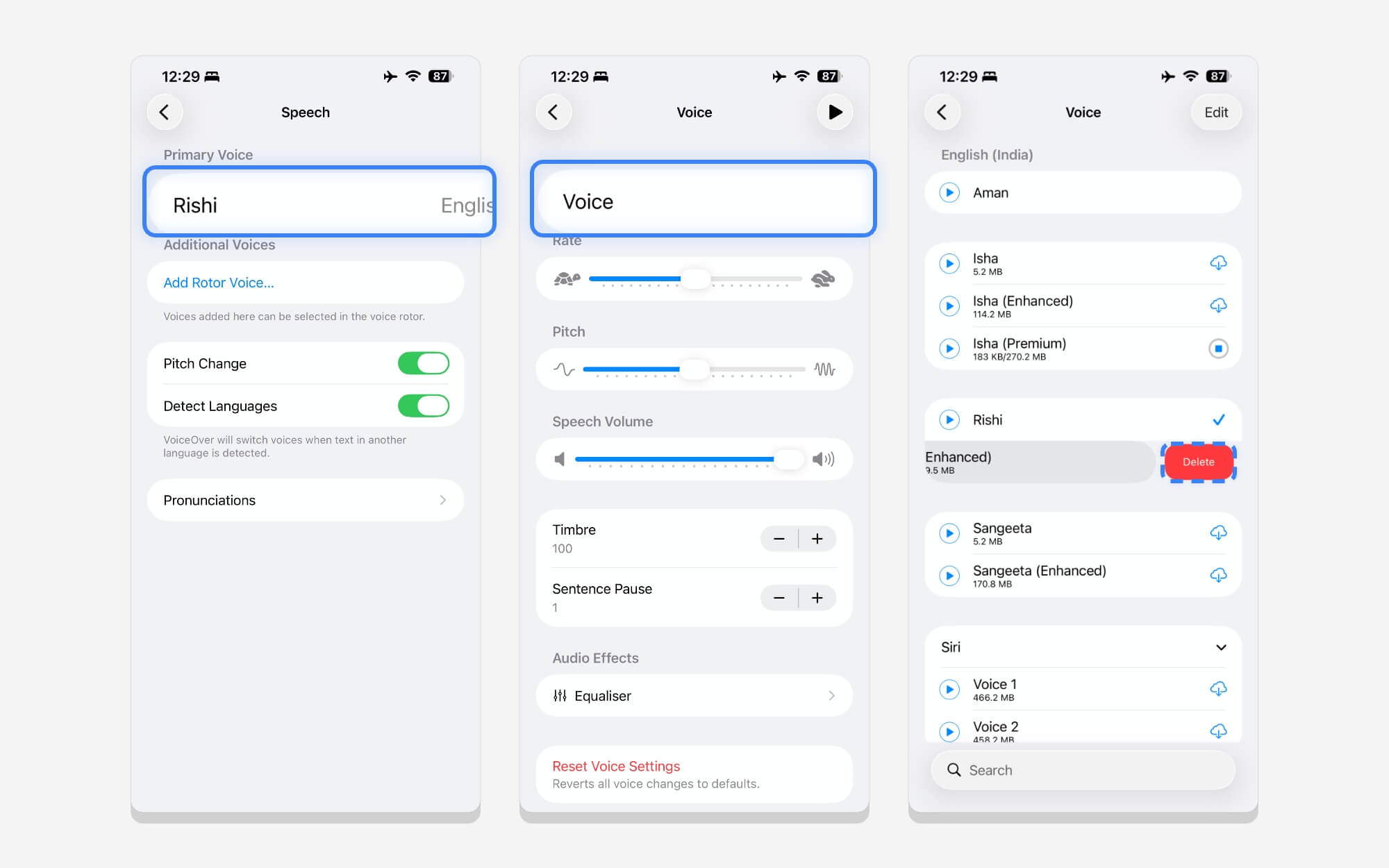
Step 3:To delete, tap the voice. To delete, swipe left and tap Delete. That’s it. It removes all unwanted voices and selects your voice.
Delete Unused Dictionaries and Save Space
Dictionaries are local packages that help your keyboard predict text and voice as you type. However, if you accidentally enabled and downloaded a dictionary you no longer need, you can delete it.
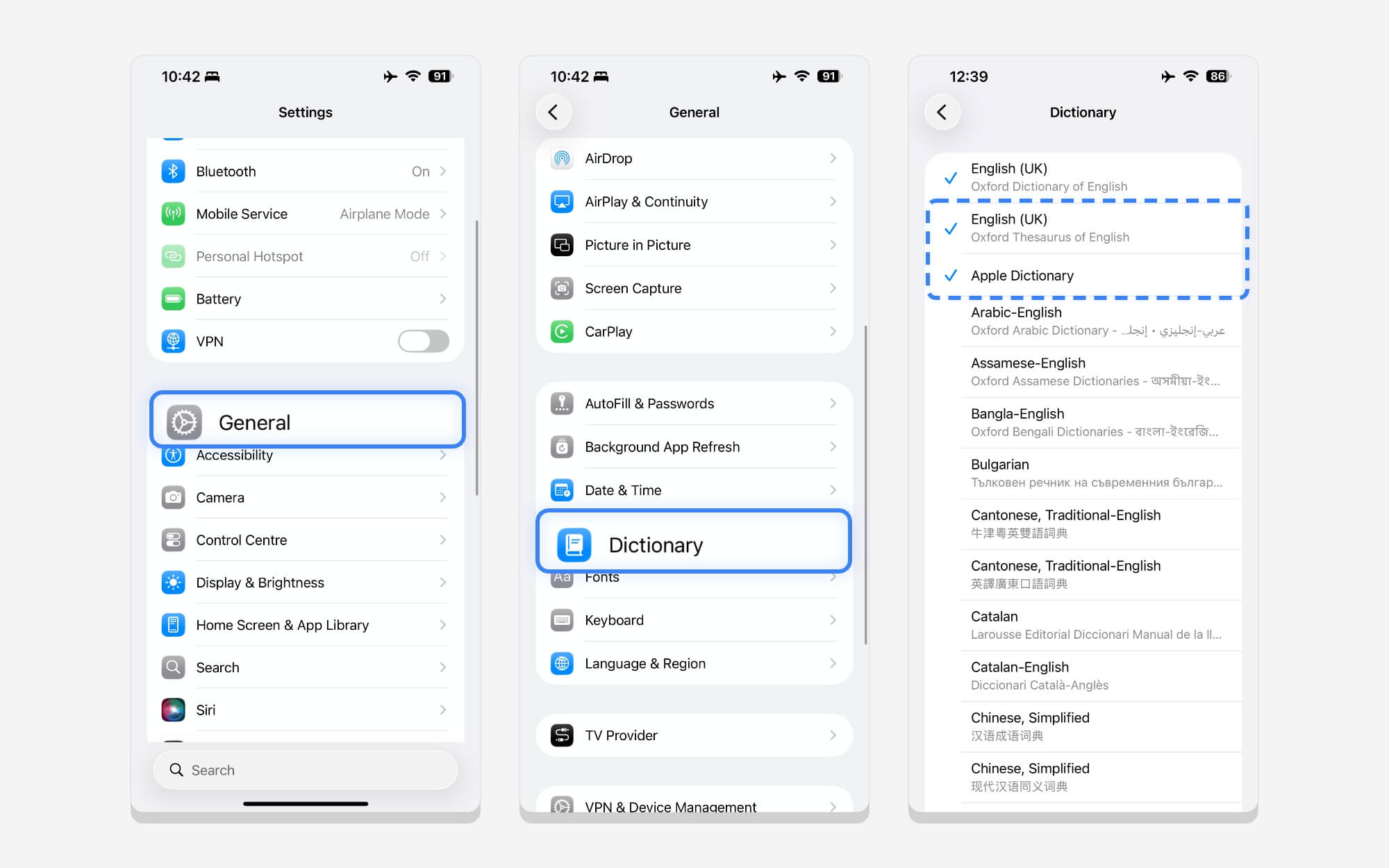
Step 1: Go to Settings, go to General, scroll down, and tap on the Dictionary. From here, you can unselect the dictionary that you no longer need.
Delete Multiple Keyboards
The built-in keyboard supports multiple languages; You can easily switch between them. However, if you don’t use it often or no longer need it, you can delete unused keyboards to save space.
Step 1: To do this, go to Settings on your iPhone.
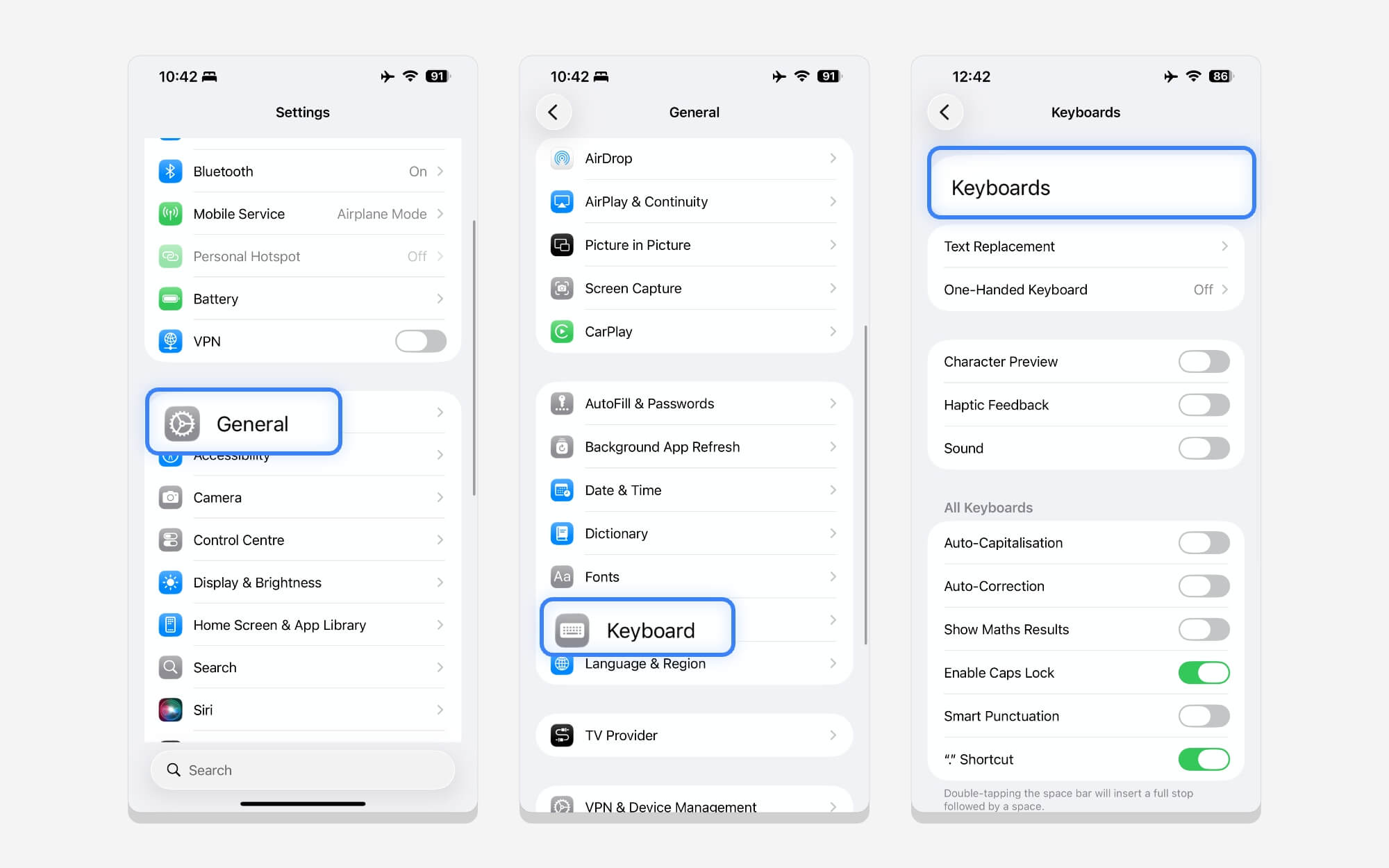
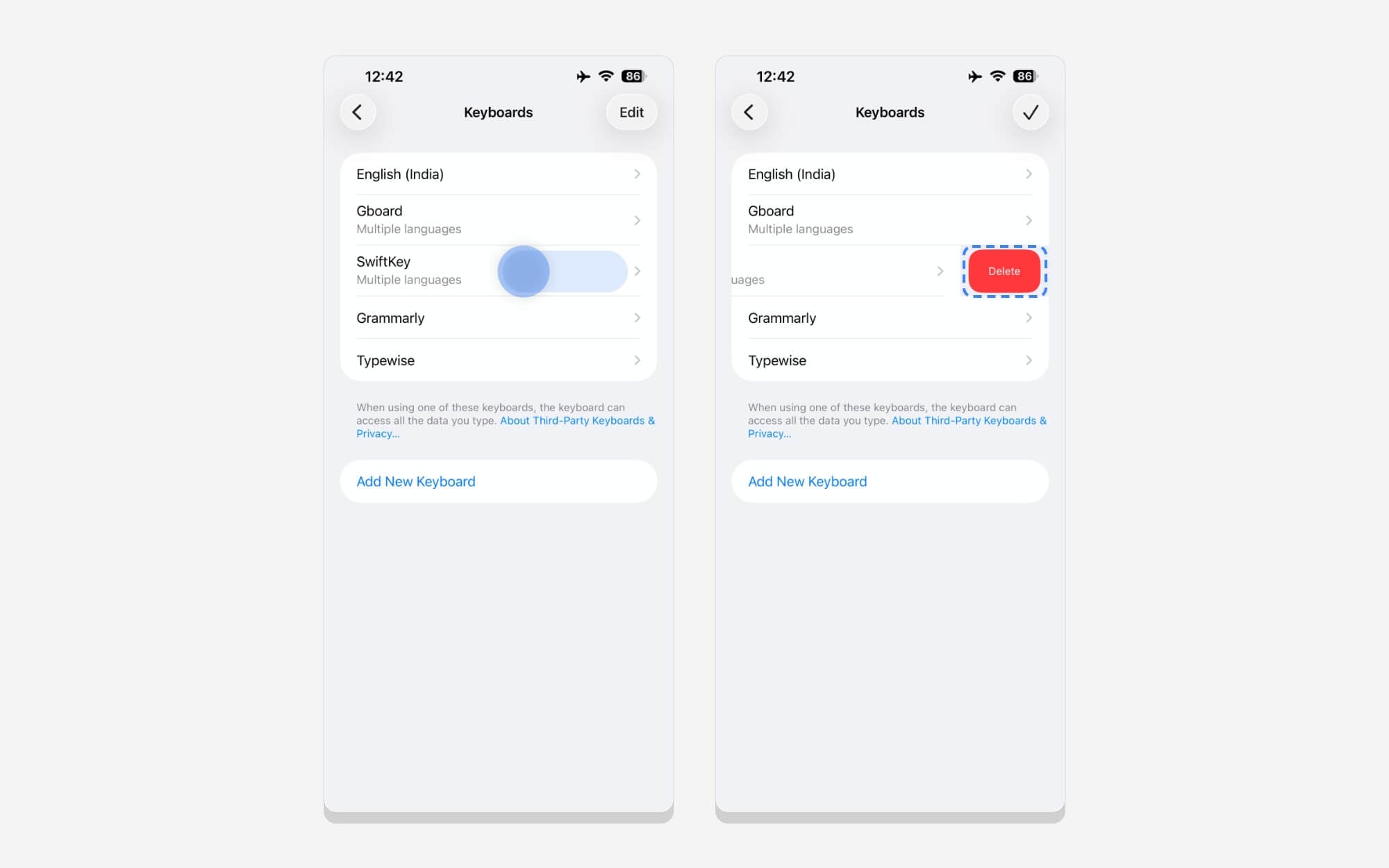
Step 2: Tap on General and scroll down, tap on the keyboard again, tap on the keyboard option, and tap on your existing keyboard. If you have multiple languages, you can swipe right and tap Delete to remove unwanted keyboards.
Remove Siri Transcripts History
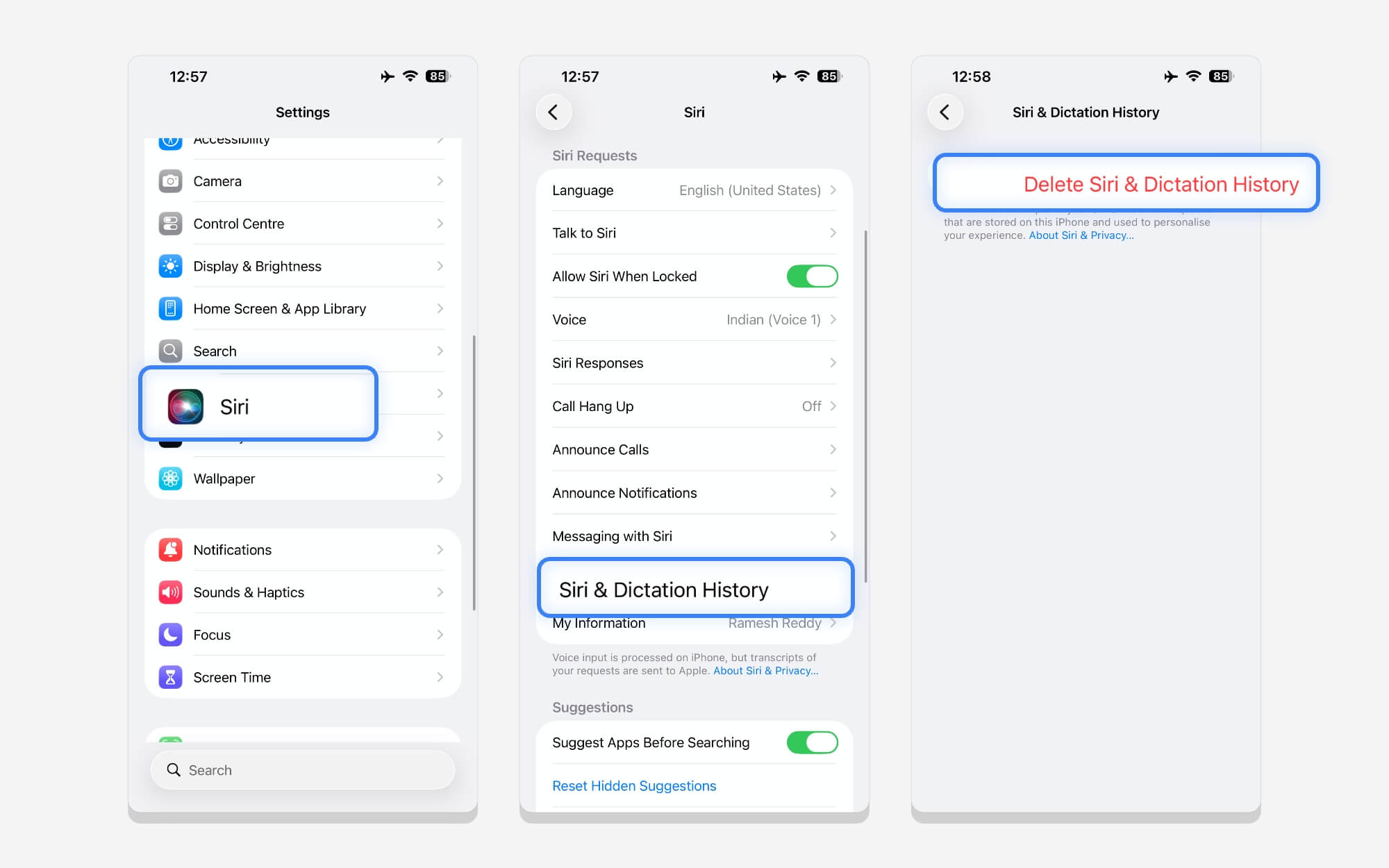
Siri isn’t the best right now; you can’t do much with it on your iPhone, and if you no longer use it, you can delete the Siri transcript history that Apple saves to personalize your experience.
Step 1: Go to Settings, scroll down, and tap Siri from here. Scroll down again, then tap Siri and dictation history. Here, you can tap on Delete Siri and Dictation history to delete all your previous conversations, along with your personalization.
Delete Significant Location Data
To offer a personalized experience with Apple services, including Maps, Apple saves your frequently used locations. These include the places you frequently visit.
However, if you want to save space and don’t need a personalized experience, you can delete your location history.
Step 1: Go to Settings on your phone, then tap Privacy and Security.
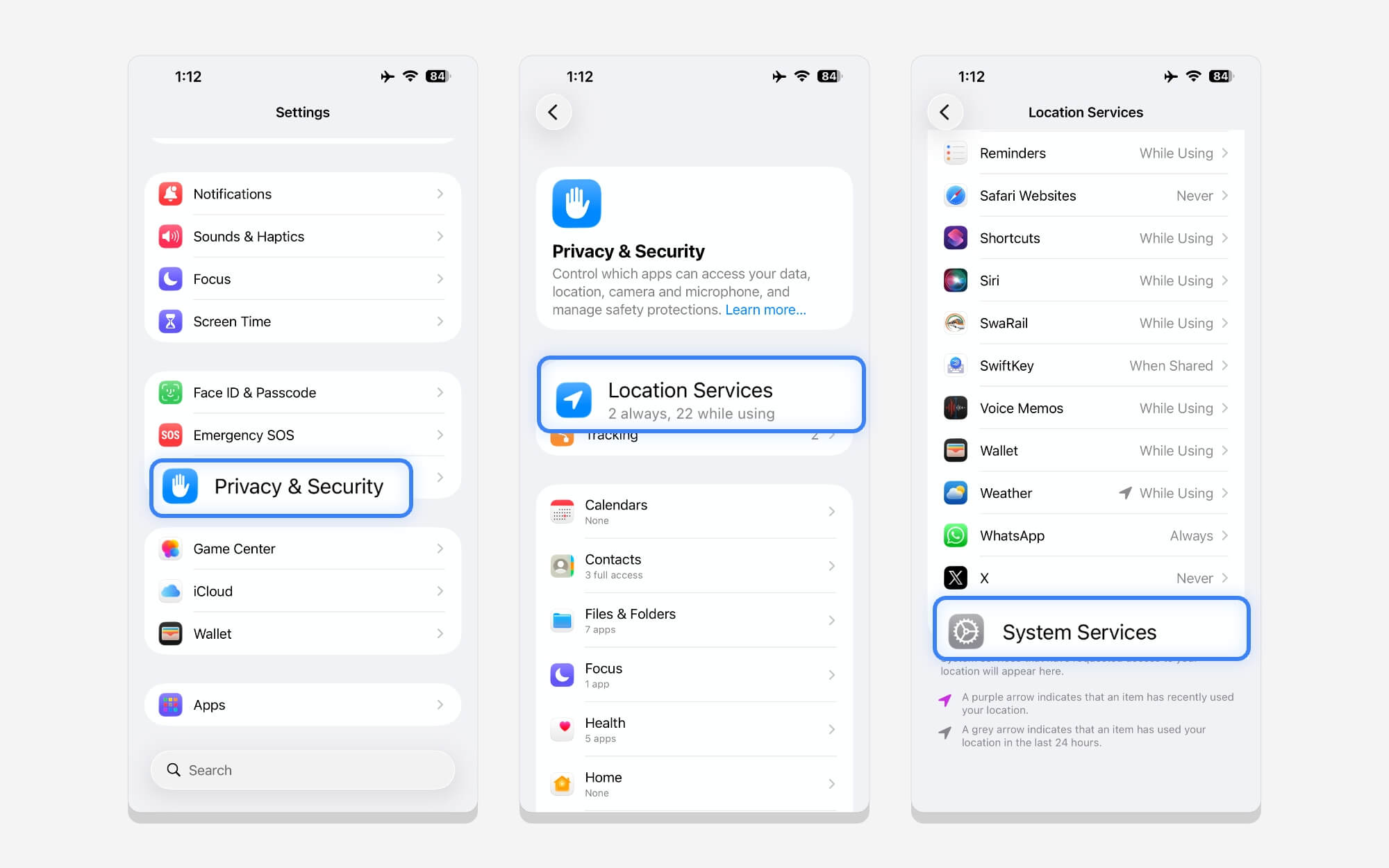
Step 2: Tap on Location Services.
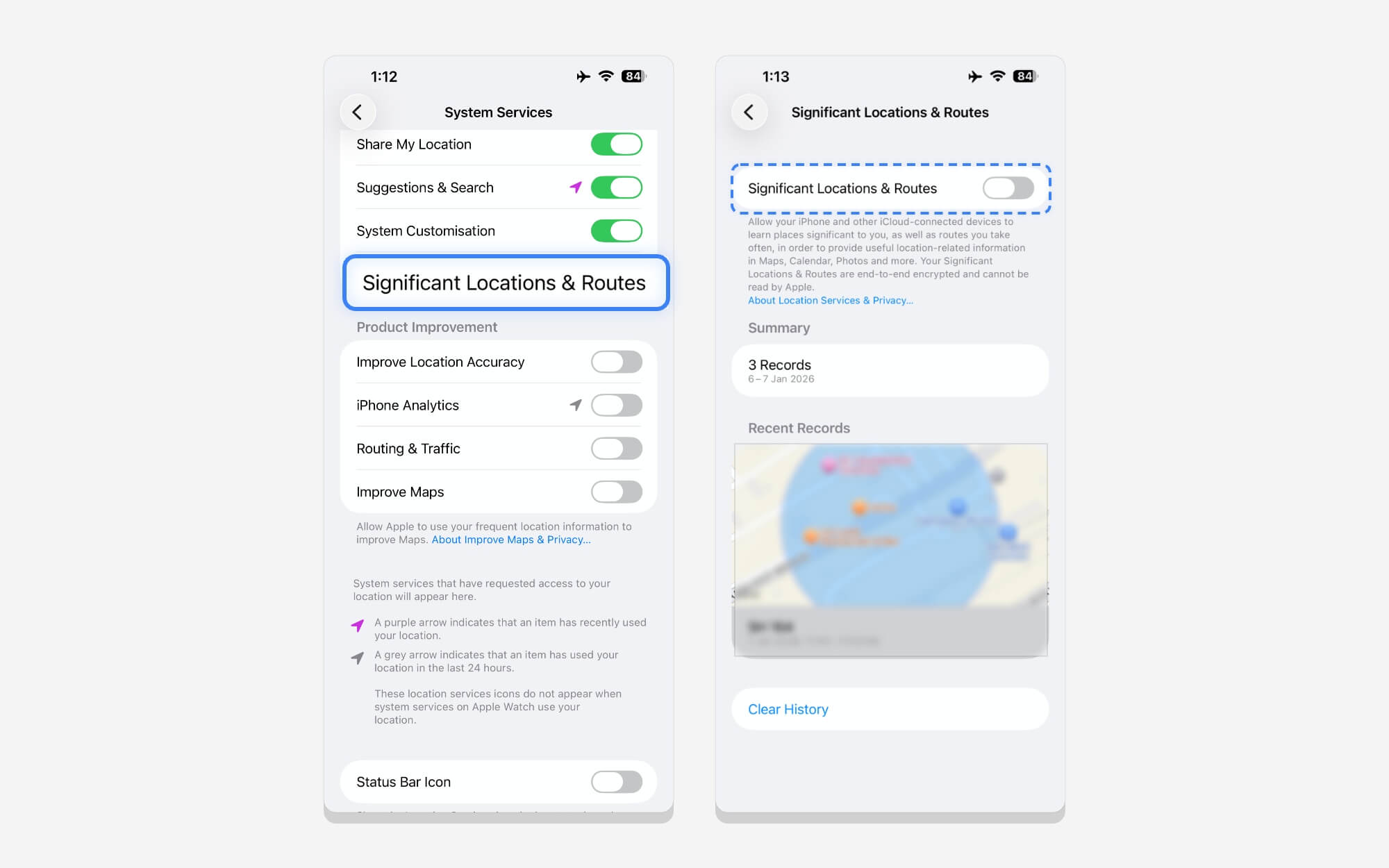
Step 3: Scroll down, tap System Services, then tap Significant Location & Routes. From here, authenticate your biometric using Face ID, turn off this setting, then scroll down and tap Clear History. This removes all your location, history, and significant data.
Prevent iPhone from Connecting, Prevent Your Device from Collecting Your Usage Data
To provide a better experience, Apple collects your data. Don’t worry. This data is private. However, over time, can accumulate and take up space on your iPhone. You can remove it and stop Apple from collecting your data.
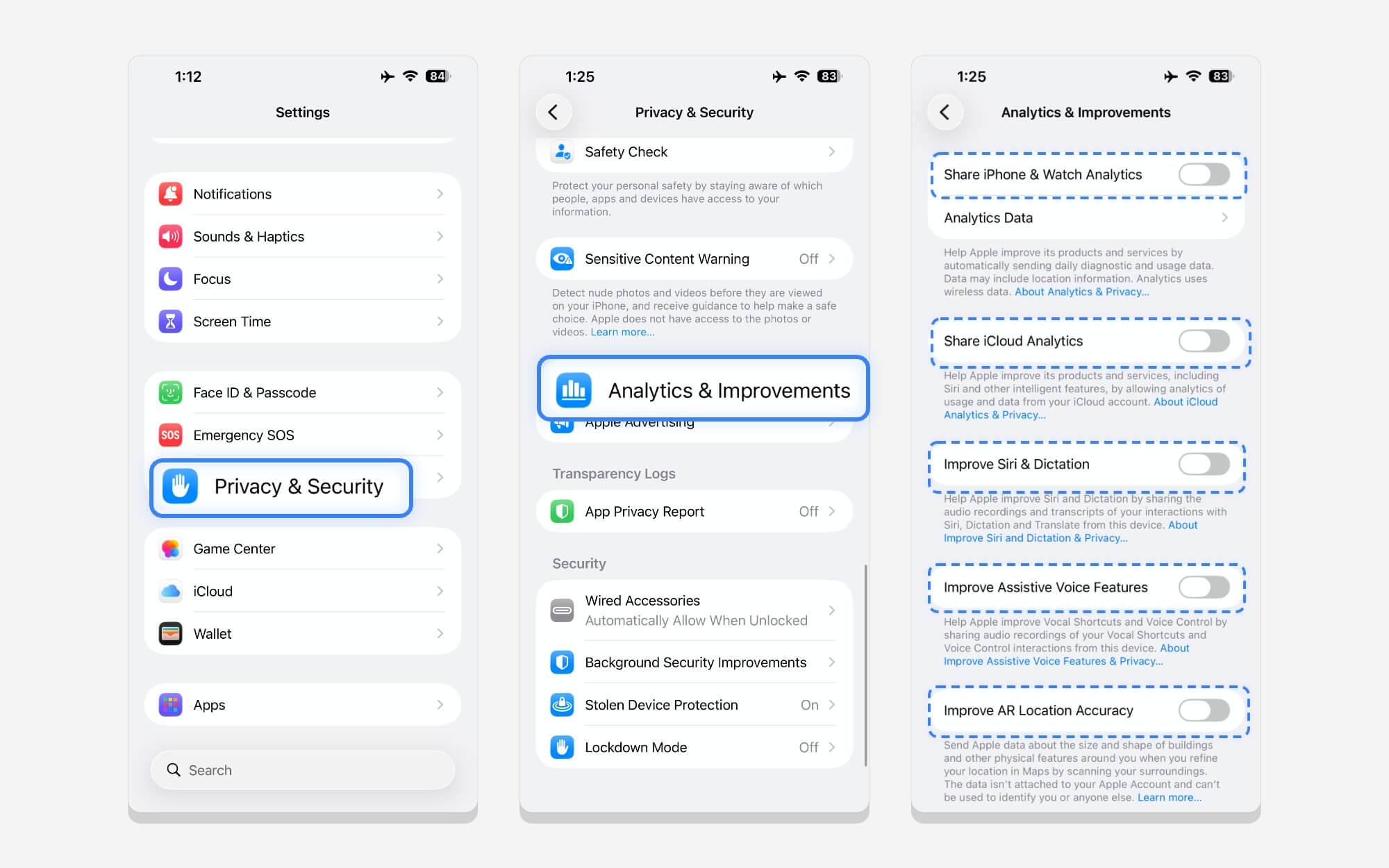
To do this, go to Settings, scroll down, and tap on Privacy and Security. From here, scroll down and tap on Analytics and Improvement. Turn off all the analytics that iPhone that your iPhone wants to track. Apple will stop collecting data about your usage and patterns and will no longer store it, so you can save some space on your device.
Those are five easy and five advanced features you can use to free up storage on your iPhone. With the advanced methods, you can significantly save gigabytes of data, especially when clearing your system cache.
I hope you find this guide helpful. If you have any questions, you can comment below, and I will try to answer. You can also read the frequently asked questions below for more information on how this method works and how effectively it reduces storage on your iPhone.
FAQs on Freeing Up Storage if iPhone Storage Full
1. How much System Data reduction can I realistically expect?
It depends on the method you are using. For instance, if you are clearing large files from your storage, you can save between 20 and 30 GB, depending on file size. If you want to clear most files using advanced methods, you can save 5-8GB, depending on your model.
2. Is this a long-term solution, or will the problem return again in a few months?
If you install any new apps or add new files to your phone, your internal storage might fill up again quickly. However, consistently following these methods can help you free up storage space. Once in a while, check which files and apps are taking up the most storage, and remove them regularly.
3. How much free space should I ideally keep on my iPhone for smooth performance?
I would recommend 5-10 GB of free space on your iPhone for smooth performance.
4. Is there a permanent way to prevent storage clutter in the future?
There is no permanent way to prevent storage clutter on your iPhone. However, you can follow the methods I shared to free up storage on your iPhone to prevent future storage clutter.
Ensure you review your storage usage frequently and delete large files. Apart from this, you can also choose the higher iPhone storage variant and move the photos and videos to a dedicated external storage device. There is no single method that fits all; it depends on your iPhone use and how willing you are to keep your iPhone free.
Related Read: How to Buy More Storage on iPhone
5. Is 128GB simply not enough in 2026?
That’s a tricky question. However, if you often record videos and photos and store large files on your device, 128GB might not be enough, since iPhone photos and videos can quickly fill up storage. However, Apple’s base variant now starts at 256GB, which should be enough for most people.

