

Quick Answer
To integrate ChatGPT with Siri on iPhones without Apple Intelligence, use the Shortcuts app. Download the ChatGPT app, create a new shortcut, and configure it to use ChatGPT through Siri. This allows Siri to handle complex queries with ChatGPT’s AI without needing Apple Intelligence or an iPhone upgrade.
Apple announced Apple Intelligence, its AI suite of features, at WWDC 2024, held in June. The company recently started rolling out Apple Intelligence features to the general public with the push of the stable iOS 18.2 update. Notably, Apple Intelligence is supported on the iPhone 15 Pro or above. This means that even if you have the iPhone 15 or 15 Plus, your device isn’t eligible to run or receive Apple Intelligence features. While Apple Intelligence features have received mixed reviews, it may not be a compelling reason to upgrade to a new device at a time when Apple is expected to launch a slim iPhone, the iPhone 17 Air, next year.
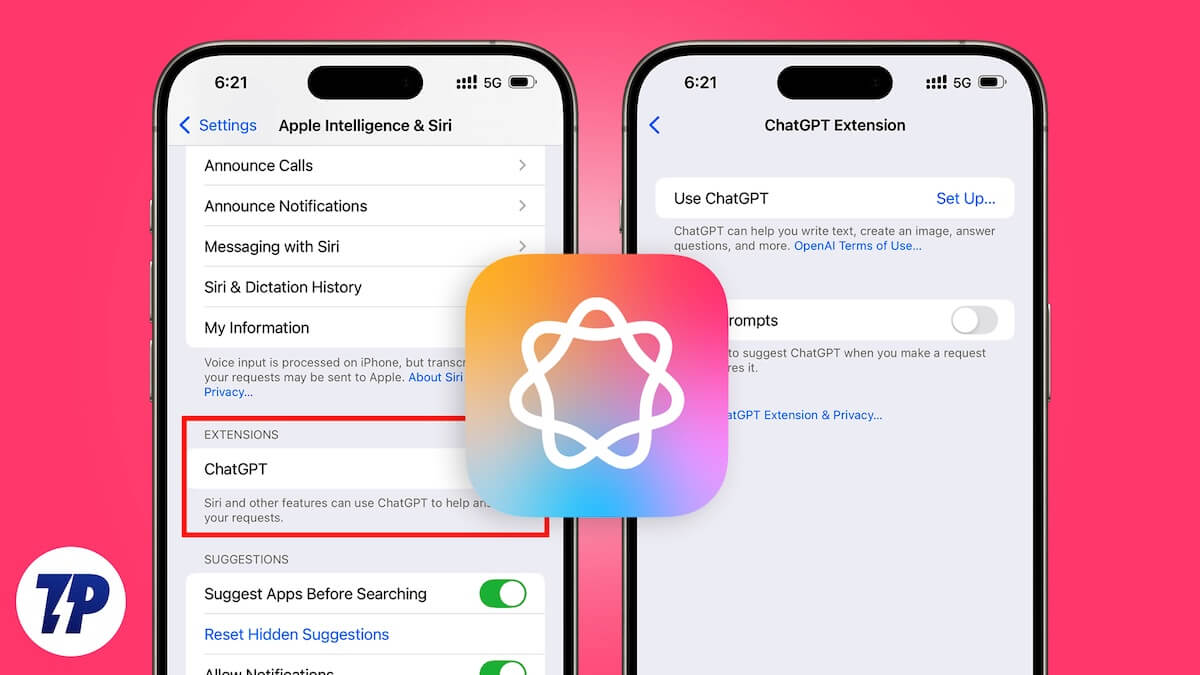
However, some users might feel sad because Apple recently introduced ChatGPT integration to Siri. The feature allows complicated questions that cannot be handled by Siri to be passed onto ChatGPT for answers. If you are also tempted to use this feature, then you will be glad to know that you can get this functionality on any iPhone, even non-Apple Intelligence-supporting iPhones. In this guide, we will share with you the steps on how you can integrate ChatGPT with Siri on iPhones that don’t support Apple Intelligence. Let’s jump right into it.
How does the integration of ChatGPT with Siri work?
OpenAI and Apple have been in talks about a partnership for long. With the latest software update, integration of ChatGPT with Siri arrived on supported iPhones. Here are a few key things you should know about how the integration works:
- Whenever you ask a query that Siri deems fit for ChatGPT, it opens the interface and lets OpenAI’s conversational AI answer the query.
- ChatGPT will ask for users’ permission to access the OpenAI service before it starts responding to queries using its model.
- To safeguard users’ data and privacy, Apple has claimed that it has built a privacy protection layer into the feature that doesn’t allow OpenAI to store requests.
- OpenAI makes use of the GPT-4o model to handle queries on iPhones.
- Apple iPhone users are not required to open an account to use ChatGPT with Siri.
How to integrate ChatGPT with Siri on non-Apple Intelligence iPhones?
You will need to use the Shortcuts app to get ChatGPT with Siri integration on your iPhone, which doesn’t support Apple Intelligence features. Here are the steps:
- Download the ChatGPT app on your iPhone from the App Store.
- Launch the Shortcuts app on your iPhone.
- Tap on the + icon located in the top right corner of the app’s UI to add a new shortcut.

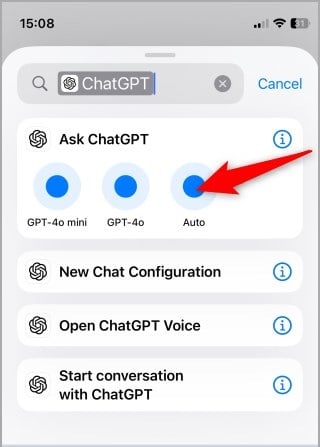
- Type ChatGPT on Search Actions.
- Under the Ask ChatGPT section, select Auto to choose the ChatGPT model.
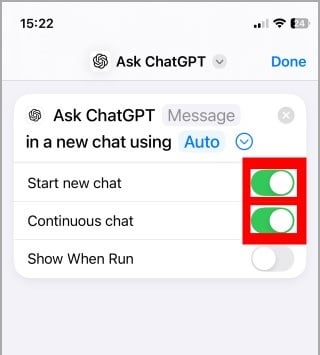
- Expand the Auto drop-down menu and toggle on the Start new chat and Continuos chat options.
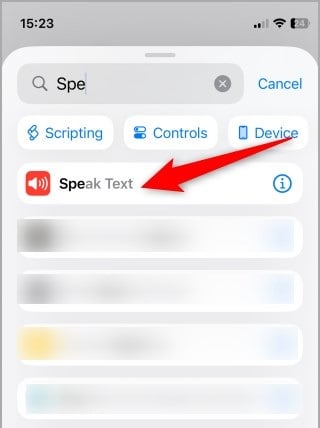
- In the Search Actions field, type Speak Text and add it as a new shortcut.
- Now turn on Siri and say, Ask ChatGPT, and the AI chatbot will start working.
The best thing about using this method to use ChatGPT with Siri on a non-Apple Intelligence-supporting iPhone is that it mimics the original functionality and doesn’t require you to create a ChatGPT account to use it. Also, it doesn’t need you to follow complex steps to integrate a generative AI chatbot into your iPhone. Also, whatever query you search for using this shortcut is stored in the ChatGPT app. This way, you can always revisit important conversations you’ve had with ChatGPT.
Benefits of using this shortcut
By following the above steps, you are supercharging Siri with the powers of ChatGPT for free. Here are a few key benefits of doing so:
- You don’t have to buy a new iPhone just to get a taste of the new Apple Intelligence features, especially when using ChatGPT with Siri.
- With this, Siri on your old iPhone gets smarter and is capable of handling complex queries. It can also help you draft a message, write an article, generate captions for your social media posts, and more.
- When creating the shortcut, you have more customization on offer, such as you can choose to get a one-off response or have a continuous conversation.
- You also eliminate the need to switch to a different app just to use its service. You can get all your queries answered in the Siri interface.
Downsides of using this shortcut
While using the shortcut, you have to keep a few things in mind since it isn’t the native way of using ChatGPT with Siri:
- You should have a strong internet connection to use the feature flawlessly.
- Since this isn’t a native feature, your information will be shared with ChatGPT during interactions. You are advised to avoid providing sensitive information or data.
- The feature may not give you access to the latest GPT model.
Final thoughts
Apple Intelligence does offer a lot of handy and creative features that you would want to try out. For instance, the Image Playground feature lets you generate an AI image by inputting text prompts. Then there is Genmoji on iPhone, which lets you generate emojis using AI. We also have a guide that explains how you can get Apple Intelligence features on older iPhones.
Do let us know in the comments below if you tried the above method to integrate ChatGPT with Siri on your non-Apple Intelligence-supporting iPhone.

