

Quick Answer
Using various free third-party apps, you can install and run AI models locally on your iPhone. After testing, the PocketPal AI App took the lead with support for a wide range of models and an easy-to-use interface. Using the On-Device app follows next with support for its model, and finally, the Privacy AI Local app supports larger models; however, it requires premium access to install large models and use.
While Apple is still struggling to crack the code of Apple Intelligence. It’s time for AI models to run locally on your device for faster processing and enhanced privacy. Thanks to the DeepSeek revolution. Now, you can run more intelligent reasoning AI models locally on your device, including mobile devices like Android and iPhone.
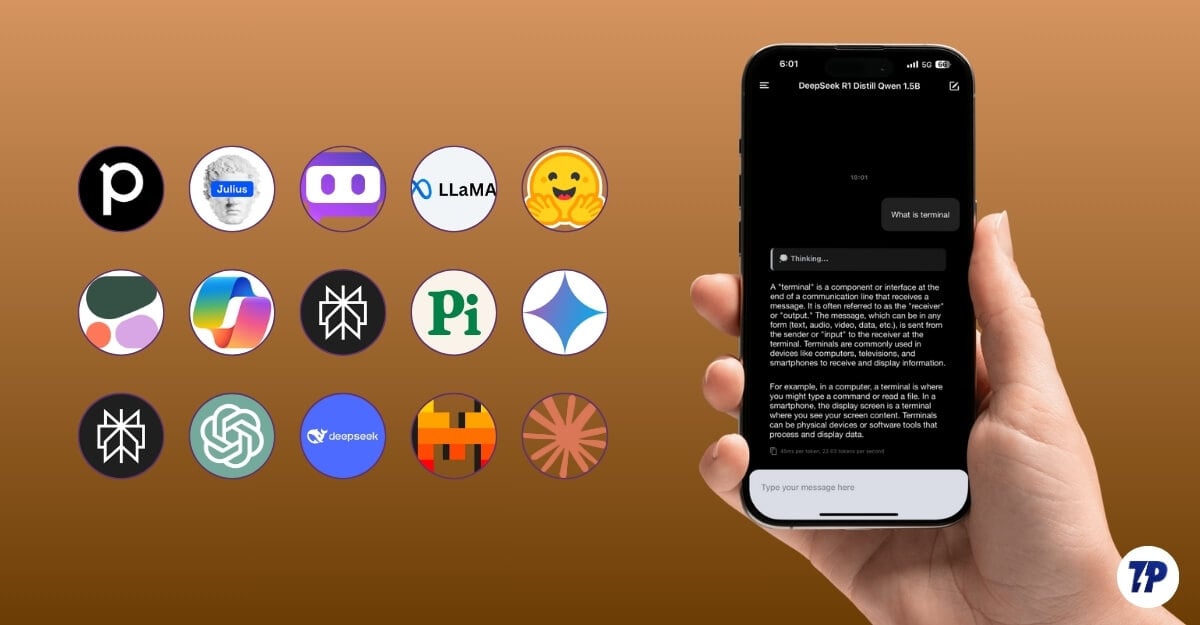
We have already covered a detailed guide on how to run DeepSeek R1 locally on Android and PC. Since Android is very flexible when using third-party methods. Several methods exist to import, use, and run models locally on Android. However, Apple is strict with third-party measures, but still, thankfully, there are apps in the App Store that can let you install and run LocalAI models locally on your iPhone.
I have been using several apps, and after testing, here are the three best apps for running AI models locally on your iPhone. These models also work even if your device does not support Apple Intelligence. So, if you’re ready, let’s get started.
Table of Contents
How to Run AI Models Locally on iPhone
Using the PocketPal AI App
Thanks to the PocketPal AI app, you can now run various AI models locally on your iPhone, including the DeepSeek R1 local model and the high-end 70B model on your iPhone (however, your iPhone doesn’t support this model).
Unlike the Termux method, which requires working with a terminal, multiple commands, and using the AI model in a command-line interface, the PocketPal AI app offers a simple and easy-to-use interface to install and run models locally on your iPhone, making it even more suitable for beginners installing and using AI models locally on their devices. The app is also available for Android. We have a detailed guide listing this method for Android, too. For iPhone, follow the method below.
How to use the PocketPal AI app to run AI models locally on iPhone:

Step 1: Install the PocketPal app (free) from the app store. Open the PocketPal app on your iPhone and click on the hamburger menu.
Step 2: Click on Models.
Step 3: Click on the plus icon in the bottom right corner of the screen and tap on the Add from Hugging Face.

Step 4: Use the search bar below and select any local AI model to run. In this guide, I’ve installed the DeepSeek R1 1.5B model. Step 5: You can search and install any model of your choice.
Step 6: Tap on the model and click the download button next to it.

Wait for the model to download. Once downloaded, return to the home screen, select the model, and click Load. This will load the model on the chat interface. Now, enter the prompt and click enter. You can also turn off the internet connection if you need to.
Using the On Device app
Alternatively, the On-Device AI app can install and run multiple AI models locally on your iPhones. It also comes with a model that works better than any other model the app supports. However, there are some issues with other models. You can still install the app and use the free model for most local AI tasks on your iPhone.
How to use the On-Device AI app to run AI models locally on iPhone:

Step 1: Install On-Device AI app on your iPhone (1.8GB)
Step 2: Open the app and click on the select AI model.
Step 3: From the list, select the model and click on the download. Wait for the app to download the entire model.

Step 4: Go back to the home screen, click on the select model, and select the model you have downloaded.
Step 5: Enter the prompt. If the model is not working, you can switch it or use the default model. The user interface isn’t the best I have tested out of all apps.
Privacy AI Local LLM
Privacy AI Local LLM is another app that lets you run AI models locally on your iPhone. The app is specially designed for iPhone users, meaning it is optimized for iPhones and Macs, which offers better performance than the rest. It also supports big and powerful models such as Llama 3, Google Gemma, and Microsoft Phi-3.
How to use the Privacy AI Local LLM AI app to run AI models locally on iPhone:

Step 1: Install Privacy AI LLM from the App Store.
Step 2: Open the app. If you want to upgrade to premium access, click the crown icon, select the plan, and upgrade.
Step 3: The app offers StableLM-2 for free in the free version. To use the model, click on the model, and from the popup, tap “Let’s Go. ”
Step 4: This will open a new chat interface where you can interact with the model, enter the prompt, and get responses. Since the model runs locally on your device, you can also turn off your internet connection.
Step 5: To download more popular and better models, you can unlock the “Always Free” model, select the model, and click on the download icon. This will download the model. To use it, tap on it and follow the same procedure.
Unlike PocketPal AI and On-device AI apps, which generally support smaller models. Further, the app also lets you customize AI responses by adjusting things like temperature and system prompts.
Since it is made for iPhone, you can set up Privacy AI Local LLM to work with Siri and Apple Shortcuts, so you can quickly ask AI questions without opening the app. However, to use the larger models, you need to subscribe to the premium plan, even though I have read about the one plan; in my case, all the plans are based on a yearly subscription. Once you upgrade the app, you can access all larger language models locally on your iPhone.
Apart from these, the app interface is simple and easy to use. You can select the model, get a chat interface, and interact with the model through text. Depending on your model, it also supports voice mode, images for multi-modal, and more.
Running AI Models Locally on iPhone
Unlike Android, the iPhone still operates in a closed environment, making it hard to use third-party features; even though there are ways to side-load apps, these methods are still not as straightforward as Android. However, using the above methods, you can still download and run AI models locally on your iPhone without any issues. These are straightforward to use, even for beginners. We also have a detailed guide on installing Deepsel r1 locally on your Mac to enjoy the same high-level benefits as your iPhone.
FAQs on running AI models locally on your iPhone
Does running AI models locally drain my iPhone’s battery quickly?
Yes, running AI models does drain your iPhone battery quickly, as they require resources and power to run locally on your device. In our observation, battery life isn't impacted more by smaller tasks. However, if you run these models more frequently, your battery life might be impacted.
Do I need an internet connection to use these AI models locally?
Now, once you have downloaded and installed the model locally, you don't need an internet connection to use it. However, you will require a constant internet connection to download it, often in GBs, to download and store models locally on your device.
What is the minimum iPhone model required to run AI models locally?
There are no hard-cap limits for phones; however, the newer the iPhone is, the better the performance will be because of the improved specifications. However, iPhone 12 or later devices are preferred for better performance.
Can I install my custom AI models on these apps?
Yes, you can install and use your custom AI models on these AI apps. PocketPal allows you to import your local models locally from your device and use them on your device locally. However, these AI models should comply with certain specifications to meet the requirements for running locally on your device.
How much storage space do AI models occupy on an iPhone?
In general, for small models (1B parameters) 1-2GB, medium models (7B parameters) 4-6GB, and large models (13B+ parameters) 10GB+ (often not supported on iPhones).

