

Quick Answer
To use Google Phone Calling Card for an iPhone-like calling screen, update the Google Phone app to v188 or later, then go to Settings > Calling Card, pick a contact, and customize with full-screen photos, fonts, colors, and effects. If the feature isn’t available yet, you can try the Jolt app as an alternative.
While iOS is often considered much behind Android in several features, there is one feature that makes iOS, especially the calling screen, fun and attractive. We are talking about the huge profile pictures that show up when someone calls you or when you call them. Reportedly, Google was working on a similar feature dubbed “Calling Card” for quite some time, and fast forward to now, the feature is already rolling out for all users. As per the official blog, Google says, “We’re excited to announce Calling Card, a new feature for the Google Phone app that lets you express your unique style with custom calling screens.”

The best part is that there is a bunch of customization options on offer that you can use to make your calling screen more visually appealing. It is nice to see Google not shying away from adapting a cool feature, which was introduced in the iPhone with iOS 17 back in 2023. Without any further ado, let us take a look at how to use the Google Phone Calling Card.
Table of Contents
What is Google Phone Calling Card?

Google Phone Calling Card is a feature that lets you customize the calling screen. You can customize your contact’s calling screen and view it when they call you. Normally, for incoming or outgoing calls, you see a standard image, their phone number, and their name. However, with Calling Card, you can set a full-screen profile image and tweak the text font and color to spruce things up. You can also change the backgrounds and choose from Google Photo Picker, Camera, or your device’s album.
Do note that in order to use Google Phone Calling Card, you need to update the Google Phone app to the latest v188 or later. Moreover, the feature is available globally, meaning anyone with the Google Phone app can try this.
How to use the Google Phone Calling Card?
Set up Calling Card
- Update the Google Phone to the latest version. (Note: Do note that the feature may not show up even after updating the app to the latest version. In that case, you need to head back to the Play Store, search for the Google Phone app, and then join the beta program.)
- Launch the Google Phone app.
- If you haven’t used the Calling Cards feature, you will see a “Introducing calling card. Customize how you see your contact when they call you” banner. Tap on Get Started.
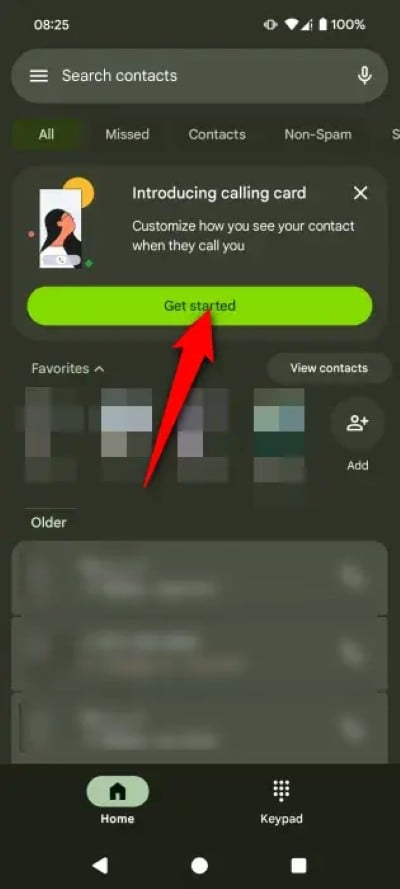
- Alternatively, you can tap on the hamburger Menu button > Settings and then choose Calling Card.
- Tap Add and choose a contact.
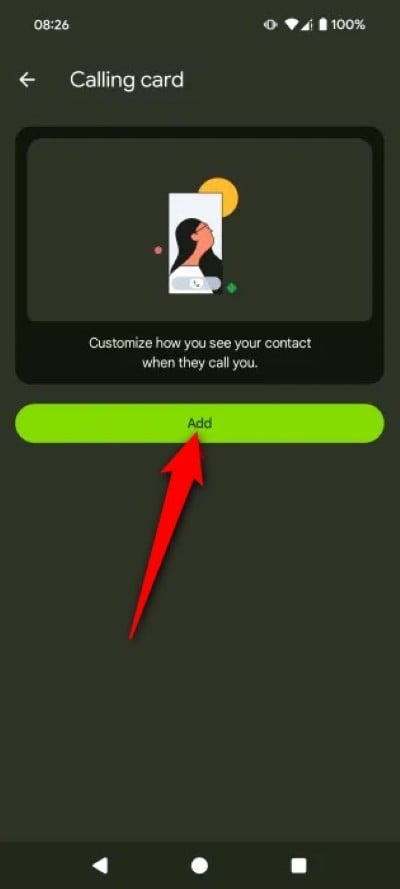
- You will see options to pick an image from Google Photos, use the Camera to click a photo, or use one from your phone’s gallery.

- You also have the option to change the position of the phone, scale it, or add an effect. To add effect, you need to tap on Effect.
- You can then change the font of the caller’s name and select a color from the available options.
- Tap on Done.
- Finally, choose Save.
Update a contact with calling card
- Open the Phone app.
- Choose a contact.
- Tap on the banner that says “Try adding a calling card.” Otherwise, you can tap on the pencil icon and choose Change Calling Card.

- Tap on the calling card icon.
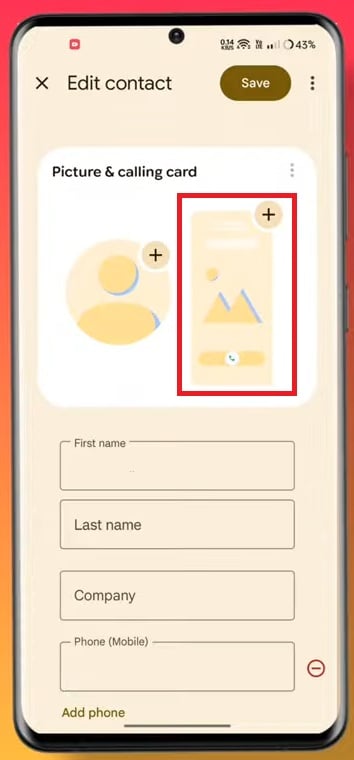
- Choose a photo from Google Photos, take a photo, or from your gallery.
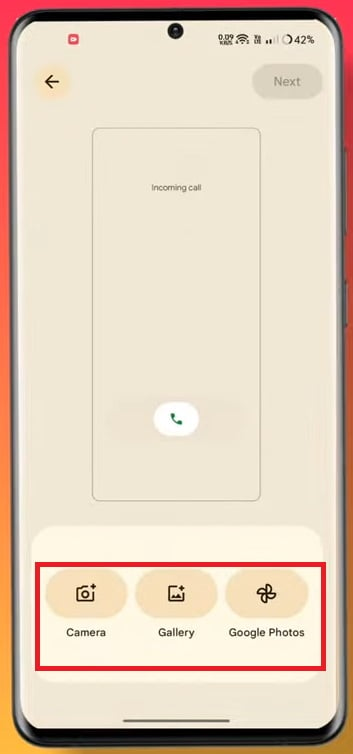
- Tap Next.
- Customize the font, color, and tap Done.
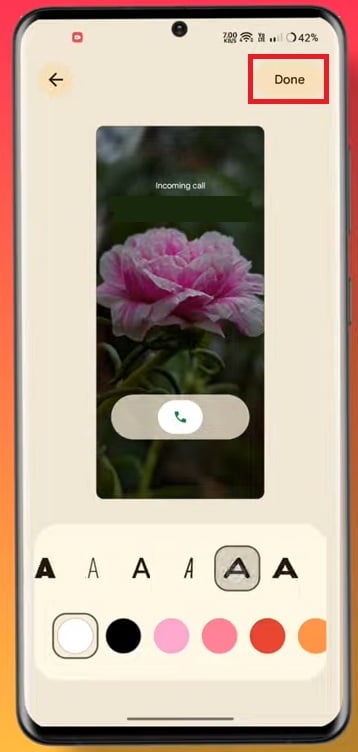
- Tap Save.
For some users, including on some of my phones, the feature wasn’t available. Even after joining the beta program, the Calling Cards feature wasn’t available. It appears that it is gradually being made available on devices.
Calling Card not available? Use Jolt
- Download the Jolt app from the Play Store on your Android device.
- Launch the app. It will ask to be set as the default dialer. Choose that and move forward.

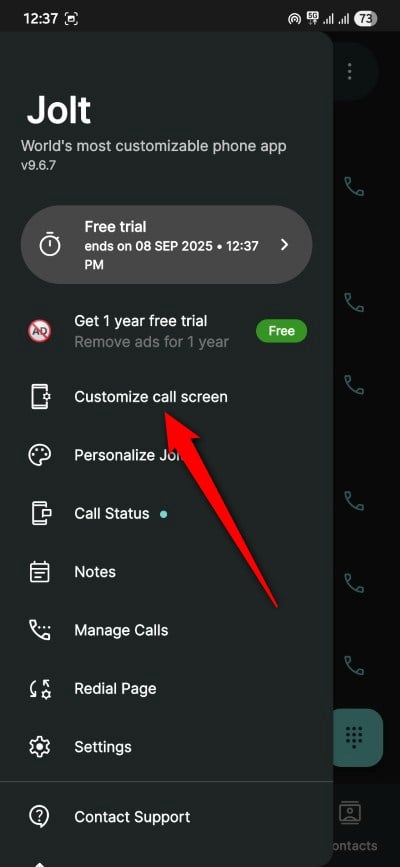
- Tap on the hamburger menu option on the top-left, and choose the Customize call screen option.
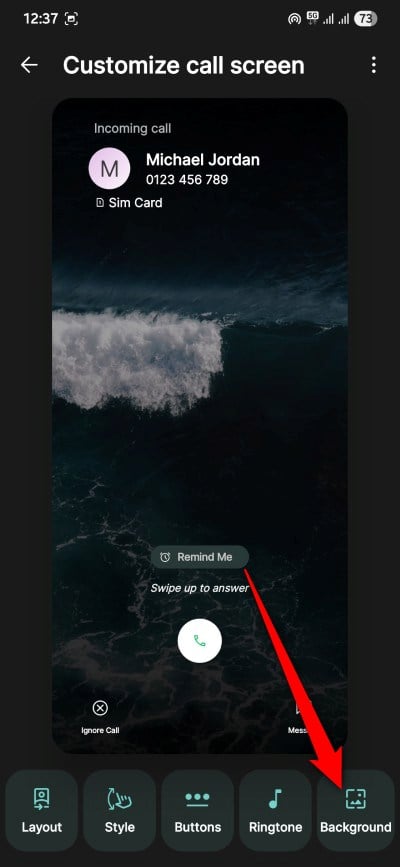
- You will find a host of customization options, out of which you need to tap on Background.
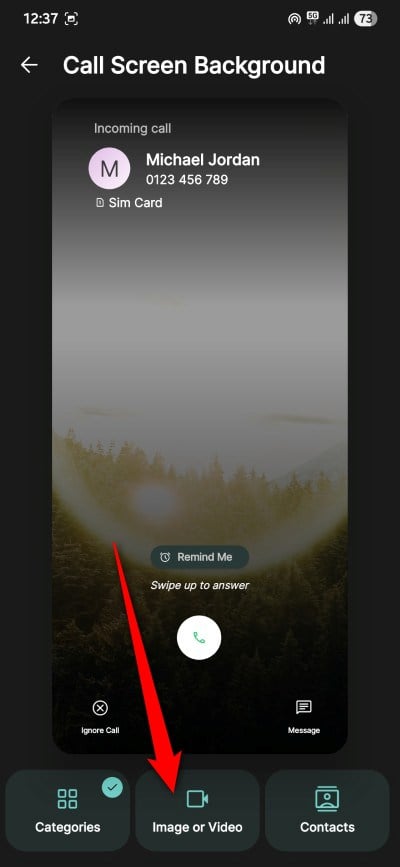
- Select the Image or Video option and select any image or video of your choice. Notably, you don’t get the option to set a video as a calling card on Google Phone or even on iOS.
- After selecting an image or video, head back to the previous screen and customize it.
- There are a lot of answering styles as well, including Samsung, Google, and even iPhone style.

- Once done, tap save, and that’s it.
Try it and make calling fun
Google Phone Calling Cards really added that fun element that makes you want to make calls. It’s a nice feature to have on Android, something which iPhone users have been enjoying for years. However, since the feature is still gradually making its way to more phones, you may not see this feature right now on the Google Phone app, even after updating to the latest version or joining the beta program. If you want to use this feature, the alternative app Jolt is a good option that also lets you use a video as your contact’s calling card.

