

Quick Answer
Android doesn’t natively let you set unique wallpapers for each home screen, but apps like FiveWallpapers and Multiple Picture Wallpaper make it possible. These apps let you assign different images, apply transitions, auto-change settings, and even use gestures, giving every screen a fresh and personalized look.
One of the main things that has kept Android users sticking to the OS is the customization options. You can decorate your Android phone’s home screen however you like, unlike an iPhone, which is still somewhat restrictive. An Android phone allows you to use and set up multiple home screens, which you can use to place apps or widgets and quickly access them. But generally, there is no option to set individual wallpaper for each home screen.
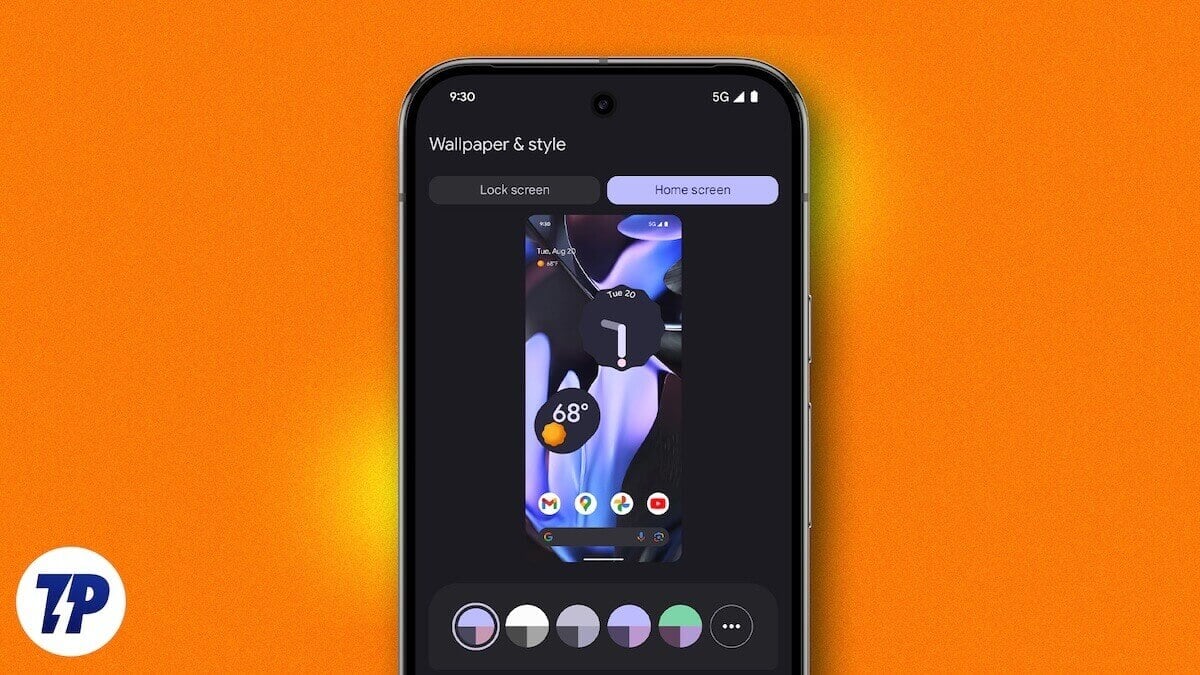
But that’s the beauty of Android. You have an app for almost everything. There are a bunch of apps that let you set different wallpapers for each home screen, giving you a fresh look each time you swipe to a new page on your Android home screen. In this guide, we will share with you the apps along with the steps to use them. Let’s jump right into it.
FiveWallpapers
One of the popular options, and the one that I personally use, is the FiveWallpapers app. This app lets you exactly achieve what you want in your home screen — set different wallpapers for each home screen. You have the option to pick an image from your phone’s gallery, take a snapshot using your phone’s camera, or choose an entire folder from which the app will take photos and assign them to each home screen page. The app can run into a few hiccups, but in my testing and usage, I didn’t face any major issues apart from the app crashing a couple of times. The best part is that the app supports as many screens as you want — you just need to set the number manually.
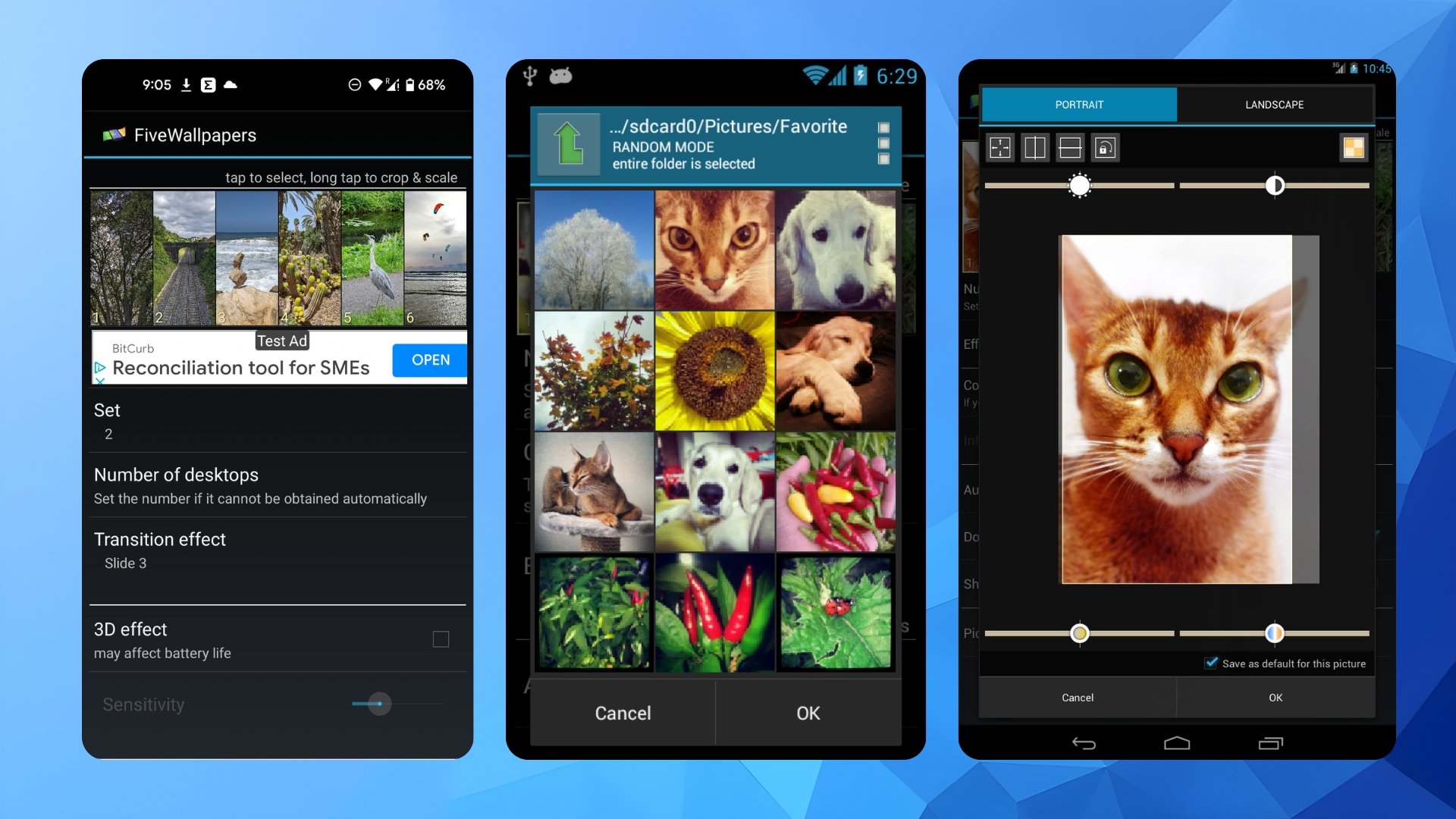
There are more customizations within the app settings, such as the option to adjust brightness, contrast, colors, cropping, and rotating, add transition effects, and so on. You can also change wallpapers by double-tapping, shaking your phone, or letting it automatically switch. The app isn’t a battery drainer of sorts.
How to use FiveWallpapers
- Download the app on your Android device.
- Launch the app and grant the permission.
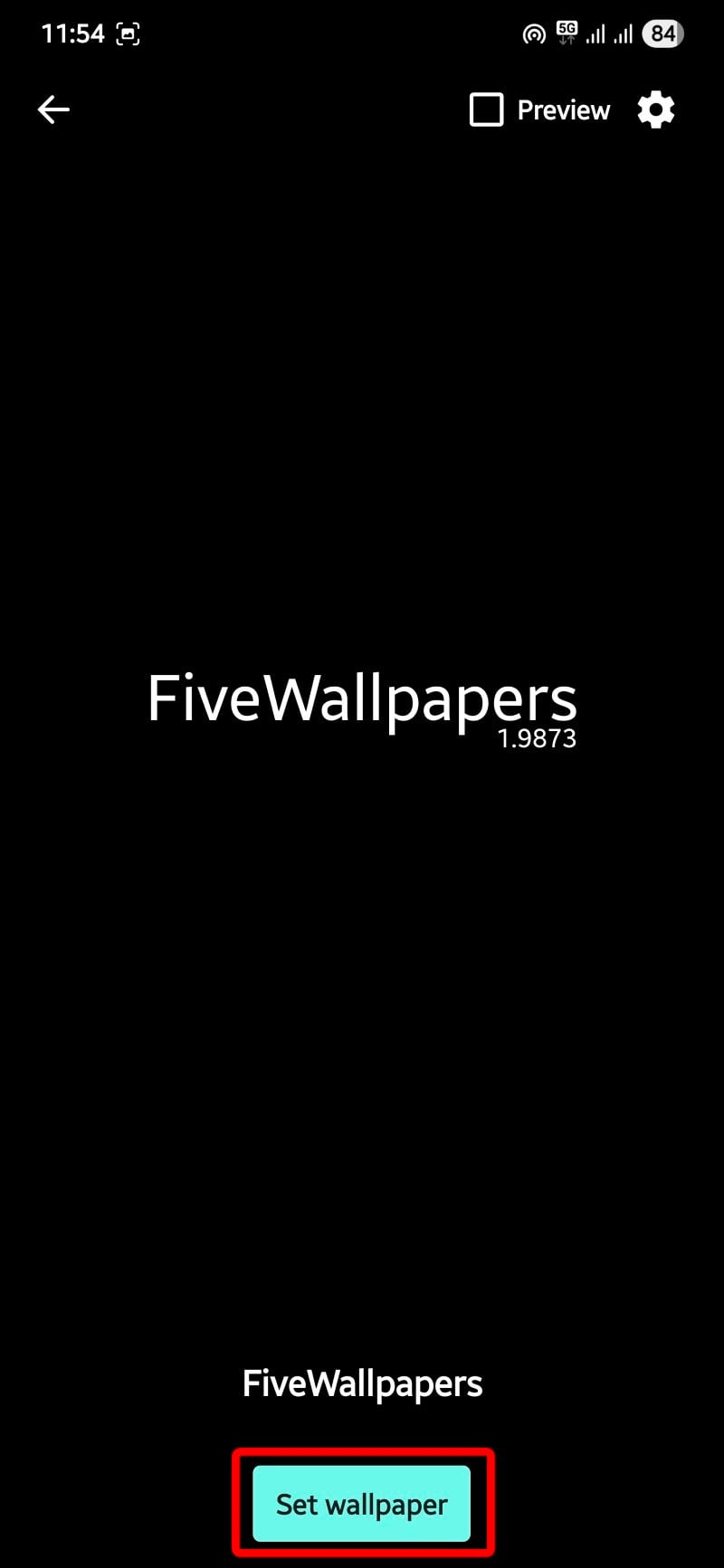
- Tap on the Set wallpaper button.
- You will see two options: Home screen and Home screen and lock screen. Choose Home screen.


- Tap on the Number of desktops option to choose the number of home screens you have. For some devices, this gets detected automatically.
- Now, you need to tap on each image at the top and select the one that you wish to set as a wallpaper.
- Long-tap on an image to edit it. You can adjust the colors, brightness, contrast, crop the image, or straighten it.
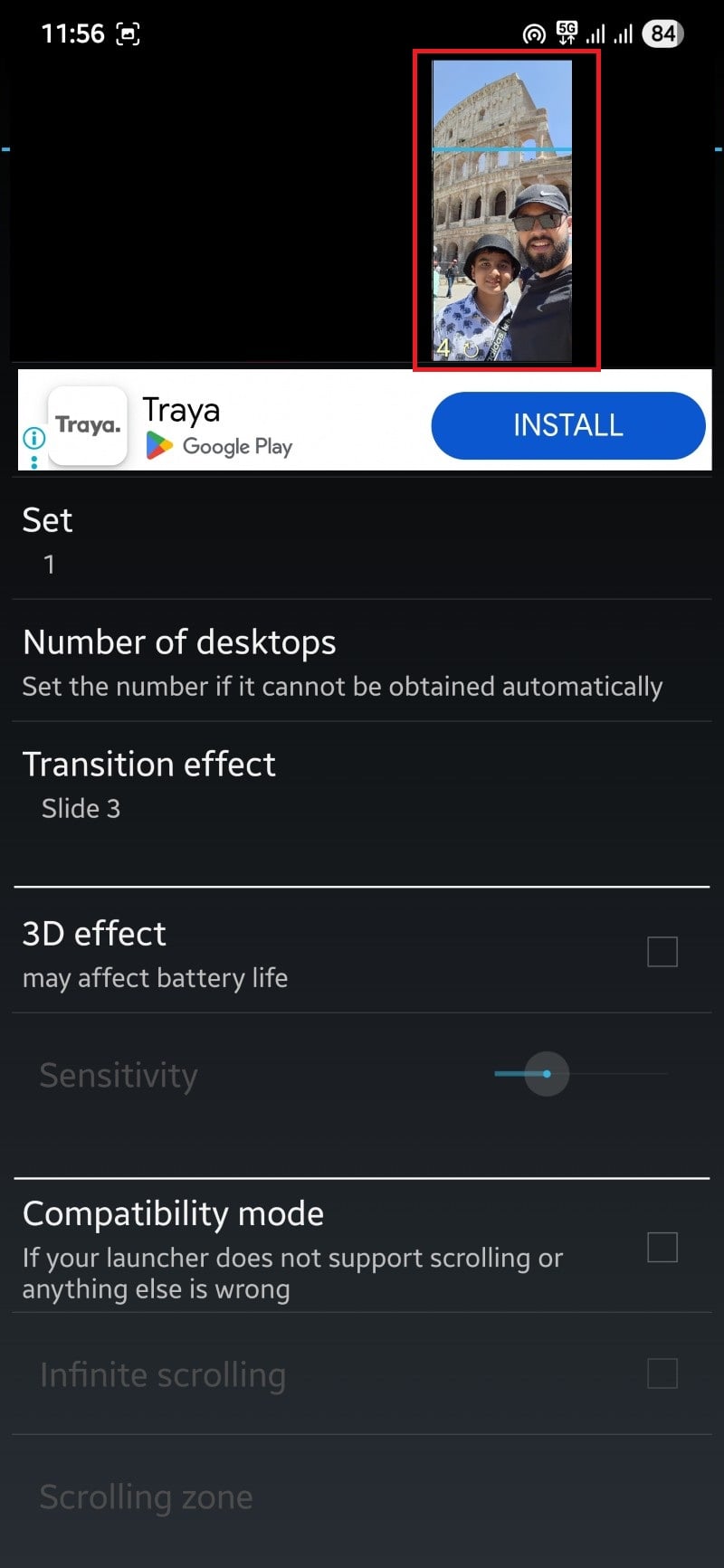
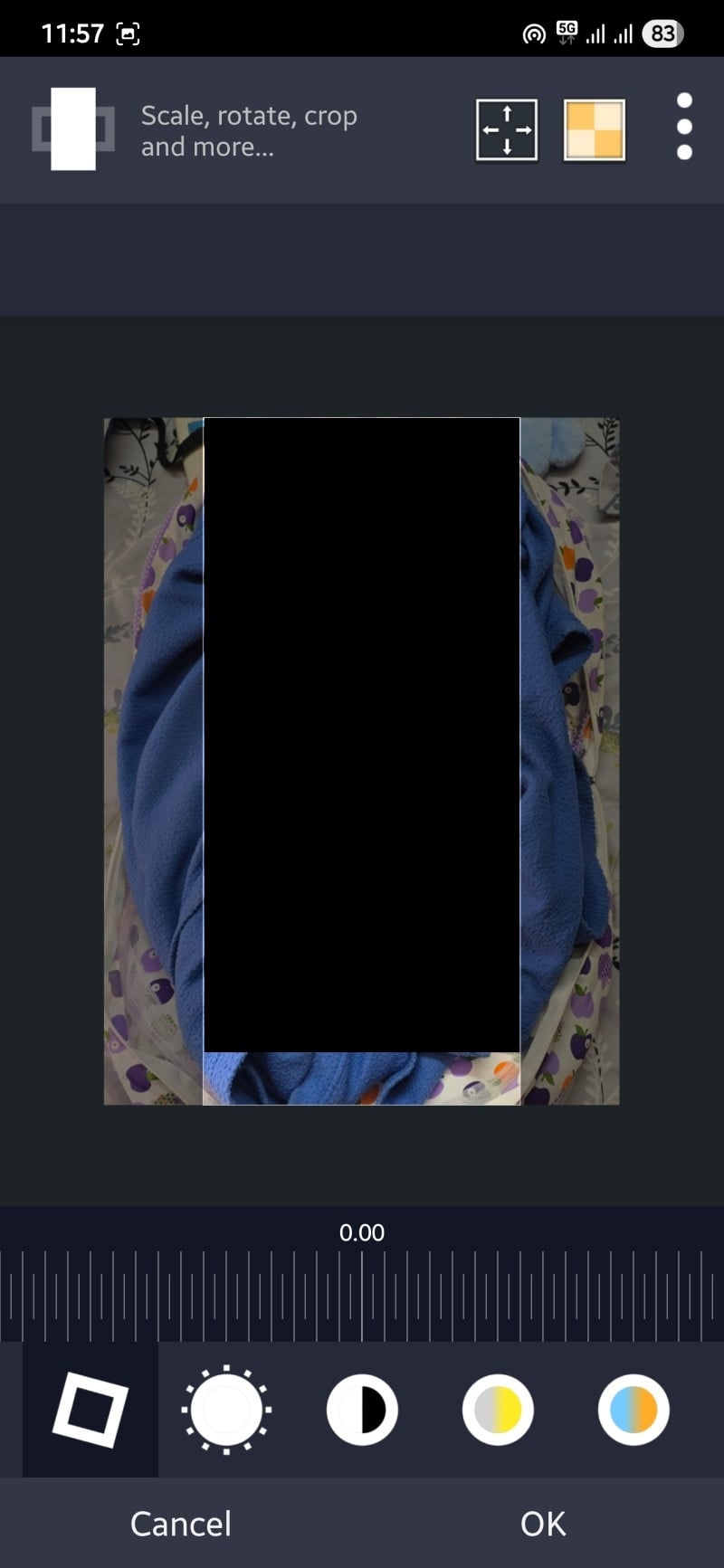
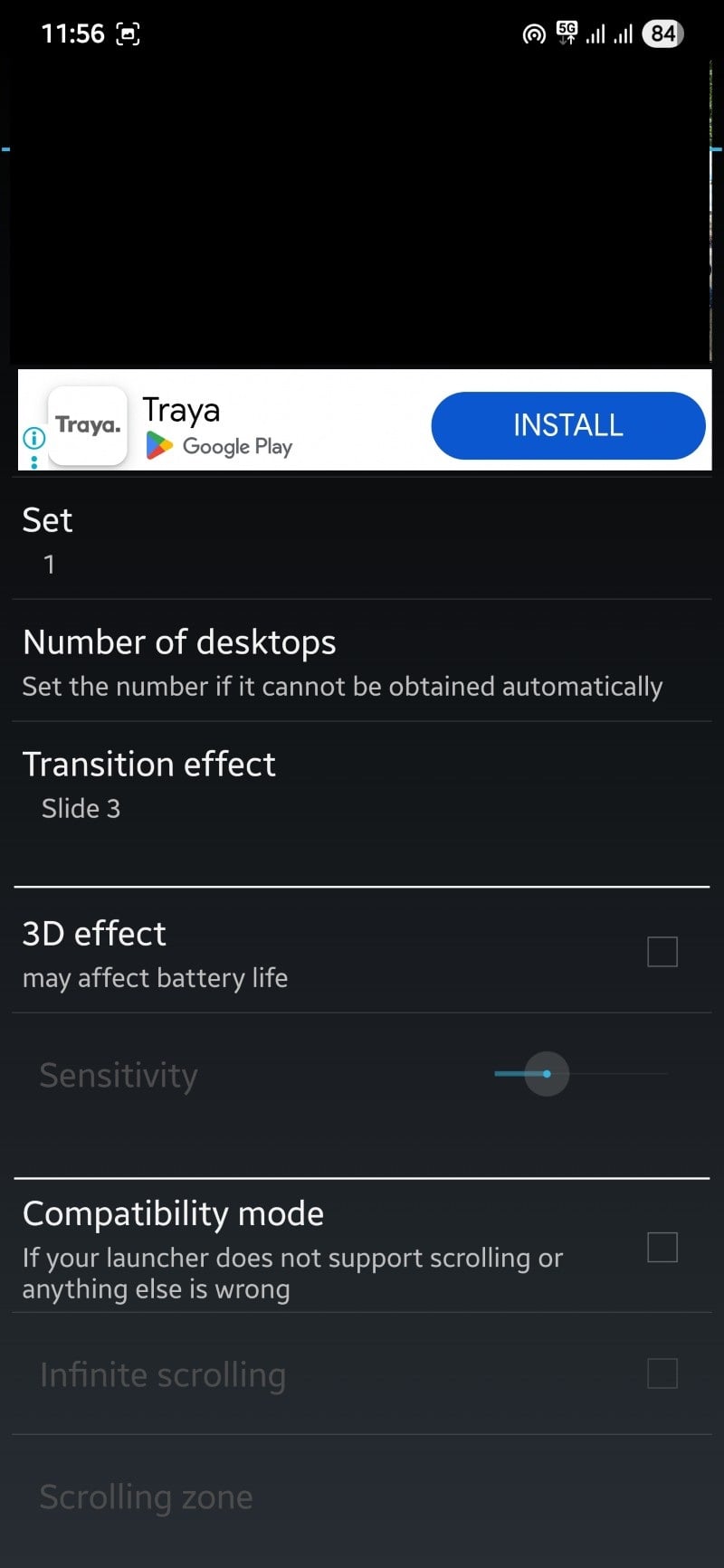
- You can also tweak a bunch of other settings:
- Transition effect: Applies a transition effect between your wallpapers.
- Compatibility mode: For launchers that don’t support scrolling.
- Auto change: You can choose to automatically change your wallpaper after a set interval.
- Double tap to change: You can change wallpapers by double-tapping on your home screen.
- Shake to change: Shake your device to change the wallpaper.
- Default position: Choose if the wallpaper should fill or fit to your screen.
- Picture quality: Choose the quality of your wallpaper. The higher the quality, the more memory it will use.
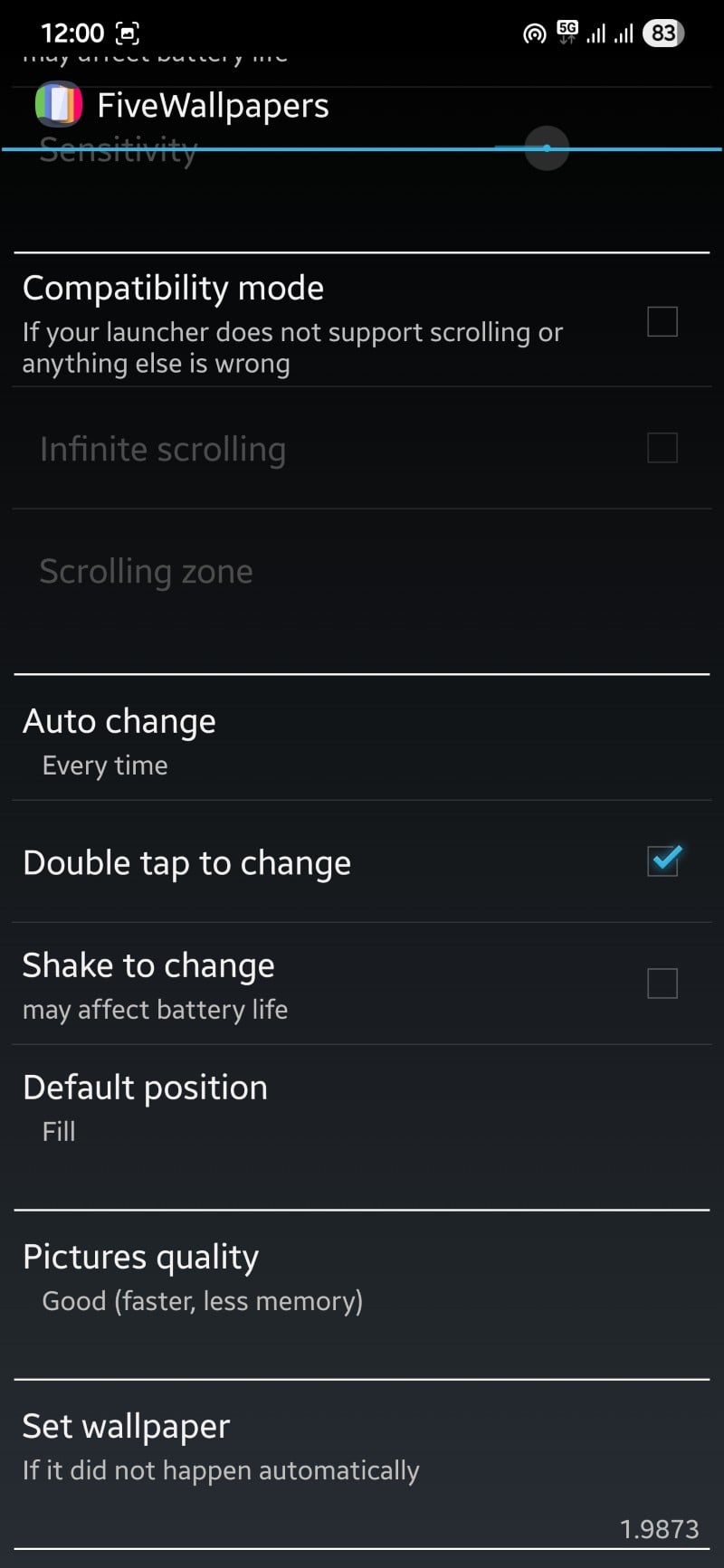
- After you are done with your customization, go to the previous screen and tap Apply.
Multiple Picture Wallpaper
Another popular app available on the Google Play Store that lets you set different wallpapers for each of your Android home screens is Multiple Picture Wallpaper. Using this app is a bit tricky, as you have to set it as a live wallpaper from the settings menu of your phone. It is a no-nonsense app, and when launched gets straight to the point.
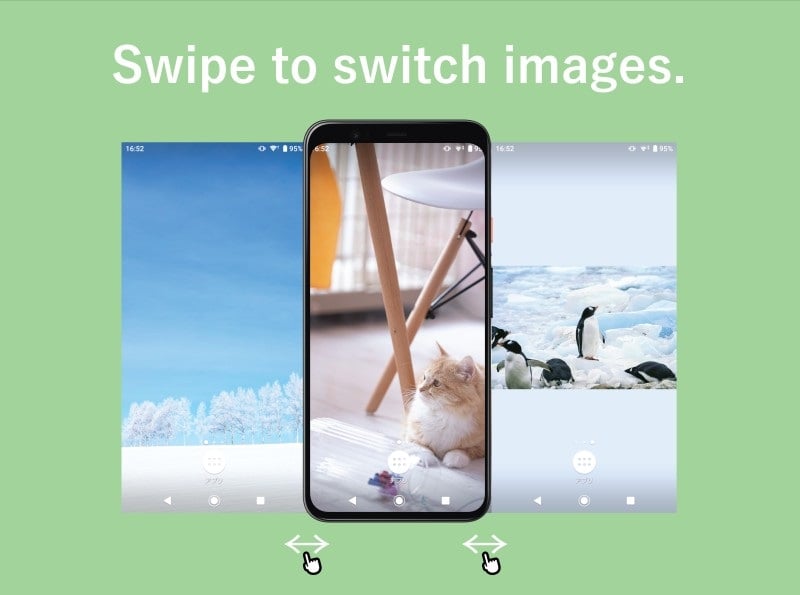
The interface is bare minimum, and you have to figure things out yourself. Thankfully, the guide below will give you a proper explanation. Unlike the FiveWallpapers app, it doesn’t offer much customization, apart from the fade effect and timer. But overall, it is a decent app for setting different wallpapers for different Android home screens.
Download Multiple Picture Wallpaper
How to use the Multiple Picture Wallpaper app
- Download the app from the Play Store.
- Launch the app.
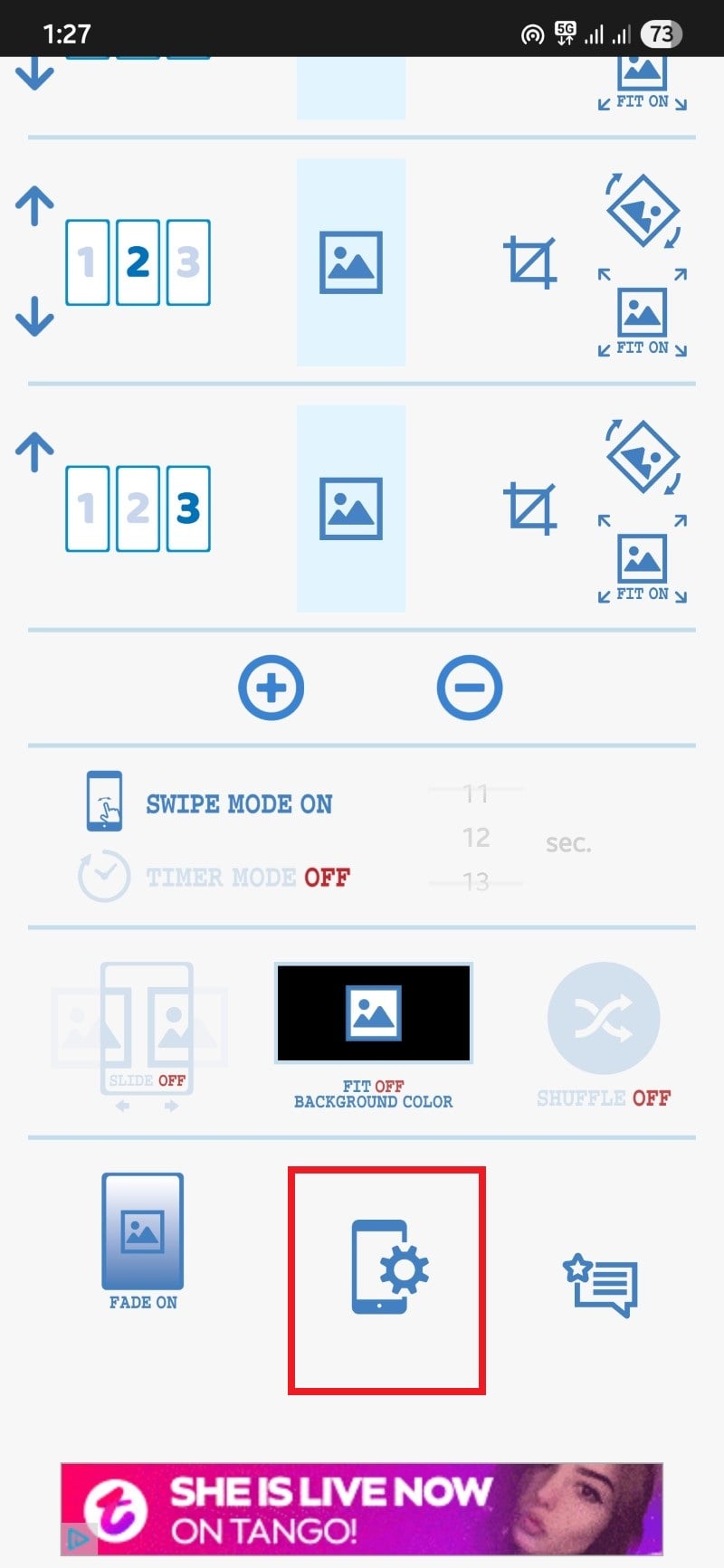
- You will see a minimal interface. By default, the app selects three home screens. You can tap on the + or – buttons to add or remove a home screen.
- Tap on the middle image button to choose an image from your phone’s gallery.
- After selecting the image, you have three buttons to the right of the image selection button: Crop, Rotate, and Fit.
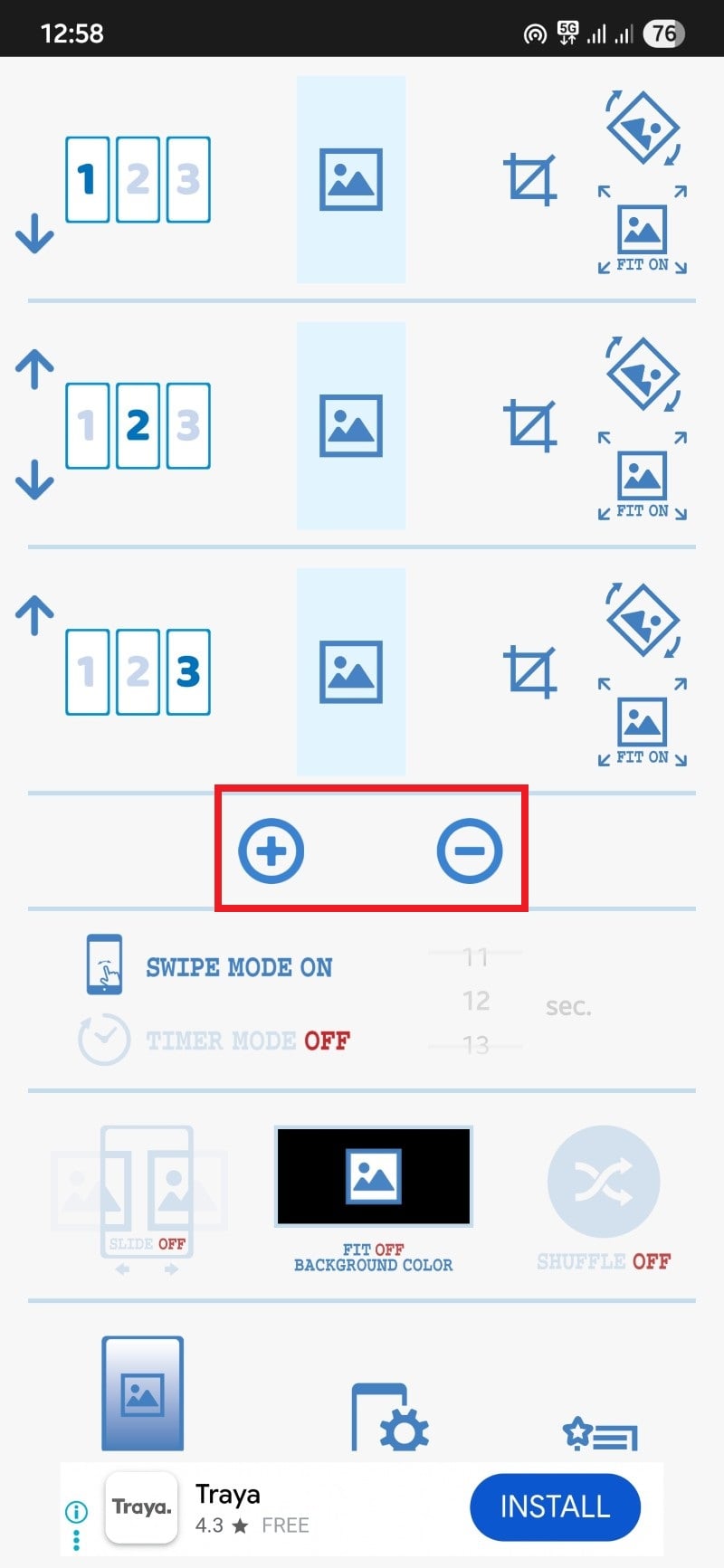
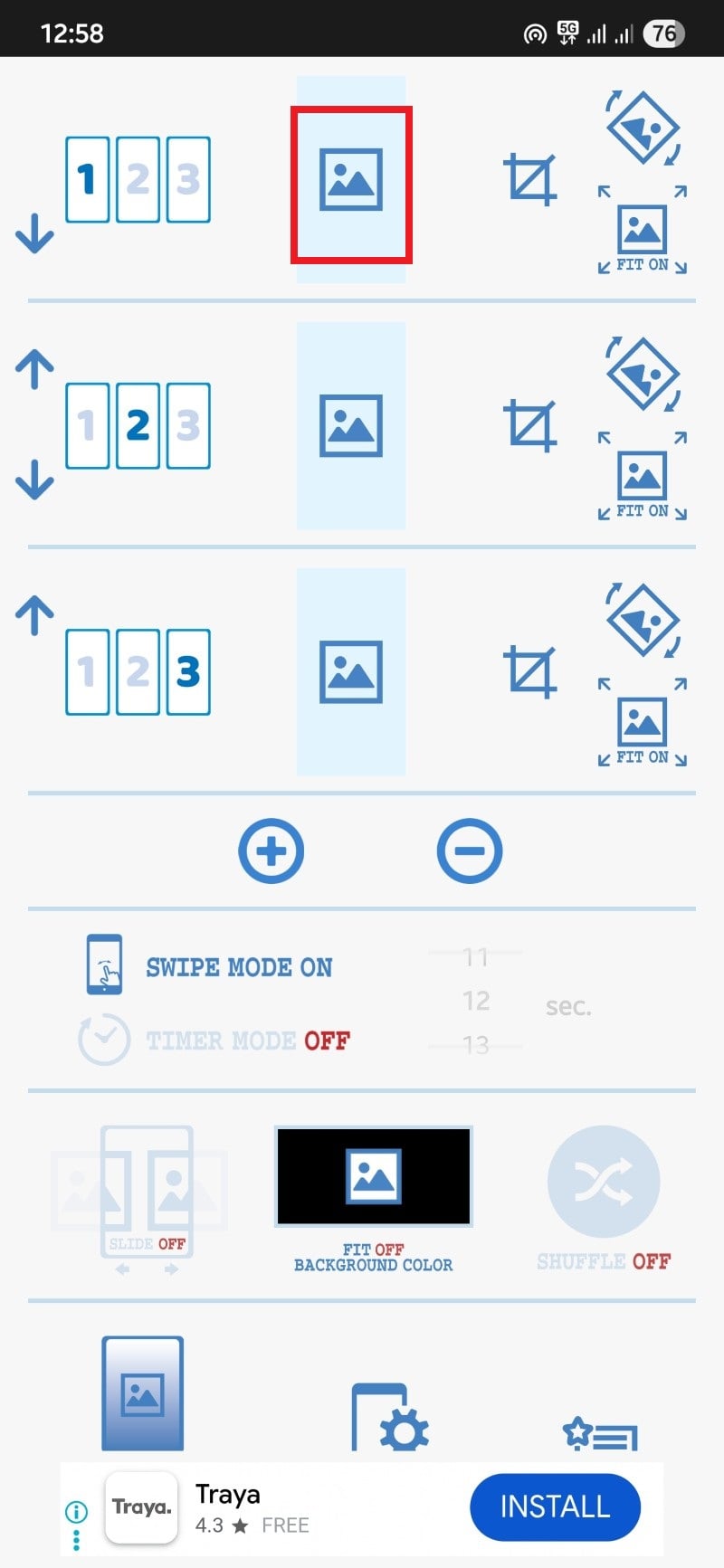
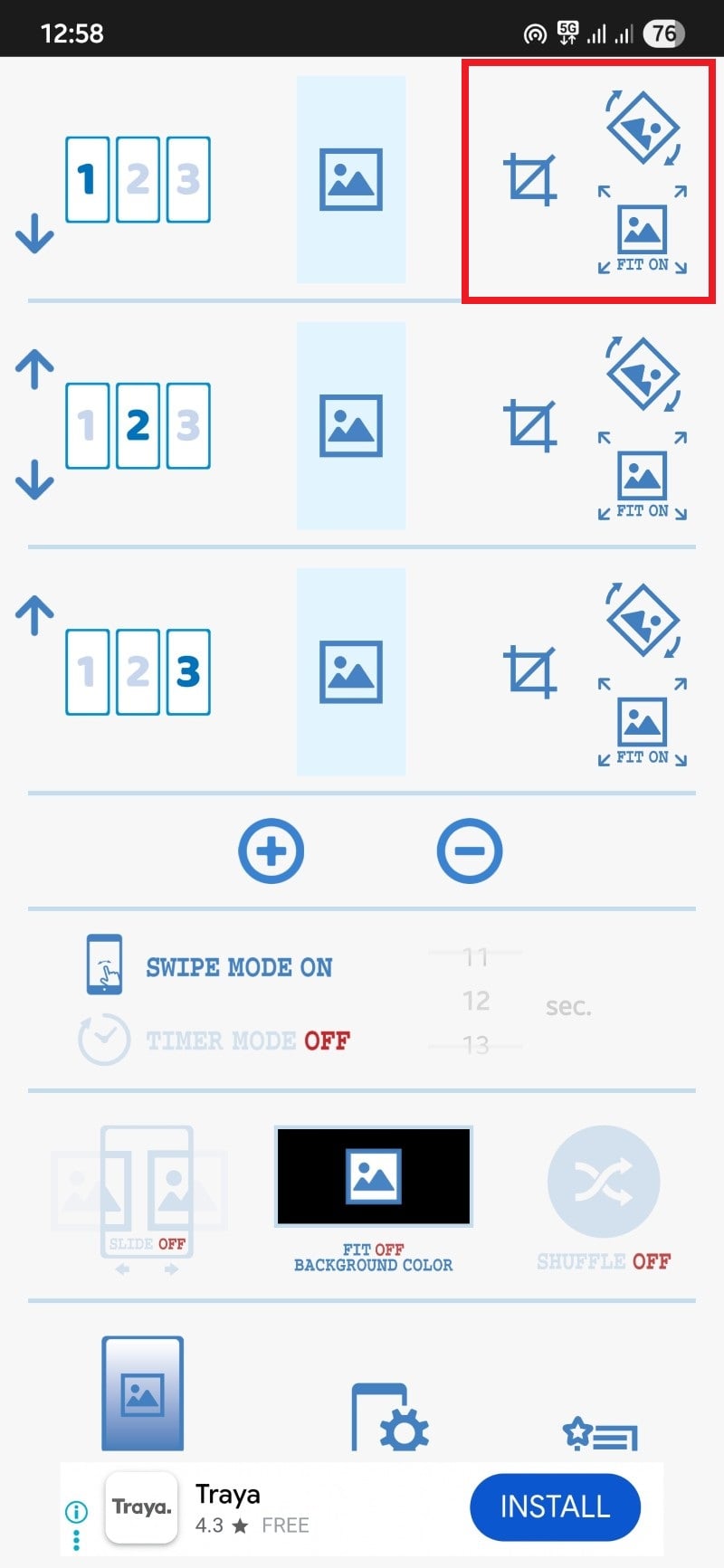
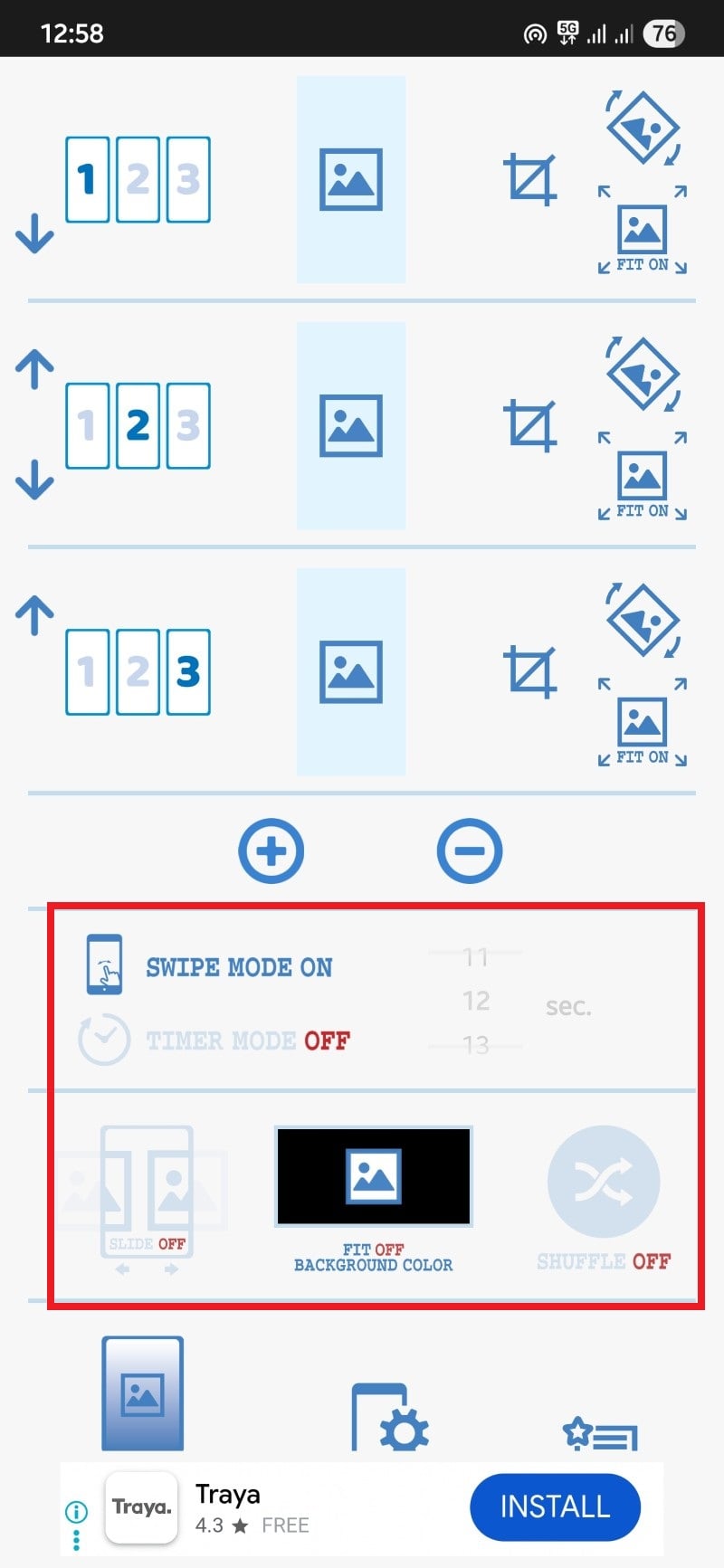
- There are some more customization options
- Swipe mode: That lets you swipe images on your home screen.
- Timer: You can choose the time after which the image will automatically change.
- Slide animation: You can choose to have a sliding animation.
- Fit off: When this is turned off, the entire image appears at the center, with an unsupported aspect ratio appearing with a colored background.
- Shuffle: Displays images randomly. The images that you have selected will not show up. So, ensure that it is turned on.
- Once you are done with the customization, simply tap on the button that sits right at the bottom center with a phone and a gear icon.
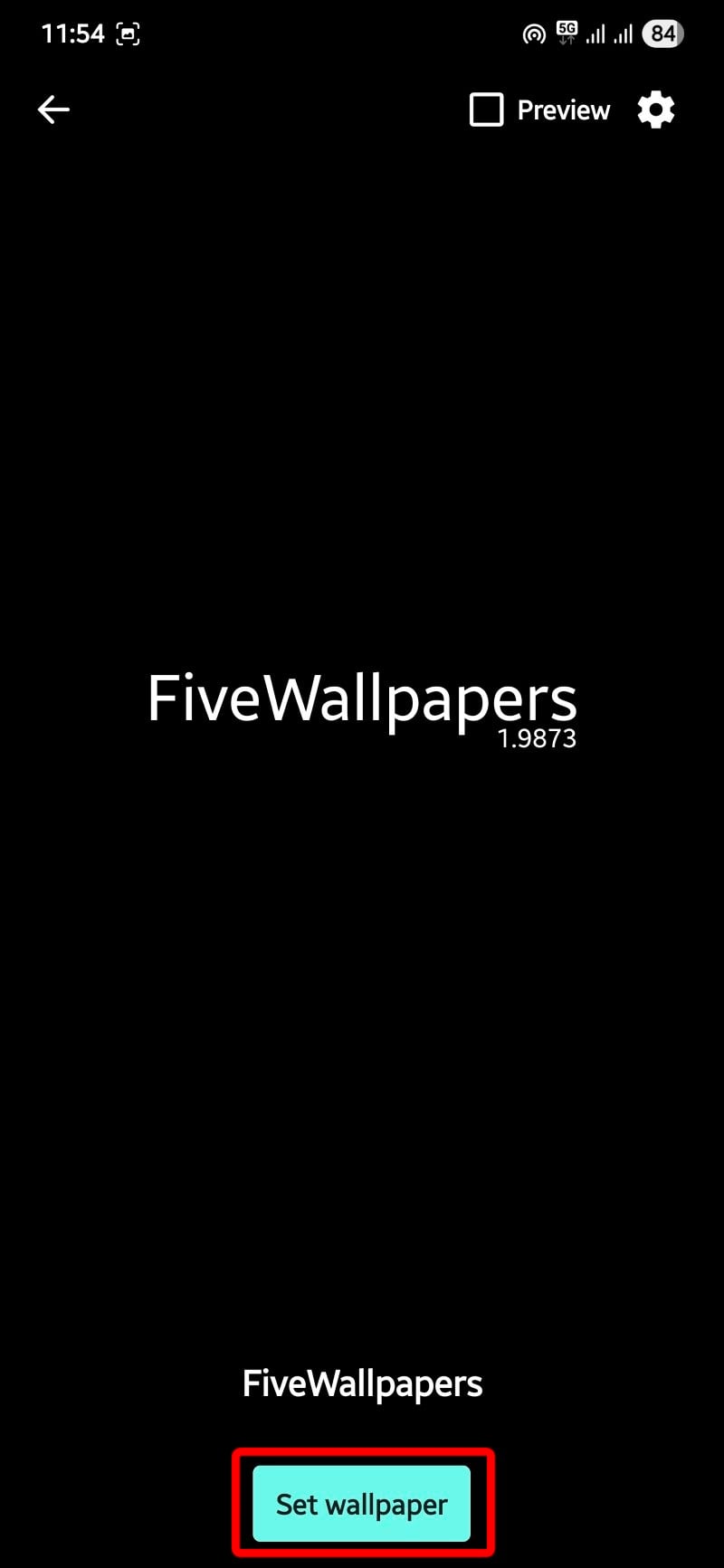
- Tap Set wallpaper.
Customize each home screen individually
The best part about using these apps is that they let you customize each page on your Android home screen separately. For instance, you can keep widgets, calendar, voice recorder, or any other shortcut right on the first page that you wish to access instantly. On the next page, you can choose to keep the app icons that you use frequently. On the next page, you can choose to keep photo albums or a folder. These apps give you the flexibility to make your Android device, actually yours. Let us know in the comments below if you are using a different app than the ones listed in this guide. If you are into customization, then you can take a look at our guide that gives you some tips to customize Android home screen like a pro.

