

The best thing about having an Android device is the freedom it brings with it: from installing third-party apps to customizing the device as you like, it’s a boon for people who want to personalize their device even more with the help of third-party launchers, icon packs, etc. Android customization can either be done for a specific purpose or to get things done more effectively.

But the best part about customizing an Android device is that for many people, it starts with a way to use their Android device more effectively and then becomes a hobby—an endless rabbit hole for them to have fun with. To even get started, we need to find the right apps and resources to get the most out of your Android device. But don’t worry.
In this article, we’ll go step by step on how to customize your Android home screen like a pro.
Table of Contents
5 Steps to Customize Android Home Screen Like a Pro
Palette: Getting the right inspiration
Android customization is very subjective, as everyone has their own tastes and use cases. But it’s important to get the right inspiration when you’re just starting out and ready to dive deep into the rabbit hole of Android customization. Sometimes, it can be confusing because it’s hard to imagine what you want to do with your home screen, what kind of launchers you should use, and which icon pack goes best with the wallpaper of your choice. To help you figure out all these questions, we’ve integrated Pallet. It’s the perfect app to start our guide on how to customize Android home screen like a pro.
Pallete was developed by YouTuber Sam Beckmen. Pallete is a beautiful and well-designed application that he designed and created together with a group of developers. It contains thousands of homescreen layouts submitted by many Android enthusiasts like us that you can draw inspiration from when designing your homescreen.
Also, the app is designed to cover all types of home screen layouts. If you have a device with an OLED display and prefer a dark, theme-based layout, or if you’re more of a minimalist, Pallete has everything you need, with many layouts already selected in categories.
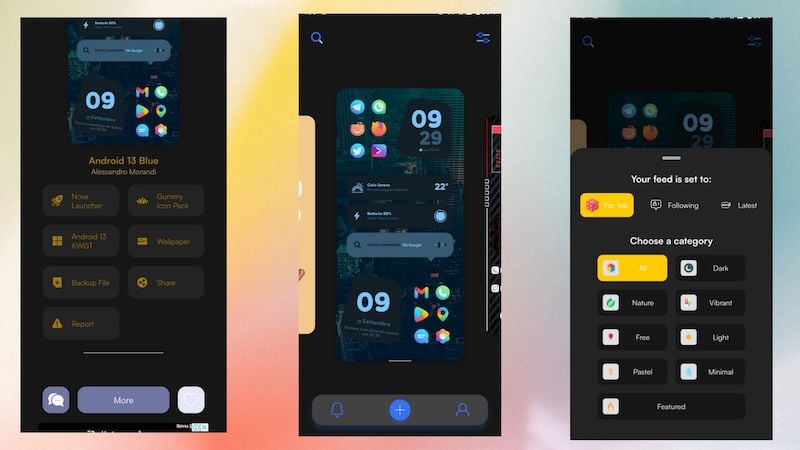
Pallete comes in two versions: The free version of the app includes all the home screen layouts and most of the resources, such as the home screen launcher and icon pack, while the Pro version of the app also includes the backup file and wallpaper. So you don’t have to create a layout yourself.
Palette is a great app that you can use to get inspiration for your home screen design.
Finding the right Launcher for Home screen
Homescreen launchers are the backbone of Android customization. An Android launcher is something that ties everything together to make your desired homescreen layout possible. There’s nothing wrong with using the default launcher if you own a Samsung, Xiaomi, or even a Poco device. However, these launchers are quite limited in terms of functionality and offer very few customization options. A third-party launcher has many advantages when it comes to Android customization, but how do you find out which launcher is the best for your use case?
The answer is simple: if you’re a beginner, try to use a launcher that serves your purpose. While most of the Android launchers in this article will fulfill most of your needs, a launcher that does exactly what you want is even better. Below, we’ll introduce you to some of the best Android launchers that might meet your needs.
However, if you’re someone who’s already dived down the Android customization rabbit hole, I recommend Nova Launcher for you. It is one of the best launchers available on the Google Play Store. It’s highly customizable and includes all the features you need from a third-party Android launcher. And if you get the premium version (Nova Launcher Prime), it’s the best Android launcher out there so far. But it might be confusing at first if you’re new to Android customization, so here are some third-party Android launchers that might suit your needs.
- Niagara Launcher: Niagara Launcher is just what you need if you’re a minimalist and want to keep your home screen minimalistic.
- Launchair 2: If you’re looking for the stock pixel experience. With a few tweaks, Launchair 2 is right up your alley.
- Ratio: Productivity Homescreen: If you want to boost your productivity, this is the best launcher for you. Ratio has some really useful features that will increase your productivity and save you time.
- Action Launcher: In our list, Action Launcher takes a very “jack of all trades, master of none” approach. It’s not the best, but it has everything you need from a third-party Android launcher.

These launchers should satisfy all your needs if you’re just starting out with Android customization. But if you’re a pro, we recommend you to use Nova Launcher. It is the most advanced launcher you can find on the Internet.
Finding the right Wallpaper apps
There are a million (or maybe a little fewer) wallpaper apps in the Google Play Store, and it’s hard to find the right wallpaper app to suit your needs. So, instead of searching and installing every wallpaper app you can find in the Play Store, we recommend our top five resources/apps. Also, we’ll tell you how to choose the right wall when trying out a certain type of homescreen layout.
We also have to keep in mind that wallpapers are very subjective, so it’s impossible to tell you which one is the best for you, but always remember that “a homescreen wallpaper can make or break the mood.”
So, choose the right wallpaper like a pro. Try to follow these steps:
- Choose a wallpaper that contrasts well with your icon pack and widget (for example, a black wallpaper if the icon pack is white).
- Always try to choose a wallpaper that matches the layout of your home screen.
- You can also turn to apps and services like Unsplash to find a wallpaper that suits your taste.
- And the most important thing is to find a wallpaper that fits your screen resolution.
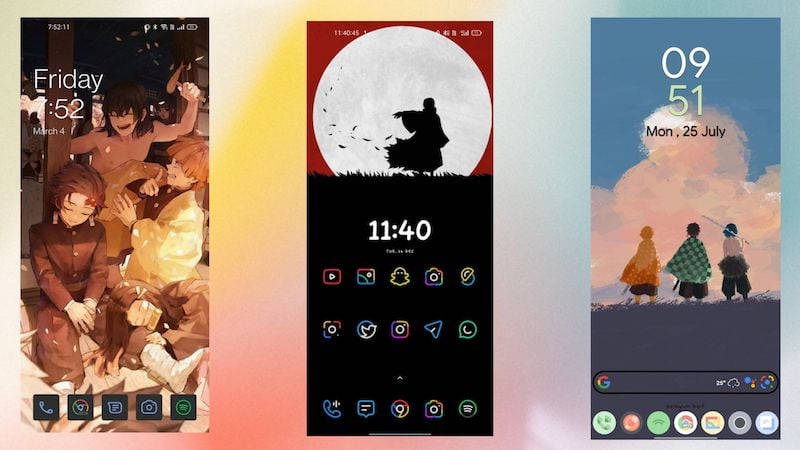
You can always follow these steps to find a great wallpaper for your home screen. And if you’re looking for some good resources for your home screen, here are our favorite wallpaper apps and resources for you to check out.

- Backdrops: Backdrops is probably the most popular wallpaper app in the Play Store. It contains some eye-friendly walls that are perfect for almost any device. It is one of the apps that even includes wallpapers that are perfect for flip phones.
- WallStack: If you have a device with an AMOLED or OLED display, you can’t go wrong with this app. The app contains wallpapers by category and works perfectly, but you have to keep in mind that the app displays ads when you want to download a wallpaper.
- WallYou: WallYou is an open-source wallpaper app that uses various services like Unsplash, Wallhaven, and Reddit to find wallpapers. It is a free app with a wide selection of wallpapers. It’s one of the best Android apps not available on the Play Store.
- Zedge: Zedge is a versatile wallpaper app that offers wallpapers created by individual artists. It also includes ringtones and live wallpapers. The only downside to this app is that it contains tons of ads if you use the free version.
Using the right icon pack
Using the right icon pack is one of the most important steps in our article on customizing Android home screen like a pro. A custom icon pack is the easiest and best way to add a personal touch to your Android device. With an icon pack, you can make sure that your home screen looks clean. The best part about using a third-party icon pack is that there are thousands of icon packs to choose from in the Play Store.
But we also need to keep in mind that third-party icon packs can only be applied to some default home screen launchers like Oxygen OS Launcher, Poco Launcher, etc. To take full advantage of the custom icon packs, we should use the third-party launchers as they are fully supported.
Choosing the right icon pack is not an easy task. While most icon packs support all popular apps, there is no easy way to ensure that all apps on your system are supported. In this case, we need to create a custom icon pack, for which you can read our article on custom icon packs. However, if you don’t want to create custom icons, it’s best to opt for an icon pack of your choice. Just follow the steps below before using an icon pack to get the best results.

- The icons should match the wallpaper so that they catch the eye better.
- Don’t forget to hide the icon label, and then, the icons will look clean.
- Try to increase or decrease the size of the icons according to your needs.
- Try to find the icon pack that you like the most.
Installing an icon pack is the easiest method in our guide on customizing Android home screen like a pro.
Using custom Widgets for Android Home screen
Android introduced widgets with Android 3.0, and widgets have been a staple on Android ever since. They are probably the oldest customization option in our guide today. Widgets on Android became so popular that many developers took this unique opportunity to create their own widgets for Android. There are also apps like KWGT that allow users to create their own widgets. These custom widgets are so powerful that they not only help you create widgets but also allow you to use and customize third-party widget apps.
While these widgets are super customizable, it takes a lot of time and effort to customize them properly. However, if you want a hassle-free experience, you can always try third-party widget apps on the Play Store to customize your Android home screen. These apps are easy to install with a program like KWGT and can be customized to your liking.

These custom widgets not only display information or beautify your homescreen but can also be customized with custom actions, making them even more useful. But the best part about installing a custom widget app is that it can be used without a custom launcher. This means that you can install it and try it out without leaving your default home screen on any smartphone.
Custom widgets are one of the best customization features in our guide on how to customize Android homescreen like a pro. And everyone should try them once.
Customize and Personalize Android Home Screens
By customizing your Android homescreen like a pro, you can truly make your smartphone your own. By personalizing your device with the right launcher, icon pack, wallpapers, and widgets, you can create a unique and customized user experience.
As you embark on your Android customization journey, it’s important to get inspired and find the right resources. Apps like Pallete offer a large collection of home screen layouts to help you design your perfect setup. Choosing the right launcher is crucial to get the full potential of the customization. Choosing the perfect wallpaper is another important aspect of customization. To give your home screen a personal touch, using the right icon pack is essential.
With the countless options available on the Play Store, you can easily take your Android customization skills to the next level and create a stunning homescreen that reflects your personality and preferences. So go ahead, unleash your creativity, and design your Android home screen like a pro!
FAQs on Customizing Android Home Screen
1. How to make a perfect Android home screen setup?
Above, we told you several ways to customize your home screen and make it even better. The truth is that there is no such thing as a “perfect homescreen setup” because at the end of the day, a homescreen setup reflects you. Therefore, everyone has a different version of their homescreen that they call perfect.
After following the article “How to Customize Android Home Screen like a Pro,” is it possible to improve a home screen setup?
Yes, if you correctly follow how to customize your Android home screen like a pro, you could create and even improve your old home screen setup. We have shared multiple resources in the article to help you improve your home screen.
2. Do I need to install KWGT widget-maker to add custom widgets to my Android Home screen?
Yes, if you follow the part about widgets in this article carefully, you will need to install KWGT or a similar app to add custom widgets to your homescreen.

