

You can use three different methods to change the wallpaper on your iPhone automatically. With the built-in Photo Shuffle feature, you can select random photos and set them as wallpaper. With the Shortcuts app on iOS, you can create an automation and change the wallpaper depending on the time or location. Finally, third-party apps such as Splashy offer an extensive wallpaper collection that allows you to change wallpapers on your iPhone automatically.

All these methods are free and work on any iPhone with the latest version. In this guide, you’ll learn how to use these methods and enjoy different backgrounds without having to change them manually.
Table of Contents
How to Automatically Change Wallpapers on iPhone
Use the Photo Shuffle Feature
The built-in Photo Shuffle feature in the wallpaper settings allows you to select a group of photos and automatically set them as wallpaper. This feature is available in iOS 16 or later versions for iPhones. You can select images from different categories, such as users and nature, from the photo album or manually select photos and set a frequency for how often the wallpaper should change (e.g., every hour, every day).
How to use the photo shuffle feature to change wallpaper on iOS
- Step 1: Open the Settings app on your iPhone

- Step 2: Click on the Wallpaper

- Step 3: Click on the Add New Wallpaper.

- Step 4: Select the Photo Shuffle option

- Step 5: Here, you can use the featured Photos or Select Photos Manually to use them as wallpaper.

- Step 6: Select the frequency of the Photos. You can choose “On Tap,” “On Lock,” “Hourly,” or “Daily”. To change wallpapers daily, select “Daily.”
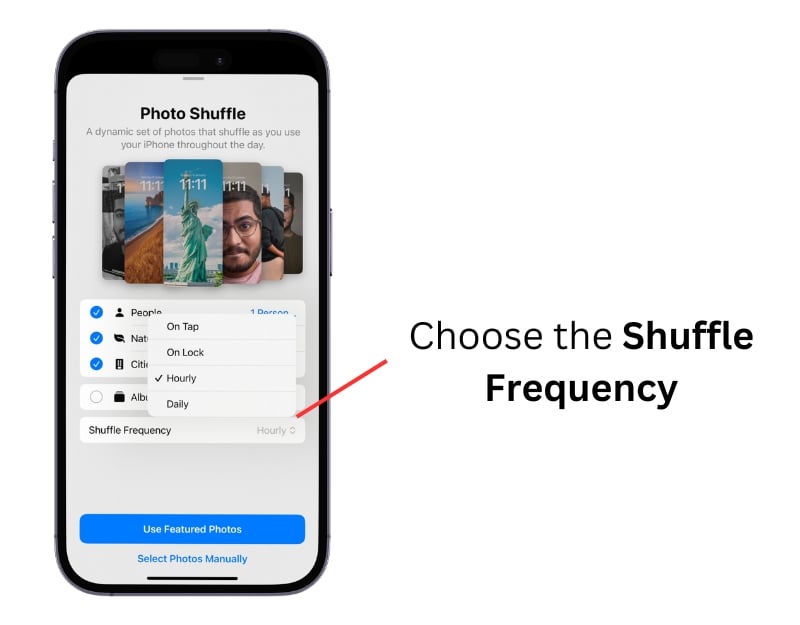
- Step 7: Customize the wallpaper and click on the Add

- Step 8: Click on Set as Wallpaper Pair and select the screens you want to apply this wallpaper

Use Shortcuts
With Shortcuts, you can easily change the wallpaper on your iPhone automatically. With the Shortcuts app, you can create a shortcut to change the wallpaper and automate this based on time and location. You can create shortcuts to change wallpaper pairs on your iPhone or set an image as your background. Setting up and using these shortcuts may require some technical knowledge. You can follow the steps below to create an automation with the Shortcuts app.
How to automatically change wallpaper pairs on your iPhone
- Step 1: Open the Shortcuts app on your iPhone. If you do not have a shortcut app, download it for free from the App Store.

- Step 2: Click on the plus icon on the top left corner of the screen
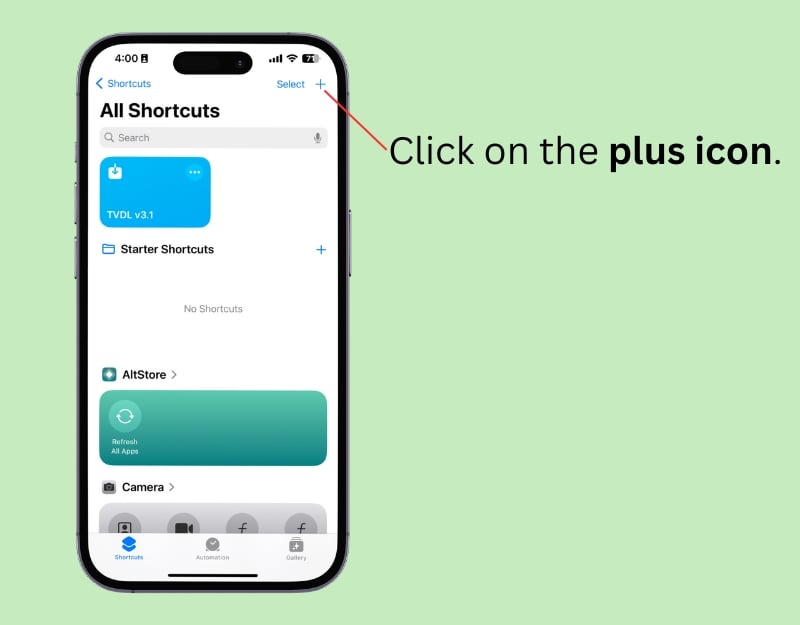
- Step 3: Click on the search bar and type Get All wallpapers.

- Step 4: Select to Get All Wallpapers

- Step 5: Again, click on the search bar at the bottom and search for List.

- Step 6: Tap on Get Item from List from the results.

- Step 7: Click on the First Item and change it to a Random Item from the Get Item from the list action.

- Step 8: Now again, click on the search bar at the bottom.

- Step 9: Search for Wallpaper and select the option Switch between wallpaper.

- Step 10: Your shortcut is created.

- Step 11: Now Rename the shortcut. Click on the shortcut name on the top and select Rename.

- Step 12: Enter the shortcut’s name and Click on Done.

- Step 13: To run the shortcut automatically, Go to the home screen, click on Automation, and tap on New Automation. If you already have automation, click on the plus icon in the top right corner.

- Step 14: Click on the Time of the Day.

- Step 15: Select the Time of the Day under the When section and select the desired time to change the wallpaper automatically. Under the Repeat section, select Daily to change wallpaper daily and select Run Immediately. Click on the Next

- Step 16: Under My Shortcuts, select the Wallpaper shortcut you created.

How to automatically set a new photo as a wallpaper on your iPhone
As with the wallpaper pairs, you can use the shortcut to set new images as wallpaper automatically. This works in a similar way to the Photo shuffle feature but offers more customization options, e.g., changing wallpaper depending on the location of a particular event.
Before you set up the shortcut, download the images you want to use as wallpapers. You can download the wallpapers from wallpaper apps or websites and save them in the Photos app.
You can add these images to an existing album or create a new album for the shortcut. To create a new album, open the Photos app on your iPhone, select the image you want to add, click on the three dots at the top, select “Add to album,” tap on “New album,” and name it. You can add as many photos as you like to the album and use them as wallpapers.
- Step 1: Open the Shortcuts app on your iPhone

- Step 2: Click on the Plus icon to add a new shortcut

- Step 3: Click on Add Action or the search bar at the bottom

- Step 4: Type Find Photo and select Find Photos action

- Step 5: Click on the Add Filter

- Step 6: Click on the Album.

- Step 7: Select the Photo Album you want to use as wallpaper. You can create a new album using the photos app.

- Step 8: Click on the Sort and select Random. You can sort the images randomly or use other filters.

- Step 9: Enable the Limit and set it to one photo.

- Step 10: Click the search bar again and type Switch between wallpaper.

- Step 11: Select Switch Between Wallpapers and it to actions.

- Step 12: Tap on the Wallpaper.

- Step 13: Select the photo wallpaper pair in the list.

- Step 14: Now click on the search bar.

- Step 15: Find and tap on the Set Wallpaper Photo.

- Step 16: Click on the Wallpaper and select the Wallpaper you have chosen in the Step 13: In this case, it is Wallpaper 2.

- Step 17: Click on the Image and select the Photos

- Step 18: Now select the Photo as wallpaper and apply the wallpaper to the lock screen and Home Screen.

- Step 19: Click the arrow and turn off the wallpaper settings.

- Step 20: Rename the shortcut. Click on the shortcut name on the top and select Rename. Enter the name of the shortcut and click on the Done.

- Step 21: To automate. Click on the Automation tab from the home screen and click on the New Automation. Click on the plus icon if you already have the automation.

- Step 22: Click on the Time of the Day

- Step 23: Select the time settings. If you want to change wallpaper daily, Select Time of Day and set the time; Select Daily in the Repeat section, select Run immediately, and click Next.

- Step 24: Now, under My Shortcuts, Select the Photo Wallpaper shortcut you created.

You can also add a shortcut for the wallpaper to the home screen and change the background image if required. To add a shortcut to the home screen, click on the space at the top and tap Add to home screen. Here, you can add the shortcut to the home screen. You can add new wallpaper pairs to the settings, and each time you call up the shortcut, a new wallpaper pair will be applied to your iPhone. You can set the action of the shortcut so that the selected images are displayed in the preview before you use them as wallpaper.
Use the Splashy Wallpaper App
Creating shortcuts can help you to change wallpapers automatically. However, it can be time-consuming if you aren’t familiar with the process. In this case, you can use a third-party wallpaper app like Splashy to create automatic wallpapers and change them daily on your iPhone.
Apple doesn’t allow just anyone to change wallpapers automatically; even the developers of this app have to rely on shortcuts to change the wallpapers. The advantage of Splashy is that it offers a wide selection of wallpapers and provides an element of surprise.
The wallpaper collections are updated automatically, so you don’t have to add them manually. You can set a new wallpaper with just one tap without having to save images to Photos or go into the settings. You can also edit the shortcut so that the wallpaper automatically changes in the background when you have certain triggers, such as when you wake up, when you leave the house, or when your battery is low. The app offers free and premium wallpapers.

You can download the app for free from the app store. When setting up the app, allow the app to create and add shortcuts to the home screen. Follow the on-screen instructions to create a shortcut. You can tap on the shortcut to change the wallpaper or automate the shortcut in the shortcuts app on your iPhone to change the wallpaper automatically.
Change Your iPhone Wallpaper Automatically
iOS offers limited customization features, whether changing fonts, deleting the wallpaper, or setting up themes. The same applies to automatically changing the wallpaper on the iPhone. Photo Shuffle in the wallpaper settings allows you to set different photos as wallpaper and change them regularly. However, it is only limited to photo wallpapers. Luckily, you can use shortcuts or third-party apps like Splashy to automatically change the wallpaper on your iPhone.
In addition to these methods, you can automatically change the wallpaper when you activate focus mode. To change your iPhone wallpaper in focus mode, go to Settings > Focus, select a focus profile, go to Customize Screens, tap Choose the screen you want to add wallpaper, and now choose an existing lock screen wallpaper or create a new one by tapping the Gallery button. Select the wallpaper, customize the lock screen as needed, and tap Add to set the wallpaper.

FAQs about Automatically Changing Wallpaper on iPhone
1. How can I set my iPhone wallpaper to change automatically?
You can use the Photo Shuffle feature, the Shortcut app on your iPhone, or the Splashy app on your iPhone to change the wallpaper automatically.
2. What apps can change my iPhone wallpaper daily?
You can use apps like Splashy, an automatic wallpaper changer, to change your iPhone’s wallpaper daily.
3. Can I use my photos to change my iPhone wallpaper automatically?
Yes, you can use photos to change on your iPhone automatically. The Photo shuffle method and automatic wallpaper shortcut method allow you to change photos automatically on your iPhone.
4. Is it possible to automate wallpaper changes without third-party apps?
Yes, You can use the Photo Shuffle feature or the iOS Shortcuts to automatically change the wallpaper on your iPhone without using third-party apps.

