

Quick Answer
HitPaw VikPea is an AI video enhancer that upgrades footage to 8K, reduces noise, fixes colors, stabilizes shaky clips, and supports multiple models for faces, animation, and low light, all through an easy interface that works on both local hardware and faster cloud processing.
Video enhancement is one of the toughest and most resource-intensive tasks. Before AI, we had very limited options for regular users to enhance any video. One such option is interpolation, which is a popular technique used in the past to enhance the video quality by copying nearby pixels; however, it is still not perfect since it copies nearby pixels to enhance the video.
With AI and many diffusion models, with your manual enhancement of every pixel on your video, you can simply use AI to enhance it. The best part is that it’s not just limited to enhancing the quality of the video; you can also use AI to improve color accuracy and enhance stability, even if you are a complete beginner without experience.
HitPaw VikPea video enhancer is one such tool that allows you to enhance videos with the help of AI. Whether you are a regular user to enhance old family videos, a content creator to enhance the quality of your videos, or a video editor who wants to fix blurry clips, HitPaw is one of the best options to choose from.
I have been using HitPaw VikPea for more than two days, upscaling different videos. So if you are a content creator or anyone who often works with video enhancements, the HitPaw VikPea can be a great option for you. In this guide, let’s look at the best features of HitPaw VikPea and what makes it one of the best options to enhance videos.
Table of Contents
What is HitPaw VikPea?
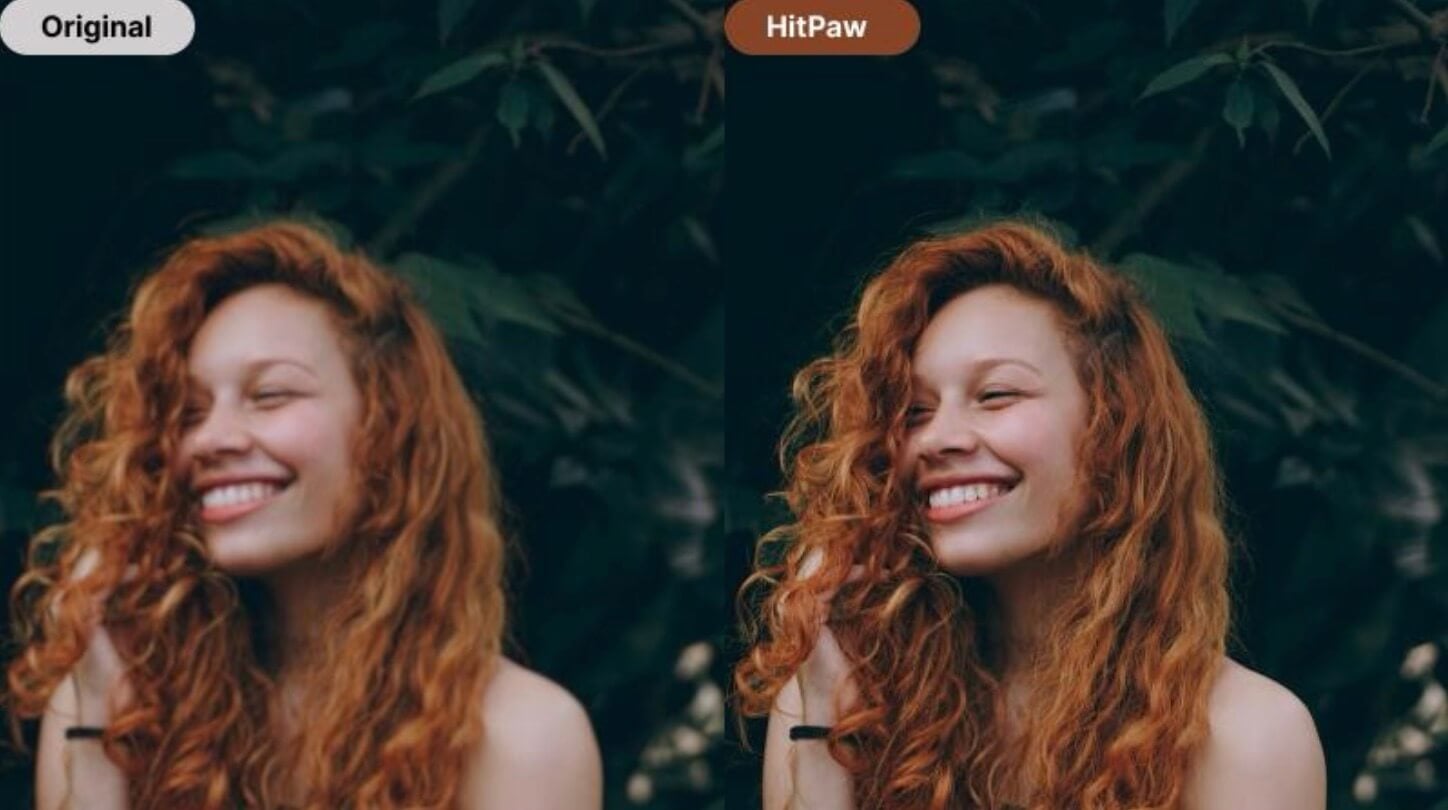
HitPaw VikPea is an AI video enhancement software that lets you improve the quality of videos using advanced models. It offers multiple AI models tailored for different types of footage, such as general scenes, animation, and faces, to enhance and upscale videos. It can increase video resolution up to 8K while aiming to preserve detail and minimize artifacts. HitPaw VikPea is available on both Windows and Mac, and it primarily runs locally on your computer, though some newer features can also use cloud processing.
How to install and set up
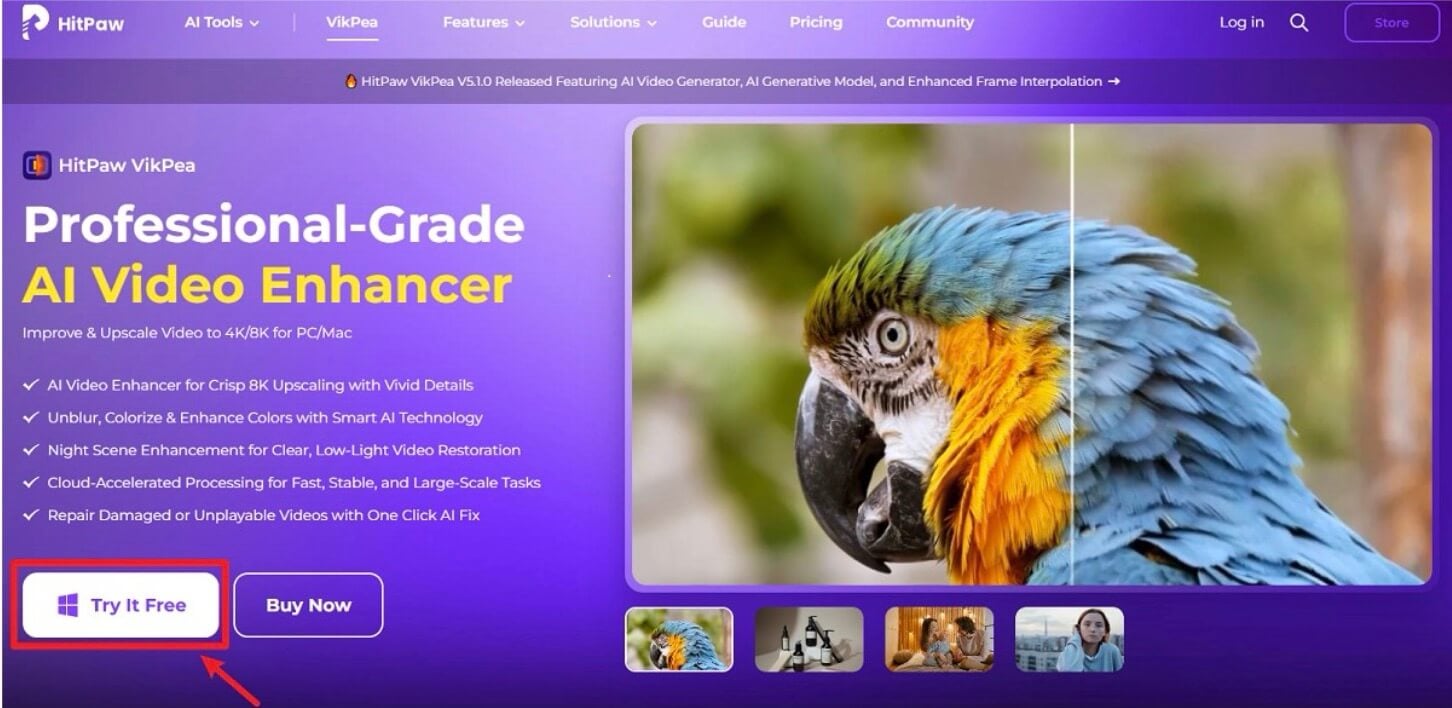
HitPaw VikPea is available on both Windows and Mac. You can download it for free on both platforms. You can download the HitPaw VikPea installer on Mac or Windows and start installing the app. Since HitPaw VikPea is designed for easy use, you don’t need to go through the complex setup either.
Here are the minimum requirements to run HitPaw VikPea locally on your device:
| Spec | Windows (minimum) | macOS (minimum) |
| OS | Windows 10 or 11, 64‑bit | macOS 13 or later |
| CPU | Intel i3 or AMD RX 580 or higher | Intel i3 or Apple M1 or newer |
| RAM | 8 GB or more | 4 GB or more |
| Storage | 4 GB free space | 8 GB free space |
| GPU | Ryzen 3 or better | – |
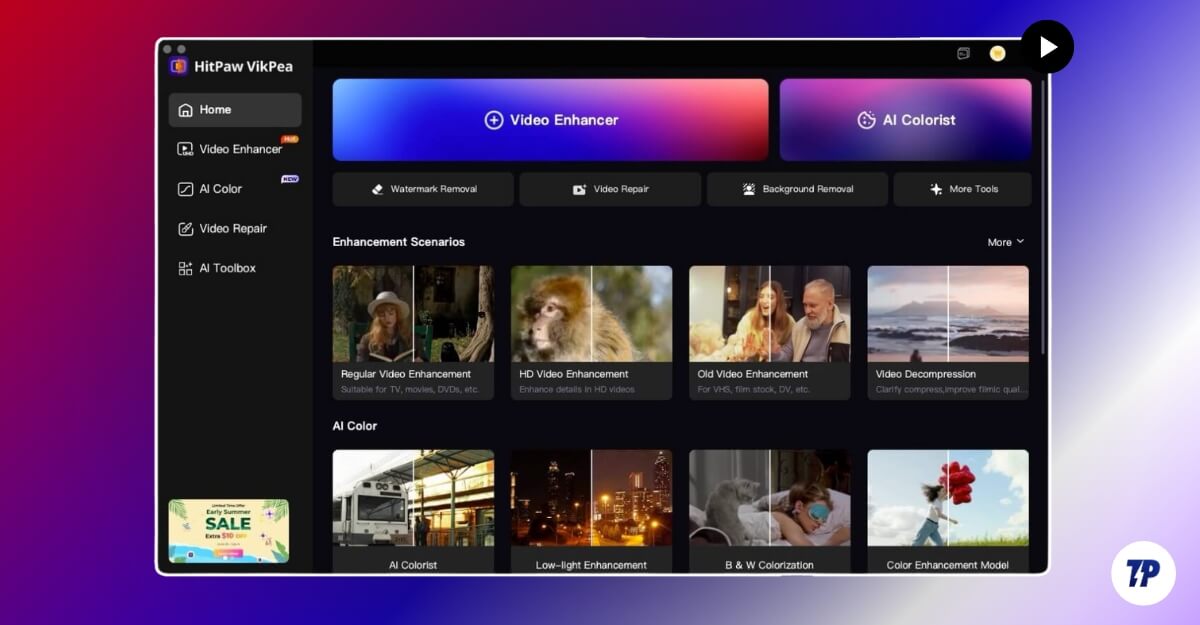
Once you have downloaded the file, you can double-tap it and start installing. Once installed, you can open it, and you will be shown the home screen freely, where you can access the video engine and AI colorist feature, as well as watermark removal, video repair, and other tools. To enhance your videos, you can tap here, upload your video, select the model, and enhance its quality.
HitPaw VikPea UI Walkthrough
HitPaw VikPea comes with an easy-to-use interface, and even beginners can navigate through the app easily. On the home screen, you can find all the features and tools offered by the software.

The video enhancer interface is also designed to be easy to use. You can add videos and select the model, select results, and start exporting the video. It’s that simple.

HitPaw VikPea Video Enhancer Review
AI Upscaling (Enhance and Increase video resolution)

AI upscaling is the core feature of the HitPaw VikPea video enhancer to convert old or low-quality videos that look blurry or pixelated to 1080p, 2K, 4K, and even to 8K resolution. It supports any video and lets you convert videos into the highest resolution possible.
The AI enhancer also supports multiple models, which you can choose for different outputs. I have used the cloud output to convert full HD video into 4K. It took more than 5 minutes to generate the video, and here are the results. In my usage, the cloud export is way faster than local. I am using an Apple MacBook Air M1 processor.
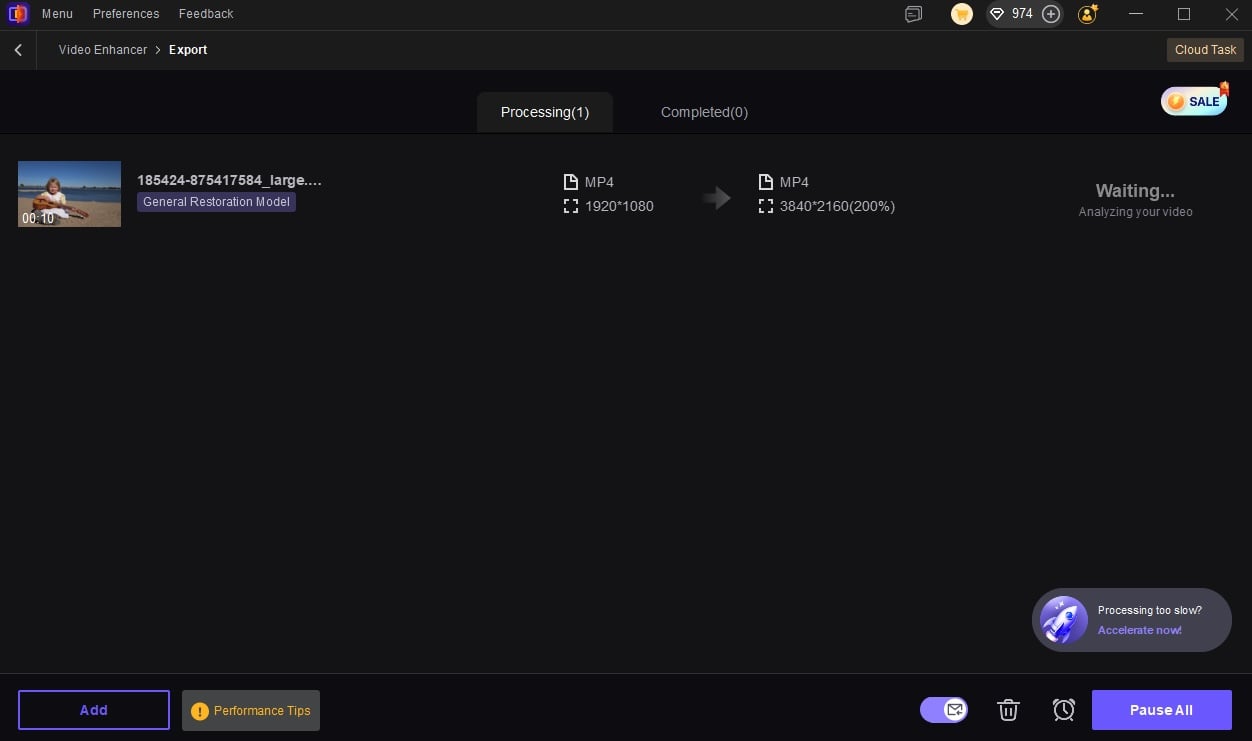
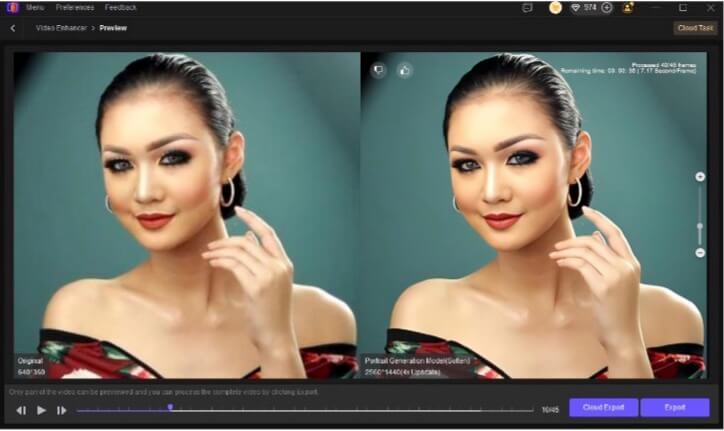
Using the local model, it took exactly 17 minutes to convert 24-second videos from full HD to 4K. However, the results are quite impressive. After conversion, the videos look sharper and more detailed. The best part is, it doesn’t change the colors or make the video softer like most video upscale models do.
Denoise and Artifact Reduction Support
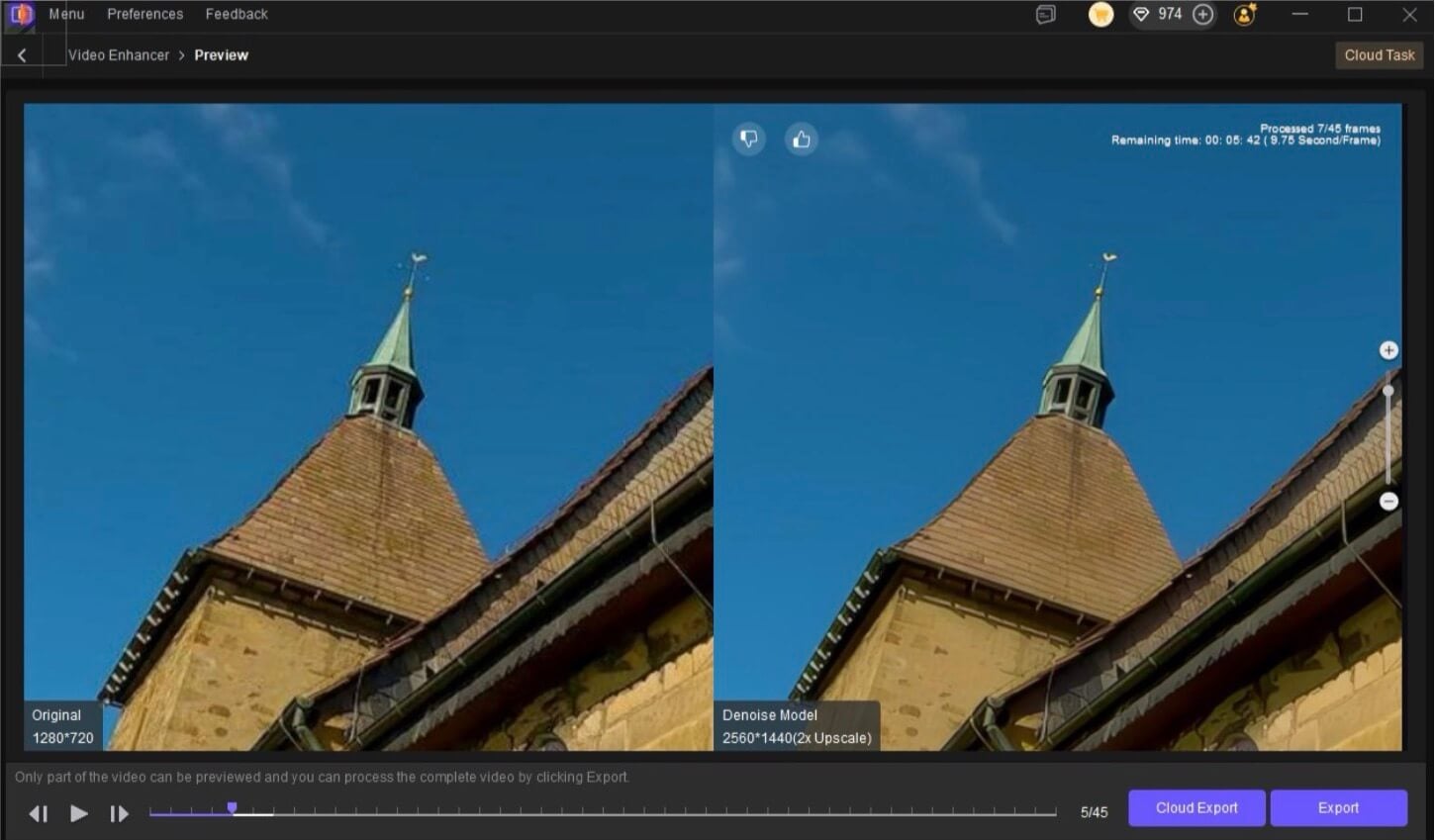
Another unique feature of HitPaw VikPea Video Enhancer is that it supports specified models for different video types. At the time of writing this article, HitPaw VikPea offers seven different AI models designed for specific video types.
Starting with the General Denoise Model, which works best for enhancing scenic content such as buildings, landscapes, and other wildlife videos.
And if you enhance videos with human faces, Face Model enhances the clarity and detail; likewise, there are animation models for animated videos.
Color enhancement model improves faded colors, frame interpolation enhancement model converts low frame rate videos to higher frame rates, stabilize model automatically detects and corrects video shakes, and the low-light enhancement model for enhancing the low-light videos.
Easy to Use for Beginners
One of the biggest advantages of HitPaw VikPea is that you don’t need any video editing experience to make these enhancements, plus the user interface is also a simple layout that just requires an easy-to-use four-step process.
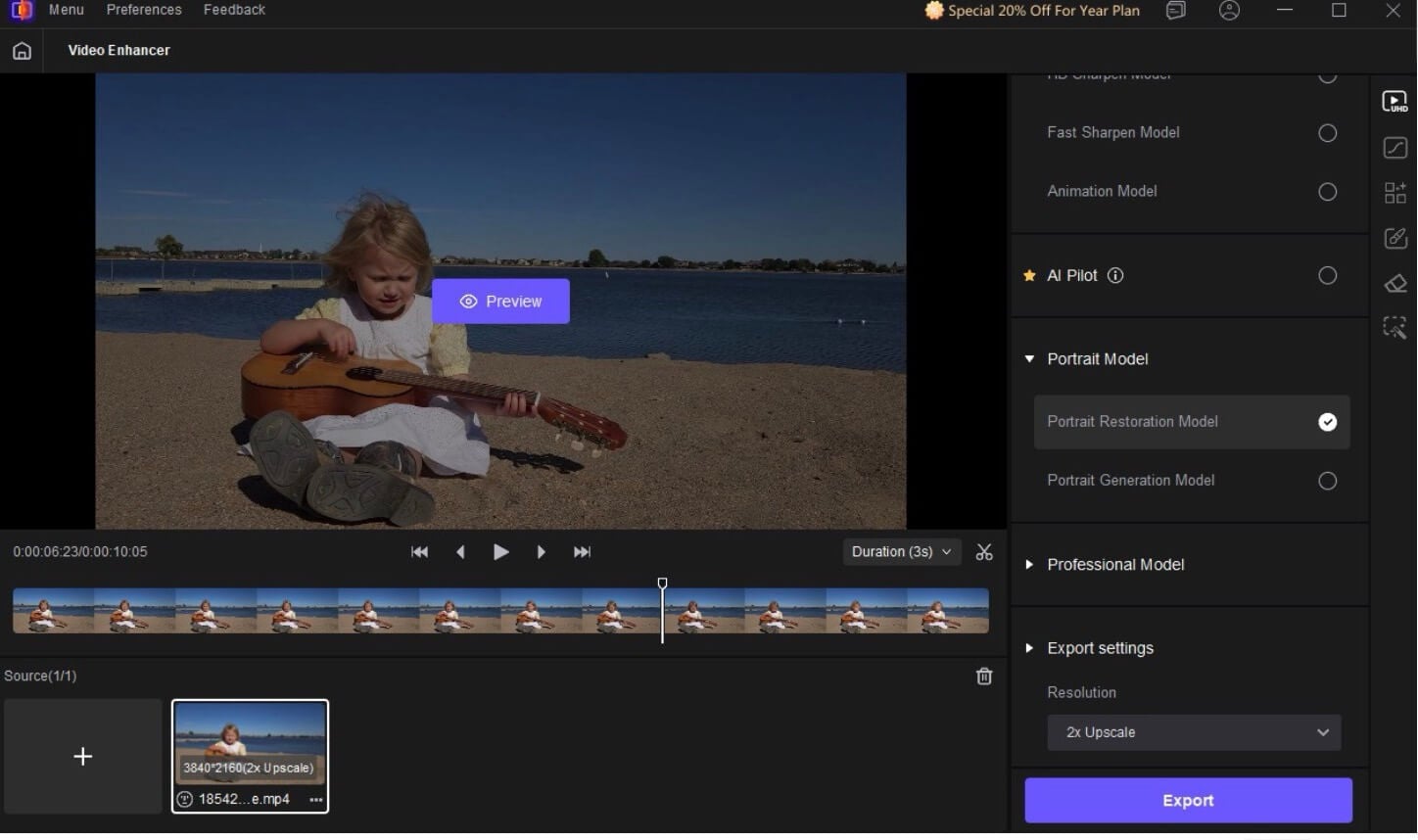
You can simply import the video, choose the AI model depending on the type of enhancement you want to make, preview it, make any changes ahead of time, and finally export.
The controls are also very simple; you don’t need to worry about AI models and their patterns. Everything in the app is clearly labeled and even comes with automated AI intelligence that automatically analyzes the video and suggests the enhancement, which is great, even if you stick to what you need.
Supports all Major Formats
The best part is that it even supports multiple resolution options and allows you to set your own custom resolution. The AI understands your request and automatically enhances your video without you explicitly mentioning every detail.
Once the video is converted, you can export it in multiple formats, depending on your preference. At the time of writing this article, it currently supports all popular formats that many of us often use, including MP4, MOV, AVI, and GIF.
Batch Processing
If you want to convert and enhance multiple videos at once, HitPaw VikPea also supports batch processing, so you can even convert multiple videos into a specific resolution at once.
Works Even on Low-End Laptops or PCs
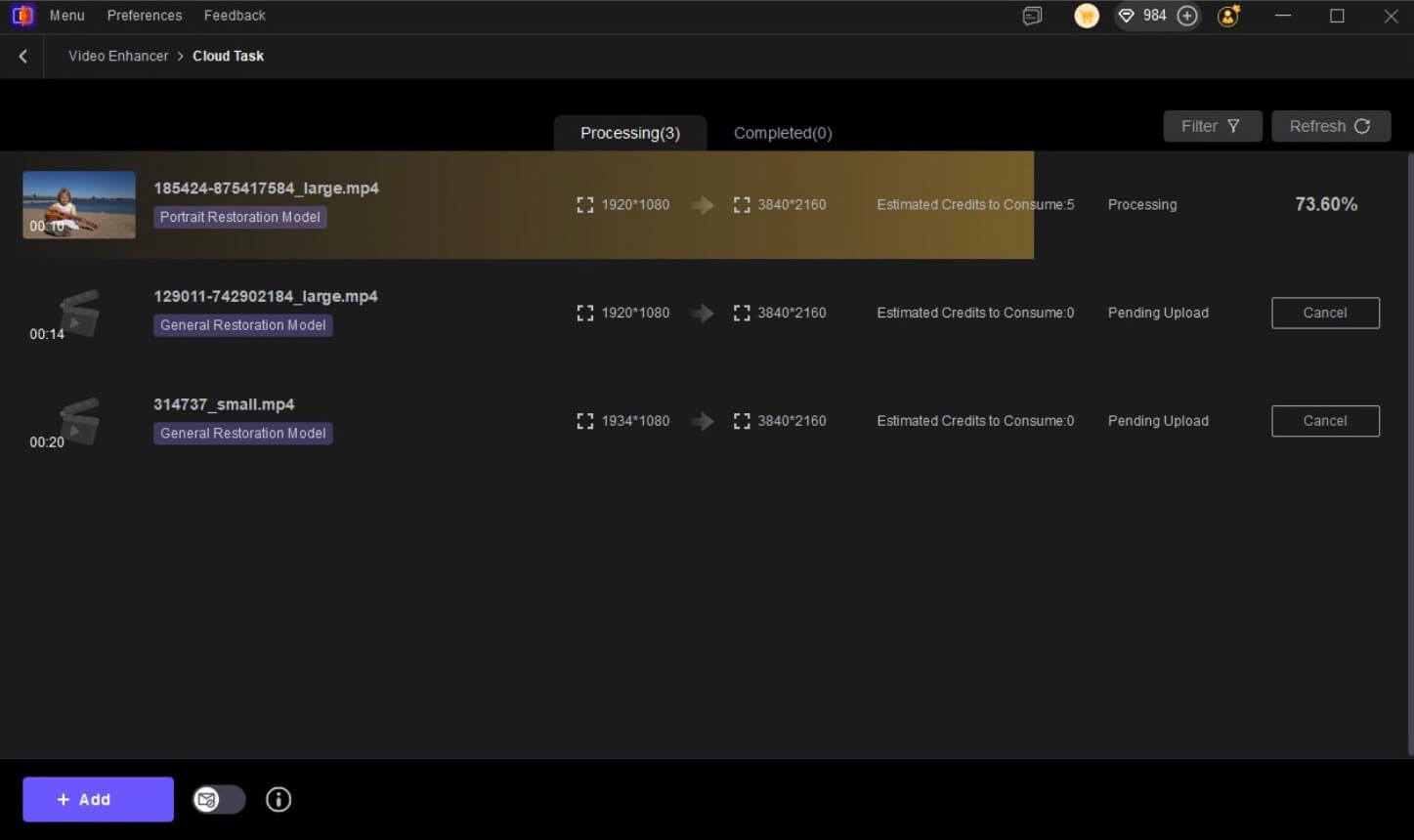
HitPaw VikPea video enhancer can run on your device locally to enhance videos; however, many users have reported that it might take a significant amount of time to enhance the video on a low-end device to process and convert.
To avoid this, HitPaw VikPea also offers a cloud conversion option where you can use the cloud system to process and enhance the videos. It is generally 10x faster than on-device, especially for people with minimal hardware, who can utilize this and convert videos in minutes.
Extra Tools That Save You More Time
HitPaw VikPea also comes with other useful tools such as video repair, watermark remover, background remover, frame interpolation, stabilization, and more.
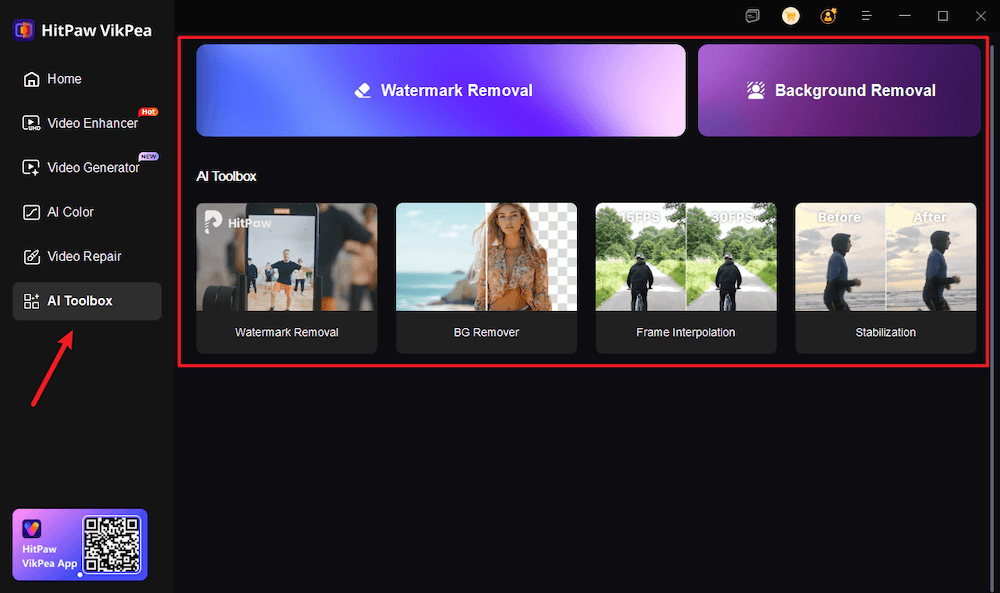
You can combine these tools with the video enhancer without needing to depend on external tools; for instance, the background remover can be very handy to remove the background of any video you have uploaded.
Once done, you can import it into the video enhancer tool and enhance the quality of the video. Likewise, the watermark remover can also come in handy. In addition to video enhancement tools, HitPaw VikPea also offers video repair tools that let you fix videos with frame drops, unplayable videos, flickering videos, and much more.
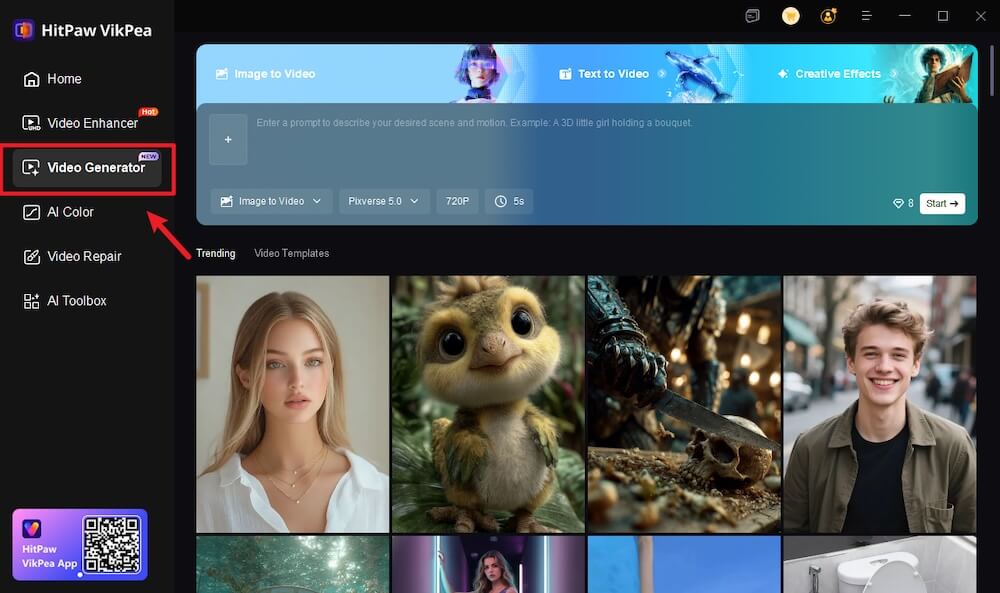
The latest v5.1.0 of HitPaw VikPea comes with AI Video Generator that combines multiple creative models into one platform, enabling users to generate videos from text, images, or existing media. It includes access to a range of models, including Kling AI, VEO3, Hailuo, PixVerse, and Seedance.
Pricing and Details
HitPaw VikPea offers a one-time subscription, which currently costs $99 for a year and $350 for a lifetime. There’s also a free trial, and if you want to try it out for a short time, $43.19 monthly license is available as well.
You can use VikPea to enhance videos, and it works best if you have high-end hardware. With a one-time purchase, you get lifetime access and unlimited conversions. There is also a cloud-based option (Cloud Acceleration) that uses credits, letting you pay only for what you need.
Final Verdict
In just the span of two years, from writing emails and asking questions, AI is now being used for more practical use cases, such as image enhancement and video enhancement. Recently, YouTube announced it up-scaled old 480p into full HD with the help of AI, and they significantly offer better quality.
Thanks to the HitPaw VikePea video enhancer, anyone can enhance videos easily without requiring a complex setup. You can improve the quality of the videos without requiring a complex setup. Even if you have a low end PC, you can use CloudConvert to easily enhance your videos. And one-time lifetime access can be a great deal if your work often involves converting videos, plus you also get access to additional tools to help you edit your videos. If you are interested, you can visit the HitPaw VikPea website and check pricing.

