

Quick Answer
Android shortcuts can cut taps and save time every day. This guide covers 20+ hidden and simple tricks like cursor control from the keyboard, secret dialer codes, lock screen shortcuts, faster app switching, quick settings tweaks, smarter typing, and system shortcuts that make everyday Android use faster and easier.
Shortcuts significantly reduce the effort needed to use your phone, whether it’s reducing taps, navigation, or making it easy to accomplish the task. We have been covering shortcuts and automations for a while now, whether it’s iOS or Android. We also recently published a guide on the best shortcut apps for Android that let you automate most boring tasks and even complex tasks on your Android.
This guide especially focuses on simple Android shortcuts that save you time on everyday tasks. These shortcuts are buried inside apps, hidden in settings.
You will learn about 20+ useful Android shortcuts to use on your smartphone or tablet.
Table of Contents
Best Android Shortcuts You Should Start Using Today
Use the Space Bar to Move the Cursor
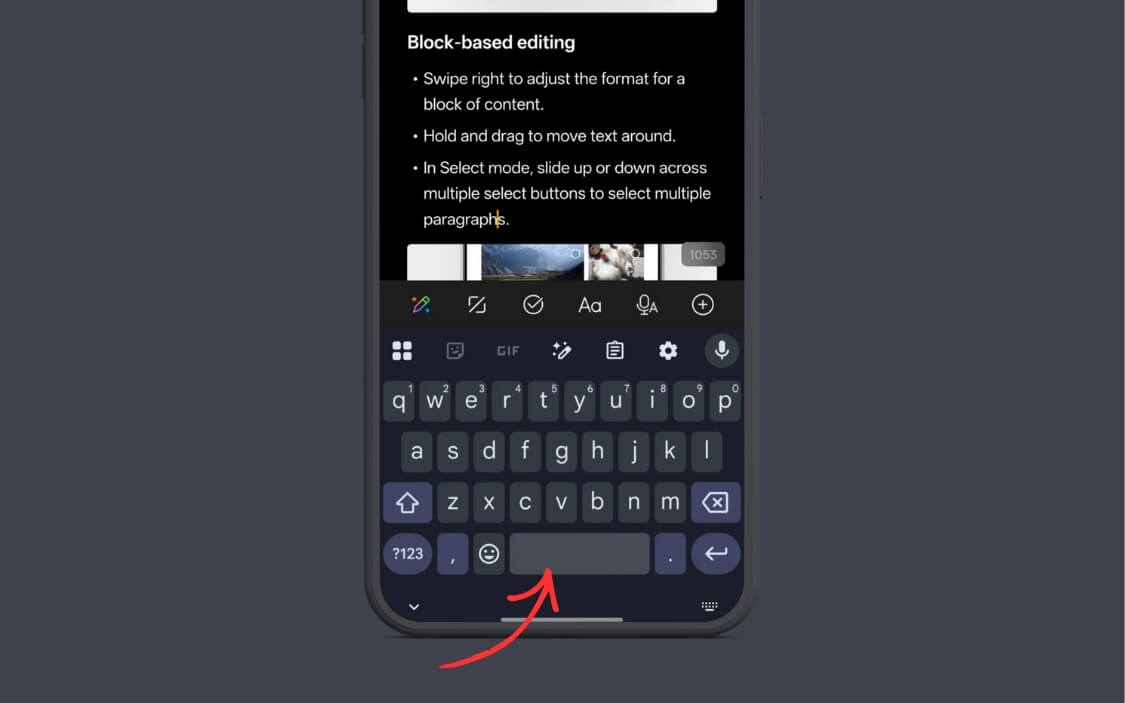
If you often use your phone to type text, you know how hard it is to edit the text, especially on compact phones, to place the cursor in the precise location.
Fortunately, there is an easy way to move the cursor precisely.
Similar to iOS, if you are using Gboard or any other keyboard that supports space bar cursor, you can long-press on the space bar and move the cursor left and right, and place it where you want to edit the text. While it’s not as smooth as iOS, it gets the job done.
You can get this feature on any Android smartphone; you can install Google’s Gboard to use this.
Access Hidden Phone Info Using Dialer Codes
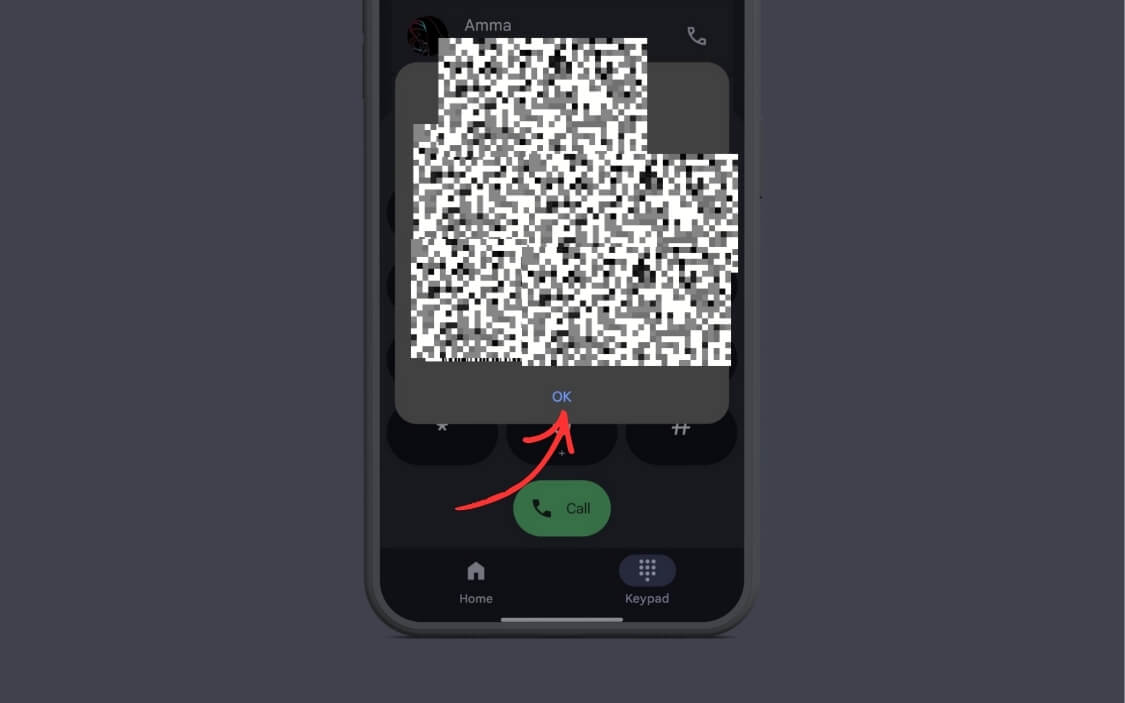
If you think the phone dialer is only used to make calls, you are wrong. There are plenty of secret dialer codes that can help you directly access the phone’s health, testing and diagnostic information without needing any extra apps.
And since these codes access information directly from your system, they are more accurate than using any third-party apps.
Here are some of the useful dialer codes you can use on Android phones.
| Code | What it does |
| *#06# | Displays IMEI number(s) |
| *#07# | Displays SAR value |
| ##225## | Calendar storage info |
| ##426## | FCM/Google Play Services diagnostics |
| ##759## | RLZ Debug UI (OEM mode) |
| ##4636## | Phone, battery, network info |
| #0# | Hardware diagnostic menu |
| *#011# | Network connection info |
| *#0228# | Battery status |
| *#0283# | Packet loopback |
| *#0808# | USB settings |
| *#1234# | Software version |
| *#2663# | Firmware version menu |
| *#7353# | Quick test menu |
| *#9090# | Advanced debugging |
| *#9900# | System dump mode |
| *#2683662# | Advanced service mode |
| *#34971539# | Camera firmware info |
| ##64663## | Hardware diagnostic (QC test) |
| ##86583## | VoLTE carrier check |
| ##86943## | VoWiFi carrier check |
| ##6485## | Battery parameters |
| ##284## | Software log snapshot |
| *#66# | IMEI/MEID (encrypted) |
| *#888# | PCB version |
| *#1234# | Software version |
| *#07# | Regulatory labels |
| .12345+= | Calculator engineering mode |
| *#546368#*MODEL# | Service test (MODEL=your model) |
| ##2486## | Engineering mode |
| ##372733## | Service mode/FQC |
| ##682## | Offline update |
| *#800# | Factory mode |
| *#888# | PCB info |
| *#6776# | Software version |
| ##73788423## | Service menu |
Monitor Apps Running in the Background
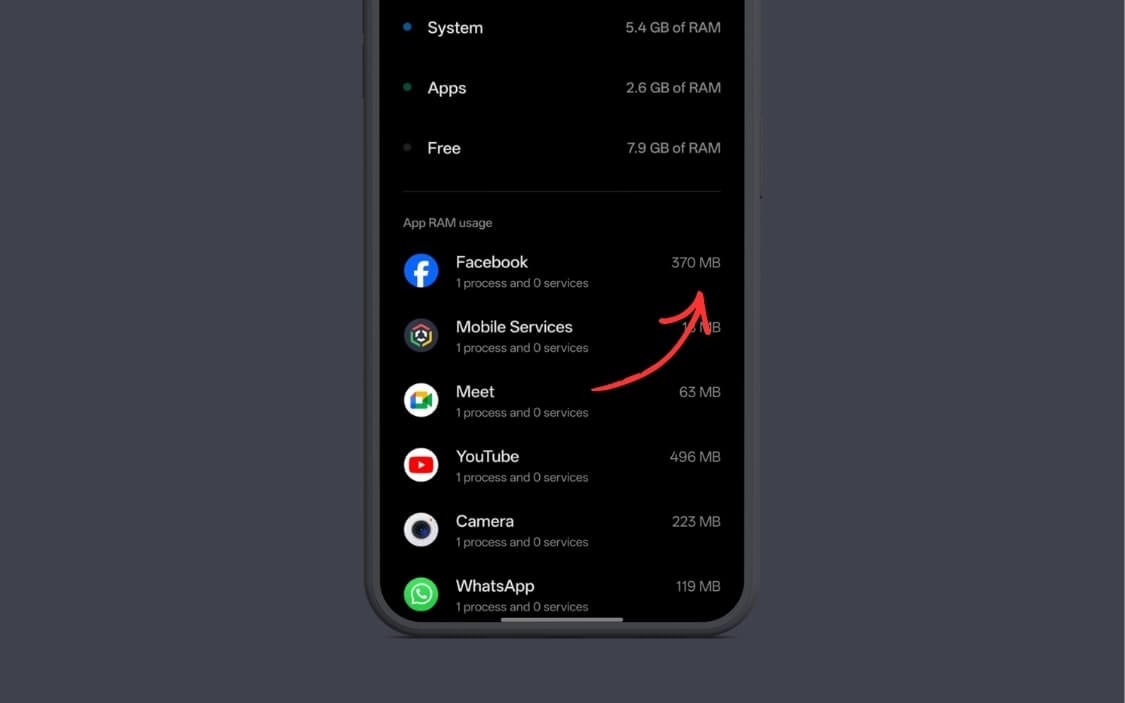
If your phone frequently lags or has battery drain issues, monitoring background app usage can be helpful. It lets you view which apps are active in the background even when you are not using them.
There are several ways you can see and monitor background app usage; however, monitoring usage using developers’ options gives you more control over detailed RAM and CPU usage.
For it you need to enable developer options on your Android, here is how:
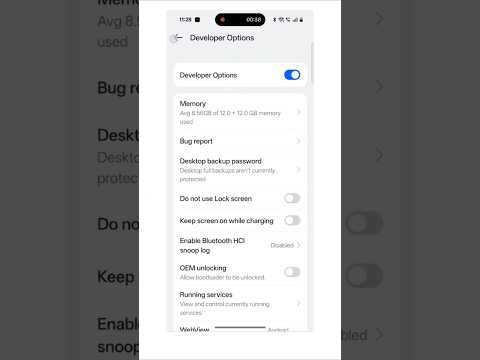
- Step 1: Open Settings on your Android phone
- Step 2: Go to About Phone and then Build Number. If you don’t find it, you can use the search bar and search for the build number
- Step 3: Tap on the build number multiple times. It will enable the developer options on your Android phone
- Step 4: Now go back to the settings page, and search for the developer options
- Step 5: Now open developer options and find the option that says Running Services or process stats and tap on it. That’s you, from here you will see the full list of apps running in the background.
Turn Off RCS Messages to Reduce Spam
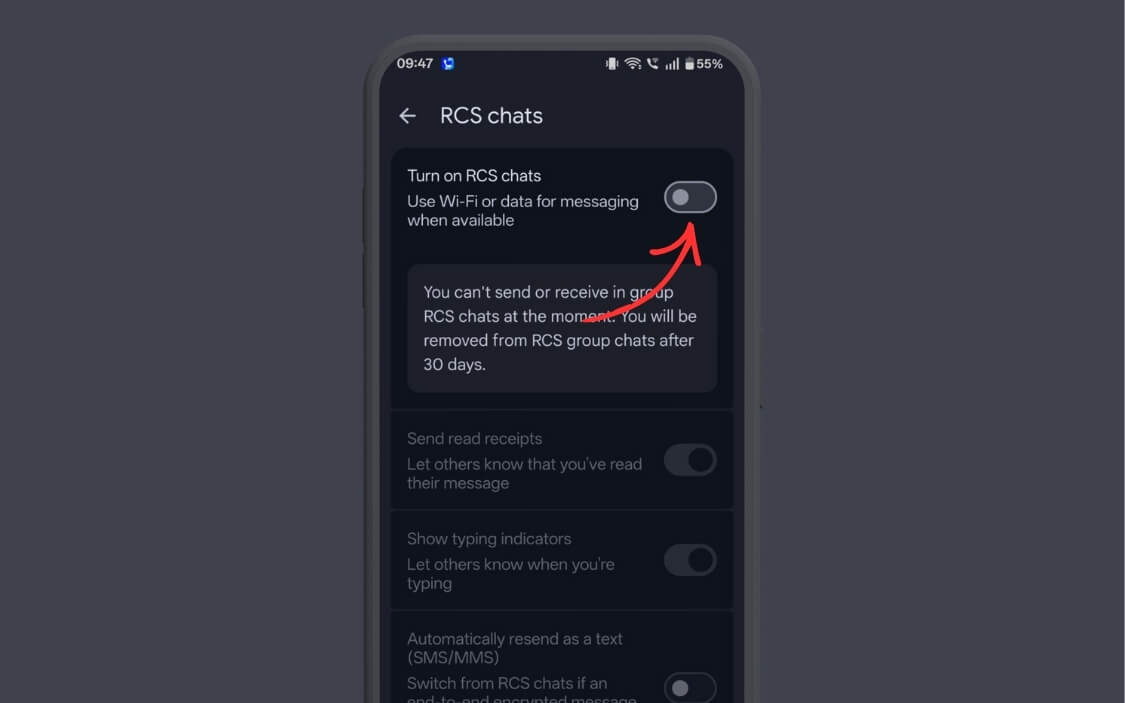
Ever since Google added RCS messaging support to its messaging app, it has quickly become a frustrating experience for users.
Many brands have started RCS as their marketing channel and have started bombarding users with unwanted spam and promotional messages.
Fortunately, you can turn off RCS completely to get rid of spammy and unwanted messages in the Google Messages app.
I have made a detailed video on how to turn off RCS messaging on Google Messages; however, here is the simple guide.
Open the Google Messages app on your phone and click on the profile picture in the top right corner of the screen, tap on message settings and from here tap on the RCS chats, and here turn off the option that says RCS Chats.
![How to Switch from RCS to SMS on Android Phones [2025]](https://techpp.com/wp-content/cache/warp-performance/wckEtIUNG5E-hqdefault.jpg)
Add Useful Shortcuts to the Lock Screen
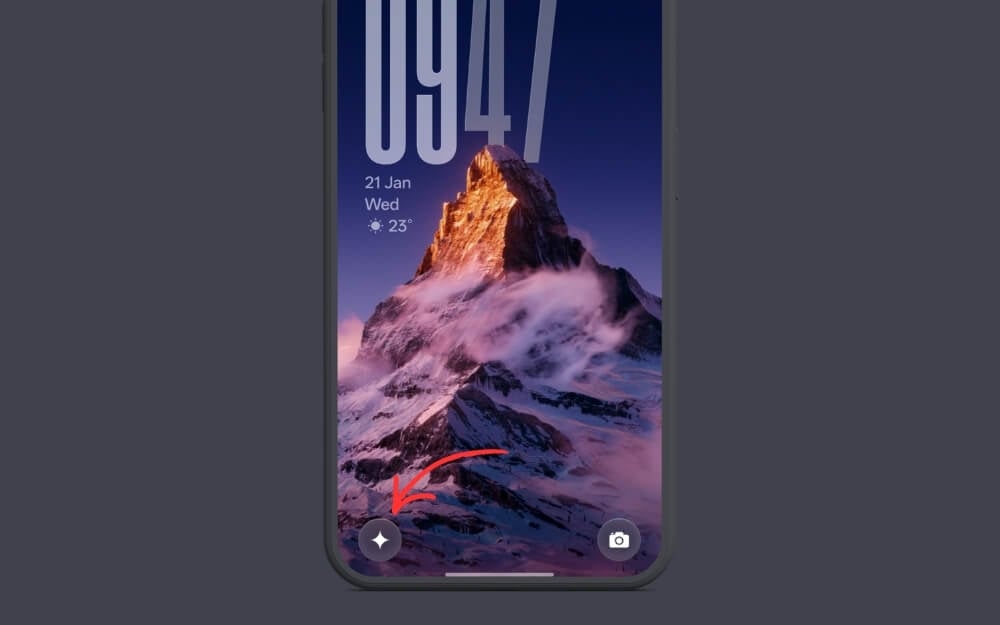
This is the most underrated shortcut that many people are not aware of. With recent updates, both Android and iOS now let you set custom lock screen shortcuts. Previously, it was limited to the camera and torch; now you can replace it with more shortcuts, including QR code, any shortcut from the supported app, such as Snapchat, and much more.
Customizing lock screen shortcuts varies by brand. However, for most phones, you should be able to easily customize it in the lock screen settings.
On OnePlus, which is my primary phone right now, you can go to settings > home and lock screen settings > tap on the lock screen shortcuts, and from here tap on any shortcut and add new or remove it completely.
Archive Messages to Keep Your Inbox Clean
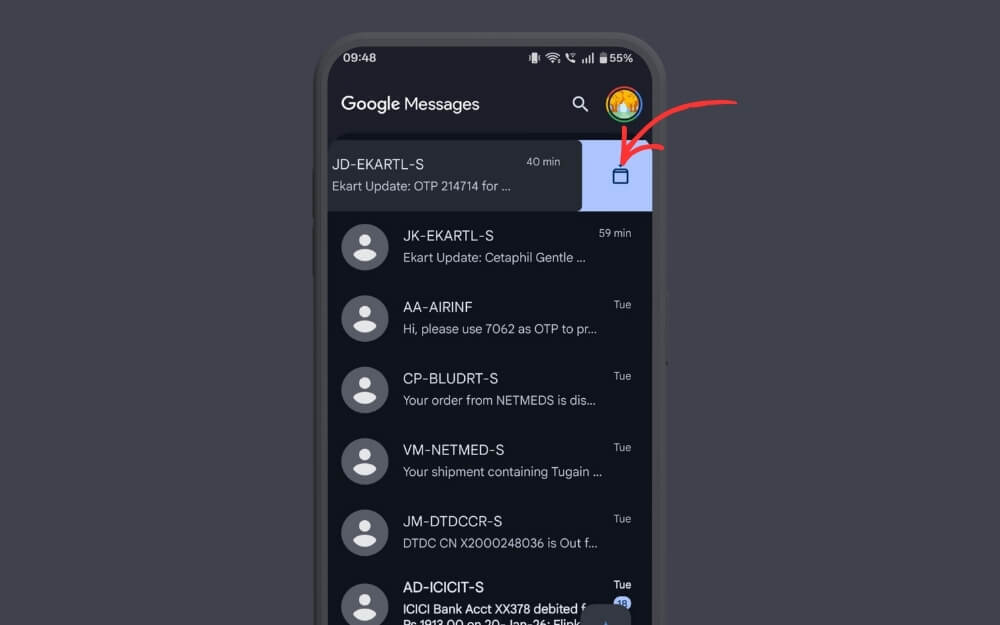
Turning off RCS messaging on Google Messages has significantly reduced unwanted messages and spam messages; however, my inbox is still cluttered with OTPs, delivery updates, bank alerts, and promotional texts.
While deleting the main inbox is the best way to clean up, if you don’t want to delete conversations but want to keep your inbox clean, you can just archive the message.
Not just that, you can also use archive as a soft block without completely blocking them, and store important messages without deleting them. You can simply achieve a conversation by swiping right or left.
Add a QR Code Scanner to Quick Tiles
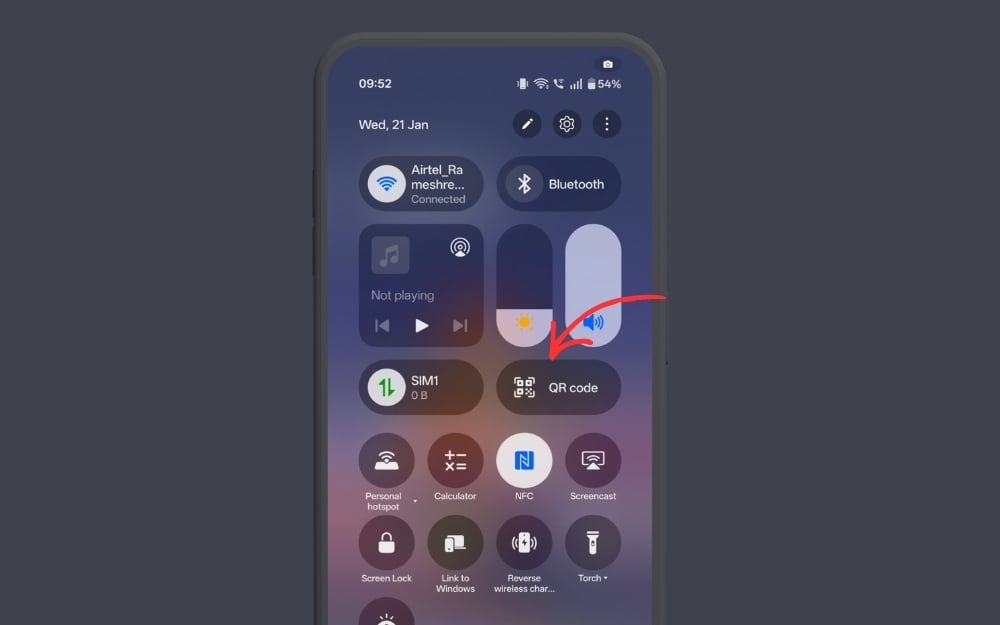
QR codes have become an easy method for many apps and services. Since it is the most frequently accessed tool. Android now offers QR codes directly in the quick tiles; however, you can now customize and increase the size of the QR code tile for quick access.
Here’s how: go to Quick Tiles on your smartphone, click on the edit icon, find the QR code, long-press on the QR icon, and resize and place it anywhere on the screen that is easy to access.
Swipe to Switch Between Apps Faster
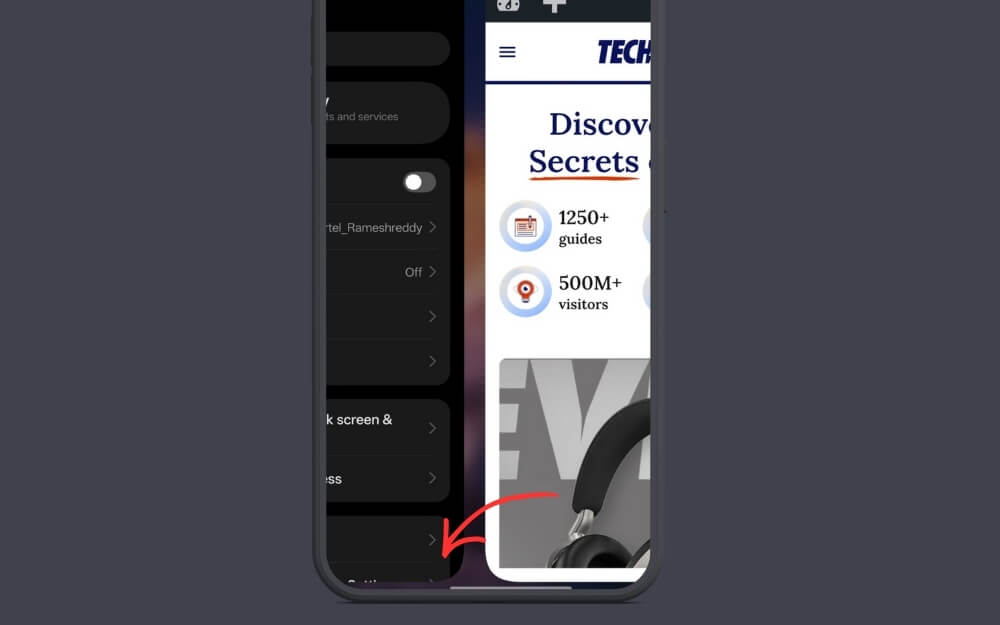
Ever since Android introduced gesture support, the swipe gesture has become so popular that it lets you easily switch between apps.
If you are using gestures, you can just swipe left or right from the button right or left to quickly switch between apps.
Use Quick Launch to Open Apps from the Lock Screen
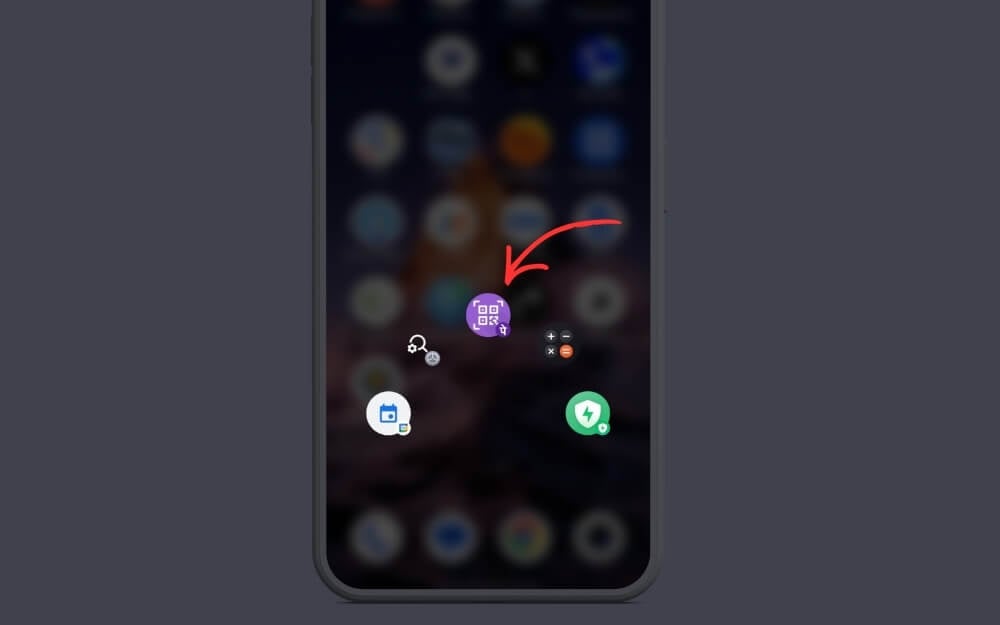
If you are using a OnePlus, Oppo, or Realme smartphone, you can easily launch apps and their quick functions from the lock screen.
It also supports app functions. For instance, I use Quick launch a QR scanner from the UPI apps; likewise, you can use it to open a specific file or functions of the app, such as calling a quick contact, sending a message to friends on WhatsApp, translating apps, creating a new note, and more. You can add up to six quick shortcuts.
Open Settings on your phone
Search for quick launch and enter, enable it
From here, click on the edit option and customize it. From here, you can add different options.
Create Text Shortcuts for Faster Typing
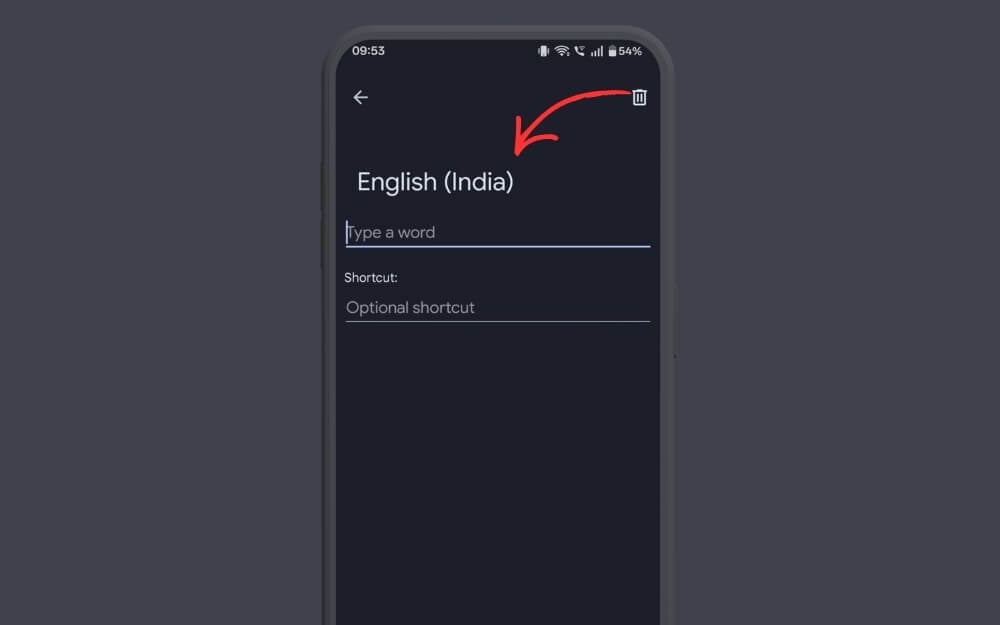
Text shortcuts on iPhone are very useful, especially for filling out long and repetitive information instantly. For me, it’s super helpful on iPhone, and you can get similar functionality on Android too.
I personally used it for filling in my phone number and address for delivery partners; likewise, you can set multiple text shortcuts and add them to your keyboard.
You can directly add text Shortcuts on Samsung by following these steps; however, on Android, you can use Google Gboard’s personal dictionary feature to add text shortcuts. Here is how
How to add text shortcuts on Android:
- Step 1: Open Gobaord and click on the settings icon
- Step 2: From here, click on the dictionary option
- Step 3: From here, tap on the personal dictionary
- Step 4: From here, click on the plus icon, add the text, and create a shortcut. That’s it.
Fix Grammar and Rephrase Text from the Keyboard Quickly
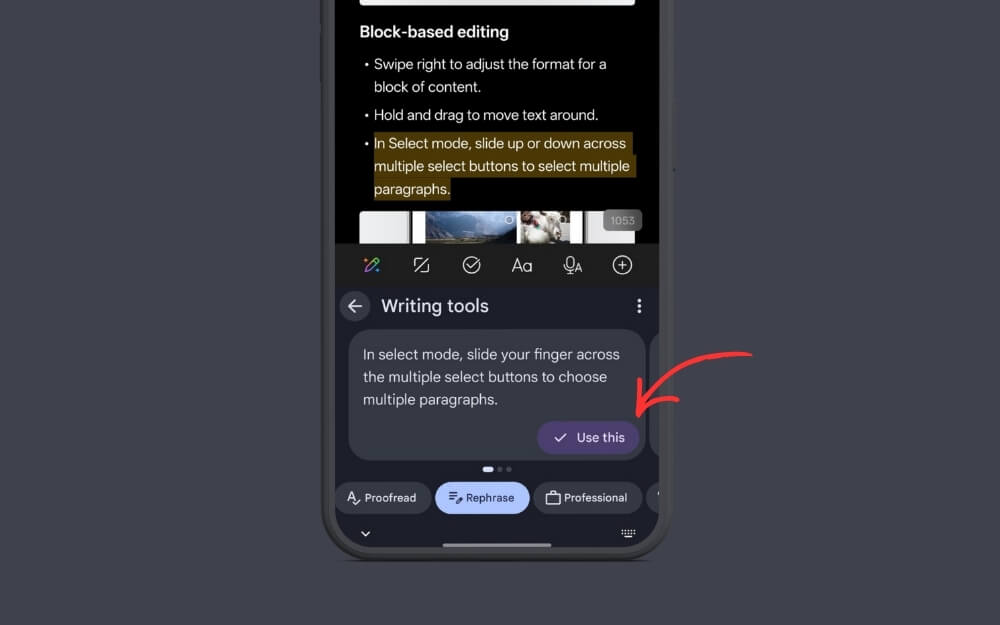
Ever since ChatGPT and other LLMs are available to the public, many users have been using AI to fix grammar mistakes and draft emails, however the biggest pain point is copying text between tools, if you want to fix grammar, you need to copy the text and paste it in to ChatGPT, fix grammar and repaste the text in to the app that you want to use.
However, if you are using Google Gboard, you can directly fix and rephrase text without leaving the app; it works on any app with keyboard support. You can simply use the writing tools, and it automatically replaces the AI text.
However, the only downside is latency, since it uses the cloud, it can take a few minutes to complete your request. Microsoft SwiftKey keyboard also supports AI writing tools; it is significantly faster than Gboard if you want to try it.
Uninstall Multiple Apps at Once
As a reviewer, I test tens of apps, games, and devices for a living, and one of the most frustrating jobs is to uninstall apps that I no longer use.
The biggest pain point for me is that I need to manually go through every app, long-press it, tap on the uninstall, and do it for every app.
This becomes extremely frustrating, especially if you have tens of apps that need to be removed from a smartphone.
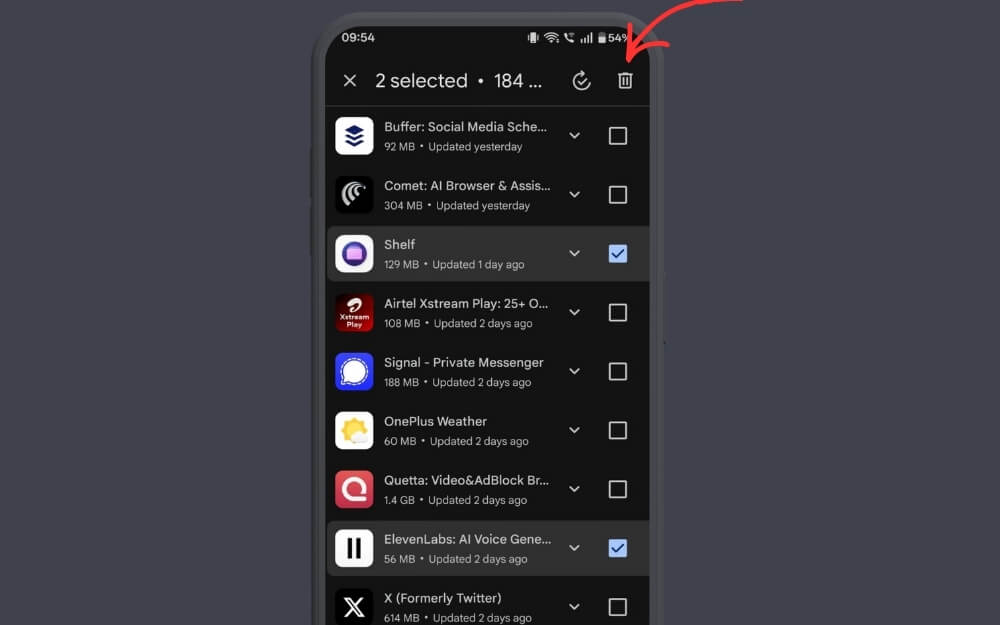
Fortunately, there is an easy method to do it. Simply head over to the Play Store, click on your profile picture in the top right corner, and tap on Manage Apps and devices.
From here, go to the manage tab, select the apps, and click on the delete button in the top right corner of the screen. That’s it.
Double-Press the Power Button to Open an App
If you own a Samsung Phone, you can double-press the power button to open the camera or any preferred app.
To do this, open Settings on your Samsung Phone, tap on advanced options, and then select the app you are looking for.
Quickly Search Apps in the Play Store
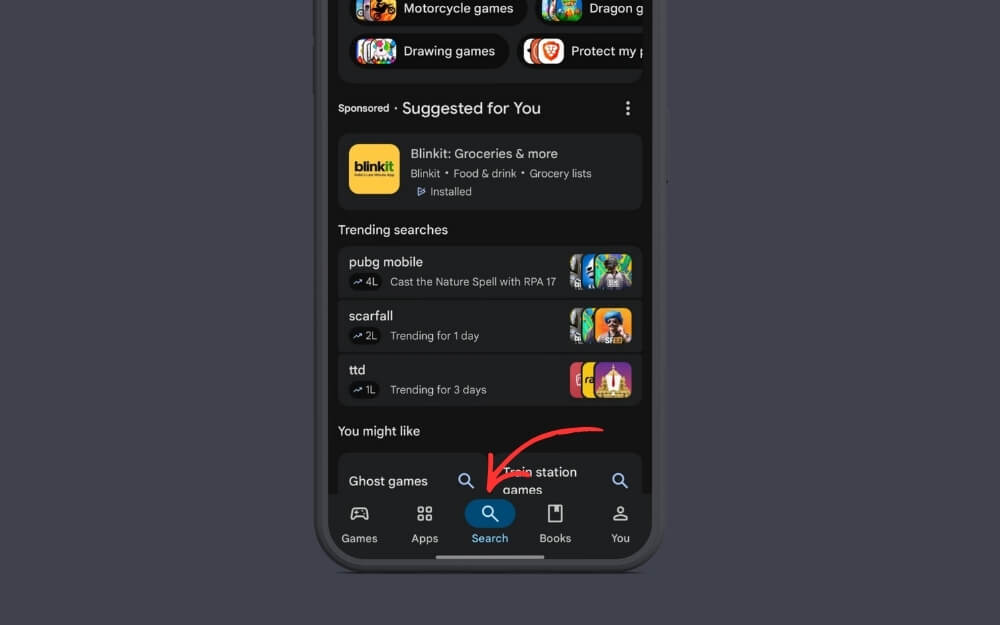
If you use the Google Play Store, there is an easy way to instantly search for apps. You can simply double-press the search tap twice to search the app instead of moving your finger and tapping in the top search bar.
Add App Shortcuts Directly to the Home Screen
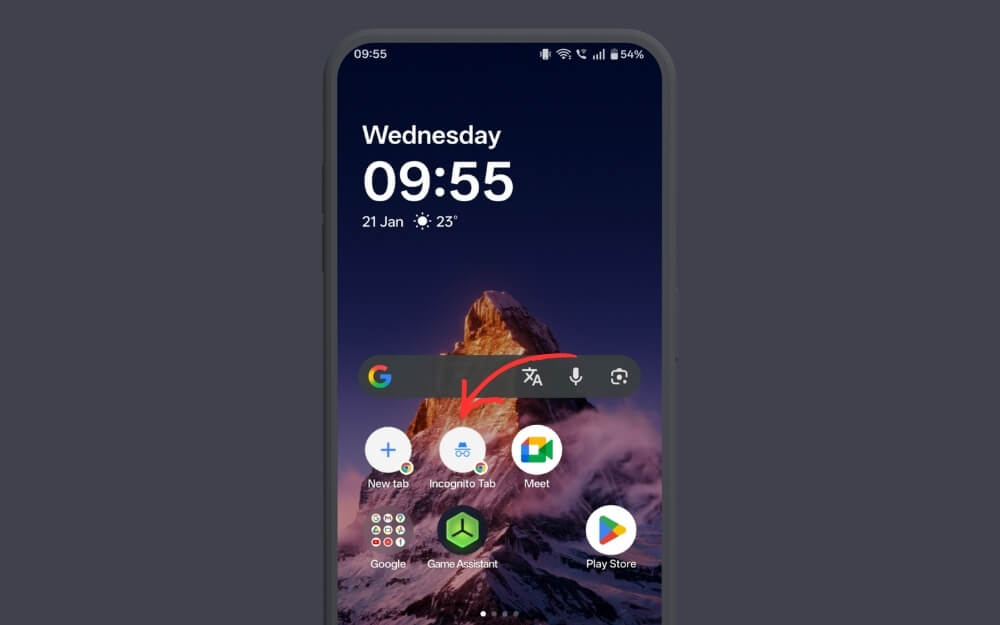
Long-pressing any app on Android shows frequently used actions. However, if you do it often, you have to long-press the app every time to accept the shortcut. You can add the shortcut to the home screen.
Here is how. Long-press the app and wait until it shows shortcuts.
Now, long-press the shortcut and then drag and drop it to the home screen. That’s it! From now on, you can directly tap on the shortcut to open the app without having to long-press it every time.
Use Voice Input Instead of Typing
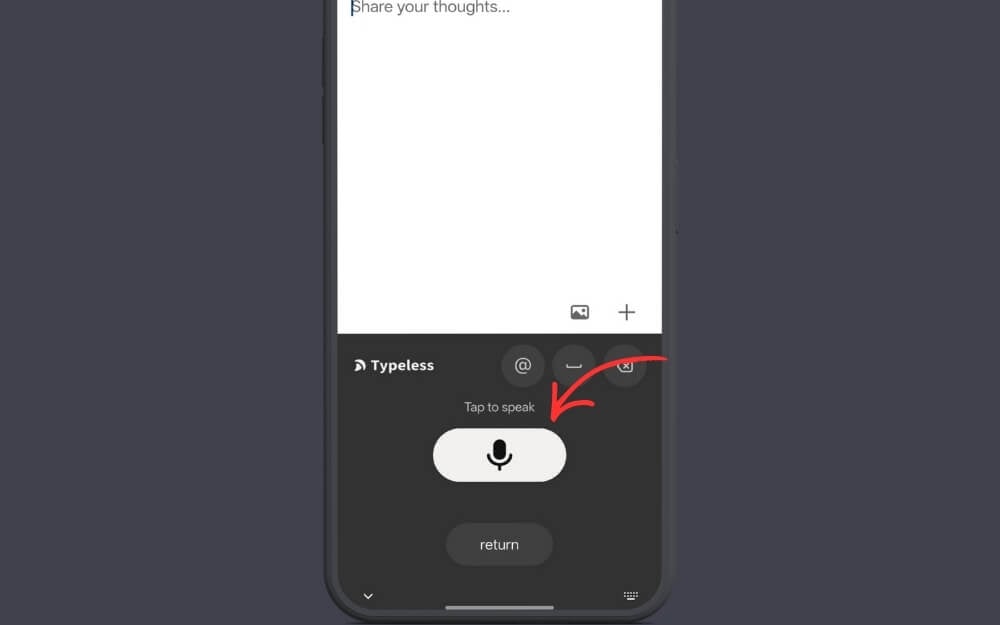
If you often type a lot of text, you can now use voice input on Android to automatically convert your speech into text. Trust me, it is significantly better than typing manually on your keyboard. While Google Gboard and other keyboards have offered voice input features for a long time, there is now a dedicated app called Typeless, which is currently also available for Android.
This app allows you to speak easily and converts your voice into text. The biggest advantages of the Typeless app are that it uses AI to automatically fix grammar and repeated sentences, and provide clean text. Unlike Google Keyboard and other keyboards, you can speak continuously, so you don’t need to manually tap the voice icon every time.
Here is how to use the app:
- Step 1: Download the Typeless app for free from the Google Play Store and follow the on-screen instructions to add it as a keyboard.
- Step 2: Open the keyboard, tap on the “Speak” icon, and start speaking
- Step 3: Whenever you finish speaking, you can simply tap on the dot again to stop it. That’s it. Currently, the free version offers up to 4000 words per week for free; however, you can subscribe to the premium for unlimited voice-to-text conversations.
Customize Google Search Widget Shortcuts
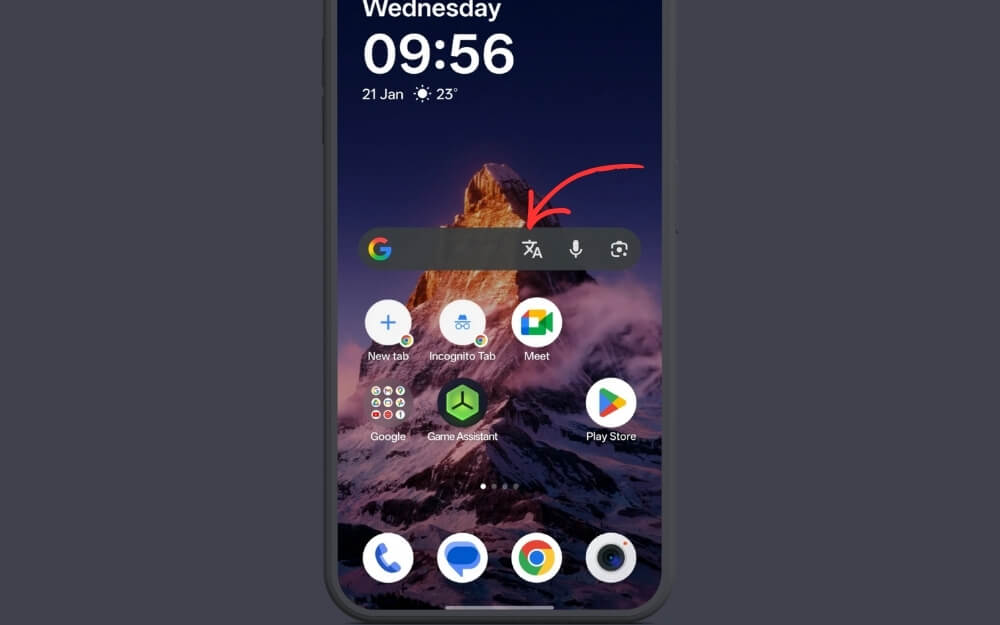
The Google Search widget is the most popular widget on Android smartphones; almost every Android phone has it on the home screen. However, not many people use this, but you can use it to add quick shortcuts.
For instance, it is currently set to open Google Gemini, but you can customize it to open various Google tools, such as Google Translate, go to AI mode, search songs and more.
To customize the widget:
- Step 1: Open the Google app on your phone
- Step 2: Tap on the profile icon in the top right corner of the screen and tap on the settings.
- Step 3: Scroll down and tap on “Customize Search widget” and tap on the shortcuts.
- Step 4: Select the specific shortcut you want from the menu. That’s it.
Create Custom Home Screen Shortcuts

You can also create your own shortcuts using plenty of third-party apps. However, since this guide only covers basic shortcuts, I recommend using Google Action Blocks. This allows you to add shortcuts for different basic tasks:
You can add a direct call shortcut to your home screen. If you call a friend frequently, you don’t need to manually dial their number every time; you can simply add their dialer shortcut to your home screen to make a call directly.
Not just that, you can also add quick access to tools such as the torch, accessibility tools, and others. These can be added to your home screen as a widget and quickly accessed.
Switch Between Google Accounts Quickly
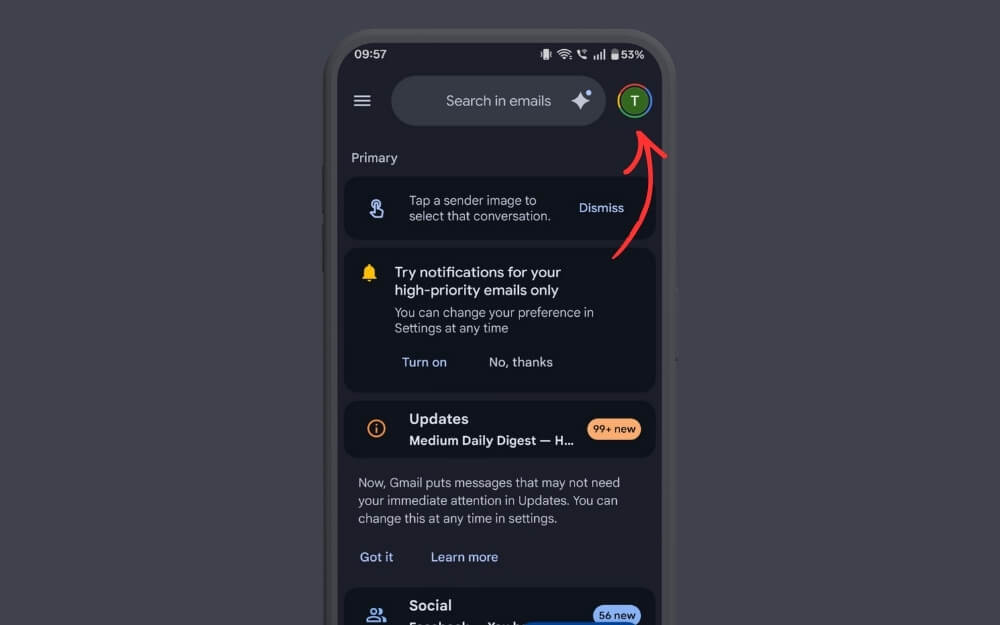
This is a new Google trick that I learned recently. If you have multiple Google accounts, switching between them requires you to tap on the profile picture and select the account you need to switch to.
However, you can simply swipe down from your profile picture to quickly switch between your Gmail accounts. It works with all Google apps, including the Play Store, Chrome, Google app, and more.
Open the Clock and Calendar from Notifications
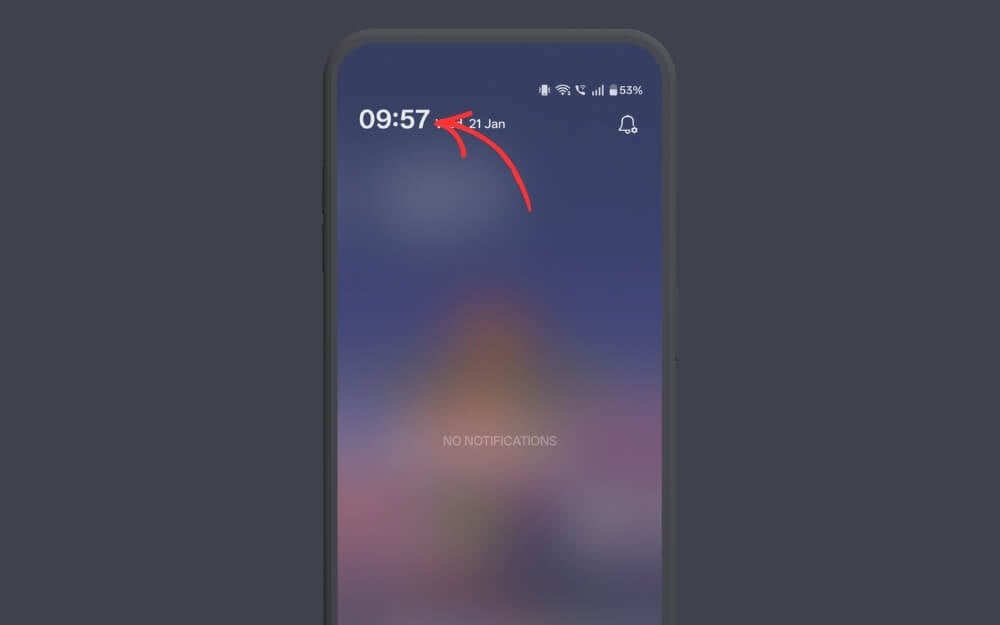
The stock clock app is the most used for me, but it is hard to find sometimes; however, with this trick, you can easily open the clock app on your smartphone.
You can simply visit the notification center and then tap on the clock screen to visit the clock app. It’s very small but very handy. And it’s the same with the calendar. You can tap on the date, and it takes you to the calendar app.
Zoom in on Google Maps with a Double Tap
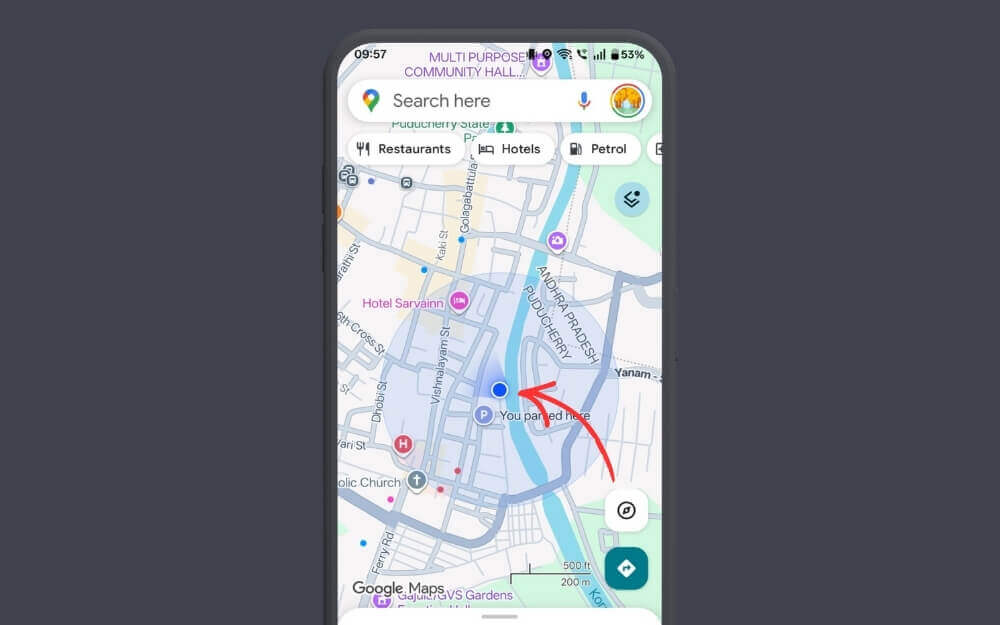
I mostly use Google Maps when riding a bike. The biggest pain point for me is zooming in on a specific location. Before knowing this shortcut, I used to use both my hands to zoom in on a specific place.
However, now you can simply double-tap to zoom into a specific location without using both your hands.
Turn On the Flashlight Instantly
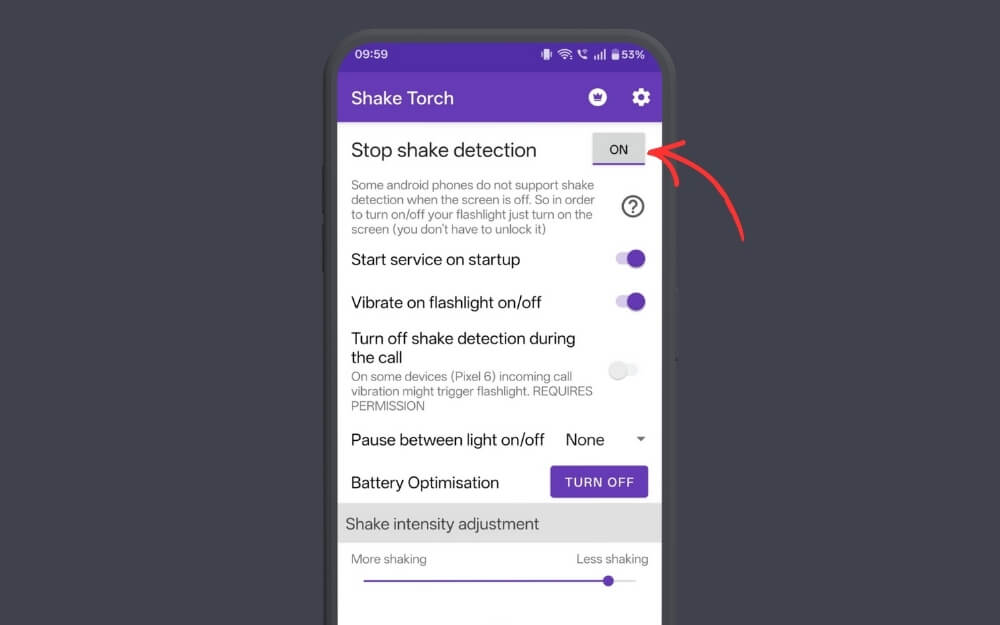
If you have ever used a Motorola phone, you know how convenient it is to turn on and off the flash. If you’re not aware, once you enable gestures on Moto phones, you can simply shake your phone, and it turns on the flash, even more convenient than using the flashlight from the home screen.
If you miss this feature, or if you want the easiest way to turn on the flashlight on your phone, you can simply install this free app.
Once enabled, you can quickly shake your phone to turn on and off the flash; however, the only downside is that since it is not natively available on Android, the app should run in the background, which might consume battery life.
Hidden Android Features That Speed Up Daily Tasks
So those are the 20-plus best simple shortcuts you can use on your Android smartphone to quickly launch apps and tools, and quickly do tasks on your Android smartphone. We have shared a detailed guide on how to use the shortcuts and also how beneficial they can be. I hope you found the guide helpful. If you know any shortcuts that I missed, you can comment below.

