

Quick Answer
If Snapchat videos aren’t playing on your device, start by restarting the app, checking for server issues, or clearing the app cache. Ensure your app is updated and permissions are correctly set. If the problem persists, try disabling any VPN, turning off data saver mode, or reinstalling the app.
Snapchat is a popular social media platform that lets you get in touch with your friends in a fun and interactive way. There are loads of filters and overlays to choose from, and the platform lets you share your high moments not only with your close ones but with the world. However, Snapchat is not at all perfect, and there are instances where the app will throw tantrums. Recently, many users have reportedly faced issues with Snapchat videos not loading, playing, or working properly.

If Snapchat videos aren’t playing on your Android or iPhone, then it almost takes away most of the fun the app has to offer. Thankfully, there are some effective ways that you can apply and fix Snapchat videos not playing, loading, or working problems. Since there is no specific solution to this issue, we would suggest you apply each fix one by one and check which one works out for you. Let’s jump right into it.
Table of Contents
Fix Snapchat videos not playing issue
Restart the Snapchat app
We will start with the basic solution, which is often the easiest way to fix certain temporary bugs or glitches in an Android or iOS app. Close the Snapchat app and remove it from your recent apps list. After a few seconds, launch the Snapchat app again on your phone and check if this resolves the issue or not.
Check if Snapchat is down

There is a chance that it is not only you but also the entire Snapchat community that is facing a server problem, which is resulting in Snapchat videos not playing. When the server gets bloated or there is congestion, the app’s performance gets hampered, which could trigger various errors.
You can check if there is any server outage for Snapchat by using websites such as DownDetector and IsItDownRightNow. For DownDector, you can check for any server outages region-wise as well.
Clear the app cache
There is a chance that the app cache could interfere with the smooth functioning of the Snapchat app and trigger multiple problems, such as the one in hand. The app cache contains temporary data required by the app and is stored in the device’s memory. It contains data that is frequently used to quickly access the app and improve its overall speed and performance. Clearing the app cache resets this temporary data.
On Android:
- Open Settings.
- Tap on Apps.
- Locate Snapchat and open it.
- Tap on Storage.
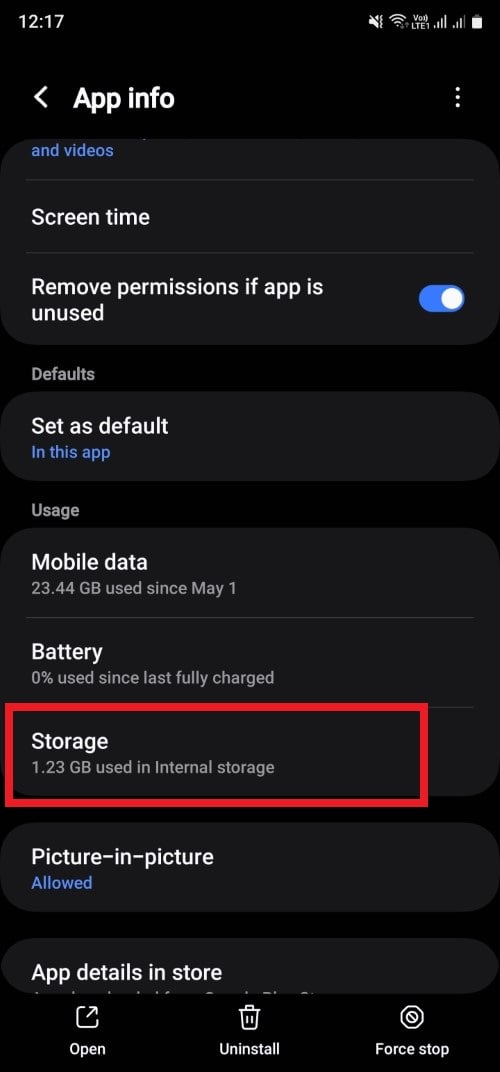
- Select the Clear cache option.

You can also clear the Snapchat app cache from the app itself. For that, follow the steps below:
- Open Snapchat.
- Tap the gear icon in My Profile to open the Settings page.

- Navigate down and tap on Clear Cache.

- Select Continue to confirm clearing cache.

On iOS:
- Launch Snapchat.
- Tap the gear icon in My Profile to open the Settings page.
- Navigate down and select Clear data.
- Tap on Clear Cache.
- Select Confirm to clear the cache.
Disable VPN
VPN lets you connect to an IP address of a different region, letting you unblock content that may be restricted in your country. However, using a VPN while also using Snapchat can sometimes lead to issues with the app. In such cases, try disabling the VPN and using Snapchat to check if this fixes the issue.
Update the app
On Android:
- Open Google Play Store.
- Click on your profile icon and select Manage apps & devices.
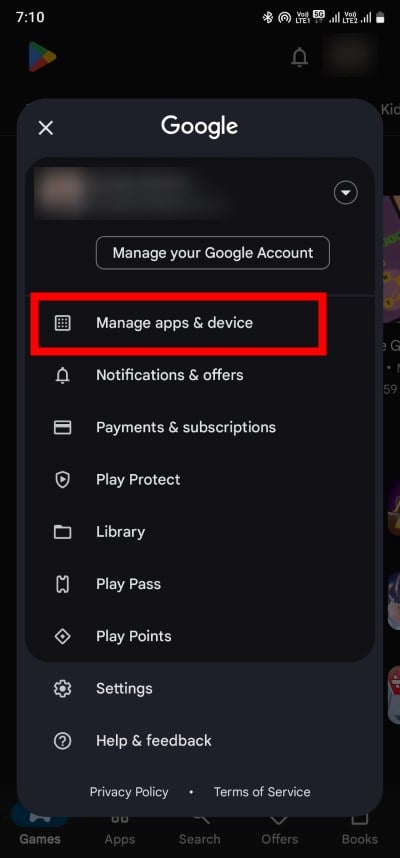
- If there is a new update available, then you will see new updates under the Updates Available section. Click on See details.

- Check if there is a new update pending to be installed for Snapchat. Chances are a bug in the previous version of the app is causing the Snapchat video not to load.
On iOS:
- Launch App Store.
- Tap your profile icon at the top of the screen.
- Check for pending updates and tap Update next to the Snapchat app to update that app only.
Chances are that the previous version of the app contained a bug that was breaking the video player in the Snapchat app. You should make sure that you are running the latest version of the app to ensure that you have access to the latest features as well as the prior bugs are fixed.
Review app permissions
Snapchat requires certain permissions on your device to run smoothly. There are chances that you denied some permissions to the app, which is causing the Snapchat videos not to play in the camera roll or loading videos in chats. To avoid such issues, follow the below steps.
On Android:
- Long press the Snapchat app icon and select the App info button.
- Tap on Permissions.

- Set each permission to Allow, one by one.

On iOS:
- Open Settings.
- Scroll down and choose Snapchat.
- Turn on the necessary toggles to allow permissions.
- Tap on Photos.
- Select All Photos.
Turn off data saver mode in Snapchat
Snapchat offers a data saver mode for those who have limited data plans. While this feature ensures that unnecessary data isn’t used when you browse Snapchat, this could also be the culprit behind the videos not loading or freezing on Snapchat. Here’s how you can disable it.
- Open Snapchat.
- Tap on your profile icon and select the gear-shaped icon to open Settings.
- Scroll down and locate the Data Saver option. Tap on it.

- Uncheck the Data Saver Box, if it was selected.
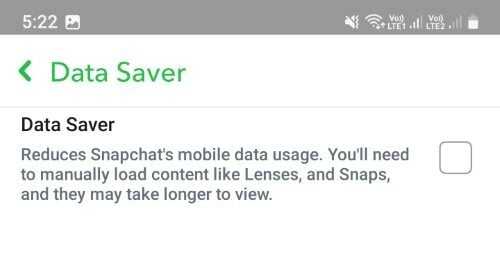
- Restart the app and check if this resolves the issue.

Reinstall the Snapchat app
If none of the above solutions have fixed your problem, then as a last resort, we suggest you reinstall the app. Simply long-press the app icon and select Uninstall. After the app is uninstalled, head over to the Play Store and download the Snapchat app again. If you are on iOS, you will find the app in the App Store.
Enjoy your Snapchat videos uninterrupted
The above solutions should help you resolve the problem of Snapchat videos not loading. However, be it Snapchat, Instagram, or any other social media platform, it is always healthy to take a social media detox once in a while. But simply not using the app doesn’t count. Follow the steps in our guide to know how you can deactivate your Snapchat account safely. Let us know in the comments below which of the above solutions resolves the problem for you.

