

Quick Answer
Tired of missing performance spikes? AppControl beats Task Manager by logging a 3-day history, identifying culprits instantly, and explaining processes in plain English, so you know what slowed your PC and why without guesswork.
Even after having a powerful PC, I often hear a jet engine-like sound coming from my laptop’s cooling fans. However, as soon as I open the Task Manager, the culprit vanishes before I can catch it. I am sure many would resonate with me in this situation. The other time, your PC will slow down, and when you try to find the resource-hungry app in Task Manager, it will be red-handed by the time it loads, and the processor usage will have dropped to its normal levels.
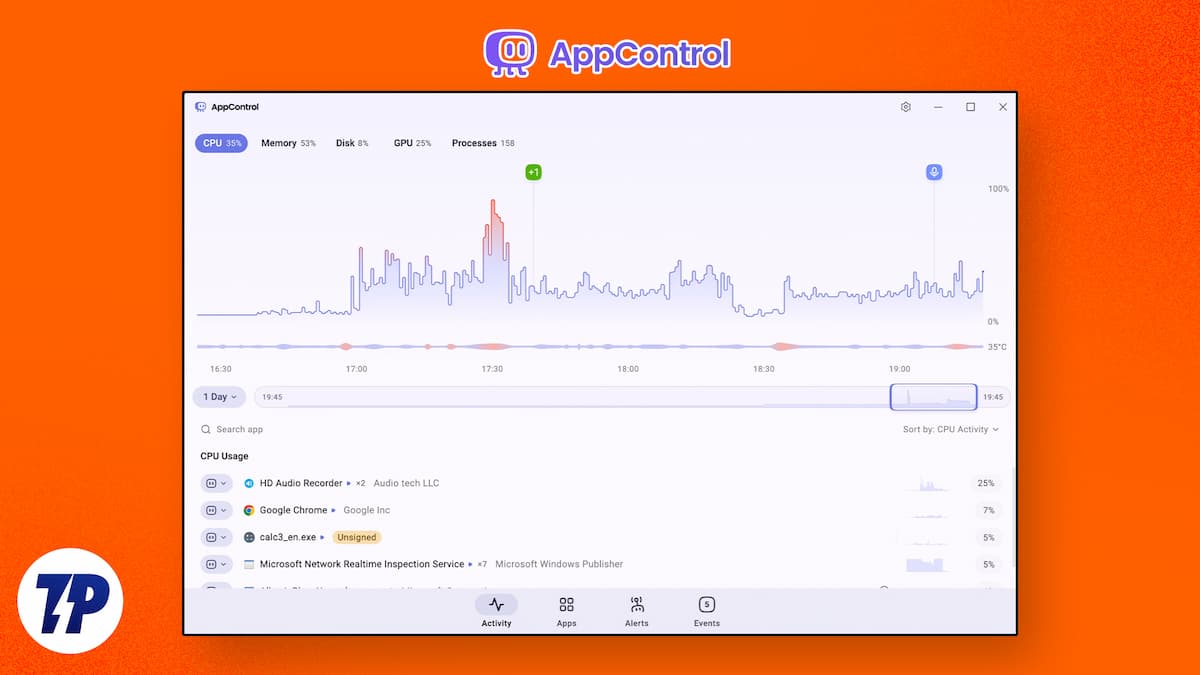
Windows Task Manager is our trusted sidekick when it comes to fixing a slow PC, but to be honest, it has its limitations. If you miss the performance spike, you will miss out on the suspect. Also, it is filled with so many cryptic file names that a normal user may find them daunting. Enter AppControl, a free tool that not only shows you what your computer is doing but also why. Let us check it out.
Table of Contents
Task Manager has some problems
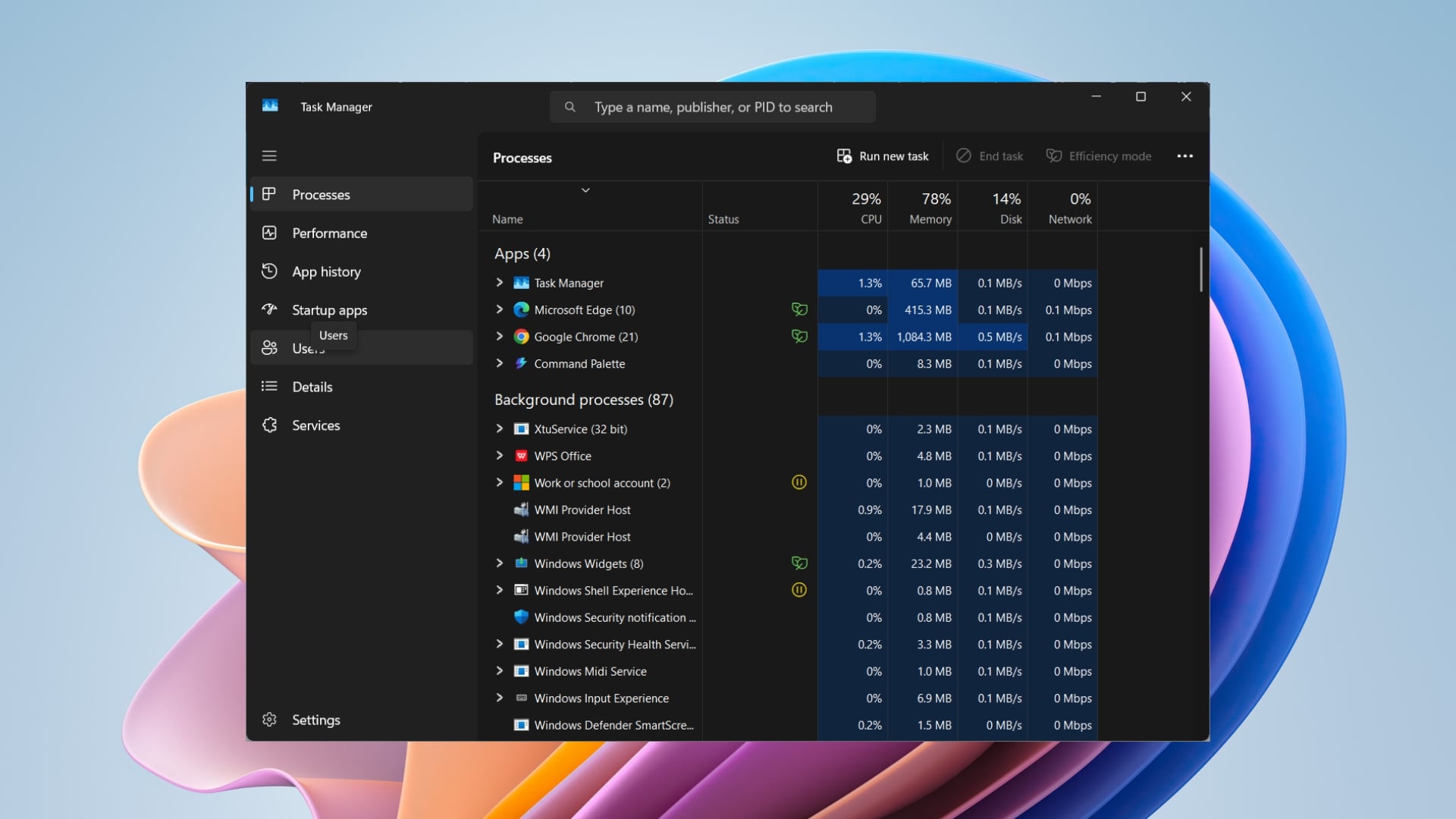
Before we discuss the features AppControl offers that the Windows Task Manager lacks, let’s explain why we need an alternative to Task Manager. With Windows 11, Microsoft gave the Task Manager a fresh coat of paint; however, underneath, it was all the same as it had been for years. It gave you a real-time snapshot of your PC’s performance, which it holds onto for 60 seconds.
This short timeframe is the real problem. If a background app decides to download a massive update, hog your memory, or max out your hard drive, and you go to the other room to get yourself a cup of coffee, you won’t be able to know what caused the problem. You will have a slow PC. Furthermore, even if you come across the culprit, the Task Manager shows you the background processes, something like IntelCpHeciSvc.exe
You don’t know exactly what this service is or how much memory it should use. For answers, you have to search the internet and scroll through tech forums to understand the problem. AppControl tries to fix this problem and gives you the what, the when, and most importantly, the why of all the issues.
AppControl lets you go back in time
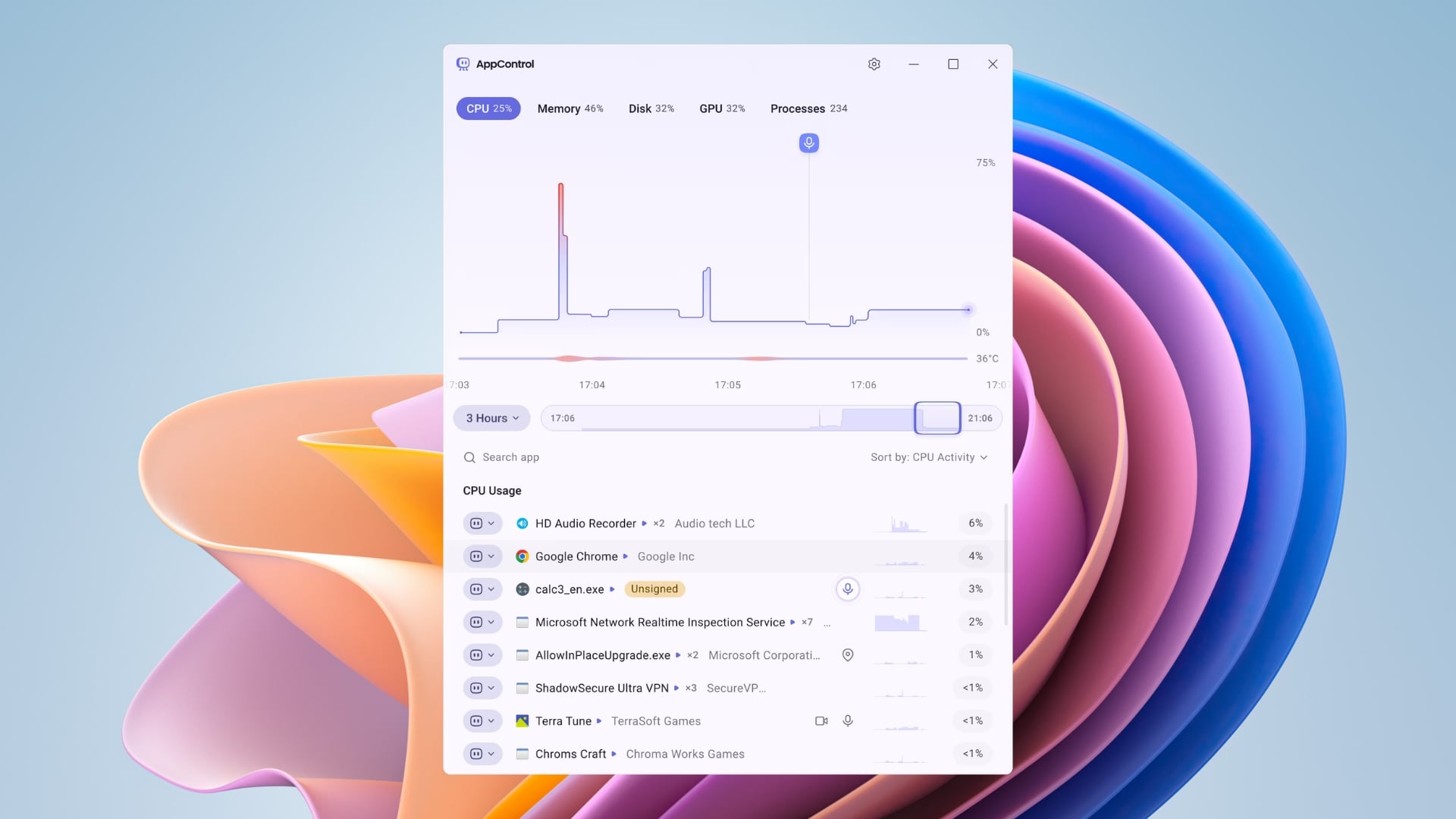
One of the standout features of AppControl is the three-day historical timeline. Unlike Task Manager, which shows you the last 60 seconds of performance, AppControl runs silently in the background, without hogging your resources, and records a second-by-second history of your PC’s performance. It tracks your CPU (processor), GPU (graphics), RAM (memory), disk usage, and even hardware temperatures for a 72-hour window.
Imagine experiencing a system slowdown for ten seconds after a long gaming session on a Tuesday morning. Instead of panicking and rushing over to the Task Manager, you take a chill pill and continue with what you are doing. Fast-forward to Thursday: you decide to take the matter into your own hands and open AppControl. Head to the Activity tab and literally scroll back in time using a simple slider.
Hover the slider over the massive spike you see on Tuesday, and boom, AppControl tells you exactly which app or background process slowed your PC. This takes the guesswork out of your troubleshooting. And instead of catching performance spikes, you can go back a couple of days and analyze what caused your PC to slow down.
Features of AppControl
Let us take a look at the other standout features of AppControl that make it one of the best troubleshooting tools for PC:
Plain English Insights
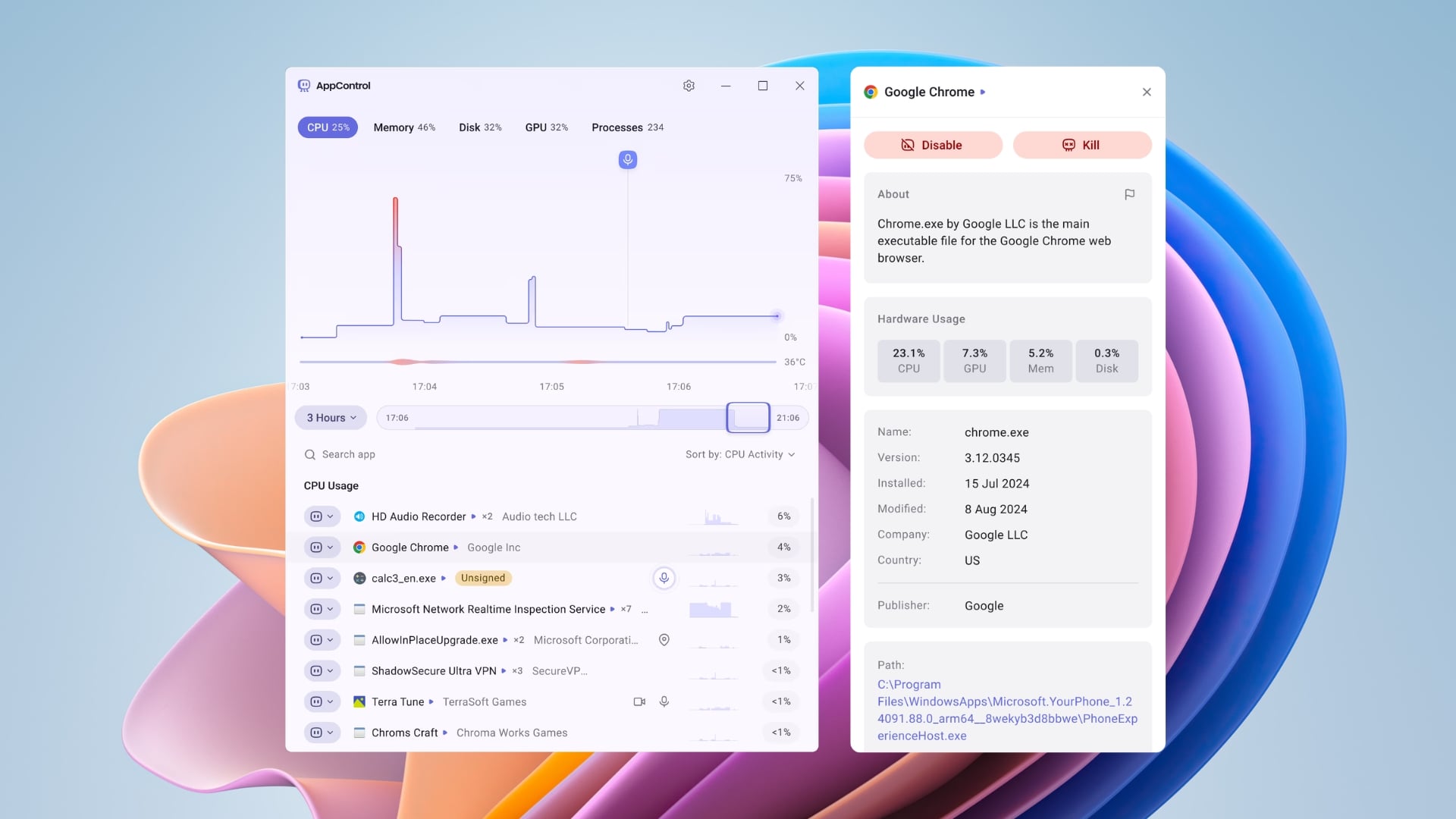
Even if you catch the culprit in Task Manager, the task is to understand what the process or the file name means. For that, you have to take the help of Google. AppControl brings a brilliant feature that tells you exactly what every app, process, and executable is with plain-language descriptions. Basically, it acts as a built-in translator for your PC’s inner processes.
When you click on a process inside AppControl, it doesn’t just give you a file path and a publisher name. Instead, it pairs the resource usage with an easy-to-read description of what the app is actually supposed to do. For instance, if you see the culprit as the IntelAudioService.exe and are wondering if it is safe to close it or not, AppControl explains it in simple English that the process belongs to Intel Smart Sound Technology, responsible for sound output.
This eliminates the intimidation factor, and you don’t need to be a computer expert to understand each process or file name. Every process is explained in simple language, giving you all the information to decide on your PC.
Privacy Alerts
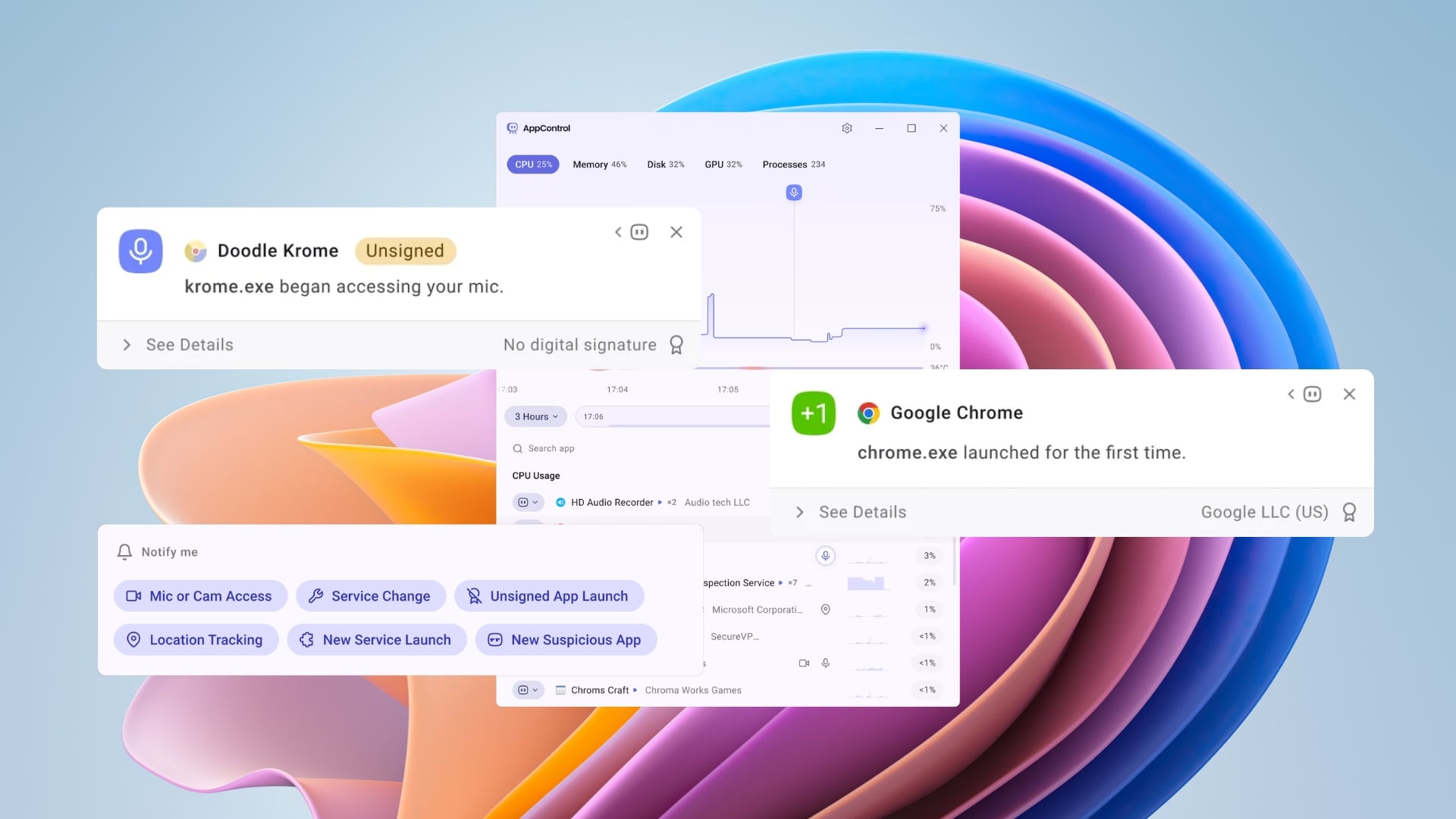
In today’s age, not only performance, but you also have to make sure that you have your privacy well-protected. On smartphones, we have our operating systems telling us which app is using the microphone or the camera. While Windows has gotten better at showing little icons when these sensors are used by any app, AppControl takes it to a whole new level.
AppControl logs privacy-sensitive information so that you have a record of what your apps have been up to. It monitors and alerts you when an app accesses your webcam, microphone, and location. It even tells you when an unassigned app launches for the first time or a software that silently updates in the background.
You can check the AppControl event log to know which app accessed the camera even for a second. By default, these alerts are enabled, giving you immediate peace of mind.
Gives back the control
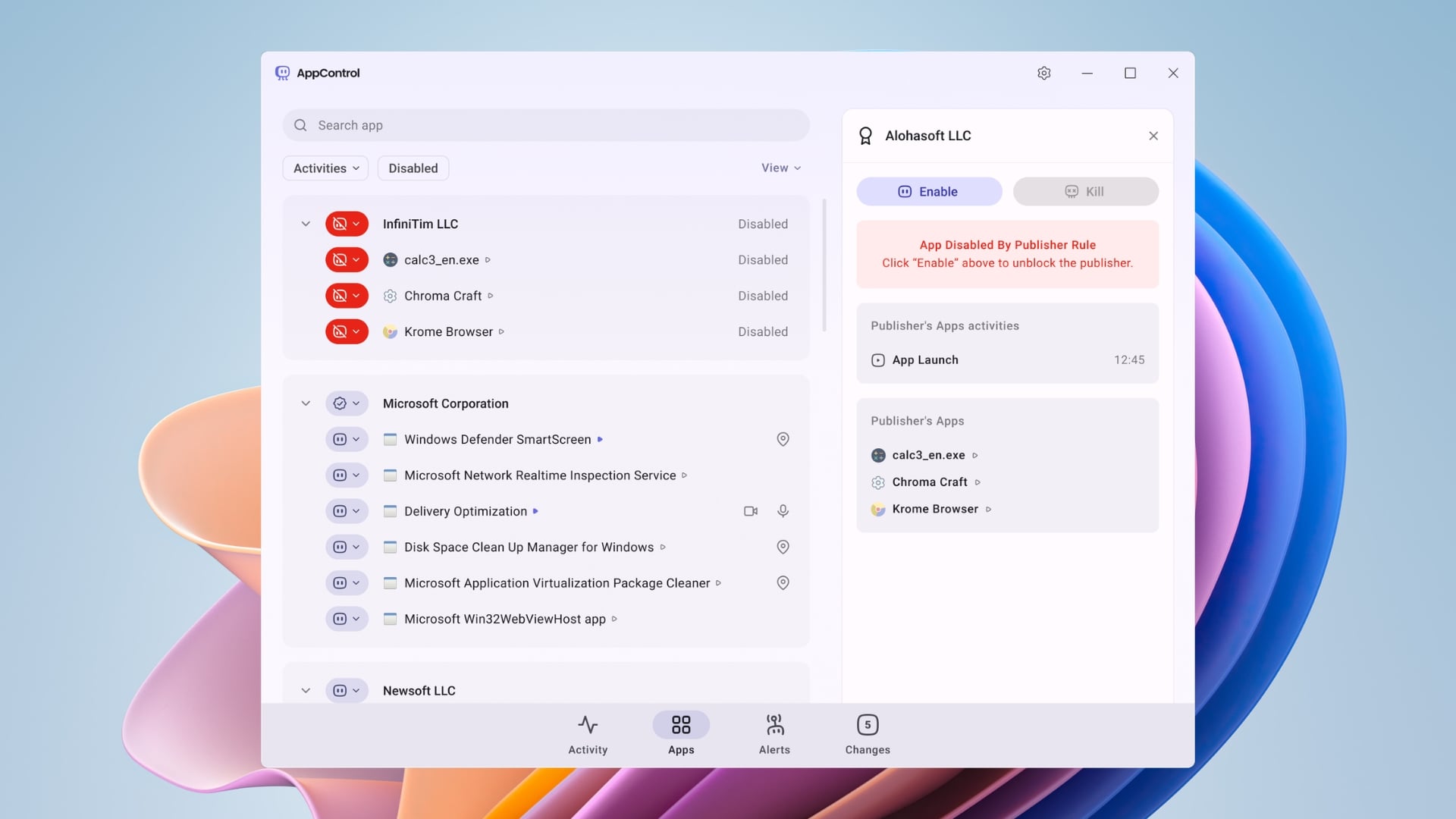
While the Task Manager’s End Task button is quite famous, it is used to kill tasks that have frozen or refuse to close. Similarly, AppControl has a Kill button that forcefully stops an unresponsive app. But AppControl gives you more options to further give you lasting authority on your computer.
There is a Disable feature as well. For instance, if an app is often in the background, installs a massive update, and that app is rarely used by you, but you don’t want to uninstall the program. In AppControl, you can use the Disable feature, which not only stops the app but also prevents the app or process from running on your PC at all in the future.
The app also features a Publisher Blocking option. If you see a software constantly hogging your resources or causing issues, then you can use AppControl’s Publisher Blocking feature that allows you to block all apps from a specific publisher in a single click.
AppControl is a great alternative to Task Manager
AppControl uses a bit more memory compared to the Task Manager, which shouldn’t be a problem in mid-range or powerful PCs. But that memory used for a 3-day historical timeline is worth it. When speaking of privacy, AppControl, although built with modern hybrid architecture, collects little to no data. And if you are really privacy-conscious, then you can use the offline Privacy Mode, which basically installs the software via Windows Terminal.
But, if you ask if AppControl is a total replacement for Task Manager? The short answer is almost. Task Manager still has a few advanced tricks, such as managing startup apps, navigating complex process trees, or manually managing Windows services. But for all other features and its simple English explanation, AppControl is a must-have. It is free, has zero ads, and gives you control of your PC.

