

Quick Answer
SwiftSlate is a lightweight, system-wide AI text assistant for Android that works directly within your keyboard, letting you fix, rewrite, or enhance text instantly using simple trigger commands, without switching apps. With support for multiple AI providers and offline text replacers, it streamlines everyday typing and boosts productivity.
There are so many times when we are typing a message only to realize that it sounds a bit messy. To fix this, we straight away copy and paste it into our favorite AI chatbot and ask it to make it polite or professional. Then we copy the result and paste it back into the messaging app. This is a tedious process, and in an era where artificial intelligence has evolved so much, it is supposed to make our lives easier. Enter an open-source and free app named SwiftSlate.
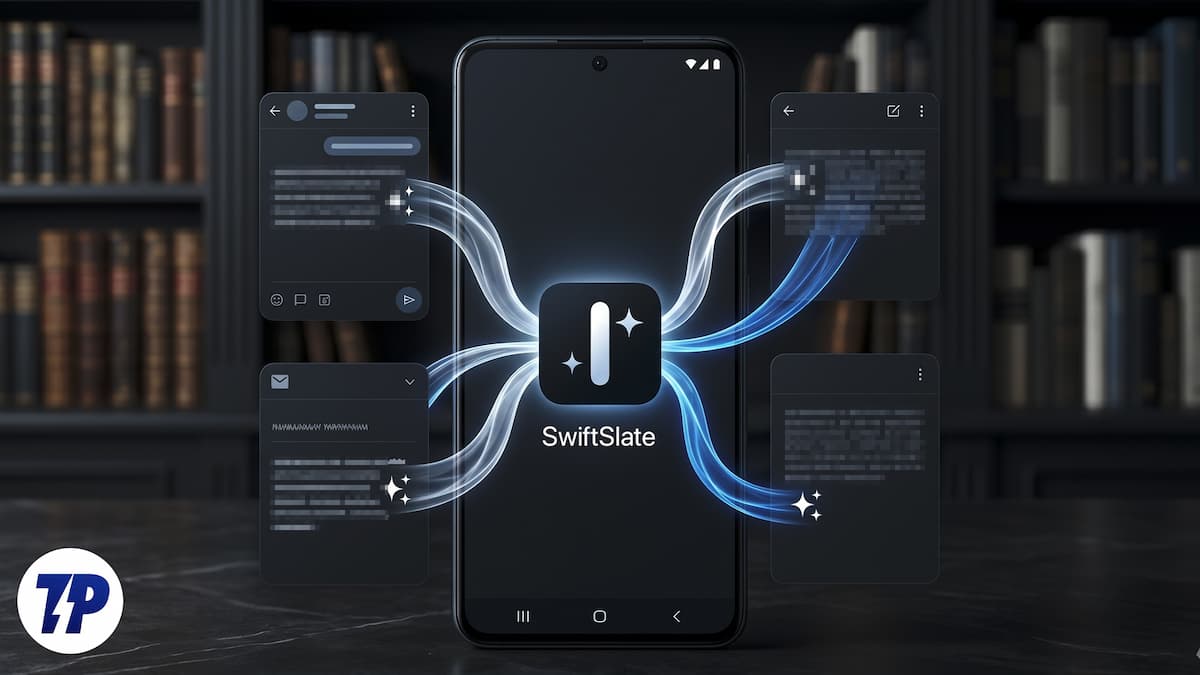
In my constant search for the ultimate mobile productivity software, I stumbled upon SwiftSlate. This app changes the way I interact with my device. SwiftSlate is a system-wide AI text assistant that brings the power of AI directly into your keyboard. Whether you are drafting a professional email or chatting with friends on WhatsApp, SwiftSlate is here to polish your sentence. Let’s know more about this app.
What exactly is SwiftSlate?
SwiftSlate is a remarkably lightweight Android application developed by Musheer Alam. The size of the app is a mere 1.2 Mb, but the work it does is far more than its size. It operates using Android’s Accessibility Service. SwiftSlate eliminates the need to switch between multiple apps just to get your sentence correct. Instead of acting as a standalone app where you have to open a new chat window to talk to an AI, it acts as a silent and intelligent text input field across the OS.
What I love about SwiftSlate is its concept. You type your text normally, and when you decide to take some help from any AI assistant, you simply type the specific trigger word at the very end of your sentence. For instance, if I type “i dont no whats hapening ?fix,” SwiftSlate instantly detects the “?fix” trigger word and sends your sentence to the appropriate AI assistant to replace the messy sentence with a well-structured one.
This is all done without any pop-ups, floating bubbles, or app switching. You just type, enter the trigger word, and the text transforms. The developer has clearly thought through the problem of using AI on mobile devices and solved it with SwiftSlate.
Key features of SwiftSlate
To deeply understand what SwiftSlate can do, you have to look at its features.
- Works everywhere: Since SwiftSlate uses Android’s Accessibility Service, it isn’t limited to a specific custom keyboard. It works with your favorite one. Whether you are updating your status on social media, sending an email on Gmail, or commenting on a YouTube video, SwiftSlate is active and ready.
- Instant inline replacement: The best part about this app is that it executes the command then and there. When you type a trigger word, you don’t just sit there and wait. SwiftSlate provides instant feedback by replacing your typed text with the newly polished text.
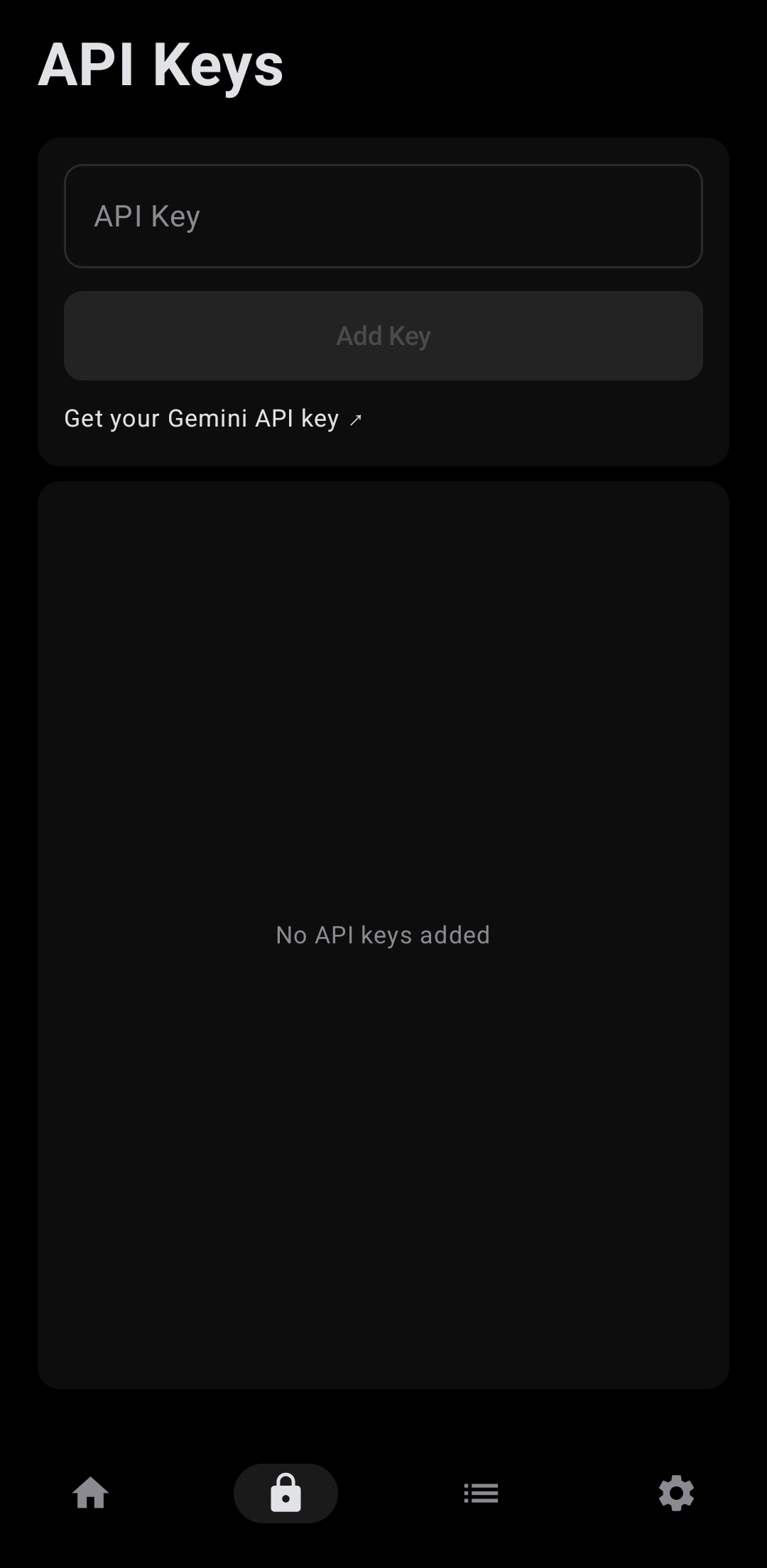
- Supports all AI: By default, SwiftSlate supports Google’s powerful Gemini API, and getting a free Gemini API key from Google AI Studio takes less than a minute. However, if you prefer using any other AI, then SwiftSlate is open to custom providers. You can connect it to Local LLMs running on your own network using tools like Ollama or LM Studio.
- Involves Multi-Key Rotation: If you rely heavily on AI for your daily communication and other needs, then you would understand the pain of hitting the limit. Your AI would block your request because you are making too many requests. SwiftSlate bypasses this by using Multi-Key Rotation. You can plug in multiple API from different accounts. This way, you are not hit by any limit.
The app utilizes an AMOLED theme that ensures that SwiftSlate doesn’t drain your device’s battery. Additionally, the app supports seven languages — English, French, German, Spanish, Portuguese (BR), Hindi, and Simplified Chinese.
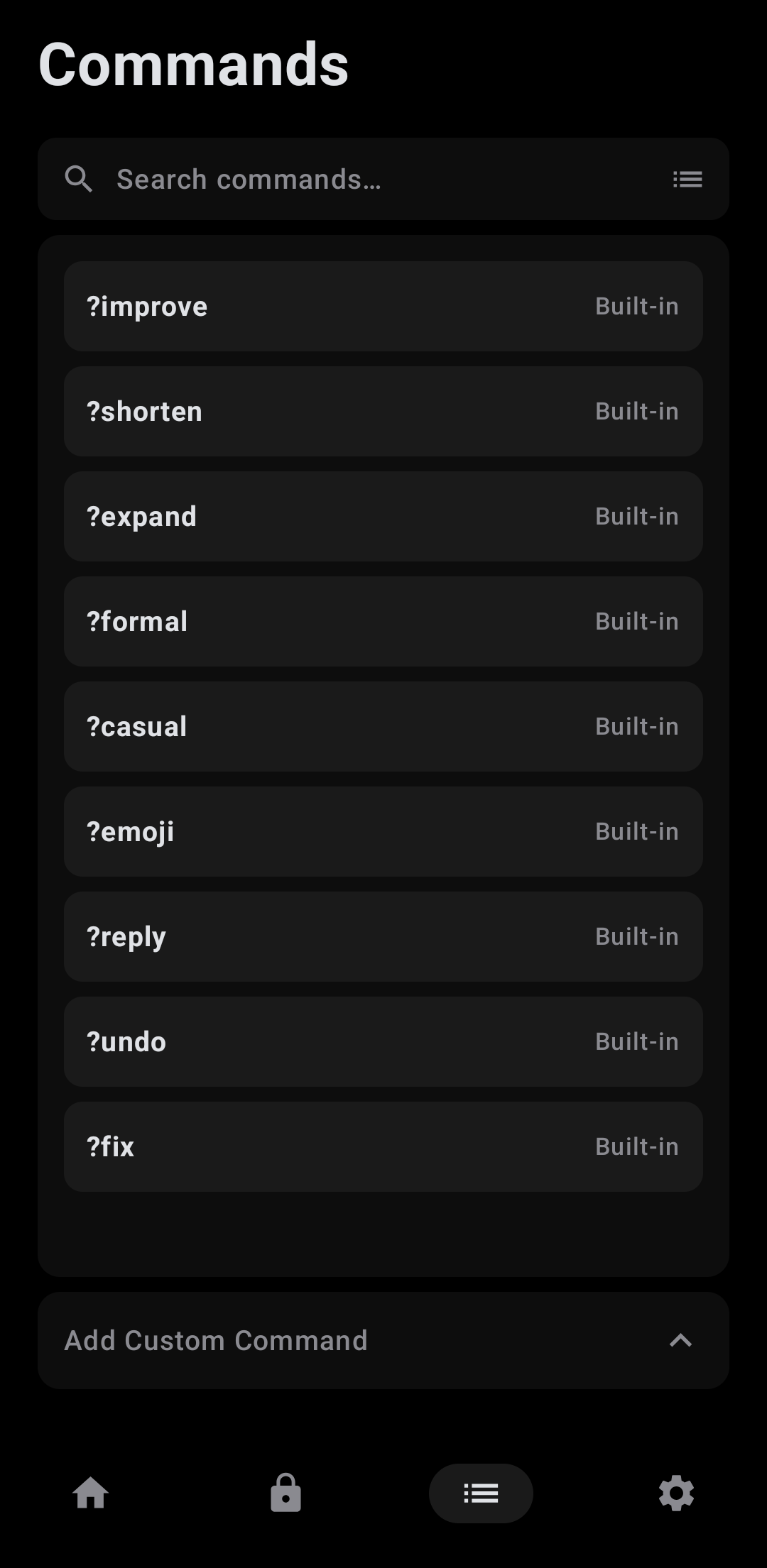
Nine AI-powered commands are available out of the box:
Trigger | Action | Example |
|---|---|---|
?fix | Fix grammar, spelling & punctuation | i dont no whats hapening → I don't know what's happening. |
?improve | Improve clarity and readability | The thing is not working good → The feature isn't functioning properly. |
?shorten | Shorten while keeping meaning | I wanted to let you know that I will not be able to attend the meeting tomorrow → I can't attend tomorrow's meeting. |
?expand | Expand with more detail | Meeting postponed → The meeting has been postponed to a later date. We will share the updated schedule soon. |
?formal | Rewrite in a professional tone | hey can u send me that file → Could you please share the file at your earliest convenience? |
?casual | Rewrite in a friendly tone | Please confirm your attendance at the event → Hey, you coming to the event? Let me know! |
?emoji | Add relevant emojis | I love this new feature → I love this new feature! 🎉❤️✨ |
?reply | Generate a contextual reply | Do you want to grab lunch tomorrow? → Sure, I'd love to! What time works for you? |
?undo | Restore text from before the last replacement | Reverts to your original text before AI modified it |
?translate:XX | Translate to any language | Hello, how are you? ?translate:es → Hola, ¿cómo estás? |
Aside from AI features, SwiftSlate also supports a “Text Replacer” feature that is actually helpful in daily life. Unlike AI commands that require an internet connection and an API to communicate with a server, Text Replacer runs completely offline. Once set up, they run instantly, with no latency and within your device. They are:
- Signature (?sig) – This appends your signature
- Canned responses (?ty) – This lets you send out thank you messages
- Email addresses (?email) – Replaces the text with your email address
- Addresses (?addr) – Quickly adds your address
Since there is no need for an internet connection, and everything happens on the device, there is no loading. You type the trigger, and the text just snaps into place.
Build custom commands
You are not limited to the set of options that SwiftSlate has on offer. If you really want to embed it in your workflow, then you can create your custom commands. All you need to do is open the application, head over to the Commands tab, choose the AI type, set a custom trigger like (?joe5), and feed a prompt like “Explain this text to me like I am a 5-year-old.”
If you use Instagram or other social media apps quite often, then you can create a (?headline) command that rewrites your boring captions into a catchy, viral hook. The possibilities are endless. You can even back up and export your created commands as JSON files, making it incredibly easier to switch phones or share your commands with friends and family.
How to use SwiftSlate?
Here’s how you can get started with using SwiftSlate on your Android phone:
- Download the SwiftSlate app from this link. Do note that this app is not available on the Google Play Store.
- Install the APK file as you would normally do when you sideload the app.
- You would need an API key for the “Text Replacer” to work. For that, simply follow the steps below:
- Head over to Google AI Studio.
- Sign in with your Google account.
- Generate your API key.
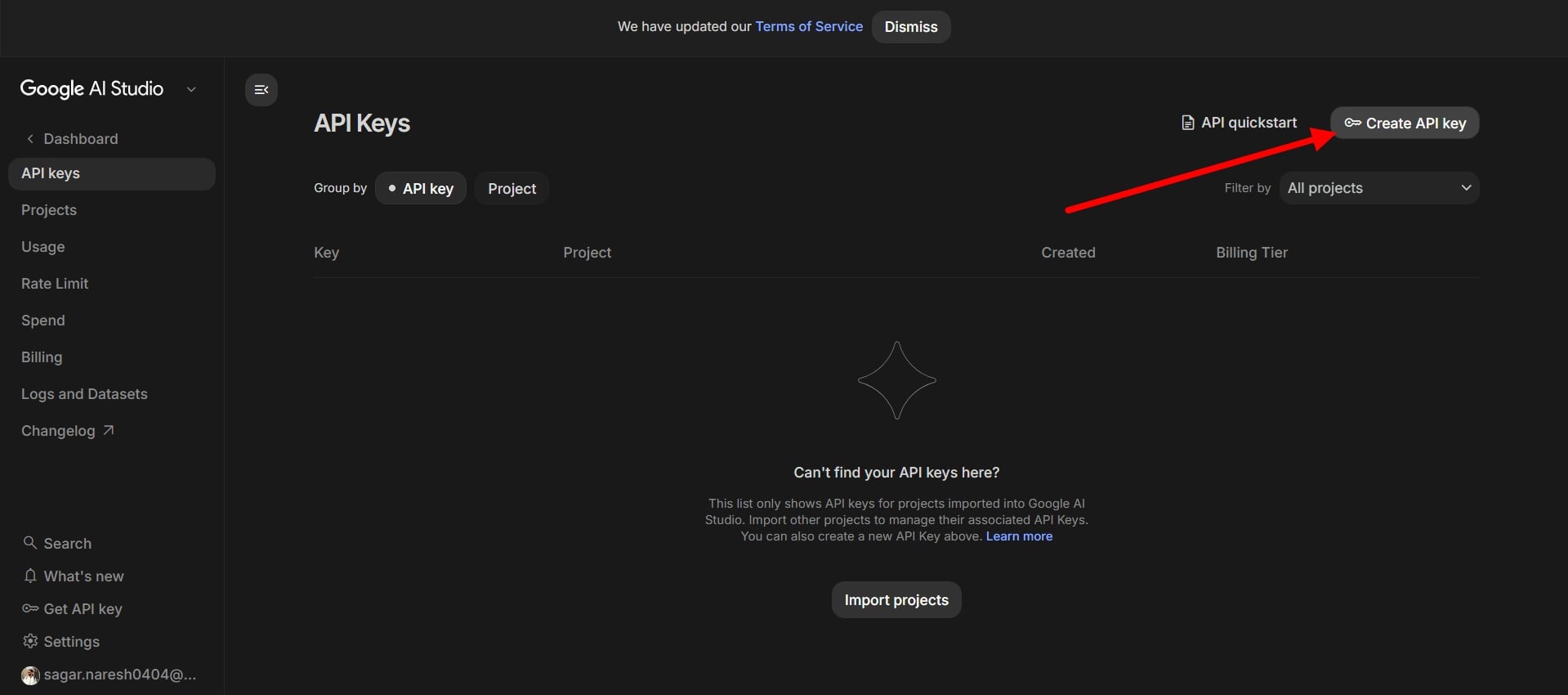
- Launch the SwiftSlate app and tap on the Keys tab at the bottom. Paste your API key, and the app will validate it instantly.
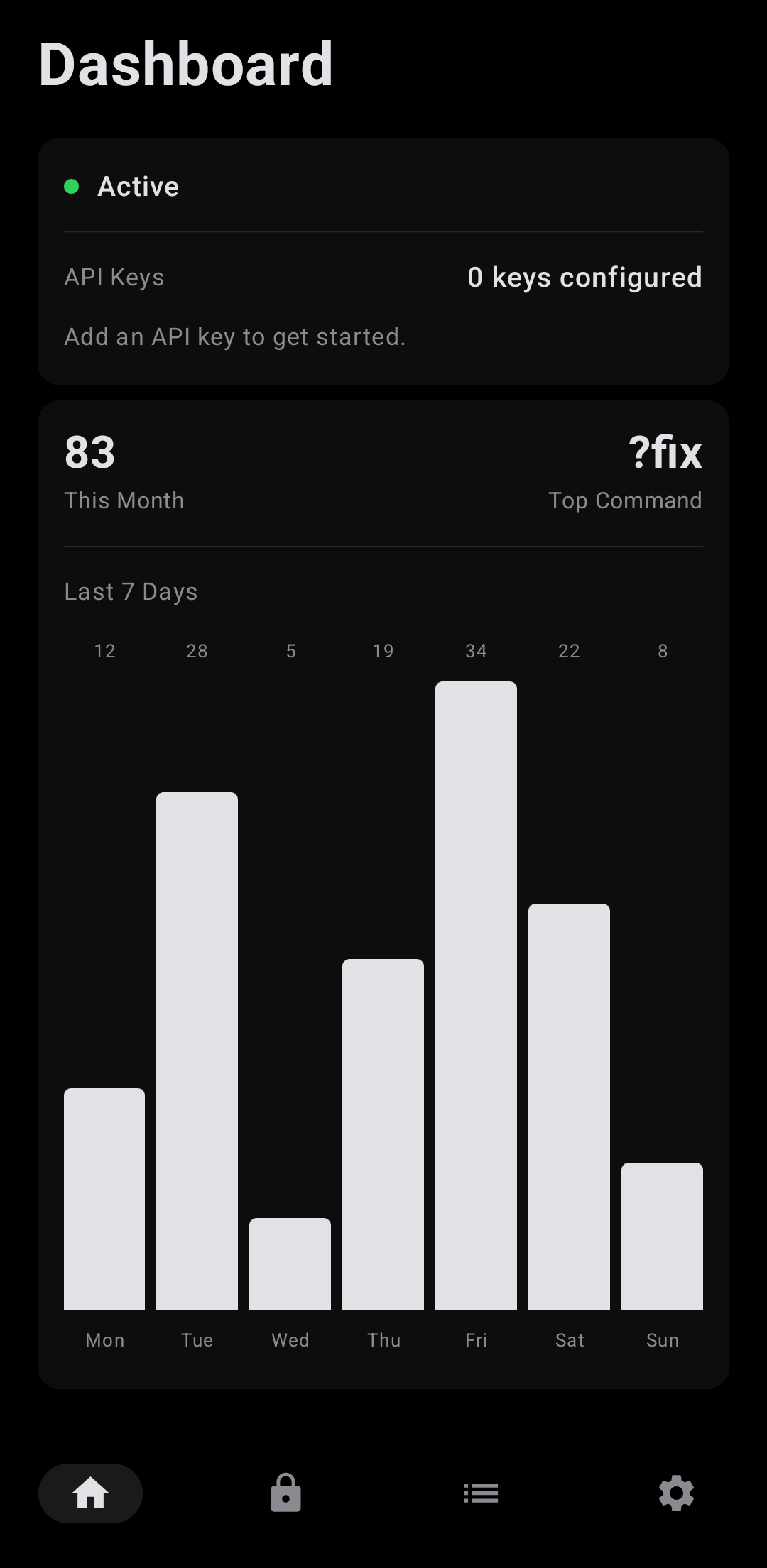
- Head over to the Dashboard tab in the app and select Enable. This will redirect you to your phone’s Accessibility Settings. Find SwiftSlate and toggle accessibility services on.
- That is it.
You are now ready to use SwiftSlate on your phone. Simply open any app, type a messy sentence, and then add the “?fix” trigger word at the end, and see the magic.
SwiftSlate adds LLM to your workflow
This app solves the most annoying friction points of AI on mobile, the endless app switching. By adding the power of LLM directly to your keyboard, SwiftSlate transforms the way you write and communicate with text. You can use any AI that you prefer, and it is just a keyboard hit away. Combine that with instantaneous offline text replacers in a lightweight app, and this is a win-win for everyone. If you are ready to ditch the copy-paste routine, then you should give SwiftSlate a try. By the way, we have a bunch of Google Nano Banana prompts that you should try that let you do a lot of creative stuff.

