

Quick Answer
Flow Launcher is a Start menu replacement for your Windows PC that lets you perform various system tasks more efficiently. You can think of it as a Spotlight Search for Windows, but with improved functionality. Searching files/folders, looking up settings, performing calculations, and killing system processes are some of the things you can do with Flow Launcher natively. You can also install plugins to extend Flow Launcher’s functionality.
If you’ve used macOS, you’d be familiar with Spotlight Search. It’s that tiny search window that appears on the screen with the press of a keyboard shortcut that lets you quickly perform various operations, from finding files and launching apps to performing quick calculations and accessing system settings, on your Mac. Unfortunately, you don’t get a similar functionality on Windows natively.
Unfortunately, you don’t get a similar functionality on Windows natively. This is where a third-party launcher, like Flow Launcher, comes into play. With Flow Launcher, you get a Spotlight-like search window for performing various everyday operations without having to navigate multiple apps and menus. Let’s dive in to explore Flow Launcher and see how to use it on your Mac.
Table of Contents
What Is Flow Launcher, and Why Use It?
Flow Launcher is a free and open-source app that brings macOS’ Spotlight Search—with improved functionality—to Windows. It essentially lets you bring up a search window on your screen using a customizable keyboard shortcut, where you can perform a range of operations that’d otherwise require accessing the Windows Start menu or opening specific apps.
For example, with Flow Launcher, you can quickly launch apps or perform various system operations, such as restart, sleep, or shutdown, without having to navigate multiple screens. Similarly, you can use it to search for files on your computer, perform web searches, run shell commands, or do mathematical calculations, among other things.
Additionally, Flow Launcher supports plugins that help you extend its functionality. You can find and install various types of plugins, or you can create your own if you know how to code. Flow Launcher is also quite customizable. This means you can change everything from the appearance and behavior of various elements to individual settings of your installed plugins, per your requirements.
How to Install Flow Launcher on Your Windows PC
You can install Flow Launcher on your Windows PC in two ways.
A straightforward approach is to download the Flow Launcher installer on your PC and run it. You can find the latest version on the Flow Launcher website or their GitHub repository.
Alternatively, if you use a package manager on your PC, you can install Flow Launcher via the package manager. Open a Windows PowerShell or Command Prompt window, and based on your package manager, run an appropriate command below:
With Winget:
winget install "Flow Launcher"
If you use Scoop:
scoop install Flow-Launcher
Chocolatey users can use:
choco install Flow-Launcher
After the installation finishes, Flow Launcher should be running in the background. The easiest way to check if it’s running is to press the trigger shortcut, Alt+Space, which should bring up the search window if the app’s running. If it’s not running, launch Flow Launcher using the Windows Start menu or by double-clicking the desktop icon if you’ve added a shortcut.
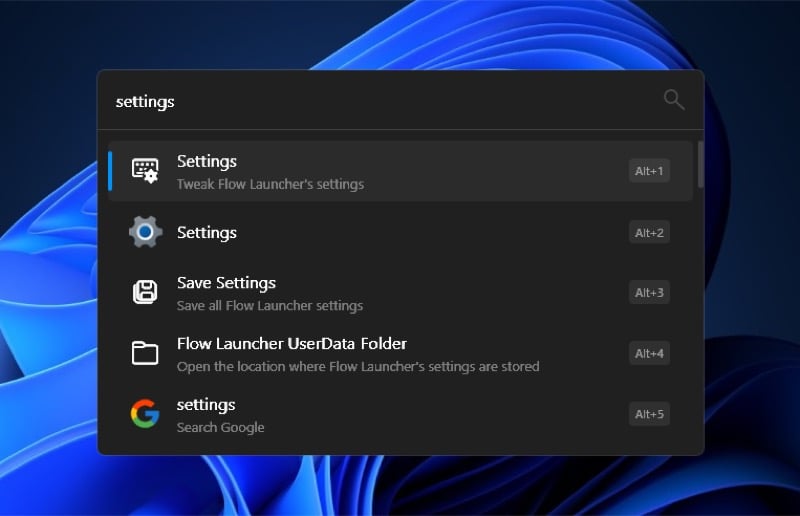
With Flow Launcher running, you can start using it right away. But before you do that, you should check out the Flow Launcher settings and configure them to your preference. To do this, press Alt+Space and look up settings. Select the Settings result that reads Tweak Flow Launcher’s settings, and you’ll find various settings to customize everything from the appearance to the functionality of Flow Launcher on your PC.
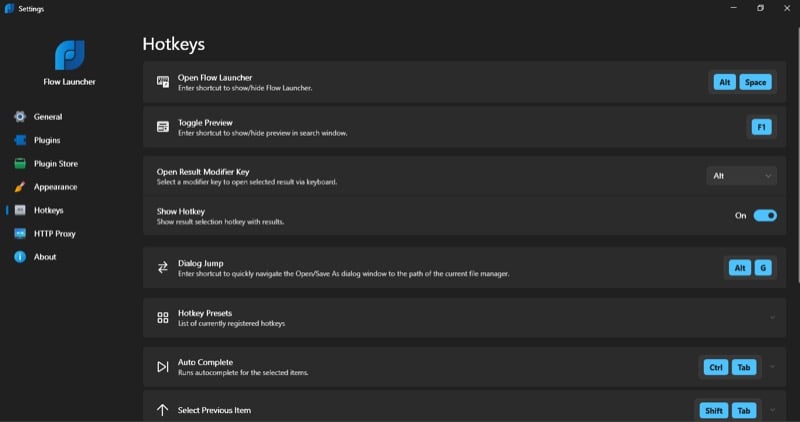
You can also select different options in the left sidebar to reveal their settings. For example, you can head to Appearance to customize the appearance of the Flow Launcher window. Similarly, selecting Hotkeys gives you a list of all the keyboard shortcuts for various Flow Launcher features and options that you can change as per your requirements.
Another tab you’d want to check out is Plugins. Here, you’ll find all the built-in plugins currently enabled in Flow Launcher. A plugin, put simply, is a program that extends the functionality of Flow Launcher. From this tab, you can toggle off the plugins you feel aren’t useful to you.
How to Use Flow Launcher to Perform Everyday Actions Quickly
Using Flow Launcher involves pressing the trigger hotkey and typing an action or query into the Flow Launcher window that appears. Let’s take a closer look at what you can do with Flow Launcher and how to do it. For each of the actions below, first, invoke the Flow Launcher window by pressing Alt+Space, then enter the search term or action based on what you want to do.
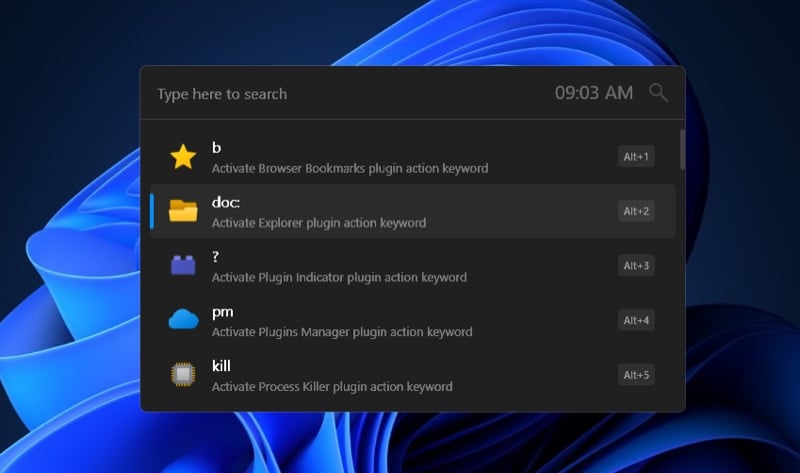
Launch apps:
Type the name of the app and hit Enter.
Access files and folders:
- To search for a file, type the name of the file and hit Enter.
- To find a folder, type the name of the folder, then press Enter. This will let you search for files and folders within that folder. If you want to open the folder instead, hit Enter again.
Perform calculations:
Type the expression, and it’ll instantly display the result on the screen. Press Enter to copy the result.
Search and open Windows settings:
Type “s”, followed by the name of the settings, then select and hit Enter to open it.
Kill processes:
Type “kill”, followed by the name of the process you want to kill, and hit Enter.
Perform system operations:
Type the name of the command and hit Enter. For example, use “shutdown” to shut down your PC, “restart” to restart it, “lock” to lock the screen off, and so on. You can find the entire list of supported actions by going to the Plugins page in Flow Launcher settings and expanding the System Commands action.
Make Flow Launcher More Useful With Plugins
Aside from the actions we’ve just discussed, you can use Flow Launcher for a few other things. However, you’ll need to install specific plugins to enable additional functionality. You can find many trusted plugins on the Flow Launcher app itself; it’s a great place to get started if you’re new to plugins. Alternatively, you can find many community plugins on Flow Launcher’s plugins page.
Installing a plugin on the Flow Launcher app is easy. Access Flow Launcher settings and select Plugin Store from the left sidebar. Go through the list of plugins or use the search box in the upper-right corner to find a plugin.
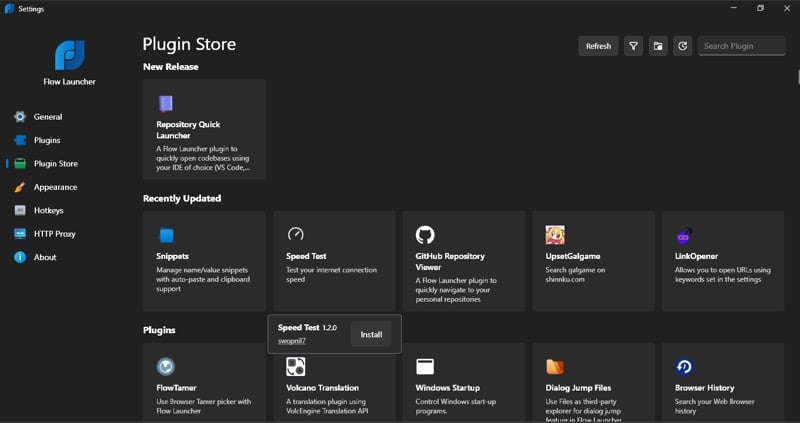
For more details about a plugin, click the plugin and click the creator’s name that appears in the tiny window. This will take you to their page where you’ll find all the details about the plugin.
To install a plugin, click it and hit the Install button. Hit Yes on the confirmation prompt to confirm installation. You may need to restart Flow Launcher to load the plugin. Installed plugins can be configured from the Plugins page in Flow Launcher settings.
Let’s look at some of the best Flow Launcher plugins you should consider installing on your Windows PC.
Clipboard+
Using this extension, you can view all the items you’ve copied to your clipboard in the past. To use it, simply type “cbp”, and it’ll show all the items in your clipboard. You can configure how many records you want the plugin to store, whether to copy the text as rich text, and how to copy images, among other things. You may find more clipboard history plugins, but none of them come close to Clipboard+, as of the time of writing.
General Converter
It allows you to convert values between weight, volume, distance, area, temperature, and more, right from the Flow Launcher window. Using it is easy, type “gc” in the Flow Launcher window and type what you want to convert.
Usage: “gc 10 m cm” to convert 10 meters to centimeters.
Google Translate
With it, you can quickly translate text between two languages. The plugin supports auto-detection and translates text to English by default.
Usage: “tr :en comment vas-tu?” returns “How are you?”
Free Dictionary
It makes looking up word definitions easy, eliminating the need to use a dedicated dictionary app. Simply type the query like this: “fd “.
Usage: “fd novice” gives you the meaning of the word “novice” along with its pronunciation.
CurrencyPP
This extension simplifies currency conversion on your Windows PC, saving you the need to install an extra app. Before using it, though, head to its settings and configure the options based on your region. Once done, type your conversion query in the format shown below for quick conversion.
Usage: “$40 to GBP” converts “$40” into Pound Sterling.
Perform Everyday Operations on Your Windows PC Faster
Flow Launcher is a powerful app that can significantly improve your everyday workflow on a Windows PC. There are many things it does better than Windows, and the ability to extend its functionality with extensions makes it even more versatile. That said, there are times when you may run into issues. Most of the time, this is due to plugins, and the fix is usually easy: identify the problematic plugin, then disable and re-enable it.

