

Quick Answer
For iPhone 15 Pro and later models, Open the Control Center and use the Silent Mode toggle. For older models (also works for the latest models), you can enable Assistive Touch and get access to a quick mute action from any screen. Use the Back Tap gesture, available on iPhone 8 or later devices, to switch between modes. Finally, you can customize Focus Mode as a Silent Mode toggle.
Apple has offered a physical Ring/Silent switch on iPhones ever since the first iPhone. It’s located on the top-left edge of your iPhone and facilitates quick switching between the ring and the silent modes.

However, since this switch is a physical component, it can sometimes malfunction and prevent you from toggling sound profiles on your iPhone. Most of the time, this is probably due to dirt or gunk getting trapped in the button, in which case cleaning it up can restore the button’s functionality.
Other times, it’s due to a hardware failure, and a visit to Apple’s authorized service partner is mandated. But while you reserve an appointment and head to your nearest service partner, here are a couple of ways to turn on/off silent mode on the iPhone without the silent button, which can help you in the meantime.
Table of Contents
Activate Silent Mode on Your iPhone Without the Switch
Method 1. Turn On/Off Silent Mode Using AssistiveTouch
AssistiveTouch is an iPhone accessibility feature that lets you use your iPhone if you’re facing trouble using its touchscreen or buttons. Here, we’ll use it to toggle silent and ring modes on the iPhone.
- Open Settings.
- Go to Accessibility > Touch > AssistiveTouch, and turn on AssistiveTouch.

- Click on Customize Top Level Menu.

- Tap on any action you want to replace with Mute, and select Mute on the following screen.

While at it, head to Settings > Accessibility > Accessibility Shortcut, and select AssistiveTouch under TRIPLE CLICK THE SIDE BUTTON FOR. This way, you can triple-press the power/side button to enable/disable AssistiveTouch on your iPhone.
Once you set an action for Mute in AssistiveTouch, you can toggle between ring and silent modes using this button.
To do this, make sure AssistiveTouch is enabled. Click on it and select Mute from the menu. Depending on your iPhone’s current sound profile, you’ll see Silent Mode or Ringer—with a bell icon—on your iPhone. Tap on the Mute option again, and your iPhone will switch to the other profile.

Alternatively, if you want to save yourself a few steps in this process, you can assign the Mute action directly to the AssistiveTouch button. For this, inside the AssistiveTouch settings, click on Single-Tap, Double-Tap, or Long Press and select Mute on the next screen. While you’re on the same page, click on Double-Tap Timeout to set the timeout for clicks.

Now, whenever you want to switch profiles on your iPhone, bring up the AssistiveTouch floating button and perform a single-tap, double-tap, or long-press action—depending on which gesture you assigned the Mute operation to—on this button.
Related Read: How to Use iPhone Action Button and Top 5 Shortcuts for Action Button
Method 2. Turn On/Off Silent Mode Using Back Tap
Back Tap is one of the best iPhone features that have been released in a while. As the name suggests, this feature allows you to tap the back of your iPhone to act.
Apple currently supports two Back Tap gestures, Double-Tap and Triple-Tap, and it has a wide range of actions that you can use with either of them. Switching between the ring and silent profile modes is one of many such actions, and here’s how to use it.
- Open iPhone Settings.
- Go to Accessibility > Touch > Back Tap.

- Select either Double Tap or Triple Tap based on your preference and choose Mute on the following screen.

With the Back Tap action set, when you want to toggle between the ring and silent modes, simply double-tap or triple-tap the back of your iPhone—depending on how you set it—and it will switch the sound profile. To switch to the other profile, perform the same gesture again.
Method 3: Turn On Silent Mode From the Control Centre
If you use an iPhone 15 Pro or above model, you can use the Silent mode toggle in the Control Centre to directly turn the silent mode on and off. If you are using an older iPhone, you can customize Focus Mode and enter Silent Mode. Unlike other methods, the best part is that you can use Focus Mode to customize the silent mode, which works on any iPhone. If you use an iPhone 15 pro or above, Open Control Center and tap the silent mode toggle.

How to create Silent Focus mode:
- Open the Control Centre on your iPhone.
- Click on the Focus mode and tap on + New Focus

- Select Custom, and give it a name, colour and icon. Click on Next and tap on Customise Focus.

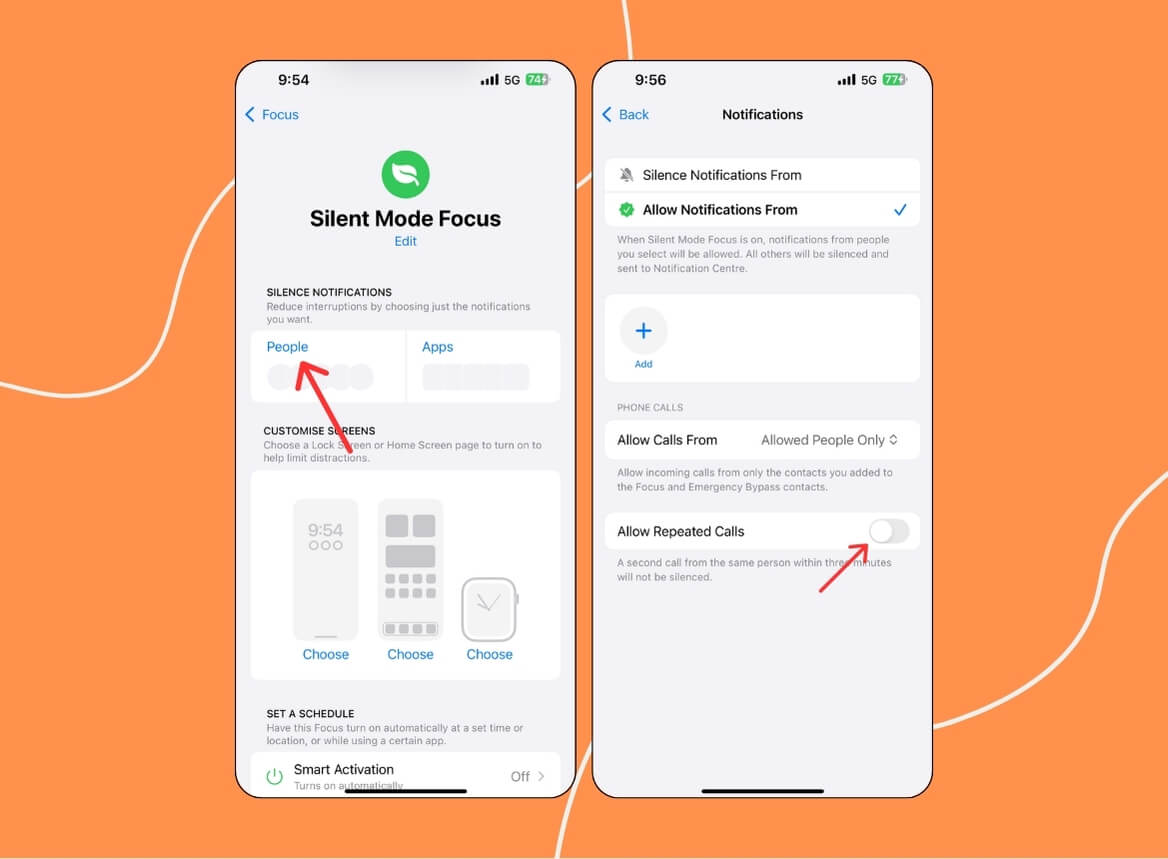
- Now tap onPeople, deselect all the recommendations, and click on Next. Select Allowed People Only and click on Done.

- Now, again, click on People and then turn off the Allow Repeated Calls option. This will prevent you from being notified by people who call you repeatedly, but you can leave it on if you need to.
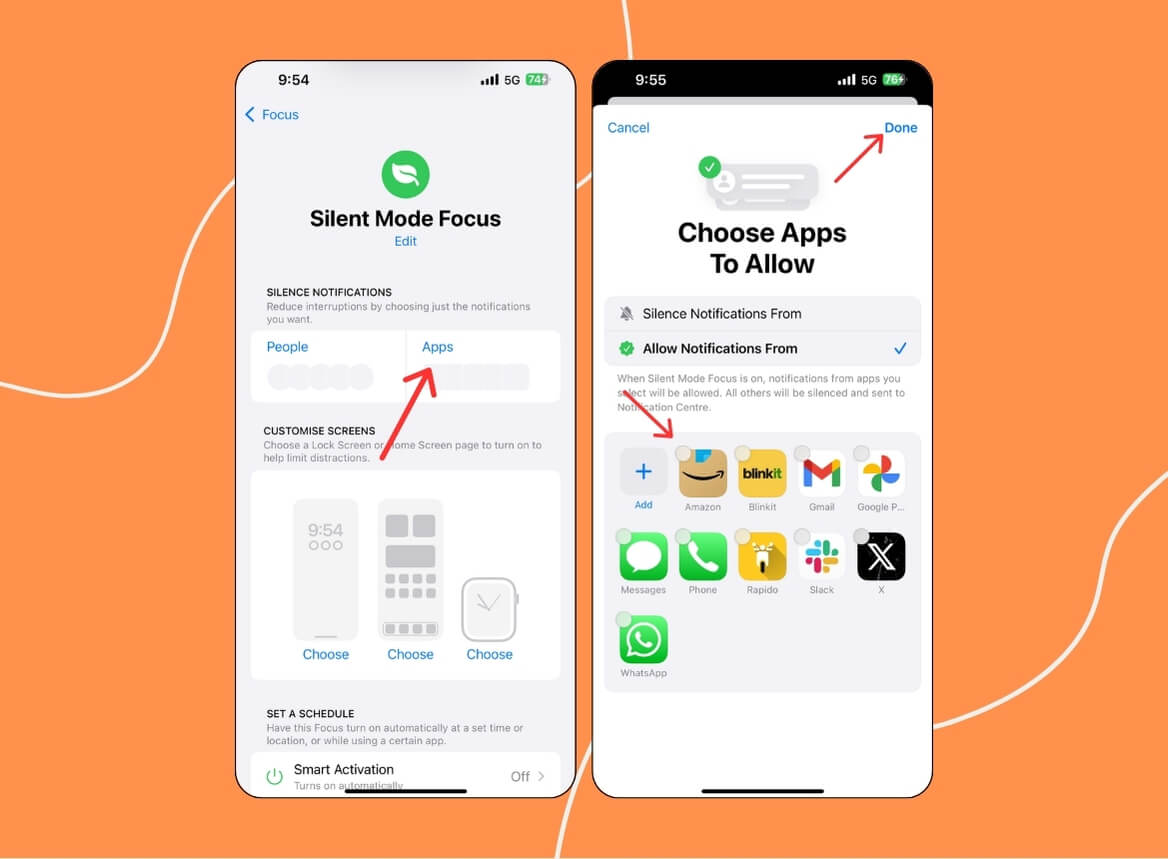
- Click on the Apps, deselect all the apps and click on the Done.
- To enable silent mode, open the control centre, click on Focus, and select the new Silent Mode.

Switch iPhone Sound Profiles Easily Without the Ring/Silent Switch Button
Hardware buttons on the iPhone simplify trivial operations like switching sound profiles or locking the screen. However, if these buttons stop working for whatever reason, iOS has accessibility options to help you perform their equivalent actions via software.
Hopefully, the methods listed above help you set up an alternative way to toggle silent and ring modes on your iPhone so you don’t have to rush to a service provider immediately and can continue using your device.
FAQs About Toggling Sound Profiles on iPhone Without the Physical Switch
How do I unmute an iPhone?
One of the easiest ways to unmute your iPhone is to push the Silent/Ring switch upward. Alternatively, if this switch iPhone is broken on your iPhone, you can use AssistiveTouch or Back Tap to unmute and mute your iPhone.
Why is my iPhone stuck on silent?
There are various reasons your iPhone might get stuck on silent. Here are some ways to troubleshoot this:
- Make sure the Ring/Silent switch is not in the ON position (i.e. the orange indicator isn't showing).
- If you're using AssistiveTouch or Back Tap to toggle sound profiles, make sure the silent mode isn't turned on.
- Go to Settings > Phone and ensure that the Silence Unknown Callers option is disabled.
- If nothing works, try restarting your iPhone. Or if this doesn't help either, try force restarting the device.
How do you silent iPhone if side button is not working?

