

Quick Answer
There are plenty of reminder apps available for Windows. Todoist (Paid), Microsoft Tasks, and Any.do are three of the best options. For a productive reminder app, you can use Notion. If you are a power user, you can use Desktop Reminder, Windows Shutdown Assistant to set action-based reminders, and the built-in Sticky Notes app to set reminders. You can also use Windows Terminal to set reminders using the command line.
In this age of the fast-moving world, it’s easy to get caught up in the grind of daily tasks and responsibilities. With so much to accomplish and so little time, it’s no wonder many of us struggle to keep track of important things in our lives.

From something as simple as taking pills on time to paying credit card bills before the due date, keeping track of deadlines and tasks is becoming increasingly essential.
It’s no surprise that reminder apps have become a popular tool for Windows users. If you’re like me, who sits in front of the computer for hours and often forgets important things, reminder software can be very helpful. In this guide, we’ve selected some of the best reminder apps for Windows, from basic to advanced and free to premium apps.
Table of Contents
Best Reminder Apps for Windows
Sl No | App | Price | Best For |
|---|---|---|---|
1 | Todoist | Paid | Comprehensive task management |
2 | Microsoft To-Do List | Free | Free, powerful task management |
3 | Any.do | Free, Paid Options | Flexible, cross-platform reminders |
4 | Notion | Free | Productivity and team collaboration |
5 | Desktop Reminder | Free | Simple, vintage-style reminders |
6 | Microsoft Calendar | Free (pre-installed) | Built-in, integrated with Windows |
7 | Sticky Notes | Free | Simple, sticky note-style reminders |
8 | Windows Shutdown Assistant | Free (basic) | Power users requiring advanced features |
9 | RemindMe | Free | Customizable, user-friendly reminders |
10 | Windows Terminal | Free (built-in) | Technical users requiring automation |
Todoist: Featured Packed Reminder App for Windows
Highlights
- Price: Paid for setting up reminders.
- Schedule daily, weekly, or monthly reminders.
- Organize reminders into projects and prioritize them.
- Set reminders based on arrival or departure from a location.
- Customize notifications and receive email reminders.
- Extra Features: Use Natural Language Processing, snooze reminders, and customize themes.
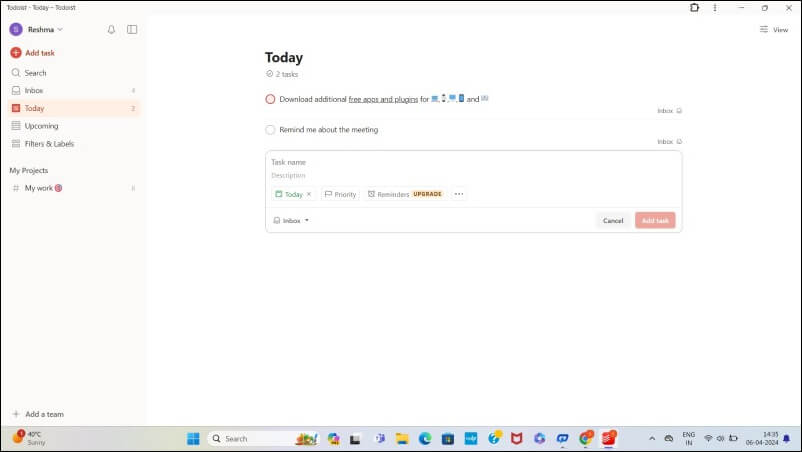
Todoist is one of the most popular and feature-packed reminder apps for Windows. I use this as my primary to-do list app and reminder app. This app can create tasks, set reminders, and alert you at a certain time.
The reminders feature in Todoist is only available for premium subscribers. Consider this app if you want a complete reminder management app for your Windows or else you can consider free alternatives like the Microsoft To-do List app.
The biggest highlight of the app is its support for organizing reminders. And comes with a Natural Language Processing (NLP) feature where the app can understand and interpret human language and convert sentences like “Buy milk tomorrow” into a task with a due date. This is very helpful and works accurately, especially in the age of AI, where you can speak in a natural human language, and it can automatically convert the text into a proper task.
You can organize all reminders into projects. This is particularly helpful for organizing related tasks under a specific project. This helps keep the tasks organized and focused on a particular goal or objective (I use projects to divide tasks into different routines).
With all these features, this is the best app if you are looking for a complete reminder (management) for Windows.
Microsoft To-Do List: Best Free Windows Reminder App

Highlights:
- Price: Free.
- Set recurring reminders and location-based reminders.
- Set alerts for reminders
- Collaborate and share lists with others.
- Extra Features: Integration with Outlook and OneNote.
Microsoft To-Do list is my favorite and most powerful task management app designed to set simple reminders on top of to-do lists. The app is available for Windows, iOS, and Android devices, making it accessible to many users.
The app’s interface is intuitive and easy to navigate, making it simple for users to create and manage their to-do lists and set reminders. You can create new tasks, set reminders, add notes to each task, and assign them to different categories, such as work or personal.
One of the outstanding features of Microsoft To-Do is its seamless integration with other Microsoft applications such as Outlook and OneNote. In addition, Microsoft To-Do has a feature called “My Day” that allows you to create a daily to-do list of the most important tasks you want to accomplish each day. This feature is especially useful for users who want to stay focused and on track.
Download the Microsoft To-do list
Any. Do: Flexible Reminder App with Free and Paid Options

Highlights:
- Price: Free, Required subscription plans for additional features.
- Set recurring and location-based reminders.
- Customizable Reminder notification with Calendar integration
- Collaboration: Share reminders and collaborate on tasks via email or chat.
Any.do is a versatile reminder app for Windows. The app offers an easy-to-use interface. You can organize tasks into different categories, group similar tasks into folders, label them with keywords or tags, add due dates, and more.
You can organize your days with a visual overview and set reminders for tasks and deadlines. You can set recurring tasks and attach notes, files, or photos to tasks and set reminders. This is especially useful for quickly accessing files while at work or attaching a grocery list to a reminder.
Additionally, Any.do offers calendar integration. You can view your upcoming deadlines in a calendar view and plan your reminders accordingly. The app is free to use with limited features.
Notion: Best Productive Reminder app for Windows
Highlights
- Price: Free.
- Set recurring reminders.
- Get in-app and email notifications.
- Support for templates and dynamic databases
If you are a student or professional, you might have already heard about Notion. While Notion is a great app for note-taking, creating and managing data, and collaboration, it can also be a great tool for setting reminders, especially for teams.
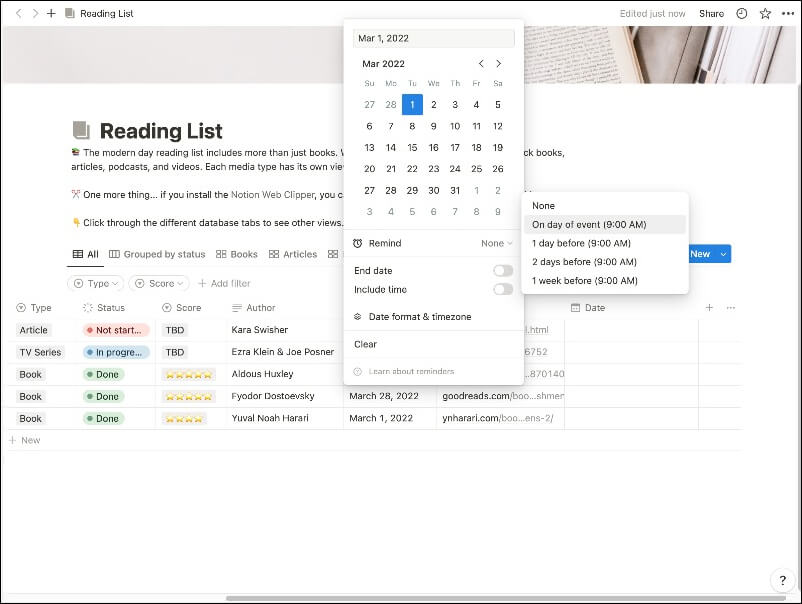
The notion has a built-in reminders option where you can set reminders for specific tasks you created in the app. You can set recurring reminders, customize reminder notifications, prioritize reminders, and more.
Unlike standalone reminder apps, Notion can be a great tool with its advanced tools, First, you can integrate reminders directly with your notes, tasks, databases, and calendars, which can help you get a reminder when a specific task is finished.
Next, Notion also comes with support for templates, where you can create your template create customized reminders. For instance, you can create a timetable for your next examination and enable reminders for every important task you have, along with access to your timetable.
It also supports dynamic databases, where you can dynamically add tasks and get reminders when anyone updates the task in collaboration mode. The notion is also free to use for personal and requires a premium for teams.
Desktop Reminder: Free, Vintage-Style Reminder
Highlights:
- Price: Free
- Set reminders daily for important deadlines.
- Offers in-app notifications.
- Extra Features: Available in multiple languages, all your data is encrypted and stored on the cloud.
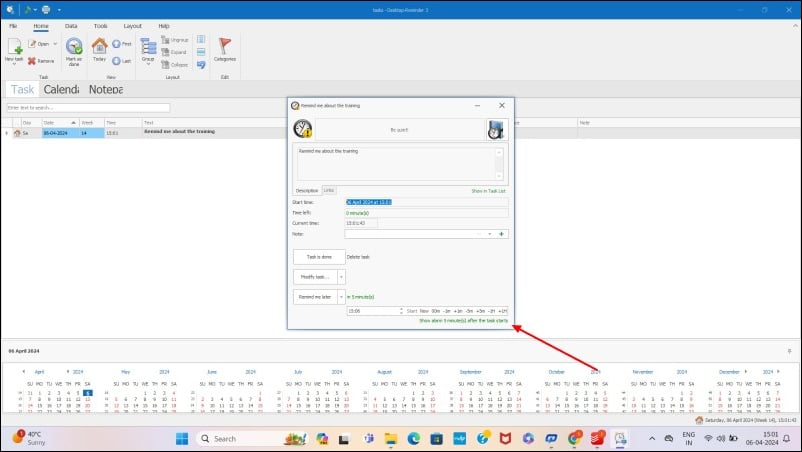
Task management can be tricky, but with Desktop Reminder, it’s easy and efficient. Desktop Reminder is a task management tool that allows you to manage your tasks in one central location. You can create, set priorities, and delegate tasks in one click, which makes it an effective tool for managing your day-to-day activities.
Additionally, you can get daily reminders for important deadlines so you don’t forget them. You can back up important reminders with Google Drive sync, so you have a secure copy should something happen to your computer or phone. Finally, the app has folder organization and search options to make everything easy to find.
Desktop Reminder is available in multiple languages, so everyone can use it easily. Plus, because the data is encrypted and stored on the cloud, your data is safe no matter what happens to your computer or phone. Desktop Reminder is a good Windows reminder software, but it was last updated in 2018. Hence, it is not higher up on our list of recommendations.
Microsoft Calendar: Built-in app to set reminders on Windows

Highlights:
- Price: Free, pre-installed on the latest Windows versions.
- Set recurring events with reminders.
- Supports location-based reminders.
- Extra Features: Integrated with other Microsoft apps like Outlook.
Microsoft Calendar is also pre-installed on the latest Windows versions. Like Microsoft To-Do, you can use it to set up reminders. Search for “Microsoft Calendar” in Windows Search and launch Microsoft’s Calendar app. Once the app is launched, click on any date. A pop-up window will appear where you can create an event for the selected day.
Download the Microsoft Calendar
Related Read: 11 Best Windows 11 Apps
Stickies: Simple reminder app
Highlights:
- Price: Free.
- Set reminders daily, weekly, or monthly.
- Notifications: Set an alarm for reminders.
- Simple and easy-to-use reminder app for Windows.
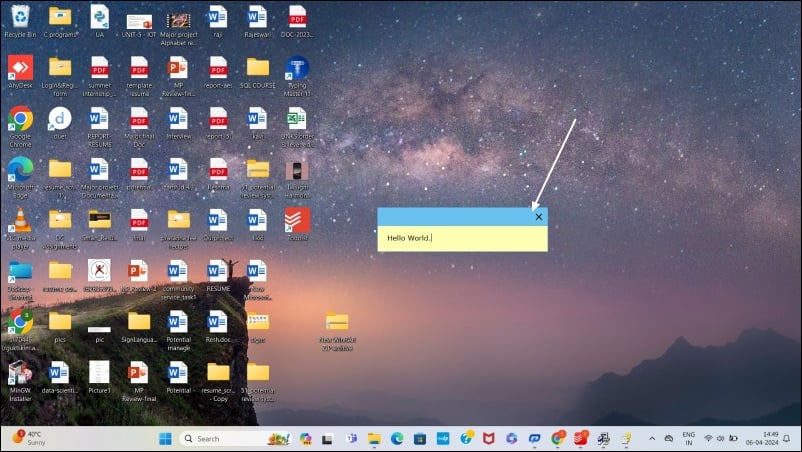
If you’re looking for a simple reminder app that stays on the home screen and reminds you of certain periods, the Stickies app is a great option for you. Consider the Stickies app as a digital version of sticky notes, which people commonly use to jot down ideas and reminders.
You can use stickers to set reminders and paste them anywhere on the screen. You can choose how you want to be reminded. For example, you can set the sticky note to pop up on your screen, play a sound, or both at the specified time.
You can add simple content to the sticky notes and customize them with various font styles and colors to better differentiate them. Also, if you find it distracting, you can remove it from the home screen or make it smaller by resizing the windows.
Stickies are free to use. The UI may look outdated for some people, but it mostly replicates the physical sticky notes theme. There are several other sticky notes apps for Windows; if you think the UI looks outfit for you, you can use the Notezilla (Paid) sticky notes app to set reminders.
Download Sticky Notes for Windows
Windows Shutdown Assistant: For power users

Highlights:
- Price: Free for basic features.
- Schedule multiple reminders manually.
- Set reminders with alarms and create notes.
- Extra Features: Schedule automatic shutdown, log off, lock applications, and more actions.
Windows Shutdown Assistant is the best app for power users. It allows users to schedule an automatic shutdown of a Windows computer. The app can be used to schedule automatic shutdown at specific times. This can be useful for various tasks, such as shutting down a computer after a long download or shutting down a computer at a specific time of day.
One of the most important features of Windows Shutdown Assistant is the ability to create reminders with alarms. You can easily set a time and trigger the Show Message action. When the time is reached, the app will display the message you set in full screen. Along with the reminder, you can also set other actions like logging off, shutting down the computer, locking applications, and more.
Another useful feature of Windows Shutdown Assistant is the ability to create notes. Like setting reminders, you can easily create notes and display them on the Start screen or as a floating window. The app can run in the background; you can continue using their computers while the countdown timer runs.
Follow these steps to set up reminders with Windows Shutdown Assistant
- Install Windows Shutdown Assistant (link below). It is free to download.
- Click on the “Download” button to download the software. Once downloaded, install the app and create your free account.
- Open the app and set the time. Then click the Select Action button and select the View button. Click the gear icon next to the action and enter the text you want to display.

- When you are done, click OK to set a reminder.
Windows Shutdown Assistant is a powerful tool for setting reminders on Windows computers. The app can be used to schedule multiple reminders for different times and days, and it also includes other powerful features like the ability to automatically shut down a computer after a certain time, start or close applications, take notes, and more.
Download Microsoft Shutdown Assistant
RemindMe for Windows: For more customized reminder settings

Highlights:
- Price: Free.
- Set daily, weekly, or custom recurring reminders.
- Customizable reminders with a snooze feature.
- Calendar view for planning and scheduling reminders.
RemindMe is a Windows task reminder app that helps you stay organized, set reminders, and keep track of your to-do lists. The app is designed to be simple and user-friendly, making it easy for users to set and manage reminders for important tasks and events. If you want the best reminder app with customization options, this app is for you.
One of the most important features of RemindMe is the ability to set reminders for specific dates and times. You can create reminders for appointments, meetings, and other events and trigger them at a specific time. The app also allows you to set recurring reminders, such as daily or weekly reminders, for tasks that need to be done regularly.
You can also create and manage multiple reminder lists. Users can create separate lists for work, personal tasks, and other projects, making it easy to stay organized and focus on the tasks that need to be done.
The app also includes a calendar view where users can see all upcoming reminders and events in one place. This can be useful for planning and scheduling tasks and events in advance.
Download Remind Me for Windows
Pillbox Pro: Medicine Reminders

Highlights:
- Price: Free
- Set reminders for multiple medications.
- Get Reminders for medication times and refill reminders.
- Extra Features: Tracks medication history and records when medications were taken.
Pillbox Pro is the best option for users looking for a medication reminder app that helps them keep track of their medication schedules. The app is designed to make it easier for people to remember to take their medications on time by setting simple reminders.
One of the most important features of Pillbox Pro is the ability to set reminders for multiple medications. Users can add as many medications as needed and set reminders for each. The app also allows users to set custom reminders, such as “Take with food” or “Take at bedtime.”
In addition to reminders, Pillbox Pro also helps users keep track of their medication history. It also records when medications were taken. This can be useful for people who must present their medication history to their doctor or pharmacist.
It also has a useful refill reminder feature that reminds users when their medications need to be refilled. This can prevent users from running out of medication and having to go without.
Pillbox Pro is available for download for Windows, iOS, and Android platforms. The app is user-friendly and easy to navigate. It offers a simple and efficient way to keep track of medication schedules.
Drink Water Reminder: Set Hydration Reminders

Highlights:
- Price: Free
- Set reminders for specific time intervals to drink Water.
- Receive app notifications.
- Easy to use, designed to help make drinking water regularly a habit.
If you are specifically looking for drinking water reminders, the Drink Water Reminder app is the best option for you. With it, you can easily create reminders to drink water with just a few clicks. You can set reminders to drink water at certain times of the day or to drink water after certain activities.
Drink water reminder apps can be especially helpful for people with difficulty remembering to drink enough water throughout the day. The app sends notifications at certain intervals reminding the user to drink water, which can help make drinking regularly a habit.
There are so many drink water reminder apps for Windows. I personally like this one because it is easy to use and free to download. You can download Drink Water Reminder from the Microsoft Store and set reminders.
Windows Terminal: Set Reminders Using the Command Line Interface
- Price: Free
- Possible with scripting (You have to create manually)
- Set basic for reminders through the command line output
- Extra Features: Automate reminders, run scripts, open specific apps; require technical knowledge; no graphical user interface.
If you are a Windows power user or a developer, you can set reminders using the terminal or Powershell.
Setting up reminders with the command prompt has a lot of benefits. Such as, you can automate the reminders, run a script, or open a specific app when the reminder time is reached. In addition, Windows terminal and PowerShell are natively available on Windows and require no additional installation.
However, using a command prompt to set reminders also has downsides, like you might require some technical knowledge and it is very different from traditional reminder apps. Windows terminal or the Powershell don’t offer a graphical user interface, snooze reminders, or integrate reminders with other apps like a calendar.
Using Task Scheduler from Command Prompt:

- Step 1: Open Command Prompt as Administrator: Press Windows + X and select Terminal (Admin)
- Step 2: To create a reminder, you can use the following command: schtasks /create /tn “Reminder” /tr “msg * ‘Time for your 5 PM meeting! ‘” /sc once /st 17:00. Modify the command to your preferred timing. You can change the time after the st.
- Step 3: You can also rewrite the existing command. To delete the task, use: schtasks /delete /tn “Reminder”
Using Powershell:

- Step 1: Open PowerShell and Run as Administrator (Right-click the Start button and select “Windows PowerShell (Admin)”.
- Step 2: You can create a reminder using the New-ScheduledJobOption and Register-ScheduledJob cmdlets. For example, use the following command to create a new reminder at 3:00 PM. To set your preferred timing you can change the command to your preferred time after At
$options = New-ScheduledJobOption -StartIfOnBattery
Register-ScheduledJob -Name “Reminder” -ScriptBlock { [System. Windows. MessageBox]:: Show(‘Time for your 3 PM meeting! ‘) } -Trigger (New-JobTrigger -At 3:00 pm -Once) -ScheduledJobOption $options - To view your scheduled jobs you can use Get-ScheduledJob and to remove use Unregister-ScheduledJob -Name “Reminder”.
- These reminders will appear as a pop-up message box on the screen with the specified message.
How to Choose the Best Windows Reminder App
Choosing the best reminder apps for your Windows PC is simple and easy. All you need to pay attention to is how easy it is to add your reminders and what kind of features you are specifically looking for. For example, multi-platform support allows you to easily add tasks on your PC and manage them on your Android smartphone. Some reminder apps are designed specifically for certain tasks, such as reminding you to drink water, take medication, and more.
When creating this list, we considered all of these points and selected the best reminder apps for Windows PCs. You can use existing Windows apps to set reminders or download third-party reminder software for additional functionality.
Summing Up: Download the Best Windows Reminder Apps
So, that’s the list of the best reminder apps for Windows. Our top pick is Microsoft’s To-Do List, which supports multiple platforms and integrates easily with the Windows operating system. We also like adding reminders directly with the Windows assistant Cortana without having to install any third-party apps. Let us know which Windows reminders app you’ll use in the comments below.
FAQs About the Best Reminder Apps for Windows

Which is the best Reminder app for Windows?
We personally use the Microsoft To-do list as the reminder app on our Windows PC. Sometimes we use Windows Shutdown Assistant to automate important tasks. For drinking water reminders, we use the drinking water reminder app.
Best Reminder Apps for Windows 11?
I personally use Microsoft's to-do list. It integrates easily with Windows and provides a simple and seamless experience when creating reminders on my PC. If you want to add powerful reminders, Windows Shutdown Assistant is also a great choice for you.
Which is the Best Windows Reminder App for Teams?
Microsoft To-Do List is the best to-do list app for teams on Windows. You can download Microsoft To-Do List apps for your team, create an account, and add tasks for multiple team members. It works across platforms, including Android and iOS which is super helpful.

